
Help us improve your experience.
Let us know what you think.
Do you have time for a two-minute survey?
Help us improve your experience.
Let us know what you think.
Do you have time for a two-minute survey?
We are excited to announce a local Mist cloud instance, APAC 02, for India. This cloud instance is visible on the cloud selection pane on the Juniper Mist login page. Like other Mist cloud instances, APAC 02 is compliant with PCI-DSS, SOC2 Type II, ISO 27001, ISO 27O17, and ISO 27018 certifications.
For additional information, refer to https://www.juniper.net/documentation/us/en/software/mist/mist-management/topics/ref/cloud-instances.html and Juniper Mist Firewall Ports and IP Addresses for Firewall Configuration.
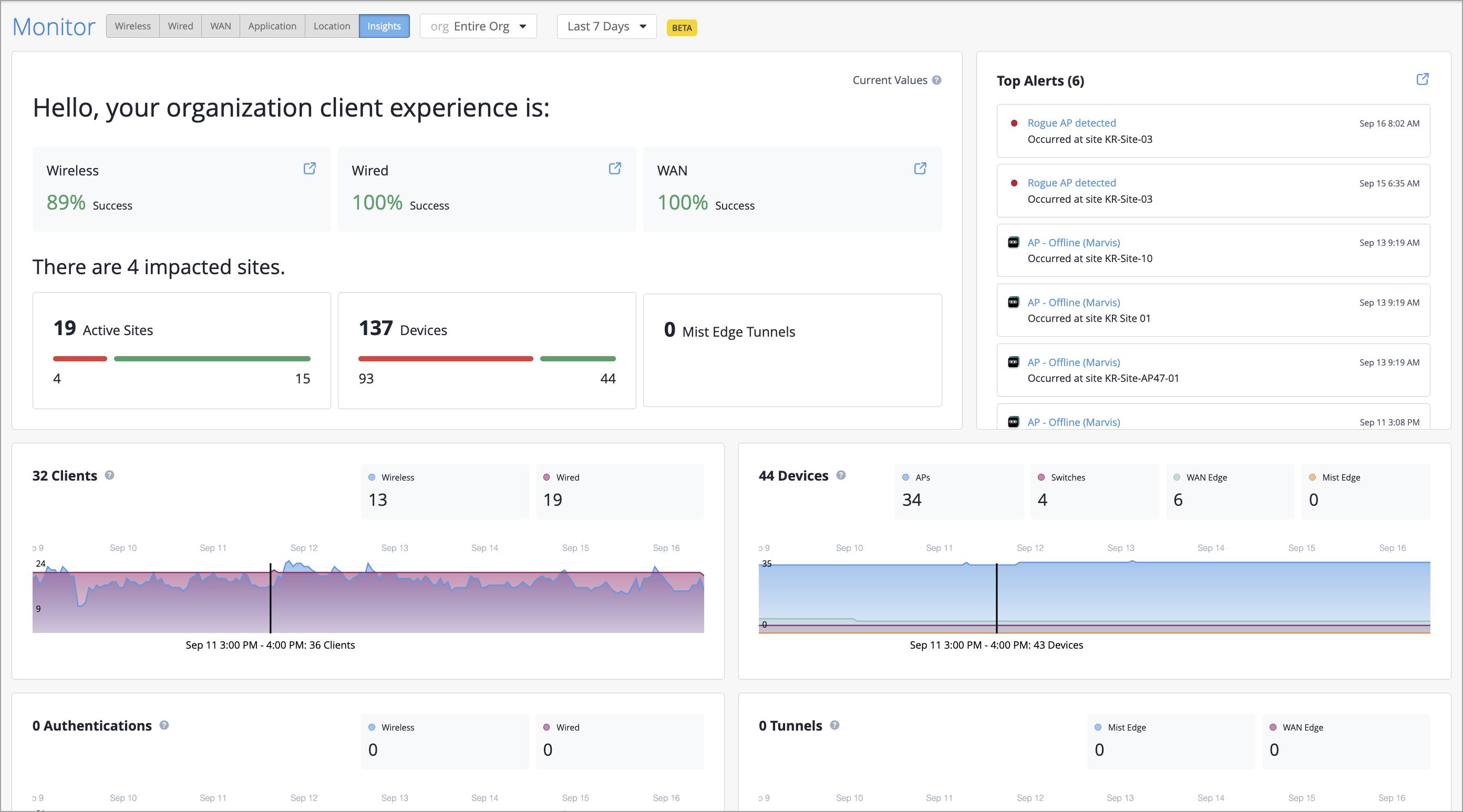
We are excited to introduce Org Insights, a centralized dashboard designed to give IT and network operations teams a comprehensive view of network performance and user experience across the organization. Powered by WebSocket Stream (WSS), the Mist dashboard delivers data with actionable insights to proactively improve user experience and operational efficiency.
Org Insights includes the following key capabilities:
Client experience summary—Gain visibility into the health of Wireless, Wired, and WAN connections at the organization level by tracking the percentage of successfully connected clients. The dashboard also identifies impacted sites, and devices, and features a Top Alerts section that reduces alert fatigue by highlighting only the alerts that require attention.
Time-series metrics—Monitor trends over time for client connections, device connectivity (including APs, switches, and WAN Edges), successful authentications, network tunnels, alerts, and network events, enabling data-driven decision-making.
Organization inventory—View all devices in the organization, including APs, WAN Edges, switches, and Mist Edges. The dashboard also provides detailed information such as firmware versions, device models, and total device count.
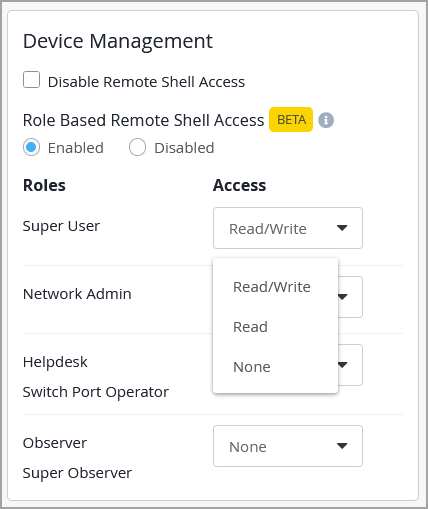
Juniper Mist now supports role-based remote shell access configuration for EX Series and QFX Series switches and SRX Series firewalls. This feature allows administrators to predefine remote shell access levels for users based on their assigned roles, ensuring more granular and secure access control. The table below outlines the supported access levels for each role:
Role | Access Levels Supported |
|---|---|
Super User |
|
Network Admin |
|
Helpdesk / Switch Port Operator |
|
Observer / Super Observer |
|
Administrators can configure role-based remote shell access from the Device Management section on the Organization > Settings page.
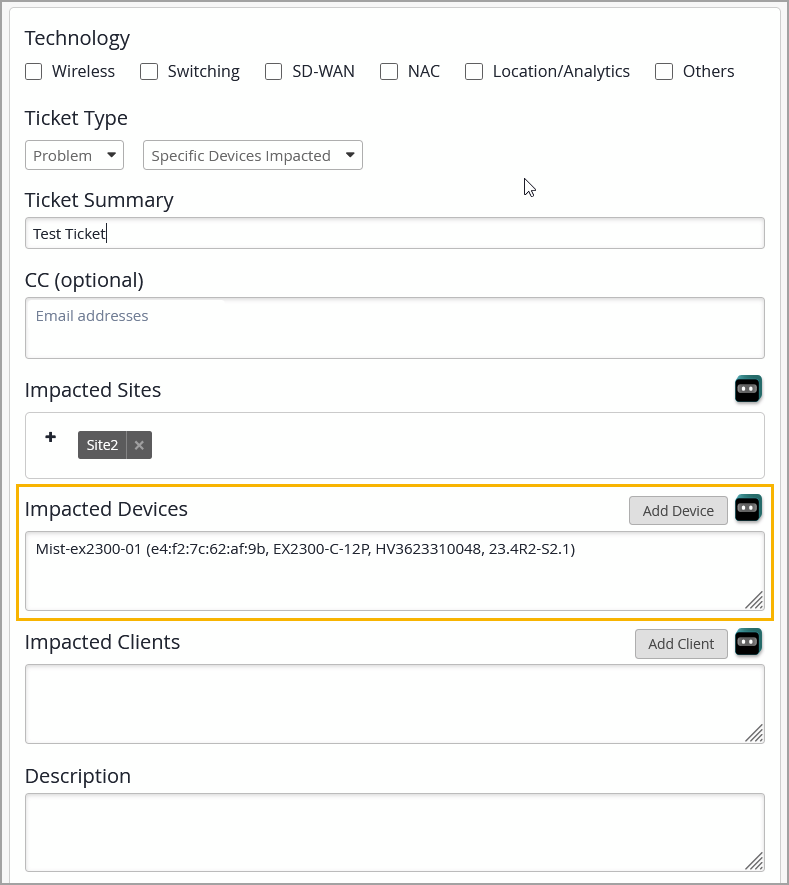
To provide a better support experience with Juniper Mist, we have introduced the following enhancements to the support ticket creation workflow:
When you include a device in the Impacted Devices field of a support ticket, the device automatically sends system logs to Mist. This allows the support team to analyze the issue more effectively and respond faster.
Note: The device must be in a connected state for logs to be sent. If more than 10 devices are included, logs will be collected only from the first 10.
Support tickets now include the following device details when a device is added to the Impacted Devices field: MAC address, model, serial number, and firmware version. Previously, only the MAC address was included. This enhancement provides the support team with a richer context that helps streamline troubleshooting and resolution. If a device version is not available, or if the device is disconnected, the version field will appear as "--".
These enhancements apply to all devices included in the tickets categorized as “Questions”, “Problem”, or “Configuration Help”.
You can now access data-driven support insights at the organization level from the Support Insights page. Previously, only device-level support insights were available, through the Installed Base page.
Currently, the Support Insights page includes the Assets dashboard, which gives you a consolidated view of all the Juniper assets that you’ve linked to your organization, including both cloud-connected and non-cloud connected devices. With this dashboard, you can monitor all your Juniper assets in one place, track their connection status and warranty coverage, and prioritize support action to minimize operational impact.
To access the Support Insights page, navigate to Organization > Admin > Support Insights or Organization > Inventory > Installed Base > Support Insights.
The page shows all assets that you’ve linked to your Juniper Mist organization. To get started with this integration, see Integrate Your Juniper Support Account with Juniper Mist.
Mist now allows administrators to configure a marketing communication opt-in option on WLAN guest portals. This option enables users to voluntarily subscribe to marketing communications during the guest Wi-Fi onboarding process.
To configure a marketing communication opt-in option on a WLAN guest portal:
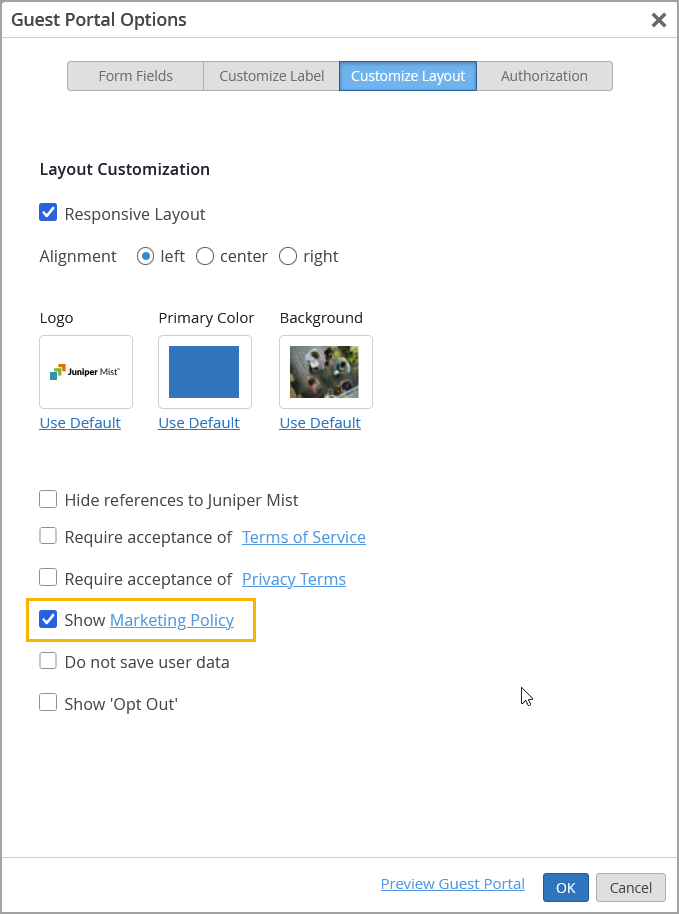
Navigate to a WLAN page and access the Guest Portal Options page from the Guest Portal section.
On the Customize Layout tab, select the Show Marketing Policy check box. In addition, click the Marketing Policy hyperlink to include a policy text or reference links.
Once enabled, the guest portal will display a checkbox allowing users to opt in to receive marketing communications, as illustrated below.

We are excited to announce the Marvis Minis SLE dashboard, which provides insights into the network and application performance based on the validations run by Marvis Minis. Marvis Minis SLEs delve deeper into factors affecting the client-to-cloud user experience helping you understand the impact and scope of issues. These factors are categorized under two types of SLEs—Network Services and Application.
The Network Services SLE provides insights into the failures that occurred when Marvis Minis initiated DHCP, DNS, ARP, or authentication tests.
The Application SLE provides insights into failures that occur after Marvis Minis initiated the application reachability and connectivity tests. This SLE provides a comprehensive view of application performance across the entire organization and localized performance data specific to individual sites, enabling detailed analysis of how particular applications are functioning in different contexts.
To view the SLE dashboard, click Marvis > Marvis Minis SLE. The SLEs provide a time series view that helps you to quickly narrow down the type of failure and the failure start time. With detailed visibility into site-level and organization-level performance, these SLEs enable early detection and resolution of issues.
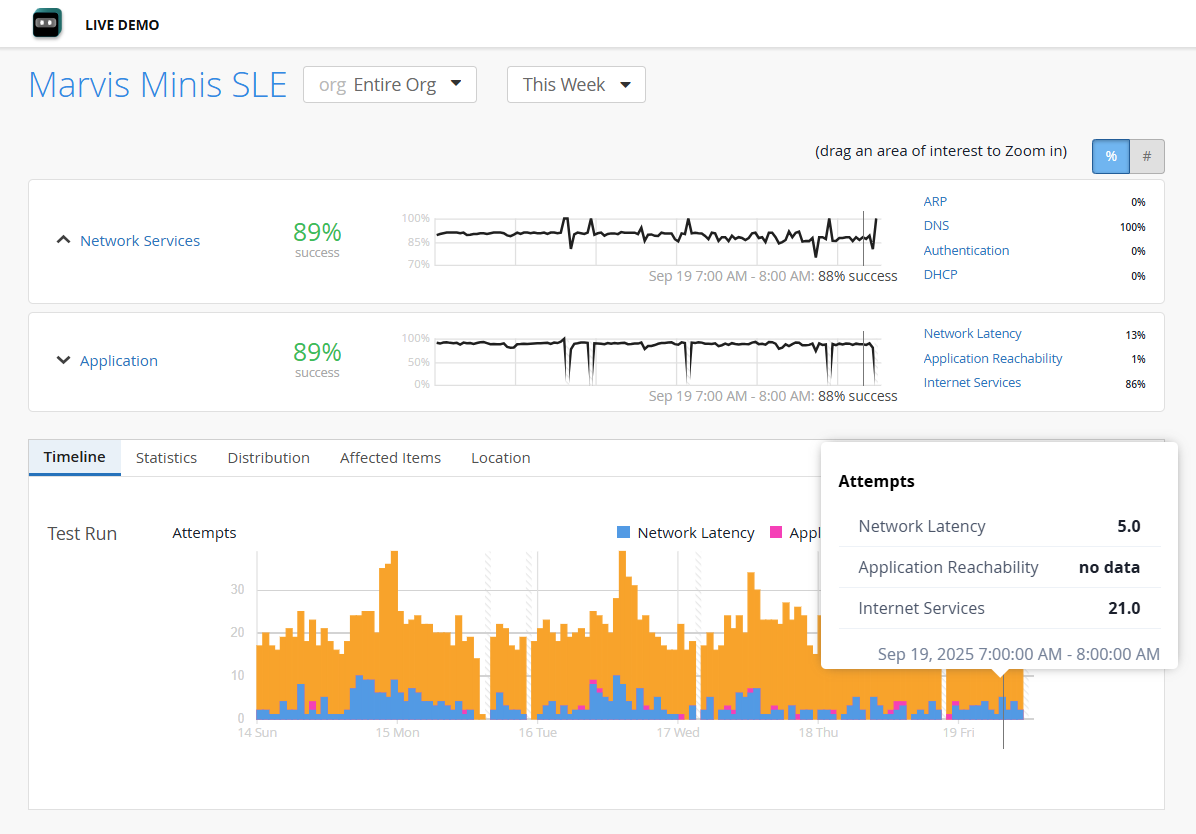
Latency, Jitter, and Traceroute statistics are currently available in the Beta program for enhanced Marvis Minis. Contact your account team to join. These sections appear only for applications at the site level.
You do not require a separate subscription to view the Marvis Minis SLEs. Any organization with an active Marvis for Wireless subscription is automatically entitled for Marvis Minis SLEs. Note that Marvis Minis is currently supported only on APs and switches (authentication).
We have extended the self-driving capability to the Bad WAN Uplink Marvis action for two scenarios. Marvis initiates an automatic port bounce when an ISP gateway ARP resolution fails continuously, or when an uplink port of a WAN Edge device fails to obtain an IP address from the ISP. Marvis attempts the port bounce up to three times. If the issue persists even after three attempts, the action is moved to the open state, so that users can investigate the cause of the issue. Note that the self-driving capability for the Bad WAN Uplink Marvis action is enabled by default.
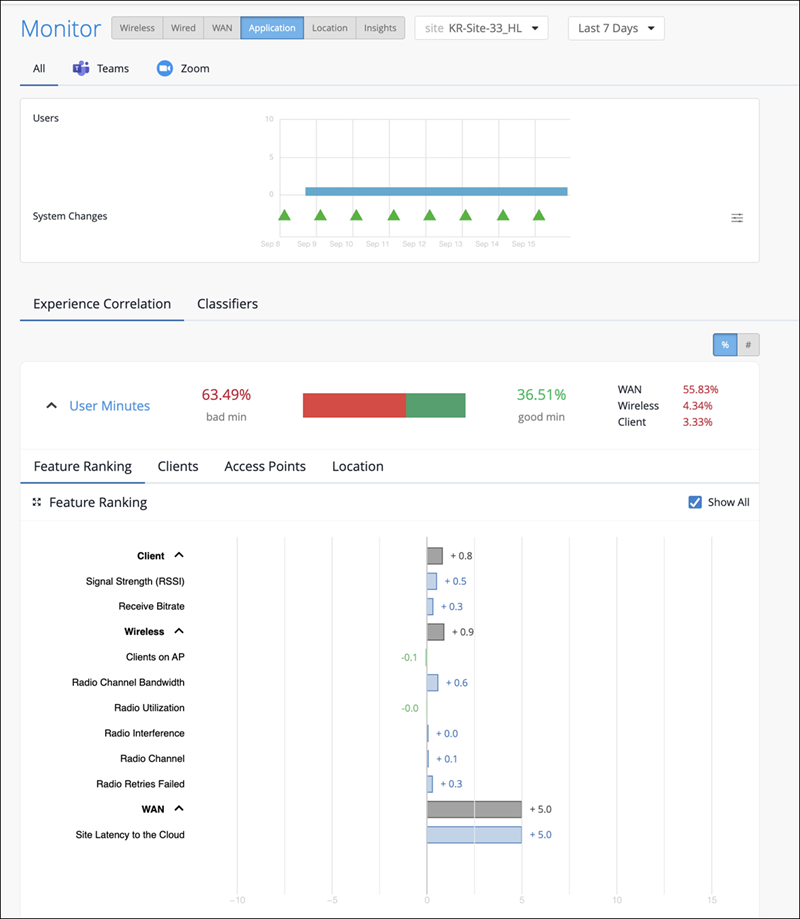
The Shapley Feature Ranking computation now incorporates additional metrics, specifically jitter and packet loss alongside latency, providing a more holistic view of network performance and its effect on user experience. The feature ranking reflects the comparative impact of each feature contribution for bad user experience, allowing you to identify areas for improvement and optimize network performance.
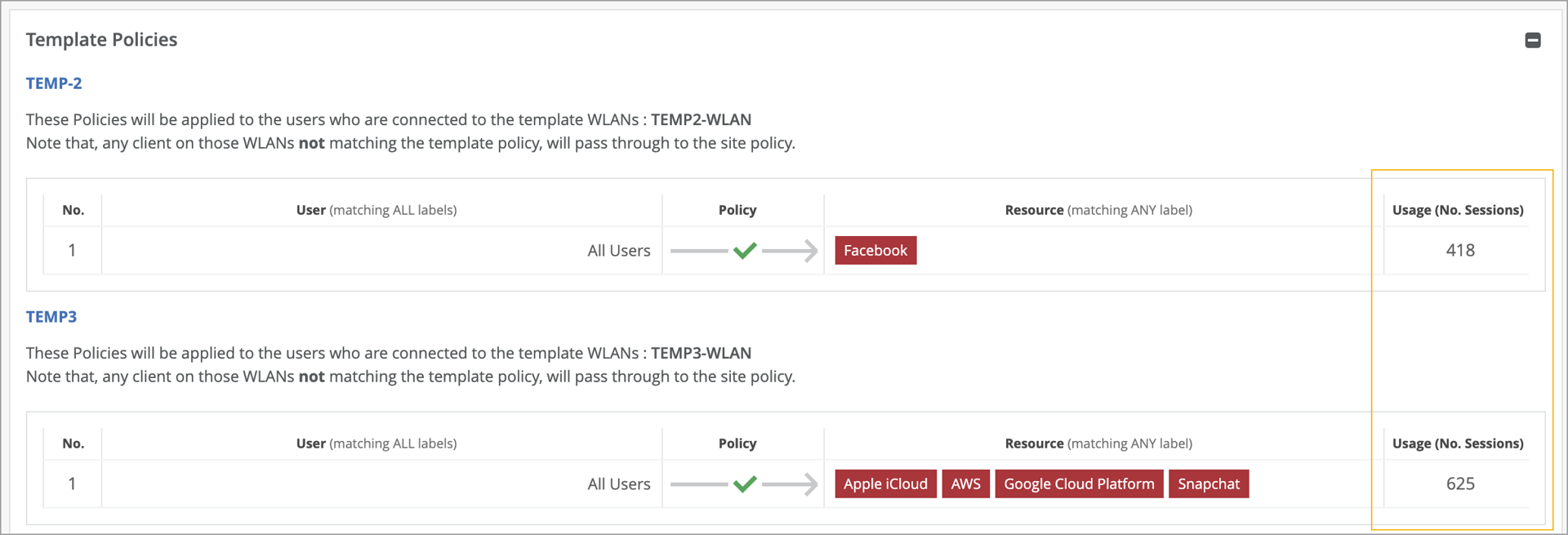
The WxLAN policy page now displays the hit count information for organization level policies. Hit count indicates the number of times a WxLAN policy rule has been triggered (matched) by traffic. This information is useful for tasks such as traffic analysis and troubleshooting. The hit count is displayed in the Usage (No. Sessions) column in the Template Policies section on the Site > Policy page.
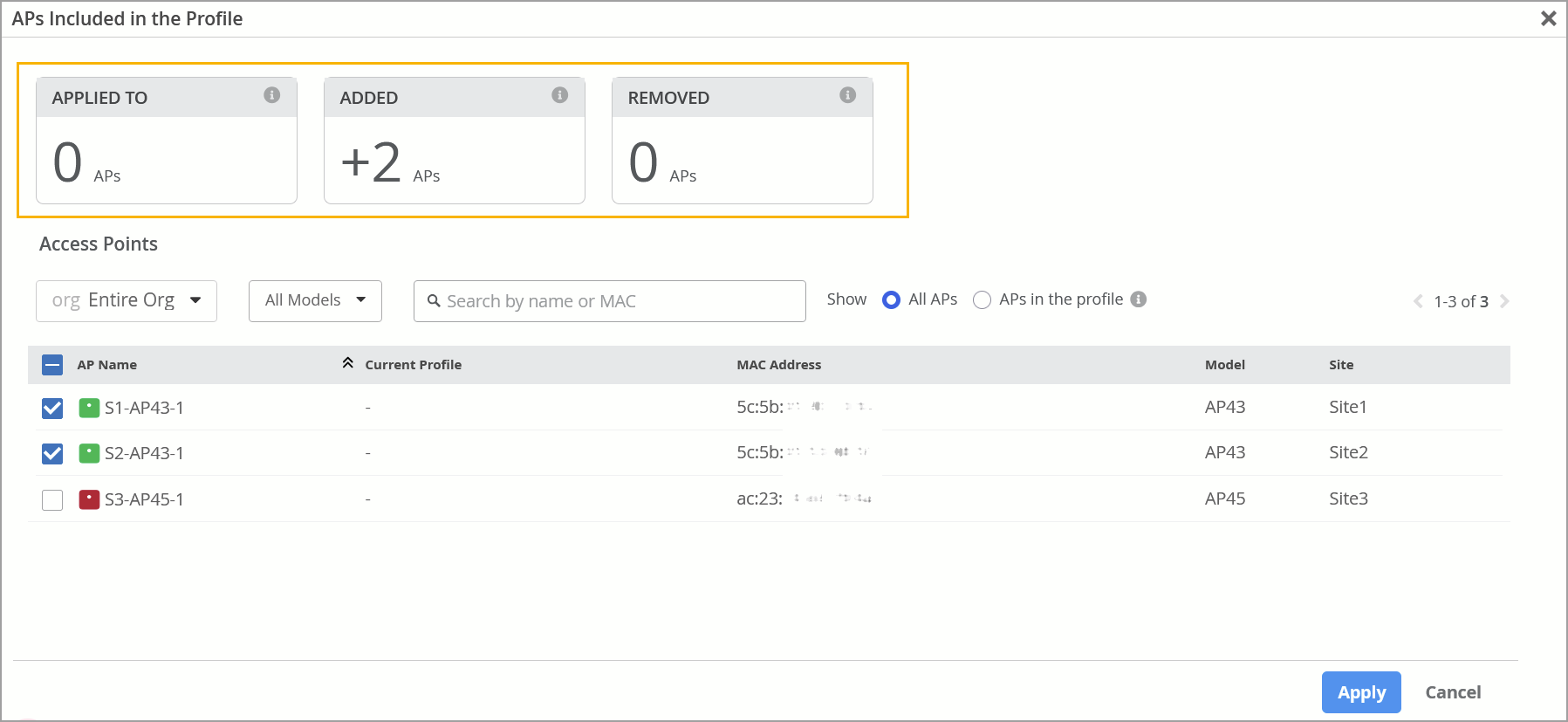
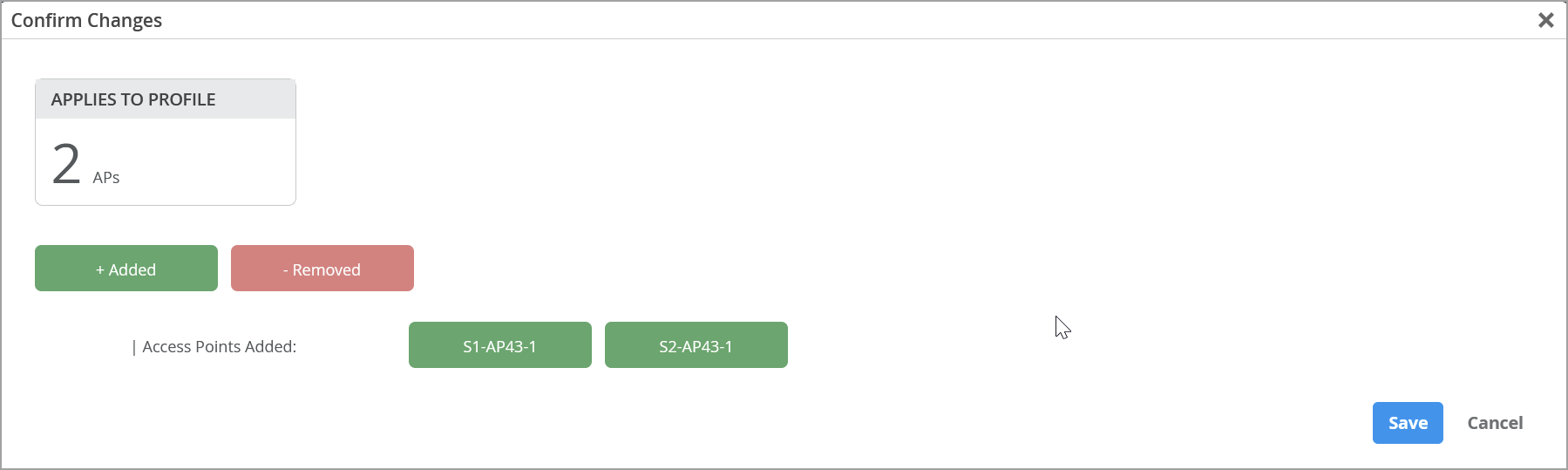
To minimize errors that could occur when you manually link access points (APs) to device profiles, we have made some enhancements to the device profile configuration workflow. The new workflow provides a summary of changes to help you verify and confirm the changes before applying them.
The enhancements include the following:
A change summary on the APs Included in the Profile window—This window is accessible from the ‘Applies To’ tile in the device profile. It highlights the number of APs that have been already applied, are being added, or are being removed from the device profile. This view helps ensure that the right APs are being linked to or unlinked from the device profile.
Updates to the Confirm Changes page—On the Confirm Changes page, which appears before you save any modification to the device profile, you can view the list of APs being added to or removed from the device profile. This view helps you review and reconfirm the changes before you save them.
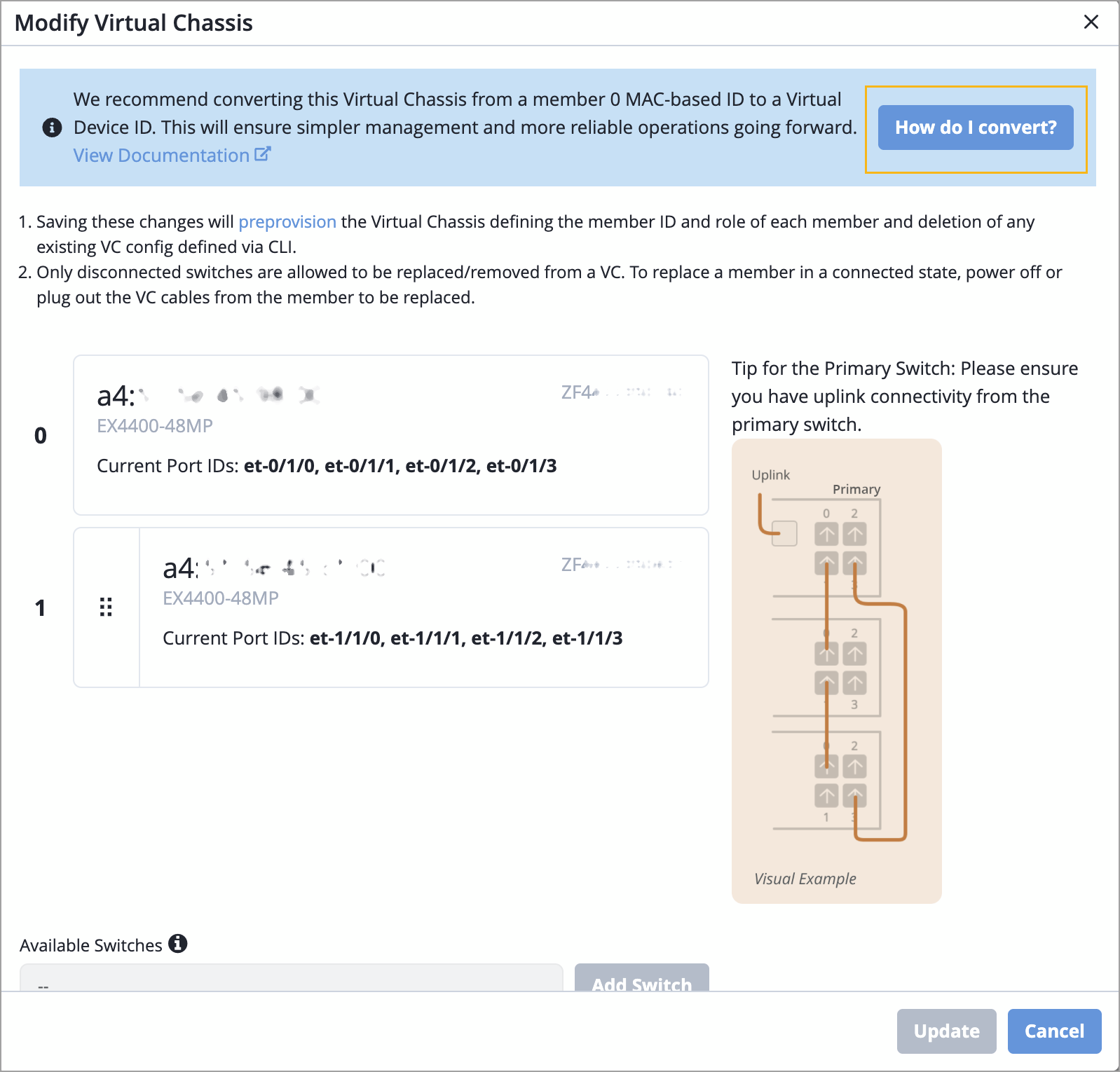
When a Virtual Chassis device is represented in Mist by the MAC address of one of its member switches, managing it can become challenging. Especially, replacing or removing a member switch may cause inconsistencies in how the Virtual Chassis is represented, potentially disrupting connectivity.
To address this issue, we have introduced a new capability in the Mist portal to allow you to convert a cloud-connected Virtual Chassis from being identified by the member 0 MAC address to being represented by a Virtual Device ID. This enhancement simplifies how Virtual Chassis devices are managed and modified, particularly when performing updates or making configuration changes.
You can convert a Virtual Chassis from the Modify Virtual Chassis page, by using the How do I convert option.
For more information, refer to Convert a Virtual Chassis to Use a Virtual Device ID.
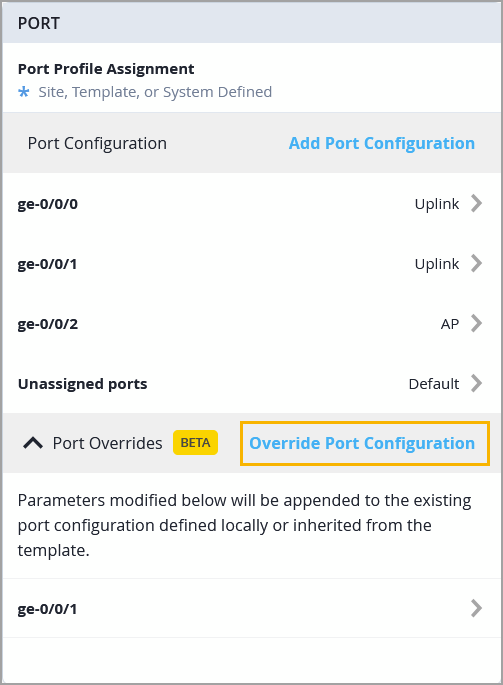
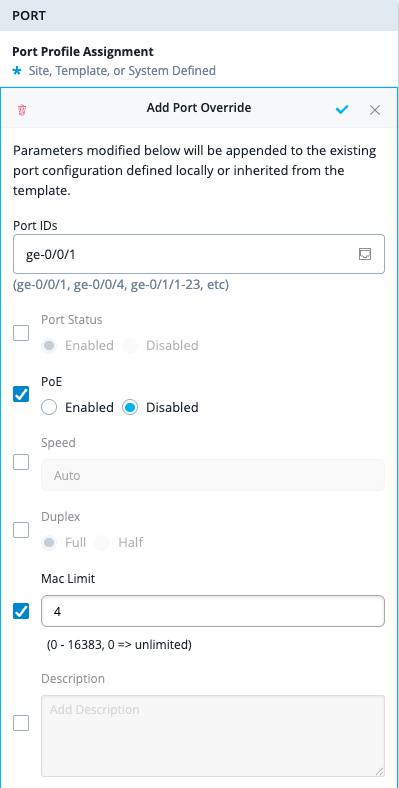
As an admin user, you can now override a selected set of switch port configuration parameters at the switch level, giving you greater control over individual port settings. To apply the override parameters, use the Override Port Configuration option in the Port Overrides section on the Port tile of the switch details page. These parameters can be applied to one or more switch ports.
 |  |
|---|
The override parameters are appended to the existing port configuration—whether defined locally on the switch or inherited from a template. You can override the following parameters: Port Status, PoE, Speed, Duplex, MAC Limit, Port Description.
For the Override Port Configuration option to be visible, at least one port profile configuration must be present.
Note: Port overrides are not permitted for ports that use dynamic port configuration.
For more information, refer to Override Port Configuration at the Switch Level.
You can now specify a port profile that will be assigned by default to all switch ports that are not associated with any specific port profile. This feature provides greater flexibility and operational efficiency by ensuring consistent configuration of unassigned switch ports. Previously, unassigned ports were automatically linked to a predefined default port profile. This enhancement allows you to apply any port profile to the ports listed as unassigned. This configuration option is available at both the switch level and the template level (organization and site levels).
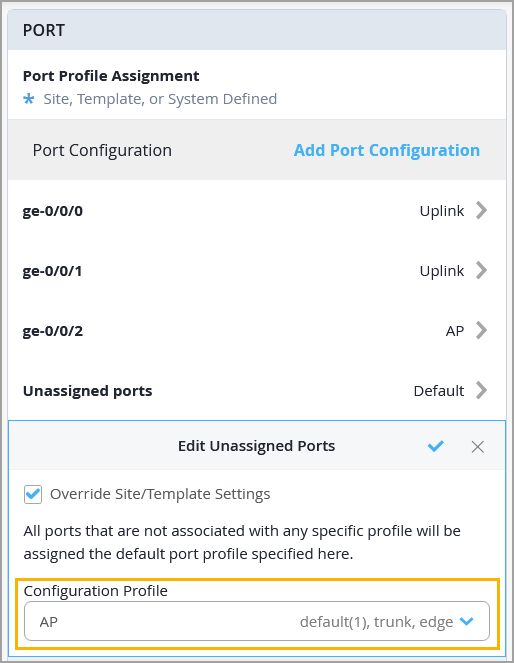
At the switch level—Configure this setting from the Port tile on the switch details page.
At the template level—Configure it from the Port Config tab in the Select Switches Configuration section.
For more information, refer to Assign a Profile to Unassigned Ports.
To improve network stability and protection against topology issues, Juniper Mist now provides more granular control over switch port behavior when receiving STP (Spanning Tree Protocol) BPDU packets.
As part of this improvement, we have introduced the following two options in port profiles:
Block STP BPDUs—Typically enabled on edge or access ports where BPDUs are not expected. When this option is enabled, the port is immediately shut down if a BPDU is received, helping to prevent potential loops or misconfigurations.
STP BPDU Liveliness Check—This feature is typically enabled on uplink or trunk ports where BPDUs are expected. This feature monitors BPDU reception and blocks the port. It raises an alarm if no BPDUs are received within 20 seconds, helping to detect failures or misconfigurations quickly.
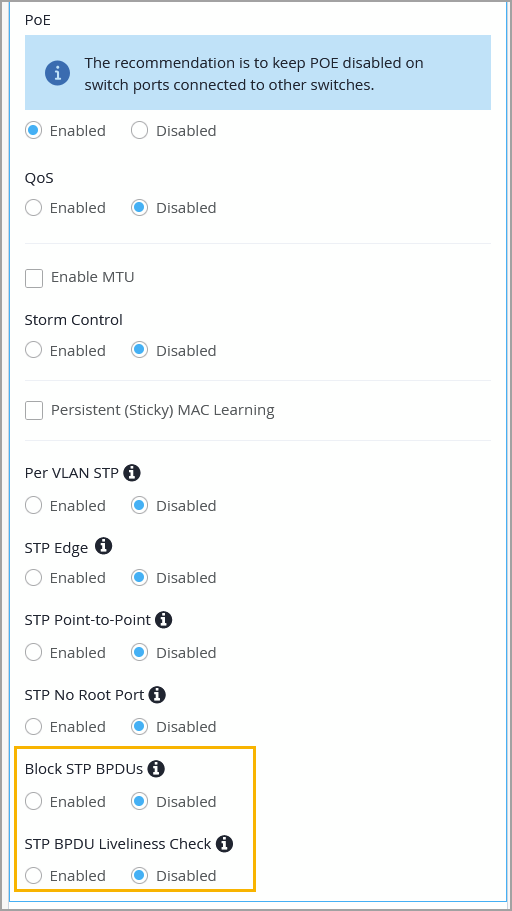
You can enable these options at organization-level, site-level, and at the switch-level, from the Port Profile page.
Notes:
If STP Edge is enabled, Block STP BPDUs is automatically disabled. However, BPDU Liveliness Check can still be configured.
If Block STP BPDUs is enabled, both STP Edge and BPDU Liveliness Check are automatically disabled.
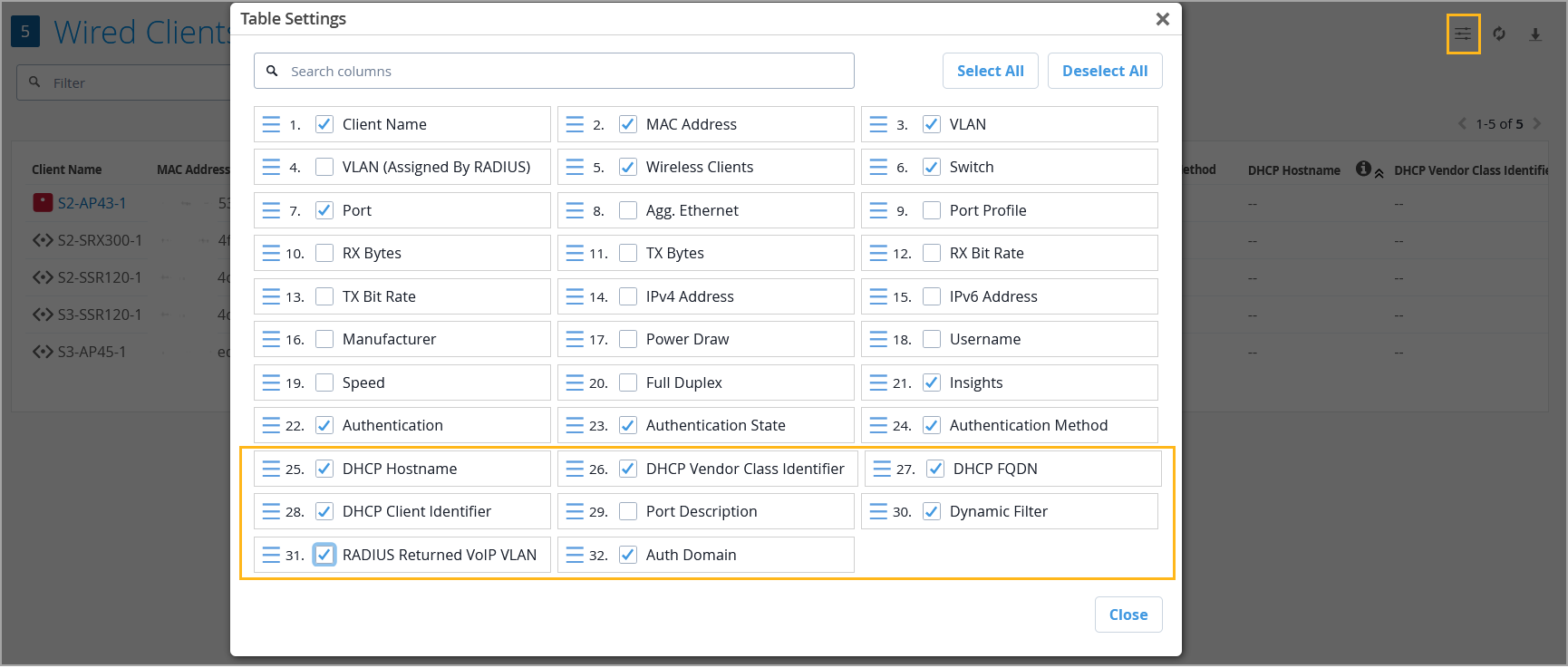
We’ve introduced the following columns to the Wired Clients page to enhance visibility into the connected wired clients:
Dynamic Filter—Indicates whether any dynamic filtering rules or policies are applied to the wired client. These policies are configured on the switch, but are typically assigned to clients dynamically through a RADIUS server.
RADIUS Returned VoIP VLAN—Shows the VoIP VLAN information returned by the RADIUS server.
Auth Domain—Indicates the authentication domain classification (e.g., VOIP, DATA).
DHCP FQDN, DHCP Hostname, DHCP Vendor Class Identifier, and DHCP Client Identifier—These DHCP client options are available when DHCP Snooping is enabled. They apply to devices running Junos version 23.2 or later.
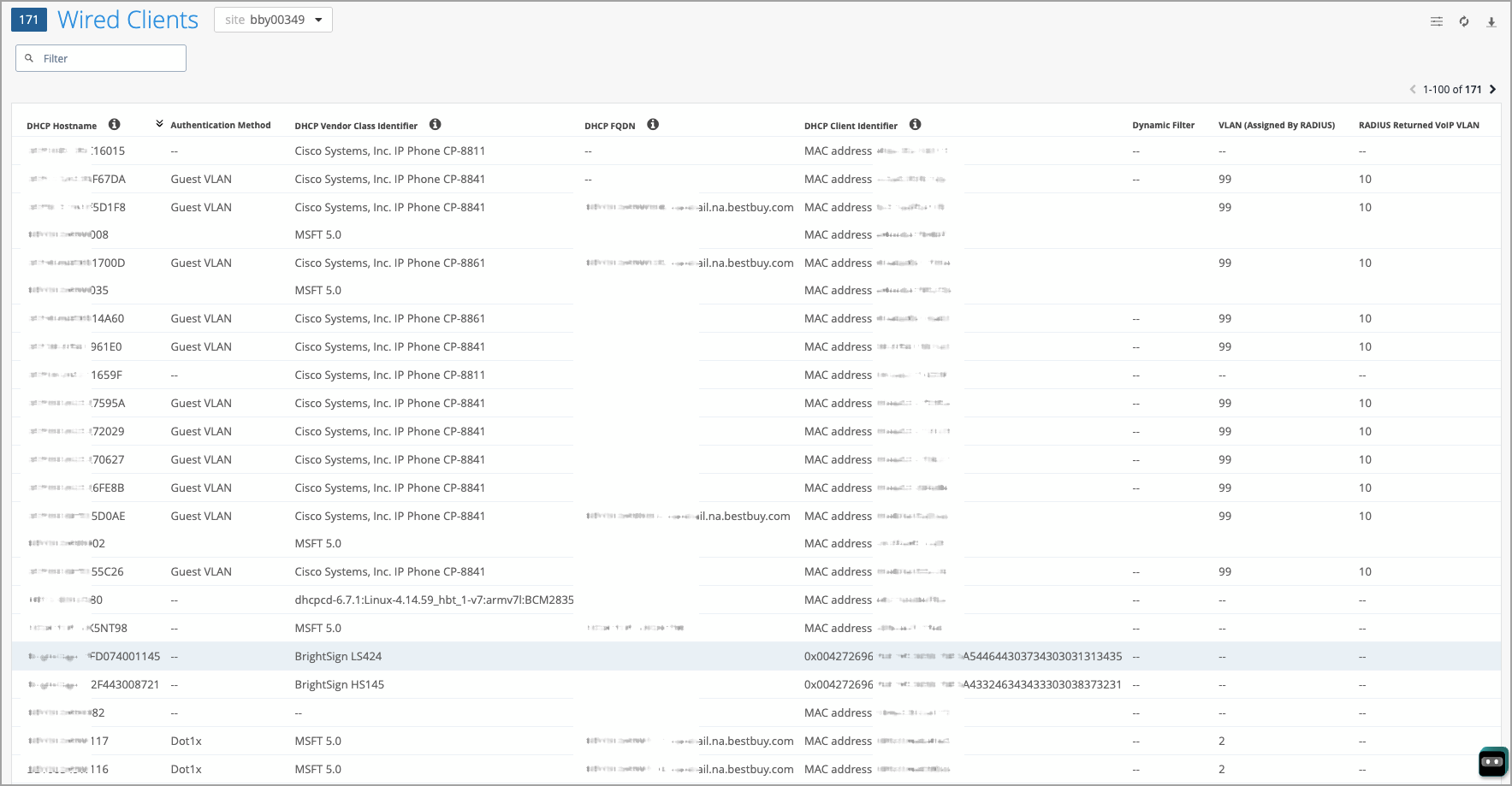
By default, these columns are not visible in the Wired Clients list view. To include them, click the Table Settings button on the upper right of the page, select the check boxes corresponding to the fields, and then click Close.
We have improved the switch temperature status indicator to support a broader range of temperature thresholds, enabling more precise monitoring of thermal conditions.
Previously, Mist marked temperatures above 85°C with a red status. With this release, we have made the following improvements:
Warning Range—Mist now displays a yellow status for temperature levels that trigger warning alarms on Juniper switches.
Critical Range—Mist no longer uses a fixed threshold of 85°C to indicate a red status. Instead, any temperature level that triggers a critical alarm on Juniper switches is now shown with a red status.
Mist also aggregates the temperature status using the following logic:
If any sensor reports a temperature in the warning range, the overall temperature status is shown as yellow.
If at least one sensor is in the critical range, the overall status is marked red.
If any sensor is in a failed state, the overall temperature status is also considered Failed (indicated in red).
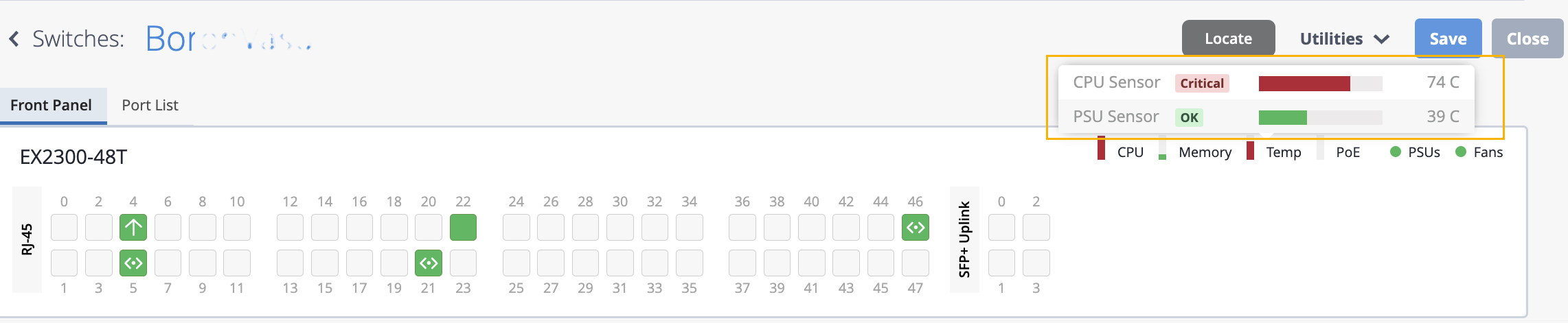
These enhancements provide better visibility into thermal conditions, allowing for quicker response to potential overheating issues.
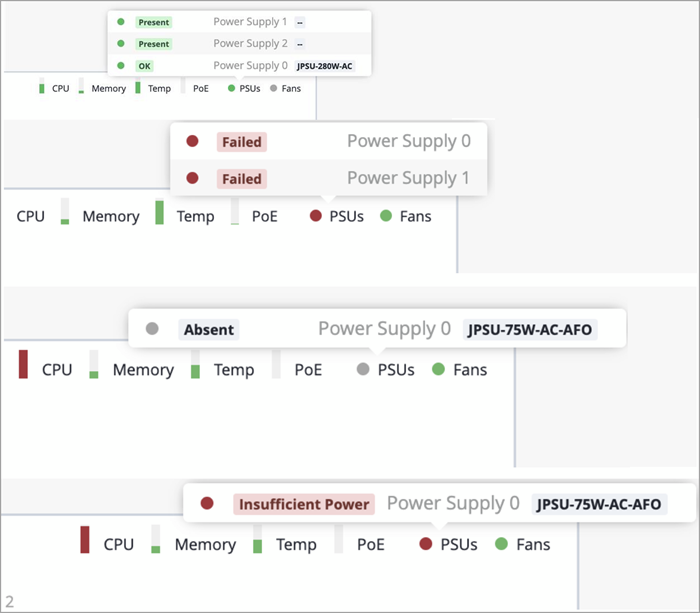
To simplify monitoring of PSU health, we have expanded the range of status indicators for switch PSUs. Previously, Mist only supported green and grey indicators. With this release, Mist supports additional status colors (including red and yellow) that provide more granular insights into PSU health. A red status indicates insufficient power, while a yellow status means the power supply is initializing.
The following image shows different PSU statuses supported by Mist.
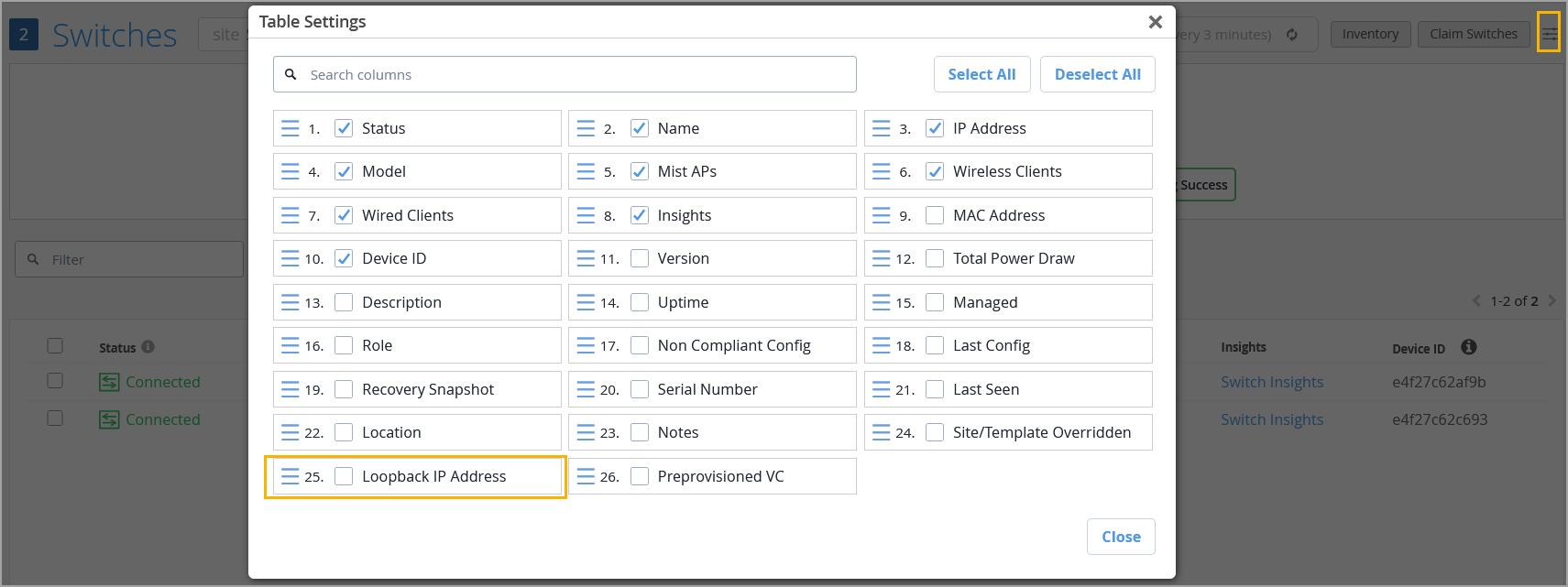
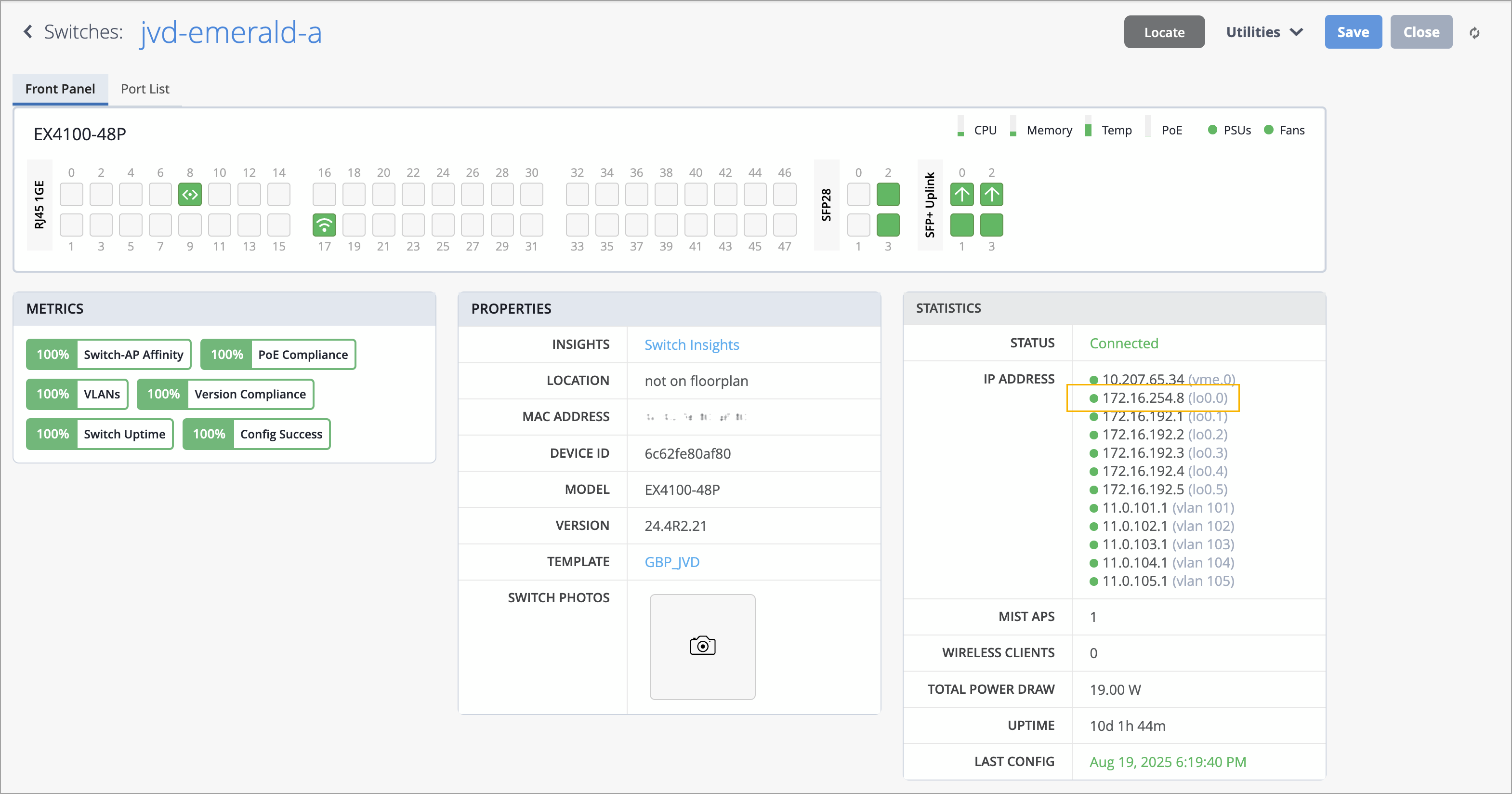
We have added a new column to the Switch List page to display the IP address of the loopback interface (lo0.0), if it is configured on the switch. This enhancement helps in identifying switches more reliably, especially in environments where loopback IPs are used for management or monitoring purposes.
By default, this field is not visible in the Wired Clients list view. To include it in the Wired Clients list view, click the Table Settings button on the upper right of the page, select the check box for the Loopback IP Address field, and then click Close.
This information is also displayed on the switch details page.
To ensure more granular control over network access, you can now set up access control lists (ACLs) for your Juniper Mist-managed switches that apply to your user-defined port profiles. This ACL will be applied as a layer 2 filter on the switchport in the input direction for all ports where the Port Profile is applied.
You configure these firewall filters in the form of switch policy labels that specify the port profile. You can define the labels at the organization, site, or switch level.
After you create these labels, you apply them to switch policy rules. These labels categorize and classify users (as sources) and resources (as destinations) in order to specify which users are allowed to access specific resources in the network.
For help with firewall filters, see Firewall Filters | Mist | Juniper Networks.
To help you proactively monitor OSPF (Open Shortest Path First) neighbor relationships on switches, Mist now provides new alerts that reflect the health and stability of OSPF adjacencies—critical for maintaining optimal routing performance in your network. Here are the new alerts:
OSPF Neighbor UP—This is an information alert, which indicates that a new OSPF neighbor relationship has successfully formed.
OSPF Neighbor Down—This is a critical alert, which indicates that an established OSPF neighbor has gone down.
OSPF Neighbor Adjacency Failed—This is a warning alert, which indicates that a switch's attempt to form or maintain an adjacency has failed because of a mismatch in parameters.
You can view these alerts on the Monitor > Alerts page.
Juniper Mist Wired Assurance now enables you to configure VRRP (Virtual Router Redundancy Protocol). VRRP is used in high availability (HA) configurations to create a virtual device group where the various devices in the configuration share a common virtual IP address. VRRP in Wired Assurance ensures that switches can seamlessly take over for one another in the event of a failover. A virtual switch is assigned to act as the default gateway, instead of a physical switch. If the physical switch that is forwarding packets on behalf of the virtual switch fails, another physical switch is selected to automatically replace it.
You can configure VRRP groups directly from the Switch template, site template, or at the device-level.
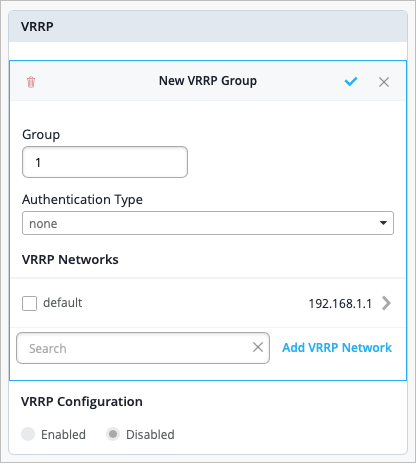
To configure VRRP, select Add Group from the VRRP Groups section of the VRRP tile, then specify the Group, Authentication Type, and VRRP Networks. Select the blue check mark to save your work. Note that one VRRP group can correspond to multiple networks.
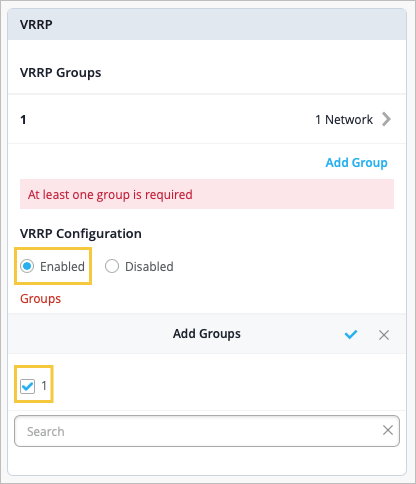
Finally, under VRRP Configuration, select Enabled. Then click Add Groups and select the group you want to add.
NOTE: If you do not select Enabled at the device level, any VRRP configuration done at the Switch Template-level or Site-level will not be pushed to the device.
See Role-based remote shell access levels in the Simplified Operations section.
Mist now supports traffic shaping for SRX Series firewalls, bringing better bandwidth control and traffic prioritization—aligned with existing SSR capabilities.
The configuration includes the following:
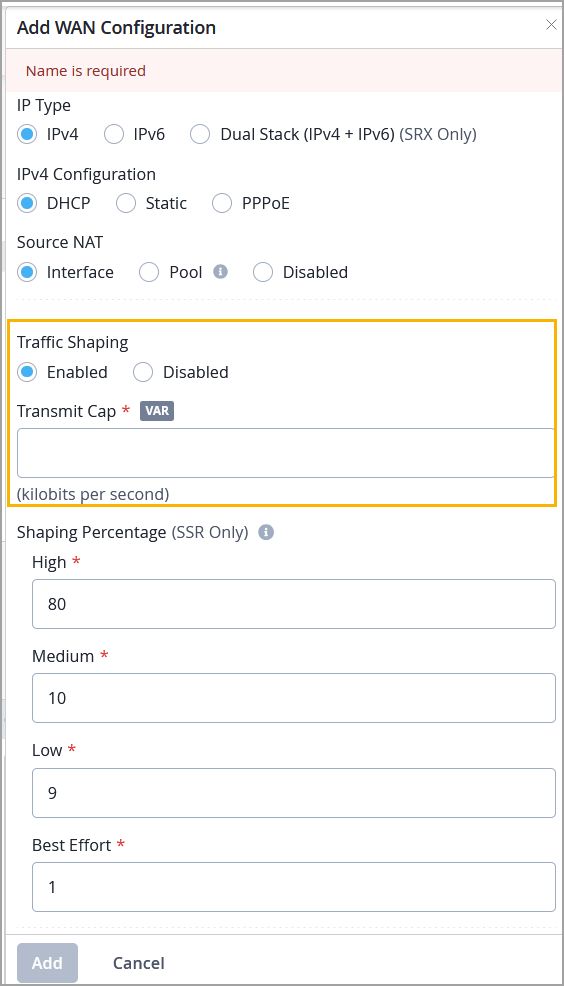
Enable traffic shaping on SRX WAN ports. Traffic shaping is driven by forwarding class parameters derived from application configuration.
Configure a transmit cap so that the actual traffic rate aligns with the configured shaping rate, regardless of the physical interface bandwidth.
You can enable traffic shaping either from the WAN section in the WAN Edge template (organization-level) or from the WAN section on the WAN Edge details page (device-level).
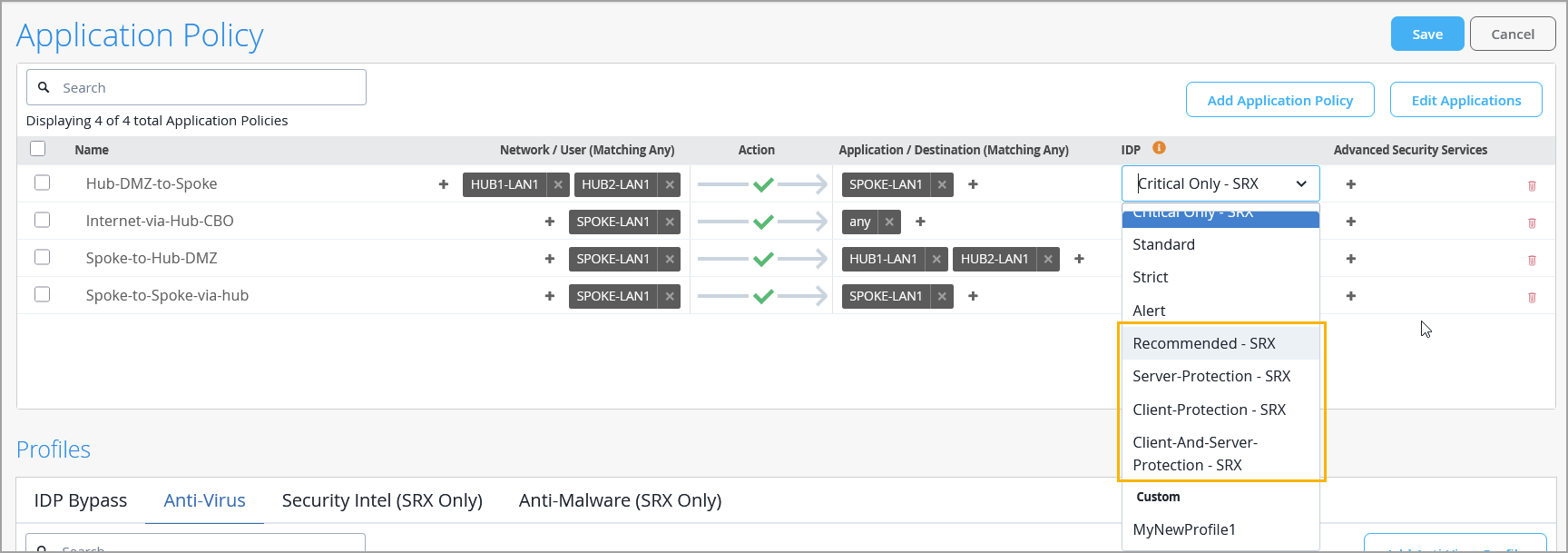
We have added the following Intrusion Detection and Prevention (IDP) profiles to Juniper Mist Application Policy configuration for SRX Series firewalls:
Recommended—Contains only the attack objects tagged as recommended by Juniper Networks. All rules have their Actions column set to take the recommended action for each attack object.
Server-Protection—Designed to protect servers. To be used on high memory devices with 2 GB or more of memory.
Client-Protection—Designed to protect clients. To be used on high memory devices with 2 GB or more of memory.
Client-And-Server-Protection—Designed to protect both clients and servers. To be used on high memory devices with 2 GB or more of memory.
An IDP policy lets you selectively enforce various attack detection and prevention techniques on network traffic. You can enable IDP on the Juniper Networks® SRX Series Firewall operating as a spoke device in your Juniper Mist™ network by activating it in an application policy (Organization > Application Policy).
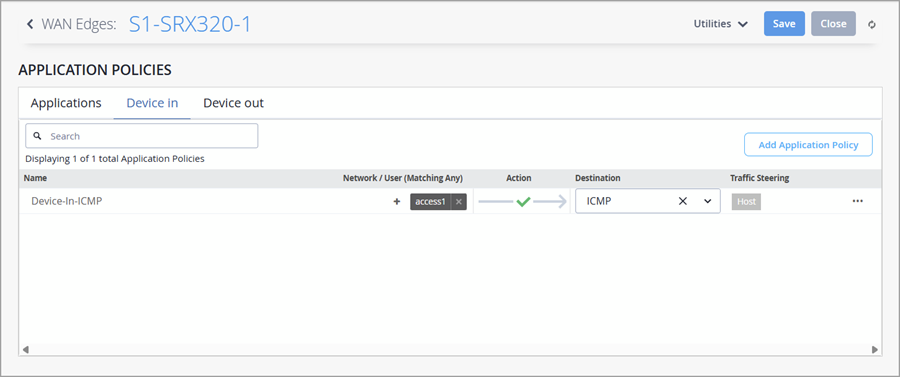
For applications that require inbound ICMP traffic, you can now configure a Device-In application policy to allow ICMP traffic from a remote network to the WAN Edge device.
From the WAN Edge page, select the WAN Edge device you want to configure and scroll down to the Application Policies section.
Select the Device In tab, as shown below, and then click the Add Application button.
Under Network / User choose the remote network that is the source of the ICMP traffic, and then ICMP for the Destination.
Save the policy.
Juniper Mist now supports assigning inbound rules to specific WAN interfaces. Enforcing inbound rules only on the selected WAN interfaces provides more granular control and improved security. To implement this feature, do the following:
Create custom networks at the organization level (Organization > WAN > Network).
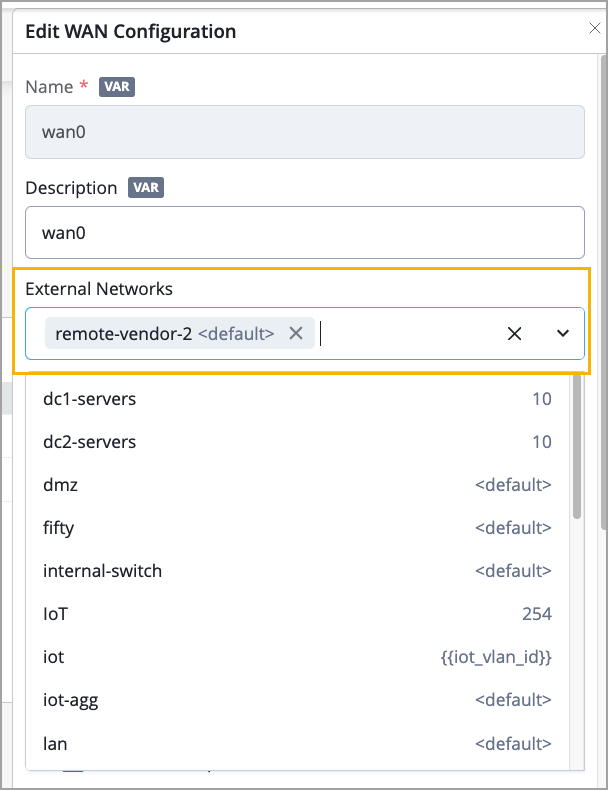
Assign the network to WAN ports from the WAN Edge template or WAN Edge details page.
Include the network in an Application Policy.
Previously, users would use an internet network (0.0.0.0/0) and that would create and apply inbound rules to all WAN interfaces.
See Role-based remote shell access levels in the Simplified Operations section.
If you use both the Prisma Access cloud-based security platform and Juniper Mist WAN Assurance, you can now enable auto provisioning of an IPsec tunnel for end-to-end communication between the two.
Once you have Added the Prisma Access Account as a Secure Edge Connector, you can automatically provision an IPsec tunnel from the WAN Edge device in your Mist organization to the Prisma Access cloud. This can be configured from Organization > WAN Edge Templates or from the device-level configuration. Then, from the Secure Edge Connector Auto Provision Settings tile, select your Prisma Access Account from the drop-down menu.
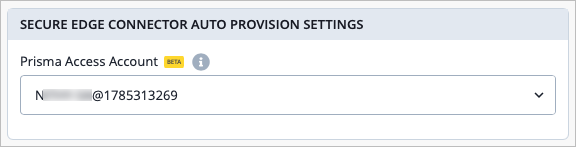
After selecting your account in the Prisma Access Account drop-down, you must then add your provider information by navigating to the Secure Edge Connectors tile and selecting Add Providers. For more information about initial setup of this integration, see Palo Alto Prisma Access Integration for SASE Health.
We have updated the advanced policy-based routing (APBR) rule ordering behavior for SRX Series firewalls to prioritize more specific destination matches over less specific ones, such as "any." This enhancement ensures that rules targeting specific destinations, such as those involving dynamic applications, are evaluated before broader rules.
Currently, the following API requests return an unpaginated, full list of inventory devices.
GET /api/v1/orgs/:org_id/inventory
GET /api/v1/sites/:site_id/stats/devices
Starting in early 2026, these API requests will fetch paginated responses to limit the size of the response. By default, the API response will fetch the first 100 entries in the list. You can modify the number of entries in the response (range: 1 to 1000) by using the query parameter 'limit'.
Currently, if you query this API directly when you have more than 100 devices in your organization inventory, we recommend that you update the scripts to handle the paginated responses.
For more information, see Pagination.
To enhance security and align with industry best practices, we will deprecate Basic Authentication for all use cases—including admin logins and scripts—effective September 2026. Before September 2026, all integrations must transition to token-based authentication to ensure uninterrupted access and support.
Why we are making this change
Basic authentication poses several security risks:
No multi-factor authentication (MFA) support
Credentials transmitted with every request (even over HTTPS)
No scope limitations
Vulnerable to credential theft and reuse
Industry security organizations (OWASP, NIST, CIS) strongly recommend token-based authentication as a more secure alternative.
Required actions
Before September 2026, do the following:
Update all applications and integrations to use token-based authentication.
Remove basic authentication from your implementations.
Migration resources
Documentation: Mist API Tokens
Support: Contact us at support@mist.com for assistance