Help us improve your experience.

Let us know what you think.

Do you have time for a two-minute survey?


Override Port Configuration at the Switch Level

As an admin user, you can override a specific set of switch port configuration parameters at the switch level, giving you greater control over individual port settings. These overrides are appended to the existing port configuration and can be applied to one or more switch ports.

Note:

Port overrides are not permitted for ports that use dynamic port configuration.

To apply the override parameters at the switch level:

  1. Click Switches and then select the switch to open the switch details page.
  2. Navigate to Port tile.
  3. On the Port tile, expand the Port Overrides section.
    The Port Overrides section is visible only if at least one port profile configuration exists.
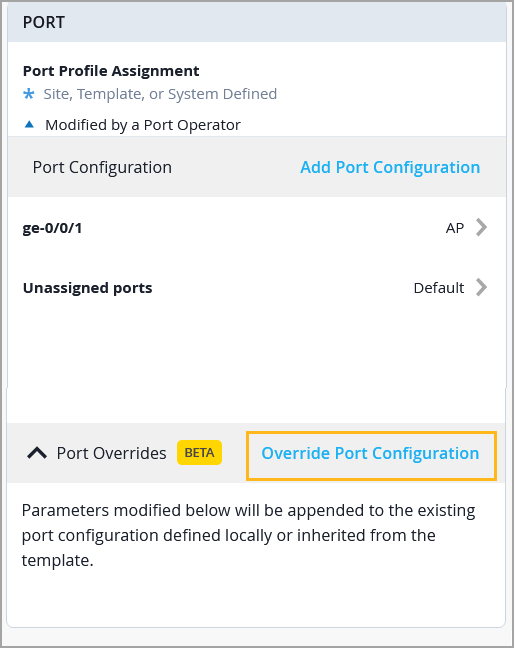
  4. Click Override Port Configuration.
    User interface for configuring network port settings, showing port profile assignment at site, template, or system-defined levels, specific port ge-0/0/1 assigned profile AP, unassigned ports set to Default, option to add port configuration, and highlighted Override Port Configuration button for modifying or appending port settings.
  5. Specify the port IDs for which you want to configure the override parameters.
  6. Select the parameters that you wish to override by checking the corresponding boxes.
  7. Configure the selected parameters and then click the check mark (✓) on the right of the Add Port Overrides window.
    You can override the following parameters: Port Status, PoE, Speed, Duplex, MAC Limit, Port Description.
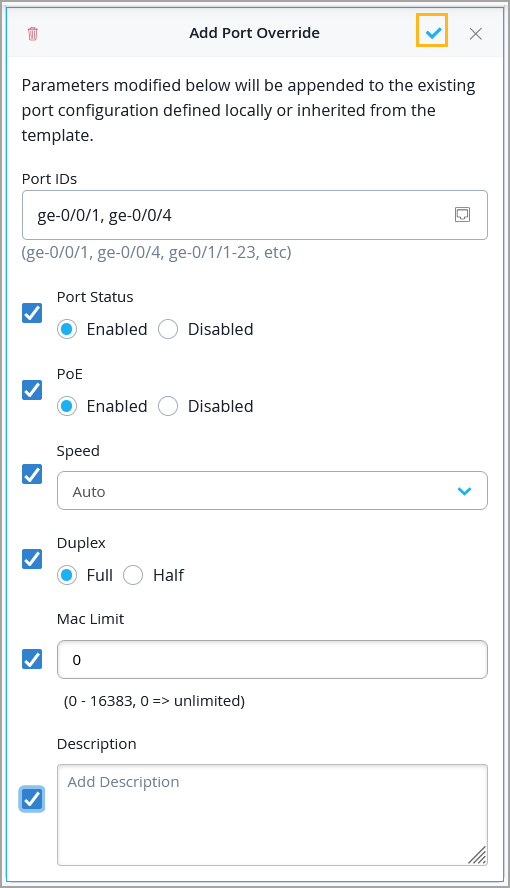
    Configuration interface for adding port overrides in a network management system, showing options to modify port IDs, status, PoE, speed, duplex, MAC limit, and description, with save and delete buttons.
  8. Click Save on the upper right of the switch details page to save the configuration.

Once applied, port overrides can be viewed in the Switch Ports section on the switch Insights page.