Help us improve your experience.

Let us know what you think.

Do you have time for a two-minute survey?


Assign a Profile to Unassigned Ports

You can specify a port profile that will be automatically assigned to all switch ports that are not associated with any specific port profile. Available at both the switch level and the template level, this feature provides greater flexibility and operational efficiency by ensuring consistent configuration of unassigned switch ports.

To set up automatic assignment of port profiles to unassigned ports:

  1. Click Organization > Wired > Switch Templates to configure this feature at the organization level.
    Or, click Site > Switch Configuration to configure this feature at the site level.
  2. Navigate to the Select Switches Configuration section.
  3. Select a switch rule. Or, to add a new rule, click Add Rule.
  4. Navigate to Port Config tab.
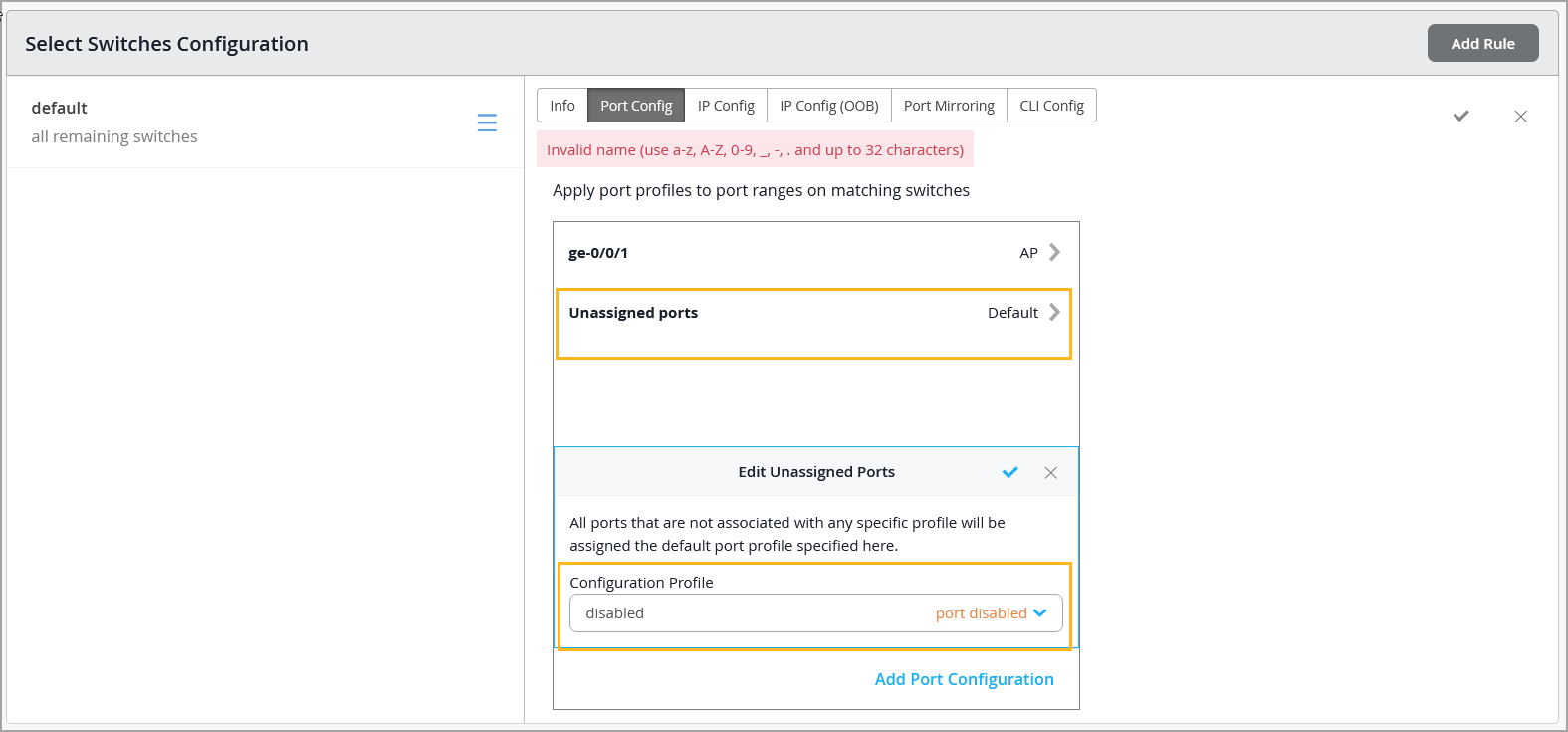
    Network switch configuration interface showing port settings, unassigned ports with default profile disabled, and an error message about invalid name rules.
  5. Click the Unassigned ports tab.
  6. From the Configuration Profile field, select a port profile and then click the check mark (✓) on the upper right of the Edit Unassigned Ports window.
    If you want to create a new profile and assign that to unassigned ports, use the Add Port Configuration option.
  7. Click Save on the upper right of the page to save the configuration.
Note: You can configure this feature at the switch level from the Port tile on the switch details page (Switches > Switch Name).