
Help us improve your experience.
Let us know what you think.
Do you have time for a two-minute survey?
Help us improve your experience.
Let us know what you think.
Do you have time for a two-minute survey?
Unified firmware upgrade management through the Firmware Upgrades page (Organization > Firmware Upgrades) is now available for APs, WAN Edges (SSR devices), and Mist Edges. This feature is already available for SRX devices and switches.
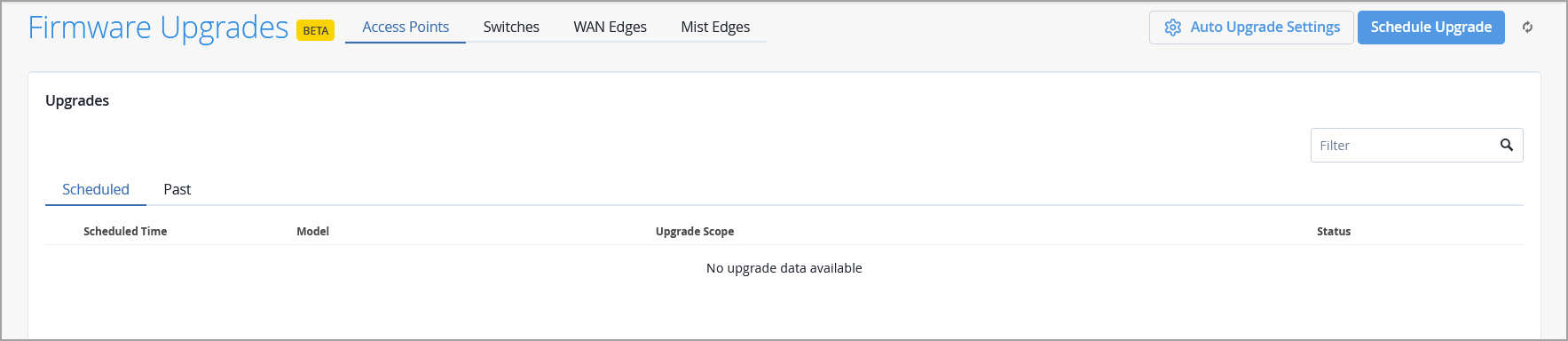
Below are the key features of the new organization-level Firmware Upgrades page:
Centralized scheduled upgrades—Schedule firmware upgrades from one place. Select target sites, firmware versions, rollout strategy, and schedule timing.
Upgrade status tracking—Get real-time visibility into upgrade progress across device types.
Edit and cancel upgrades—Modify scheduled upgrades or cancel them.
Upcoming upgrade notifications—Device list views and site configuration pages alert administrators to pending upgrades.
As part of this enhancement, we have removed the Firmware Upgrade section from the Organization > Settings page.
Use the Contracts dashboard (Organization > Admin > Contracts) to view support contract information for cloud-connected devices in your organization.
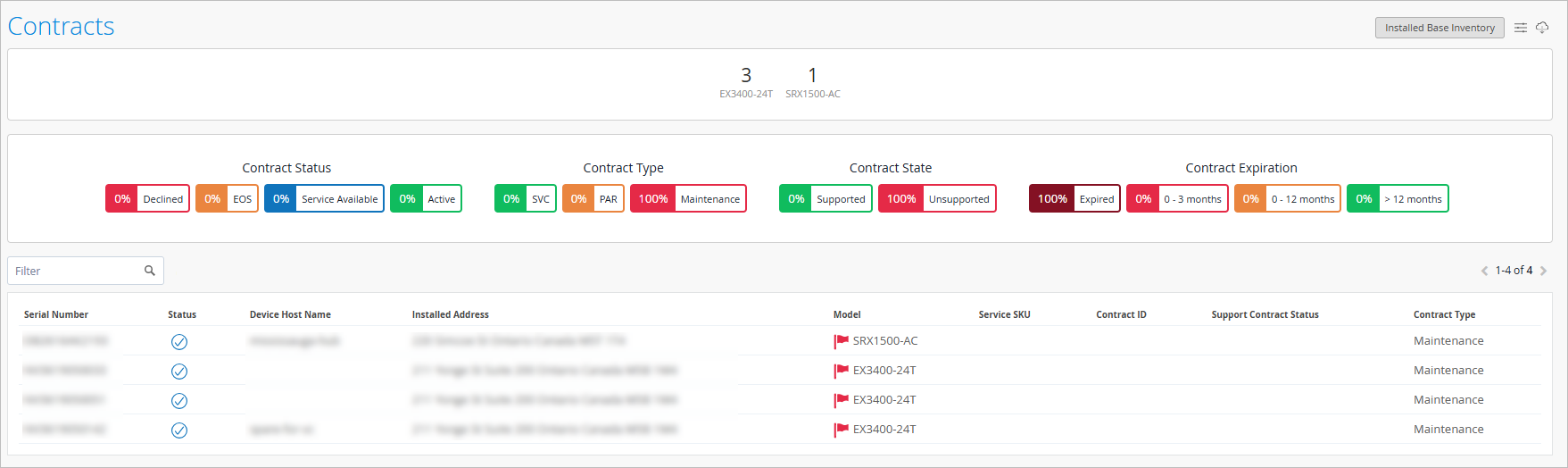
The dashboard provides an organization-level view of contract coverage. Use this dashboard to quickly access coverage information, monitor overall support posture, identify devices that may require attention, and proactively plan renewals for your device inventory.
Access to contract information is based on your assigned user role. All organization-level users can view all cloud-connected devices in the organization, while site-restricted users can view only devices within their assigned sites.
Note:
Contract details are available only for cloud-connected devices. To view contract information for non-cloud-connected devices, onboard the devices to the cloud.
JSP account linking is no longer required for cloud-connected devices. All Support Insights features — including Assets & Contracts, End of Life/Support/Engineering (EoX) milestones, Proactive Bug Notifications (PBNs), and Security Vulnerability Exposures (JSAs/SIRTs) — are now automatically available for cloud-connected devices without any additional account linking steps. Previously, administrators needed to link their JSP account credentials in the Mist portal before Support Insights data could be retrieved for their devices. With this change, lifecycle and support artifacts are automatically associated with cloud-connected devices through backend enrichment, providing a seamless experience from the moment devices are onboarded to the cloud.
We are excited to introduce global login to authenticate Mist users who manage organizations and MSPs across multiple cloud instances (excluding USGov 01). Authenticate once and gain access and visibility into all your organizations and MSPs from a unified dashboard—no more logging in to each cloud separately. Global login is also available on the Mist AI app.

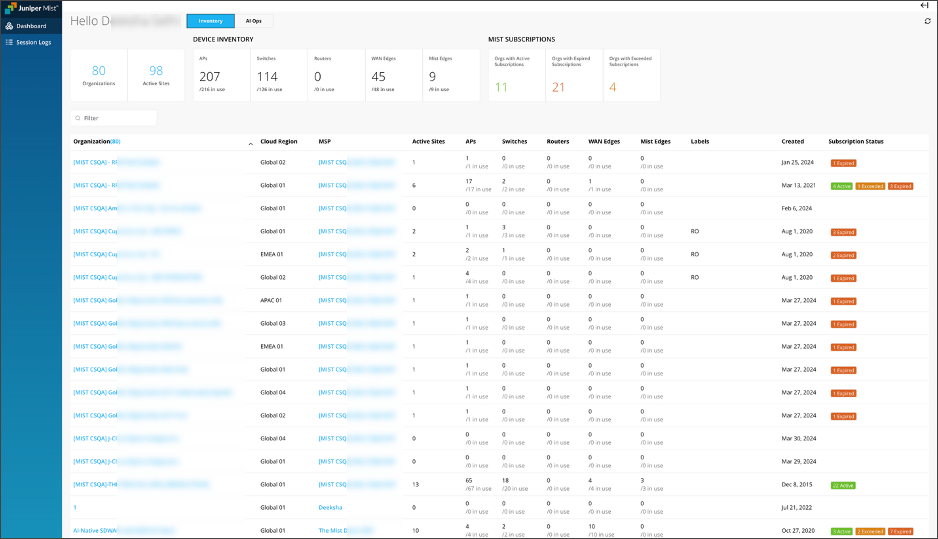
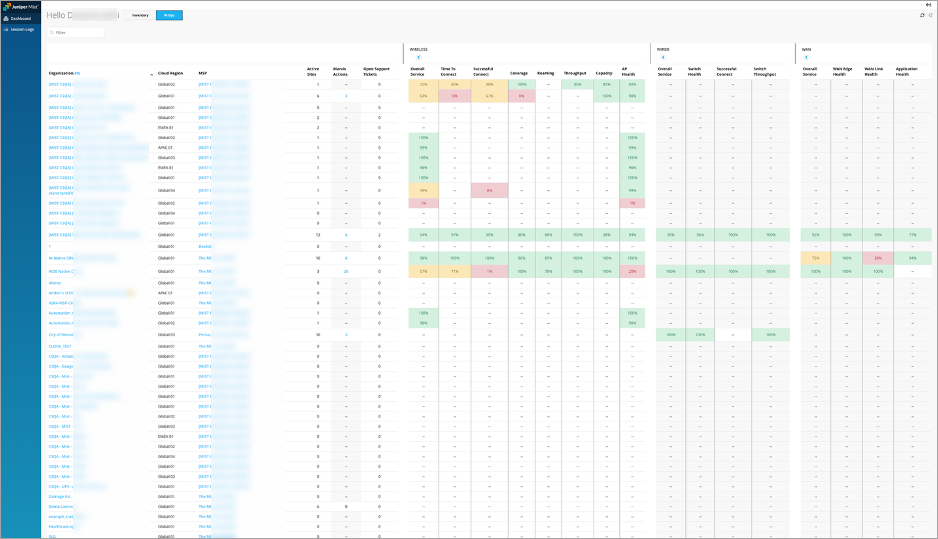
The global account handles the authentication layer only—your org-level RBAC, privacy controls, and compliance workflows remain unchanged in their regional clouds. Local clouds remain independently accessible, and existing regional logins are preserved as a fallback. Below are the key features of the new Global Login and Dashboard:
Enable Global Login—Link your regional e-mail address to the global account for user ID/password, SAML-Based Single Sign-On, or Google Sign-in for global authentication. See Mist Global Login Options | Mist | Juniper Networks.
Global Dashboard (MSP View)—Gain a single pane-of-glass to view and access all your organizations and MSPs across clouds (device inventory, subscriptions, and AIOps) for advanced tiers. See Setting Up Global Login.
Configure Global SSO—Configure SSO at the global account. See Setting Up Mist Global SSO.
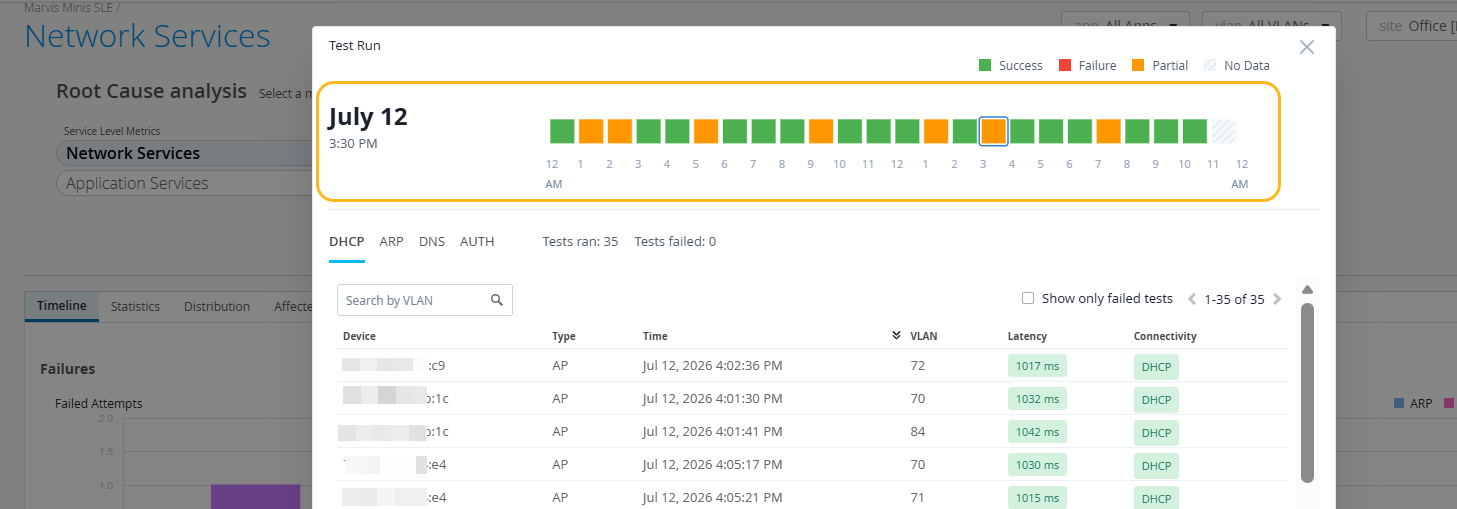
We have made several usability improvements to the checkerboard chart on the Marvis Minis SLE page to make it easier to read, navigate, and understand test results:
Test outcome visibility—Hovering over a cell on the checkerboard chart now displays a tooltip with the exact count of successful and failed tests for that hour, providing quick visibility into test outcomes.
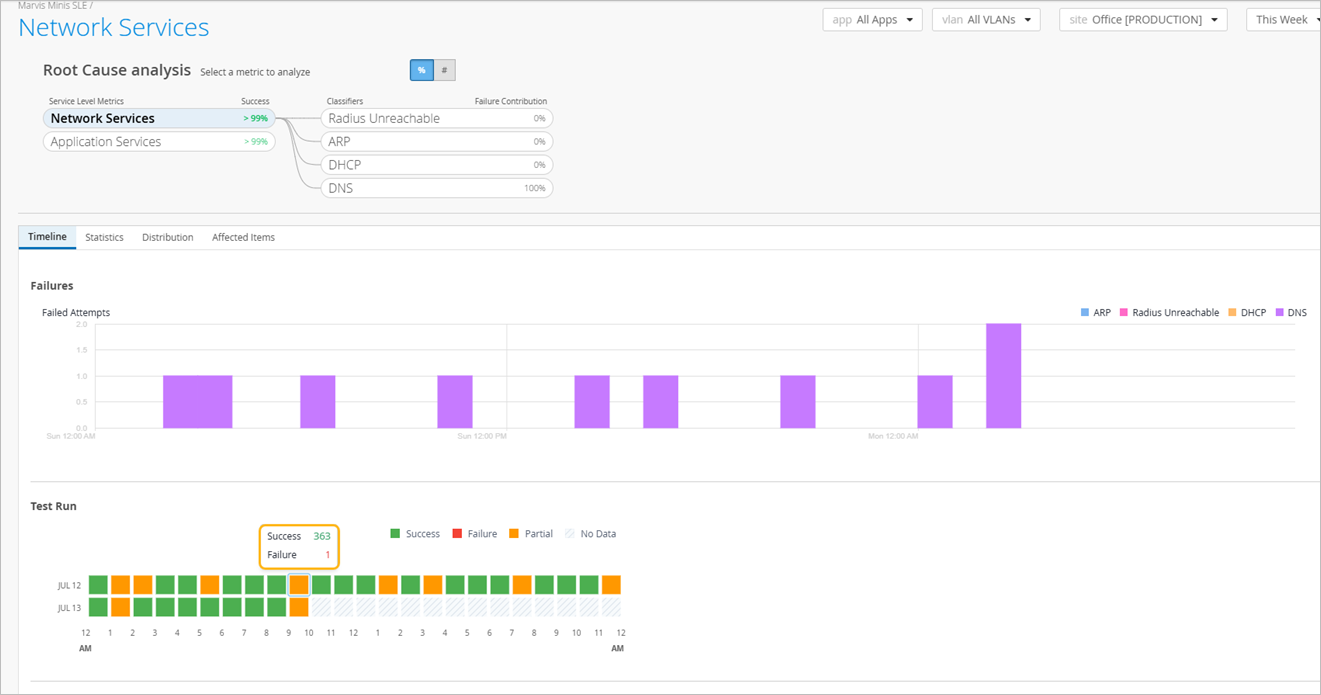
Clear visual states—Selected and hovered cells are now more visually distinct, with improved contrast for better readability and accessibility. It’s easier to identify the cell currently in focus.
Improved navigation experience—Clicking a cell now opens the detailed view with the selected hour clearly highlighted. You can seamlessly move to the previous or next hour directly from the detailed view, making it easier to analyze trends over time without having to return to the checkerboard chart for each selection.
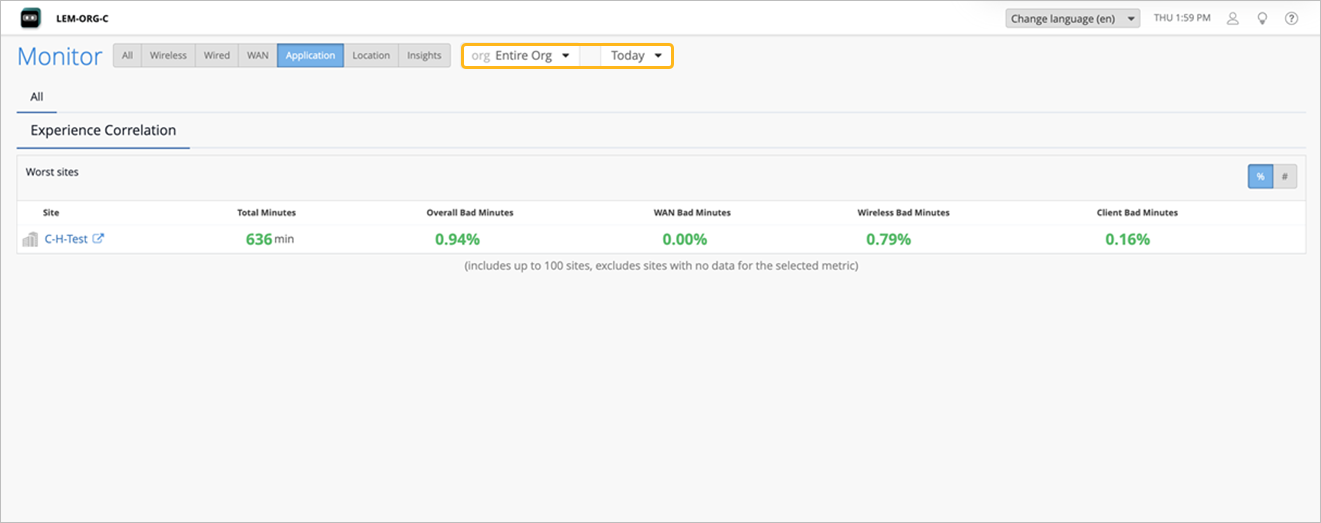
Organization-level experience correlation is now available for organizations that have not enabled Microsoft Teams or Zoom integration. This view lists up to 100 worst-performing sites in the organization, ranked by total bad minutes in descending order (highest at the top), and excludes any sites with zero bad minutes. The page shows the total user minutes, the time impacted by poor user experience, and categorizes bad minutes by source, enabling you to determine whether issues are related to the WAN, wireless network, or client devices.
In the Mist portal, navigate to Monitor > Service Levels > Application and select Entire Org to access this view.
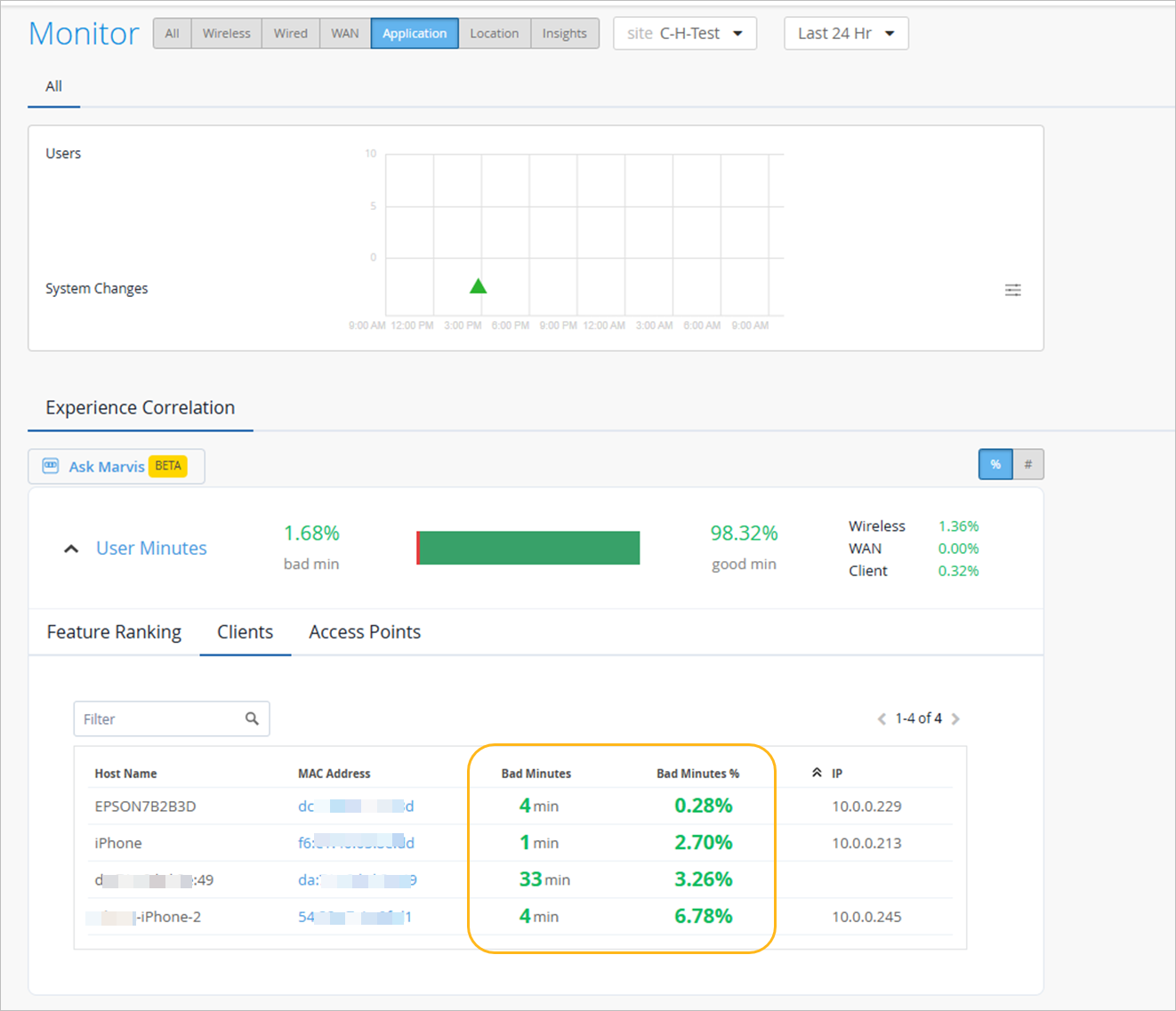
You can also click each site to see how the bad minutes are distributed across APs and clients. This helps you to quickly identify which APs or clients are experiencing more issues.
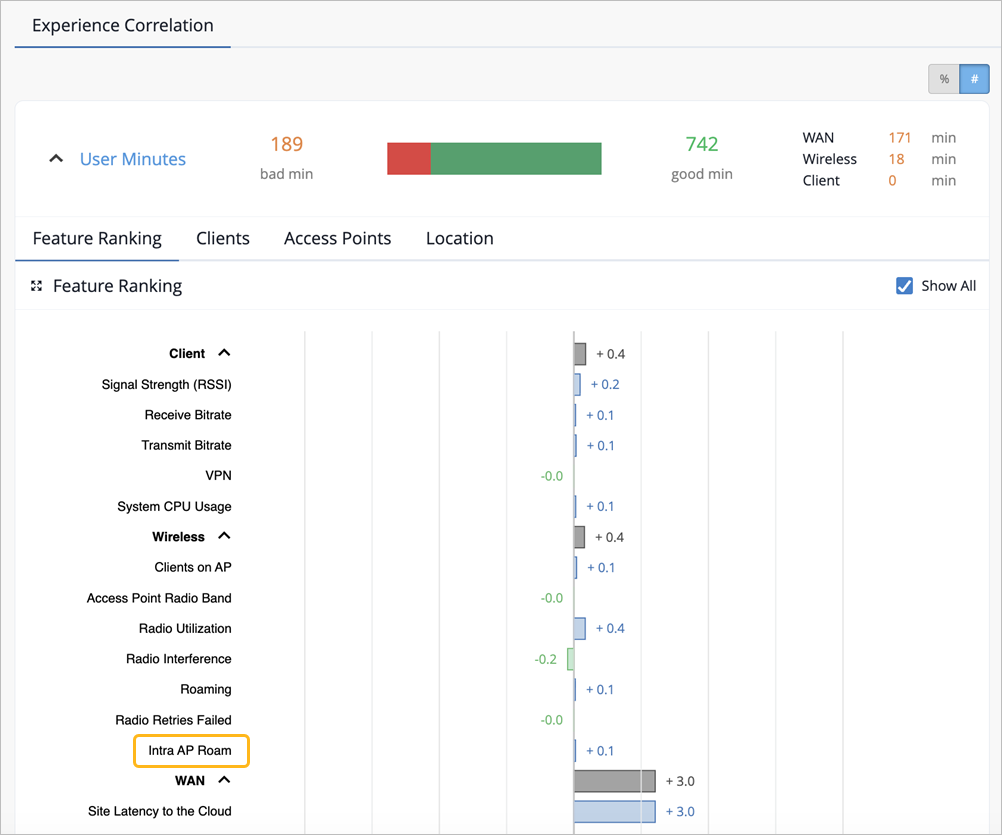
The Shapley Feature Ranking graph for Zoom and Microsoft Teams application experience now includes Intra AP Roam as a wireless feature. An intra-AP roam occurs when a wireless client switches between radios on the same AP—for example, moving from the 2.4 GHz band to the 5 GHz band or moving between dual 5 GHz bands on the same AP.
Intra-AP Roam provides visibility into how these intra-AP roaming events contribute to bad user minutes during Zoom and Teams calls. This helps you to assess whether the radio power or channel width on each radio band of an AP is causing intra AP roaming and impacting call quality.
You can view this on the Monitor > Application page under the Experience Correlation tab.
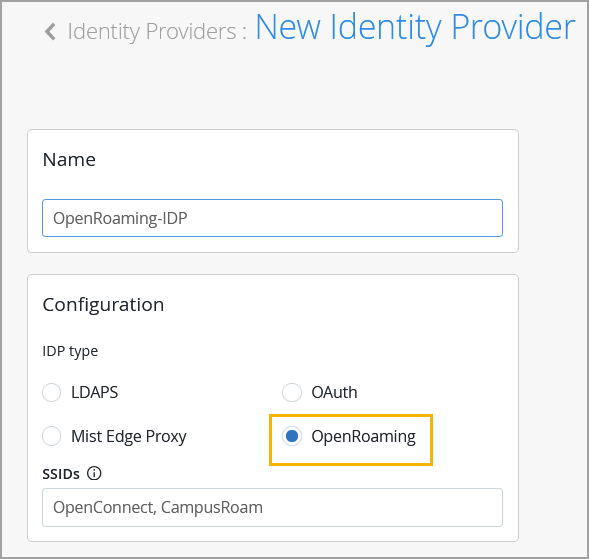
Mist Access Assurance (NAC) now supports OpenRoaming as a native identity provider (IdP), making it easier for you to deliver seamless and secure Wi‑Fi access across OpenRoaming-enabled networks. OpenRoaming, an initiative of the Wireless Broadband Alliance (WBA), allows users with an OpenRoaming profile on their device to connect automatically to participating Wi‑Fi networks without manually signing in.
Previously, enabling OpenRoaming required you to deploy and maintain your own RadSec proxy service and redirect authentication requests from Mist APs to that proxy. With this enhancement, you can configure OpenRoaming directly from the Mist dashboard, while NAC automatically manages the authentication workflow.
To configure OpenRoaming, navigate to Organization > Access > Identity Providers and add a new IdP. Select OpenRoaming as the IdP Type and specify at least one OpenRoaming SSID in the SSIDs field. These SSIDs identify the wireless networks that will carry OpenRoaming traffic.
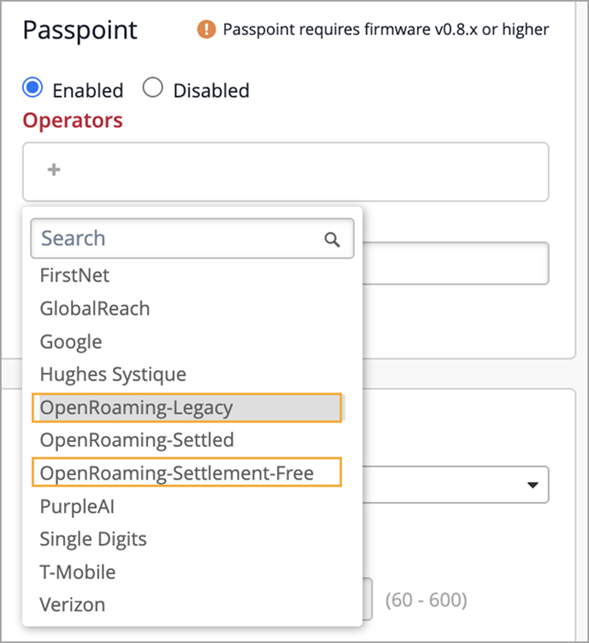
You must also enable Passpoint and attach the following OpenRoaming tags from the Operators list on your WLAN: OpenRoaming-Legacy and OpenRoaming-Settlement-Free. You can do this by navigating to Organization > Wireless > WLAN Templates.
After configuring the OpenRoaming IdP and Passpoint, create an Access Assurance policy rule (from the Organization > Access > Auth Policies page) that allows client access for users connecting through the specified OpenRoaming SSID(s). This policy rule is required to permit authenticated OpenRoaming clients to access the network. Note that an organization can have only one OpenRoaming IdP, but you can associate multiple SSIDs with it.
For more information, refer to Integrate OpenRoaming as an Identity Provider.
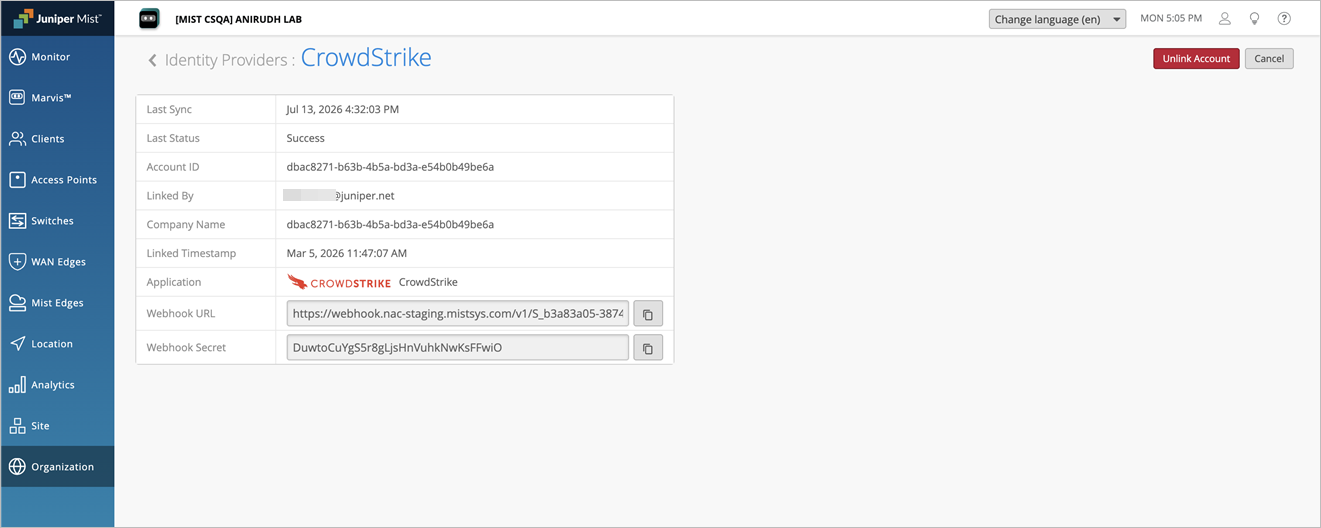
Mist Access Assurance now supports native integration with CrowdStrike Falcon® EDR, enabling real-time network access control based on endpoint threat detections. CrowdStrike EDR continuously monitors endpoint activity and generates detections with a severity level of Informational, Low, Medium, High, or Critical when suspicious or malicious behavior is identified on endpoints.
Using webhooks, CrowdStrike sends real-time event notifications to Mist Access Assurance whenever a detection is created, updated, or closed. Upon receiving these notifications, Mist Access Assurance immediately re-evaluates the endpoint against configured authentication policies and, when necessary, triggers a Change of Authorization (CoA) to dynamically apply the appropriate network access policy based on the current threat severity.
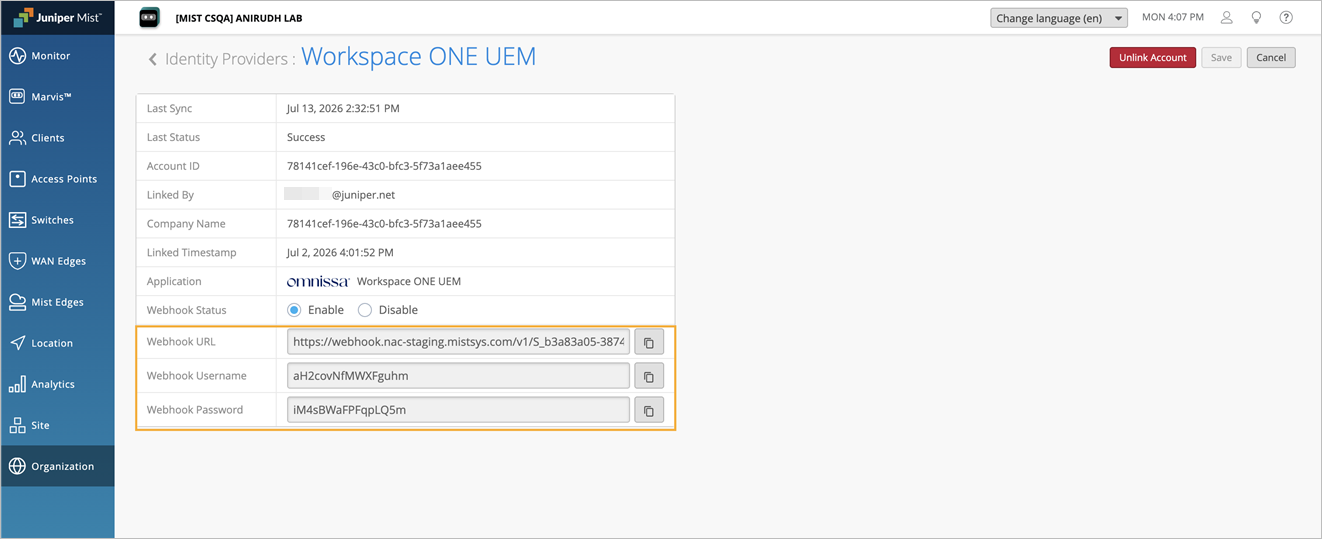
Mist Access Assurance now supports Workspace ONE UEM webhooks for real-time device compliance notifications. After you link a Workspace ONE account to Mist Access Assurance, a Webhook URL, Username, and Password are generated. You can use these credentials to configure a webhook in the Workspace ONE UEM console.
Once configured, Workspace ONE sends real-time notifications to Mist Access Assurance whenever a device’s compliance status changes. Mist Access Assurance processes these updates in real time and triggers a Change of Authorization (CoA), ensuring the client is quickly assigned the appropriate network access policy.
Webhook configuration is optional. If you choose not to configure webhooks, Mist Access Assurance will continue to track device compliance using periodic polling every two hours.
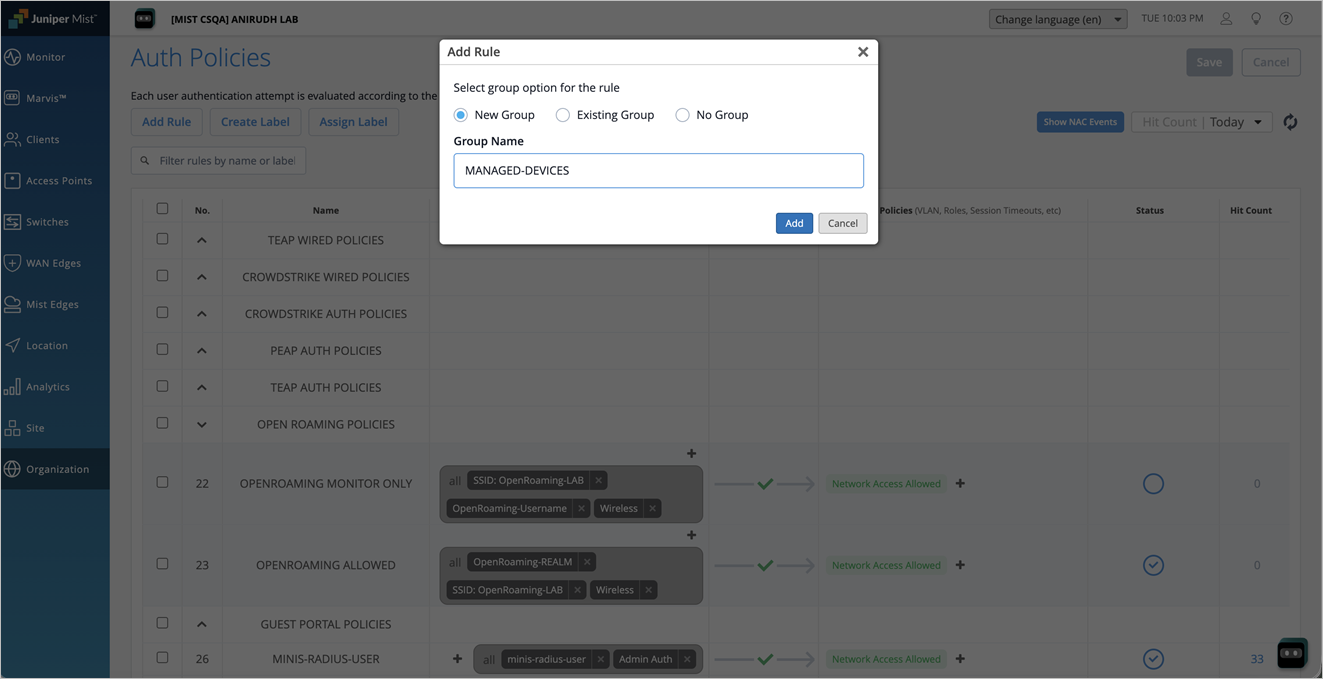
You can now organize NAC authentication policies into groups, making large rule sets
easier to manage and maintain, while preserving the existing rule evaluation order. With
this enhancement, you can:
Create rule groups—Organize authentication rules into named groups for better
policy management.
Choose rule placement—Add an authentication rule to a new group, an existing group, or leave it ungrouped during rule creation.
Rename or remove groups—Rename groups or ungroup rules as your policy
structure evolves.
Reorder rules and groups—Use drag-and-drop to change the priority of individual
rules or entire groups. Authentication rules are evaluated according to the global
rule order. Rules in groups higher in the list are evaluated before rules in groups
lower in the list.
Select all rules in a group—Use the group-level check box to quickly select all rules
within a group.
You can now configure organization-level settings to automatically detect and label NAC
endpoints that have been inactive for a specified number of days, simplifying endpoint
management. Key GUI enhancements include:
Inactive endpoints detection—A new toggle in the Access Assurance section of the Organization>Settings page allows you to enable or disable inactive endpoint detection.
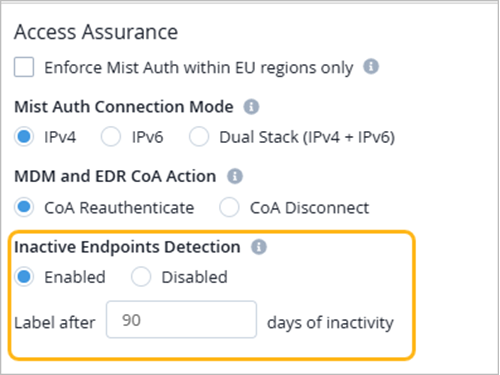
Configurable inactivity duration—Set the number of inactive days (range: 30–180, default:
90) after which an endpoint is marked inactive based on when it last connected to the network. Inactive endpoints are automatically assigned the inactive_endpoint client label, allowing
you to deny access or apply restricted policies.
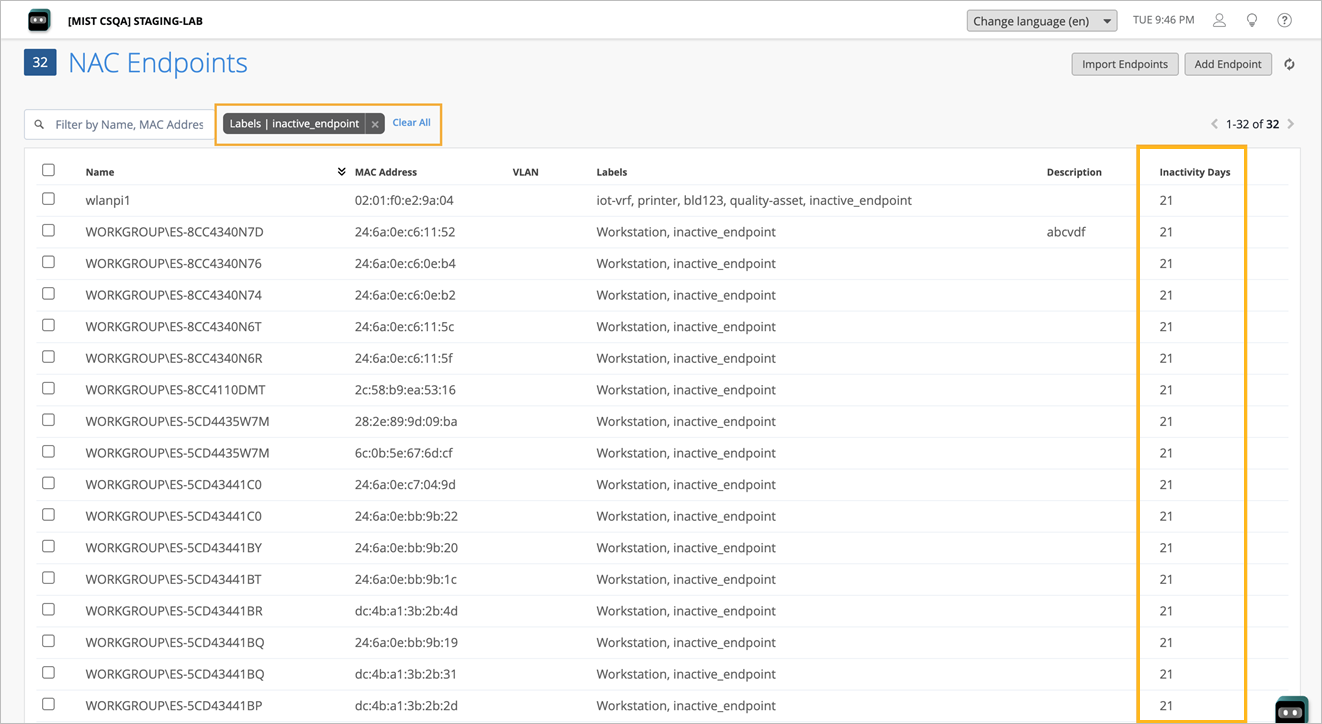
Inactivity days column—A new Inactivity Days column on the NAC Endpoints page
shows the number of days an endpoint has been inactive. The value is displayed as
"-" when inactive endpoint detection is disabled.
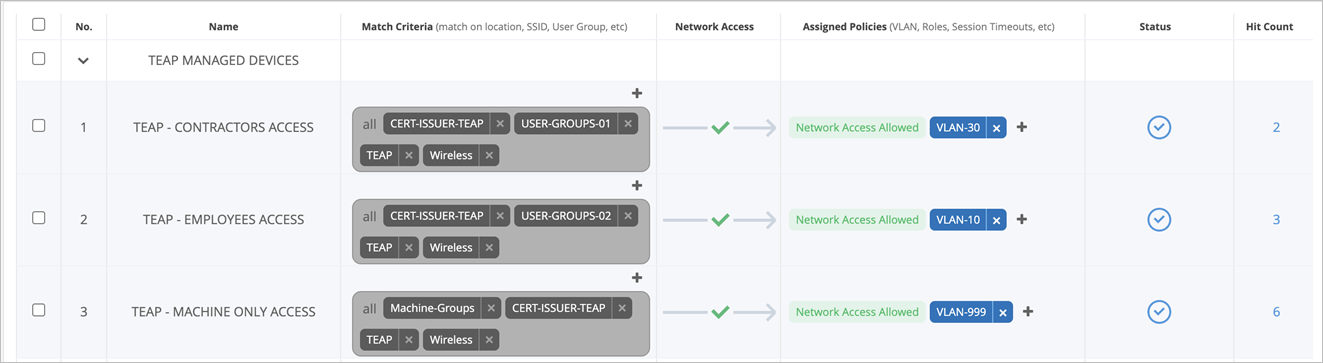
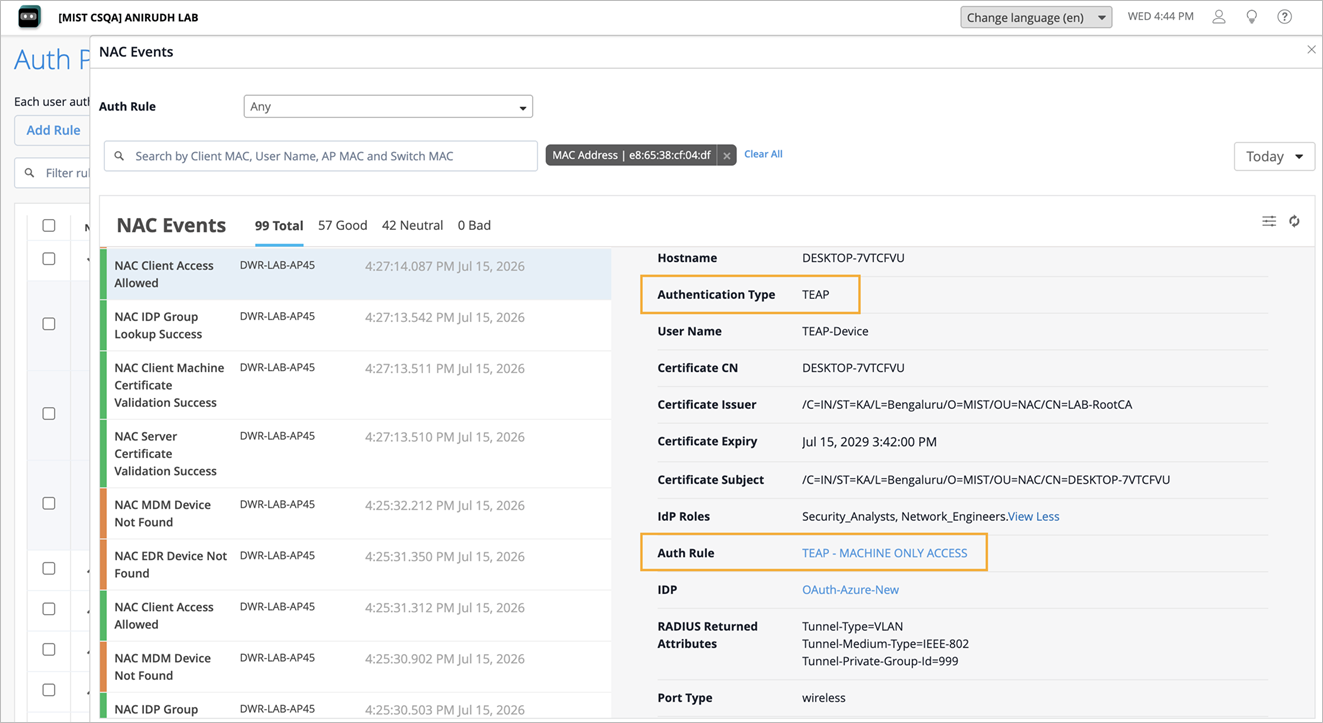
Mist Access Assurance now supports TEAP Phase 1 authentication using only a machine certificate. This allows endpoints to authenticate even when no user is logged in, or when the user certificate is invalid or expired. In these cases, the endpoint can still connect to the network based solely on its machine certificate.
When a valid user certificate is present, TEAP proceeds through both phases of authentication: first validating the machine certificate, then performing user authentication.
To support both machine-only and machine-plus-user authentication scenarios, administrators must configure the appropriate authentication policy rules.
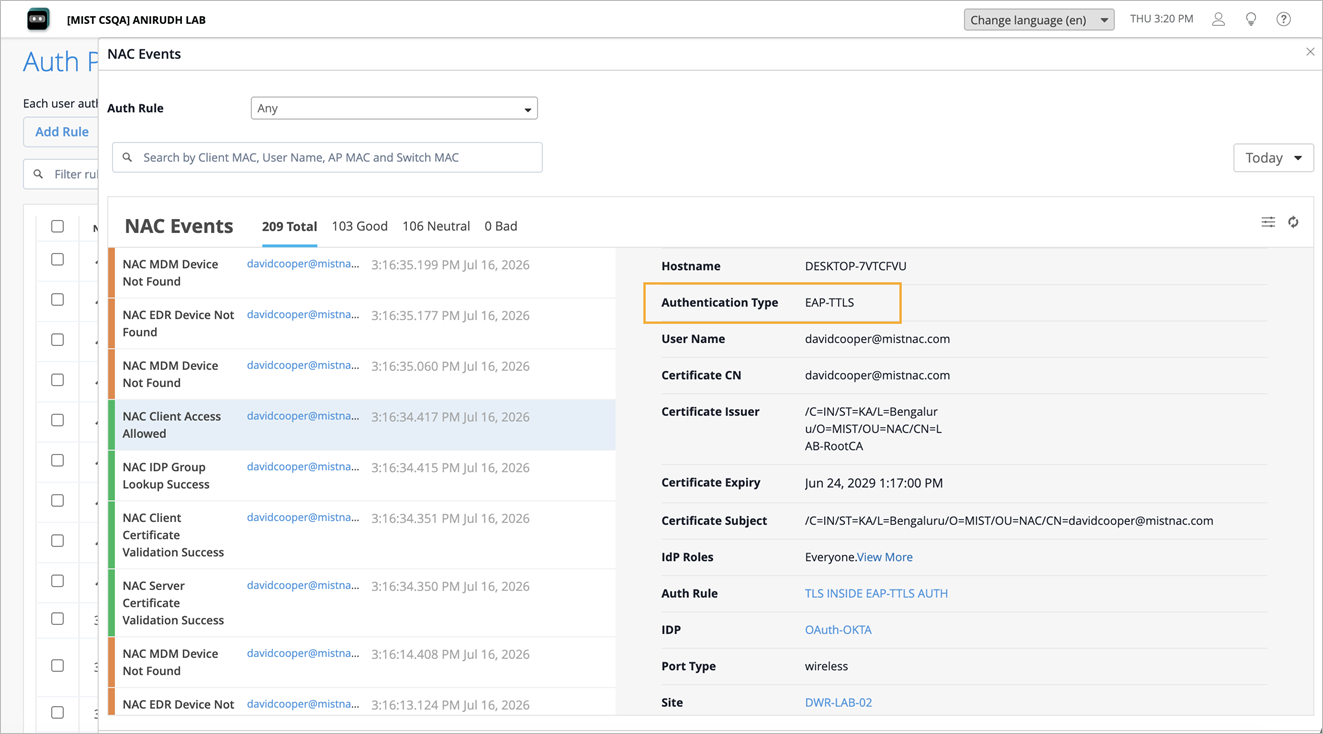
Mist Access Assurance now supports EAP-TLS as the inner authentication method within an EAP-TTLS tunnel. This enhancement allows clients to authenticate using client certificates within the protected EAP-TTLS tunnel while presenting an anonymous outer identity during the initial EAP exchange. This ensures that the user's true identity is not exposed before the secure tunnel is established.
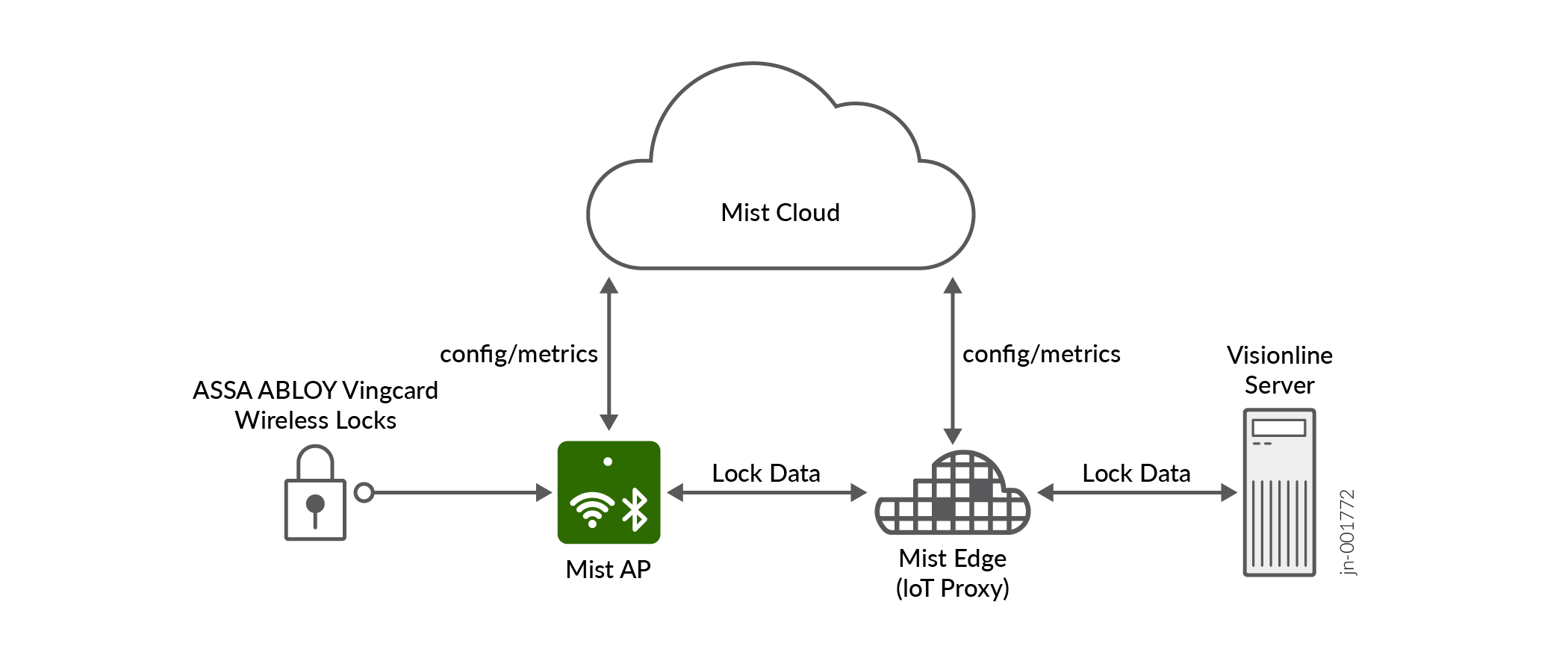
You can now connect ASSA ABLOY Visionline wireless locks directly to Mist AP36 access points and Mist Edge over Zigbee, eliminating the need for dedicated Zigbee gateway hardware. Mist AP36 acts as the native Zigbee gateway, while Mist Edge provides secure on-premises backhaul. Visionline remains the system of record for lock management, credentials, and access control policies.
Using Mist's AI-driven cloud platform and existing wireless infrastructure, the integration provides centralized monitoring, real-time lock telemetry (status, RSSI), dashboards and alerts without changing existing Visionline workflows. All data plane traffic remains on-premises with end-to-end encryption and secure Zigbee pairing.
The solution scales to 32 locks per AP and approximately 2,000 locks per site, delivering secure, enterprise-grade connectivity and simplified deployment. This is currently supported on AP36 only.
You can now configure aggregate routes on individual switches and within campus fabrics. Aggregate routes summarize multiple specific routes into a single, broader route prefix, reducing the number of routes advertised to upstream devices. At the switch level, you can configure aggregate routes from the new Aggregate Route tile in the Routing section of the switch details page (Switches > Switch Name). You can configure the destination prefix, routing metric, route preference, and discard behavior for each aggregate route.
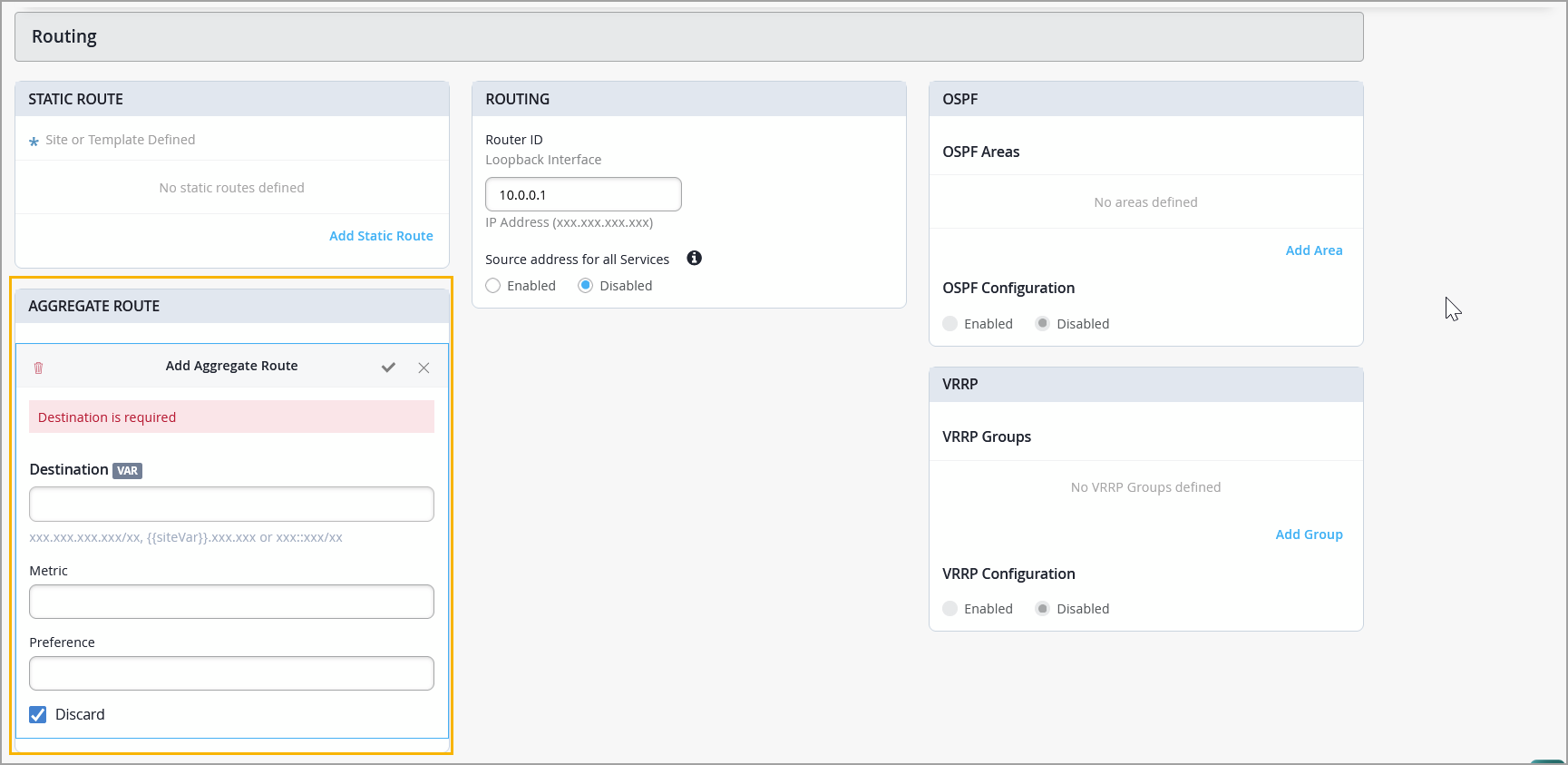
To advertise aggregate routes to external peers (for example, via BGP), configure a routing policy with aggregate as the matching protocol and the aggregate prefix as the route filter.
In campus fabric deployments (IPCLOS, ERB, and CRB), aggregate routes are used to summarize internal fabric routes for advertisement to external peers like firewalls or WAN routers. The VRF tile on the Network Settings tab of the campus fabric page (Organization > Wired > Campus Fabric) now has a Loopback Per-VRF IPv4/IPv6 field. When you define a Loopback Per-VRF IPv4/IPv6 Subnet for a VRF, Mist automatically creates a matching aggregate route for that entire subnet. You can also manually include additional aggregate routes per VRF.
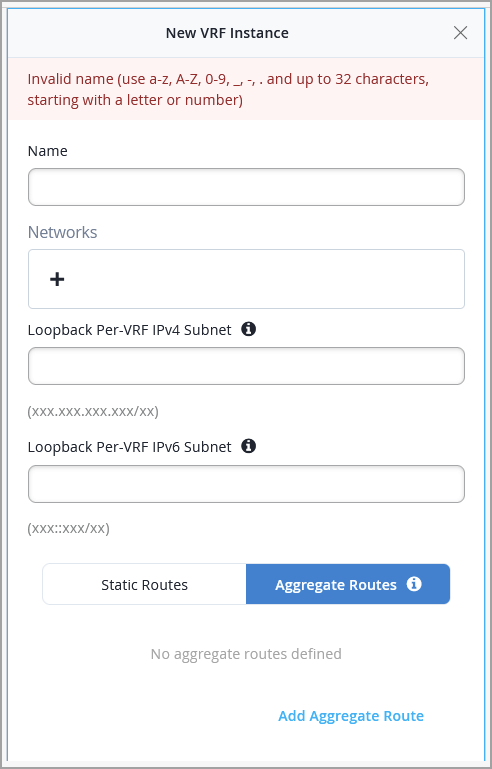
Mist automatically pushes aggregate routes only to devices designated as border nodes or to core nodes (if the fabric has no border node), ensuring that route summarization occurs only at the fabric's external edge. Aggregate routes configured at the campus fabric level appear as read-only on individual switches that are part of the fabric and cannot be modified from the switch details page.
You can now schedule reboot-only operations for switches through the Firmware Upgrades page (Organization > Firmware Upgrades), without requiring a firmware upgrade. This enables you to orchestrate planned switch reboots—for example, to apply configuration changes that require a reboot or to perform routine maintenance—during a scheduled maintenance window.
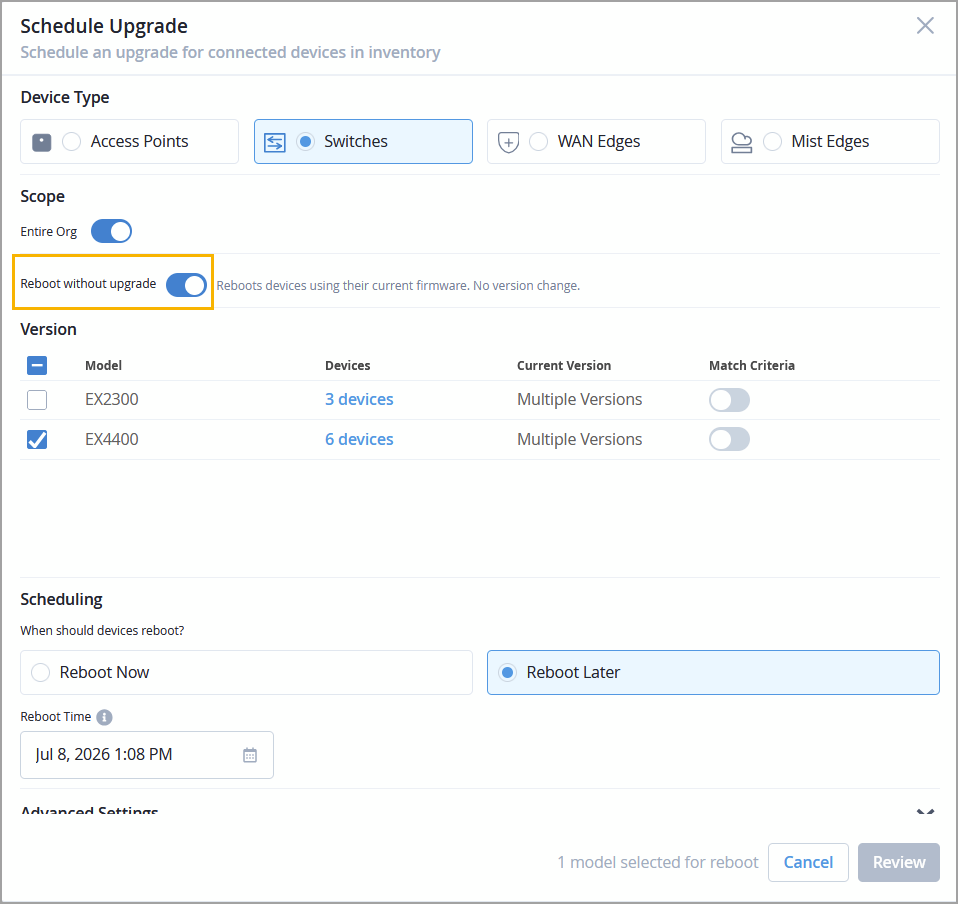
You can either reboot switches immediately or schedule a reboot for a future date and time. You can target specific switch models for the reboot, and you can use match criteria (switch name, switch role, or campus fabric role) to further narrow the scope.
You can also cancel scheduled reboots or edit the reboot date from the Reboot Only section of the Firmware Upgrades page.
For more information, refer to Create Reboot-Only Schedules for Switches.
Mist now supports switch-level configuration variables. These variables allow you to apply unique configuration values per switch, even when multiple switches are associated with the same template.
Device variables are similar to site variables, except that they are scoped to a specific switch rather than a site. You can define them as key-value pairs and reference them in configuration fields using the {{variable_name}} syntax.
A new Device Variables tile is available in the Management section of the switch details page (Switches > Switch Name). You can add, delete, and import device variables from this block.
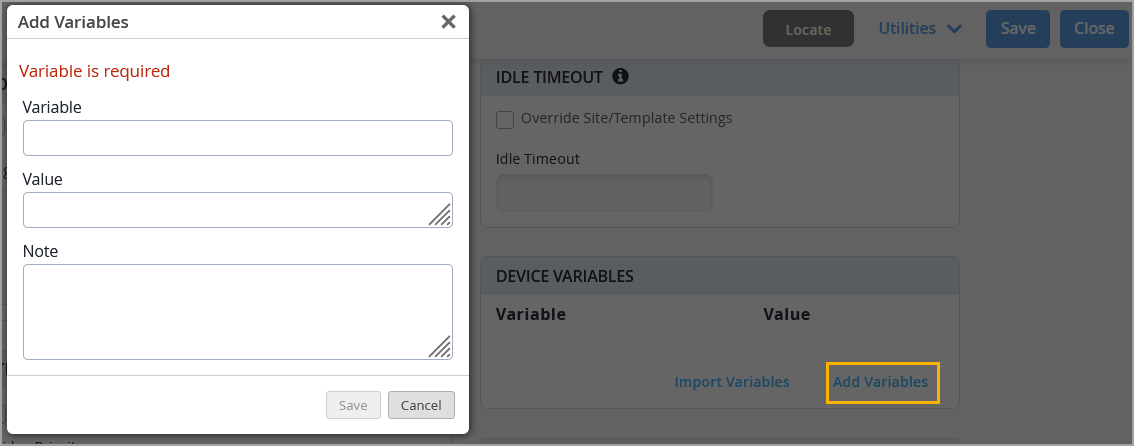
When you type {{ in a supported configuration field, an autocomplete drop-down displays both device variables and site variables. If a device variable has the same name as a site variable, the device variable takes precedence.
You can also import device variables in bulk using a CSV file, following the same format as site variable imports. For more information, refer to Configure Switch-Level Variables.
The wired client Insights page now displays additional client properties, providing enhanced visibility into wired client details without leaving the Insights view. Previously, these details were available only as optional columns on the Wired Clients list page.
The following new properties are now shown in the Client Properties section on the wired client Insights page (Monitor > Service Levels > Insights > Wired Client): Username, VLAN, Manufacturer, Authentication State, Authentication Method, Auth Domain, DHCP Hostname, DHCP Vendor Class Identifier, DHCP FQDN, DHCP Client Identifier, Dynamic Filter, and RADIUS Returned VoIP VLAN.
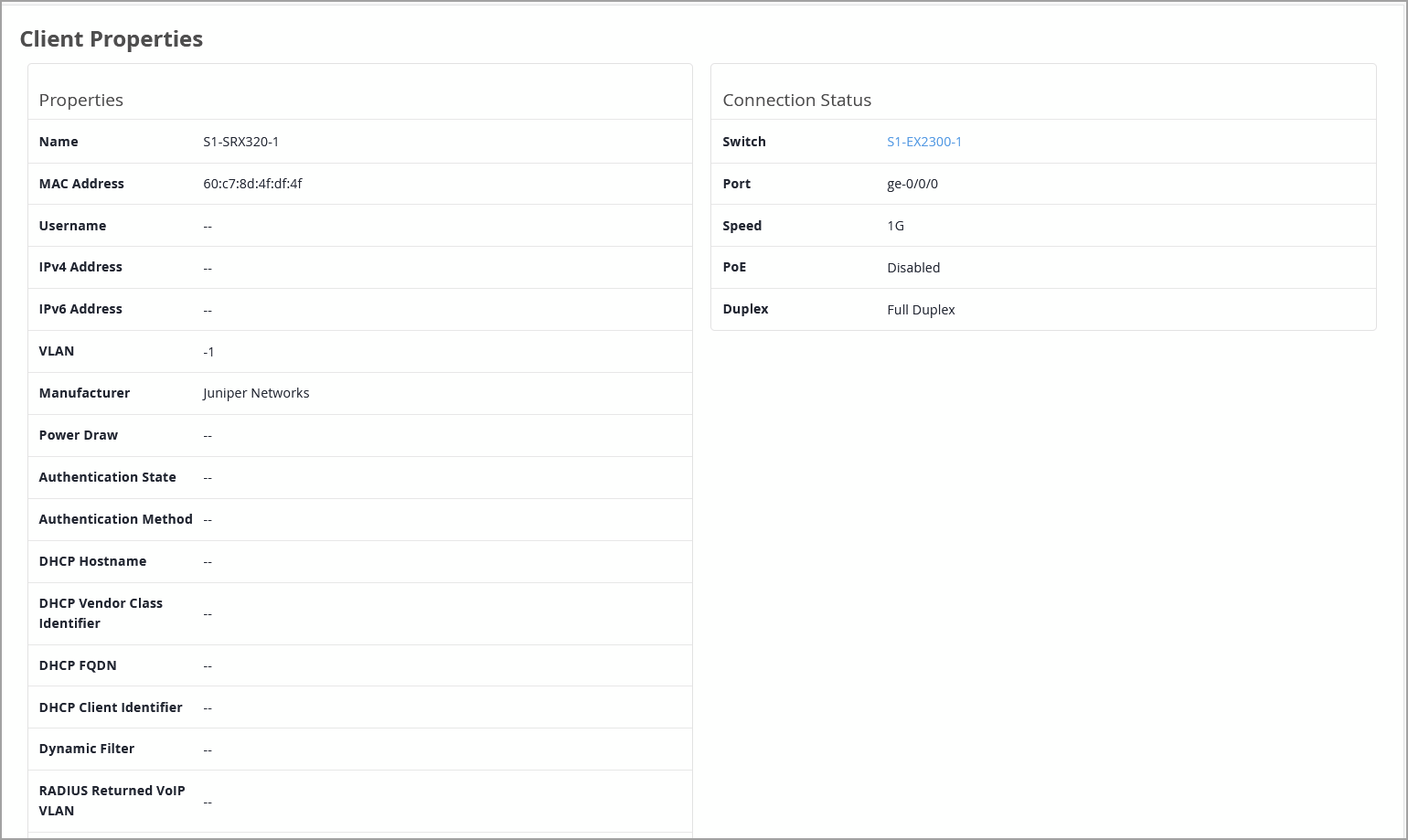
The DHCP-related fields require DHCP snooping to be enabled on the switch and are supported on devices running Junos version 23.2 or later. The authentication-related fields are populated for clients that authenticate through 802.1X or MAC-RADIUS.
Additionally, the switch name shown under the Connection Status section under Client Properties is now a clickable link that navigates directly to the switch detail page.
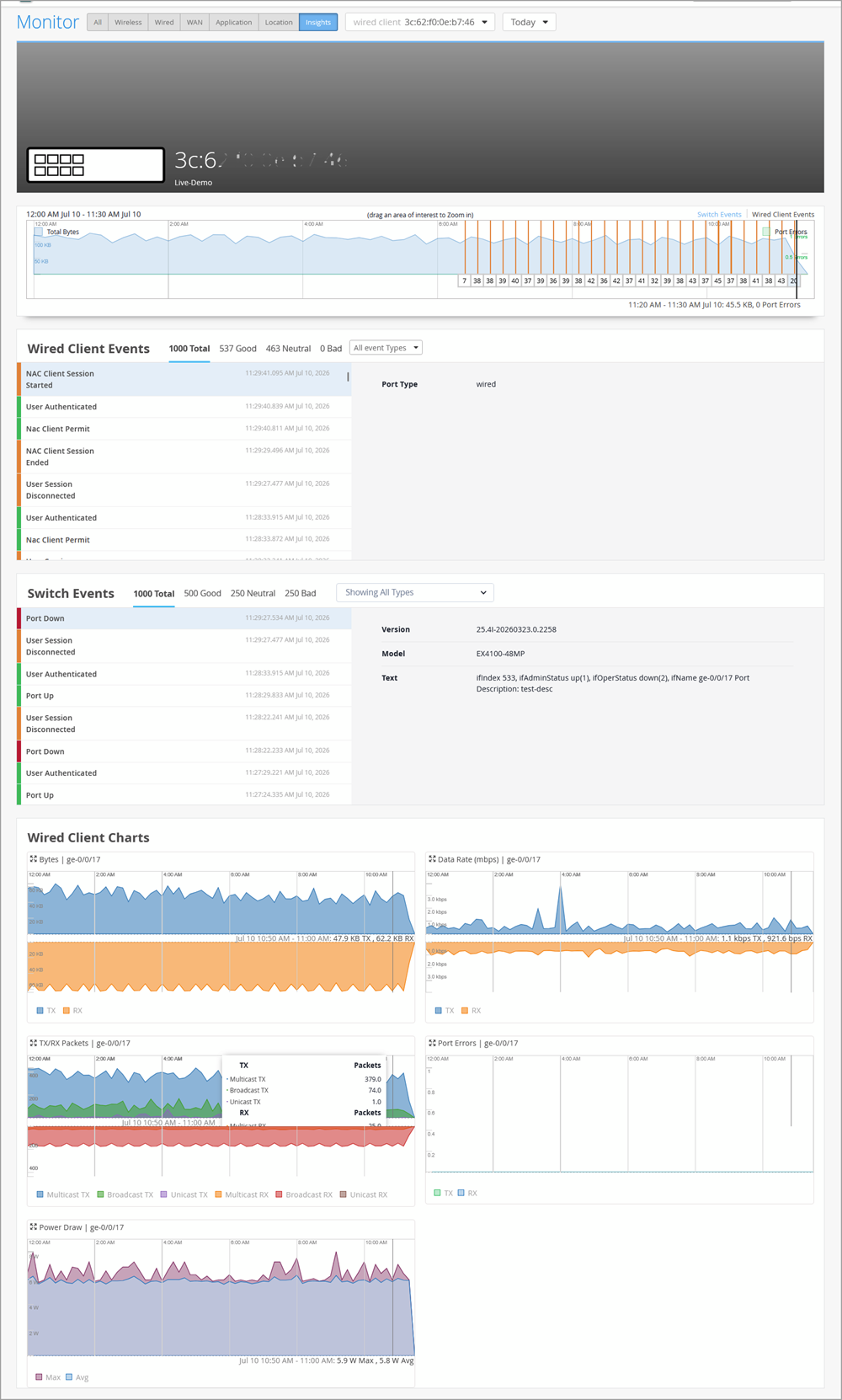
The wired client Insights page now displays historical time-series charts, switch events, wired client events, and the last known port or ports for clients that are disconnected from the switch. Previously, these sections appeared empty when a wired client went offline, even though the underlying data was available.
When you open the Insights page for a disconnected wired client (Monitor > Service Levels > Insights > Wired Client), the page now uses the client's last known switch and port information to load the data. Note that for clients that were connected through aggregated Ethernet (LAG), the port selector on the client Insights page lists all the trunk ports.
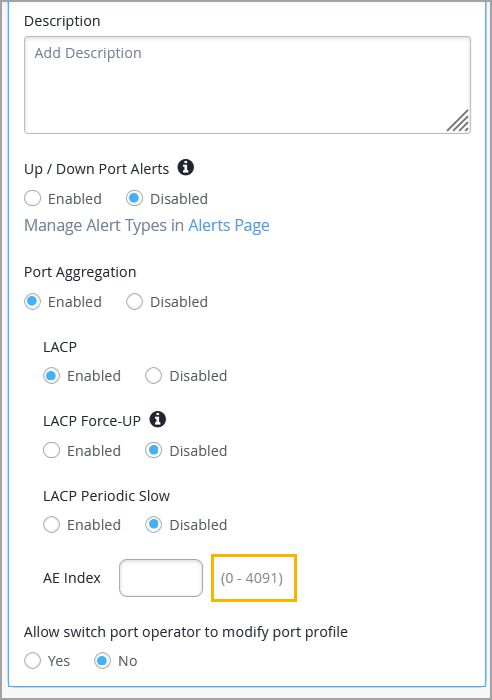
We have expanded the supported AE (aggregated Ethernet) index range from 0–255 to 0–4091 for non–campus fabric switches, providing network administrators with greater flexibility when configuring link aggregation groups.
The AE index input field now accepts values from 0 to 4091 across switch, site, and organization levels. You can find the AE Index field in the Port section of the switch details page or on the Port Config tab under Select Switches Configuration of a switch template (organization or site level).
The AE index is a numeric identifier used to designate an aggregated Ethernet interface on switches and similar platforms. Expanding the AE index range ensures that administrators do not encounter index limitations. Note that campus fabric switches continue to use the existing 0–255 AE index range.
Juniper Mist Campus Fabrics now default to MAC-VRF routing instances for all new fabrics created after this update. This change updates only the configuration pushed from the cloud to the devices, ensuring advanced multi-tenancy and unified EVPN services without changing the cloud UI experience. Existing fabrics are unaffected, and all older deployments will continue to operate as usual with no operational impact. The Mist cloud uses the vlan-aware instance type for MAC-VRF configuration. For more details, see MAC-VRF Routing Instance Type Overview | Junos OS | Juniper Networks.
Mist WAN Assurance now supports adopting the SRX4XX Series Firewall as a WAN Edge device at the branch, deployed in a standalone non-HA topology. The SRX400 is a next-generation firewall that includes security, switching, routing, and WAN connectivity in a single device. It also provides scalability, easy management, security, and advanced threat mitigation. Unlike traditional branch deployments that require multiple hardware components and manual provisioning, the SRX400 provides provisioning via the Mist cloud for accelerated setup.
The SRX400 Series Firewall includes the SRX400, SRX440, and SRX440-2AC models.
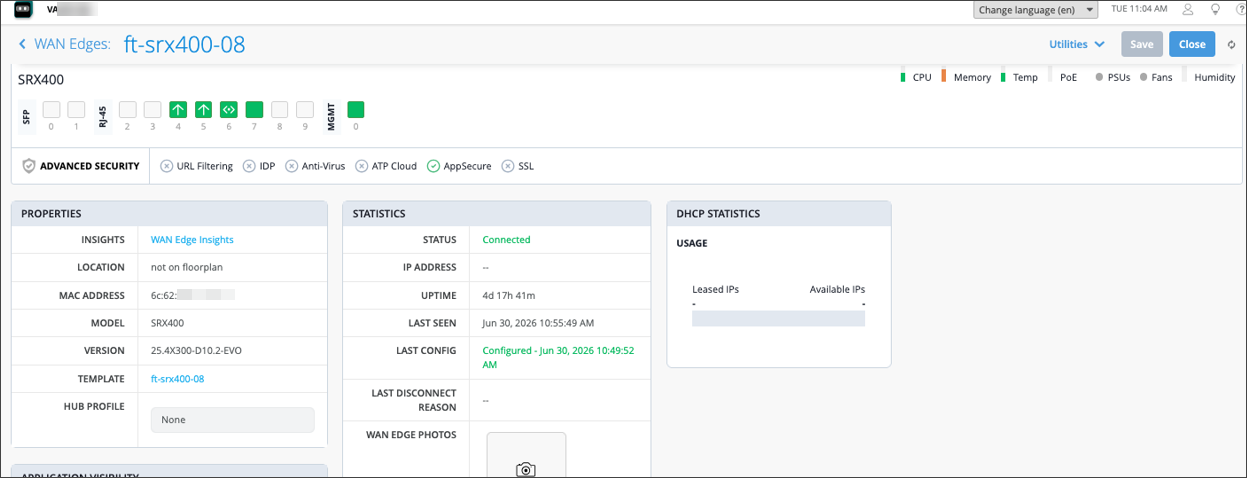
For more information, refer to the SRX400 Firewall Series for Branch Datasheet.
To onboard an SRX4XX Series Firewall into Mist, you must use the adoption workflow.
Mist WAN Assurance now supports HTTP-based probes for WAN path viability monitoring on Mist-managed SRX devices. You can configure HTTP to determine whether a WAN breakout path is up. Because upstream providers may rate-limit or drop ICMP traffic even when HTTP-based applications remain reachable, HTTP probes provide a more accurate measure of actual application reachability.
In addition, you can now use hostnames as ICMP probe targets, giving you greater flexibility beyond IPv4 and IPv6 addresses alone.
To configure HTTP-based probes, add or edit the WAN interface configuration for a WAN Edge device or WAN Edge template, and configure the following:
URLs—Enter one or more HTTP URLs to probe. The system sends HTTP requests to the specified URLs to assess path reachability.
Probe Profile—Select Broadband (default) or LTE to control inherited probe timing behavior (interval, count, test interval). This setting applies to both ICMP and HTTP probes.
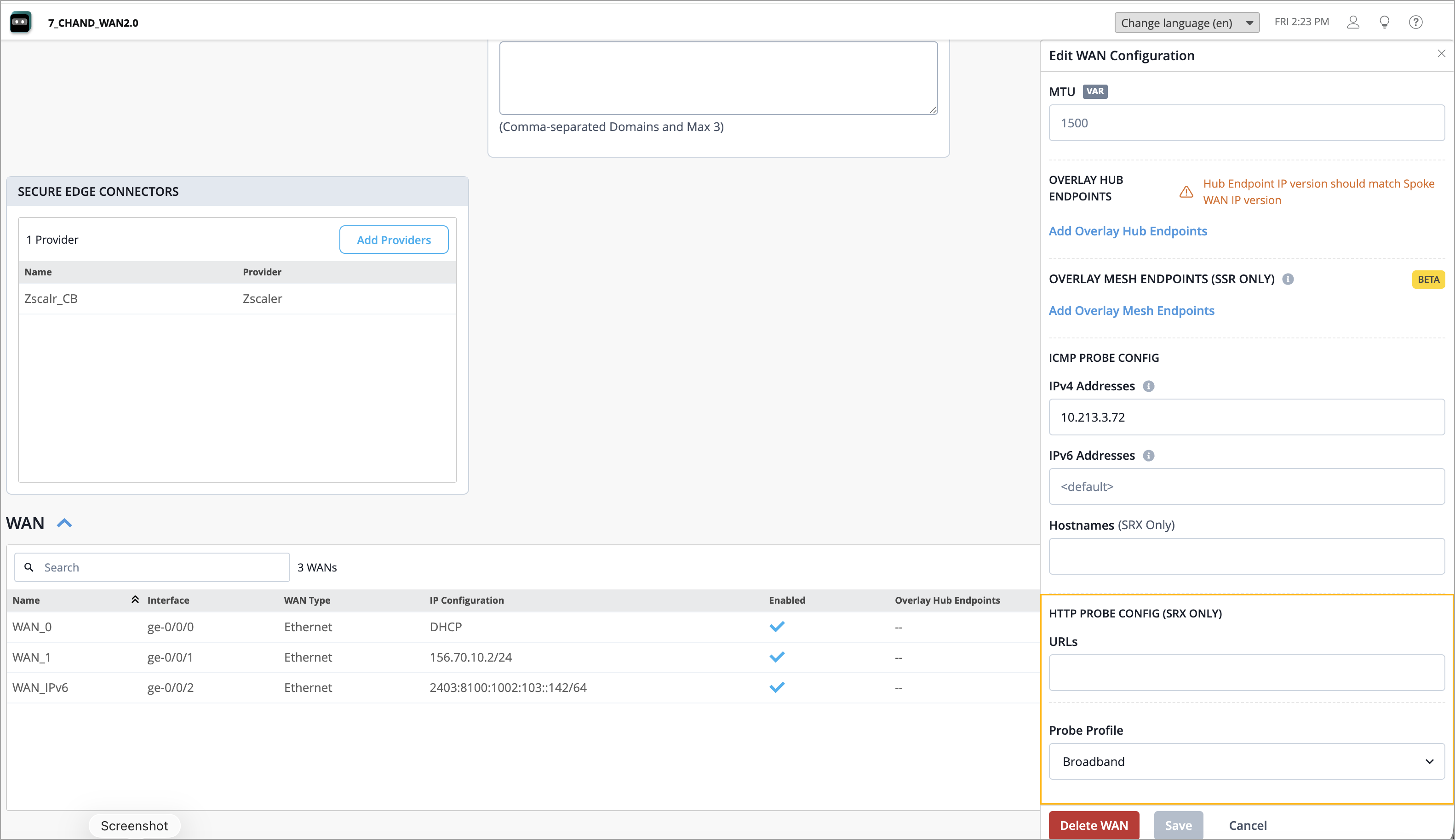
Note that you can configure ICMP probes, HTTP probes, or both simultaneously. When both ICMP and HTTP probes are configured, the WAN path remains up as long as at least one configured probe type reports success. The path is marked down only when all configured probes fail.
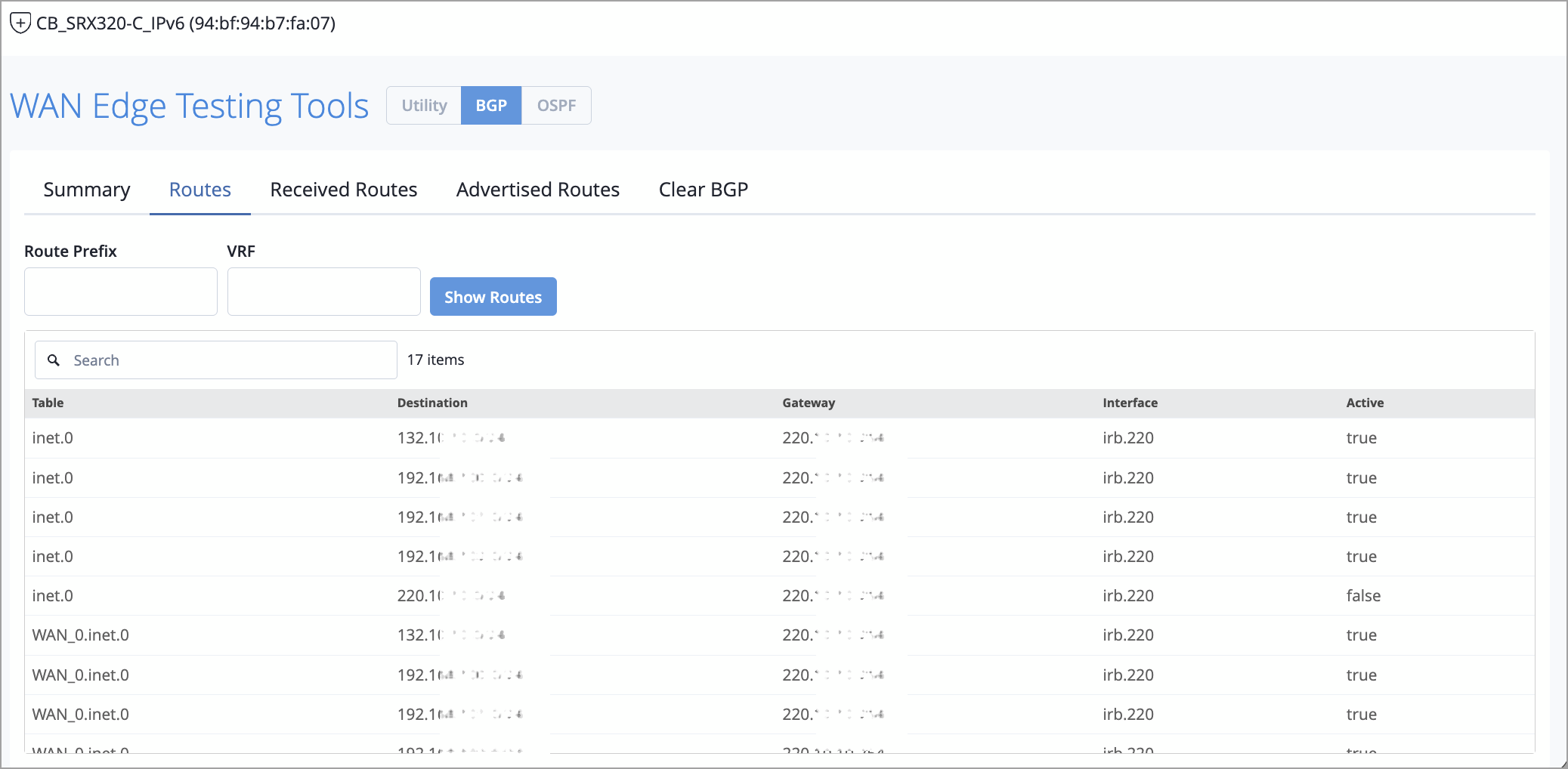
The Testing Tools for SRX WAN Edge devices now provide diagnostic results in a structured tabular format, not as raw CLI text output. This improvement applies to the following tools: BGP, OSPF, and FIB.
Previously, running a diagnostic command such as BGP Summary or Show FIB returned unformatted, shell-style text that was difficult to scan and interpret—especially for large result sets. With this enhancement, results are automatically displayed in tabular format with clear headings. This change improves readability and makes it faster to identify issues such as peers in a non-established state, missing prefixes, or unexpected routing entries. The following image shows a sample output returned by the BGP tool.
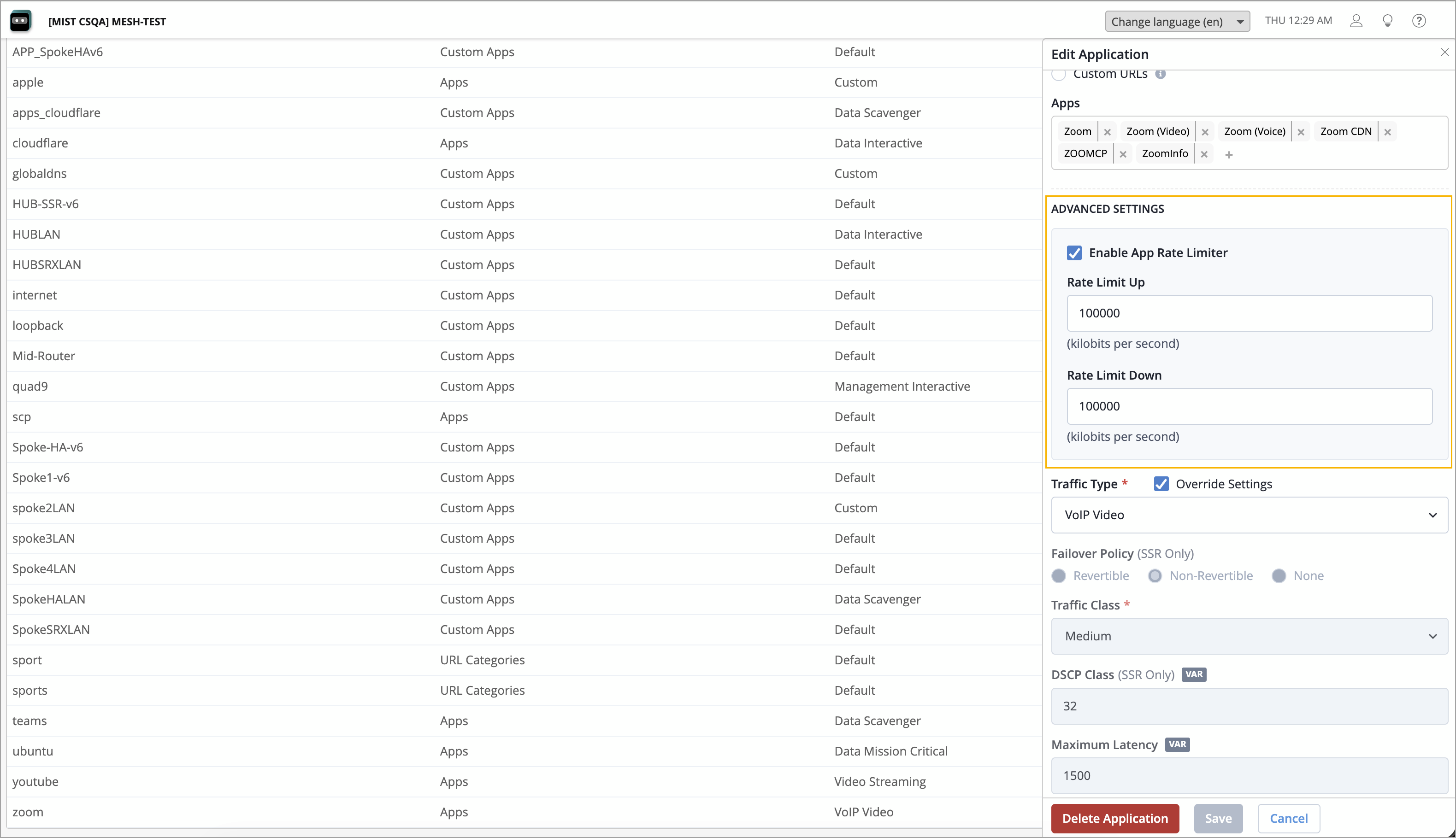
You can now apply per-application bandwidth rate limiting on Mist-managed WAN Edge (SSR) devices. This feature lets you cap the upload and download bandwidth that specific applications can consume across your WAN, preventing bandwidth-hungry apps from causing congestion or excessive costs.
With this release, you can define service-level rate limits per application, and the settings are automatically translated into the appropriate SSR rate-limit-policy configuration and pushed to your WAN Edge devices.
You can configure rate limit from the Advanced Settings section on the Organization > WAN > Applications page. You can specify the maximum upload limit (Rate Limit Up) or download limit (Rate Limit Down) for an application, in kilobits per second (kbps). Rate limit must be a value between 64 and 10,485,760.
The WAN Edge Packet Capture (PCAP) tool now supports IPv6 traffic capture on Session Smart Router (SSR) WAN Edge devices. Previously, packet capture filtering was limited to IPv4 traffic. With this enhancement, you can build capture filters that target IPv6 traffic directly from the Mist portal.
The following IPv6 options are now available in the PCAP expression builder on the Site > WAN > WAN Edge Packet Captures page for sites with SSR devices:
ICMPv6 protocol filter—The Add Port Filter section now includes ICMPv6 as a selectable protocol, allowing you to capture ICMPv6 traffic.
IPv6 Multicast filter—A new IPv6 checkbox in the Multicast section of the expression builder. When selected, the system generates the ip6 multicast filter expression to capture IPv6 multicast traffic. This option works alongside the existing Ethernet and IPv4 multicast filters.
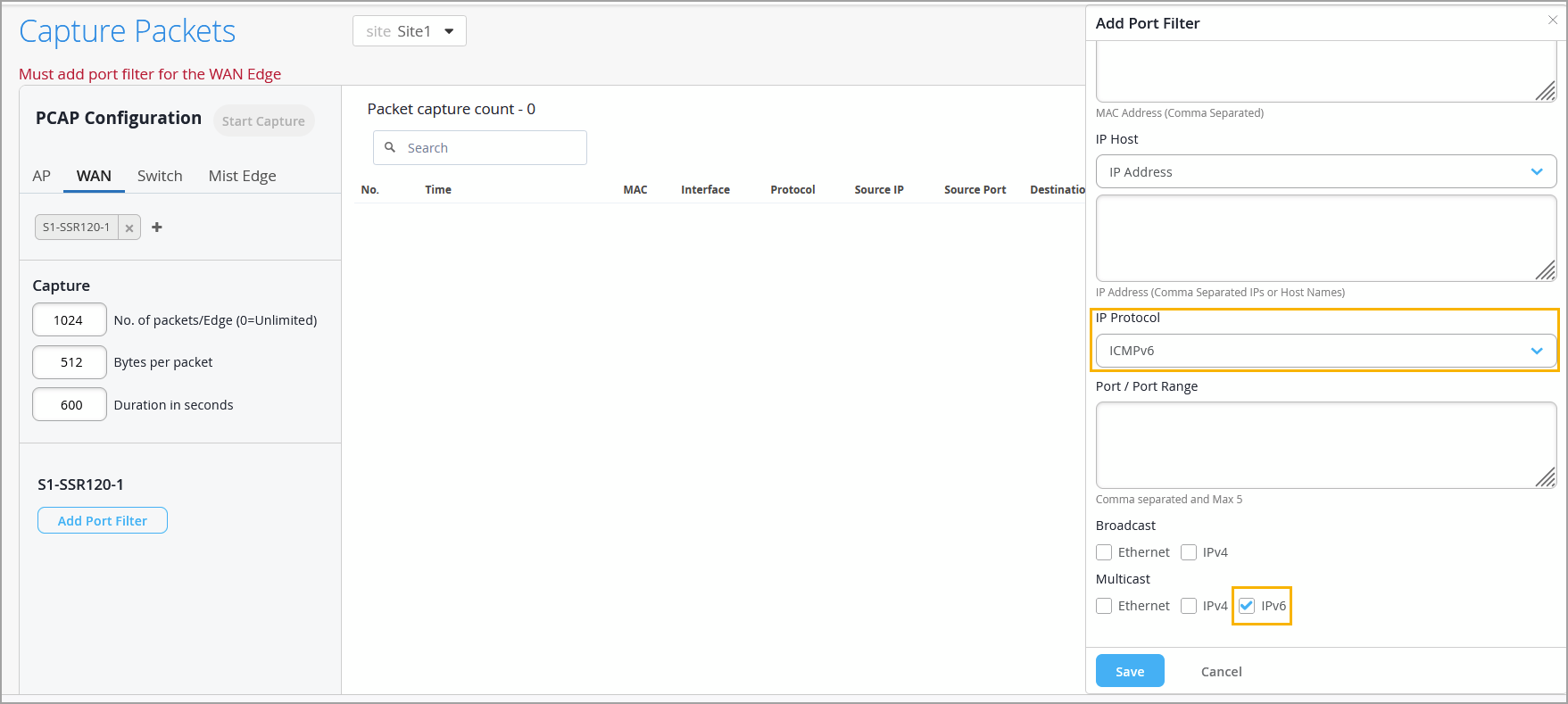
Note: IPv6 packet capture is supported only on SSR WAN Edge devices. For SRX WAN Edge devices, packet capture remains IPv4 only.
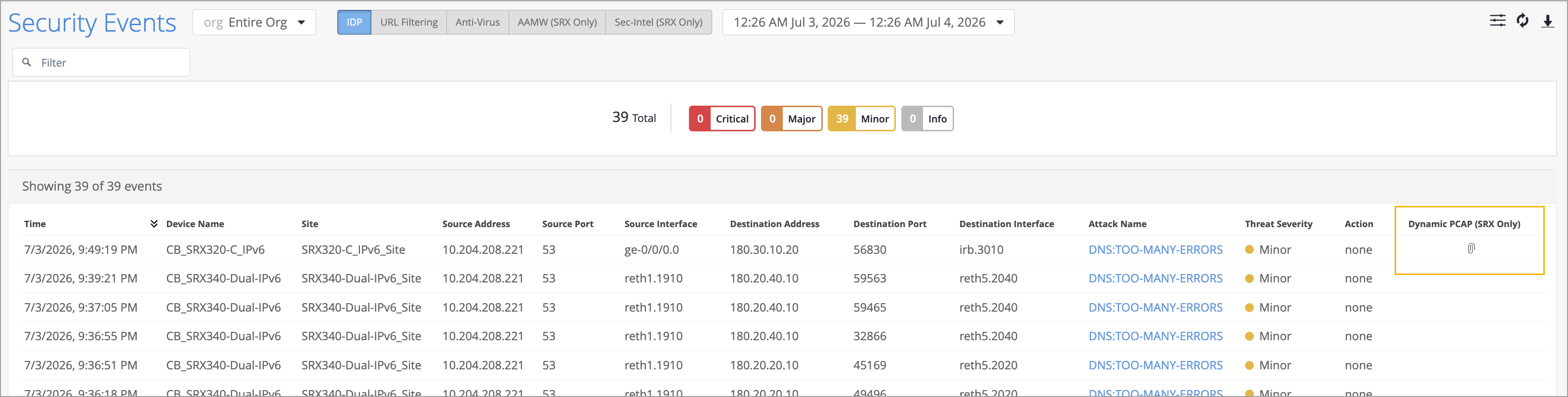
When an SRX detects an Intrusion Detection And Prevention (IDP) attack, Mist automatically retrieves the associated packet capture from the device and makes it available on the Security Events page for download. You can click the download icon (a paperclip image) in the Dynamic PCAP column to immediately download the PCAP file associated with an IDP event. Each Dynamic PCAP captures up to five packets before and five packets after the attack signature match, providing context around the security event for faster root-cause analysis. Dynamic PCAP for IDP events is supported on SRX WAN Edge devices running Junos version 23.1R1 or later.
To access the Dynamic PCAP downloads, navigate to Site > WAN > Security Events and look for the Dynamic PCAP column on IDP attack events. When a PCAP is available, a download icon appears in the column. Click the icon to download the PCAP file.
Mist now validates hub profile and WAN Edge template names to prevent spaces. Previously, a hub profile name containing a space (for example, "My Hub") could cause overlay endpoint failures, resulting in peer paths not coming up between hub and spoke devices.
If you have an existing hub profile with a space in the name, Mist will display a warning: "Hub Profile name cannot contain spaces." To resolve this, clone the affected profile using a name without spaces, reassign your devices to the new profile, and delete the old one. For existing WAN Edge templates with spaces in their names, you can edit the names to remove the spaces.
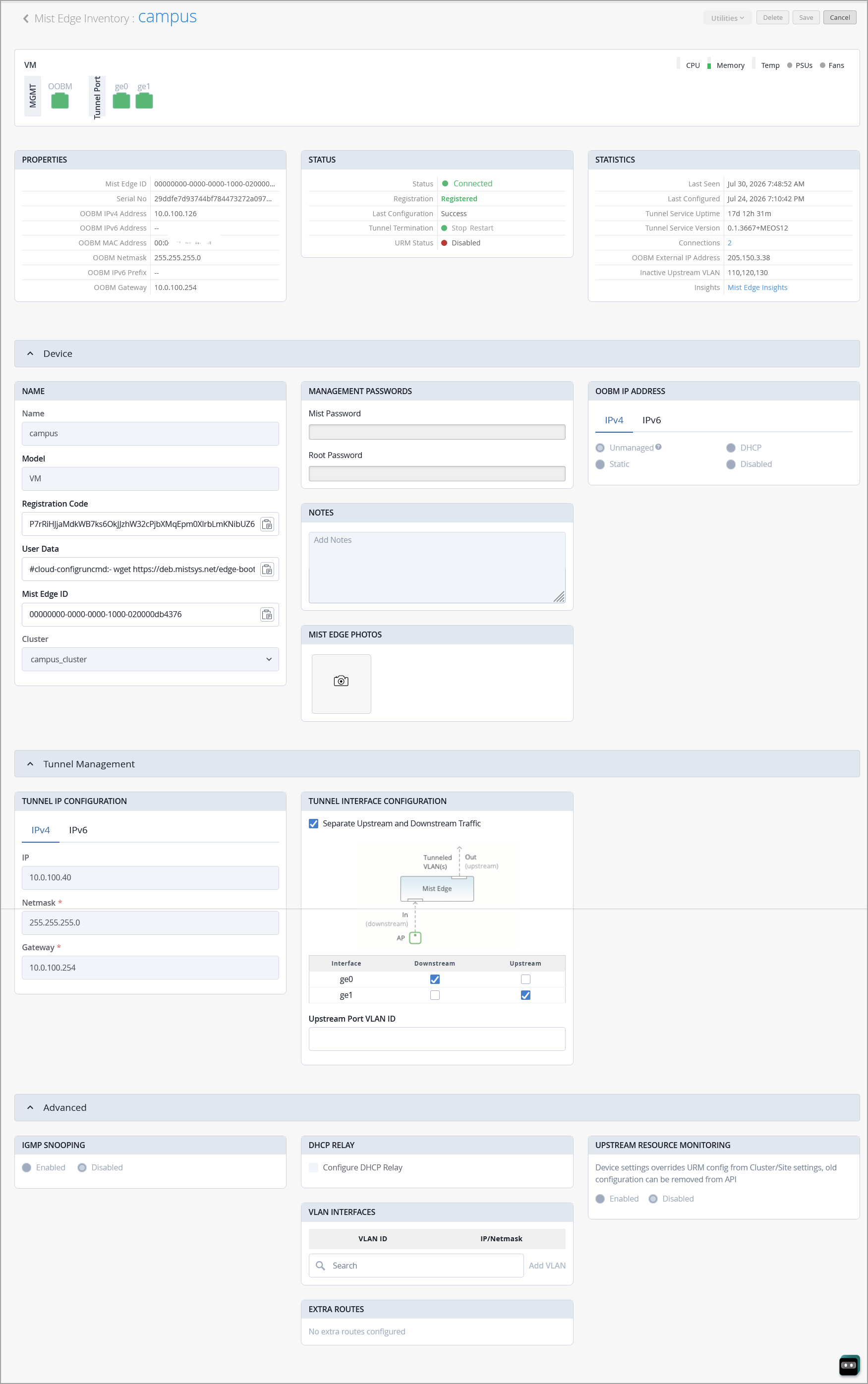
We have redesigned the Mist Edge device details page to improve usability and better align it with Mist Edge hardware models. Below are the key updates:
Model-aware chassis front panel—A new interactive chassis front panel provides a visual representation of your Mist Edge hardware, including the OOBM port and data ports. The layout automatically adapts to the specific Mist Edge model, accurately reflecting port count and physical arrangement. Health gauges for CPU, memory, temperature, PSUs, and fans are displayed alongside the chassis view.
Reorganized layout—The device details page is now structured into clear, collapsible sections—Properties, Device, Tunnel Management, and Advanced—making it easier to locate and manage configuration settings.
Port selection—Ports on the chassis panel are now interactive. Clicking a port displays associated details such as LLDP, LACP, and port statistics, along with options to start packet capture and bounce ports. For disconnected devices, placeholder ports are shown based on the model definition.
Device photos—Upload and manage up to three photos per Mist Edge appliance.
We have simplified Mist Edge tunnel configuration in WLANs with the following two enhancements to site variables:
Support for Mist Edge tunnels in site variables. This enhancement enables template-based deployments that automatically map to the correct tunnel at each site.
The Site Variables section on the Organization > Site Configuration page includes two new fields: an optional Note field for adding descriptions and a new Variable Type option, Mxtunnel, which allows administrators to select a Mist Edge tunnel by name instead of manually entering a tunnel ID.
When creating a site variable in the Site Variables section on the Organization > Site Configuration page, you can set the variable type to Mxtunnel, define a variable, and select a tunnel from the available Mist Edge tunnels to associate with it. After creating an Mxtunnel site variable, you can easily reference it in the Custom Forwarding section of the WLAN configuration.
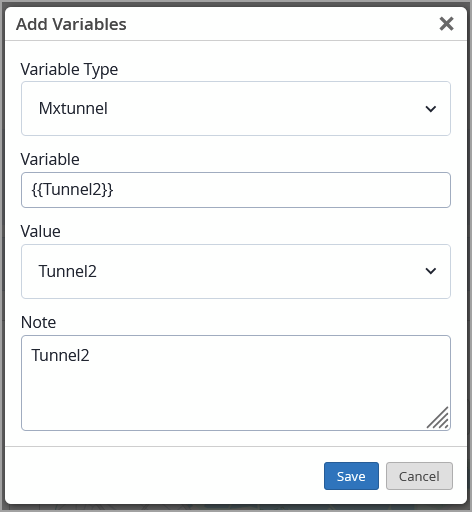
This feature streamlines Mist Edge tunnel configuration in multi-site deployments. By referencing tunnels through named site variables, network administrators can create reusable WLAN templates that automatically resolve to the appropriate tunnel at each site—reducing configuration effort and minimizing errors.
Juniper Mist is deprecating the legacy site-level Marvis Insights API endpoint and its corresponding UI view—previously accessible under Monitor > Marvis Actions—in favor of the unified Alerts framework. Customers and integrations currently relying on this endpoint must migrate to the replacement Alerts endpoints before the End-of-Support date.
The following will not be supported after December 2026.
API Endpoint—GET /api/v1/sites/{site_id}/insights/marvis
UI View—Analytics > Events
Customers should migrate to the following alerts API endpoints:
Purpose | Endpoint |
Search site-level alerts | GET /api/v1/sites/{site_id}/alarms/search |
Search org-level alerts | GET /api/v1/orgs/{org_id}/alarms/search |
Retrieve alarm definitions | GET /api/v1/const/alarm_defs |
Manage org-level alarm templates | GET /api/v1/orgs/{org_id}/alarmtemplates |
The UI view corresponding to the site-level Marvis Insights API endpoint will be incorporated under Monitor > Alerts.
Milestone | What to Expect | Target Date |
Deprecation Announcement | Official notice issued; legacy endpoint remains fully functional | June 2026 |
UI Deprecation | The Analytics > Events page removed from the Mist portal | September 2026 |
API End-of-Support (EOS) | Legacy API endpoint removed; all calls will return HTTP 410 (Gone) | December 2026 |
All customers and API integrations using GET /api/v1/sites/{site_id}/insights/marvis must complete the following before December 2026:
Migrate to GET /api/v1/sites/{site_id}/alarms/search (or the org-level equivalent) with equivalent query parameters.
Use GET /api/v1/const/alarm_defs to map legacy Marvis insight types to their corresponding alarm definitions.
For organizations managing alarm policies via API, switch to GET /api/v1/orgs/{org_id}/alarmtemplates for template management.
Test the new endpoint responses against your existing workflows and integrations prior to the end-of-support date.
To enhance security and align with industry best practices, we will deprecate Basic Authentication for all use cases—including admin logins and scripts—effective September 2026. Before September 2026, all integrations must transition to token-based authentication to ensure uninterrupted access and support.
Why we are making this change
Basic authentication poses several security risks:
No multi-factor authentication (MFA) support
Credentials transmitted with every request (even over HTTPS)
No scope limitations
Vulnerable to credential theft and reuse
Industry security organizations (OWASP, NIST, CIS) strongly recommend token-based authentication as a more secure alternative.
Required actions
Before September 2026, do the following:
Update all applications and integrations to use token-based authentication.
Remove basic authentication from your implementations.
Migration resources
Documentation: Mist API Tokens
Support: Contact us at support@mist.com for assistance
The tunnel stats API response now returns a start_time epoch timestamp instead of a rolling uptime value. If you consume the tunnel stats API directly, calculate uptime as current time - start time.
Customers or integrations reading uptime directly from the API must now use start_time and compute uptime themselves (current time - start time).