Help us improve your experience.

Let us know what you think.

Do you have time for a two-minute survey?


Configure Switches

We recommend that all switches in an organization be managed exclusively through the Juniper Mist cloud, and not from the device’s CLI.

The process of configuring a switch with Juniper Mist™ Wired Assurance involves two main steps: creating a switch configuration template and applying it to one or multiple sites. The configuration settings linked to a particular site will be applied to the switches within that site. This allows you to manage and apply consistent and standardized configurations across your network infrastructure, making the configuration process more efficient and streamlined.

For a quick overview of the switch templates, watch the following video:

To configure a switch, you need to have a Super User role assigned to you. This role grants you the necessary permissions to make changes and customize the switch settings.

To find out which switches are supported by Juniper Mist Wired Assurance, refer to the Juniper Mist Supported Hardware list.

Create a Switch Configuration Template

Switch configuration templates make it easy to apply the same settings to switches across your sites. Whether it's one site or multiple sites, you can use the template to quickly configure new switches. When you assign a switch to a site, it automatically adopts the configuration from the associated template.

Note:

Configuration done on the switch through the Mist dashboard overrides any configuration done through the device CLI. The switch details page doesn’t display any configuration changes you make directly on the switch through the switch CLI.

To create a switch configuration template:

  1. Open the Juniper Mist™ portal and click Organization > Switch Templates.
  2. Click Create Template, enter a name for the template in the Template Name field, and then click Create.

    The Switch Templates: Template Name page appears.

    Note:

    You have the flexibility to import the template settings in a JSON file instead of manually entering the information. To import the settings, click Import Template. To get a JSON file with the configuration settings that can be customized and imported, open an existing configuration template of your choice and click Export. For more information, refer to Manage Templates Settings.

  3. In the All Switches Configuration section, configure basic settings for the switches. Use the tips on the screen to configure the settings.
    Table 1: All Switches Configuration Field Descriptions
    Field Description
    RADIUS

    Choose an authentication server for validating usernames and passwords, certificates, or other authentication factors provided by users.

    • Mist Auth—Select this option if you want to configure Juniper Mist Access Assurance, a cloud-based authentication service from Mist, on your switch. For this option to work, you also need to use a port with dot1x or MAB authentication. For more information, see the 'Introducing Mist Access Assurance' section on this product updates page.

      Note:

      Mist Auth on wired switches requires Junos 20.4R3-S7 or above, 22.3R3 or above, 22.4R2 or above, or 23.1R1 or above.

      To configure Mist Access Assurance features such as authentication policies, policy label, certificates, and identity providers, navigate to Organization > Access.

    • RADIUS—Select this option to configure a RADIUS authentication server and an accounting server, for enabling dot1x port authentication at the switch level. For the dot1x port authentication to work, you also need to create a port profile that uses dot1x authentication, and you must assign that profile to a port on the switch.

      The default port numbers are:

      • port 1812 for the authentication server

      • port 1813 for the accounting server

    Note:

    If you want to set up dot1x authentication for Switch Management access (for the switch CLI login), you need to include the following CLI commands in the Additional CLI Commands section in the template:

    set system authentication-order radius
    set system radius-server radius-server-IP port 1812
    set system radius-server radius-server-IP secret secret-code
    set system radius-server radius-server-IP source-address radius-Source-IP
    TACACS+ Configure TACACS+ for centralized user authentication on network devices. Additionally, you can enable TACACS+ accounting on the device to gather statistical data about user logins and logouts on a LAN, and send this data to a TACACS+ accounting server.

    The port range supported for TACACS+ and accounting servers is 1 to 65535.

    NTP Specify the IP address or hostname of the Network Time Protocol (NTP) server. NTP is used to synchronize the clocks of the switch and other hardware devices on the Internet.
    DNS SETTINGS

    Configure the domain name server (DNS) settings. You can configure up to three DNS IP addresses and suffixes in comma separated format.

    SNMP

    Configure Simple Network Management Protocol (SNMP) on the switch to support network management and monitoring. You can configure the SNMPv2 or SNMPv3. Here are the SNMP options that you can configure:

    • Options under SNMPv2 (V2)

      • Client—Define a list of SNMP clients. This configuration includes a name for the client list and IP addresses of the clients (in comma separated format).

      • Trap Group—Create a named group of hosts to receive the specified trap notifications. At least one trap group must be configured for SNMP traps to be sent.

      • Community—Define an SNMP community. An SNMP community is used to authorize SNMP clients by their source IP address. It also determines the accessibility and permissions (read-only or read-write) for specific MIB objects defined in a view.

    • Options under SNMPv3 (V3)

      • USM—Configure the user-based security model (USM) settings. This configuration includes a username, authentication type, and an encryption type. You can configure a local engine or a remote engine for USM. If you select a remote engine, specify an engine identifier in hexadecimal format. This ID is used to compute the security digest for authenticating and encrypting packets sent to a user on the remote host.

      • VACM—Define a view-based access control model (VACM). A VACM lets you set access privileges for a group. You can control access by filtering the MIB objects available for read, write, and notify operations using a predefined view. Each view can be associated with a specific security model (v1, v2c, or usm) and security level (authenticated, privacy, or none).

      • Notify— Select SNMPv3 management targets for notifications, and specify the notification type. To configure this, assign a name to the notification, choose the targets or tags that should receive the notifications, and indicate whether it should be a trap (unconfirmed) or an inform (confirmed) notification.

      • Target—Configure the message processing and security parameters for sending notifications to a particular management target.

    • Option under both the versions (V2 and V3)

      • General—Specify the system's name, location, administrative contact information, and a brief description of the managed system. When using SNMPv2, you have the option to specify the source address for SNMP trap packets sent by the device. If you don't specify a source address, the address of the outgoing interface is used by default. For SNMPv3, you can configure an engine ID, which serves as a unique identifier for SNMPv3 entities.

      • View—Define a MIB view to identify a group of MIB objects. Each object in the view shares a common object identifier (OID) prefix. MIB views allow an agent to have more control over access to specific branches and objects within its MIB tree. A view is made up of a name and a collection of SNMP OIDs, which can be explicitly included or excluded.

    STATIC ROUTE

    Configure static routes. The switch uses static routes when:

    • It doesn't have a route with a better (lower) preference value.

    • It can't determine the route to a destination.

    • It needs to forward packets that can't be routed.

    Types of static routes supported:

    • Subnet—Includes the IP addresses for the destination network and the next hop.

    • Network—Includes a VLAN (containing a VLAN ID and a subnet) and the next hop IP address.

    CLI CONFIGURATION

    For any additional settings that are not available in the template's GUI, you can still configure them using set CLI commands.

    For instance, you can set up a custom login message to display a warning to users, advising them not to make any CLI changes directly on the switch. Here's an example of how you can do it:

    set system login message \n\n Warning! This switch is managed by Mist. Do not make any CLI changes.

    To delete a CLI command that was already added, use the delete command, as shown in the following example:

    delete system login message \n\n Warning! This switch is managed by Mist. Do not make any CLI changes.
    Note:

    Ensure that you enter the complete CLI command for the configuration to be successful.

    OSPF AREAS Define an Open Shortest Path First (OSPF) area, if required. OSPF is a link-state routing protocol used to determine the best path for forwarding IP packets within an IP network. OSPF divides a network into areas to improve scalability and control the flow of routing information. For more information about OSPF areas, see this Junos documentation: Configuring OSPF Areas.
    DHCP SNOOPING

    Enable the DHCP snooping option to monitor DHCP messages from untrusted devices connected to the switch. DHCP snooping creates a database to keep track of these messages. This helps prevent the acceptance of DHCPOFFER packets on untrusted ports, assuming they originate from unauthorized DHCP servers.

    DHCP configuration has the following options:

    • All Networks— Select the All Networks check box to enable DHCP snooping on all VLANs.

    • Networks—If you want to enable DHCP snooping only on specific networks, click Add (+) in the Networks box and add the required VLANs.

    • Address Resolution Protocol (ARP) Inspection—Enable this feature to block any man-in-the-middle attacks. ARP Inspection examines the source MAC address in ARP packets received on untrusted ports. It validates the address against the DHCP snooping database. If the source MAC address does not have a matching entry (IP-MAC binding) in the database, it drops the packets.

      You can check ARP statistics by using the following CLI commands: show dhcp-security arp inspection statistics, and show log messages | match DAI.

      The device logs the number of invalid ARP packets that it receives on each interface, along with the sender’s IP and MAC addresses. You can use these log messages to discover ARP spoofing on the network.

    • IP Source Guard—IP source guard validates the source IP and MAC addresses received on untrusted ports against entries in the DHCP snooping database. If the source addresses do not have matching entries in the database, IP Source Guard discards the packet.

      Note:

      IP Source Guard works only with single-supplicant 802.1X user authentication mode.

    Note:
    • If you have a DHCP server connected to an untrusted access port, DHCP won't function properly. In such cases, you may need to make adjustments to ensure that DHCP works as intended. By default, DHCP considers all trunk ports as trusted and all access ports as untrusted.

    • You need to enable VLAN on the switch for the DHCP snooping configuration to take effect. So you need to apply port profiles (described later in this document) to the ports.

    A device with a static IP address might not have a matching MAC-IP binding in the DHCP snooping database, if you have connected the device to an untrusted port on the switch. To check the DHCP snooping database on your switch and view the bindings, use the CLI command show dhcp-security binding. This command will provide you with information about the DHCP bindings recorded in the snooping database.

    For more information, see DHCP Snooping and Port Security Considerations.
    Note:

    You need to enable this feature if you want to view the DHCP issues for the switch under the Successful Connect SLE metric.

    SYSLOG

    Configure SYSLOG settings to set up how system log messages are handled. You can configure settings to send the system log messages to files, remote destinations, user terminals, or to the system console. Here are the configuration options available for SYSLOG settings:

    • Files—Send log messages to a named file.

    • Hosts—Send log messages to a remote location. This could be an IP address or hostname of a device that will be notified whenever those log messages are generated.

    • Users—Notify a specific user of the log event.

    • Console—Send log messages of a specified class and severity to the console. Log messages include priority information, which provides details about the facility and severity levels of the log messages.

    • Archive—Define parameters for archiving log messages.

    • General—Specify general information such as a time format, routing instance, and source address for the log messages.

    PORT MIRRORING

    Configure port mirroring.

    Port mirroring is the ability of a router to send a copy of a packet to an external host address or a packet analyzer for analysis. In the port mirroring configuration, you can specify the following:

    • Input: The source (an interface or network) of the traffic to be monitored. Along with the input, you can specify whether you want Mist to monitor the ingress traffic or the egress traffic for an interface. If you want both ingress and egress traffic to be monitored, add two input entries for the same interface - one with the ingress flag and the other with the egress flag.

    • Output: The destination interface to which you want to mirror the traffic. You cannot specify the same interface or network in both the input and output fields.

  4. In the Management section of the Switch Template Configuration page, configure the following:
    • Configuration Revert Timer—This feature helps restore connectivity between a switch and the Mist cloud if a configuration change causes the switch to lose connection. It automatically reverts the changes made by a user and reconnects to the cloud within a specified time duration. By default, this time duration is set to 10 minutes for EX Series switches. You can specify a different time duration here.

    • Root password—A plain-text password for the root-level user (whose username is root).

    • Protection of Routing Engine—Enable this feature to ensure that the Routing Engine accepts traffic only from trusted systems. This configuration creates a stateless firewall filter that discards all traffic destined for the Routing Engine, except SSH and BGP protocol packets from specified trusted sources. For more information, refer to Example: Configuring a Stateless Firewall Filter to Accept Traffic from Trusted Sources.

  5. In the Shared Elements section, configure the following:
    1. In the Networks tile, click Add Network and configure the VLANs to be used in the port profiles. The settings include a Name, VLAN ID, and a Subnet.
    2. In the Port Profiles tile, choose a predefined port profile or click Add Profile to create a new profile and assign a network to it. Port profiles provide a way to automate provisioning of multiple switch interfaces. Use the tips on the screen to configure the port profile settings.
      Table 2: Key Fields in Port Profile
      Field Description
      Name Name of the port profile.
      Mode Select a port mode.
      • Trunk—In this mode, the interface can be in multiple VLANs and can multiplex traffic between different VLANs. Trunk interfaces typically connect to other switches, APs, and routers on the LAN.

      • Access—Default mode. In this mode, the interface can be in a single VLAN only. Access interfaces typically connect to network devices, such as PCs, printers, IP phones, and IP cameras.

      Use dot1x authentication If you want to use dot1x authentication, select this option. When you select this option, the following additional options are displayed for selection:
      • MAC authentication

      • Use Guest Network

      • Bypass authentication when server is down

      You need to also do the following for dot1x authentication to work:

      • Configure a RADIUS server for dotr1x authentication from the Authentication Servers tile in the All Switches Configuration section of the template.

      • Assign a dot1x port profile to a switch port for the RADIUS configuration to be pushed to the switch. You can do this from the Port Config tab in the Select Switches Configuration section of the template.

      MAC Limit Configure the maximum number of MAC addresses that can be dynamically learned by an interface. When the interface exceeds the configured MAC limit, it drops the frames. A MAC limit also results in a log entry.

      The default value: 0

      Supported range: 0 through 16383

      PoE

      Enable the port to support power over Ethernet (PoE).

      STP Edge

      Configure the port as a Spanning Tree Protocol (STP) edge port, if you want to enable Bridge Protocol Data Unit (BPDU) guard on a port. This setting ensures that the port is treated as an edge port and guards against the reception of BPDUs, which are control messages in the STP. If you plug a non-edge device into a port configured with STP Edge, the port is disabled. In addition, the Switch Insights page generates a Port BPDU Blocked event. The Front Panel on the Switch Details will also display a BPDU Error for this port.

      You can clear the port of the BPDU error by selecting the port on the Front Panel and then clicking Clear BPDU Errors.

      You can also configure STP Edge at the switch level, from the Port Profile section on the switch details page.

      For more information on STPs, see How Spanning Tree Protocols Work.

      QoS

      Enable Quality of Service (QoS) for the port to prioritize latency-sensitive traffic, such as voice, over other traffic on a port.

      Note:

      For optimal results, it's important to enable Quality of Service (QoS) for both the downstream (incoming) and upstream (outgoing) traffic. This ensures that the network can effectively prioritize and manage traffic in both directions, leading to improved performance and better overall quality of service.

      You have the option to override the QoS configuration on the WLAN settings page (Site > WLANs > WLAN name). To override the QoS configuration, select the Override QoS check box and choose a wireless access class. The downstream traffic (AP > client) gets marked with the override access class value specified. The override configuration doesn't support upstream traffic (client > AP).

      See also: QoS Configuration on Switches.

      Storm Control Enable storm control to monitor traffic levels and automatically drop broadcast, multicast, and unknown unicast packets when the traffic exceeds a traffic level (specified in percentage). This specified traffic level is known as the storm control level. This feature actively prevents packet proliferation and maintains the performance of the LAN. When you enable Storm Control, you can also choose to exclude broadcast, multicast, and unknown unicast packets from monitoring.

      For more information, see Understanding Storm Control.

      Persistent (Sticky) MAC Learning

      Enable Persistent (Sticky) MAC to stop unauthorized devices from connecting to your network. When enabled, the switch learns the MAC addresses of devices that arrive on the port and saves them in memory. If the number of MAC addresses learned exceeds the 'MAC Limit' specified above, the port drops the frames. Also, you will see a 'MAC Limit Exceeded' event on the Insights page.

      You can hover over the port from the front panel on the switch details page to see the MAC Limit and the MAC Count (the number of MAC addresses that the port learned dynamically).

      Note:
      • You cannot enable this feature on a Trunk port or on a port with 802.1X authentication, as Junos OS does not support this combination.

      • Enable this feature for static wired clients. Do not enable it for Mist AP interfaces.

      The Juniper Mist portal does not show the MAC addresses that an interface has learned. It shows only the maximum MAC address count. To view the MAC addresses that an interface learned, select the Utilities > Remote Shell option on the switch details page and run the following commands:

      • show ethernet-switching table persistent-learning
      • show ethernet-switching table persistent-learning interface

      The MAC Count value remains on the port until you clear it from the front panel on the switch details or until you disable the Persistent (Sticky) MAC Learning feature. To clear the MAC addresses that a port learned, select the port on the switch front panel and then click Clear MAC [Dynamic/Persistent]. This action generates a MAC Limit Reset event on the Switch Insights page. Read more about the front panel in Switch Details.

    3. In the VRF tile, configure Virtual Routing and Forwarding (VRF).

      With VRF, you can divide an EX Series switch into multiple virtual routing instances, effectively isolating the traffic within the network. You can define a name for the VRF, specify the networks associated with it, and include any additional routes needed.

      Note:

      You can't assign the default network (VLAN ID = 1) to VRF.

    4. In the Dynamic Port Configuration tile, set up rules for dynamically assigning port profiles. When a user connects a client device to a switch port with this feature enabled, the switch identifies the device and assigns a suitable port profile to the port. Dynamic port profiling utilizes a set of device properties of the client device to automatically associate pre-configured port and network settings to the interface. You can configure a dynamic port profile based on the following parameters:
      • LLDP System Name

      • LLDP Description

      • LLDP Chassis ID

      • Radius Username

      • Radius Filter-ID

      • MAC (Ethernet mac-address)

      Here's an example of a rule that automatically assigns the port profile 'AP' to a Mist AP. As per this rule, when the port identifies a device with a chassis ID that starts with D4:20:B0, it assigns the 'AP' profile to the connected device.

      For your dynamic port configurations to take effect, you also need to specify the ports that you want to function as dynamic ports. You can do this by selecting the Enable Dynamic Configuration check box on the Port Config tab in the Select Switches section of the switch template. You can also do this at the switch level, from the Port Configuration section on the switch details page.

  6. In the Select Switches Configuration section, configure the following:
    1. On the Info tab, create a rule to associate the shared elements with your switch. Here's an example of how to add a rule that maps the EX4300 switch to an "access" role.
    2. On the Port Config tab, click Add Port Range to associate a port profile with a port. Here you also have the following key options:
      • Enable dynamic port configuration on the port. Dynamic port profiling allows you to assign a dynamic profile to a connected device based on defined attributes. If the device matches the attributes, Mist assigns a matching dynamic profile to the device. But if the device doesn't match the attributes, it will be placed in a specified VLAN. In the following example, the port is enabled with dynamic port allocation and is assigned with a restricted VLAN. In this case, if the connected device doesn't match the dynamic profiling attributes, it will be placed into a restricted VLAN such as a non-routable VLAN or a guest VLAN. Interfaces enabled with Port Aggregation don't support dynamic port configuration.

      • Enable Port Aggregation. Port aggregation or link aggregation enables you to group Ethernet interfaces to form a single link layer interface. This interface is also known as a link aggregation group (LAG) or bundle. The number of interfaces that you can group into a LAG and the total number of LAGs that a switch supports vary depending on switch model. You can use LAG with or without LACP enabled. If the device on the other end doesn't support LACP, you can disable LACP here. The following example shows the use of LAG in an uplink port configuration:

    3. On the CLI Config tab, include CLIs (in the set format) to configure any additional rule-based settings for which the template doesn’t provide a GUI option.
  7. In the Switch Policy section, configure Group Based Policies (GBPs) that you can use in your campus fabric IP Clos deployments. The GBP configuration involves creating GBP tags and including them in switch policies. The GBP tags enable you to group users and resources. In a GBP, you match a user group tag to a resource group tag to provide the specified users access to the specified resources.

    Only the following devices that run Junos OS Release 22.4R1 and later support GBPs: EX4400, EX4100, EX4650, QFX5120-32C and QFX5120-48Y.

    The following image shows a sample GBP:

    To configure GBP:

    1. In the Group Based Policy Tags section, create a GBP tag. as described below:

      1. Click Add GBP tag.

      2. Specify a name for the tag.

      3. Choose the tag type—Dynamic or Static. By default, Juniper Mist chooses the Dynamic option. If you choose the static tag, specify a GBP tag source. It can be a MAC address, network, or an IP subnet.

        Note:

        If you configure 802.1X authentication with multiple-supplicant mode, the GBP tagging is MAC-based. If you configure 802.1X authentication with single-supplicant mode, the GBP tagging is port-based.

      4. Specify a GBP tag value or GBP source tag for host-originated packets (range: 1 through 65535).

    2. In the Switch Policy section, add a policy. The policy filters use GBP source tags, destination tags, or both as matches to either allow or discard traffic. To create a policy, use the steps below:

      1. Click Add Switch Policy.

      2. In the USER/GROUP column, click Add (+) and add the users or groups that need access to the resources. You can use the GBT tags here, if you have defined them already.

      3. In the RESOURCE column, click Add (+) and add the resources that you need to map to the selected users or groups. You can use the GBT tags here too, if you have defined them already.

        By default, users are given access to the resources added. If you want to deny the user access to certain resources, click the Resource label that you have added and set the access to deny. See below:

  8. Click Save to save the switch template.
    The Confirm changes window appears.
  9. Click Save on the Confirm changes window.

    The template is saved. To view the new template, go to Organization > Switch Templates.

Assign a Template to Sites

After creating a switch configuration template, you need to assign it to the relevant sites. This ensures that the configuration settings are applied to the devices within those sites. You have the flexibility to apply the template to a single site or multiple sites, depending on your specific requirements.

To assign a template to one or multiple sites:

  1. Click Organization > Switch Templates.

    The Switch Templates page appears.

  2. Click the template that you want to assign to sites.

    The Switch Templates: Template-Name page appears.

  3. Click Assign to Sites.
    The Assign Template to Sites window appears.
  4. Select the sites to which you want to apply the template and then click Apply.

Alternatively, you can apply a template to a site from the Site Configuration page, using the following steps:

  1. Click Site > Switch Configuration.

  2. Click a site from the list to open it.

  3. Select a template from the Configuration Template field, and then click Save.

Verify the Switch Configuration

You can easily review the configuration applied to your switches and make any updates through the switch details page on the Mist portal.

To access the switch details page:

  1. On the Mist portal, click the Switches tab on the left menu to open the Switches page.

  2. On the List tab, click a switch to open the switch details page.

When the switch details page opens, you'll find yourself on the Front Panel tab. This tab gives you a comprehensive overview of the switch's port panel.

To check the configuration and status of a specific port, hover over that port in the front panel illustration. For instance, if you hover over port ge-0/0/45 in the following example, you'll see information indicating that a Mist AP is connected to that port. The displayed information also includes details about speed, power, the IP address, and more.
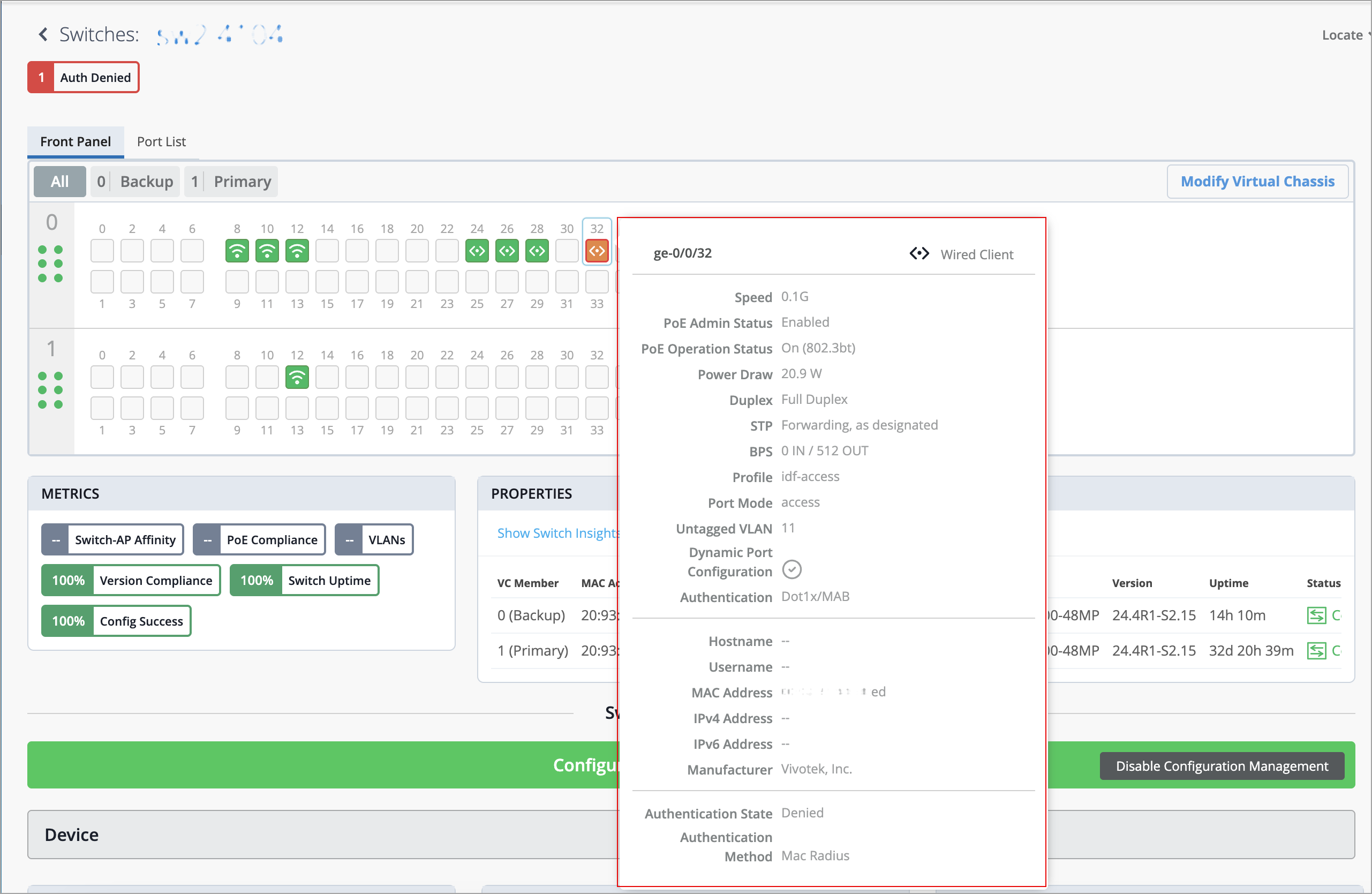
Click the port on the front panel illustration to see a more detailed view. From this view, you can perform tasks such as accessing the connected devices (for example, APs), viewing switch insights and editing the port configuration.

If you want to download the configuration in a text file, select the Download Junos Config option on the Utilities drop-down list on the switch details page.

To see the complete configuration applied to the switch, simply scroll down to the Switch Configuration section. From there, you can view and, if needed, edit the configuration elements.

If required, you can update the settings at the switch level, site level, or template level. You can also use CLI commands to configure features that the predefined drop-down lists and text fields on the Mist portal do not support. For more information on how to update the settings, refer to Manage or Update Configuration Settings.