Configure Port Speed
Use the steps in this topic to configure port channelization or port speed.
You can channelize ports and configure chassis speed (port speed) on a select set of EX and QFX switches. Port channelization enables you to split a high-speed QSFP or QSFP+ port on a switch into several low-speed ports. For example, you can channelize a 100 Gbps port into four 25 Gbps ports.
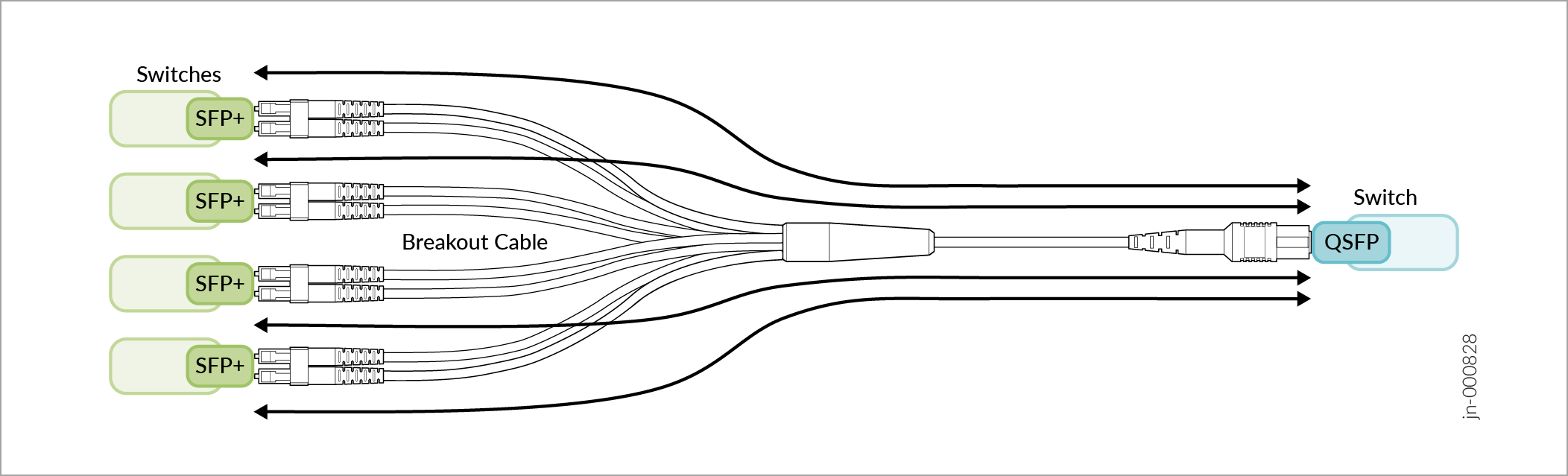
The following table lists the devices and their respective ports that support port channelization, along with the supported channel speeds:
| Model | Port | Channel Speed |
|---|---|---|
| QFX5120-32C | 0-30 | 4x10g, 4x25g, 2x50g |
| 31 | 2x50g | |
| QFX5120-48T | 48-49, 52-53 | 2x50g |
| 50, 51 | 4x10g, 4x25g, 2x50g | |
| QFX5120-48Y | 48-55 | 4x10g, 4x25g |
| QFX5120-48YM | 50, 52 | 4x10g, 4x25g, 2x50g |
| QFX5130-32CD | 0-31 | 4x10g, 4x25g, 2x50g, 2x100g, 8x50g, 4x100g, 2x200g |
| EX4650-48Y | 48-55 | 4x10g, 4x25g |
The following table lists the devices and their respective ports that support chassis speed configuration, along with the supported speeds:
| Model | Port | Chassis Speed |
|---|---|---|
| QFX5120-48T | 0-47 | 1g, 10g (per quad 0, 4, 8 .. . 44) |
| QFX5120-48Y | 0-47 | 1g, 10g, 25g (per quad 0, 4, 8 .. . 44) |
| QFX5120-48YM | 0-47 | 1g, 10g, 25g (per quad 0, 4, 8 .. . 44) |
| EX4650-48Y | 0-47 | 1g, 10g, 25g ( per Quad 0, 4, 8 .. . 44) |
You can view the channelization information for a port by hovering on it on the front panel on the switch details page.
To channelize ports or configure chassis speed on a switch:
-
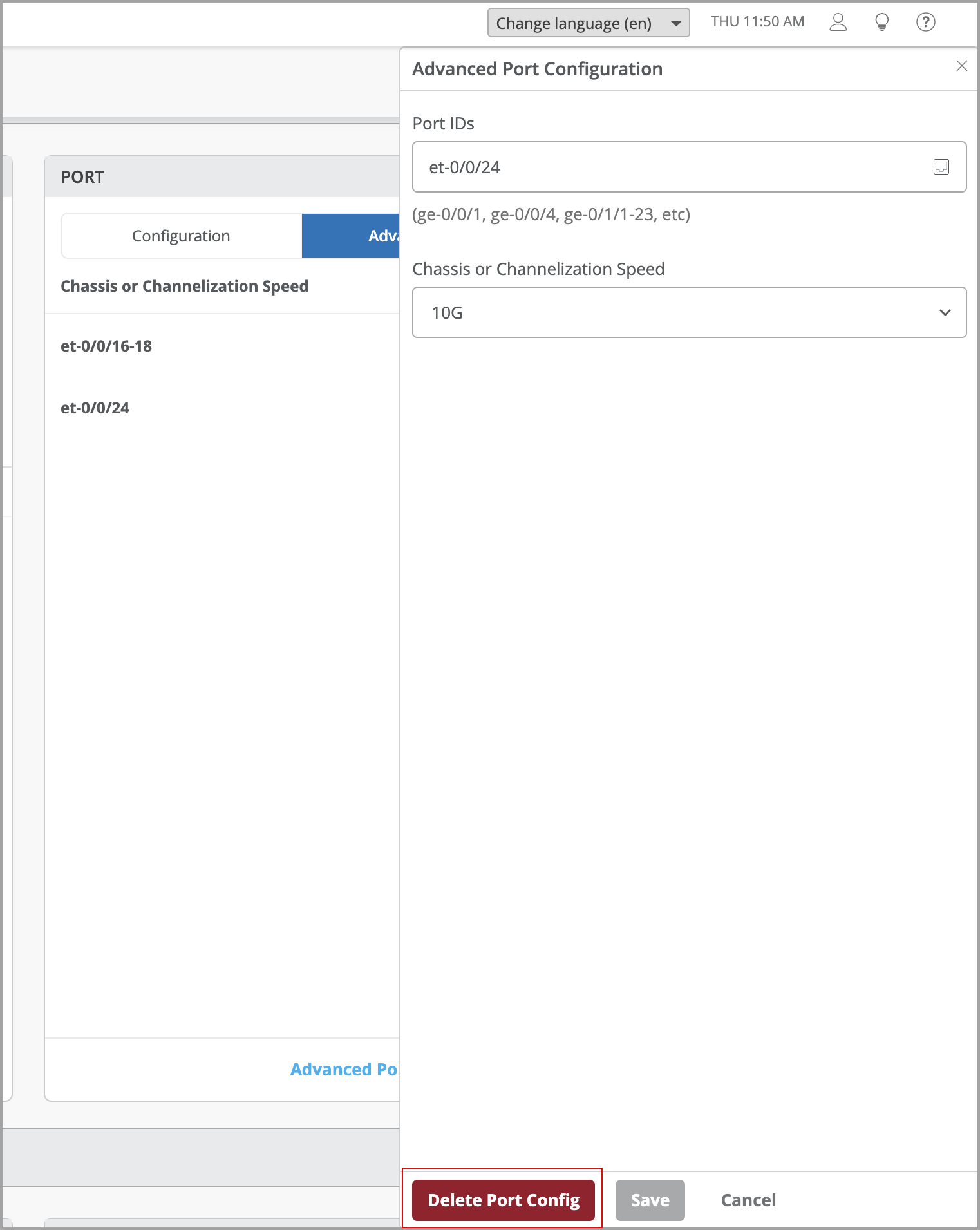
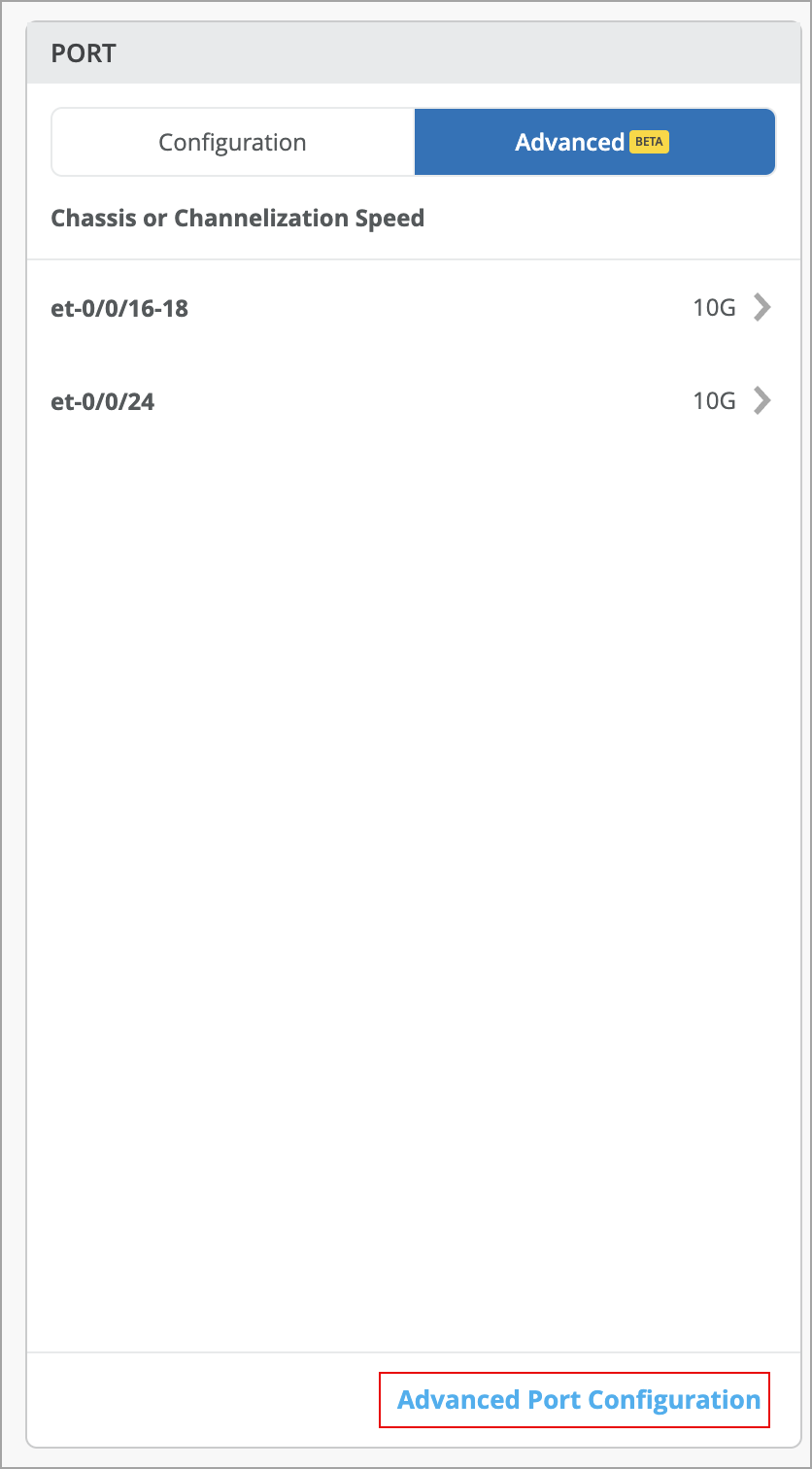
Locate the Port tile and click the Advanced tab.
Once you channelize a port, you can assign port profiles to individual channel speeds.
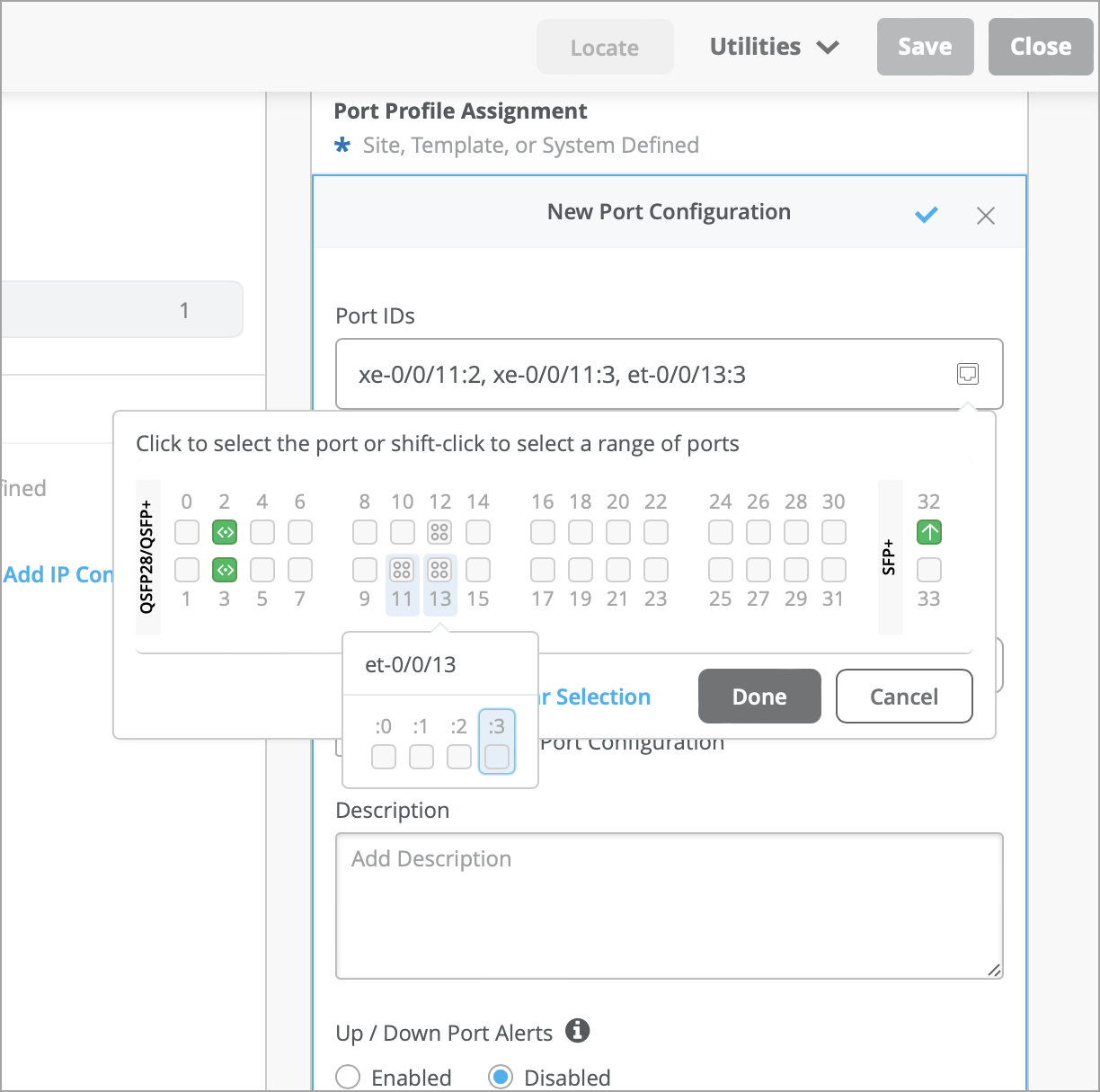
Similarly, the campus fabric configuration screen allows you to select the channelized ports while configuring EVPN connections.
To delete a port speed
configuration, navigate to the Advanced tab of the Port tile on the
switch details page and click the configuration to be deleted and then click
Delete Port Config.