
View and Manage Installed Base
This topic provides an overview about the Installed Base tab on the Inventory page, including details on the device-centric support insights and guidance on integrating Juniper support resources with your organization.
Installed Base Tab Overview
The Installed Base displays Juniper-maintained support information for all the Juniper Networks devices associated with your organization, whether they are directly connected to the cloud or linked to your organization through the account integration workflow.
From this tab, you can gain comprehensive visibility into your Juniper assets and streamline their hardware and software lifecycle management.
To access Installed Base, navigate to Organization > Inventory > Installed Base.
Use the Installed Base tab to:
-
View all Juniper assets associated with your organization and track their operational status
-
Identify products nearing end of sale and support milestones
-
Track software end of engineering and support milestones
-
Identify devices running outdated software and upgrade to recommended Junos OS version
Open the JSI Device Details page to access a device's hardware and software milestones, contract details, and so on.
Click a row in the device table to navigate to the JSI Device Details page. See, View Device Details in Installed Base.-
Export the details as a CSV file for offline analysis or customization.
Installed Base consolidates these support insights to help reduce operational risk, streamline lifecycle management, and maintain compliance.
The page is organized into two main sections:
-
Stats Panel summaries device models and status and hardware and software lifecycle attributes at the organization-level
-
Device Table lists detailed hardware, software, and support information for each device.
Stats Panel
The Stats Panel provides a high-level summary of your installed devices. Each category also acts as an interactive filter for the Device Table.
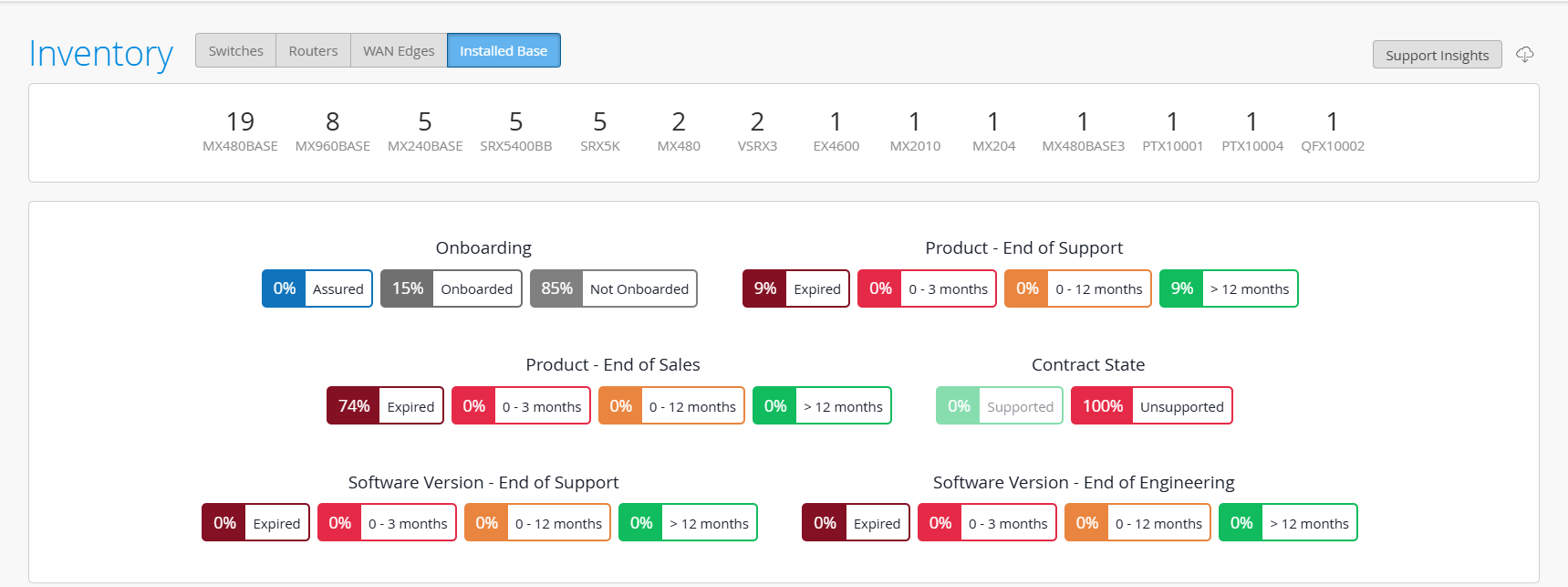
| Category | Description | Usage Notes |
|---|---|---|
| Device Models | Number of devices per model. |
Use it to identify the distribution of device models in your organization. |
| Onboarding | The percentage of devices in each connection state.
|
Track the connection status of devices in the organization. |
| Product – End of Support | Percentage of devices nearing or past
product
End of Support.
|
Identify devices nearing or past product End of Support to plan renewals or replacements. |
| Product – End of Sales | Percentage of devices nearing or past
product
End of
Sales.
|
Identify devices nearing End of Sales to plan product migrations. |
| Contract State | The percentage of Supported and Unsupported devices.
For more information on device contracts, see About the Contracts Page. |
Monitor support eligibility, prioritize renewals, and filter the Device table by state. Supported filter is selected by default. You can click it to clear the selection. |
| Software Version – End of Support | Percentage of devices running Junos OS software
version
nearing or past End of Support.
|
Identify devices running software past or nearing software End of Support and plan upgrades to recommended releases. |
| Software Version – End of Engineering | Percentage of devices running Junos OS
software
version
nearing or past End of Engineering.
|
Identify devices approaching End of Engineering to plan upgrades to recommended releases. |
Tasks You Can Perform
You can perform the following tasks from Installed Base:
-
Integrate Your Juniper Support Resources with Your Organization—To integrate devices associated with your Juniper-registered account with your organization, you must link your Juniper-registered credentials (created through the Juniper Support Portal) to your organization.
After the account is successfully linked to the organization, you can access JSI data artifacts for the devices from the Installed Base. This includes all primary and secondary assets associated with your registered email address that is maintained in Juniper’s support database and covered by an active Juniper support contract
You can link multiple accounts with the organization.
To integrate your Juniper-registered account with the organization:
-
Click Add Juniper Account.
The Add Juniper Account pop-up appears.
-
Enter your Juniper support credentials (created through the Juniper Support Portal).
-
Click Add.
On successful integration, the primary account name associated with your credentials is listed in the Linked Accounts section. The Linked Account section also lists other primary accounts that are currently linked to the organization.
Alternatively, you can link your account to the organization from the Settings page (Organization > Settings > Juniper Account Integration). If you no longer wish to view JSI data insights for devices associated with an account in your organization, you can unlink the account from this page. This removes the devices associated with the account from the organization. For more information, see Integrate Your Juniper Support Resources to Your Organization.
-
-
Find a device using filters—Installed Base offers multiple ways to refine your search.
-
Use Stats Panel filters—The Stats Panel supports interactive filters.
Click a category to show only matching devices in the table. To clear a filter, click the button again.
For example, Click MX480 to view contract insights for only MX480 devices in the table.
-
Apply batch filters—Combine multiple filters to narrow down your search. Batch filters let you apply more than one criterion at the same time.
For example, select SRX4200 from Device Model, Expired from Software Version - End of Support, and Unsupported from Contract State to show only unsupported SRX4200 devices running expired software in the table.
Note: Active filters appear grayed out on the Stats Panel. To clear a filter, click the selected item again. -
Enter keywords in the Filter box—Start typing in the Filter box.
For example, start typing the model name. As you type each character, matching entries appear in the drop-down list. Click the device that you want to show in the table. To clear the filter, click Clear All.
-
-
Adopt a switch, router, or WAN edge; see Adopt a Device.
-
Access support insights reports; see About the Support Insights Page.
-
Release devices—You can release devices to disconnect devices from the cloud. At a time, you can release one or more cloud-connected (Assured or Onboarded) devices.
To release a single device: Select the checknox next to the device, click More > Release. Click Yes on the Confirm Release page.
To release multiple devices: Select the checkboxes next to the devices you want to release, click More > Release. Click Yes on the Confirm Release page.
To release devices in bulk: Click the Select All checkbox at the top of the selection list to select all the devices on the current page.
Then click More > Release and click Yes on the Confirm Release page.
Note:Releasing a device only removes the outbound SSH configuration on the device. You can add the SSH configuration when you adopt the device again.
-
Connect remotely to your switch, router, or WAN edge—You can directly connect to your switch, router, or WAN edge, and perform configuration, troubleshooting and testing tasks on your device through the command line; see Device Utilities.
-
You can view detailed support information about the device from the Device Details page. To access the page, navigate to Organization > Inventory > Installed Base and click the device entry in the table. The Device Details page for the device appears. For more information on the Device Details page, see View Device Details in Installed Base.
-
Export details of all the devices in the CSV format—To export details of all devices, click Download CSV at the top-right corner of the Installed Base table. The details are exported to a CSV file that you can download to your local system.
Note:If you open the downloaded CSV file with Microsoft Excel on a Mac computer, any non-English characters in the file might appear as special characters. To avoid this issue, follow the steps below:
-
Open a new Excel file and then select File > Import > CSV File > Import.
-
Select the file to be opened and then click Get Data.
The Text Import Wizard window appears.
-
Select Unicode (UTF-8) as File Origin.
-
Click Finish.
-
Field Description
| Field | Description |
|---|---|
| Model | The device model. For Unsupported devices, a red flag icon is displayed next to the device model. On hover, a pop-up appears indicating that the device is not recognized as being covered by an active support contract and may not be eligible for JTAC support. 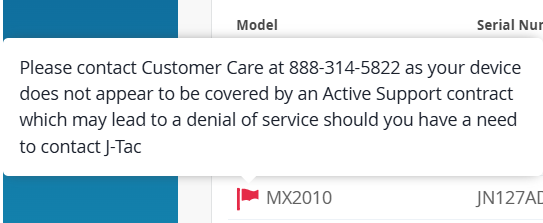 If you find any data discrepancy, contact Customer Care for resolution. Once resolved, the data will be updated during the next data refresh cycle. |
| Serial Number | Unique ID mapped to the device. |
| Status |
Service level to which the device is onboarded. Hover over the checkmark icon to view the states.
Note:
The field appears blank for devices not onboarded to the organization. |
|
Device Host Name |
Hostname of the device. Note: This field appears blank for devices
not onboarded to the organization.
|
| Action | Provides access to the device utilities. When a device status is cloud-connected to either an onboarded or assured service level, then a vertical ellipsis (three dots) appears in the Action field, click on the ellipsis to access the device utilities. See Device Utilities for more information. |
| End of Sales | Product End of Sale date for the device. |
| End of Support | Product End of Support date for the device. |
| TSB/PSN | Reference number for a Technical Support Bulletin (TSB) or Product Support Notification (PSN) that communicates end of support notifications for the device type. |
| Software Release | Junos OS software version installed on the device. |
| Suggested Release | Recommended Junos OS software version for the device. |
| SW Version EOE | Date on which the Junos OS software version installed on the device reaches end of engineering-level support. |
| SW Version EOS | Date on which the Junos OS software version installed on the device reaches end of support. |