
ON THIS PAGE
About the Contracts Page
The Contracts dashboard (Organization > Admin > Contracts) displays the support contract details for all cloud-connected Juniper devices linked to your organization.
Use this dashboard to view support details, monitor support coverage, identify unsupported devices, and prioritize contract renewals.
-
You can view contract information only for your cloud-connected devices.
-
If your account is not validated, all customer-centric information in the dashboard appears blurred. Validate your account to view the information, see Validate Your Juniper Account.
The Contracts dashboard is organized into two main sections: Stats Panel and Contracts Table.
Stats Panel
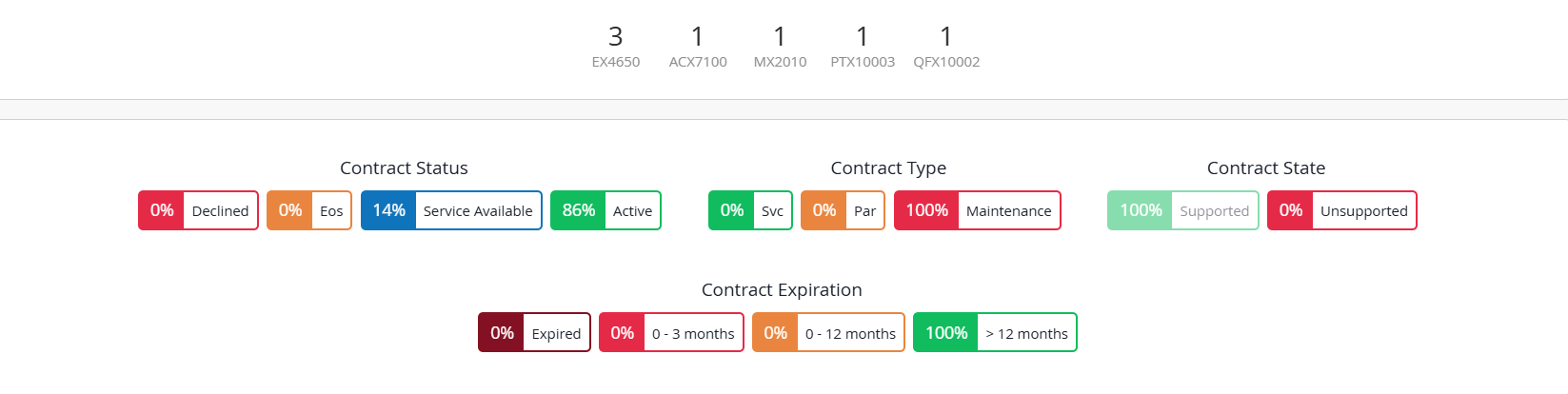
The stats panel provides a high-level visual summary of contract coverage across your organization. Each category also acts as an interactive filter for the Contracts table.
-
Device Model—Displays the number of devices in the organization per model.
Use this category to identify distribution of device models in your organization.
Click a model to filter the table to display only those devices.
-
Contract Status—Displays the percentage of devices in each support contract status category.
Table 1: Contract Status Category Status Description Declined Support contract is not purchased for the device. EoS Support contract for the device has reached End of Support (EoS). Service Available Support contract is available on purchase for the device. Active Support contract for the device is active. Click a category to filter the table based on the selected contract status.
-
Contract Type—Displays the percentage of devices associated with each support service type available to the customer.
Table 2: Contract Type Field Description SVC Support service provided directly by Juniper. PAR Support service provided through an authorized Juniper partner. Maintenance Active support service present for the device. Click a contract type to filter the table accordingly.
-
Contract State—Displays the percentage of devices that are currently Supported or Unsupported.
-
Supported—Devices covered by an active support contract in the Juniper support database. These devices are eligible for JTAC support.
-
Unsupported—Devices not covered by an active support contract in the Juniper support database. JTAC support may not be available for these devices until the contract is purchased or renewed.
Note: Devices are categorized as Supported if their contract status is Active. Devices are categorized as Unsupported if their contract status is Declined, EOS, or Service Available.If you notice any data discrepancy, contact Customer Care for resolution. Once resolved, the data will be updated during the next data refresh cycle.
Click a contract state to filter the table by that state.
Note:Unsupported devices can still be onboarded and managed within your organization.
-
-
Contract Expiration—Displays the percentage of devices grouped by contract expiration timelines.
Table 3: Expiration Timelines Time Range Description Expired Indicates the percentage of devices with an expired contract. 0 - 3 months Indicates the percentage of devices whose contracts are expiring within the next 3 months. 0 - 12 months Indicates the percentage of devices whose contracts are expiring within the next 12 months. > 12 months Indicates the percentage of contracts whose expiry is after 12 months. Click a category to filter the table based on contract expiration timeline.
Contracts Table
The Contracts table provides detailed contract insights for the devices, allowing you to perform deeper analysis and troubleshooting.
You can apply filters from the Stats Panel or perform keyword-based searches to refine the table records.
Use the Stats Panel to quickly identify areas of concern, then explore the Contracts Table for further investigation.
For field description, see Table 4.
If your account is not validated, all customer-centric information in the table appears blurred. Validate your account to view the information, see Validate Your Juniper Account.
| Field | Description |
|---|---|
| Model | The device model. For Unsupported devices, a red flag icon is displayed next to the device model. On hover, a popover appears indicating that the device is not recognized as being covered by an active support contract and may not be eligible for JTAC support. 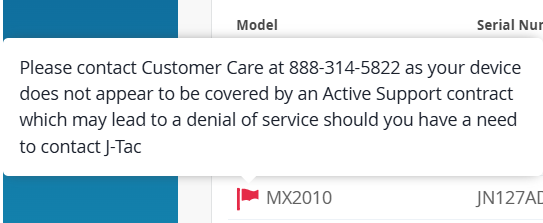 If you notice any data discrepancy, contact Customer Care for resolution. Once resolved, the data will be updated during the next data refresh cycle. |
| Serial Number | Unique ID mapped to the device. |
| Status | Service level to which the device is onboarded.
Note: This field appears blank for devices not onboarded
to the organization.
|
| Device Host Name |
Hostname of the device. Note: This field appears blank for devices not onboarded to
the organization.
|
| Installed Address | Location where the device is installed. |
| Service SKU |
Stock Keeping Unit (SKU) number assigned to the device's support contract. Types of SKUs:
|
| Contract ID |
Support contract number assigned to the device. |
| Support Contracts Status |
Status of the support contract for the device.
|
| Contract Type |
Type of support service provided to the customer for the device.
|
| Contract Start Date | Support contract start date for the device. |
| Contract End Date | Support contract end date for the device. |
| Warranty Type | Warranty type associated with the device. Example: Standard Hardware Warranty. |
| Warranty Start Date | Start date of warranty for the device. |
| Warranty End Date | End date of warranty for the device. |
| Reseller | Juniper authorized reseller of the device. |
| Distributor | Juniper authorized distributor of the device. |
Tasks You Can Perform
You can perform the following tasks on the Contracts dashboard:
-
Validate your account
To view customer-centric information for the device, you must validate your account. Customer-centric information on the page appears blurred if your account is not validated.
To validate your identity and access the customer-centric information, do one of the following:
Do one of the following
Click Validate Email ID on the banner.
Hover over any of the blurred fields and click Validate.
Enter your Juniper support credentials (created through the Juniper Support Portal) and click Validate.
Once validated, you can view the customer-centric information you are authorized to access.
If the system finds the credentials you entered to be invalid, you are prompted to re-enter valid credentials.
You may also encounter this issue if you do not have a Juniper registered account. You can register your account with Juniper through the Juniper Support Portal. For further assistance, contact your Service Manager or Juniper customer care.
-
Find a device using filters
The Contracts dashboard offers multiple ways to narrow down your search.
-
Use Stats Panel filters—The Stats Panel supports interactive filters.
Click a category to show only matching devices in the table. To clear a filter, click the button again.
For example, Click MX480 to view contract insights for only MX480 devices in the table.
-
Apply batch filters—Combine multiple filters to narrow down your search. Batch filters let you apply more than one criterion at the same time.
For example, select SRX4200 from Device Model and Unsupported from Contract State to show only unsupported SRX4200 devices in the table.
Note: Active filters appear grayed out on the Stats Panel. To clear a filter, click the selected item again. -
Enter keywords in the Filter box—Start typing in the Filter box.
For example, start typing the model name. As you type each character, matching entries appear in the drop-down list. Click the device that you want to show in the table. To clear the filter, click Clear All.
-
-
Modify table settings
Click the column settings icon on the top-right corner to show, hide, and reorder the columns so that the table shows exactly the information that you want to see.

In the Table Settings window, you can:
-
Select or clear column checkboxes
-
Drag columns to reorder them
-
Use the search box to quickly locate a column
-
Use Select All or Deselect All as needed
-
Click Close to apply changes
-
-
Export contract details in CSV format
To export details of all devices, click downloads icon at the top-right corner. The details are exported to a CSV file that you can download to your local system.
 Note:
Note:Any non-English characters might appear as special characters when you open the file. To prevent this issue, follow these steps:
- Open a new Excel file and then select File > Import > CSV File > Import.
Select the file to be opened and then click Get Data.
- In the Text Import Wizard, select Unicode (UTF-8) as the File Origin.
- Click Finish.
-
Integrate Your Juniper Support Resources with Your Organization
Optionally, you can link your Juniper account to your organization from this page to view support insights for devices associated with that account.
Note:-
Linking a Juniper account does not automatically onboard devices associated with the account to the cloud.
-
Linking a Juniper account only enables access to support insights for devices associated with that account. This workflow does not affect the Contracts report. Contract information is displayed only for cloud-connected devices, regardless of whether a Juniper account is linked or not.
-
You can link multiple accounts with the organization.
To link a Juniper account to your organization
Click Add Juniper Account.
The Add Juniper Account dialog box appears.
Enter your account credentials.
Click Add.
After the account is successfully linked, he primary account name associated with your credentials is listed in the Linked Accounts section. The Linked Account section also lists other primary accounts that are currently linked to the organization.
You can also link or unlink account from Organization > Settings > Juniper Account Integration. For more information, see Integrate Your Juniper Support Resources to Your Organization.
-
-
Access the Installed Base
Click Installed Base Inventory to navigate to the Installed Base page. From this page, you can onboard devices to cloud and view device-specific support insights, including hardware and software milestones, security vulnerabilities, and bug notifications.