Help us improve your experience.

Let us know what you think.

Do you have time for a two-minute survey?


Connecting SRX Series Firewalls to Create a Chassis Cluster

An SRX Series chassis cluster is created by physically connecting two identical cluster-supported SRX Series Firewalls together using a pair of the same type of Ethernet connections. The connection is made for both a control link and a fabric (data) link between the two devices.

Control links in a chassis cluster are made using specific ports.

The interface value changes with the cluster offset value. Based on the cluster index, the interface is named as type-fpc/pic/port. For example, ge-1/0/1 , where 1 is cluster index and the FPC number. You must use the following ports to form the control link on the following SRX Series Firewalls:

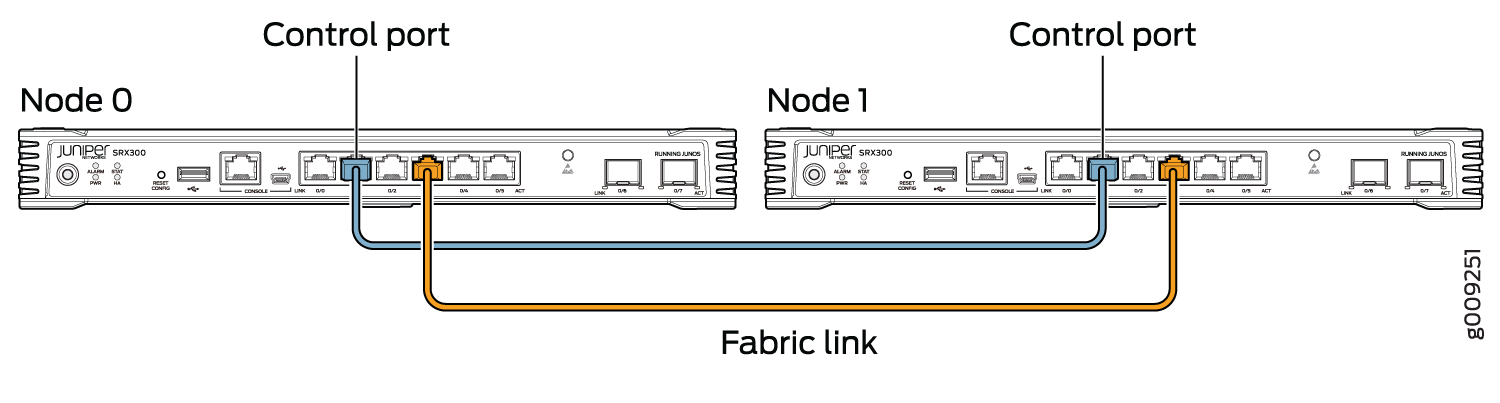
  • For SRX300 devices, connect the ge-0/0/1 on node 0 to the ge-1/0/1 on node 1.

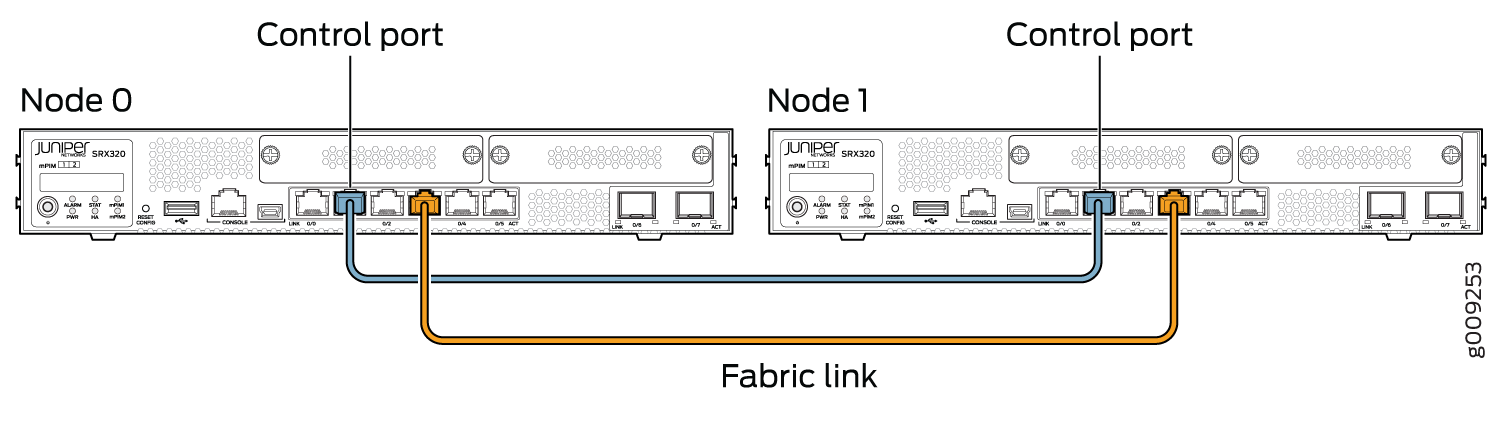
  • For SRX320 devices, connect the ge-0/0/1 on node 0 to the ge-3/0/1 on node 1.

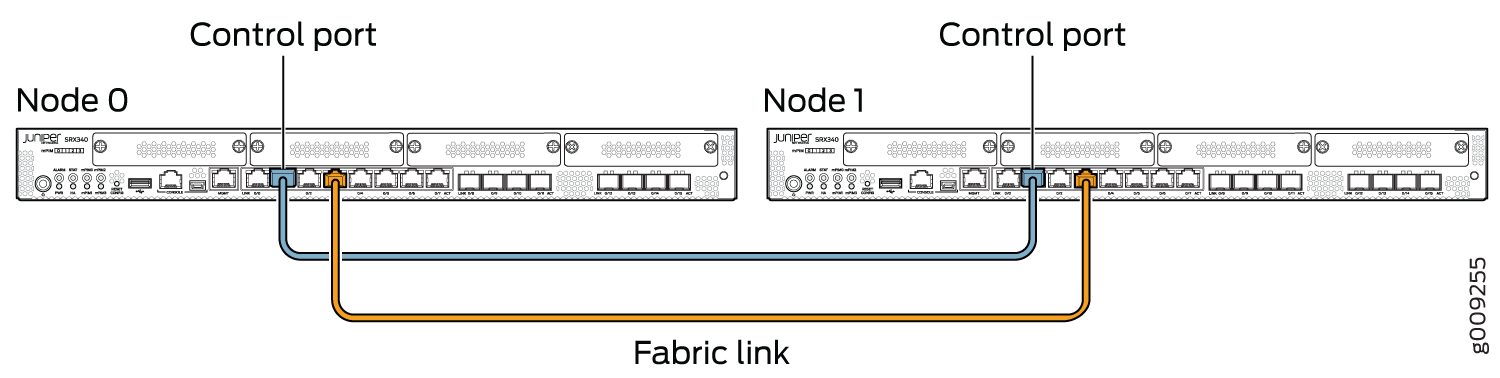
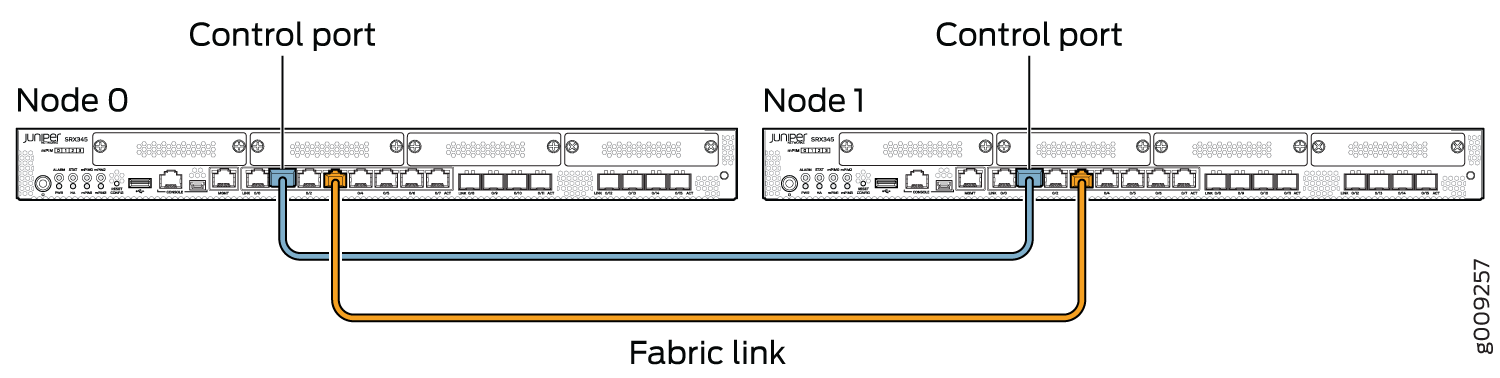
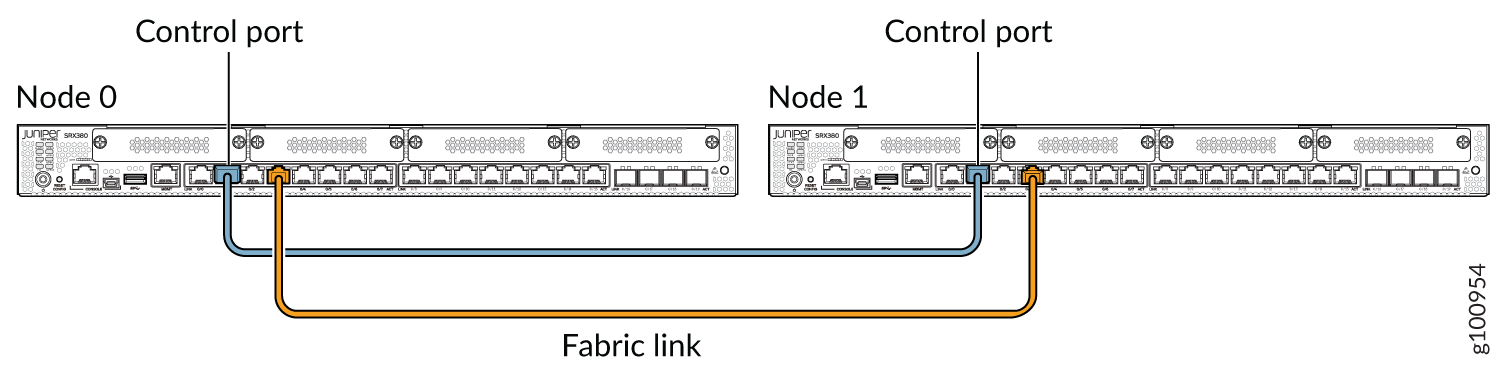
  • For SRX340, SRX345, and SRX380 devices, connect the ge-0/0/1 on node 0 to the ge-5/0/1 on node 1.

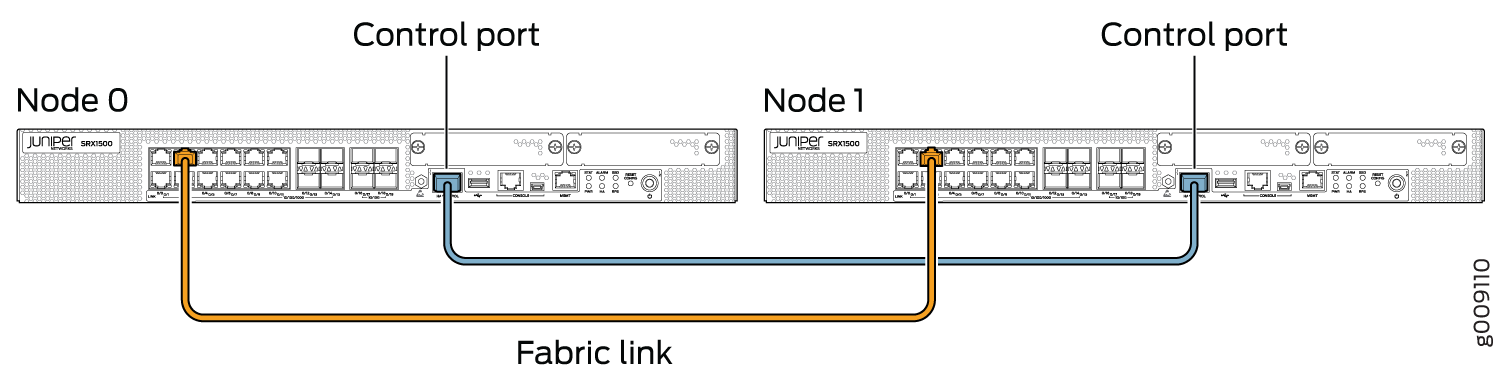
  • For SRX1500 devices, connect the HA control port on node 0 to the HA control port on node 1.

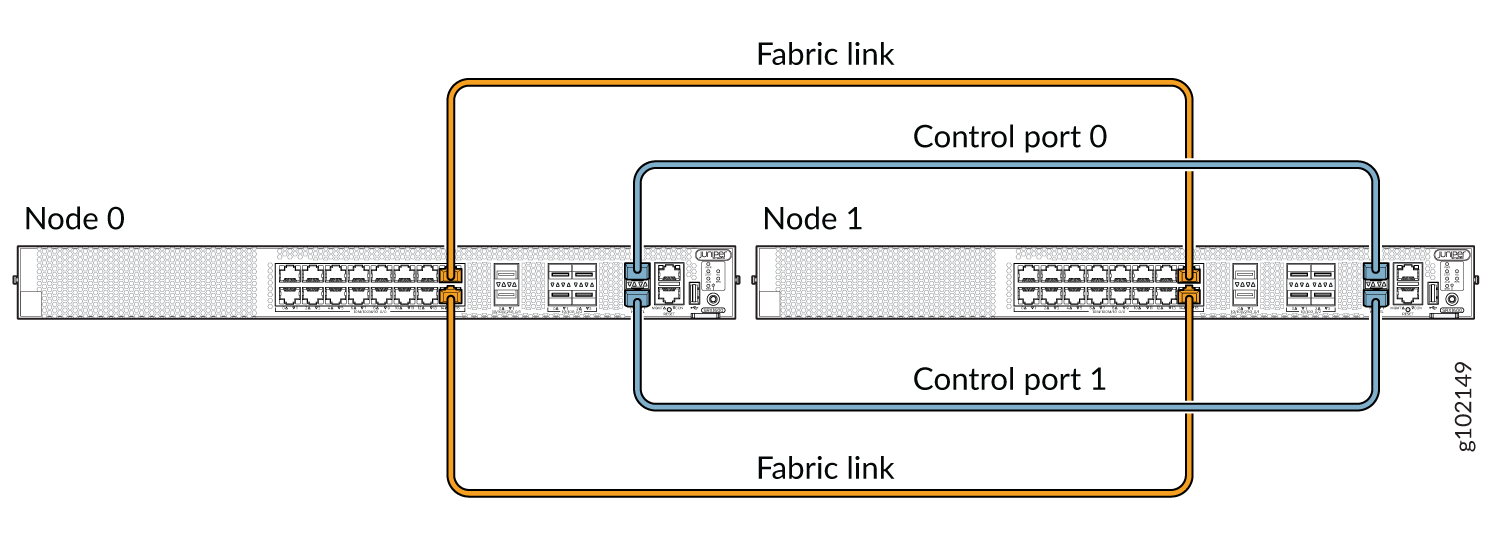
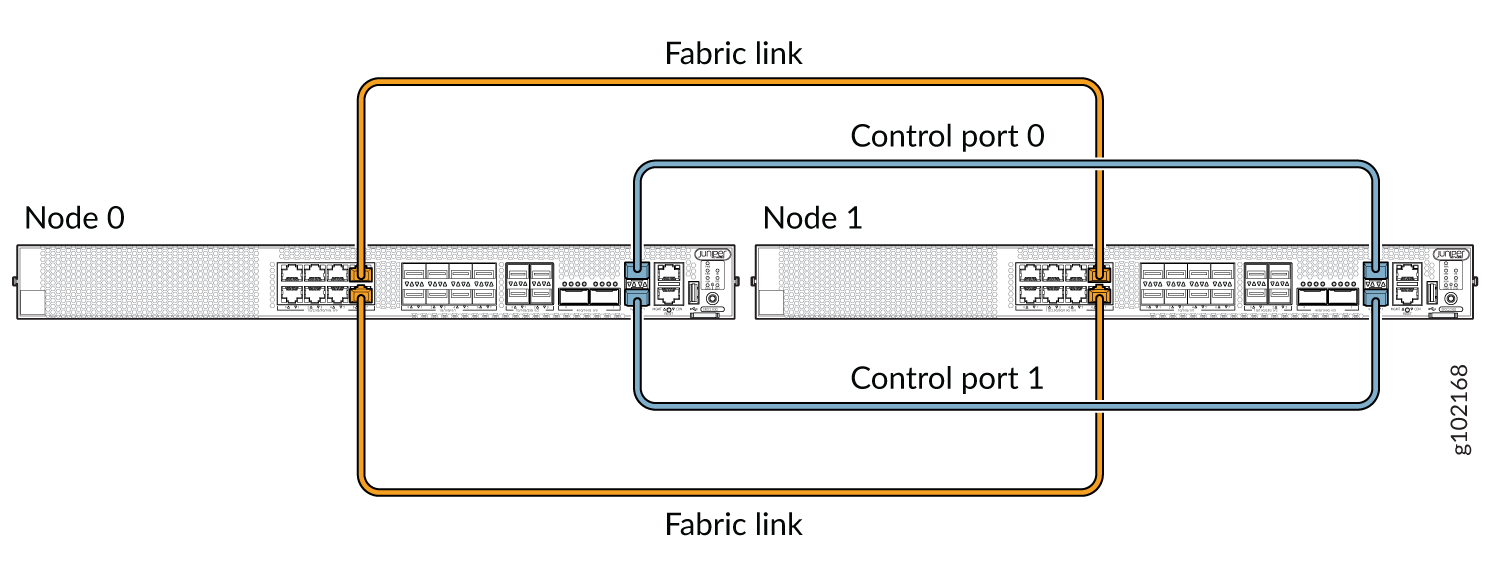
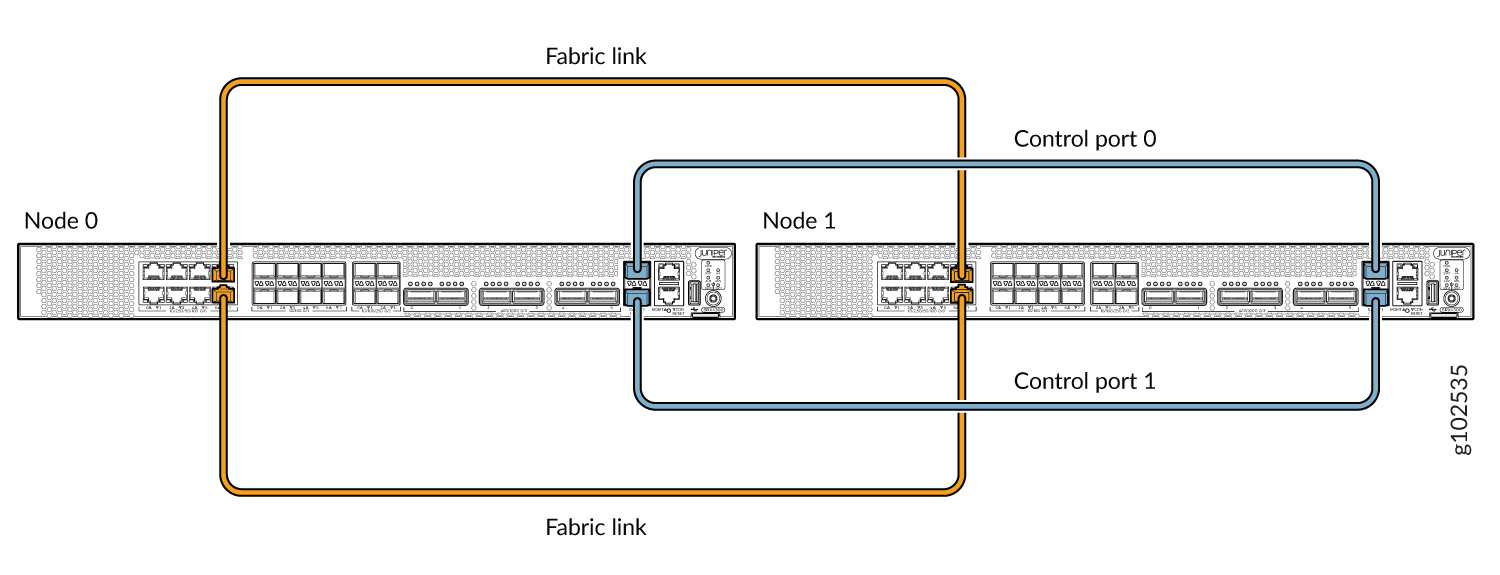
  • For SRX1600, SRX2300, SRX4120, and SRX4300 devices dual control link configuration, connect the HA control port 0 on node 0 to the HA control port 0 on node 1 and connect the HA control port 1 on node 0 to the control port 1 on node 1.

To establish a fabric link:

  • For SRX300 and SRX320 devices, connect any interface except ge-0/0/0 and ge-0/0/1.

  • For SRX340, SRX345, and SRX380 devices, connect any interface except fxp0 and ge-0/0/1.

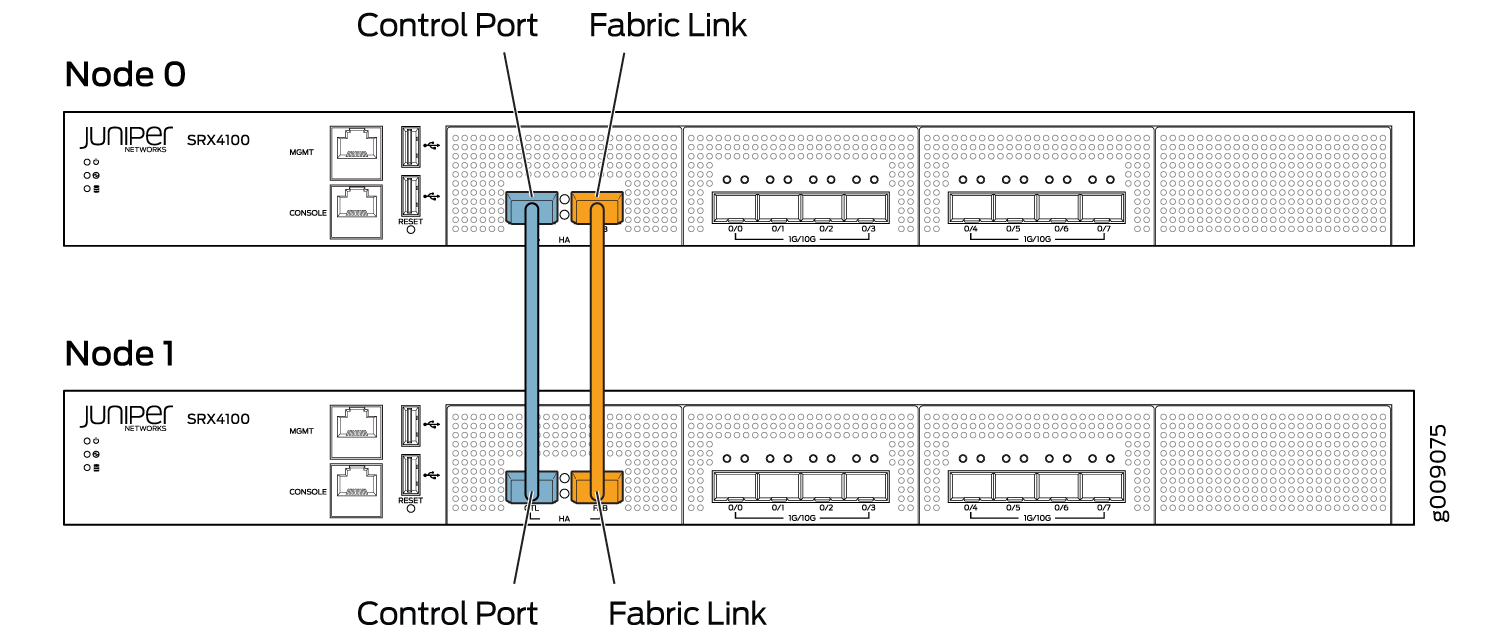
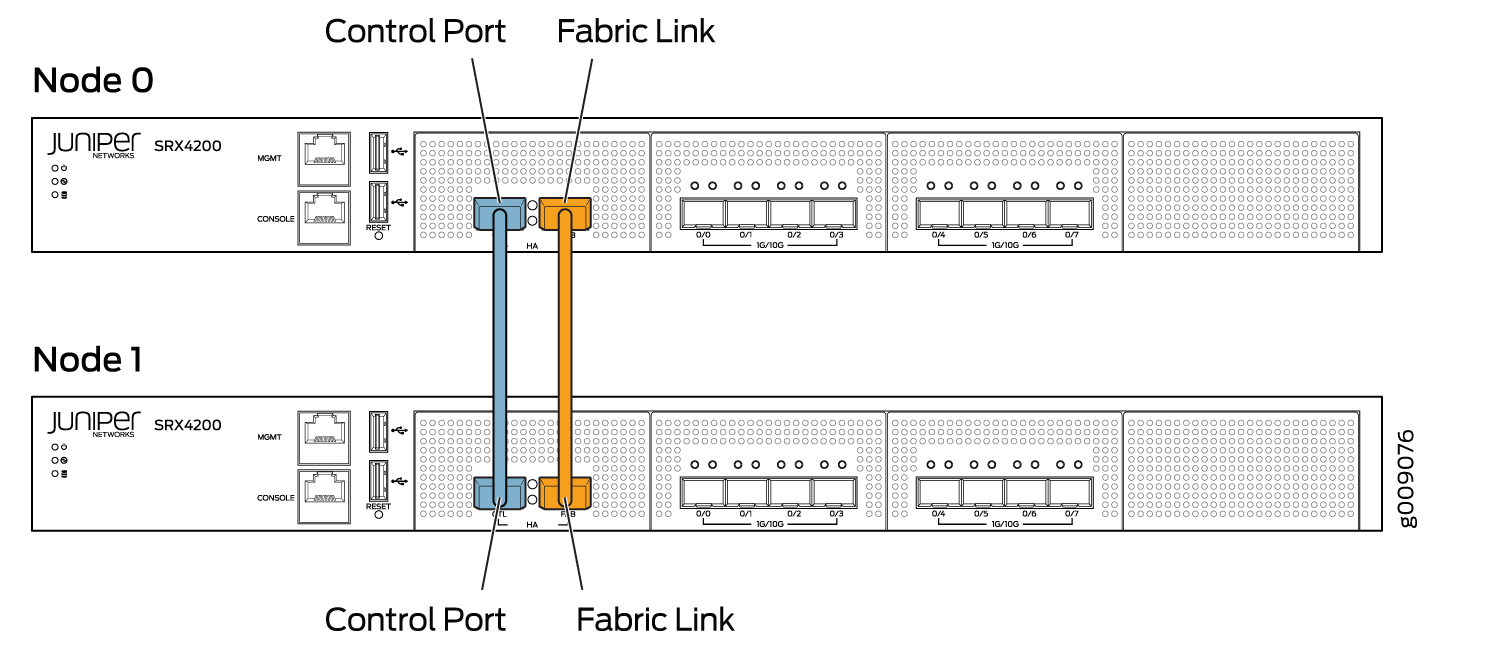
Figure 2, Figure 3, Figure 4, and Figure 6 show pairs of SRX Series Firewalls with the fabric links and control links connected.

Figure 1: Connecting SRX300 Devices in a Chassis Cluster High-availability setup for Juniper SRX300 series with Node 0 and Node 1 connected via control ports and fabric link for data synchronization and failover.
Figure 2: Connecting SRX320 Devices in a Chassis Cluster Diagram showing two Juniper SRX320 devices labeled Node 0 and Node 1 with control ports connected by cables and a fabric link between nodes.
Figure 3: Connecting SRX340 Devices in a Chassis Cluster Juniper SRX340 chassis cluster setup showing connections between Node 0 and Node 1 for control and data synchronization.
Figure 4: Connecting SRX345 Devices in a Chassis Cluster Juniper SRX345 firewall cluster setup showing Node 0 and Node 1 connected for high availability. Control ports connected by blue cable; fabric link by orange cable.
Figure 5: Connecting SRX380 Devices in a Chassis Cluster Network diagram with two Juniper SRX380 devices labeled Node 0 and Node 1. Blue control port cables connect nodes for management, while orange fabric links enable high-speed data transfer for redundancy.
Figure 6: Connecting SRX1500 Devices in a Chassis Cluster Juniper SRX1500 chassis cluster setup with Node 0 and Node 1 linked via blue control ports and orange fabric links for high availability.
Figure 7: Connecting SRX1600 Devices in a Chassis Cluster Network setup with Node 0 and Node 1 connected via orange fabric links for data transfer and blue control ports for management.

For SRX1500, SRX1600, SRX2300, SRX4120, and SRX4300 devices, the connection that serves as the control link must be between the built-in control ports on each device.

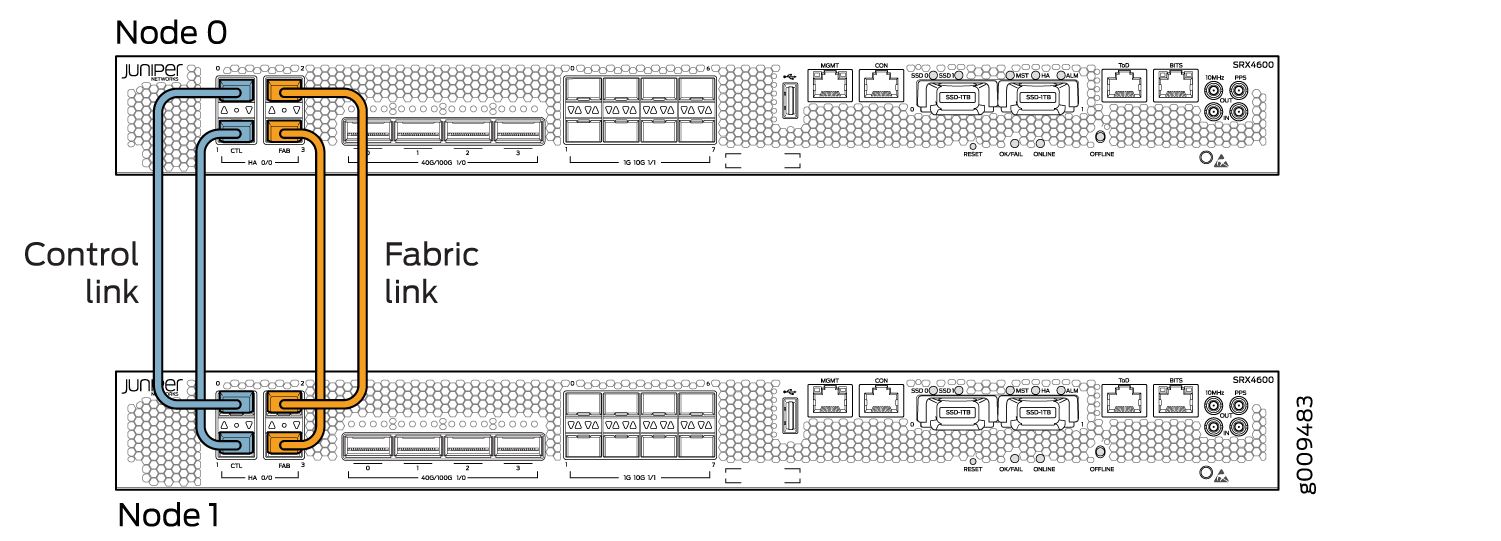
You can connect two control links (SRX4600, SRX5600, and SRX5800) and two fabric links between the two devices in the cluster to reduce the chance of control link and fabric link failure. See Understanding Chassis Cluster Dual Control Links and Understanding Chassis Cluster Dual Fabric Links.

Figure 12, Figure 9 and Figure 10 show pairs of SRX Series Firewalls with the fabric links and control links connected.

Figure 8: Connecting SRX2300 and SRX4120 Devices in a Chassis Cluster Two nodes labeled Node 0 and Node 1 connected by orange fabric links for data transfer and blue control ports for management, illustrating a high-availability system configuration.
Figure 9: Connecting SRX4100 Devices in a Chassis Cluster High availability cluster setup with two Juniper SRX4100 devices: Node 0 and Node 1. Blue cable for control traffic; orange cable for data synchronization.
Figure 10: Connecting SRX4200 Devices in a Chassis Cluster Diagram of two Juniper Networks SRX4200 nodes labeled Node 0 and Node 1 with blue control port and orange fabric link connections.
Figure 11: Connecting SRX4300 Devices in a Chassis Cluster Two nodes labeled Node 0 and Node 1 connected by orange fabric links for data transfer and blue control ports for management.
Figure 12: Connecting SRX4600 Devices in a Chassis Cluster Juniper Networks SRX4600 chassis cluster setup showing Node 0 and Node 1 connected via blue control links and orange fabric links for high availability.

Figure 13, Figure 14, and Figure 15 show pairs of SRX Series Firewalls with the fabric links and control links connected.

Service Processing Cards (SPC) have two dedicated ports ( HA0 and HA1) for connecting the control links in the chassis cluster.

Fabric ports are revenue ports available from any IOC card. Fabric links are connected to the same slot and port on both SRX5000 line of devices.

SRX5000 line devices do not have built-in ports, so the control link for these gateways must be the control ports on their SPCs with a slot numbering offset of 3 for SRX5400, offset of 6 for SRX5600 devices and 12 for SRX5800 devices.

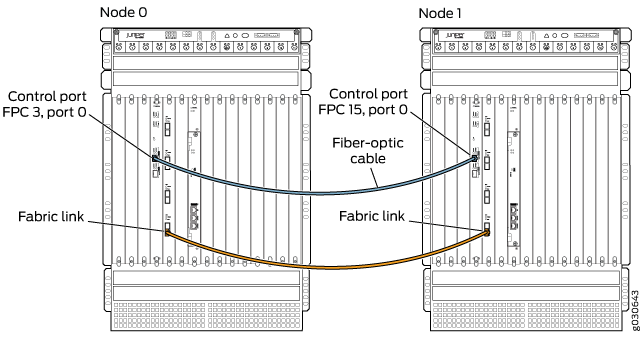
Figure 13 shows pair of SRX5800 devices having single SPC card each connected with a control link. The fabric link is connected using the IOC card. Dual control links are set up using one SPC card on each node. It is recommended to separate the primary and secondary control ports on two different SPC cards on each node for redundancy.

Figure 13: Connecting SRX5800 Devices in a Chassis Cluster Diagram of network nodes Node 0 and Node 1 with control port connection via fiber-optic cable and separate fabric link for data transfer.

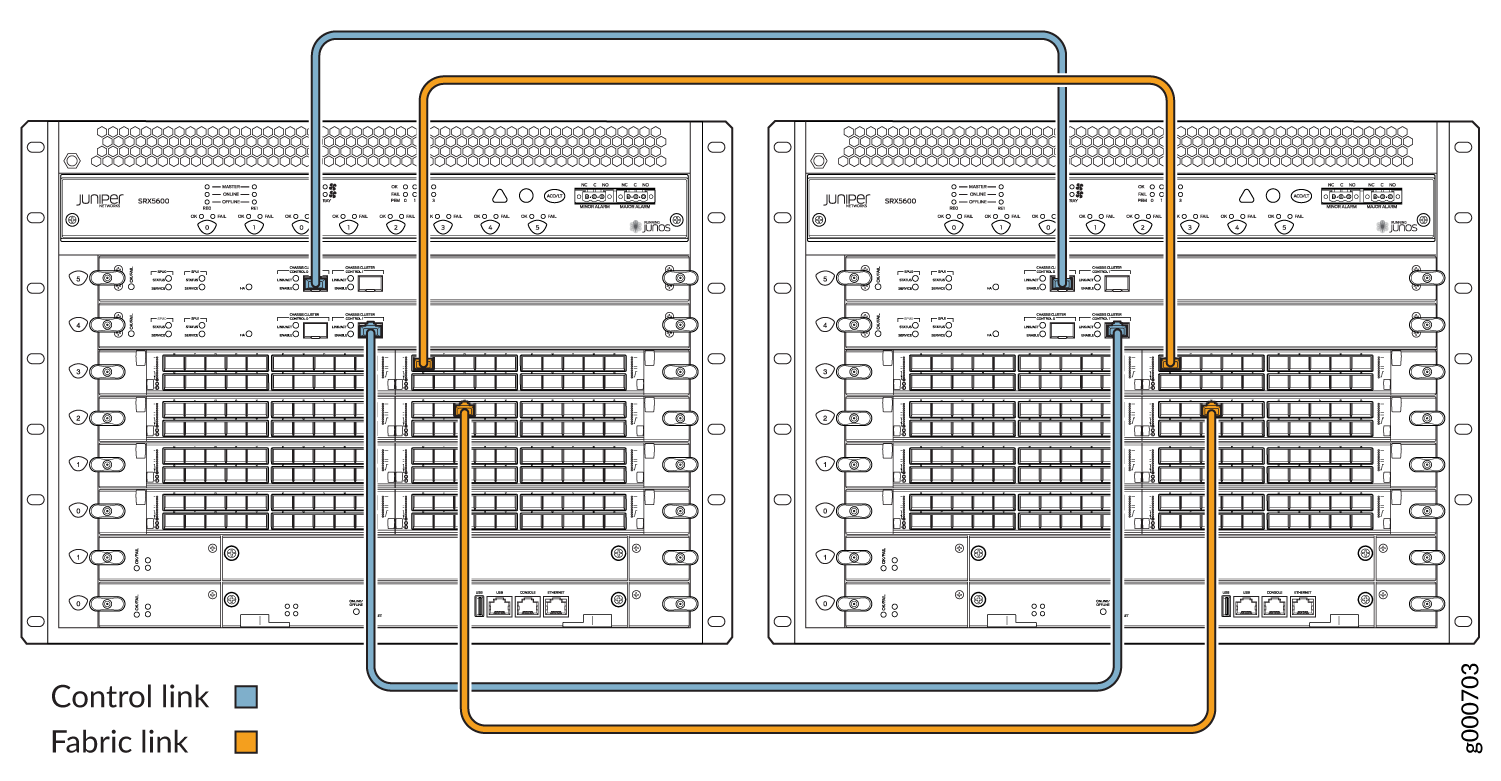
Figure 14 shows dual control links connected using two SPC3 cards and dual fabric links using IOC cards.

Figure 14: Connecting SRX5600 Devices in a Chassis Cluster Juniper SRX5600 devices connected with control links in blue for synchronization and fabric links in orange for high-speed data transfer.

When you connect a single control link on SRX5000 line devices, the control link ports are a one-to-one mapping with the Routing Engine slot. If your Routing Engine is in slot 0, you must use control port 0 to link the Routing Engines.

When a SPC is the central point as well as hosting the control port, this creates a single point of failure. If the SPC goes down on the primary node, the node is automatically rebooted to avoid split brain.

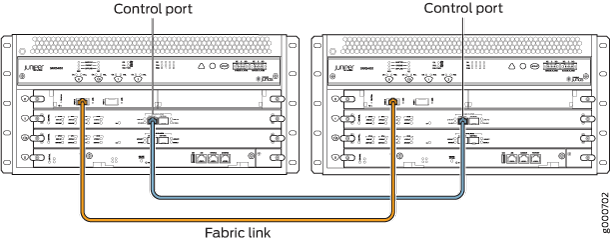
Figure 15: Connecting SRX5400 Devices in a Chassis Cluster Two Juniper Networks routers connected with control ports for management communication and fabric links for high-speed data transfer.

Dual control links are not supported on an SRX5400 device due to the limited number of slots.