Step 3: Configure the Conductor
This step configures the authority-level settings on the conductor: the authority name, conductor address, internet service, and corporate tenant. These objects are shared across all routers managed by this conductor.
All steps are performed from the Conductor GUI at https://192.168.100.10 unless otherwise noted.
Network Design Reference
The following IP addressing and naming scheme is used consistently throughout this guide. Substitute your own values when configuring your network.
| Parameter | Example Value | Description |
|---|---|---|
| Authority Name | Authority128 | Organizational authority name |
| Conductor Name | Conductor | Conductor system name |
| Conductor Node Name | node0 | Conductor node name |
| Conductor Management IP | 192.168.100.10 | Static IP on the VMware management network |
| Conductor Subnet Mask | /24 | Management network prefix |
| Conductor Gateway | 192.168.100.1 | Management network gateway |
| DNS Server | 8.8.8.8 | DNS used during initialization |
| Tenant Name | corp | LAN-side user tenant |
| Service Name | Internet-Traffic | Internet breakout service |
| Service Address | 0.0.0.0/0 | All internet-bound traffic |
1. Assign the Conductor's Asset ID
Take this opportunity to log into the Conductor GUI to complete the following operations. This provides validation that the installation was successful, and familiarizes you with GUI operations.
Assign the Conductor's Asset
- Select the Conductor from the Authority menu on the left side of the GUI.
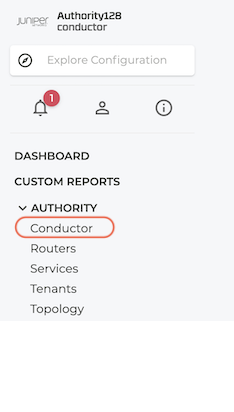
- Select the Configure icon.

- Select the node for the conductor - in this example it is
node0.

- Under Associated Asset ID select the hostname for the conductor.

- Validate and Commit the changes to the configuration.
2. Set the Authority Name
The authority represents the complete set of all SSRs managed under a single organizational entity.
- Return to the Authority level.
- Select the Authority Settings.
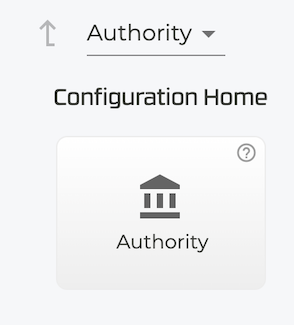
- Under Basic Information, enter the new Authority name.
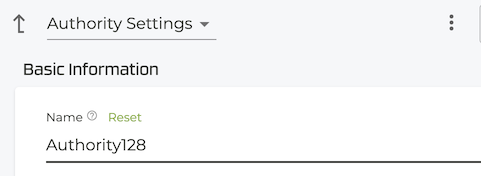
Use your organization's name as the authority name (for example, Authority128). The authority name cannot be changed after routers have been provisioned without re-onboarding them.
3. Set the Conductor Address
The conductor address is the IP address that managed routers use to reach this conductor. It must be reachable from each branch router's WAN interface.
- Under Conductor Addresses, select ADD.
- In the New Conductor Address window, enter the conductor public IP address,
192.168.100.10.
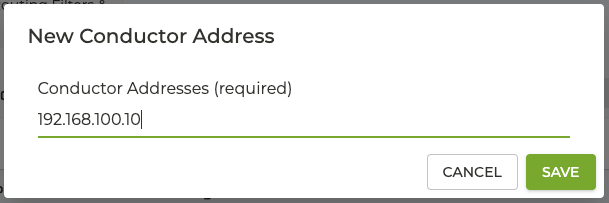
- Click Validate and Commit. Warnings will appear, advising you of the change.
The steps during initialization setup the management IP. The conductor IP address is the public IP address to which the managed routers connect. It is not necessary to manually associate this IP address with a network interface; the interactions between the SSR software and Linux will identify and assign the IP address to the network interface.
4. Air-Gap Network - Set Offline Mode
For Air-Gap networks, setting Offline Mode to true prevents devices from attempting to access the internet for software updates.
-
From the GUI, navigate
Configuration > Authority > Router: Conductor. -
Scroll down to Router Settings tile and click on the System Settings tile.
-
Scroll down to Software Update Settings.
-
Set Software Repository Offline Mode to
true.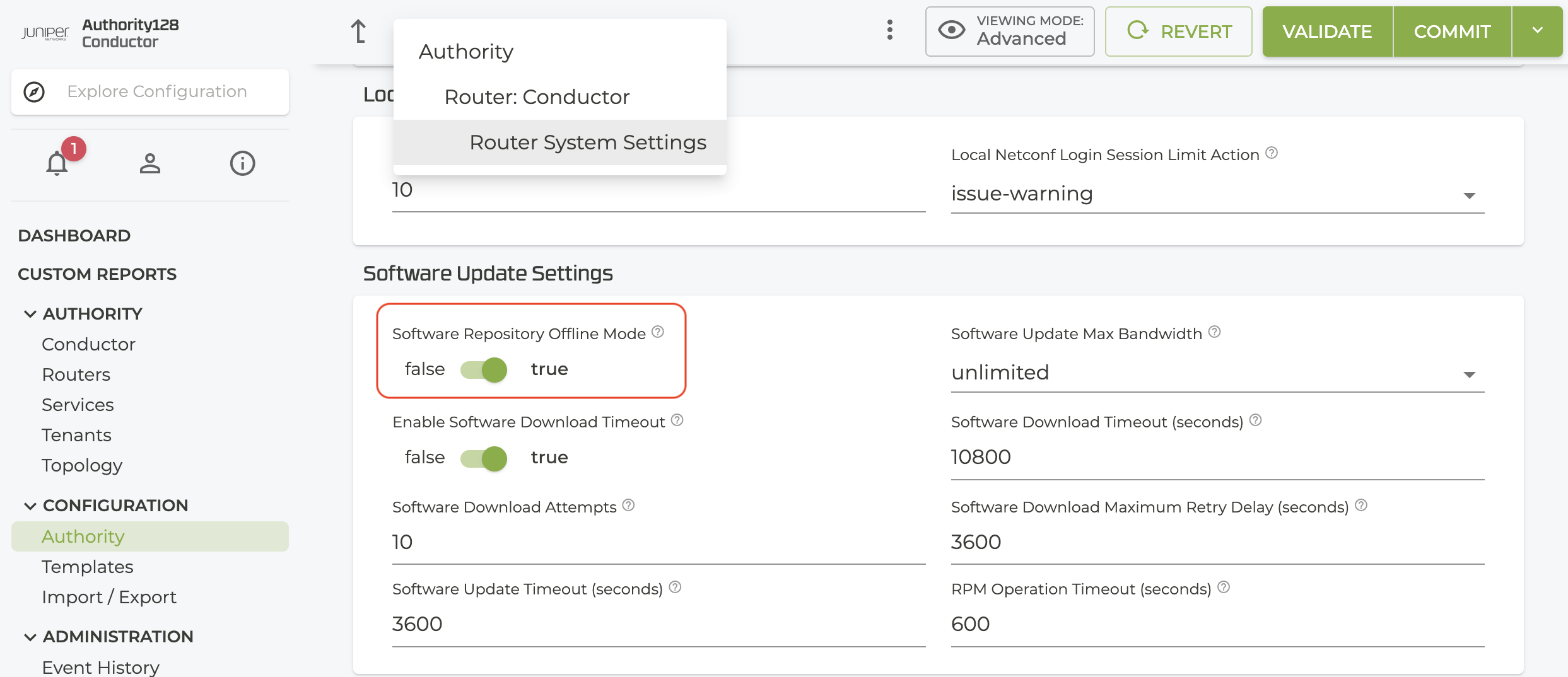
5. Create the Corporate Tenant
Tenants logically partition the network. The corp tenant represents corporate LAN users and is referenced by the LAN interface configuration on each branch router.
- In the Conductor GUI, select Configuration.
- Select Authority.
- Scroll to Tenants and select ADD.
- Enter the name
corpand select SAVE. - Select VALIDATE then COMMIT.
Tenants are authority-wide. A single corp tenant definition applies to all routers that assign it to a LAN interface.
6. Create the Internet-Traffic Service
The service configuration element defines the IP destinations that the SSR routes. This step creates a single service representing all internet-bound traffic from corporate LAN users.
- Log in to the Conductor GUI.
- Select Configuration.
- Select Authority from the left panel.
- Scroll down to Services and select ADD.
- Enter the name
Internet-Trafficand select SAVE. - On the Service screen, verify Enabled is set to
true. - Under Scope, select Public.
- Scroll down to Service Addresses and select ADD.
- Enter
0.0.0.0/0and select SAVE. - Scroll down to Access Policy and select ADD.
- Set Source to
corp. - Select SAVE.
- Select VALIDATE then COMMIT.
What Was Configured
At the end of this step your authority contains:
| Object | Name | Value |
|---|---|---|
| Authority | Authority128 | |
| Conductor Address | 192.168.100.10/24 | |
| Software Update Settings | offline-mode | true - this is only required for air-gap networks |
| Tenant | corp | LAN-side user population |
| Service | Internet-Traffic | 0.0.0.0/0, access from corp |
The conductor is now ready to accept branch router onboarding.