
Deploy Juniper Security Director Using VMware vSphere
This topic guides you through the Juniper Security Director VM deployment using VMware vSphere.
Before You Begin
-
If you are not familiar using VMware vSphere, see VMware Documentation and select the appropriate VMware vSphere version.
-
Choose the size of the VM, see Hardware Requirements.
Table 1: Hardware Requirements for ESXi Server VM Configuration Device Management Capability Log Analytics and Storage Capability VM Configuration 1
-
16 vCPU
-
80 GB RAM
-
2.1 TB storage
-
Up to 1000 devices
-
Up to 10000 policy rules per device
-
Up to 6000 NAT rules per device
-
Up to 1000 VPNs per device/system
-
Up to 17000 logs per second
-
Out of the total 2.1 TB storage, 1.5 TB is dedicated for log analytics.
VM Configuration 2
-
40 vCPU
-
208 GB RAM
-
4.2 TB storage
-
Up to 3000 devices
-
Up to 20000 policy rules per device
-
Up to 10000 NAT rules per device
-
Up to 1500 VPNs per device/system
-
Up to 40000 logs per second
-
Out of the total 4.2 TB storage, 3.5 TB is dedicated for log analytics.
Note:-
We do not recommend hyperthreading on VMware hypervisor (ESXi) Server. You must use dedicated resources for CPU, RAM, and storage.
-
We do not recommend sharing resources.
-
You can switch from VM configuration 1 to VM configuration 2, if necessary. However, once you switch to VM configuration 2, you cannot revert to VM configuration 1. For instructions to modify the VM configuration in VMware vSphere, see Modify VM Configuration.
-
-
You must have 4 dedicated IP addresses and ensure that you have access to SMTP, NTP, and DNS servers, see Software Requirements.
Note:If the deployment is a regulated/air-gapped environment, ensure that the VM also has access to signatures.juniper.net for IDP/Applications Signatures download.
Step 1: Download the OVA and the Software Bundle
-
Download the Juniper Security Director OVA (.ova file) from https://support.juniper.net/support/downloads/?p=security-director-on-prem to a webserver or your local machine. To avoid connectivity issues, download the OVA directly to your local machine.
- Download
the
Juniper Security Director Software Bundle (.tgz file) to your local machine
from https://support.juniper.net/support/downloads/?p=security-director-on-prem and then transfer the file to your staging server.
A staging server is an intermediate server where the software bundle is downloaded and is accessible from the VM.
The staging server must support software bundle download from the Juniper Security Director VM through Secure Copy Protocol (SCP). Before you deploy the VM, you must have the details of the staging server, including the SCP username and password.
Step 2: Deploy the VM
-
Open the vSphere Client.
-
Right-click the inventory object that is a valid parent object of a VM and select Deploy OVF Template.
Figure 1: Deploy OVF Template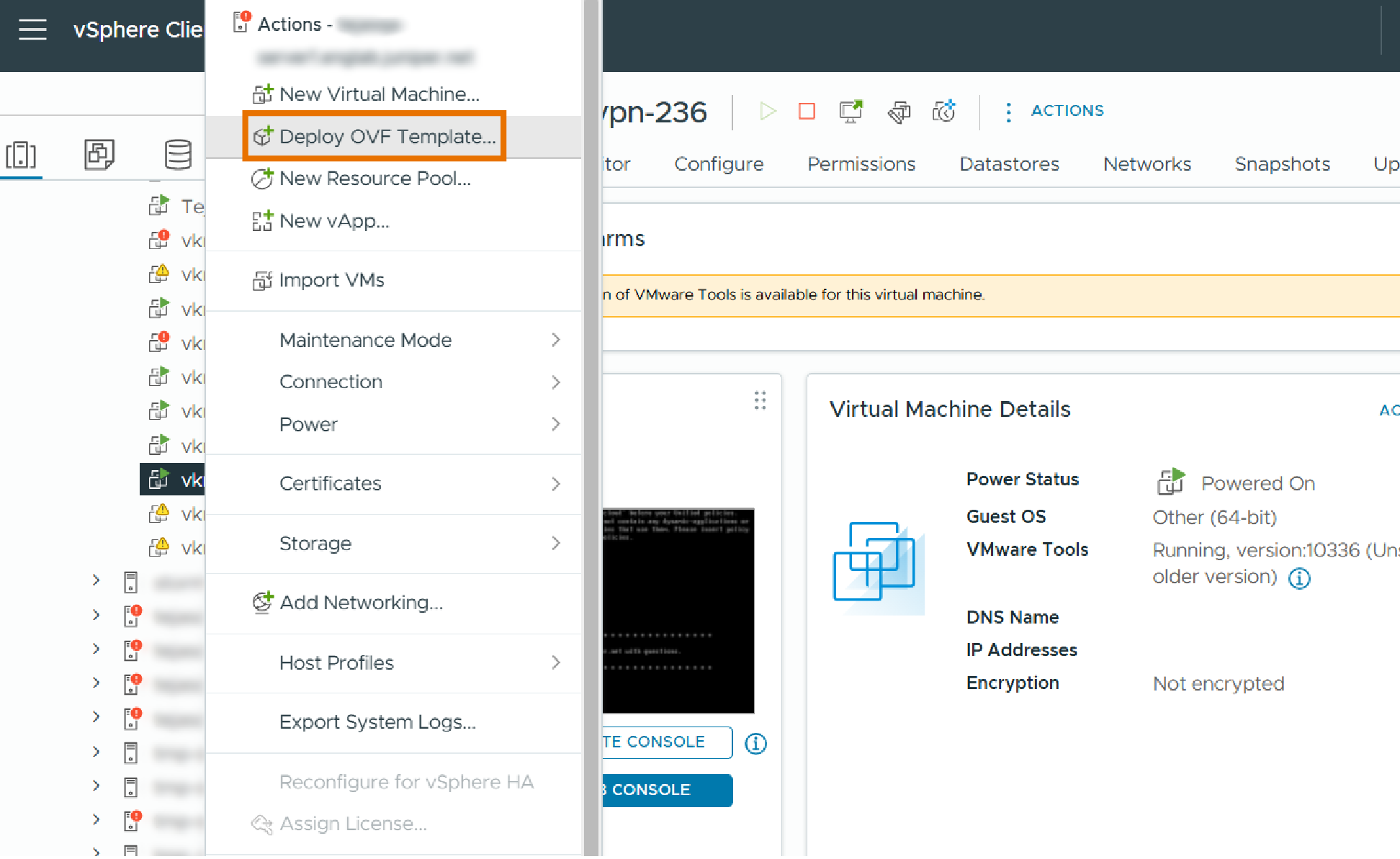
-
On the Select an OVF template page:
-
Enter the webserver OVA URL, where you have downloaded the OVA. The system might warn you about source verification. Click Yes.
Ensure that firewall rules do not block image access from the vSphere cluster.
-
Select the Local file option and click UPLOAD FILES to choose the OVA file from your local machine.
Figure 2: Select or Upload OVF File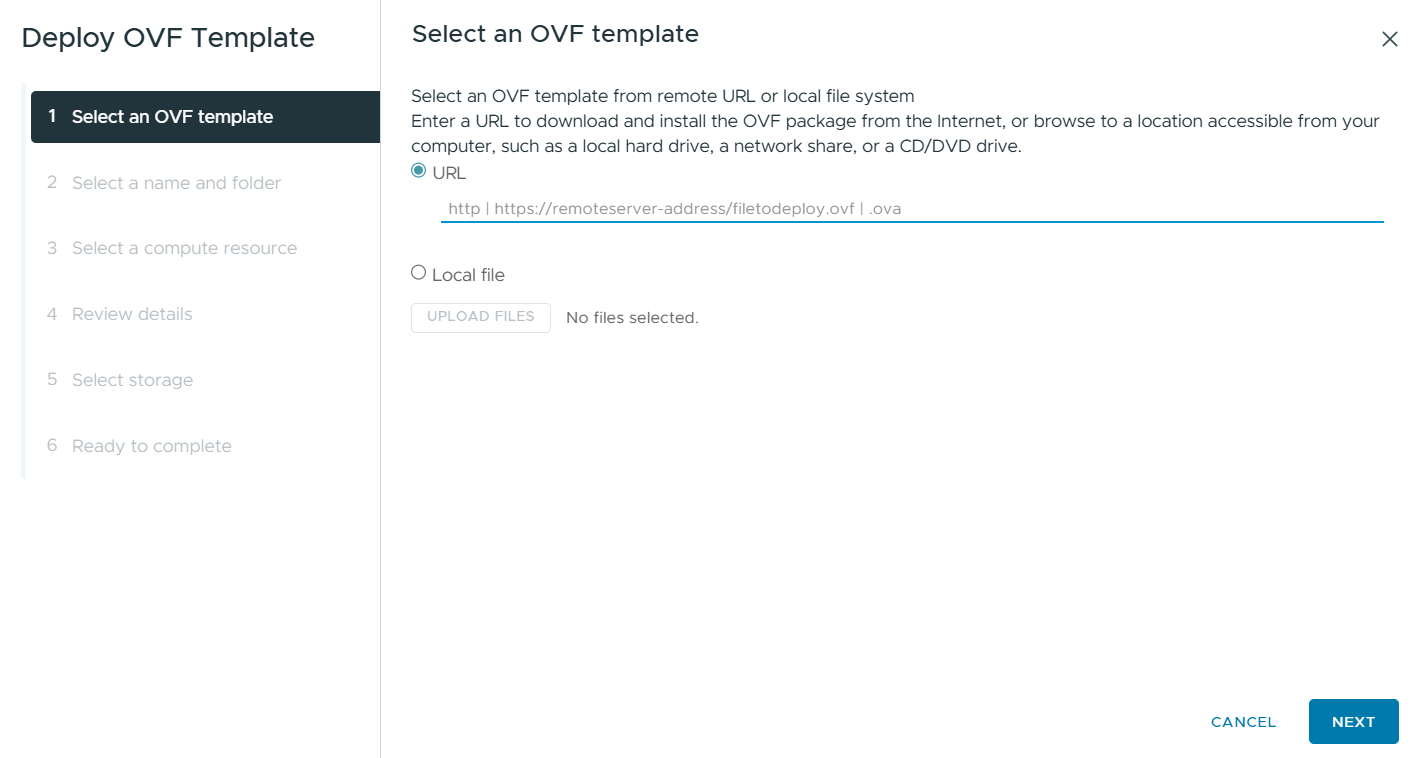
-
-
On the Select a name and folder page, enter the VM name and select the location for the VM.
-
On the Select a compute resource page, select the compute resource for the host on which the VM will be deployed.
-
On the Review details page, review the details of the resources to be provisioned.
On the License agreements page, select the check box to accept the license agreements.
-
On the Select storage page, select the storage for the configuration and the virtual disk format. We recommend you to use virtual disk format as Thick provision and select storage with at least 1.5 TB of capacity.
Note:We do not recommend thin provisioning. If you choose thin provisioning and the actual disk space available is low, the system might encounter problems once the disk is full.
-
On the Select networks page, select the network to configure IP allocation for static addressing.
-
On the Customize template page, configure Juniper Security Director on-premise OVA parameters.
Note: Prepare all details for the Custom template page in advance. The OVF template will timeout after 6 to 7 minutes.Figure 3: Customize OVF Template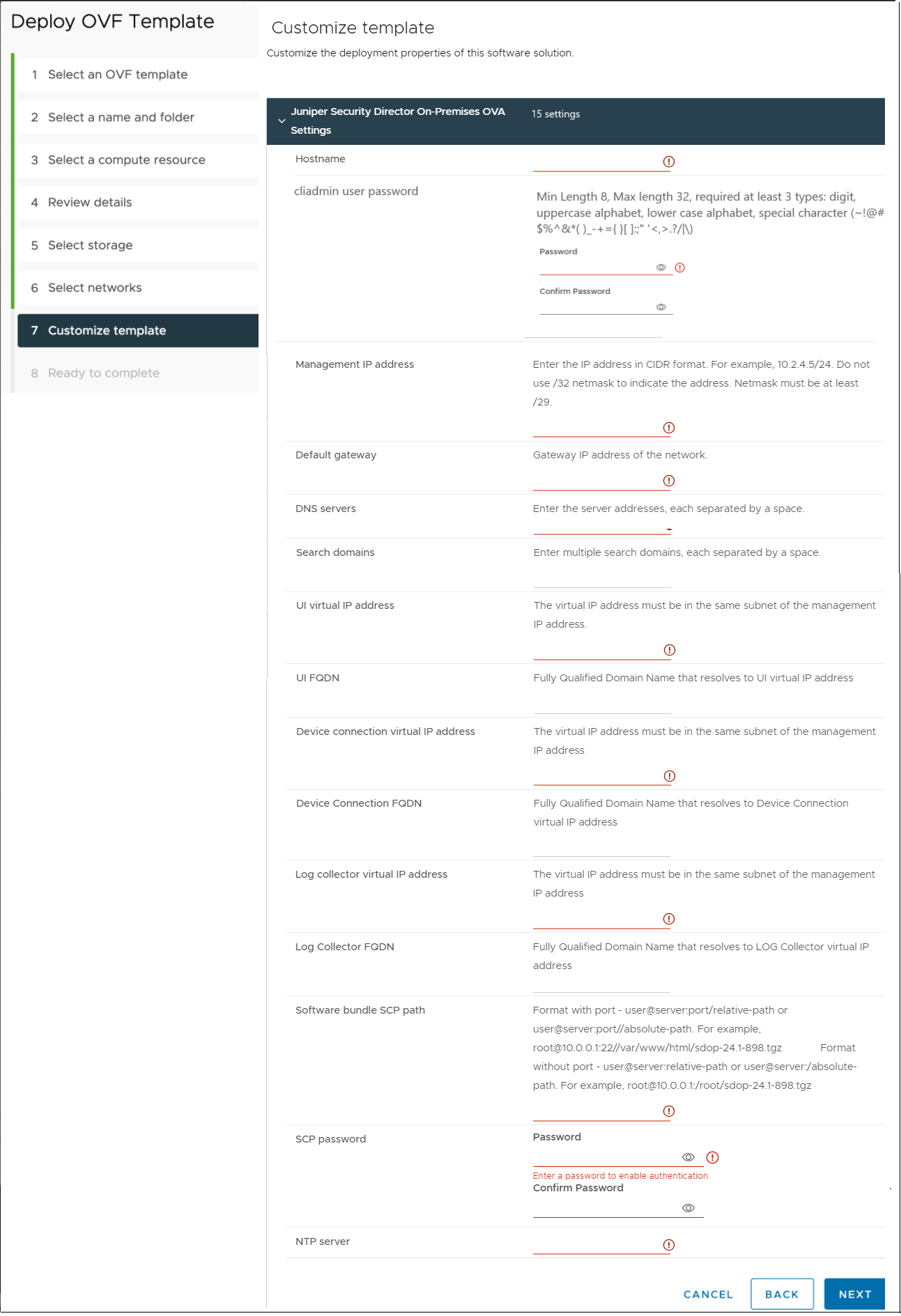 Note:
Note:-
The cliadmin user password field does not strictly validate password requirements. However, during the installation process, the system enforces strict validations and rejects the password that does not meet the specified requirements, causing installation failure. To avoid issues during installation, ensure that the password meets these criteria:
-
Must be at least 8 characters long and not more than 32 characters.
-
Must not be dictionary words.
-
Must include at least three of the following:
-
Numbers (0-9)
-
Uppercase letters (A-Z)
-
Lowercase letters (a-z)
-
Special characters (~!@#$%^&*()_-+={}[];:"'<,>.?/|\)
-
-
-
UI FQDN, Device Connection FQDN, and Log Collector FQDN fields are optional. However, we highly recommend you to use Fully Qualified Domain Name (FQDN). Ensure that the FQDN is:
-
Valid and follows the domain naming conventions.
-
Complete, including the domain and subdomain details.
-
Resolvable, that is, DNS can correctly map the FQDN to an IP address.
An incorrect FQDN results in issues that require re-installation of the VM.
If the IP addresses are incorrect, you won't be able to start an SSH connection to the VM. You can only access the VM through the web portal.
-
-
The Software bundle SCP path refers to the location of the Juniper Security Director software bundle (.tgz file) on your staging server. Make sure you have downloaded the Juniper Security Director Software Bundle (.tgz file) to your local machine from Juniper Software Downloads page and transferred it to your staging server. The staging server serves as an intermediary to store and make the software bundle accessible to the VM. The staging server must support software bundle download from the Juniper Security Director VM through SCP. Before deploying the VM, ensure you have the details of the staging server, including the SCP username and password.
-
-
On the Ready to complete page, review all the details and if required, go back and edit the VM parameters. These network parameters cannot be changed from the VM configuration after successful installation. However, network parameters can be changed from the CLI. Click Finish to begin the OVA deployment.
You can monitor the OVA deployment progress status in the Recent Tasks window at the bottom of your screen till it is 100% complete. The Status column shows the deployment complete percentage.
Congratulations! Now the OVA deployment is complete.
-
(Optional) Once you've deployed the OVA, create a snapshot of the VM. Snapshot is useful if you need to rollback after the software bundle automatically installs.
To create a snapshot:
Select the VM.
In the Actions menu, navigate to .
The Take Snapshot window is displayed.
Enter a name and description for the snapshot.
Click Create.
A snapshot of the VM is created.
-
Click the triangle icon (
 ) next to the VM name to power on the VM.Note:
By default, the VM will be deployed with the smallest resource configuration as mentioned in Hardware Requirements. Adjust the resources to match other resource configurations using the VMware Edit VM settings.
For a successful installation, the resource allocation must match Hardware Requirements.
For instructions to modify the VM configuration in VMware vSphere, see Modify VM Configuration.
Once the VM powers on, navigate to the Summary tab and click LAUNCH WEB CONSOLE to monitor the software bundle installation status.
Avoid performing any operation on the console until the installation is complete.
You can view the installation progress on the console. After the installation is complete, the console displays Successfully installed software bundle on the cluster and the VM reboots.
A successful installation requires approximately 30 minutes. If the installation lasts longer, check the Web console for potential errors. You can ssh to the VM IP using the cliadmin user and the password you configured during the OVA deployment. Then, use the show bundle install status command to check the installation status.
To check the parameters, power off the VM, then navigate to Configure and click vApp options. If the parameters are incorrect, deploy the OVA again with correct parameters.
Congratulations! The software bundle installation is now complete.
Modify VM Configuration
By default, VM is deployed with the smallest resource configuration, VM configuration 1. You can switch from lower configuration (VM configuration 1) to higher configuration (VM configuration 2), if necessary. However, once you switch to VM configuration 2, you cannot revert to VM configuration 1.
To modify the VM configuration:
-
Select and power off the VM in vSphere Client.
Under the Summary tab, scroll down to VM Hardware section, and click Edit.
The Edit Settings window is displayed.
Modify the CPU, Memory, Hard disk 1, Hard disk 2, and Hard disk 3 fields as shown in Figure 4.
You should modify all the fields according to the configuration mentioned in Table 1. Expanding individual disks is not permitted.
Figure 4: VM Configuration 2 (40 vCPU, 208 GB RAM, 4.2 TB Storage)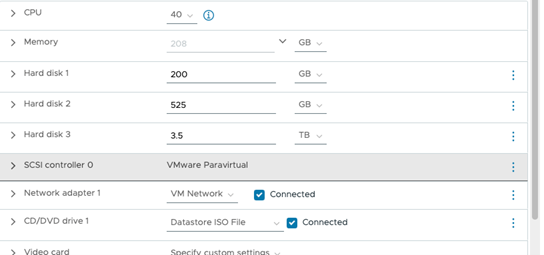
Click Ok to confirm the changes.
Power on the VM for the configuration changes to take effect.
Step 3: Verify and Troubleshoot
To verify if the installation is successful, you must log into the VM IP through an SSH connection. VM IP is the value provided in the IP address field in Step 9. Use the following default credentials:
User: cliadmin
Password: abc123
After you have logged in, you will be prompted to change the default credentials.
Log in with your new credentials and run the following commands:
-
service healthmonitor statuscommand to view the installation status. -
list /var/log/cluster-managercommand to list the log file. -
show file /var/log/cluster-manager/cluster-manager-service.logcommand to view the content of the log file. -
remotecopy /var/log/cluster-manager/cluster-manager-service.log
                     <username>@<hostname>:<remote path to copy the log
                     file>
command to copy the file to a remote location for troubleshooting.To check the disk partitions and storage, run the following CLI commands:
-
show storage space—command to view the disk partitions -
show storage partition—command to check free and used space
For more information, see show storage.
-
Troubleshoot Using UI
You can generate and download the system logs for issues related to feature groups such as device management, policy management, and log analytics. A feature group is a logical grouping of related microservices whose logs are required to debug an issue.
Before You Begin
See Log In to the Juniper Security Director Web UI.
To generate the system logs:
-
Select .
The System Logs page is displayed.
-
Select the feature group.
-
In the Timespan drop-down field, select the period for which you want to generate the logs.
-
Click Generate Log Package.
A job is created for the log generation process. The details are displayed on the top of the page. Select to view the job. On the Jobs page, you can monitor the status of log generation process.
After the job is finished, a link is created on the System Logs page to download the logs. System logs will be downloaded as a tgz file and shared with the Juniper Networks support team to analyze the root cause of the issue.