
Help us improve your experience.
Let us know what you think.
Do you have time for a two-minute survey?
Help us improve your experience.
Let us know what you think.
Do you have time for a two-minute survey?
We are excited to announce the launch of a redesigned and enhanced version of the Juniper Mist site Insights page. This update provides comprehensive visibility into insights across Wireless, Wired, and WAN networks for each site.

The enhancement includes new views for device connection status, client connection trends over time, network traffic, and critical alerts, in addition to all the existing information.
The redesigned page also includes tabbed views for each network swimlane deployed at the site, offering key insights.

Other key features of the enhanced site Insights page include the following:
A summary view that shows the connection status of devices such as access points (APs), switches, WAN edges, and Wi-Fi clients.
An enhanced Events section which provides a tabbed view of events for different device types at the site level.
An updated applications view which shows the name of each application, the number of clients, and the bytes sent and received. Although Mist collects application data across both WAN and Wireless networks, WAN-based insights are given priority. Wireless network-based insights are displayed if WAN-based data is not available.
Juniper Mist now gives you greater control over access point (AP) upgrade processes. You can choose to upgrade APs instantly or schedule upgrades to start at a time that best suits your business needs.
In upgrade settings, you can schedule firmware installation and device reboot separately. For example, configure APs to install firmware and reboot immediately, or schedule both steps for later.
All APs in a scheduled upgrade will download and install firmware simultaneously, and all APs reboot at the same time.
To initiate an upgrade, do the following:
Go to the Access Points page (list of APs).
Select the APs to be upgraded and then click Upgrade APs.
Select the firmware version and then click Next.
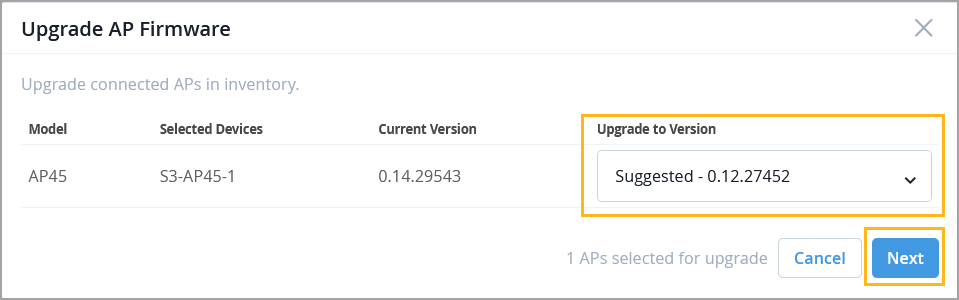
Specify the schedule details and then click Schedule.

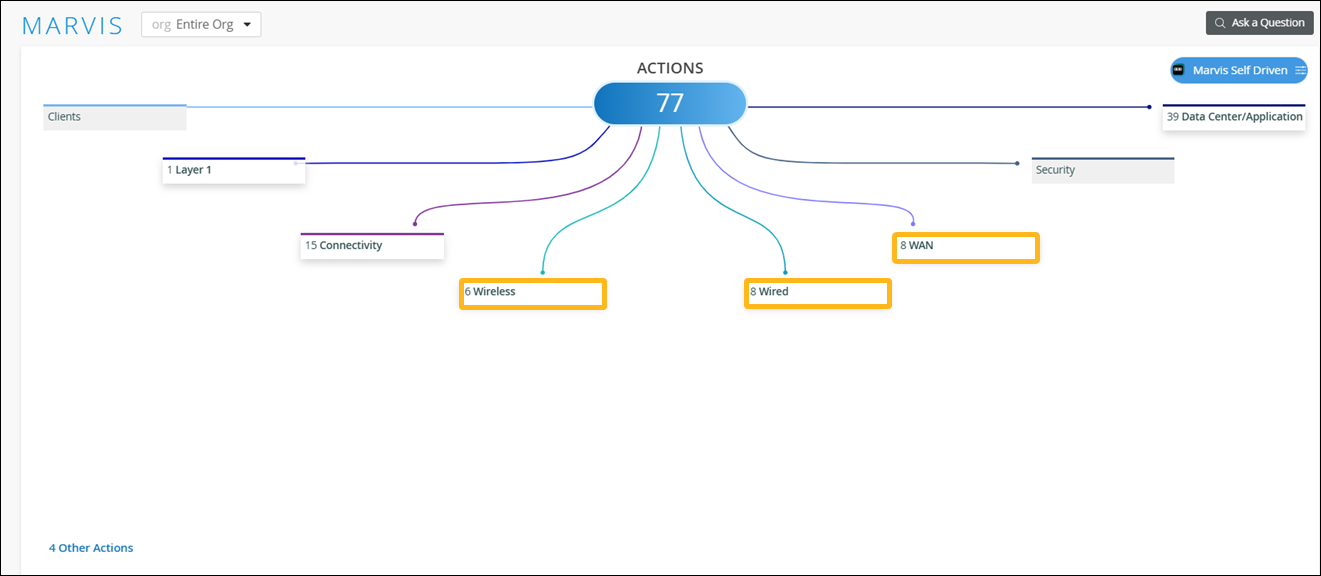
We have renamed the following categories so that the category names reflect the respective network domain instead of the device type:
“AP” as "Wireless"
"Switch" as "Wired”
"WAN Edge" as "WAN”
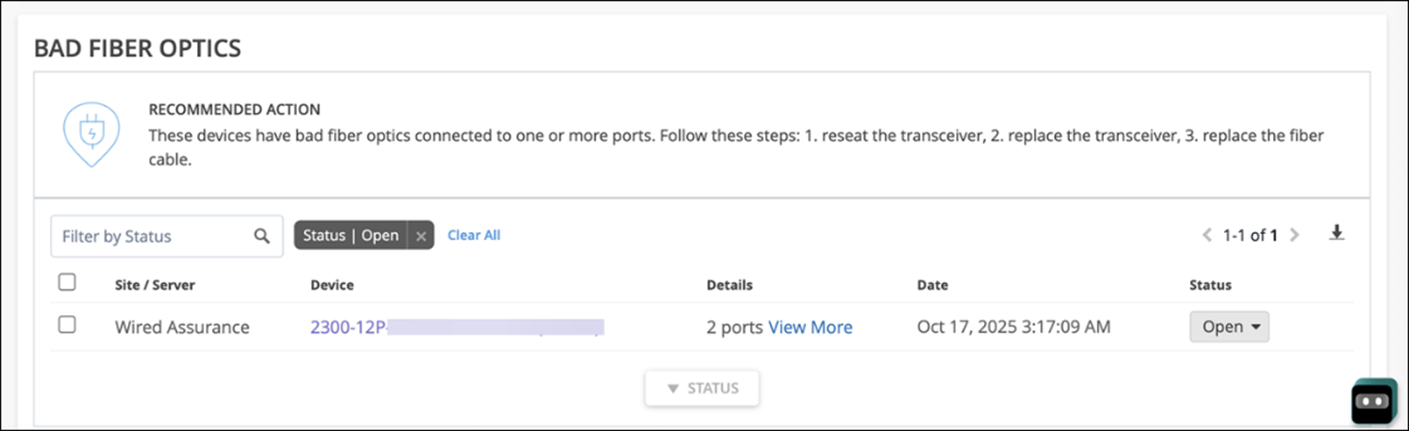
We have added a new Marvis Action called “Bad Fiber Optics” under the Layer 1 category. This action highlights faulty fiber optics, allowing for quick resolution and minimizing network disruptions. Marvis leverages switch reported events and network statistics to identify these issues. Marvis generates a Bad Fiber Optics action when both of the following issues occur on the same switch port within a 2-hour window:
Cable related issues, which include CRC errors, link flaps, and packet mismatches.
Fiber optics hardware issues indicated by low-light alarms.
Previously, the “Bad WAN Uplink” Marvis Action was used to highlight issues related to ISP connectivity problems, including ISP ARP and ISP DHCP failures. Any disruptions in WAN connectivity were grouped under the “Bad WAN Uplink” action. We have now refined the scope of this action to focus specifically on issues stemming from poor LTE connectivity.
To address the need for identifying ISP-related failures separately, we have introduced a new action called "Intermittent WAN Connectivity." This action highlights ISP ARP and ISP DHCP failures, which were previously listed under the “Bad WAN Uplink” Marvis Action.
The “Bad WAN Uplink” action will no longer be self-driving. However, the “Intermittent WAN Connectivity” action will be self-driving and enabled by default.
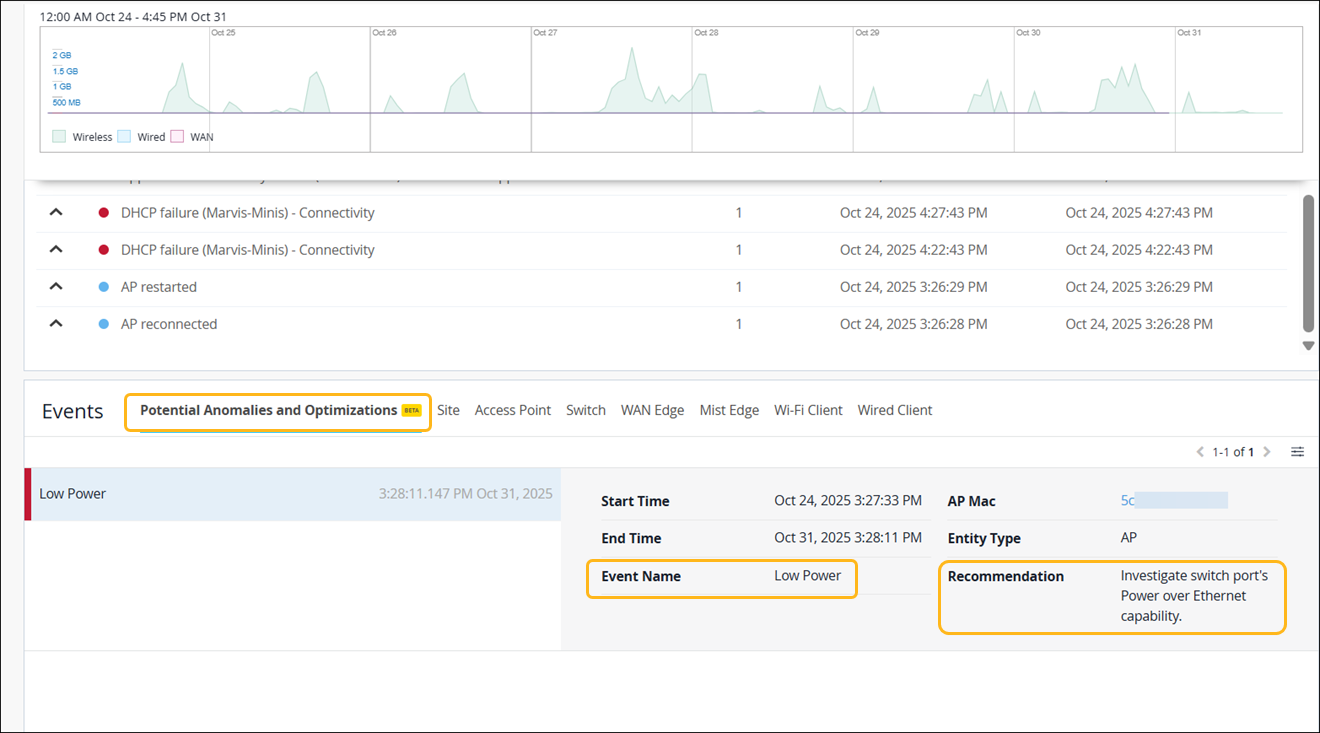
Marvis continuously monitors and analyzes real-time data from APs, switches, and WAN Edges to identify user-impacting issues across networks. By leveraging device telemetry, system logs, and performance metrics, Marvis flags potential anomalies and displays them on the Insights page along with recommended remediation steps for each anomaly. Covering issues from hardware and connectivity to configuration and performance, these anomalies can be site-level, like DHCP failures, or device-level, like device health. Potential anomalies serve as early warning signals, allowing administrators to address issues before they escalate, thus improving operational efficiency and reducing troubleshooting time.
The potential anomalies identified by Marvis can be found under the Potential Anomalies and Optimizations tab within the Events section on the site Insights page.
WPA3 is now the default security type when you create a new WLAN within Mist. There are no changes to existing WLANs. WPA3 and OWE are mandatory with the use of Wi-Fi 6E and W-Fi 7, so it is time we aligned our default security settings with these requirements set by the Wi-Fi Alliance.
If you require additional security modes, such as WPA2 or Open, please disable both 6 GHz and Wi-Fi 7 on the WLAN.

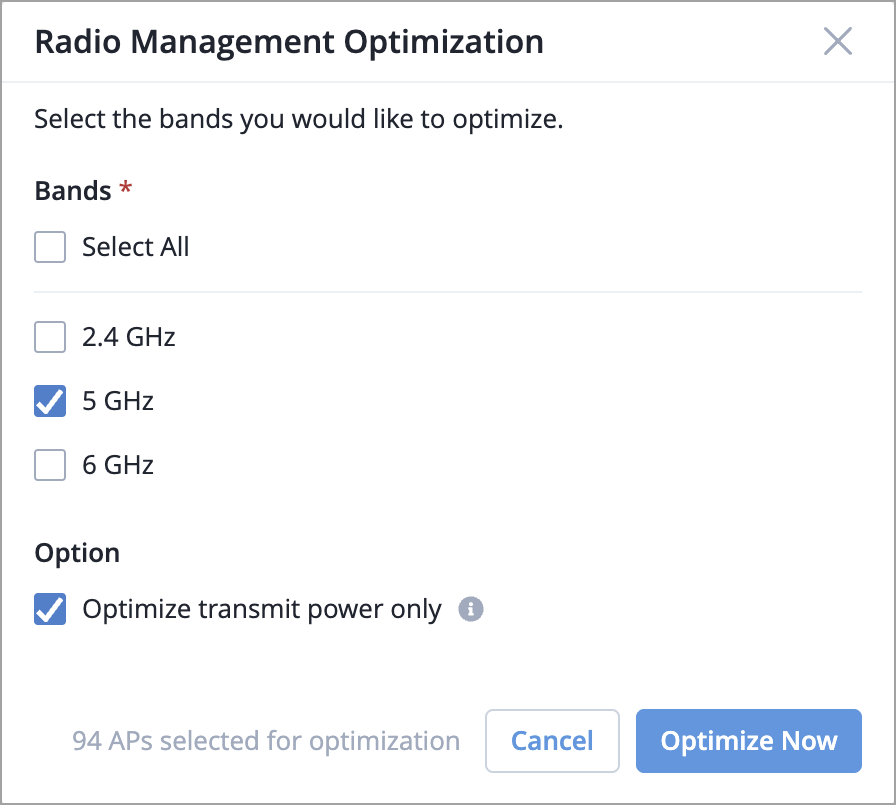
If you ever need to update RRM settings for a select set of APs in a site, you can now do that. For example, you might want to change transmit power or allowed channels in an RF template or device profile, and apply those changes to just a few APs before the next RRM cycle to minimize disruption.
To do that, go to the Access Points page, filter and select the APs you want, then click More and choose Optimize Radios. You can optimize by band and also choose to only optimize the transmit power.
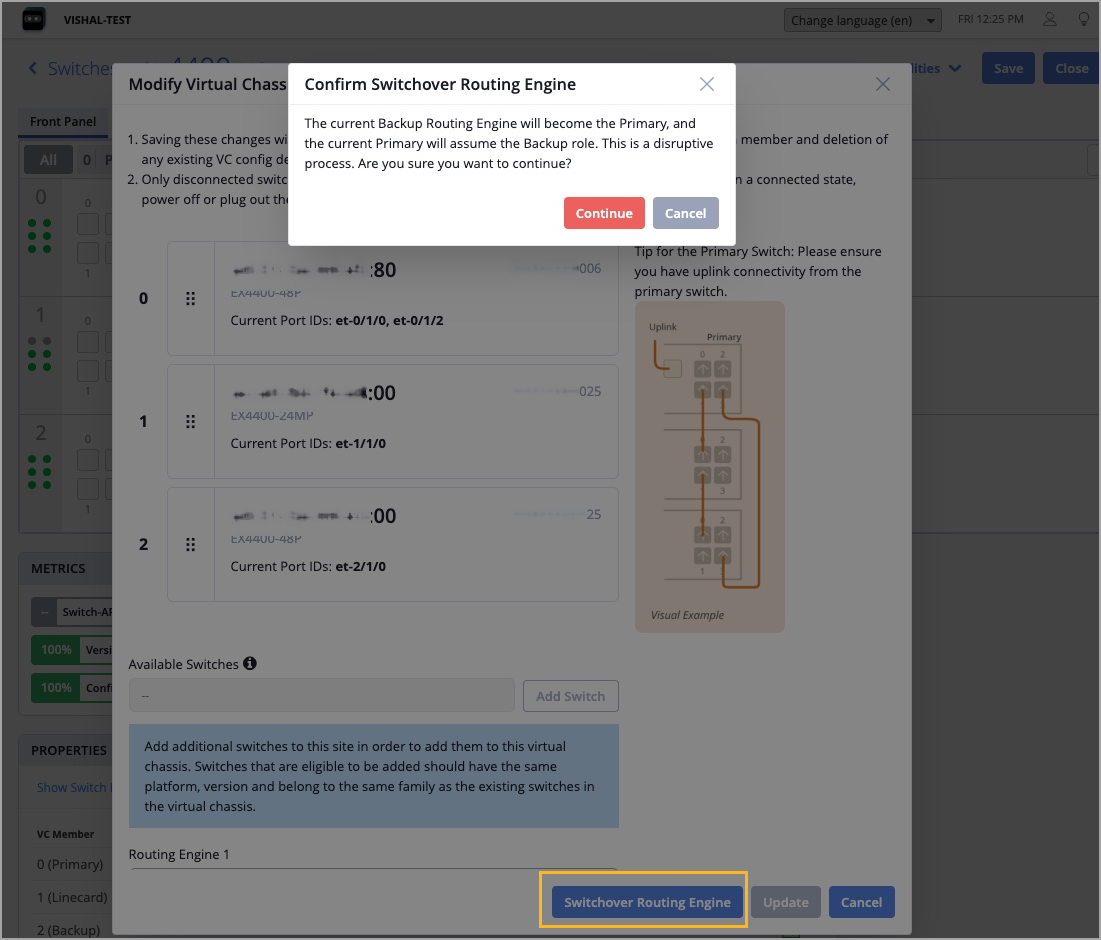
You can now manually initiate Routing Engine switchover in a Virtual Chassis.
In a Virtual Chassis, one member switch is assigned the primary role and hosts the primary Routing Engine. Another member switch is assigned the backup role and hosts the backup Routing Engine. Routing Engine switchover enables the system to transition control from the primary Routing Engine to the backup Routing Engine.
To perform Routing Engine switchover, use the Switchover Routing Engine option on the Modify Virtual Chassis window, which is accessible from the switch (Virtual Chassis) details page. This option is available only if the following conditions are met:
The Virtual Chassis is preprovisioned.
The Virtual Chassis has a primary and a backup member.
Note that the switchover briefly affects the operation of Virtual Chassis.
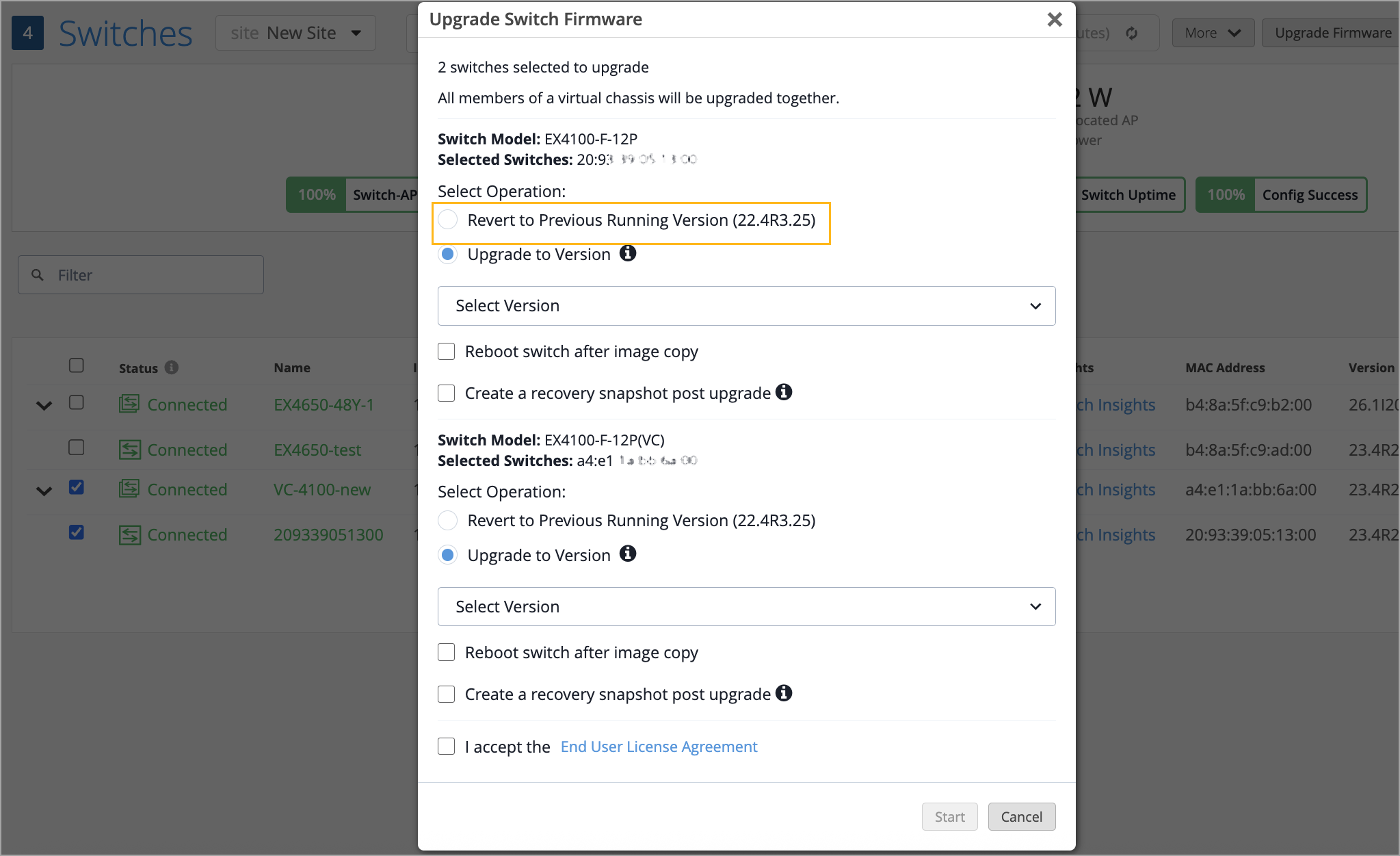
You can now roll back the Junos software on a standalone switch or Virtual Chassis device to the previous (backup) version stored on the device.
Only the following switches support the rollback operation: the EX4000 Series, EX4100 Series, and EX4400 Series switches.
Before initiating a rollback operation, ensure that the following prerequisites are met:
All devices selected for the rollback operation, whether standalone switches or members in a Virtual Chassis device, must support rollback.
Each device selected for the rollback operation must have a backup Junos version that matches the others.
Rollback is not allowed if the selected switch does not contain the previous running version as a package.
To perform a rollback, use the Revert to Previous Running Version option on the Upgrade Switch Firmware page, which is accessible from the Switches page (switch list) or the individual Switch Details page.
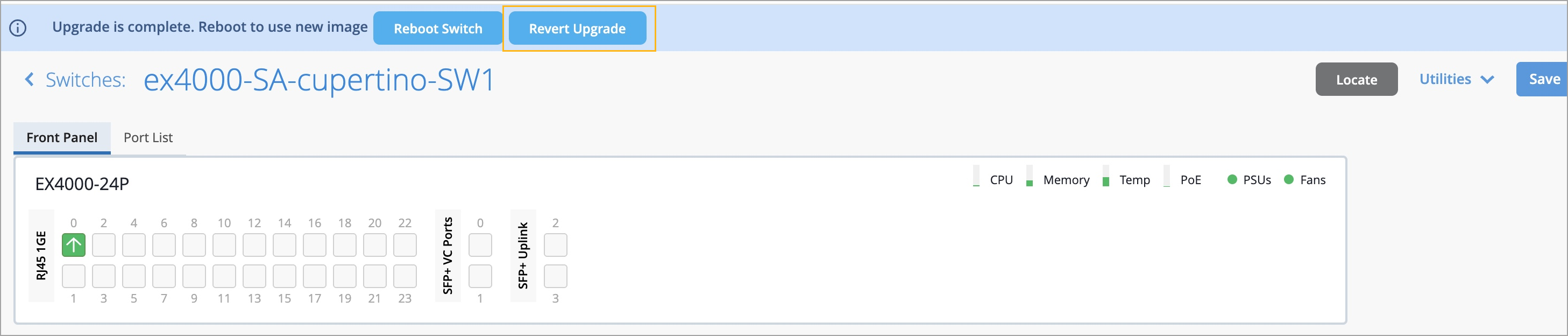
When you start a switch upgrade without selecting the reboot option, the new software image is stored on the switch in a pending state. To complete the upgrade, you must reboot the switch.
In this release, you can choose to revert the upgrade before rebooting the switch. The switch details page provides options to either reboot the switch or revert the upgrade. Note that the revert option is available only until the switch is rebooted. This feature is available only to the following switch models: EX2300 Series, EX3400 Series, EX4000 Series, EX4100 Series, and EX4400 Series.
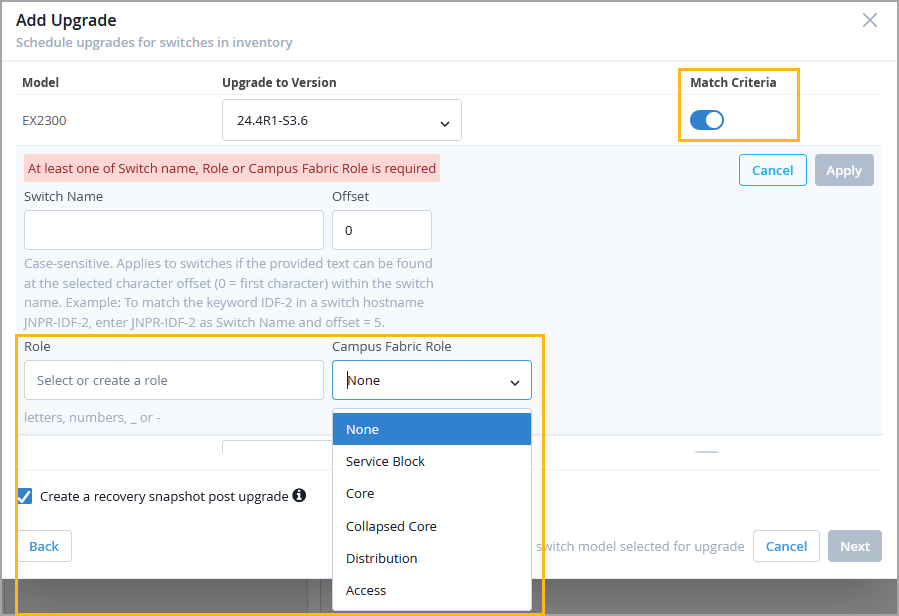
You can now use switch roles (both user-defined roles and campus fabric roles) as match criteria when defining a switch upgrade schedule at the organization or site level. If switch roles are used as match criteria, the upgrade schedule includes only the switches that have the specified roles assigned. Previously, the only additional match criterion available was switch name.
This enhancement provides greater control and granularity in selecting switches for upgrades.
To configure switch roles as match criteria, enable the Match Criteria option in the upgrade schedule. To access the upgrade schedule configuration, click Add Upgrade in the Firmware Upgrade section on either the Organization > Settings page or the Organization > Site Configuration > Site Name page. For more information, refer to Schedule and Automate Switch Upgrades.
To help you proactively manage network health and prevent disruptions, Juniper Mist has introduced new alerts for the following critical switch events:
Switch IP Conflict Detected—Triggered when two devices on the network share the same IP address, which can lead to connectivity issues and service interruptions.
Switch MAC Limit Exceeded—Triggered when the number of MAC addresses learned on a switch port has exceeded the configured limit. This event may indicate misconfigurations or potential security concerns.
You can view and manage these alerts on the Monitor > Alerts page in the Mist dashboard.
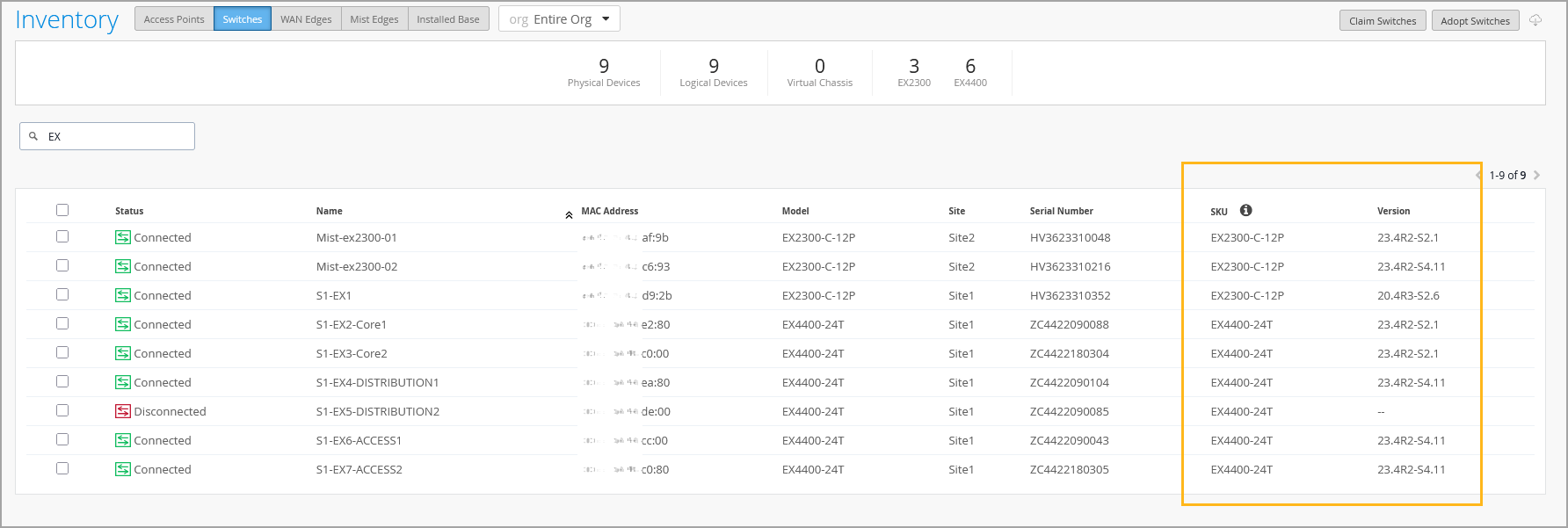
The switch Inventory page (Organization > Admin > Inventory > Switches) now displays the device firmware versions along with the SKU information. With this update, you can instantly view and compare firmware versions deployed on your switches across an organization. This feature is especially useful when managing the lifecycle of a wired network within the Mist platform, enabling better visibility into device update status and compliance.
You can also use firmware version and SKU as keywords to filter data on the Inventory page.
Note that SKU information will not be available for brownfield switches, which are onboarded to Mist through the Adopt workflow.
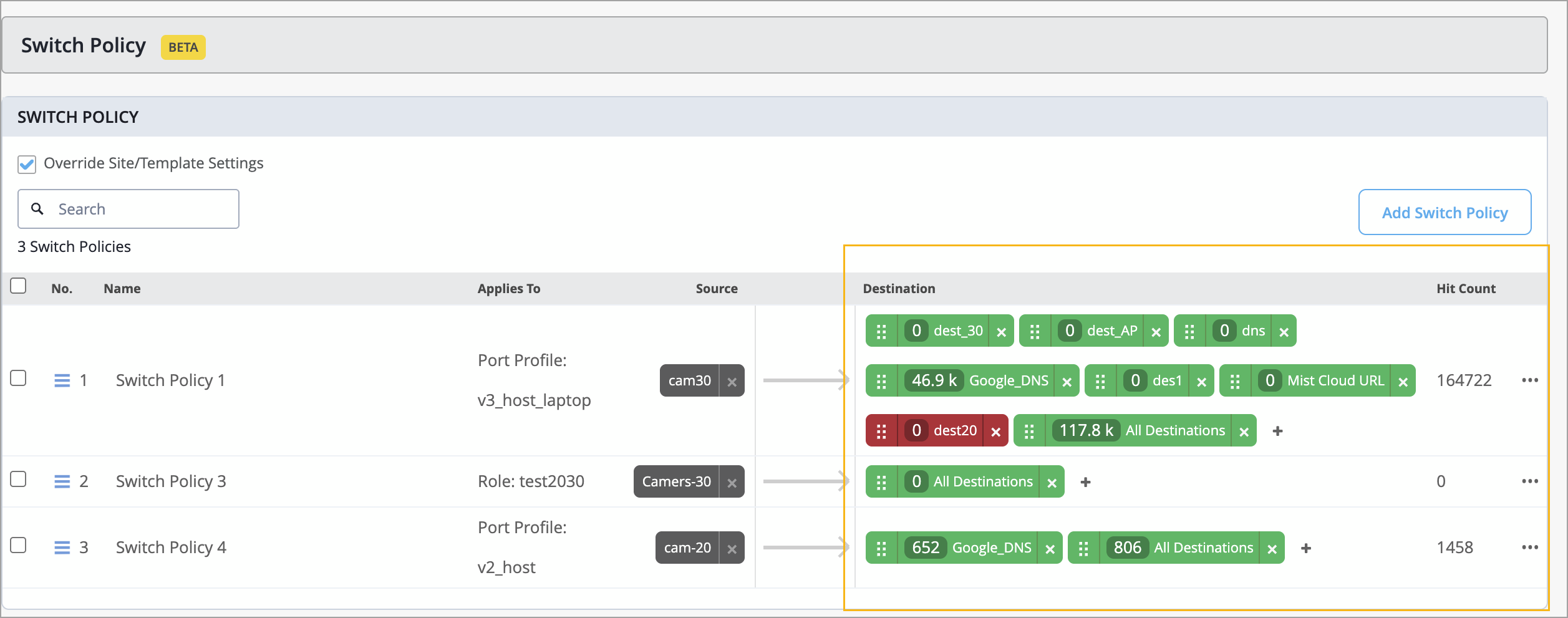
Juniper Mist now provides hit count information for switch policies at the switch level. A hit count represents the number of times a switch policy rule has been triggered (that is, matched by network traffic). This data is available in the Switch Policy section on the switch details page.
The information includes the following:
Overall hit count for a switch policy. This information is displayed in the Hit Count column.
Per-destination hit count for more granular insights. You can click each destination tag to view the hit count for that tag along with a policy trigger event time series.
This information is useful for tasks such as traffic analysis and troubleshooting.
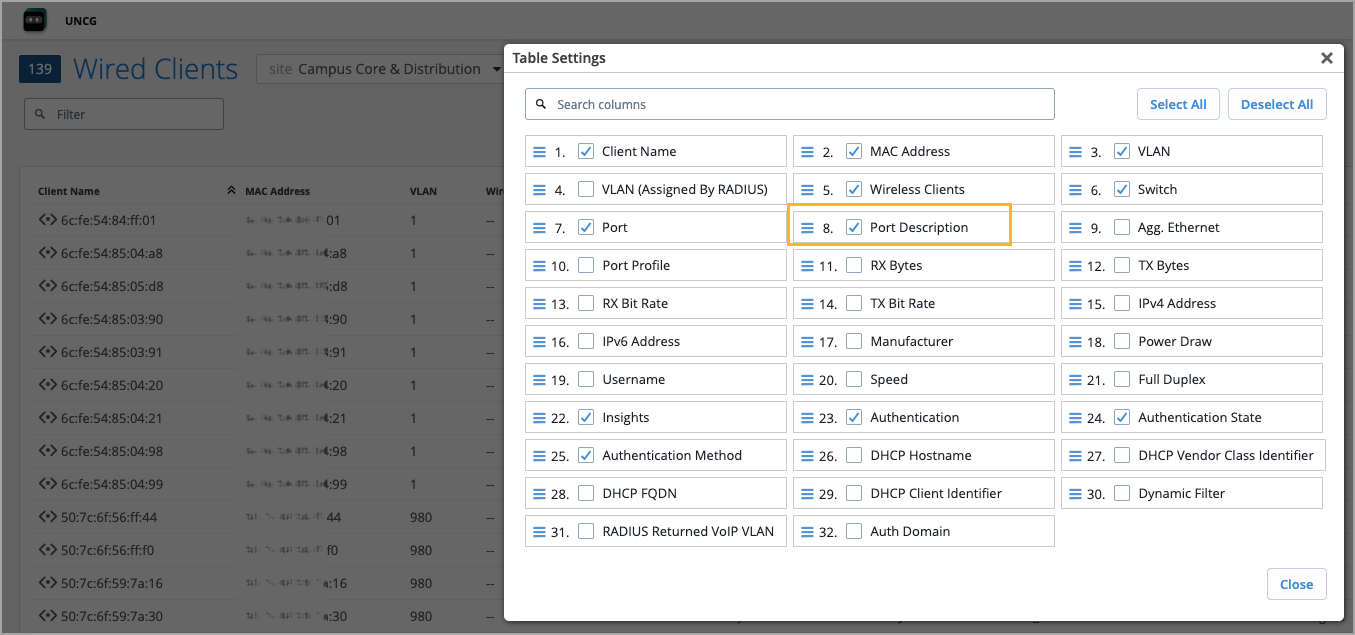
We have added a new Port Description column to the Wired Clients view (Clients > Wired Clients) within Mist. This enhancement provides quick visibility into the switch port to which clients are connected, helping network administrators gain insights into the network topology with minimal effort.
By default, the Port Description column is not visible in the Wired Clients list view. To include it, click the Table Settings button on the upper right of the page, select the check box corresponding to the Port Description field, and then click Close.
When a switch is disconnected from the Mist cloud and cannot reconnect, you can quickly find out the disconnection reason using the switch CLI and share the details with the Juniper support team.
To check the disconnection reason, run the following CLI command locally on the switch: op mist_debug.py cmd check-connectivity.
For example:
user@switch> op mist_debug.py cmd check-connectivity

Starting Cloud Connection Troubleshooting
Management routing-instance is not configured
Checking if Switch IP is configured...
Switch IPs configured: ['178.35.0.45']
----------------------------------------
Checking if Gateway is configured...
Default gateway is configured: 178.35.0.1
----------------------------------------
Checking if Gateway is reachable...
Default gateway is not reachable
Failed
Troubleshooting ended with trouble code: GATEWAY_UNREACHABLE
Note that this command should be used only when the switch is disconnected from the Mist cloud. It retrieves the reason for the current disconnection state. This command does not work if the switch has never connected to the Mist cloud.
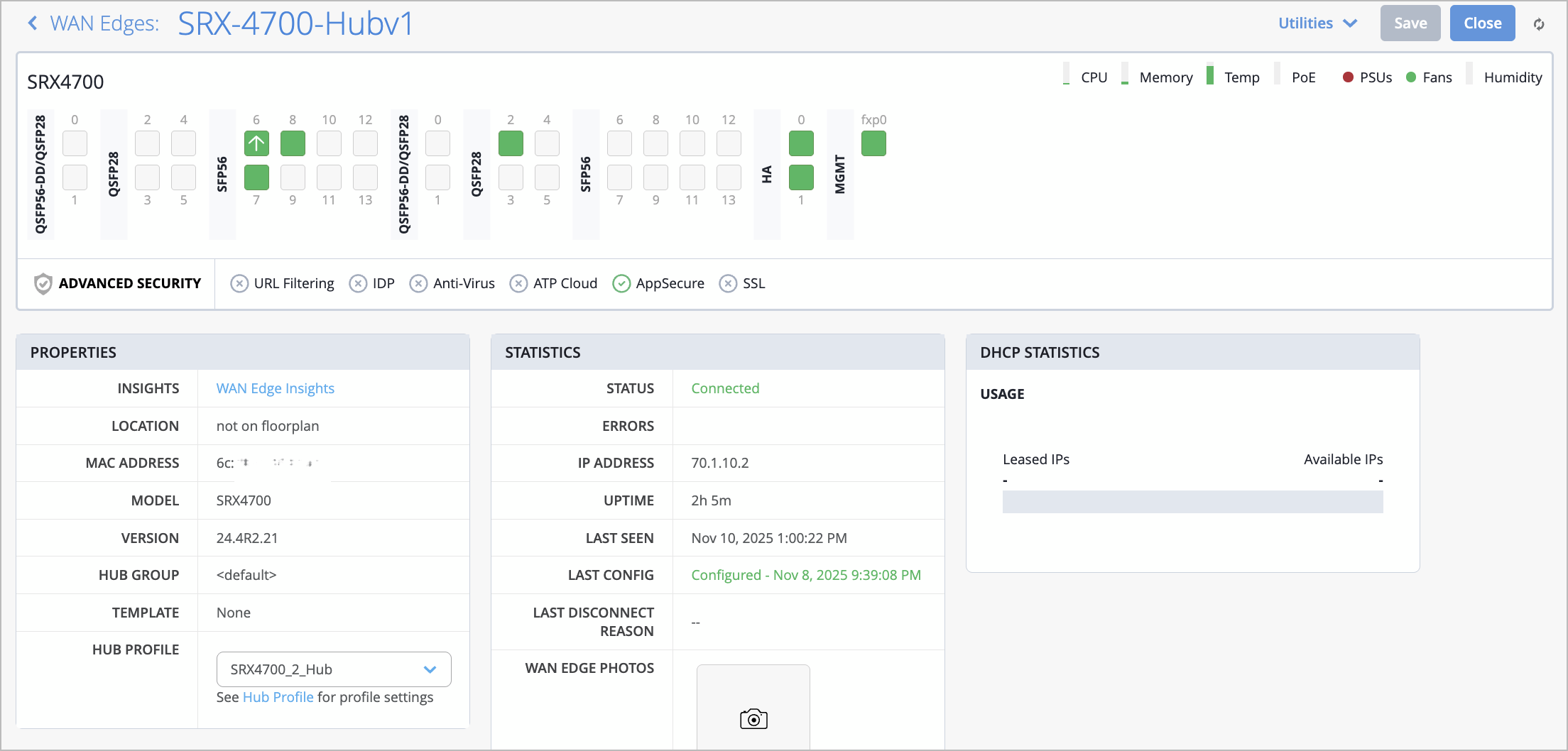
Juniper Mist WAN Assurance now supports the SRX4700 as a WAN Edge device.
WAN Assurance simplifies all aspects of WAN Edge device management that include device onboarding, configuration at scale, and monitoring and troubleshooting. With WAN Assurance, you can monitor your WAN in real time and gain full visibility into its health and performance. You can see how your WAN Edge devices are doing, check out service level expectations (SLE) metrics, and even get insights into the end user experiences, among other things.
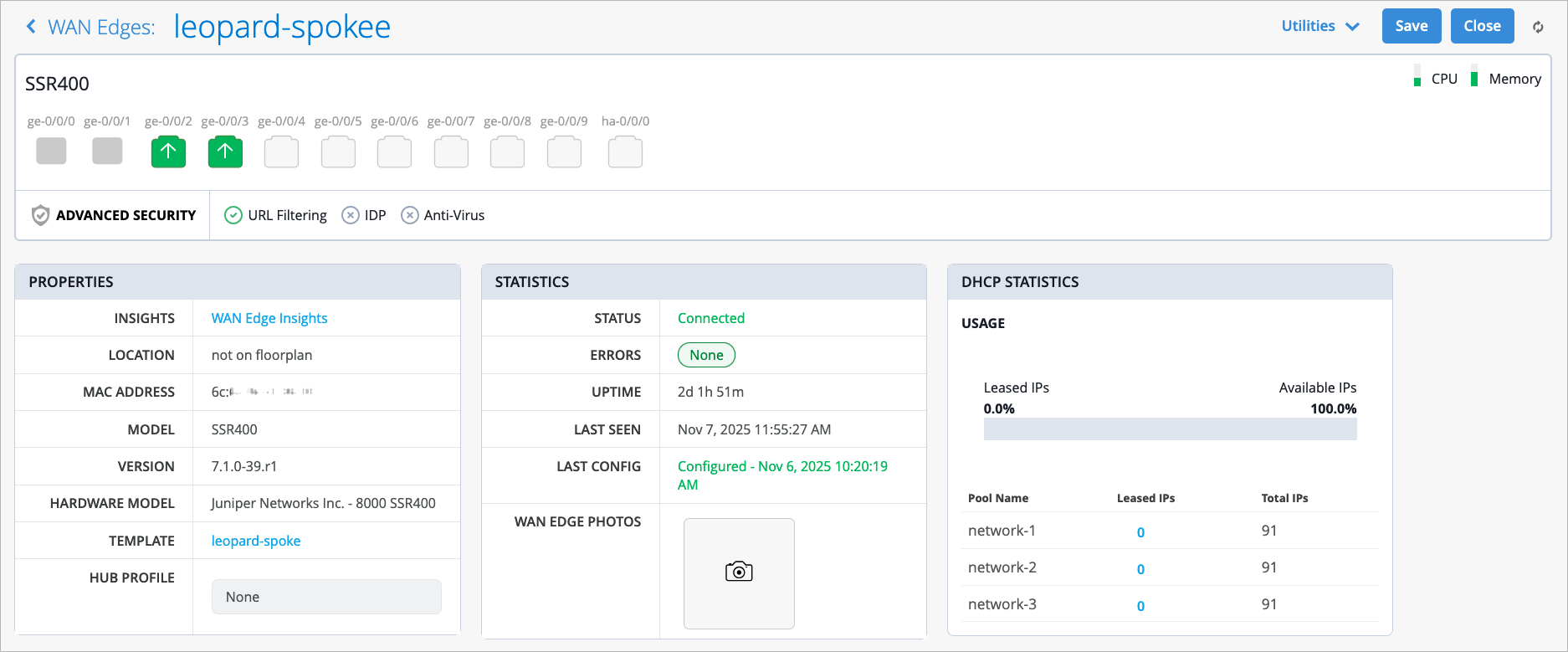
Juniper Mist WAN Assurance now supports the SSR400 router as a WAN Edge device at the branch. This router supports various networking components such as SD-WAN, Wireless, and Wired capabilities. It provides centralized control via Mist WAN assurance to simplify day 0, day 1, and day 2 operations for secure SD-WAN. Unlike traditional branch rollouts that require multiple hardware components and manual provisioning, the SSR400 provides provisioning via the Mist cloud to accelerate setup.
For more information, refer to SSR400 Line of Routers Datasheet.
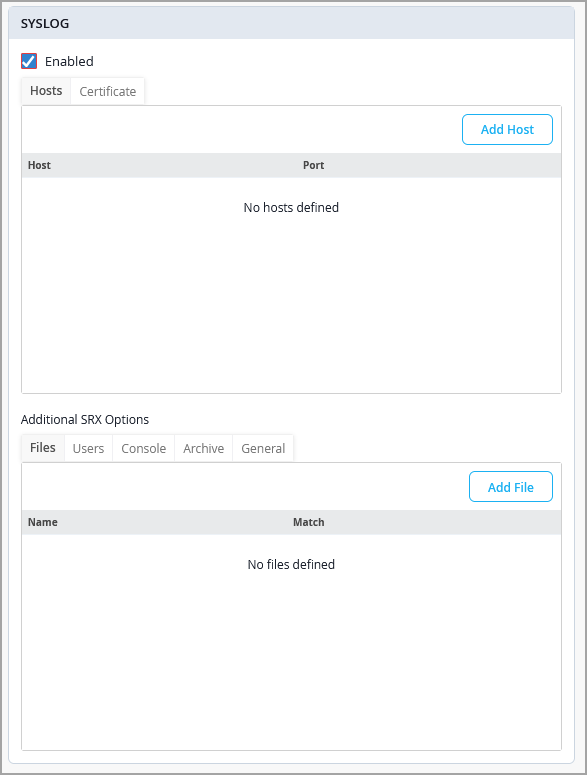
Mist now supports system log (syslog) configuration for WAN Edge devices. You can configure syslog from the WAN Edge details page (device-level configuration) and from the WAN Edge template (organization-level configuration).
Junos OS generates syslog messages to record events occurring on the device. The events could include routine operations, failures and error conditions, and emergency or critical conditions. You can seamlessly integrate the syslog data with third-party security platforms for centralized aggregation and analysis.
For WAN Edge devices, the syslog configuration includes the following capabilities:
Support for configuring multiple syslog servers.
Per-application policy logging control.
Ability to send syslog traffic using device-out policies, ensuring alignment with existing traffic steering configurations.
For SSR devices, only syslog hosts (external servers) and certificate authorities can be configured.
For SRX devices, additional parameters can be configured, including:
A named file in the local file system to store syslog messages matching specified criteria.
Specific users to receive syslog messages.
Types of log messages to capture.
Parameters for archiving system logs.
General settings such as time format, routing instance, and network interface.
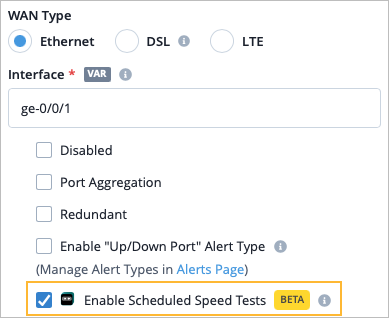
You can enable Marvis self-driving speed tests to run on the selected WAN interfaces automatically during low activity times. You can enable this in the WAN interface configuration at the WAN Edge template-level or the device-level. For Ethernet interfaces, the Enable Scheduled Speed Tests checkbox is selected by default.
In addition to your base WAN Assurance subscription, you need a Marvis for WAN subscription for each device you want to run Marvis self-driving speed tests on.
Marvis self-driving speed tests are available on the following platforms:
SRX1500, SRX1600, SRX2300, SRX4100, SRX4200, SRX4300, SRX4600, and SRX4700.
SSR120, SSR130, SSR1200, SSR1300, SSR1400, and SSR1500.
To ensure test accuracy, it is recommended that tests be run on hardware circuits 1Gbps and below.
NOTE: For any devices with built-in LTE interfaces, the Enable WAN Speed Test checkbox is unchecked by default. It is not recommended for devices with built in LTE to enable automatic WAN speed tests, as it can result in costliness if you pay for bandwidth usage through a service provider. However, if you have LTE interfaces connected to your Ethernet interfaces, such as on your Cradlepoint devices, you will need to deselect the Enable Scheduled Speed Tests checkbox from the Ethernet interface configuration.
If you enable the speed test at the device or template-level, you must also select the checkbox at the Org level by navigating to Organization > Settings > WAN Speed Test Scheduler. First, select the Enable radio button, then select the Enable Automatic Speed Test checkbox.
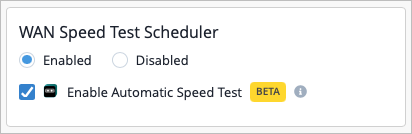
NOTE: Starting in January 2026, the checkbox at the organization level will be enabled by default for all organizations. Therefore, if you do not want to use the automatic speed test, it is recommended that you deselect this checkbox at the template-level or device-level now, as that configuration will override the org-level setting.
You can view the Speed Test results from the WAN Edge page or by navigating to Marvis > Marvis Minis and selecting WAN Speed Test from the drop-down menu at the top of the page.
If you have enabled speed tests, the results are incorporated into the Bandwidth Headroom classifier for the WAN Edge Bandwidth SLE. In this case, the headroom threshold is based on maximum usage statistics from the past two weeks, plus the results of the speed tests, if available.
To view the WAN Edge Bandwidth SLE, select Monitor > Service Levels, and then click the WAN button.
NOTE: To enable the scheduled speed tests, do the following tasks.
In the WAN settings for the WAN Edge template, hub profile, or WAN Edge device, enable scheduled speed tests.
In your organization settings, use the WAN Speed Test Scheduler to enable automatic speed tests and to set the schedule.
The Network classifier, which previously included Latency, IPSec Tunnel Down, and Jitter sub-classifiers, now also includes Loss. This sub-classifier is triggered when the WAN link loses packets.
The Interface classifier, which previously included Congestion, Cable Issues, and VPN sub-classifiers, now also includes two new sub-classifiers:
Port Down
Negotiation Incomplete (SRX Only)
To view the WAN Link Health SLE for your organization, go to Monitor > Service Levels, and then click the WAN button.
In this release we introduce support on WAN Edge devices for IPv6 in Mist. This includes WAN and LAN interface addresses, Application Policies that use IPv6 applications, and both NTP and DNS network addresses. You can use the Mist dashboard to configure the overlay, or the Mist API. On the WAN Edge Insights page, statistics are available for selected IPv6 events and properties. Note that you still need to connect to the Mist cloud via IPv4 on the WAN.
For more information, see: https://www.juniper.net/documentation/us/en/software/mist/mist-wan/topics/topic-map/general-wan-edge-config.html#concept_ycx_snk_fgc.
When onboarding standalone SRX WAN Edge devices (brownfield or greenfield) to a site in your Mist cloud organization, you can have Mist automatically upgrade the Junos OS to a specified release.
Click Organization | Admin > Settings and then scroll down to the Firmware Upgrade tile.
Select the WAN Edge tab and then Enable Auto Upgrade. The WAN Edge Auto Upgrade Settings screen appears, as shown below.

From the list of all SRX models, select those that you have in your WAN Edge inventory, and specify the Junos version you want the device to run.
Read and accept the End User License, and then click Save to apply your settings.
Although it is optional, we recommend that you also create a recovery snapshot of the upgraded system.
Once the SRX is added to a site and connected to the cloud, Mist will trigger the Junos upgrade to the specified version. Only devices in the WAN Edge inventory are eligible for upgrades during onboarding. In other words, if the SRX already belongs to a site or is already online and managed by Mist, it will not trigger an upgrade even if it is a matching SRX model.
For easier monitoring and troubleshooting of Mist Edge devices, we have introduced new Mist Edge alerts that will keep you informed about critical system events.
Here are the Mist Edge events which will now trigger alerts:
Mist Edge Upgrade completed
Mist Edge Upgrade failed
Mist Edge Restarted
Primary RADIUS server unresponsive
Configuration apply failed (Mist Edge misconfigured)
You can view these alerts on the Monitor > Alerts page on the Mist portal.
For enhanced visibility into RADIUS server behavior in the context of Mist Edges, we have added the following two events to Mist Edge Insights:
Primary Radius Server unresponsive—Triggered when the designated primary RADIUS server fails to respond.
Primary Radius Server changed—Triggered when the system switches to the next RADIUS server on the list.
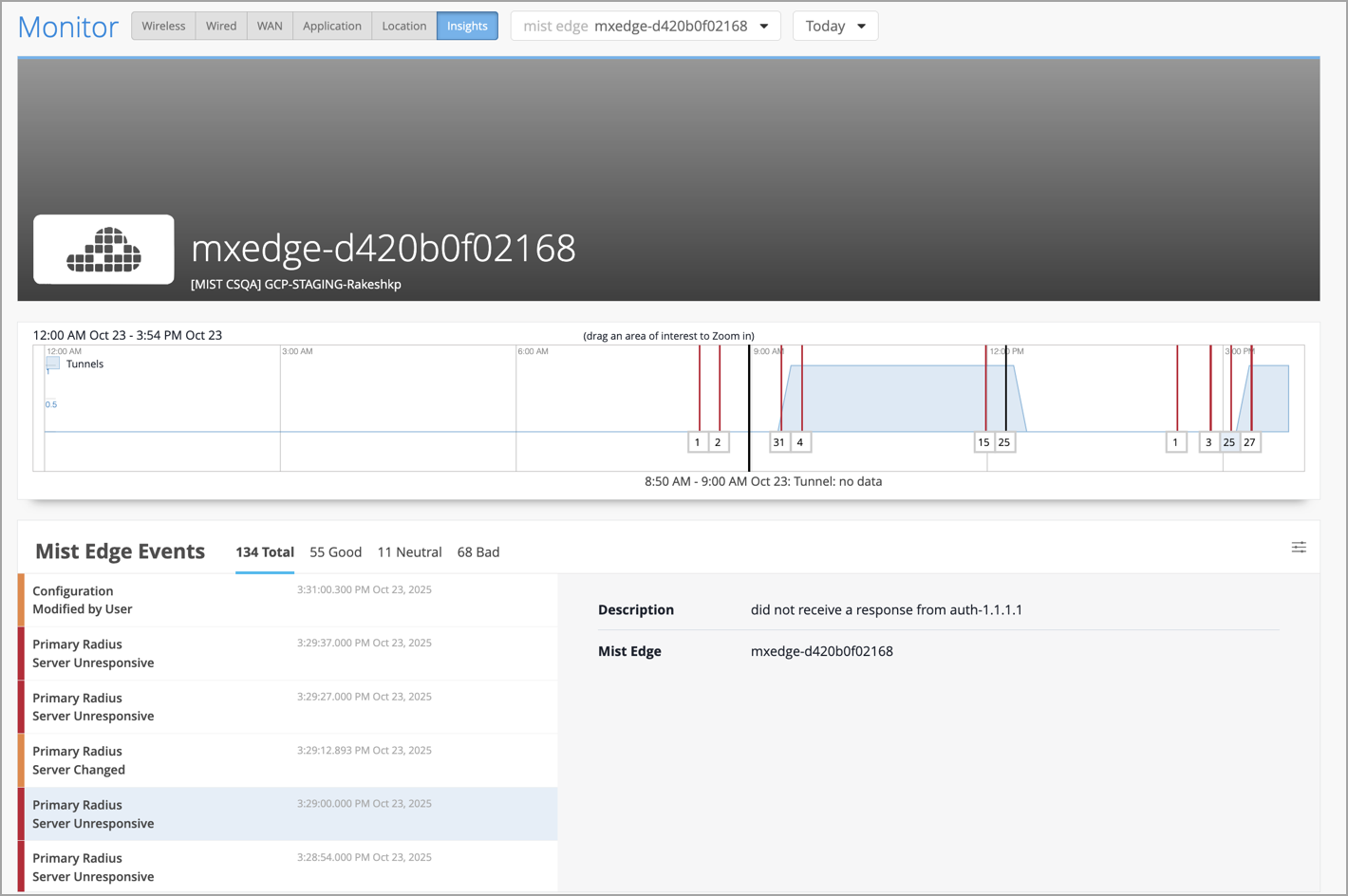
These enhancements enable network administrators to detect and resolve authentication-related issues faster.
We have enhanced the WebSocket capabilities of Juniper Mist to support real-time telemetry for Mist Edge devices. This enhancement will provide our customers access to detailed telemetry data that includes:
mxagent-stats: CPU usage, memory stats, IP configuration, service status, and system uptime.
tunterm-stats: Tunnel statistics, port metrics, VLAN activity, and LLDP details.
These updates enable customers to monitor Mist Edge performance and health more effectively in real time.
The JSI Support Insights page has been removed and its content has been re-organized as follows:
The hardware and software EoX milestones, along with additional enhancements, are moved into Organization > Admin > Inventory > Installed Base view. The Installed Base view now provides you a unified view of the Juniper assets linked to your organization, hardware and software lifecycle milestones, and contract status of your assets. See also: View Juniper Support Insights (JSI) for Your Installed Base. See also: View Juniper Support Insights (JSI) for Your Installed Base.
In upcoming releases, the remaining Support Insights content, such as contract information, SIRT advisories (security vulnerabilities), and PBN (bug notifications) will be further reorganized to dedicated sections under Organization.
Currently, the following API requests return an unpaginated, full list of inventory devices.
GET /api/v1/orgs/:org_id/inventory
GET /api/v1/sites/:site_id/stats/devices
Starting in early 2026, these API requests will fetch paginated responses to limit the size of the response. By default, the API response will fetch the first 100 entries in the list. You can modify the number of entries in the response (range: 1 to 1000) by using the query parameter 'limit'.
Currently, if you query this API directly when you have more than 100 devices in your organization inventory, we recommend that you update the scripts to handle the paginated responses.
For more information, see Pagination.
To enhance security and align with industry best practices, we will deprecate Basic Authentication for all use cases—including admin logins and scripts—effective September 2026. Before September 2026, all integrations must transition to token-based authentication to ensure uninterrupted access and support.
Why we are making this change
Basic authentication poses several security risks:
No multi-factor authentication (MFA) support
Credentials transmitted with every request (even over HTTPS)
No scope limitations
Vulnerable to credential theft and reuse
Industry security organizations (OWASP, NIST, CIS) strongly recommend token-based authentication as a more secure alternative.
Required actions
Before September 2026, do the following:
Update all applications and integrations to use token-based authentication.
Remove basic authentication from your implementations.
Migration resources
Documentation: Mist API Tokens
Support: Contact us at support@mist.com for assistance
The following API endpoints will be deprecated in an upcoming release:
:site_id/sle/:scope/:scope_id/metric/:metric/summary
:site_id/sle/:scope/:scope_id/metric/:metric/classifier/:classifier/summary
To replace these, we will be introducing the following new endpoints:
:site_id/sle/:scope/:scope_id/metric/:metric/summary-trend
:site_id/sle/:scope/:scope_id/metric/:metric/classifier/:classifier/summary-trend