ON THIS PAGE
Wireless Clients
See the wireless clients page for a list of connected clients.
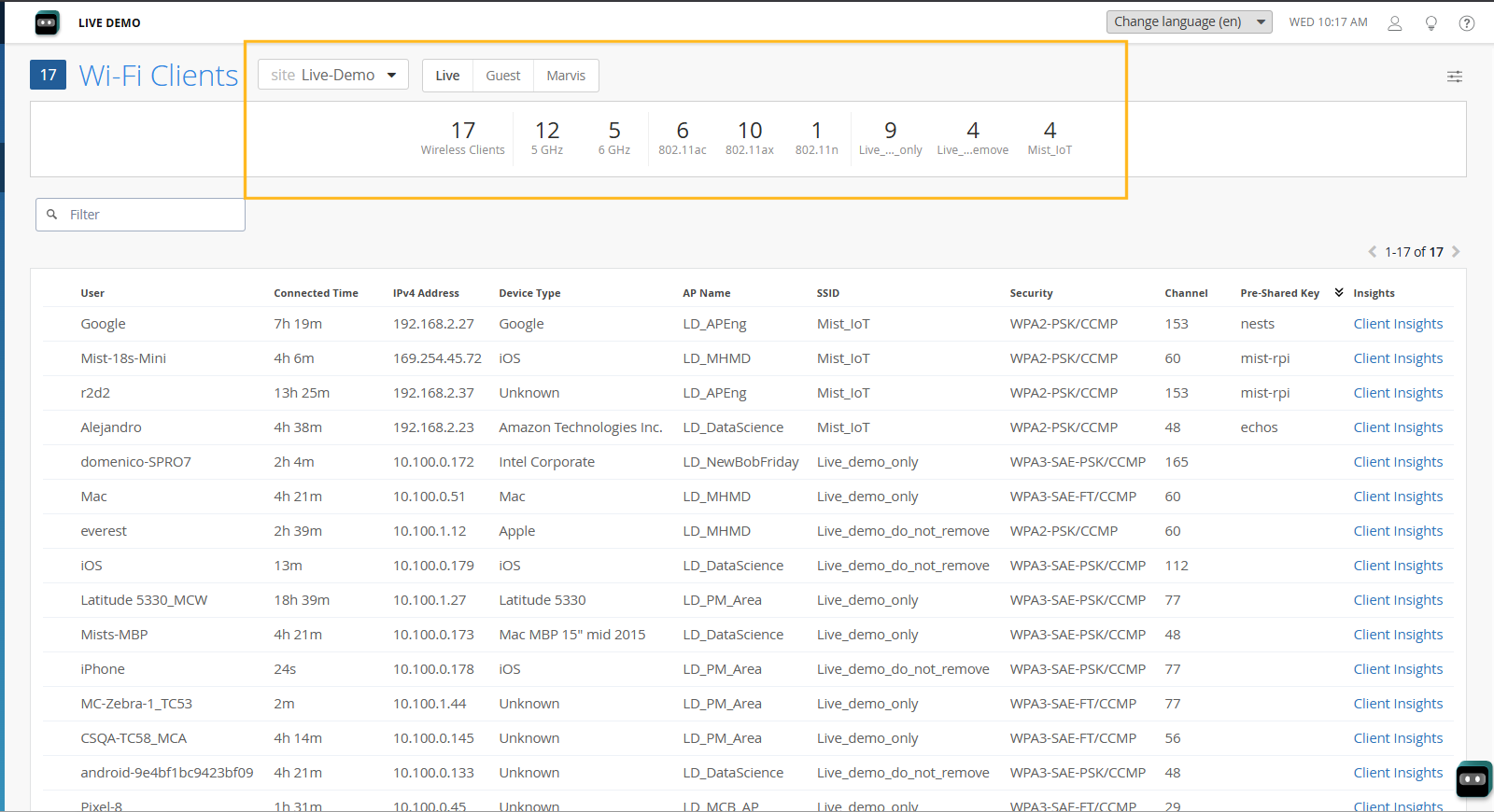
The wireless clients page provides a summary of the Wi-Fi users for a given site, as well as a starting point to drill-down for client-specific information. Quick filters at the top of the page let you select Live, Guest, or Marvis clients, if installed.
The at-a-glance dashboard along the top shows a summary of the users, the radio bands they are connected on, and the 802.11 protocols being used. You can further filter the list using predefined WLAN filters such as the SSIDs of the top five WLANs by client count, for example, to quickly identify client issues on a specific SSID.
Guest tab
If you have helpdesk-level login credentials or higher, you can use the Guest tab to manage Wi-Fi clients, to authorize, deauthorize, or reconnect client devices to the network.
In addition, you can set the authorization period for guests. Be aware that even if you set a long authorization window, such as a year, that the authorization will expire if the guest doesn't log in at least once every 30 days. Once expired,the guest no longer appears in the list, and they will need to be reauthorized before they can log in again.
Wi-Fi Client Details
The following table highlights a few of the fields available for the wireless clients. You can also download the list for off-line work in a spreadsheet.
|
Column Name |
Details |
|---|---|
|
User |
Displays the user name of the user device connected to the AP. |
| IP Address | Displays the IP address of the user device connected to the AP. |
|
MAC Address |
Displays the MAC address of the user device connected to the AP. |
|
Device Type |
Identifies the device type of the connected device. You can click it to see additional properties such as the location, radio type, and operating system. |
|
AP Name |
Shows the name of the AP that the given user is connected to. You can click it to open the configuration page for that AP, as well as see information on the connected switch, radios, power, and connection status. |
|
SSID |
Shows the SSID name given to the WLAN the user is connected to. You can click it to open the configuration page for that WLAN or WLAN template. |
|
Pre-Shared Key |
Shows the name of the Pre-Shared Key used to connect to the SSID. See Configure and Manage Pre-Shared Keys. |
|
Client Insights |
Links to the Wireless Clients Insights page for the given client, where you can find client events, pre- and post- connection details, as well as the current status and association of the current client. |
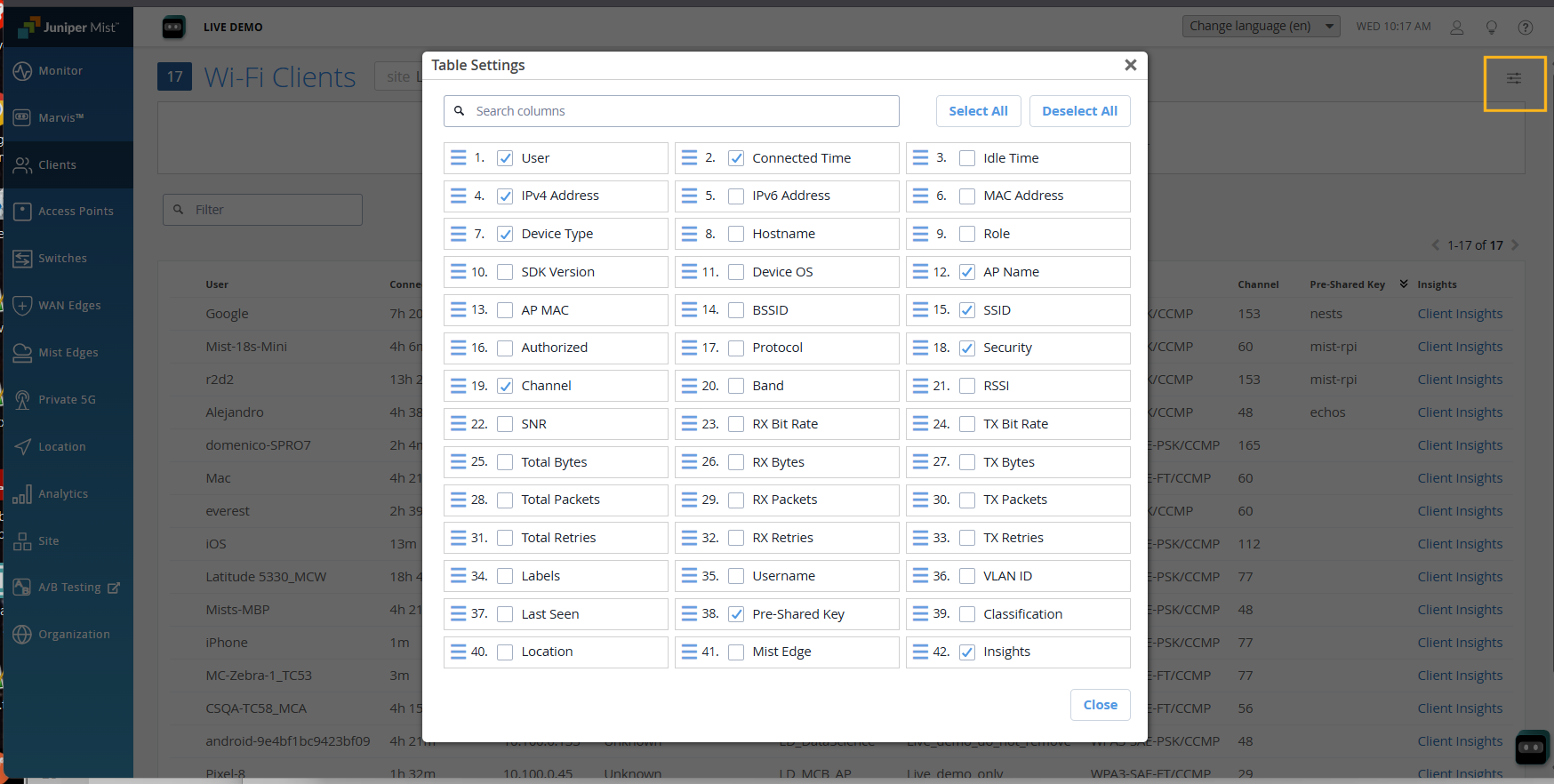
You can choose the properties you want to display in the table by clicking the Table Settings icon and adding or removing the columns you are interested in, as shown in Figure 2.