
Authorize, Reauthorize, and Reconnect Guest Clients
Use this procedure when you want to force a client to roam to a different AP, require reauthentication with a newly updated passphrase, or deauthorize a device that shouldn't be on your network.
Users with helpdesk-level login credentials or higher can track and manage Wi-Fi clients on the Clients > Wi-Fi Clients | Guest tab of the Juniper Mist™ portal. Here you can find, authorize, deauthorize, and reconnect client devices on the network.
-
On the Guest page, select a Wi-Fi client from the list that appears.
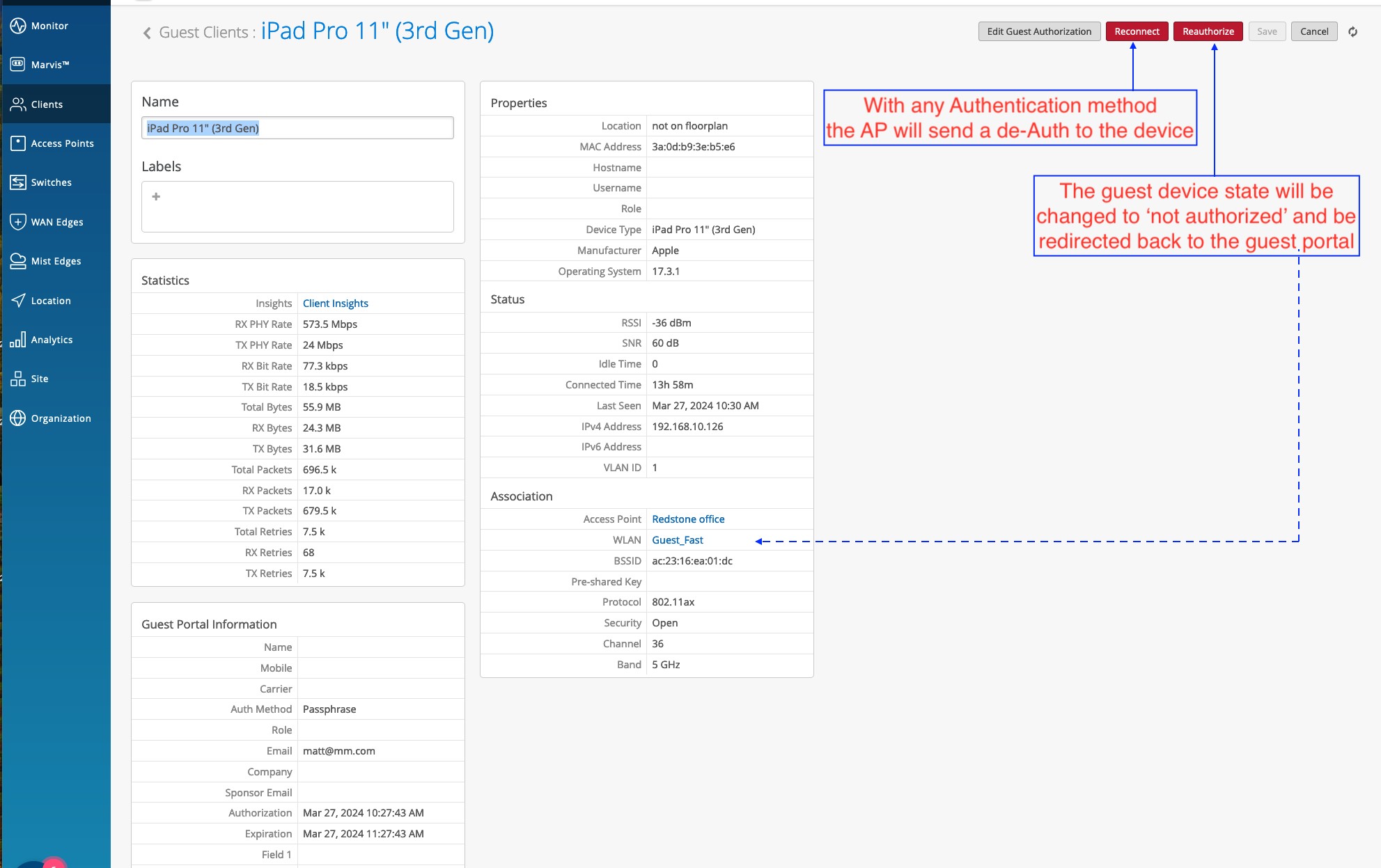
- Reconnect—Have the AP send a deauthentication frame to the selected clients, thereby removing them from the client list and triggering a reconnect. This is typically used to nudge the device to roam to another AP.
- Reauthorize—Log selected clients off the guest portal, thereby forcing
them to re-authenticate with the AP and cloud. This is typically used after
updating the guest-portal passphrase, to force client on to the new credentials.
These clients are removed from the guest client list and must log in to the
guest portal again.Figure 1: Reconnect and Reauthorize
- Edit Guest Authorization—Appears after selecting a single Guest client.
You can find a given client by its MAC address, and then manually
Authorize or Deauthorize the device on the Guest network. This
selection also provides a way to change the client's authorization window and
other details that appear in the Guest Clients page of the Mist
portal.Figure 2: Edit Guest Authorization
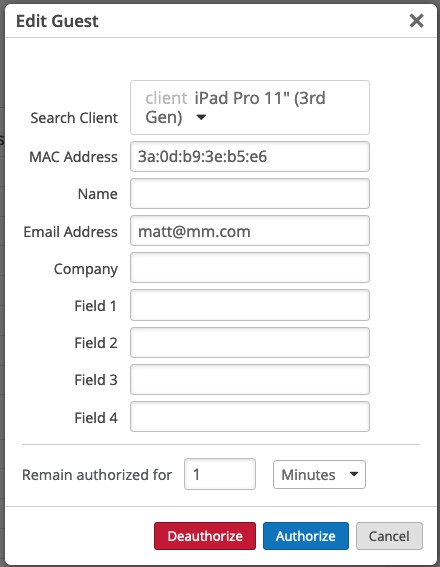
Be aware that even if you set a long authorization window, such as a year, that the authorization will expire if the guest doesn't log in at least once every 30 days. Once expired,the guest no longer appears in the list, and they will need to be reauthorized before they can log in again.