
Self-Driving Marvis Actions
Use self-driving Marvis Actions to simplify and automate troubleshooting.
HPE Marvis actions provide both driver-assist and self-driving actions. Driver-assist actions require user intervention based on the details and recommendations provided by HPE Marvis. Here’s an example of a driver-assist action. HPE Marvis provides the necessary details that enable you to address the issue.
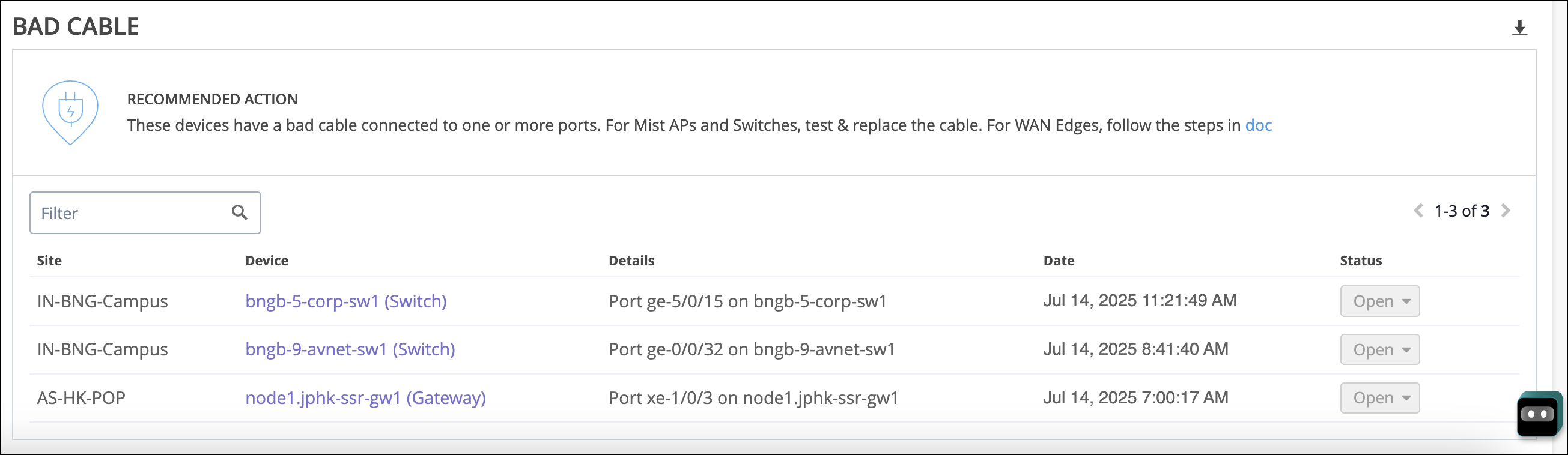
In contrast, when you grant permissions to HPE Marvis, it autonomously initiates self-driving actions to execute corrective measures without any user involvement. This effectively automates the process of identifying and resolving issues. For example, a driver-assist action involves a network administrator having to manually upgrade the firmware on an AP. Conversely, a self-driving action automatically initiates the firmware upgrade when HPE Marvis detects a firmware non-compliance on an AP.
By utilizing the self-driving capabilities, you can automate simple repetitive tasks, streamline troubleshooting processes, minimize downtime, and enhance overall network efficiency.
HPE Networks delivers real-time AI-native insights with HPE Marvis Actions to power self-driving networks by proactively detecting and resolving issues, it slashes troubleshooting time and effort. In this demo, watch HPE Marvis quickly detect, recommend, and in some cases, when self-driving actions are enabled, automatically remediate critical wired, WAN, and wireless issues. To begin, log into the HPE Mist platform and select HPE Marvis from the left-hand menu.
Select the Marvis Actions. The Marvis Actions dashboard provides visibility into ongoing site-wide network issues. This environment shows a total of 151 actions.
The total is then broken down into categories and can be filtered based on site and time period. Click into the Wired category to view the actions available. Here are 8 wired actions that HPE Marvis has proactively identified.
The HPE Marvis icon next to the Port Stuck action shows that it is self-driving capable, but Marvis Self-Driven is not enabled. Let's enable Marvis Self-Driven. Once enabled, HPE Marvis autonomously initiates self-driving actions to execute corrective measures without any user involvement.
By leveraging these self-driving capabilities, organizations can automate simple, repetitive tasks, streamline troubleshooting, minimize downtime, and enhance overall work efficiency. Enabling all self-driving actions across wireless, wired, and WAN environments maximizes these benefits. The Port Stuck icon now shows as self-driven.
The Port Stuck icon action detects a difference in traffic pattern on an access port of a switch. When HPE Marvis sees a port stuck, it automatically bounces the port to fix it. Scroll down and select View More Details.
Notice, in addition to the port number, HPE Marvis also lists the client, in this case a camera that is connected to the port and the associated VLAN. After the self-driving action fixes the issue, the switch status changes to HPE Marvis Self-Driven. HPE Marvis then runs verification checks.
If the issue isn't observed during the validation period, the action is marked AI Validated. View other self-driven actions that have run in this environment under the WAN category. Clicking into the Intermittent WAN Connectivity, there are four actions.
The Intermittent WAN Connectivity action identifies interface-related issues on WAN Edge devices. These issues can degrade the user experience and result in unhealthy WAN links. When HPE Marvis detects the ISP, ARP, or ISP DHCP failure, it initiates an automatic port bounce to resolve the issue.
If the automatic port bounce fails to resolve the issue, HPE Marvis lists it as an open action. In this case, we can proceed to bounce the port now. The status is now updated to AI Validated.
Let's take one final look at all that HPE Marvis has been self-driving in this environment. After scrolling up to the top and ensuring the site of interest is selected, in this case the entire organization, filter the actions by their status. Then select the AI Validate option.
As the number of self-driven actions grows, HPE Networks gives organizations the easy-to-use tools to create a fully autonomous network that automatically detects, fixes, and confirms issues across wired, wireless, and WAN systems.
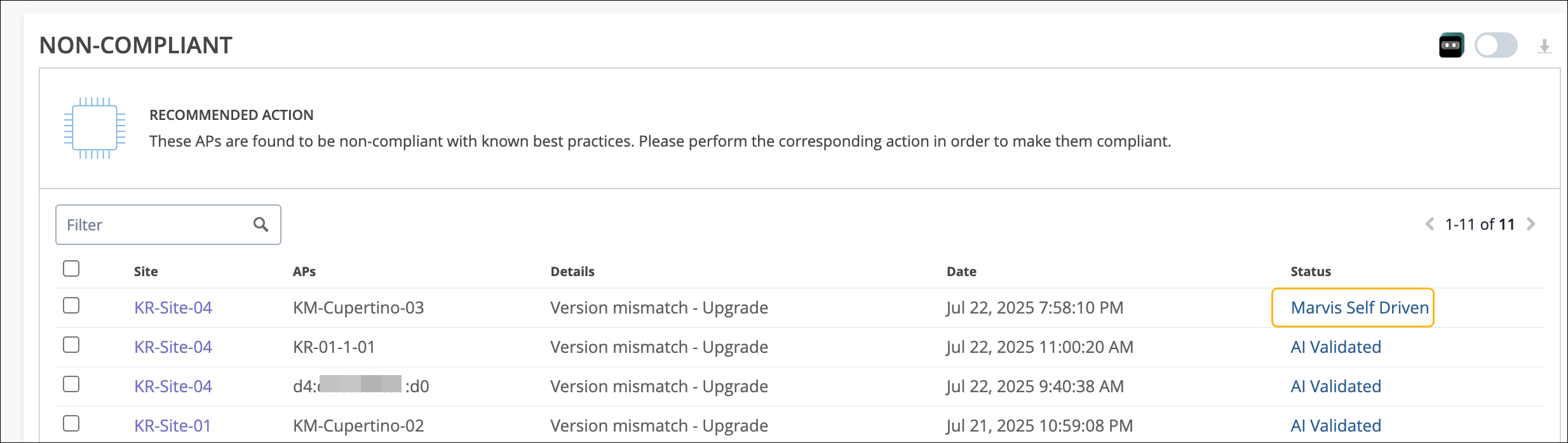
When an issue is fixed by a self-driving action, the status of the issue changes to Marvis Self Driven as shown in the following example. After the issue is fixed, HPE Marvis performs checks to ensure that the issue is indeed resolved. If the issue is not observed during the validation time, HPE Marvis changes the status to AI Validated. The validation time is the time taken for HPE Marvis to mark an open HPE Marvis action as AI validated.
The self-driving capability is available for the following actions:
| Category | Actions with Self-Driving Capability |
|---|---|
| Wireless |
Non-compliant Dynamic Capacity Optimization DFS Optimization (self-driving capability enabled by default; cannot be disabled) |
| Wired |
Port Stuck (self-driving capability enabled by default) Rogue DHCP Server Detected Missing VLAN Loop Detected |
| WAN | Non-compliant |
| Intermittent WAN Connectivity (self-driving capability enabled by default) |
How to Enable Self-Driving Actions
To enable self-driving actions, you must grant HPE Marvis the necessary permissions by using the Marvis Self Driven button on the HPE Marvis Actions page. You can grant permissions at the organization or site level. Permissions granted at the organization level are applicable to all sites in the organization. You can change the permissions at the site level to override the permissions granted at the organization level.
The self-drive permission is disabled by default. If the self-drive permission is disabled for a HPE Marvis action, HPE Marvis will not attempt to automatically resolve the issue; instead, it provides an option for you to manually initiate the corrective action.
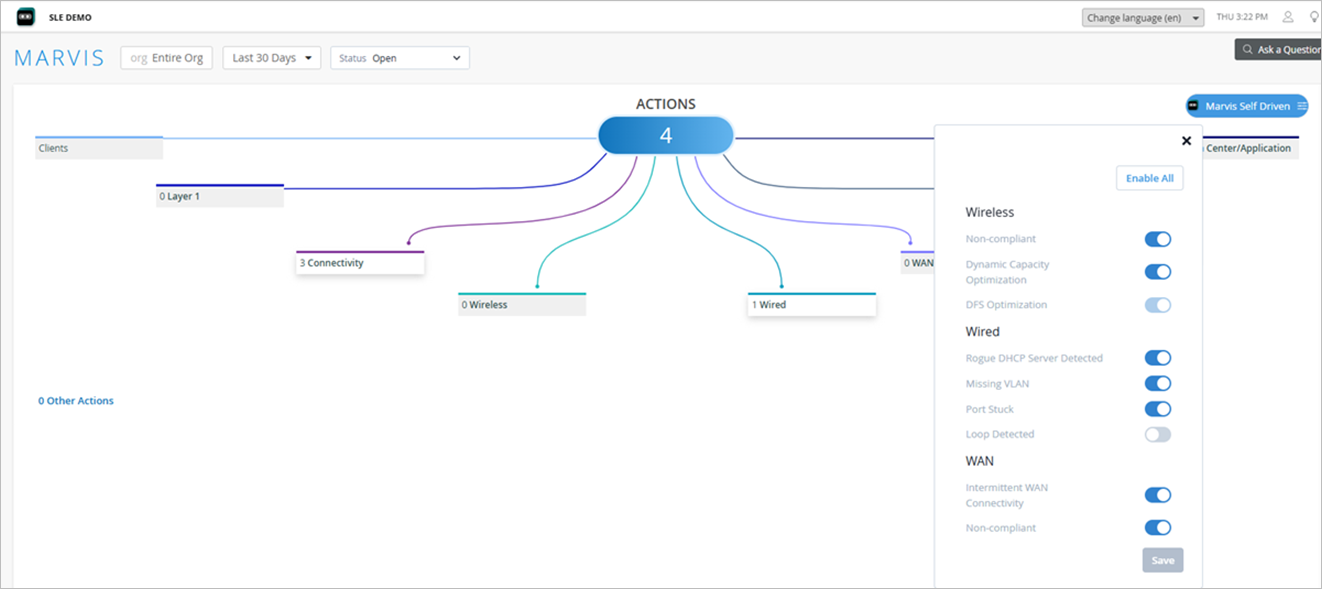
Actions with self-driving capabilities are tagged with the HPE Marvis icon, allowing you to easily identify self-driving actions.
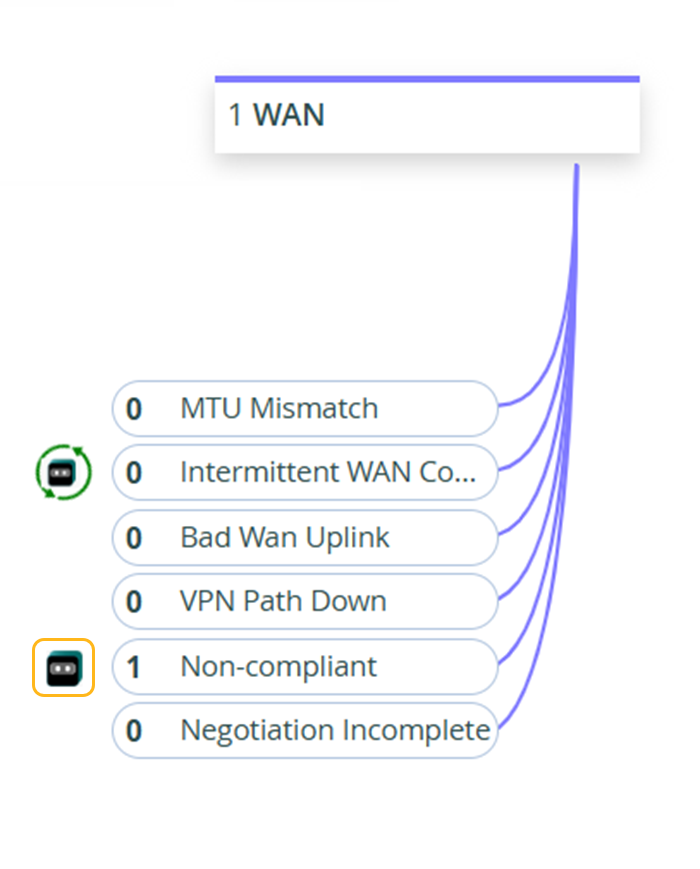
When you enable the self-driving feature for an action, the HPE Marvis icon will change as shown in the following example:
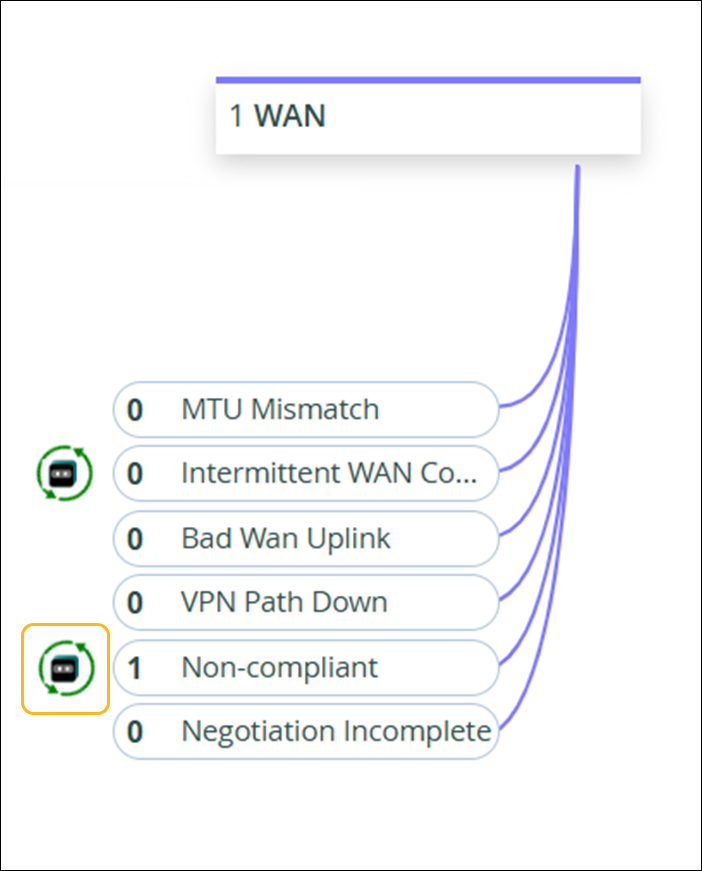
You can also enable the self-driving capability for a specific action by using the toggle button in the Recommended Actions section.
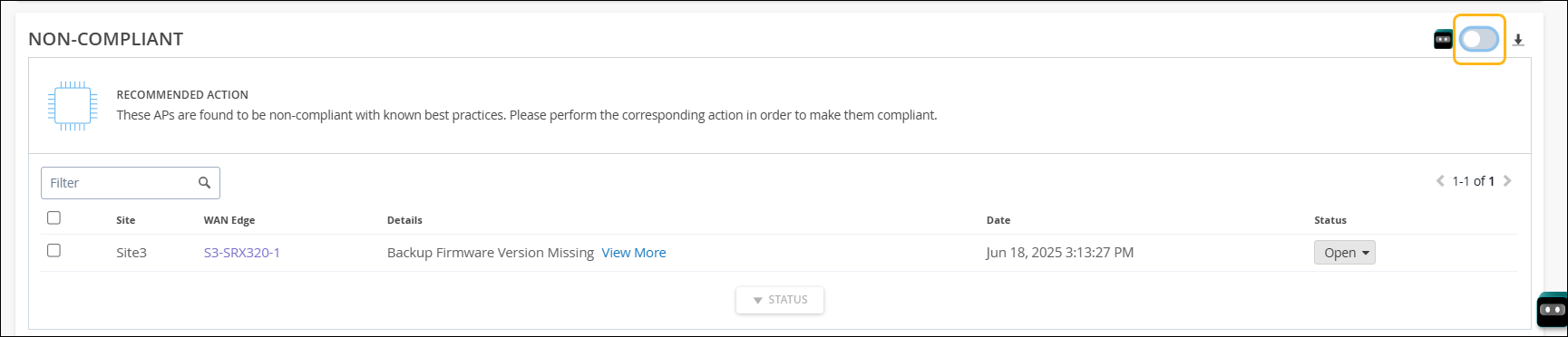
You can disable the self-driving capability for an action at any point in time. If you disable the capability, ongoing self-driving tasks will complete, but subsequent tasks will not be self-driven.
Once a self-driven action is completed, you can view it by selecting either the All or self-driven filter options.
Self-Driven Actions Time Series Graph
You can use the time series graph on the HPE Marvis Actions page to view historical patterns or trends for self-driven actions at the site or organization level. The graph displays the number of self-driven actions generated for a site or organization for the selected time range.
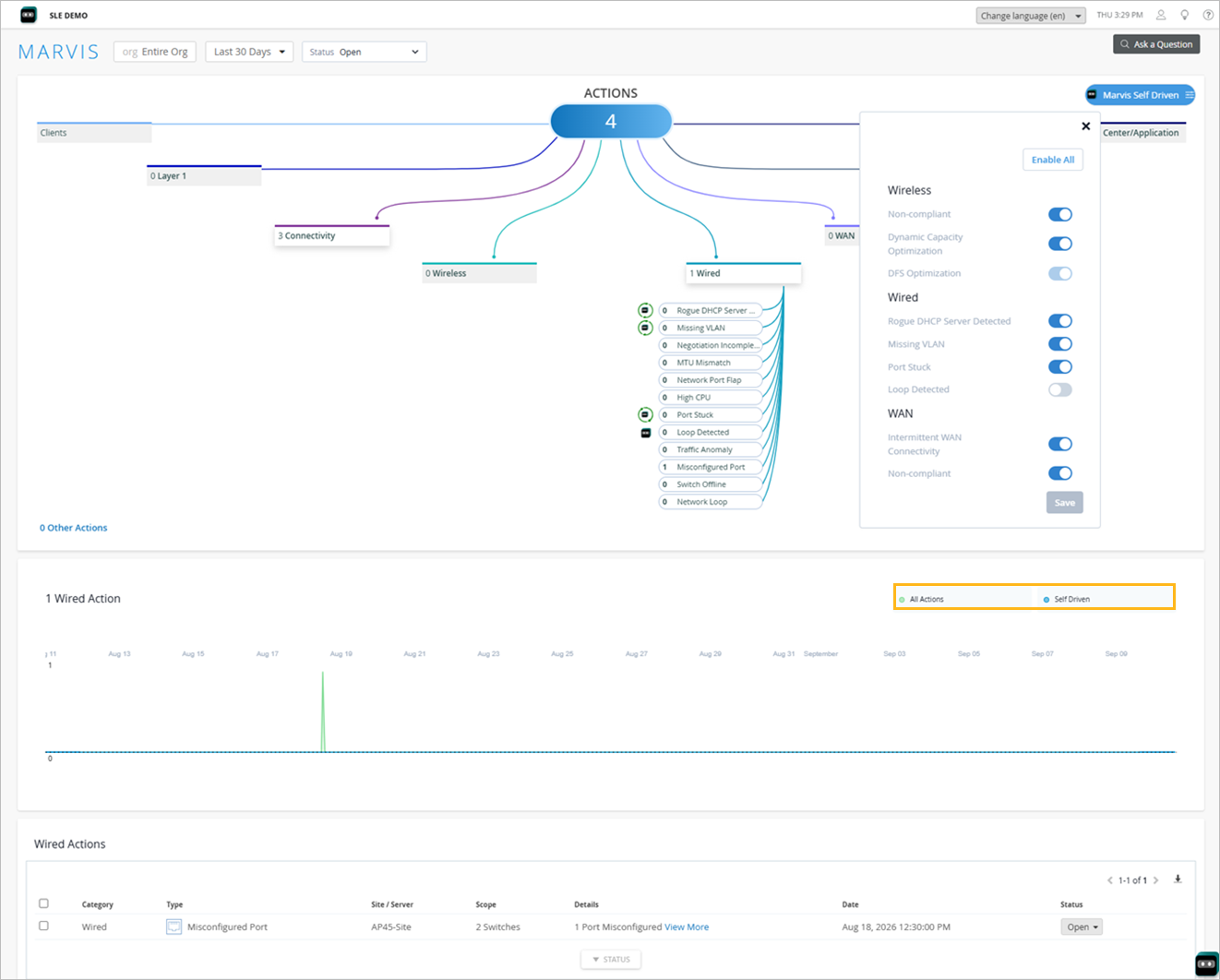
Click Self-Driven to view the automatically resolved issues. Note that the Self-Driven option is hidden for actions without the self-driving capability.
Self-Driving Wired Actions
For switches, the self-driving capability is available for the following actions:
-
Port Stuck—The self-driving capability for this action is enabled by default. HPE Marvis automatically bounces the port to fix the issue. HPE Marvis will attempt to bounce the port three times and if the issue remains unresolved, then HPE Marvis will set the issue status as Open and provide details of the automatic remediation steps taken. Stopping the automatic bounce after three attempts prevents continuous port bounce cycles. You can then check whether the port stuck issue is due to a hardware issue with the device connected to the switch port.
-
Rogue DHCP Server Detected—If you enabled the self-driving capability for this action, then HPE Marvis automatically disables the port where the rogue DHCP server is detected. The self-driving capability disables the access port where a rogue DHCP server is detected. Note that this action doesn’t apply to rogue DHCP servers connected to trunk ports.
Note: CX Series switches do not support this action. -
Missing VLAN—In this self-driving action, if a VLAN is configured on an AP but is missing from the connected switch port, clients on that VLAN may be unable to communicate or obtain an IP address from the DHCP server. In such cases, HPE Marvis automatically adds the missing VLAN to the affected switch port, restoring connectivity for impacted clients.
-
Loop Detected—If you enabled the self-driving capability for this action, then HPE Marvis automatically disables the port on which it detects a Layer 2 loop. A Layer 2 loop causes broadcast storms and network instability. STP temporarily blocks the affected port. However, if the port repeatedly flaps because of a bad cable, a faulty SFP, or an automation script that keeps re-enabling it, the port can transition back to the Forwarding state each time it comes up. This behavior can introduce intermittent network issues, including temporary loops. Disabling the port helps stop the loop until an administrator physically removes the looped cable and manually re-enables the port.
Self-Driving Wireless Actions
For APs, the self-driving capability is available for the following actions:
-
Non-Compliant—If you enabled the self-driving capability for this action, HPE Marvis automatically initiates the firmware upgrade on the APs.
Automatic upgrade involves upgrading one AP at a time during periods of low network usage at a site to minimize network downtime and impact to users. Consequently, if multiple APs need to be upgraded, the process might take a few days as HPE Marvis upgrades one AP in a 24-hour window during periods of low site usage to avoid creating any network coverage issues.
-
Dynamic Capacity Optimization—If you enabled the self-driving capability for this action, HPE Marvis automatically adjusts the channel band and bandwidth based on the available wireless capacity observed based on peak client usage and interference. For example, to increase the overall capacity, HPE Marvis can enable dual band operation on APs. Similarly, it can increase the channel width to improve the throughput.
-
DFS Optimization—The self-driving capability for the DFS Optimization action is enabled by default and cannot be disabled. DFS Optimization enhances visibility into how the HPE Mist Radio Resource Management (RRM) system processes Dynamic Frequency Selection (DFS) radar events and their impact on Wi‑Fi channel assignments. It provides a clear, seven‑day insight into how radar‑affected channels are evaluated and how that history shapes ongoing channel selection decisions.
Self-Driving WAN Actions
For WAN Edges, the self-driving capability is available for the following actions:
-
Non-Compliant—If you enabled the self-driving capability for this action, HPE Marvis automatically initiates the Snapshot Device feature to update the Junos OS version on the backup partition of an SRX Series device so that it matches the version that is currently running on the primary partition.
Automatic upgrade involves upgrading one device at a time during periods of low network usage at a site to minimize network downtime and impact to users. Consequently, if multiple devices need to be upgraded, the process might take a few days as HPE Marvis upgrades one device in a 24-hour window during periods of low site usage to avoid creating any network disruption.
-
Intermittent WAN Connectivity—The self-driving capability for this action is enabled by default. When HPE Marvis detects an uplink port on a WAN Edge device that is unable to pass traffic due to one of the following reasons, it automatically bounces the port to fix the issue:
-
ARP resolution for the gateway fails for the ISP server provided IP address.
-
Uplink port does not receive an IP address from the ISP.
HPE Marvis will attempt to bounce the port three times and if the issue remains unresolved, then HPE Marvis will set the issue status as Open.
-
Find Self-Driven Actions Using Filters
For any self-driving action with permissions enabled, HPE Marvis identifies and automatically remediates the issue by taking the necessary action. After the issue is resolved, the status of the issue changes to HPE Marvis Self Driven. HPE Marvis then validates that the issue has not reoccurred and then changes the status to AI Validated.
You can view issues resolved through a self-driven action by selecting the HPE Marvis Self Driven or AI Validated filter. If you do not select a filter, all issues are listed including any HPE Marvis Self Driven, AI Validated, and Open issues.
If an issue resolved by a self-driving action reoccurs, then HPE Marvis changes the status of the issue to Open.
You can click the download (down arrow) icon next to the toggle button to download the list of issues for your organization or site in CSV format.