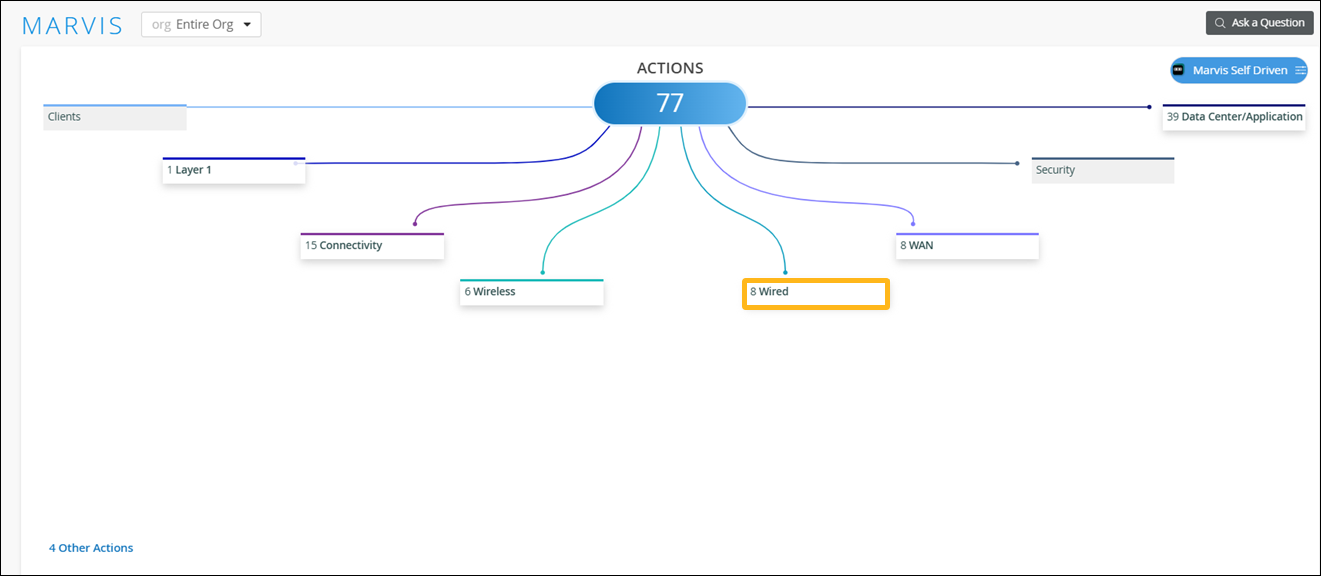
Wired Actions
Use the Actions dashboard to resolve issues affecting your switches.
When you click the Wired button on the Actions dashboard, you'll see a list of all available actions. You can then click an action to investigate further. Available actions are described later in this topic.
Your subscriptions determine the actions that you can see on the Actions dashboard. For more information, see Subscription Requirements for HPE Marvis Actions.
Missing VLAN
The Missing VLAN action indicates that a VLAN is configured on an AP but not on the switch port. As a result, clients are unable to communicate on a specific VLAN and are also unable to get an IP address from the DHCP server. HPE Marvis compares the VLAN on the AP traffic and client VLAN traffic with the VLAN on the switch port traffic and determines which device is missing the VLAN configuration.
You can use HPE Networking EX Switches, HPE Juniper Networking QFX Switches, and third-party switches.
In the following example, HPE Marvis identifies an AP that does not see any incoming traffic due to a missing VLAN configuration. HPE Marvis also identifies the specific switch that is missing the VLAN configuration and provides the port information, thereby enabling you to mitigate this issue with ease.

When you see a Missing VLAN action, you can go to the Client Events section on the Client Insights page and check for failures related to the reported VLAN. You can verify whether all the clients connecting on that VLAN are experiencing DHCP failures.
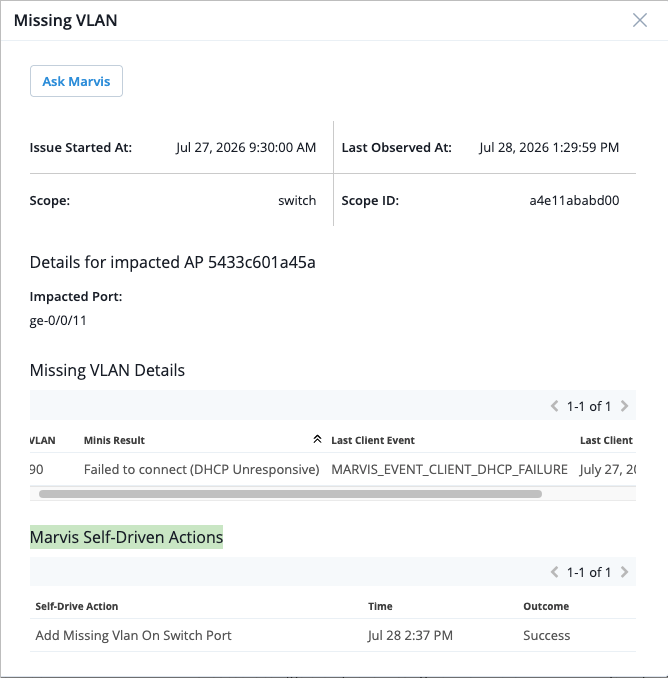
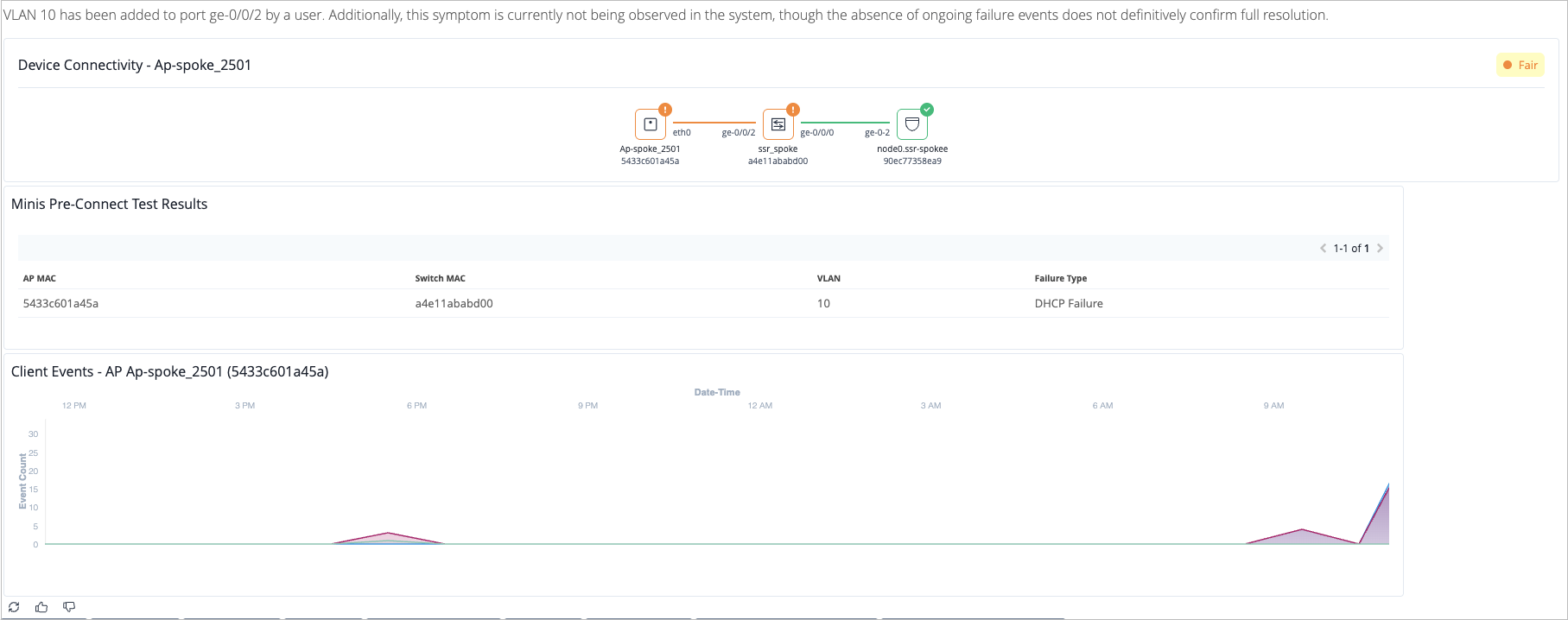
If you have enabled HPE Marvis minis, then the validations are automatically initiated when HPE Marvis identifies a potential Missing VLAN issue in the network. HPE Marvis minis validates the connectivity along the suspected VLAN path to confirm whether the VLAN is missing and pinpoints where issues might be occurring. The View More link provides details from the HPE Marvis minis validations as shown in the following example.
Click View More to see detailed information about the impacted port and switch, issue start time, last observed time, Minis result, and the most recent client event information about Missing VLAN. If the HPE Marvis Self-Driven Action which is Add Missing VLAN on Switch Port completes successfully, the bottom section of the pop-up displays the outcome as Success.
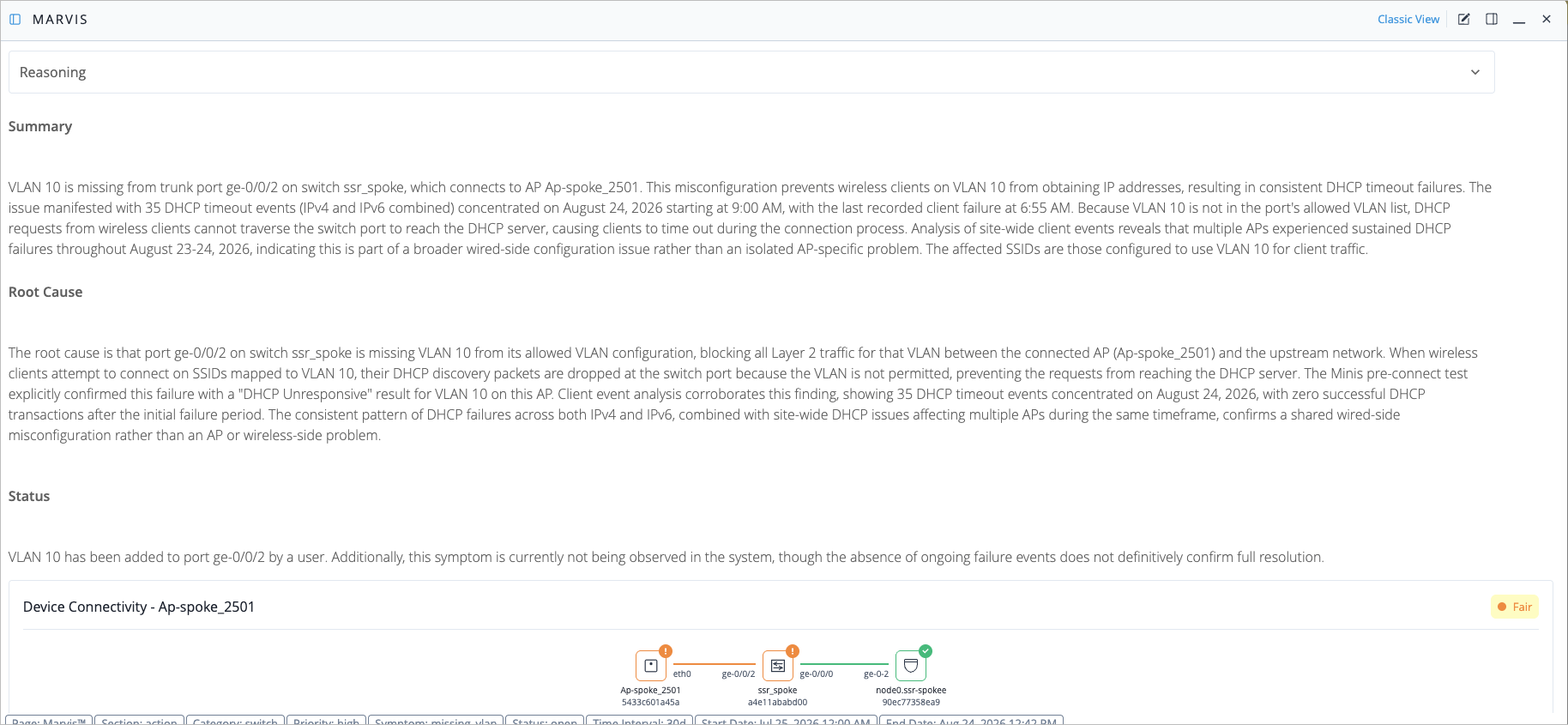
When you click the Ask Marvis option, it automatically brings up the HPE Marvis conversational interface and provides a detailed analysis of the issue. This includes a summary of the issue, likely root causes, current status, and results from the Minis validations. You can also ask follow-up questions to dive deeper into specific aspects.
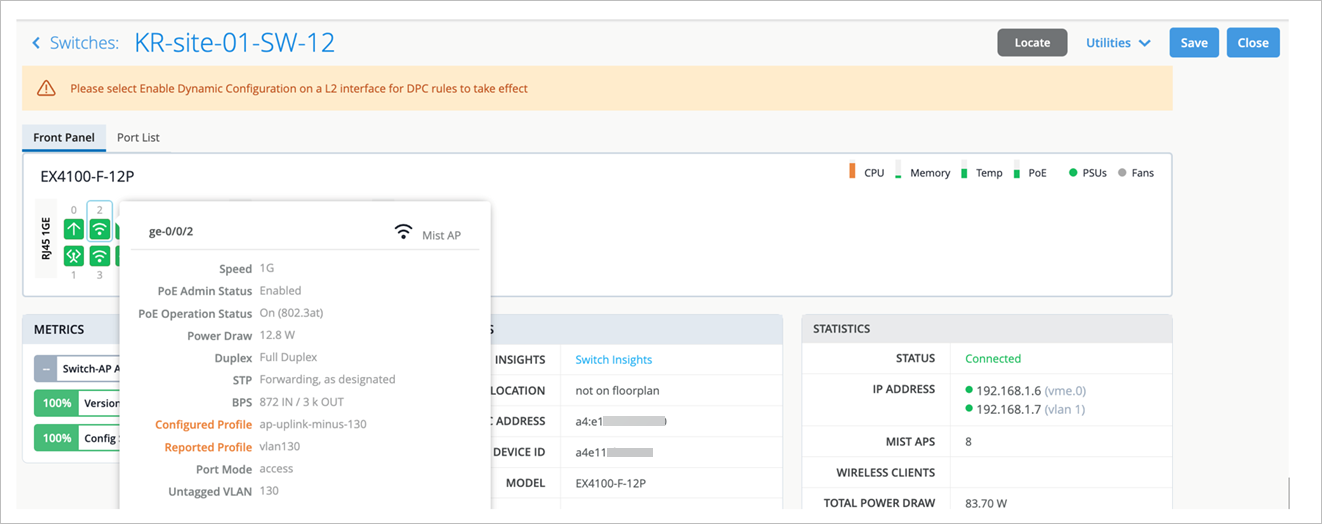
If you need more information, you also can use the left menu to go to the Switches page. There, click the switch to view the information for each port, including VLANs.
After you fix the issue in your network, HPE Mist monitors the switch for a certain period and ensures that the missing VLAN issue is indeed resolved.
For more information about the Missing VLAN action, watch the following video:
Missing VLANs is a two-decade-old networking problem. It sounds so simple, but in a large enterprise it can become the ghost in the machine, as users complain their calls always drop in a certain area and conventional wisdom is, well, there must be interference or Wi-Fi issues over there. In many cases when Mist support helped troubleshoot, we found a user VLAN was indeed not provisioned on the network switch.
Hence, the user had no place to roam and the call dropped. For customers with tens of thousands of APs, this truly becomes the needle in the haystack problem. At Mist, we wanted to use AI to solve this problem, but first let's take a look at how you might start out today.
You can manually take a look, but I only have two VLANs. Or you can programmably take a look, but this makes my brain hurt. If an AP is connected to a switch port, but the user can't get an IP address or pass any traffic, then the VLAN probably isn't configured on the port or it's black holed.
The traditional way to measure a missing VLAN is to monitor traffic on the VLAN and if one VLAN continuously lacks traffic, then there's a high chance that the VLAN is missing on the switch port. The problem of this approach is false positives. Here you can see during a 24-hour window, we detected more than 33,000 APs missing one or more VLANs because they had little or no traffic, but this was not accurate as we learned that every VLAN is not created equal.
There are at least two types of special purpose VLANs that can cause detection problems. One is the black hole VLAN. Folks can create a black hole VLAN on all unconfigured ports or as a quarantine VLAN for users until they are fully authorized. This VLAN is supposed to be provisioned on the switch in case a quarantined user shows up on the AP. The second example is the over-provisioned VLAN. Larger customers use special VLANs for special sites.
For example, legacy devices might only be present at certain sites, so special VLAN should only be applicable to those sites, but because people do use automation, they want to keep their configurations consistent so they provision that VLAN across all the sites. In this case, you would expect low traffic or no traffic. Those VLANs shouldn't be flagged as missing because they were intentionally over-provisioned.
So the key for reducing false positives is to really identify the purpose of each VLAN. We could ask the customer for their own internal list, perhaps in the form of a spreadsheet, but that's very error prone. MIST developed an unsupervised machine learning model to automatically discover the purpose of each VLAN by learning from the traffic patterns on the VLANs.
In this graph, each dot represents all of the VLANs across the MIST customer base. So for each VLAN, we collect several features. How many APs lack traffic on that VLAN? How many sites lack traffic? How busy is that VLAN minute by minute from all the APs? Then we use another technique called principal component analysis to combine all of these features and map them into this two-dimensional space.
The interesting thing here is the different VLAN types, high traffic, low traffic, black hole, and over-provisioned are separated really well, even across different customers, because it turns out VLAN behavior is very similar across different customers. The beauty of this is instead of developing per customer anomaly detection tools, we actually built one model for everybody. So for any new customers, we don't have to ask them anything.
We can determine the purpose of their VLANs very quickly after they deploy. This is really the power of this multi-tenant infrastructure design. Every customer can benefit from the knowledge learned from our extended customer base.
By precisely identifying each VLAN's purpose, we reduced our initial detection rate from 33,000 plus to specifically 607 VLANs, which we believed were actually missing from the AP switch ports. For MIST, this was the moment of truth. When we were confident in the model, we contacted the customers with these 607 detected missing VLANs, and when we finally heard back, we had an astonishing 100% hit rate, no false positives.
For MIST, this was simply awesome, as there are so many mundane problems we can apply this technique to going forward. So right now, this is shown in Marvis Actions, and with a supported Juniper switch, we can provide the user specific CLI commands that we suggest they add to their config to get these missing VLANs going, with a goal to automatically doing this from the cloud as we gain their trust. And for non-Juniper switches, we give detailed info like which switch, which port, and which VLAN ID to guide them how to solve the problem that they probably didn't even know they had.
This is all built on open protocols like OpenConfig and NetConf. And lessons learned by the MIST data science team, AI solutions should first start by solving real problems, rather than deploying models and hoping for the best. Some AI vendors treat AI as a hammer in search of a nail, and this isn't going to work.
The Marvis AI engine was designed starting with human expertise and then learning over time. At MIST, each support ticket is first run through Marvis to both measure its efficacy and continue to train the model to solve the most important customer issues.
Negotiation Incomplete
The Negotiation Incomplete action detects instances on switch ports where autonegotiation failures occur. This issue can occur when HPE Marvis detects a duplex mismatch between devices due to the autonegotiation failing to set the correct duplex mode. HPE Marvis provides details about the affected port. You can check the configuration on the port and the connected device to resolve the issue.
The following example shows the details for the Negotiation Incomplete action. Notice that HPE Marvis lists the switch and the port on which the autonegotiation failed.
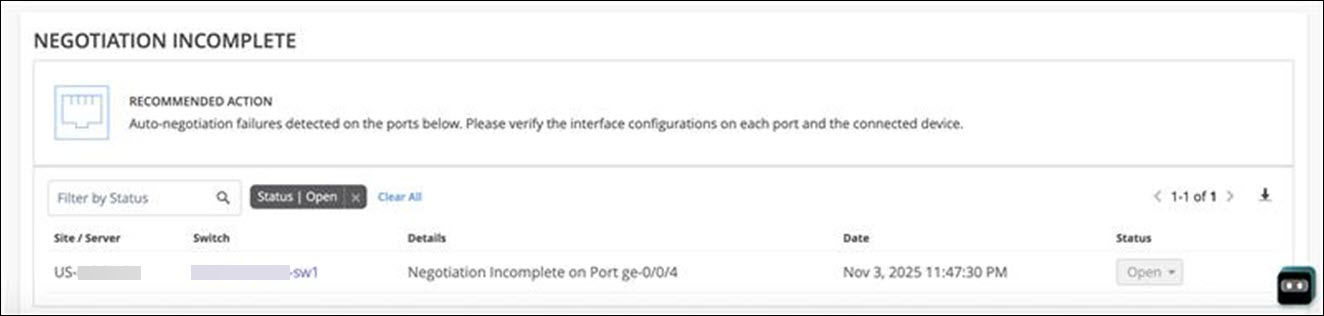
After you fix the issue in your network, the Negotiation Incomplete action automatically resolves within an hour.
MTU Mismatch
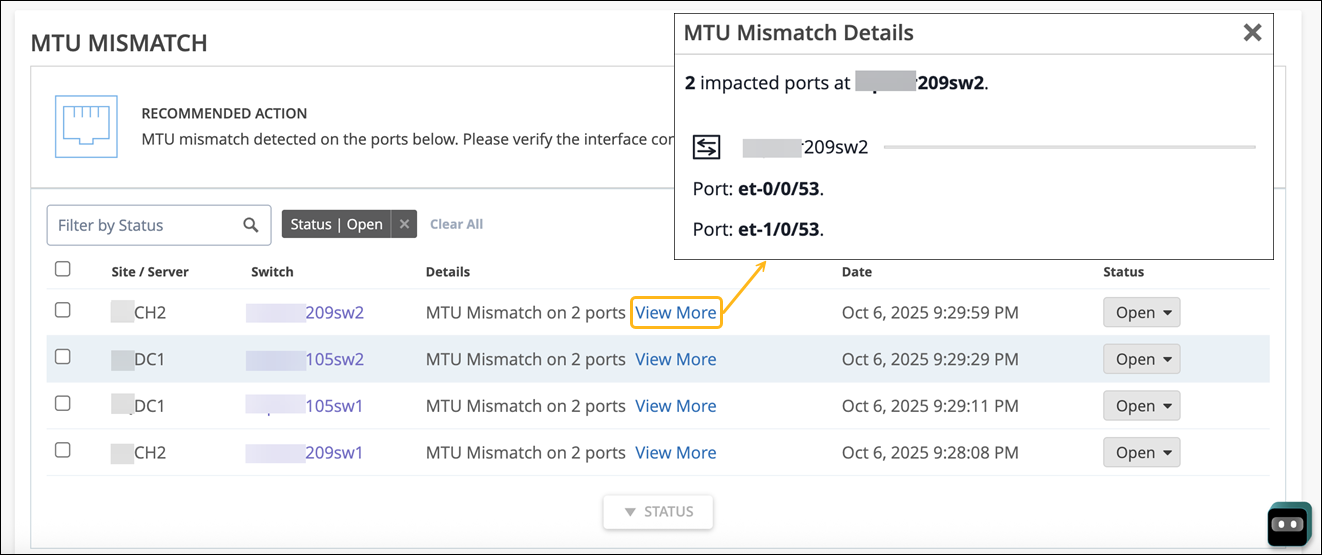
HPE Marvis detects MTU mismatches between the port on a switch and the port on the device that is connected directly to that switch port. All devices on the same Layer 2 (L2) network must have the same MTU size. When an MTU mismatch occurs, devices might fragment packets resulting in a network overhead.
You'll need to review the port configuration on the switch and the connected device to resolve the issue. Here’s an example of an MTU mismatch identified by HPE Marvis. The Details column lists the port on which the mismatch occurs.
Loop Detected
The Loop Detected action indicates a loop in your network resulting in the switch receiving the same packet that it sent out. A loop occurs when multiple links exist between devices. Redundant links are a common cause for L2 loops. A redundant link serves as a backup link for the primary link. If both links are active at the same time and protocols such as the Spanning Tree Protocol (STP) are not deployed properly, a switching loop occurs.
HPE Marvis identifies the exact location at your site where the traffic loop is occurring and shows you the affected switches.
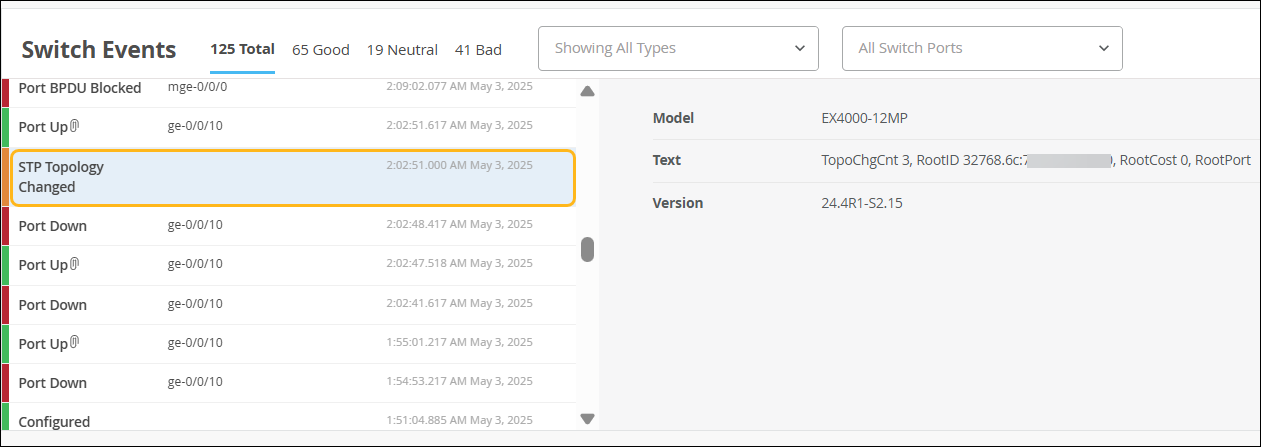
Switching loops are listed under Switch Events on the Switch Insights page. In the following example, you can see the STP topology change listed.
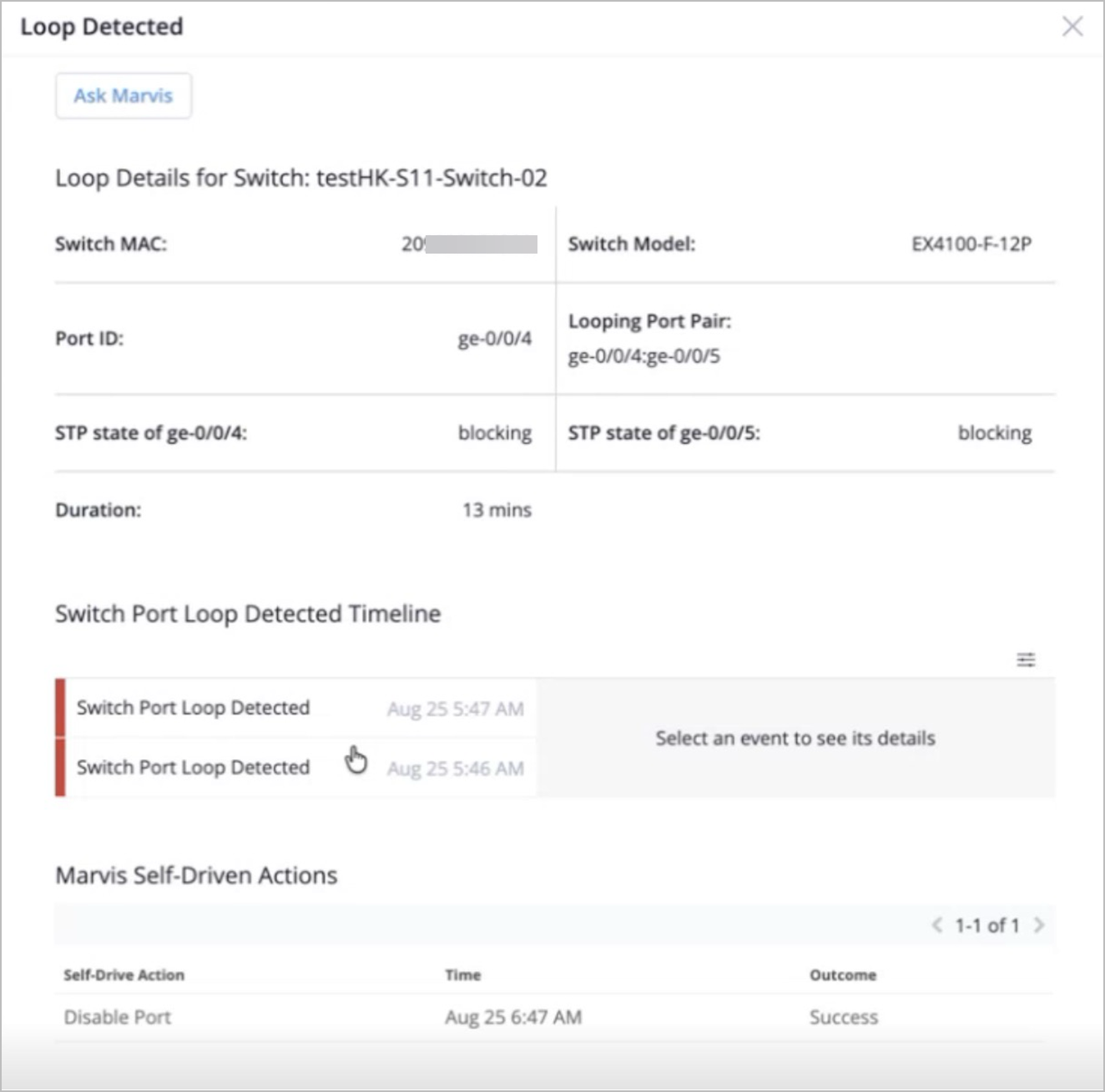
The Loop Detected action is a self-driving action. By default, the self-driving capability for the action is disabled. You can enable the self-driving capability at the organization level or site level. If you enable self-driving capability for this action, then HPE Marvis can automatically disable the port when it detects a Layer 2 loop on a switch, mitigating broadcast storms and preventing port flapping. Ports disabled by HPE Marvis can be enabled using the Enable Port option.
The View More link provides the outcome of the self-driving action.
For information about the self-driving capability and how you can enable it, see Self-Driving Actions
When you click the Ask Marvis option, it automatically brings up the HPE Marvis conversational interface and provides a detailed analysis of the issue, including how it identified and isolated the root cause.
Network Port Flap
The Network Port Flap action identifies trunk ports that bounce persistently for at least an hour. For example, three flaps per minute for an hour. Ports configured as trunk ports are used to connect to other switches, gateways, or APs as individual trunk ports, or as part of a port channel. Port flapping can occur due to a bad cable or transceiver causing one-way traffic or LACPDU exchange, or continuous rebooting of an end device connected to the port. The following example shows the details for a Network Port Flap action:

You can view the port up and port down events under Switch Events on the Switch Insights page. HPE Marvis does not list slow port flaps as an action unless the flapping frequency increases. HPE Marvis continues to monitor the slow port flapping to determine the severity of the issue. If the flapping becomes excessive, HPE Marvis lists it as an action after considering the frequency and severity. You can use the conversational assistant to view details about slow port flaps.
For details about access port flaps, see Access Port Flap,
You can disable a persistently flapping port directly from the Marvis Actions page. In the Network Port Flap actions section, select the switch on which you want to disable a port and click the DISABLE PORT button.
The Disable Port page appears, listing the ports that you can disable. You cannot select a port if it is already disabled (either previously through the Actions page or manually from the Switch Details page).
When you disable a port, the port configurations on the selected ports change to disabled and the ports go down. After you fix the issue, you can re-enable these ports by editing the port configuration on the Switch Details page. After you re-enable the ports, you can reconnect the devices to the ports.
After you fix the issue in your network, the Port Flap action automatically resolves within an hour.
Looking at the switch, in this case, specifically the Juniper switch, we've introduced the action of a port flapping continuously. In this case, we do take into account a simple port down and up, which usually happens when a device connects, and this is currently reflecting a case where the port is continuously flapping, thereby not only causing a poor experience for the device which is connected on the other end, but also having high resource consumption for the switch which can be detrimental to other devices connected on the switch. Here too, we show all the required information in terms of the port, the client which is connected, and the VLAN, if in case it did communicate and we know the VLAN ID.
High CPU
HPE Marvis detects switches that constantly have high CPU utilization (> 90%). Various factors can cause high CPU utilization: multicast traffic, network loops, hardware issues, device temperature, and so on. The High CPU action lists the switches, the processes running on the switch along with the CPU utilization rate, and the reason for the high utilization. In the following example, you see that the fxpc process has high CPU utilization, and the cause for the high utilization is the use of noncertified optics on the switch:

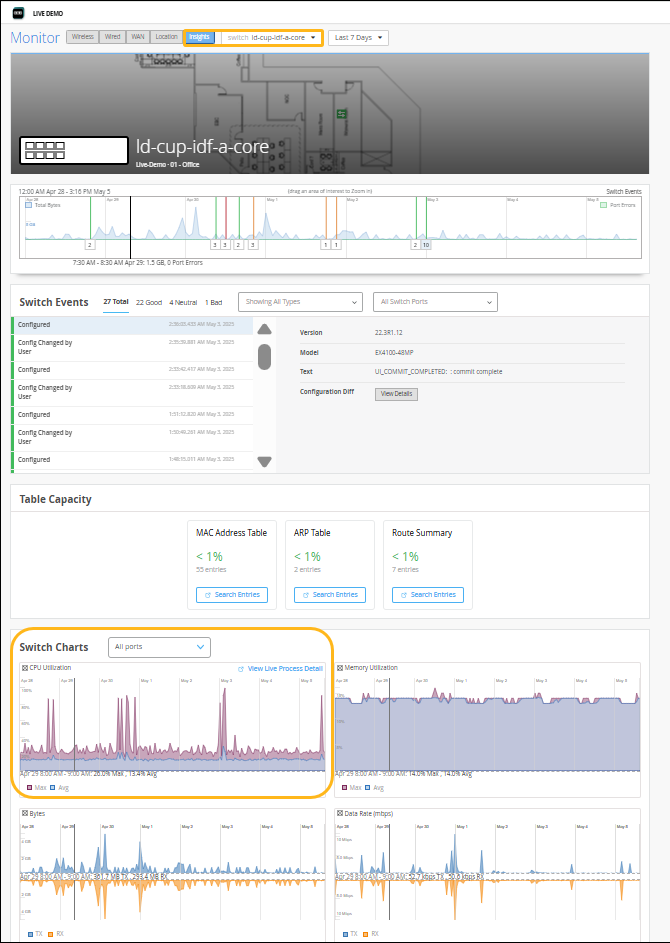
If you see a High CPU action, you can go to the Insights page for the switch and analyze the CPU Utilization chart under Switch Charts. Here’s an example:
Port Stuck
The Port Stuck action detects a difference in traffic pattern on an access port of a switch, such as no transmitted or received packets, indicating that the client connected to the port is not operating normally. In the following example, you'll see that Marvis Actions recommends that you bounce the port and verify if the client starts operating normally. Notice that in addition to the port number, HPE Marvis also lists the client (in this case, a camera) that is connected to the port and the associated VLAN.

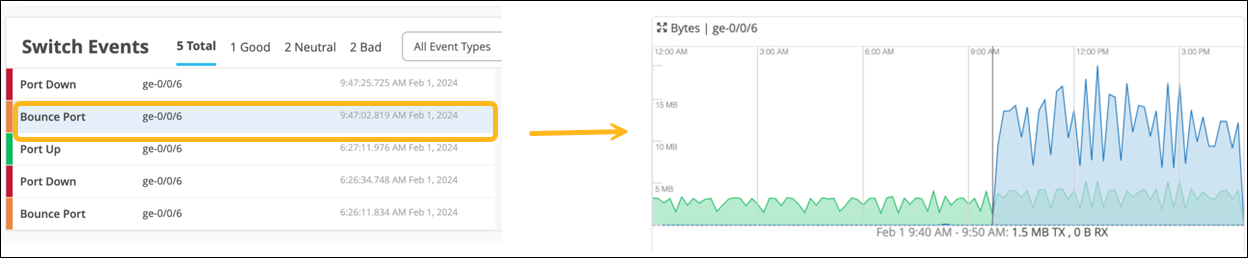
When HPE Marvis detects a port stuck issue, it initiates an automatic port bounce to fix the issue. If the automatic port bounce fails to resolve the issue, HPE Marvis lists it as an action. You can view the automatic bounce action under Switch Events on the Switch Insights page as shown in the following example. The graph on the right shows the traffic before and after the port bounce. You'll see that before the port bounce only the Tx traffic is seen (indicated in green). After the port bounce, you'll see that the Rx traffic is also seen.
The self-driving capability for the Port Stuck action is enabled by default. For information about the self-driving capability, see Self-Driving Marvis Actions.
Traffic Anomaly
HPE Marvis detects an unusual drop or increase in broadcast and multicast traffic on a switch. It also detects any unusually high transmit or receive errors. Like the Anomaly Detection view for connectivity failures, the Details view shows a timeline, the description of the anomaly, and details of the affected ports. If the issue affects an entire site, HPE Marvis displays the details of the affected switches and port details for each affected switch.
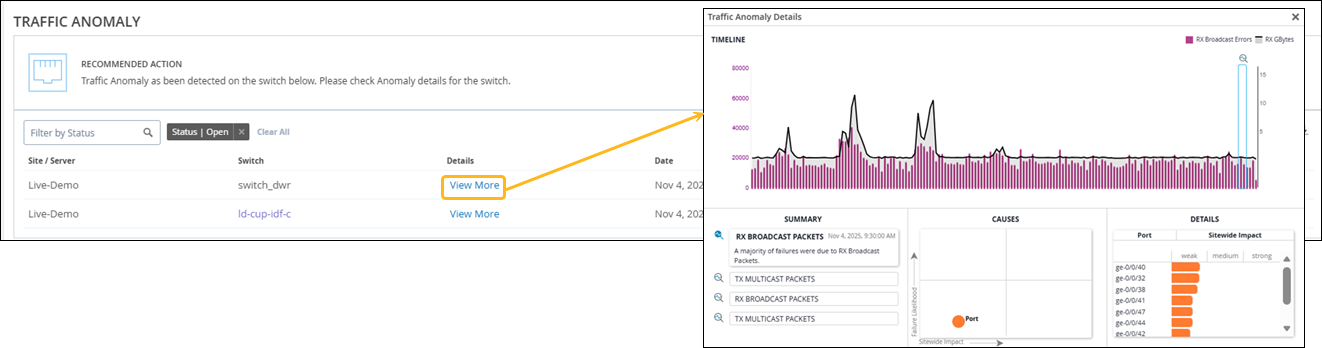
HPE Marvis, our AI-powered virtual network assistant, employs an actions framework to automatically identify network problems and anomalies that are likely impacting user experience. This helps you to significantly reduce mean time to resolution. HPE Marvis can detect switched traffic anomalies, such as traffic storms or abnormal high TxRx count, with respect to broadcast, unknown, unicast, or multicast traffic.
It uses our third generation of algorithms, including long short-term memory, or LSTM for short, to boost efficacy and eliminate false positives. Visit the link below to learn more.
Misconfigured Port
When a switch is connected to another switch, communication requires common properties on the ports. To detect misconfiguration, HPE Marvis compares these properties on the uplink ports:
-
Speed
-
Duplex
-
Native VLAN
-
Allowed VLAN
-
MTU
-
Port Mode (both ports “access” or both ports “trunk”)
-
STP Mode (both ports “forwarding”)
On the Actions dashboard, click Switch>Misconfigured Port to see the issues and the recommended action in the lower part of the screen.
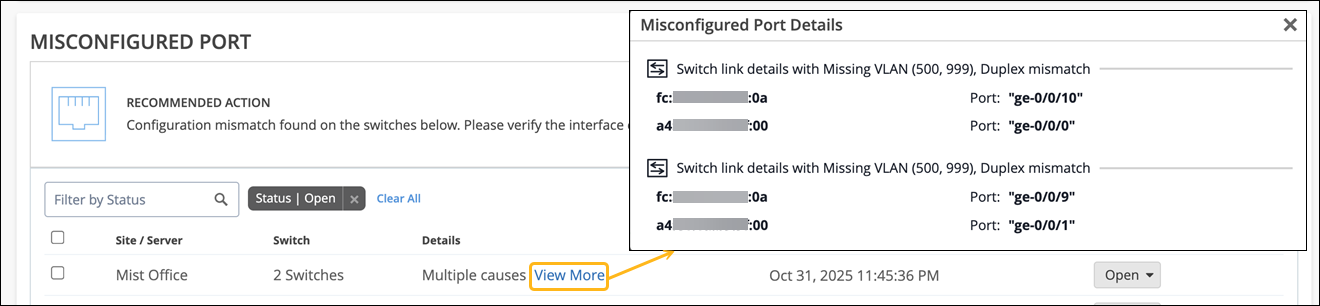
Click the View More link to see the MAC addresses and ports.
Switch Offline
HPE Marvis detects switches that are disconnected from the HPE Mist cloud. Switches can go offline due to many reasons including the following:
-
Power issues
-
Faulty cable
-
Required firewall ports are not open
-
Incorrect configuration
When a switch goes offline, HPE Marvis monitors the switch to check the duration of the offline status. If the switch is offline for more than three minutes, HPE Marvis generates the Switch Offline action. Note that the Switch Offline infrastructure alerts and events on the Switch Insights page show up as soon as a switch goes offline.
Here’s an example that shows the Switch Offline action. Click the View More link to view details of the switch that is offline. If you click the switch name, then you can view the Insights page where you can view the event listed under Switch Events.
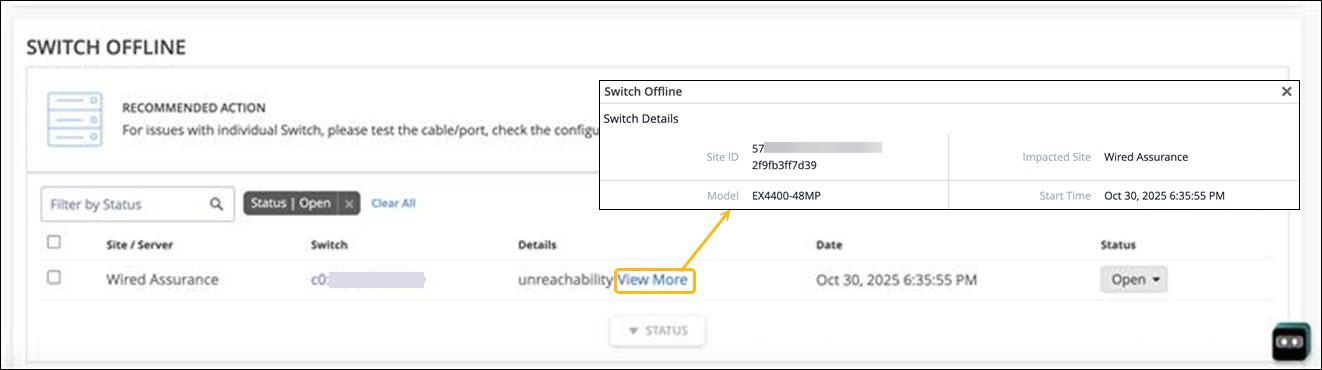
To troubleshoot a switch that is offline, see Troubleshoot Your Switch Connectivity.
Rogue DHCP Server Detected (EX Series)
The Rogue DHCP Server Detected action is triggered when HPE Marvis identifies unauthorized DHCP servers on EX Series switches with DHCP snooping enabled. Early detection of a rogue DHCP server is critical as it can disrupt normal network operations by:
-
Assigning IP addresses from the wrong subnet, causing devices to end up on incorrect or nonroutable networks
-
Causing random or intermittent connectivity issues, such as failed access to internal resources or the Internet
HPE Marvis generates this action when the following conditions are met:
-
Observes DHCP offers from an unknown server
-
Maps the event to a specific switch, port, VLAN, or site
-
Observes repeated occurrences of rogue DHCP activity, confirming that this is not a one-off anomaly but an ongoing issue that needs to be addressed
The Rogue DHCP Server Detected HPE Marvis action is a self-driving action. By default, the self-driving capability for the action is disabled.
If you enabled the self-driving capability for this action, HPE Marvis automatically disables the switch port used by the rogue DHCP server. Note that this only applies to access ports.
If self-driving is disabled, then you can manually disable the port by clicking the Disable Port button.
For information about the self-driving capability and how you can enable it, see Self-Driving Marvis Actions.
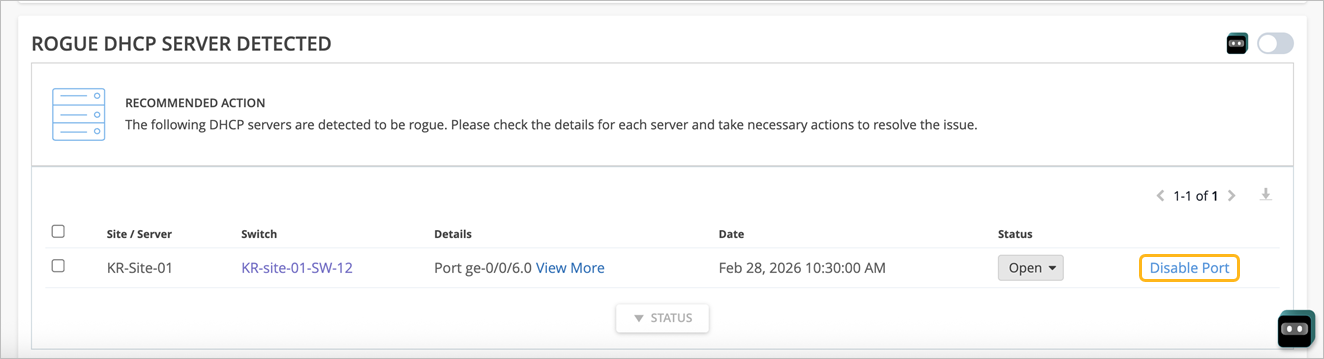
Clicking the View More link displays details such as the MAC address of the rogue server, the number of events, and a graph that shows timeline of events for the rogue server. Events from the the Switch Insights page are also displayed.
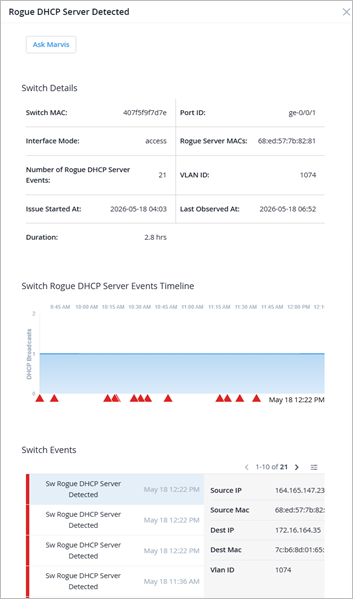
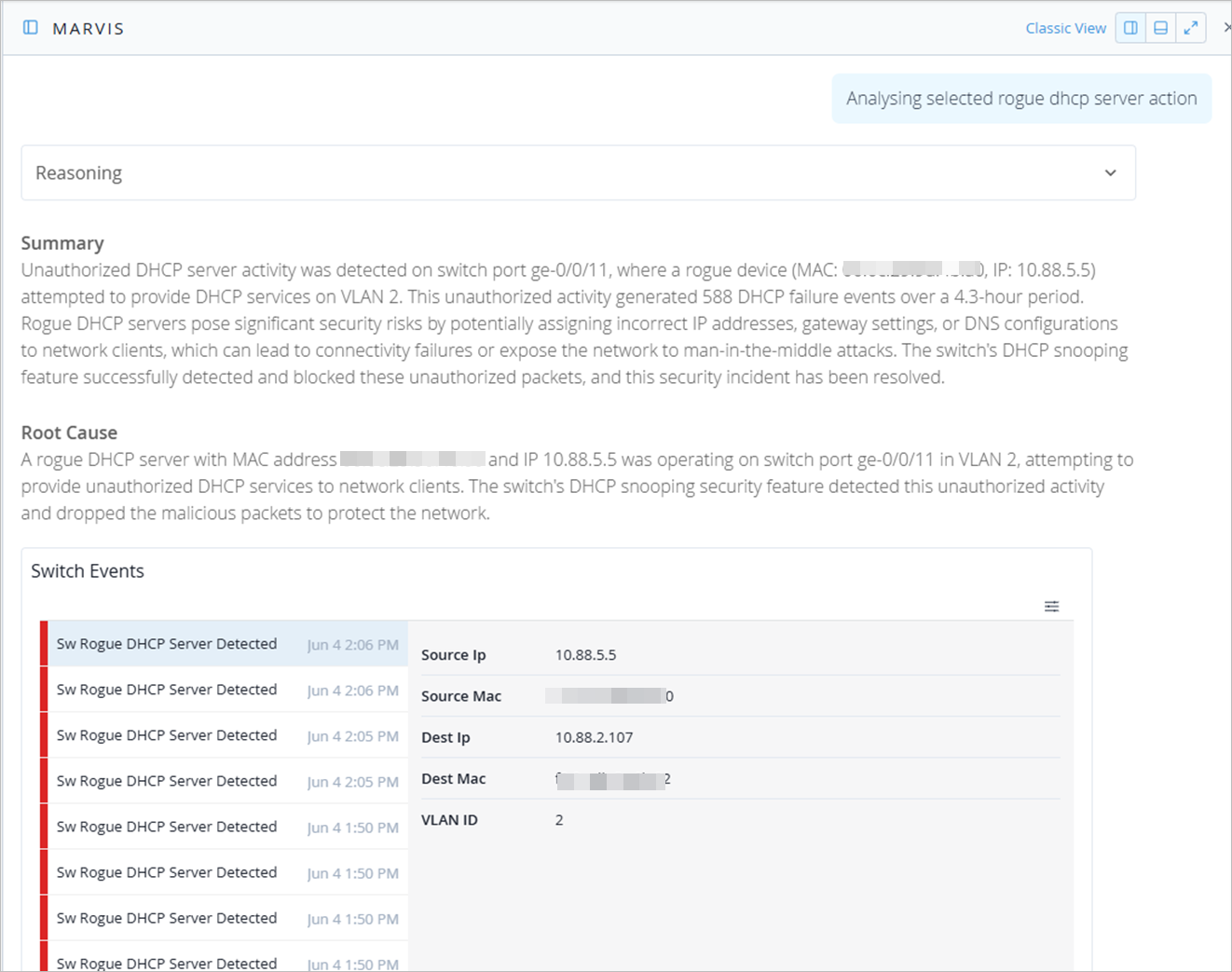
When you click the Ask Marvis option, it automatically brings up the HPE Marvis conversational interface and provides a detailed analysis of the issue. This includes a summary of the issue, likely root causes, recommendations, timeline of the rogue server events, and the related events from the Switch Insights page. You can also ask follow-up questions to dive deeper into specific aspects.