
HPE Marvis Actions Overview
Get familiar with the major features of the HPE Marvis Actions dashboard.
What Are HPE Marvis Actions?
HPE Marvis® leverages the HPE Mist to identify the root cause of issues. HPE Marvis can automatically fix issues (self-driving mode) or recommend actions that require user intervention (driver-assist mode). The HPE Marvis Actions page lists the high-impact network issues that HPE Marvis detects. HPE Marvis Actions also displays the recommended actions for your organization's network. HPE Marvis Actions provides insight into issues across the wired, WAN, and wireless networks, at the managed service provider (MSP) level, organization level, and site level. With HPE Marvis Actions, you can track firmware compliance on APs, identify bad cables, locate L2 loops, detect WAN link outages, and more—all from a single page.
As you add new sites and devices to your network, HPE Marvis Actions scales with ease without any additional configuration.
With real-time AI-native insight into your network, HPE Marvis Actions enables proactive issue detection and resolution, resulting in a significant reduction in troubleshooting effort and time.
This video provides an introduction to HPE Marvis Actions.
HPE Marvis Actions is the proactive way to use the HPE Mist engine to bubble up user impacting issues across a customer's organization. This is the next level in Mist's AI journey to the self-driving network, turning root cause into human action. Here we take a look at the switches and see some are missing VLANs.
This is one of the most common use cases we see at our customers with thousands of APs. This would show as users complaining in certain areas that they lost their Wi-Fi. With a normal Wi-Fi installation, you would troubleshoot capacity, look at the WLAN, look at the coverage, when ultimately ends up being the VLAN was never brought to the AP.
With HPE Marvis Actions, we can now own the issue and fix the problem. Let's mark this issue as in progress and we'll assign it to Jeff. Jeff can now go fix the problem and report back that HPE Marvis actually found the problem and it is now resolved.
Latest updates contain the list of issues which have been resolved in the last seven days and is split into three categories, AI validated, resolved, or reoccurring. Let's look at authentication failures. Mist anomaly detection will indicate if a RADIUS server isn't responding to requests or if an AP is missing as a NAS client based on all the clients failing authentication on that AP.
Let's mark this one as in progress and we'll assign it to Matt. Matt will go take a look at the RADIUS server and maybe restart it and then mark this issue as resolved. Note that as we resolve problems, the AI engine is validated and condition has been truly resolved.
Now we can back up and take a look at all of our sites. In this case, there's a noted firmware release flagged by support as needing an upgrade. Marvis Actions, turning root cause into human action.
HPE Marvis Actions Dashboard
The HPE Marvis Actions dashboard is a one-stop information center that provides visibility into ongoing site-wide network issues that affect user experience in an organization. Super users can view HPE Marvis Actions. Users with other roles can view HPE Marvis Actions if they are not assigned to any site. You can review the information to prioritize the issues that need immediate attention.
To view the HPE Marvis Actions dashboard, select Marvis > Marvis Actions from the left menu of the Mist portal.
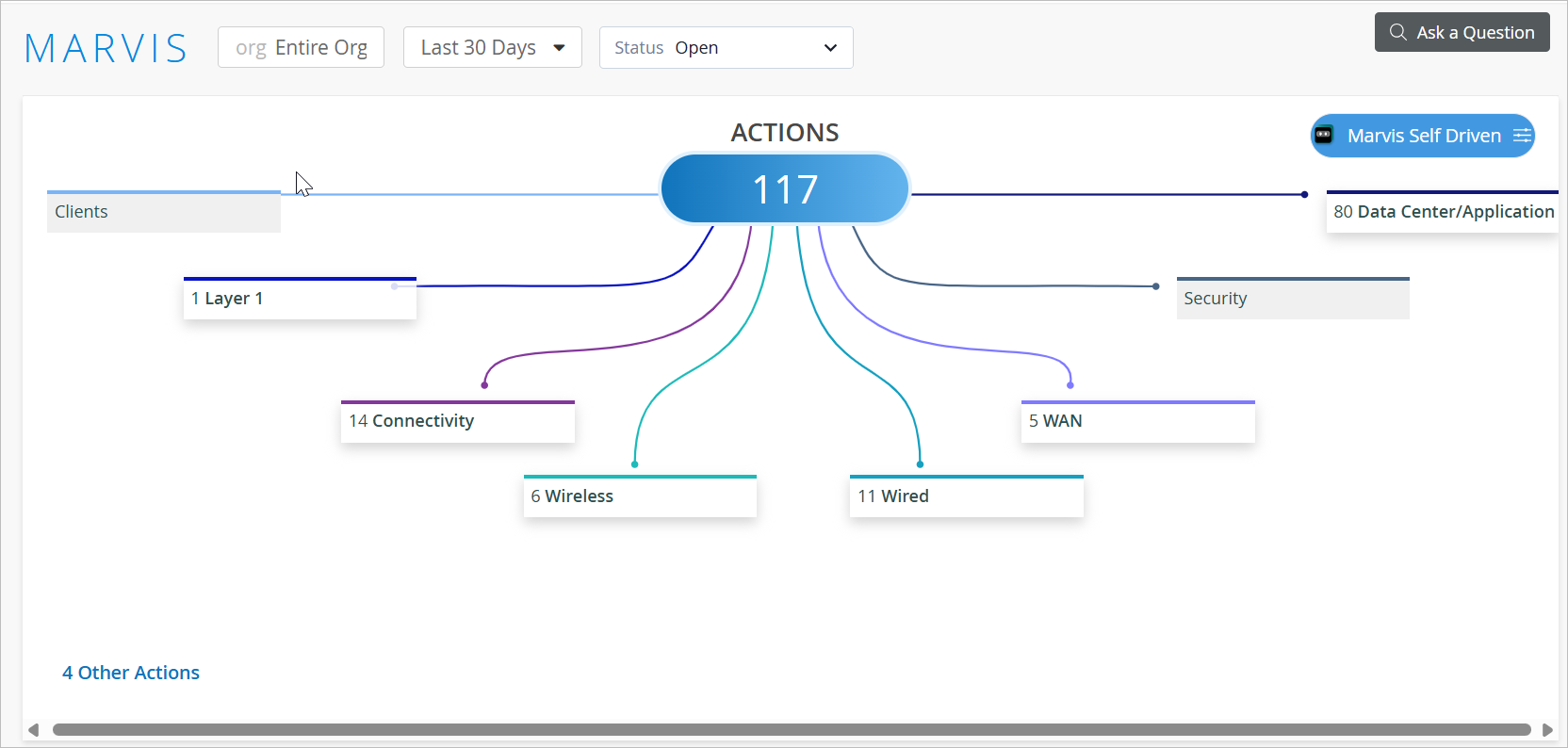
Here’s what the HPE Marvis Actions page looks like. You'll notice that the page displays the information under three sections. The first section sorts the detected issues into categories. For each category, HPE Marvis indicates the number of issues. Note that this display includes only the issues that are currently open at the organization or site level, irrespective of the time. For example, in the following screenshot, you'll notice that HPE Marvis lists 14 issues for the Connectivity category.
You can also view the issues for a site.
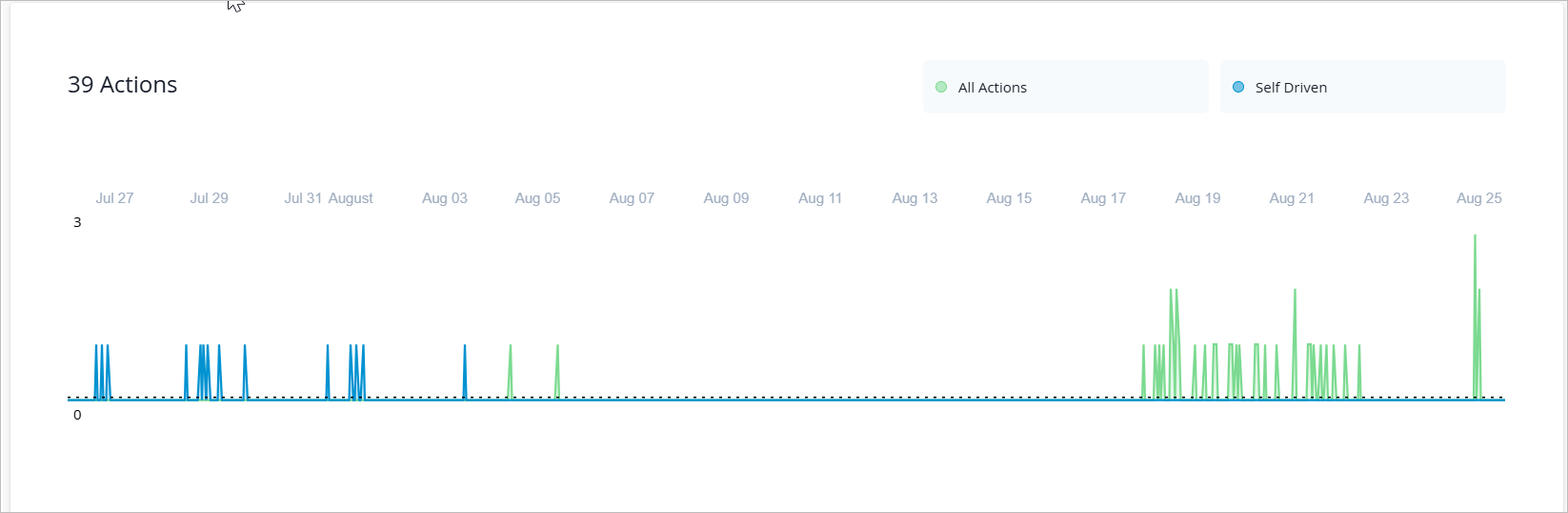
The second section displays a time series graph of the number of actions created over a specific time duration, the default being 30 days. You can view either all the actions or only the self-driven actions (if enabled). All actions include the self-driven actions. Here is an example of how the graph is displayed when you click All Actions. Note that the total number of actions created in the last 30 days is 39, which includes the self-driven actions.
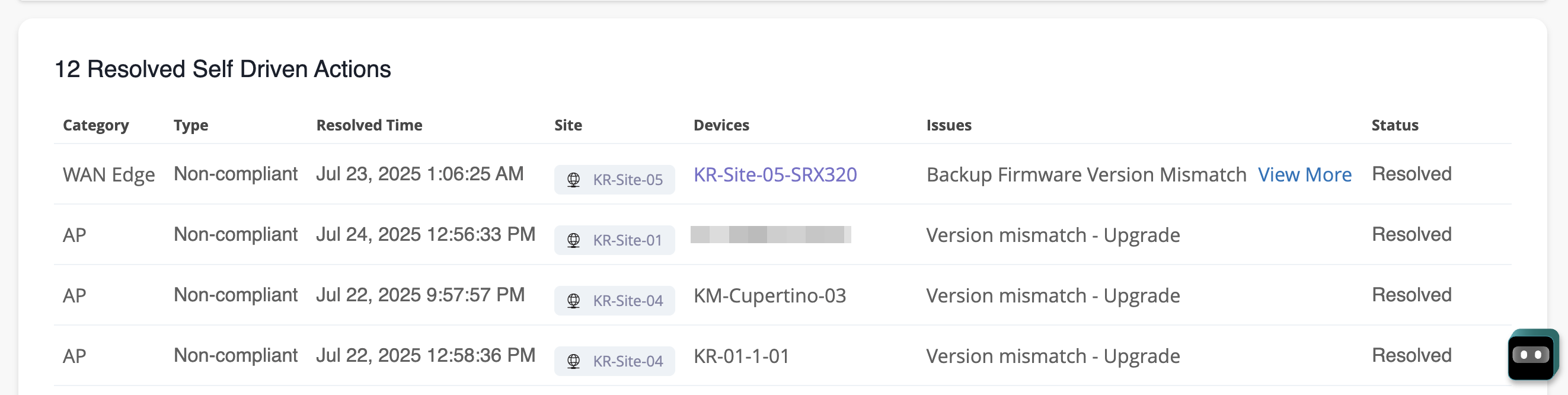
The last section displays the list of issues that were automatically resolved by self-driving actions (if enabled) for the selected time duration, the default being 30 days. If you select an action under a category, then you will see the list of recommended actions instead.
For information about self-driving actions, see Self-Driving Marvis Actions.
The Time Series graph and the Recommended Actions sections display issues for all possible statuses for a selected action and time duration at the organization or site level, unlike the categories section that lists only the currently open issues.
- Self-Driving HPE Marvis Actions
- Detailed View of Issues and HPE Marvis Recommended Actions
- Downloadable List of Issues
- Issue Resolution
- View the HPE Marvis Actions Time Series Graph
- Filter HPE Marvis Recommended Actions by Status
Self-Driving HPE Marvis Actions
You can enable self-driving capability for certain HPE Marvis actions by granting permissions to HPE Marvis. HPE Marvis then performs remediation automatically to resolve any issues flagged under those actions. For information about the self-driving capability, see Self-Driving Marvis Actions.
Detailed View of Issues and HPE Marvis Recommended Actions
Each category has a group of actions under it. Each action can have one or multiple issues associated with it. If HPE Marvis does not detect any anomalies associated with an action, the action appears dimmed but you can still click the action to view the previous list of AI Validated issues for the action. You can view details of HPE Marvis Actions that were created in the last two months for an action or a category.
You can click a category to view the actions under that category. If you click an action, you'll see a detailed view, which includes the issue and recommended action. HPE Marvis provides a recommended action for all issues.
Here’s the HPE Marvis Actions view after drilling down into the Missing VLAN action under the Switch category. Notice that HPE Marvis provides the details of the site, switch, and the issue (two APs with missing VLANs). You’ll also see that the recommended solution from HPE Marvis is to add the VLAN configuration to the switch configuration.
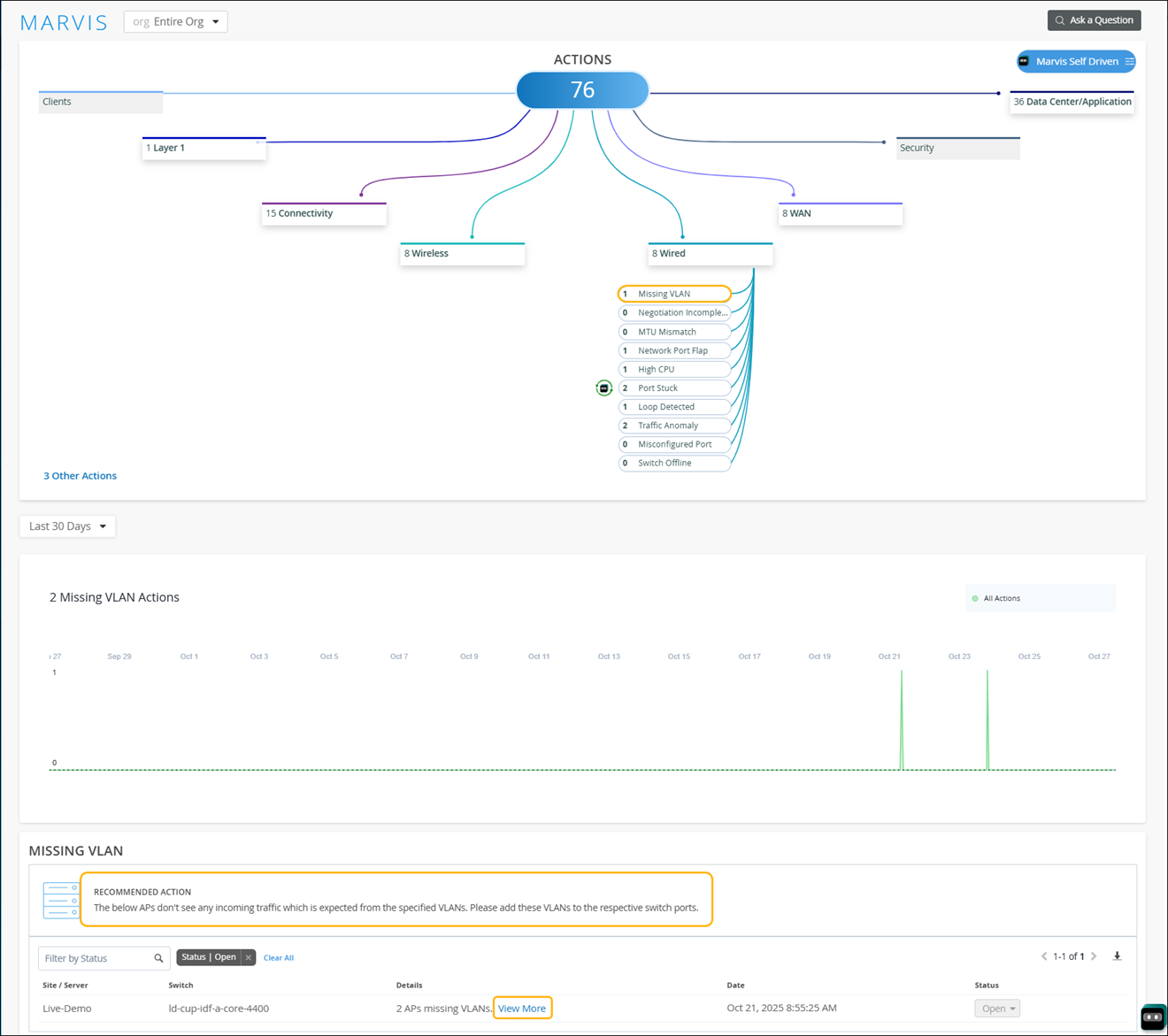
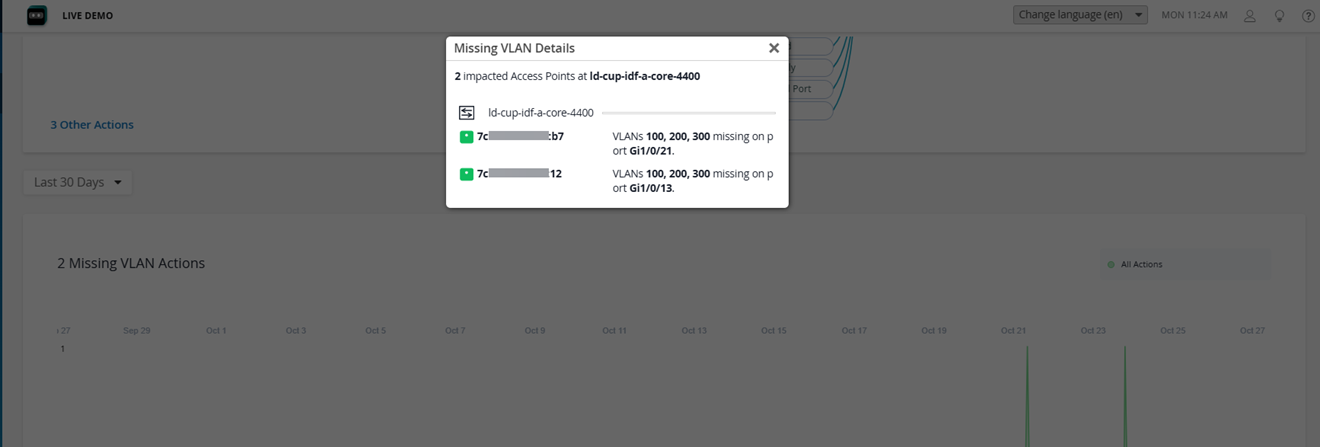
You can use the View More link in the Details column to view specific details about the ports on which the VLANs are missing. Here's an example of the page showing the port details.
Downloadable List of Issues
You can download the list of issues to a .CSV file format. The CSV file contains all the details visible on the Actions page, including the reason for failure and the device details. You can find the download (down arrow) icon on the upper-right corner of the Details section.
Issue Resolution
After you resolve an issue, you can change the status of an issue or multiple issues.
-
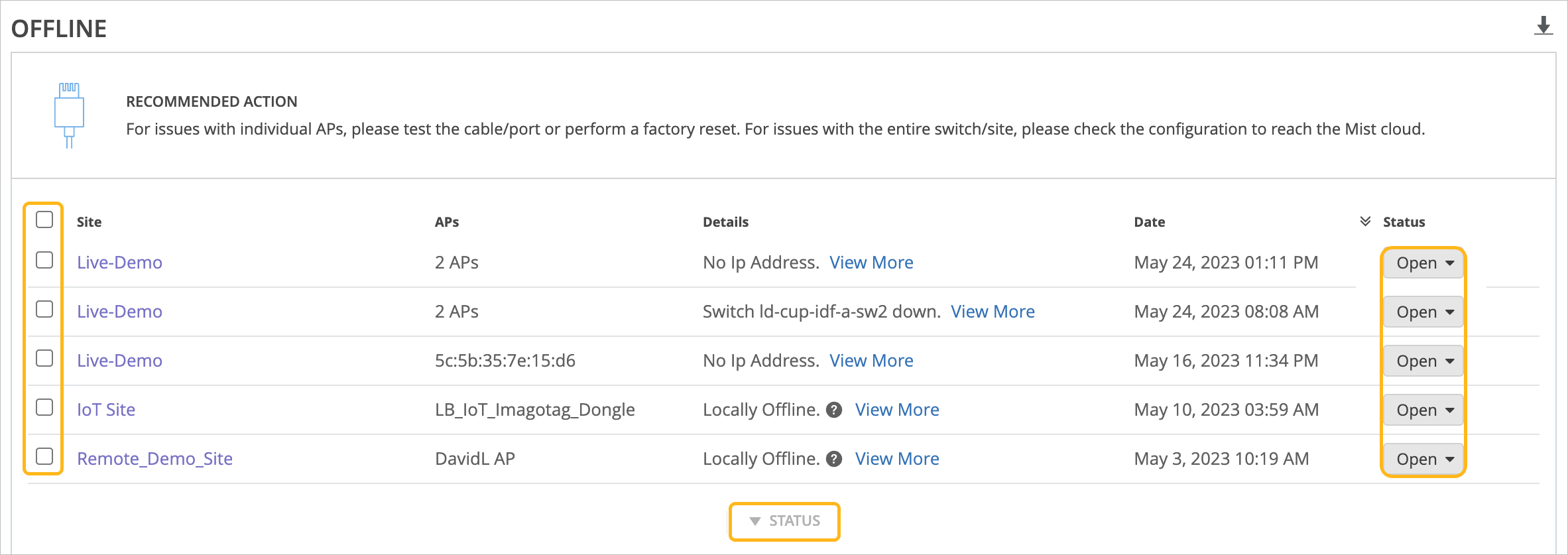
To update one issue—Click the Status button at the end of the row, and then click the new status.
-
To update multiple issues—Select the check box for each issue to update, or select the top check box to select all issues. Click the Status button at the bottom of the page, and then click the new status. This status will be applied to all selected issues.
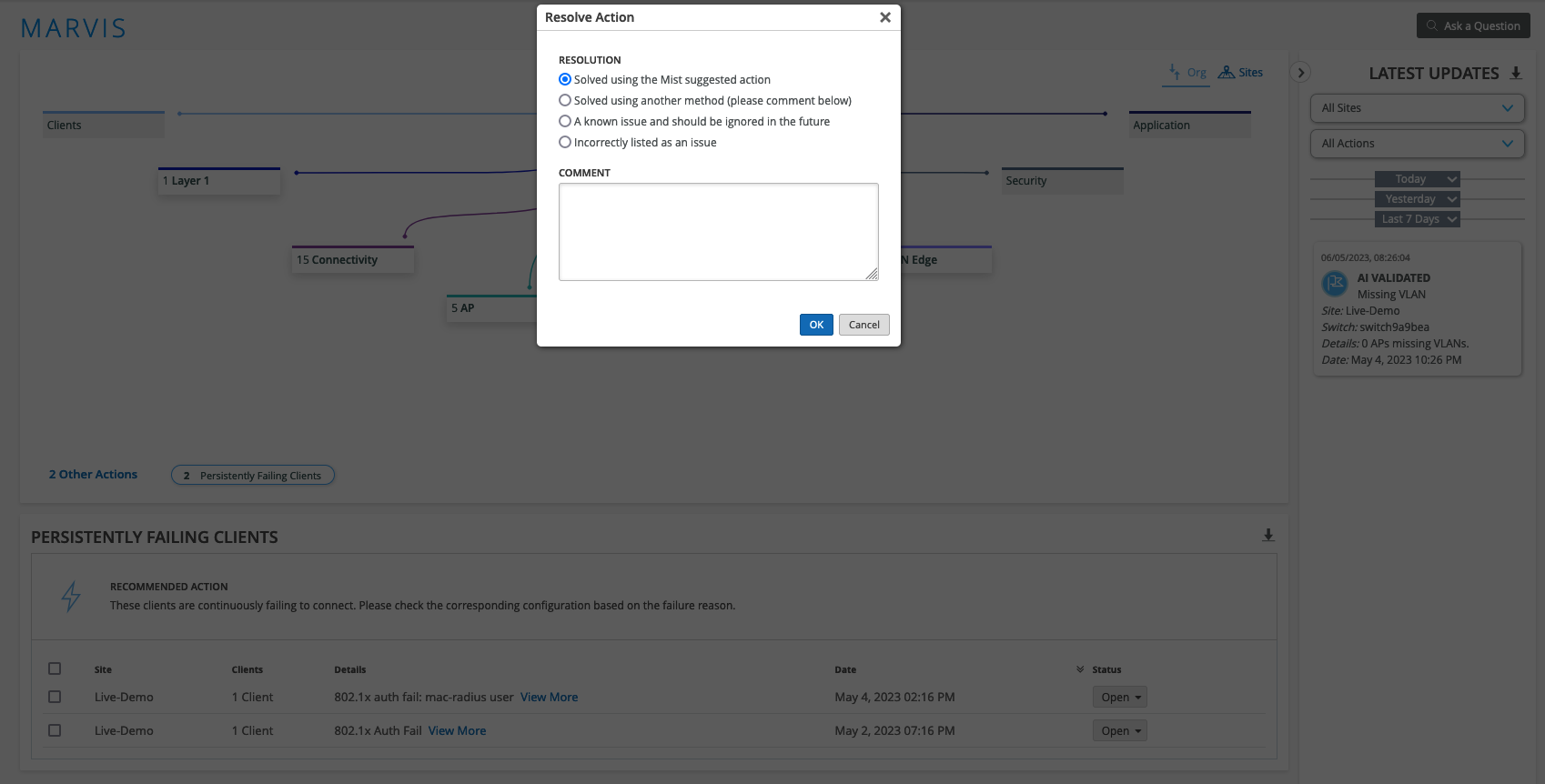
HPE Marvis prompts you for feedback, which HPE Mist uses internally to determine the efficacy of the action.
View the HPE Marvis Actions Time Series Graph
The HPE Marvis Actions page displays the creation date and time for each action. The data is presented on a time series graph, providing a clear and quick overview of the number of actions generated over specific periods. You can see the trends for both driver-assisted and self-driven actions at the site or organizational level for the selected duration.
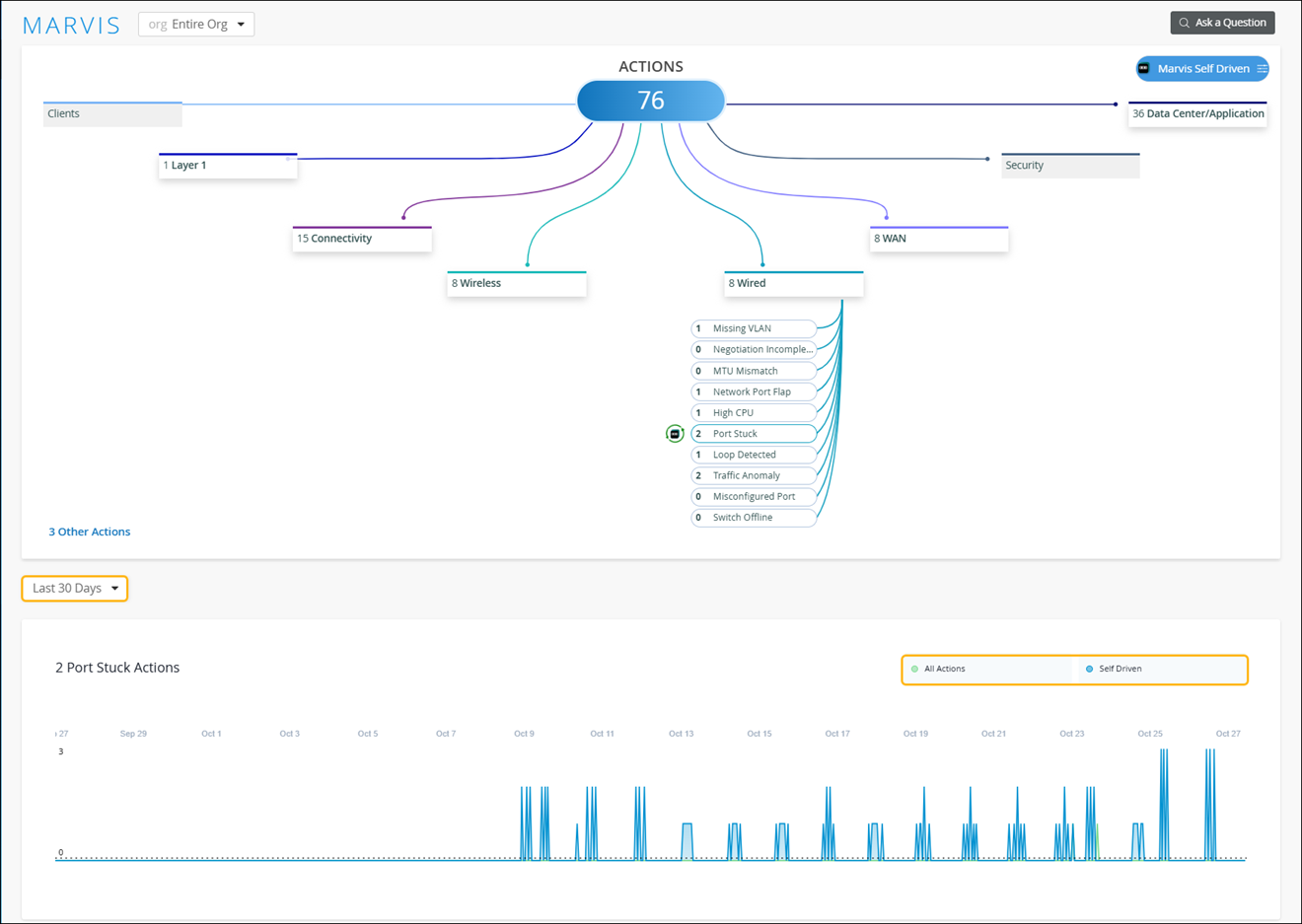
If you click All Actions, you can view all the actions generated by HPE Marvis for the selected duration. Click Self-Driven to view the automatically resolved issues. Note that the Self-Driven option is hidden for actions without the self-driving capability.
Filter HPE Marvis Recommended Actions by Status
The RECOMMENDED ACTION section on the HPE Marvis Actions page provides filters to list issues based on the status. By default, all issues in the Open status for the selected HPE Marvis Action and duration are displayed. Click Clear All and press the Spacebar in the filter text box to select a filter criteria. You can also manually enter the filter criteria directly into the filter text box.
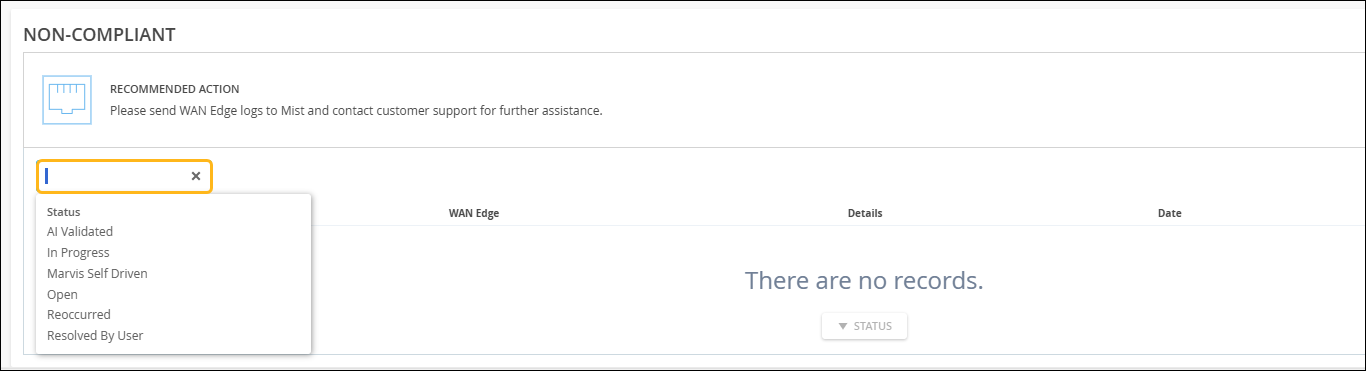
HPE Marvis classifies the issues under one of the following states:
-
All (no filter option selected)—Lists all the issues for the selected HPE Marvis action.
-
AI Validated—Lists all the resolved issues that have been validated as fixed by HPE Marvis.
If you fix an issue and update the status to Resolved by User, HPE Marvis verifies that the issue is resolved and classifies the issue as AI Validated.
If you fix an issue but don’t update the status, HPE Marvis detects that the issue is resolved and changes the status to AI Validated.
If the issue is fixed by a self-driving action, HPE Marvis validates that the issue no longer exists and changes the status to AI Validated.
-
In progress —Lists issues being fixed manually by users. HPE Marvis continuously monitors in-progress issues and marks them as AI Validated if it does not observe these issues during the validation time. The validation time is the time taken for HPE Marvis to mark an open HPE Marvis action as AI validated.
-
HPE Marvis Self Driven—Lists issues resolved by the HPE Marvis self-driving feature. After the issue is fixed, HPE Marvis performs checks to ensure that the issue is indeed resolved. If the issue is not observed during the validation time, HPE Marvis changes the status to AI Validated. The validation time is the time taken for HPE Marvis to mark an open HPE Marvis action as AI validated.
-
Open—Lists the unresolved issues for the selected HPE Marvis action.
-
Resolved by User (applicable to driver-assist actions only)—Lists the issues resolved by users manually.
For any self-driving action with permissions enabled, HPE Marvis identifies and automatically rectifies the issue by taking necessary actions. After the issue is resolved, the status of the issue changes to Marvis Self Driven. HPE Marvis changes the status to AI Validated only after validating that the issue has not reoccurred.
You can view issues resolved through a self-driven action by selecting the Marvis Self Driven or AI Validated filter. If you do not select a filter, all issues are listed including any Marvis Self Driven, AI Validated, and Open issues.
If an issue resolved by a self-driving action reoccurs, then HPE Marvis changes the status of the issue to Open.
You can click the download (down arrow) icon next to the toggle button to download the list of issues for your organization or site in CSV format.
Video: Troubleshooting Bad Signal Strength
In this video demo, HPE Marvis recommends actions for bad signal strength.
So, what else can Marvis do for us? Meet Marvis Actions, the proactive side of Marvis. Marvis identifies actions that users can take to improve their user experience. If there is action that can be taken to improve the network, it will be brought to the forefront here.
For our WAN, we see that Marvis has identified a persisting LTE signal quality issue. From here we can drill into the details of the issue and get a better sense of the impacts. Looks like I should take some action and have the antenna adjusted. This is a great example of Marvis helpfully suggesting actions we can take to make the user experience better.