Help us improve your experience.

Let us know what you think.

Do you have time for a two-minute survey?


Creating a Virtualized Instance of CTPView Server on a Hyper-V Server

To create a virtualized CTPView server in a Hyper-V environment:

  1. Install Hyper-V server on your system. We have taken Windows Server 2016 as the candidate for illustration purpose.
  2. Copy the ISO files. For example, you will need CentOS_CTPView_7.3R7-1_210302_CD.iso for 7.3R7-1 CTPView and centOS-7-x86_64-DVD-1804.iso for 9.x CTPView , at the Hyper-V datastore at the path C:\Users\Administrator\Downloads. You can use any other path to store ISO files.
  3. To open Hyper-V Manager, click Hyper-V in Server Manager.Right click Hyper-V server.Click Hyper-V Manager as shown, or you can access it by searching with the keyword “Hyper-V Manager” from the start menu.
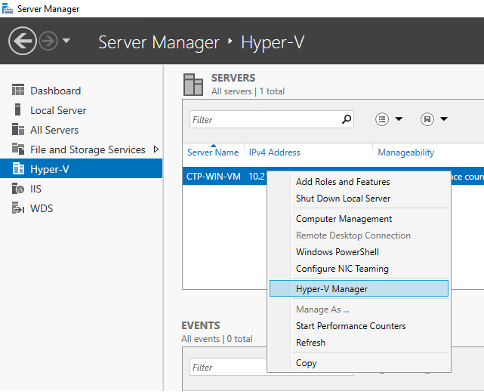
    Server Manager interface in Windows Server showing Hyper-V role. Hyper-V Manager is highlighted in the context menu.
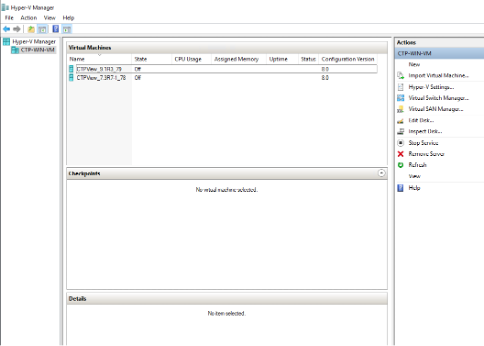
    Hyper-V Manager interface showing a list of virtual machines, actions menu, and empty details section.
  4. Click New > Virtual Machine in the Actions pane to create a new VM as shown below.
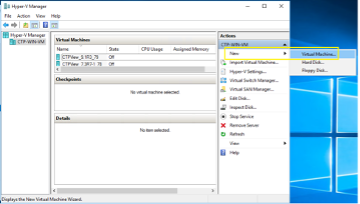
    Hyper-V Manager interface displaying virtual machines, their status, CPU usage, and memory. Actions pane open to create a new virtual machine.
  5. Click Next to create a VM with a custom configuration.
  6. Enter a name and location for this VM. Then click Next.
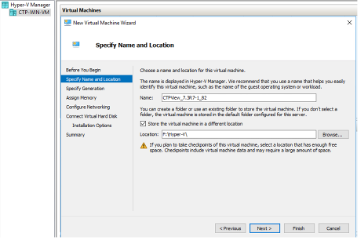
    New Virtual Machine Wizard in Hyper-V Manager on Specify Name and Location step; input fields for VM name and storage location, with navigation buttons.
  7. Select Generation 1 as it is suitable for both 32-bit and 64-bit guest operating systems and click Next.
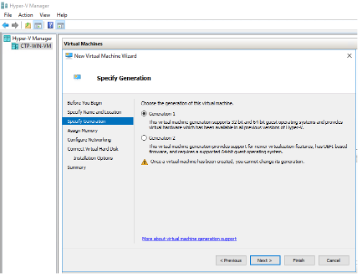
    Specify Generation step in New Virtual Machine Wizard with options Generation 1 and Generation 2 in Hyper-V Manager.
  8. Enter memory size as 768 MB for “7.x CTPView” and 4 GB in case of “CentOS 7 (9.x CTPView)” and then click Next. Uncheck “Use Dynamic Memory for this virtual machine” check box if selected. This is applicable only for nested virtualization. Click “Next”.
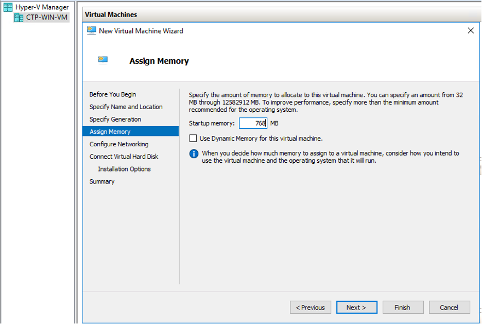
    Assign Memory step in Hyper-V Manager's New Virtual Machine Wizard, with 700 MB startup memory and Dynamic Memory option.
  9. Leave Network configuration as “Not Connected”. You need to add Legacy Network Adapter as the default Network Adapter is not supported in CTPView. There is no option to add Legacy Network Adapter at this stage. You can add this after creating the virtual machine. Click “Next”.
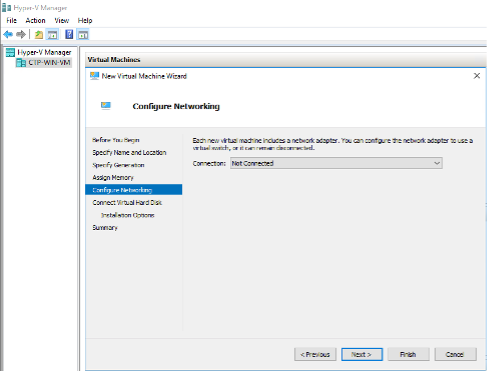
    Hyper-V Manager New Virtual Machine Wizard at Configure Networking step with Connection dropdown set to Not Connected.
  10. Choose disk size as 40 GB for “7.x CTPView” and 80 GB in case of “CentOS 7 (9.x CTPView)” and create a virtual hard disk as shown.
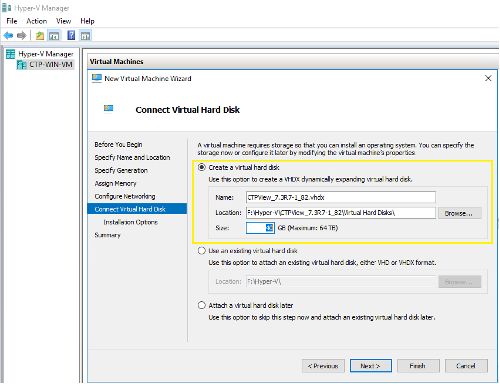
    Connect Virtual Hard Disk step in Hyper-V Manager, highlighting new VHDX file creation with specified name, location, and size.
  11. Select installation from CD/DVD-ROM and specify the full path of the required installation image file (.iso). Click “Next”.
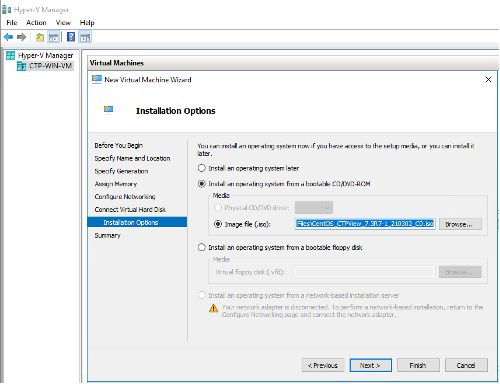
    Installation Options step in Hyper-V Manager's New Virtual Machine Wizard. User selects ISO file ResCentOS_CTPrev_3.8.9-210302-C0.iso for OS installation.
  12. Summary of VM configuration will be displayed. Click Finish to create the Virtual machine.
  13. Select the VM and click Settings in the Actions pane.
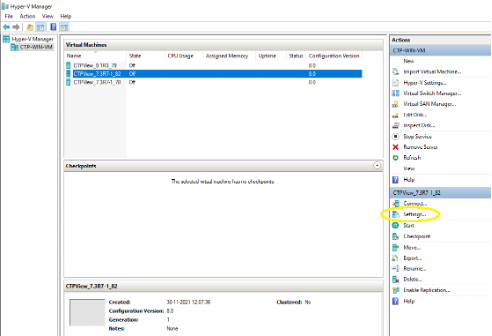
    Hyper-V Manager interface showing virtual machines list with details. A virtual machine is selected with Settings option highlighted in Actions pane.
  14. Settings window is displayed. Select 2 Virtual processors.
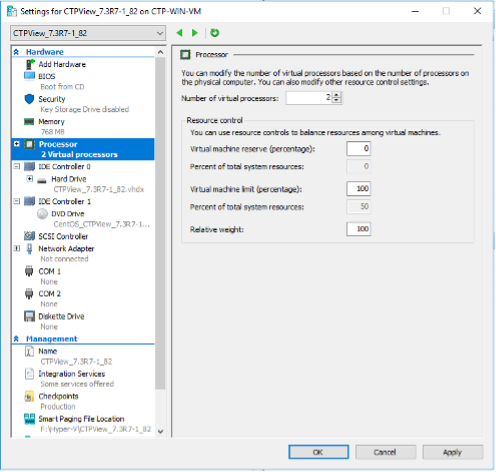
    Settings window for virtual machine CTPView_7.3R7-1_82 showing Processor settings with 2 virtual processors and CPU resource controls.
  15. Delete the Network Adapter which is present by default, and select Legacy Network Adapter option under “Add Hardware” in the “Hardware” pane. Then click Add, A popup window is displayed.
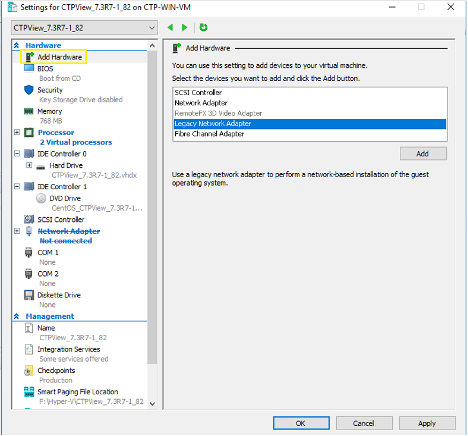
    Settings window in Hyper-V Manager: Configuring CTPView_7.3R7-1.82; Left pane: components list, Right pane: Add Hardware with Legacy Network Adapter selected; Buttons: Add, OK, Cancel, Apply.
  16. Select the Virtual Switch which was created while installing the Hyper-V service. In this case, Virtual Switch name is HyperV EXT Virtual Switch.
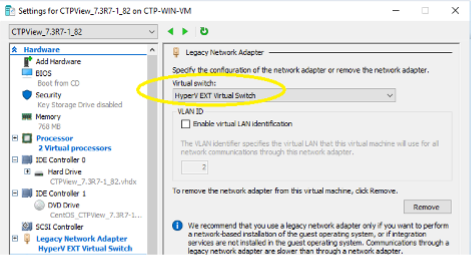
    Settings window for a virtual machine in Hyper-V, showing Legacy Network Adapter configuration with HyperV EXT Virtual Switch and VLAN tagging options.
  17. For 9.x CTPView, configure 2 Legacy Network Adapters. After changing these hardware settings, click OK.
  18. Select the VM and click Connect in the Actions pane to open VM console. Then start the virtual machine.
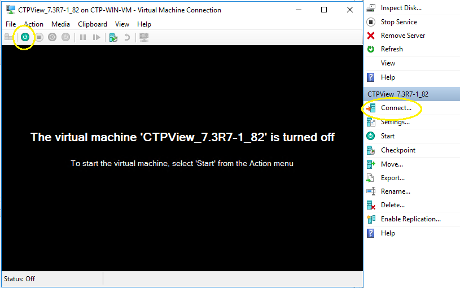
    Hyper-V Manager interface showing VM CTPView_7.3R7-1_82 turned off. Highlights: Connect option and toolbar button for VM interaction.
  19. In case of CentOS 7 (9.x CTPView) installation, select “Install centOS Linux 7” and complete the installation. See Creating a Virtualized Instance of CTPView Server on an ESX Server for detailed information on CentOS 7 installation procedure. Install 9.x CTPView RPM on top of CentOS 7.
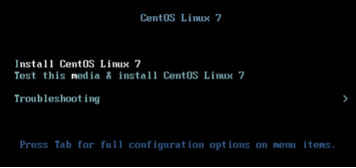
    CentOS Linux 7 boot menu with options to install, test media and install, or access troubleshooting. Press Tab for full configuration options.
  20. In 7.x CTPView, at the prompt “boot:”, enter your installation choice as “ctpview-install”.
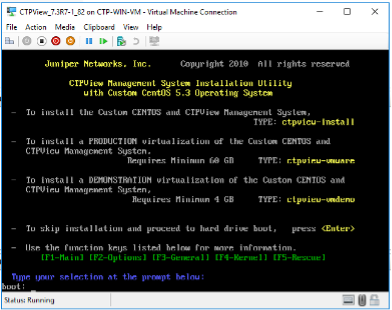
    Virtual machine console running CTPView Management System installation utility by Juniper Networks with options for install or boot.
  21. VM will reboot after 20~30 minutes. It will display the same boot options. At this stage, turn off the VM and go to “Settings” in the Actions pane.
  22. Click on DVD Drive and select None option and apply the settings.
    Note:

    This step is not applicable to Centos 7 installation.
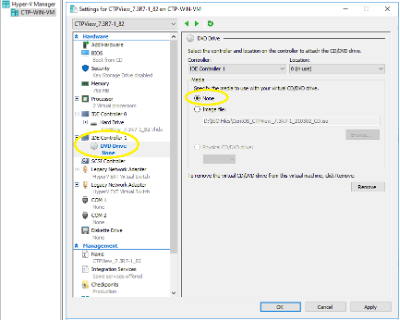
    Settings window in Hyper-V Manager showing IDE Controller with DVD Drive options. "None" selected, no media attached.
  23. Start the VM and configure basic settings, such as the IP address and hostname using the CTPView CLI menu.