
Assign Telemetry Profiles
After you have successfully assigned roles to devices and run the auto-configuration job, you can assign telemetry profiles. This is an optional step when you perform the device onboarding task. You can also assign telemetry profiles after device onboarding. For more information on assigning telemetry profiles after device onboarding, see Contrail Insights Flows in Contrail Command.
You can assign a telemetry profile to a device. Each telemetry profile is linked to an sFlow profile and you can have only one sFlow profile per telemetry profile. You can either link a telemetry profile to an existing sFlow profile or create a new sFlow profile while creating the telemetry profile. Three default sFlow profiles and telemetry profiles are predefined in the system when you bring up the cluster. You cannot edit or delete these default profiles.
The default telemetry profiles are
-
sflow-access-interfaces—Indicates that sFlow is enabled on all the access interfaces on the device.
-
sflow-fabric-interfaces—Indicates that sFlow is enabled on all the fabric interfaces.
-
sflow-all-interfaces—Indicates that sFlow is enabled on all the interfaces on the device that has an sFlow profile attached to it.
You can assign a telemetry profile to more than one device. Follow these steps to assign a telemetry profile to device(s).
-
To assign a telemetry profile to a device,
-
Click the Assign icon at the end of the row
to assign telemetry profile. See Figure 1.
Figure 1: Assign a Telemetry Profile to a Device

To assign a telemetry profile to more than one device,
-
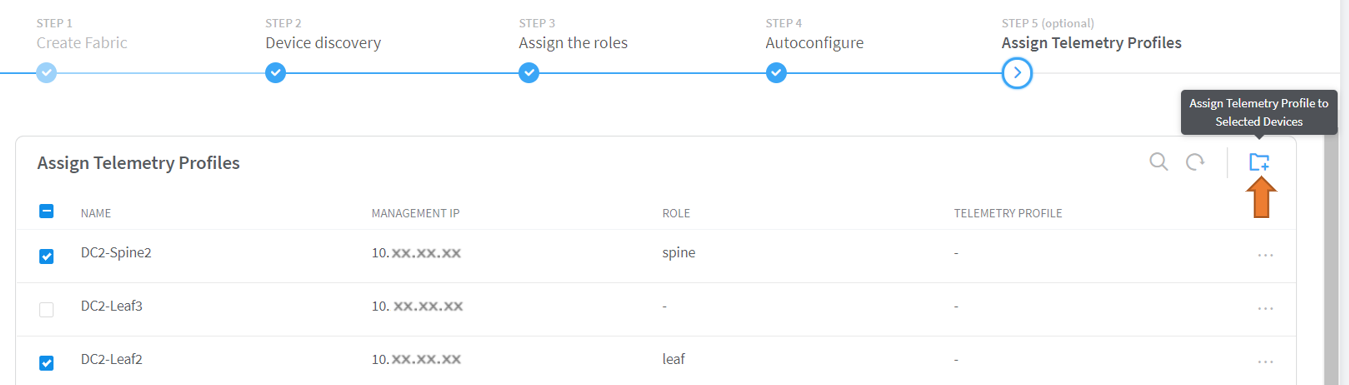
Click Assign Telemetry Profile to Selected Devices as
show in Figure 2.
Figure 2: Assign Telemetry Profile to Multiple Devices
The Assign Telemetry Profile to Device pop-up is displayed.
-
Click the Assign icon at the end of the row
to assign telemetry profile. See Figure 1.
The onboarding job is now complete.