Help us improve your experience.

Let us know what you think.

Do you have time for a two-minute survey?


Image Management

This topic provides instructions to upload a new device image to the Contrail Networking fabric.

Upload a New Device Image

Follow these steps to upload a new device image:

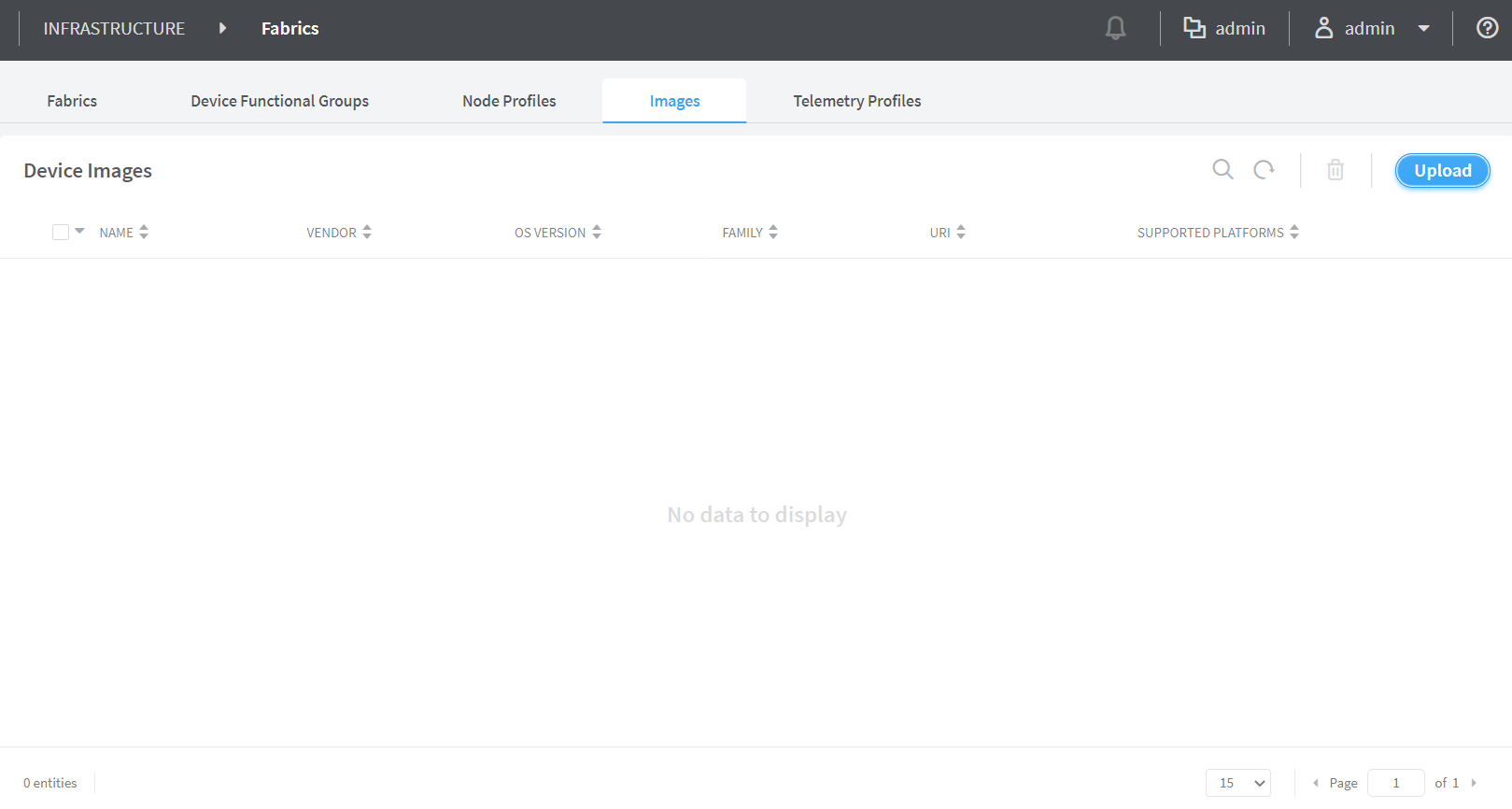
  1. Click Infrastructure>Fabrics>Images.

    The Device Images page is displayed. See Figure 1.

    Figure 1: Device Images User interface for managing device images within an infrastructure system. Images tab selected; no data to display. Options to search, delete, and upload images. Logged in as admin.
  2. Click Upload.

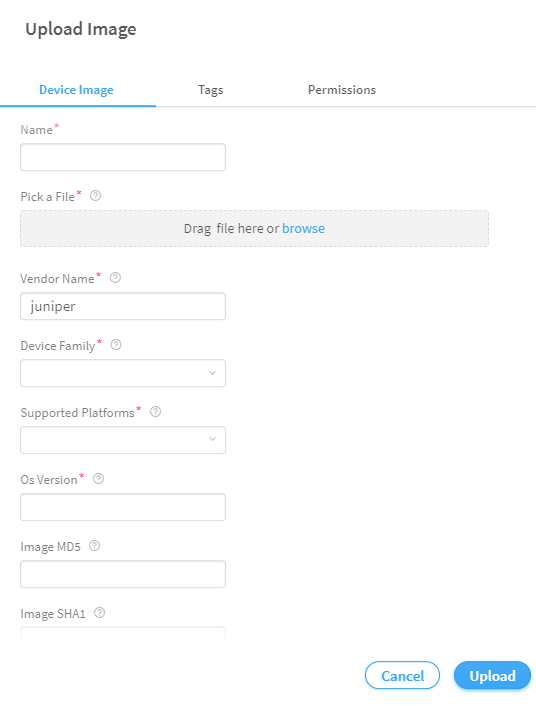
    The Upload Image pop-up is displayed. See Figure 2.

    Figure 2: Upload Image Upload device image form with fields for Name, File, Vendor juniper, Device Family, Platforms, OS Version, MD5, SHA1, and buttons for Cancel and Upload.
  3. Enter the following information given in Table 1.
    Table 1: Upload Image Details

    Field

    Action

    Name

    Enter a name for the device image.

    Pick a file

    Click Upload and navigate to the local directory and select the device image file.

    Click Open to confirm selection.

    Vendor Name

    Enter name of the vendor.

    Device Family

    Select the device family from the list.

    Supported platforms

    Select the hardware platforms that are compatible with the image file, from the list.

    OS version

    Enter the OS version.

    Image MD5

    (Optional) Enter MD5 checksum value.

    Image SHA1

    (Optional) Enter SHA1 checksum value.

    Note:

    The images that you upload can not have the same vendor name, device family, supported platforms, or OS version. The Contrail Command UI will not allow you to upload two image files with the same field information.

  4. Click Upload to begin uploading the device image file.

    You are redirected to the Device Images page. When the image upload is complete, the device image is listed in Device Images page.