
Step 1: Begin
This guide walks you through the simple steps to get a new greenfield cloud-ready EX, QFX, or CX switch up and running in the Juniper Mist AI cloud portal. You can onboard one or more switches using your computer, or a single switch using your mobile phone.
Before you begin, you must set up your organization and sites, and activate your subscriptions. For more information, see Quick Start: Mist.
We describe two different ZTP-based onboarding methods. To onboard:
-
a single switch using your mobile phone, see Onboard One Switch Using the Mist AI Mobile App.
-
one or more switches using your computer, see Onboard One or More Switches Using a Web Browser.
Trying to do something else? Check out the content at the links provided here:
-
Onboard an existing, in-service (brownfield) switch into Mist using the Adopt Switch procedure. See Onboard a Brownfield Switch.
Note: You need to use the Adopt Switch procedure to onboard a switch which is not cloud-ready and does not have a QR code on it. -
Not using Mist? Find options and instructions in the model-specific Hardware Guide on the Juniper Mist Supported Hardware page.
-
Review the shipment packing list. See the model-specific Hardware Guide on the Juniper Mist Supported Hardware page.
-
Install the hardware. See the model-specific Hardware Guide on the Juniper Mist Supported Hardware page.
Cloud-Ready Switches
The Juniper Networks® Cloud-Ready Switches come ready to install and manage using the Juniper Mist Cloud portal at https://manage.mist.com.
Your switch is cloud-ready if it has a QR claim code. For some switches, such as the EX5200 and CX Series switches, the QR claim code is attached to a small pull-out tab (called information tab or serial number slide-out tab) on the front panel. For other switches, the code is directly attached to the front or back panel.
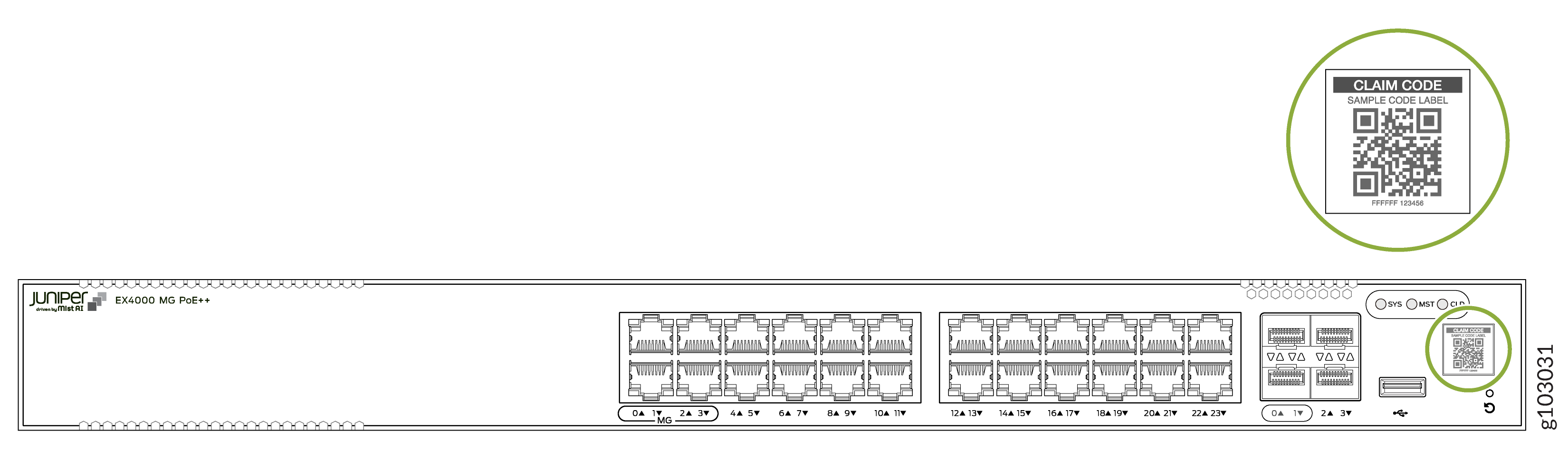
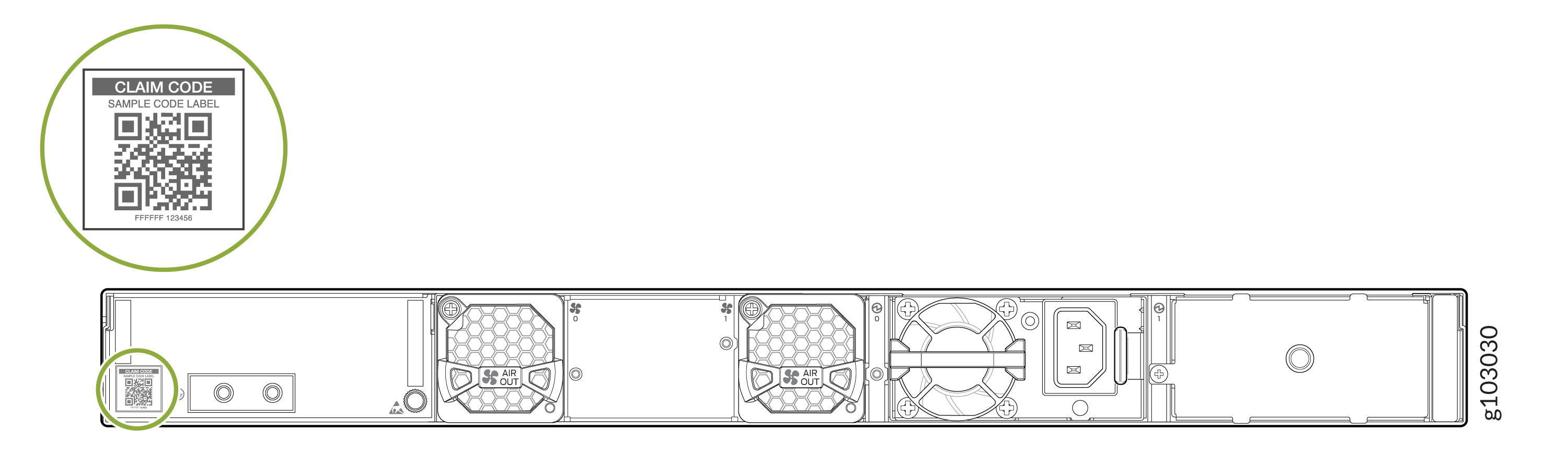
-
The onboarding procedures described in this guide apply only to cloud-ready EX, QFX, and CX switches. See Juniper Mist Supported Hardware for other supported models and their documentation.
-
Activation code-based onboarding (used for onboarding multiple switches simultaneously) is not supported for CX series switches. These switches can only be onboarded individually using a claim code.
Onboard One Switch Using the Mist AI Mobile App
-
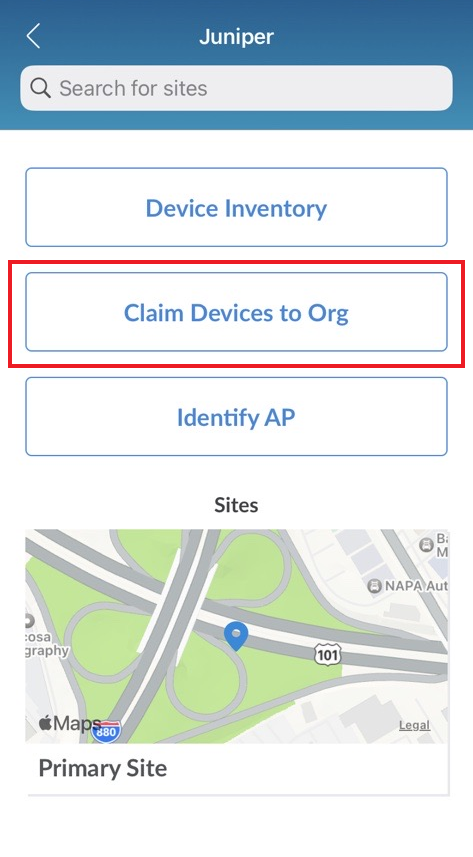
Tap Claim Devices to Org and focus the camera on the
QR code. The app automatically claims the switch and adds it into your
organization's inventory.
The Mist Mobile App does not allow you to set a root password when claiming a switch.
Onboard One or More Switches Using a Web Browser
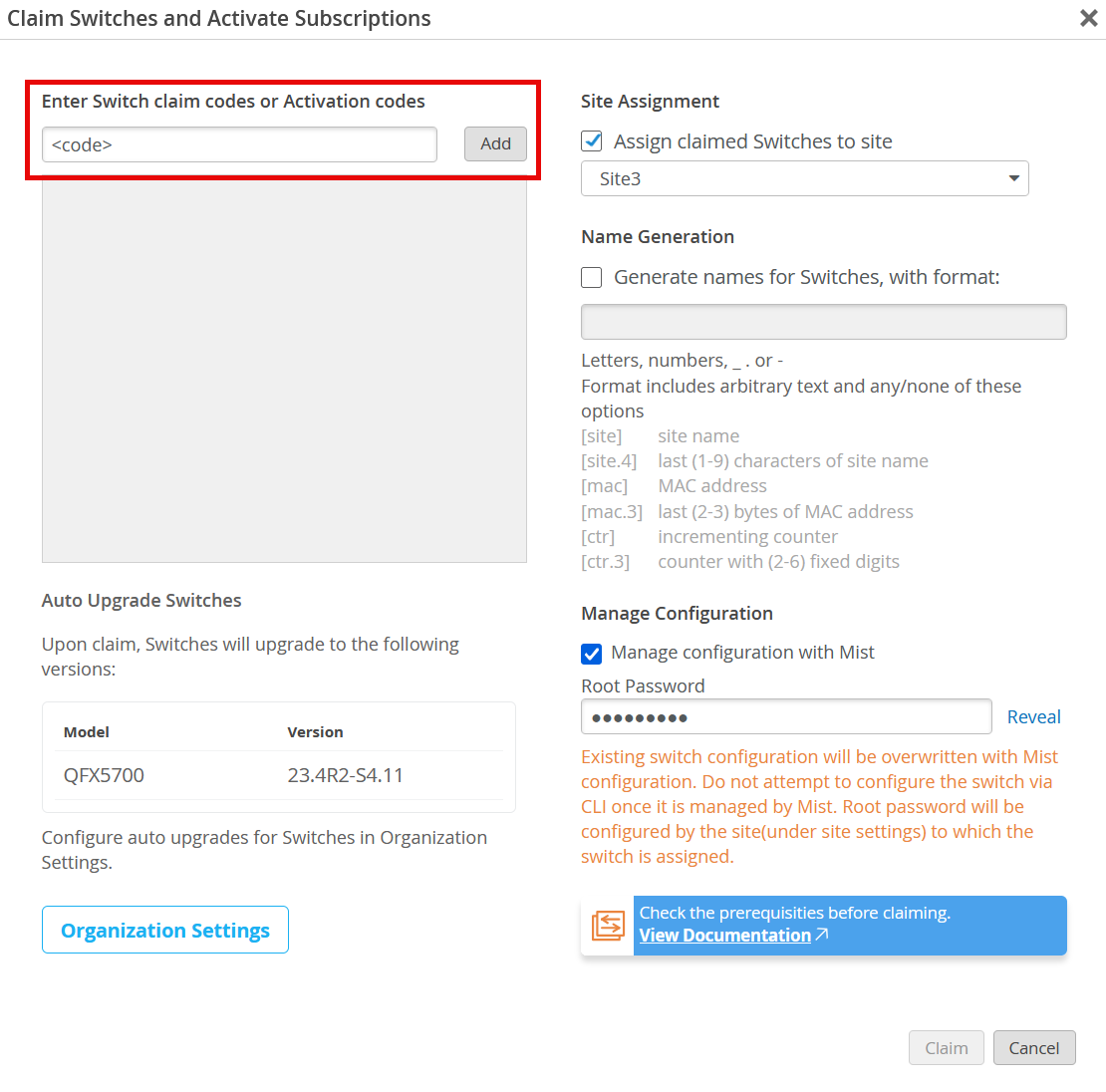
Onboarding multiple switches (applicable to EX and QFX Switches only)—When you purchase multiple switches, we provide you with an activation code along with your PO information. Make a note of this code.
Onboarding a single switch—Locate the QR code on your switch and make a note of the alphanumeric claim code directly above it.
-
Enter the Activation code or Claim code.
Integrate Your Juniper Support Account with Juniper Mist
For full access to Juniper device data and to features such as bug reports and security alerts, integrate your Juniper support account with Juniper Mist™.
When you integrate your Juniper Account with your Juniper Mist™ organization, the Inventory page presents actionable intelligence about your Juniper devices. This information is powered by Juniper Support Insights (JSI). With these insights, you can transform your support experience from reactive to focused and proactive.
To integrate your Juniper support account with Juniper Mist:
-
Start
from the Organization Settings page or the Installed Base page:
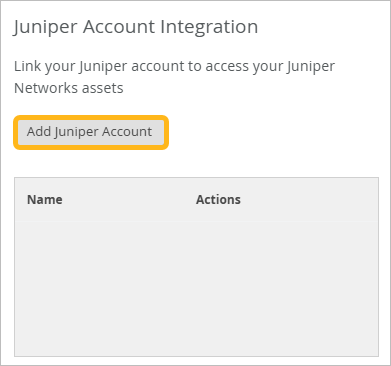
Organization Settings—From the left menu, select Organization > Admin > Settings. Under Juniper Account Integration, click Add Juniper Account.
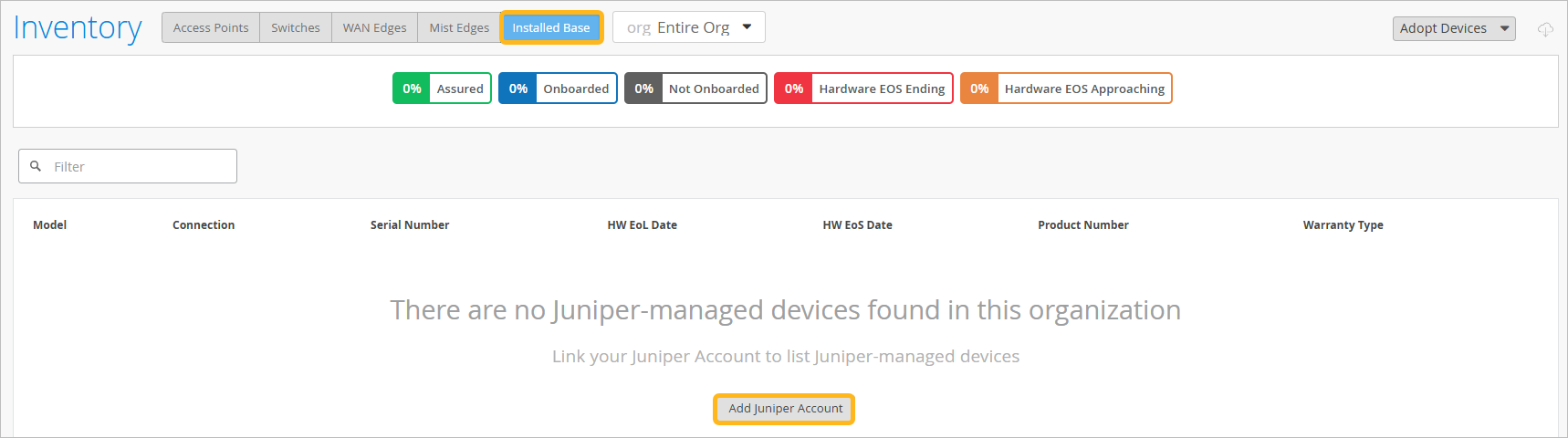
Installed Base—From the left menu, select Organization > Admin > Inventory. At the top of the Inventory page, click the Installed Base button. Click Add Juniper Account.
On successful integration, the primary account name associated with your credentials is listed in the Linked Accounts section. The Linked Account section also lists other primary accounts that are currently linked to the organization.
If you no longer wish to view Juniper-maintained asset information for devices associated with an account in your organization, you can unlink the account.
To view the insights, go to Organization > Admin > Inventory, and then click Installed Base at the top of the page.