
ON THIS PAGE
Fast Track to Rack Installation and Power
This section guides you through the simplest steps to install your SRX4120 Firewall in a rack and connect it to power. For more complex installation needs, see Install the SRX4120.

Install the SRX4120 in a Rack
You can install the Juniper Networks® SRX4120 Firewall in a four-post rack or cabinet. here, we’ll walk you through the steps to install an AC-powered device in a square-hole four-post rack.
Before you install, review the following:
-
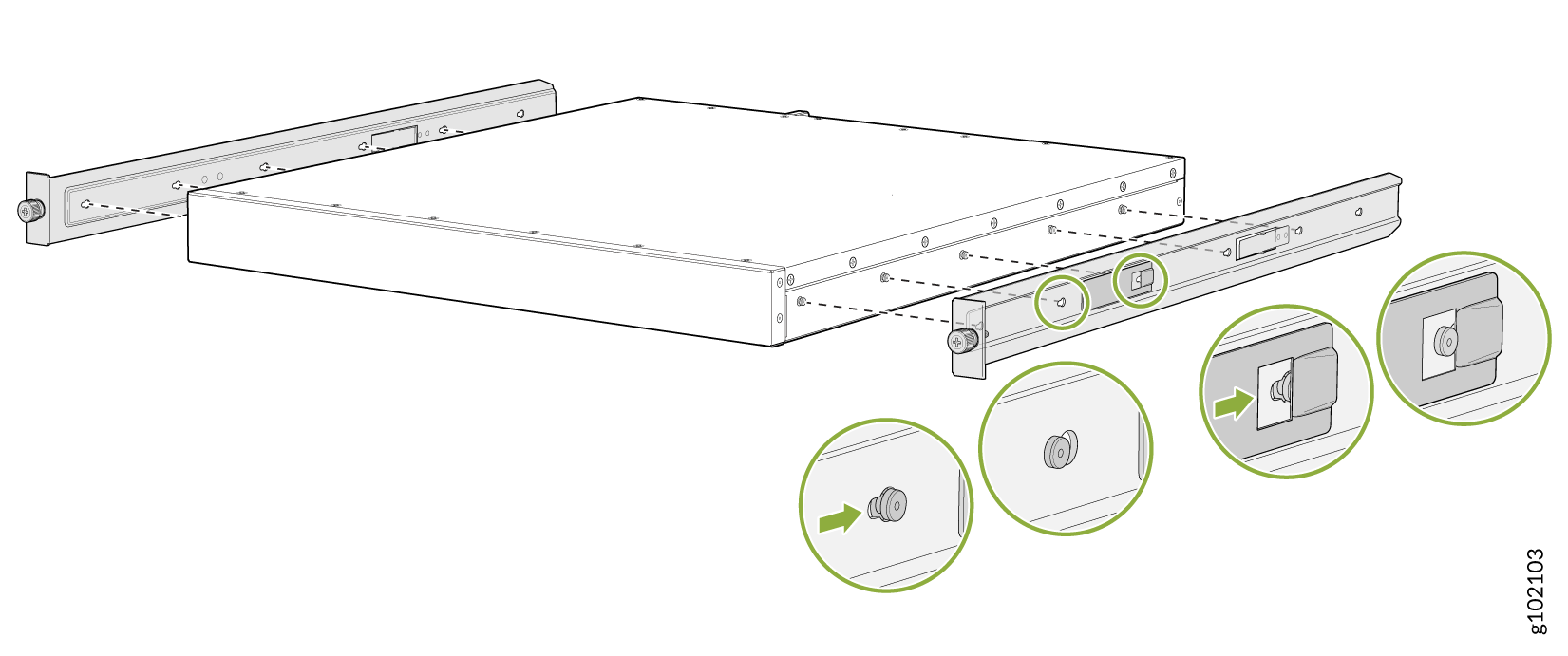
Attach the side-mounting brackets to the chassis. Align the keyholes of the
mounting brackets over the shoulder screws of the chassis and slide the
mounting brackets towards the rear of the chassis.
-
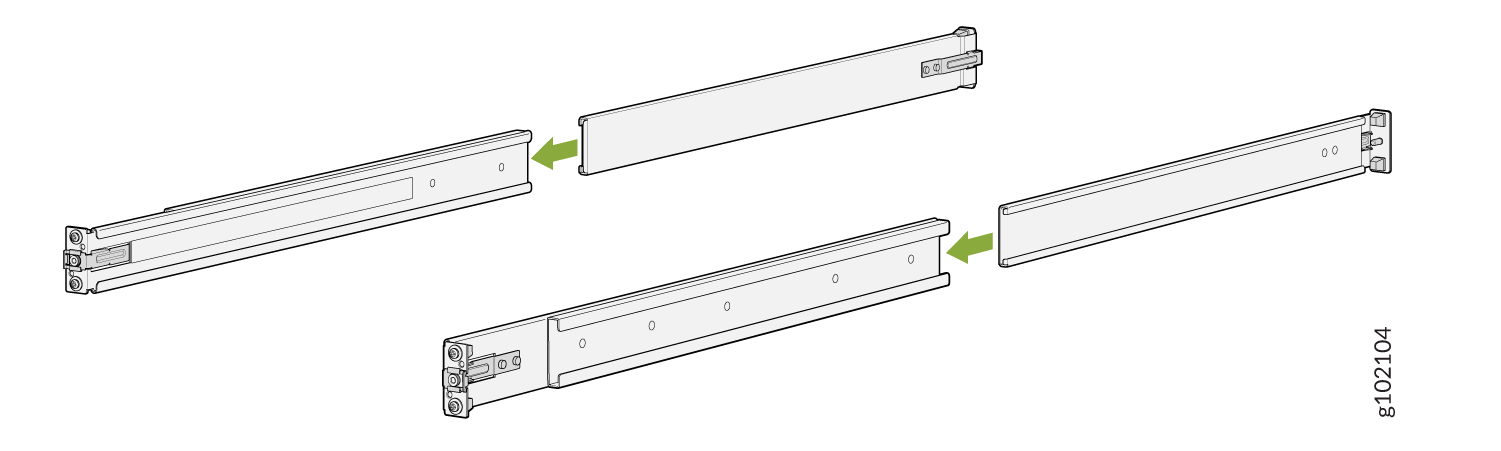
Assemble the mounting rails by sliding the rear rails into the front
rails.
-
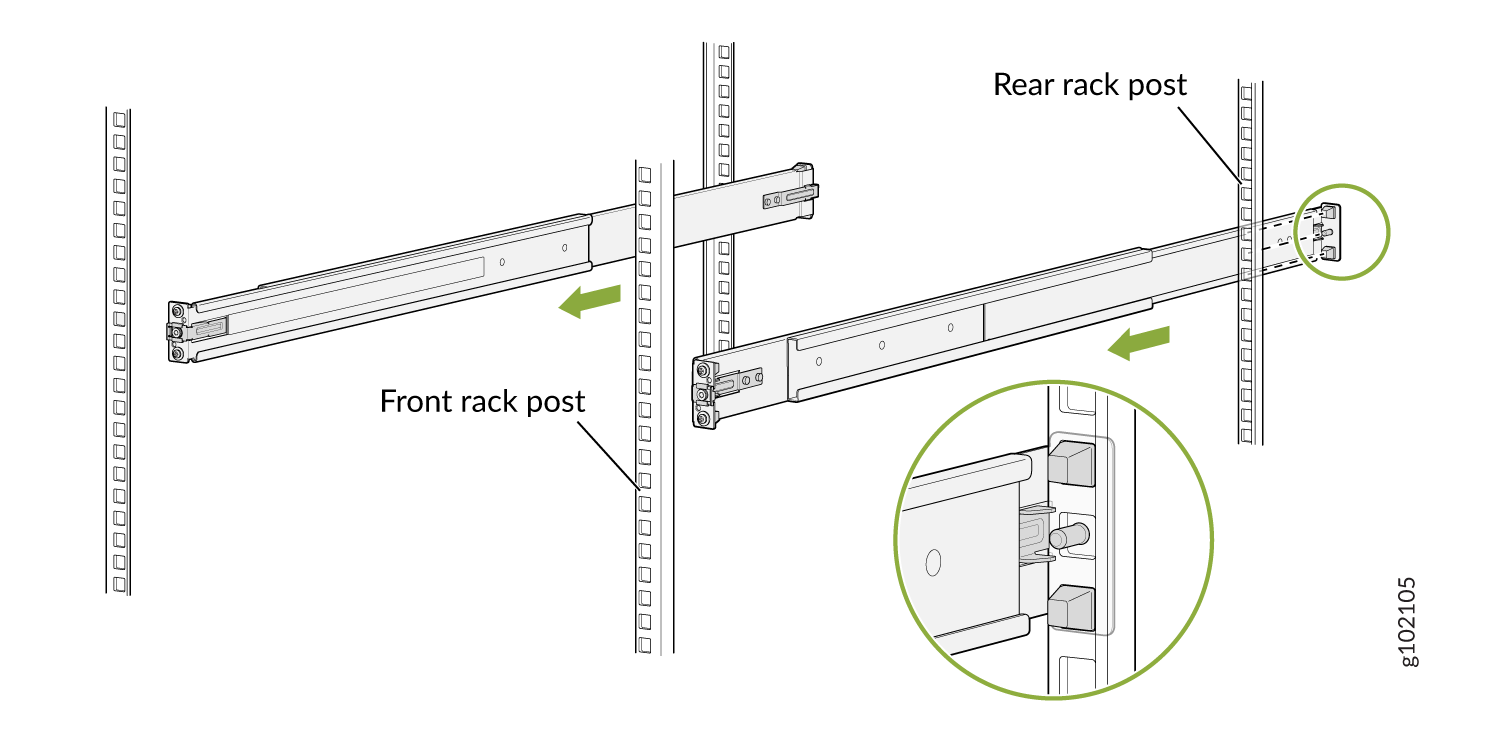
Align the guide blocks of the rear-mounting rail with the rear-post holes.
Pull the rear-mounting rail toward the front of the rack to lock the rail in
place. You'll hear a distinct click when the latch locks into the rack
holes.
-
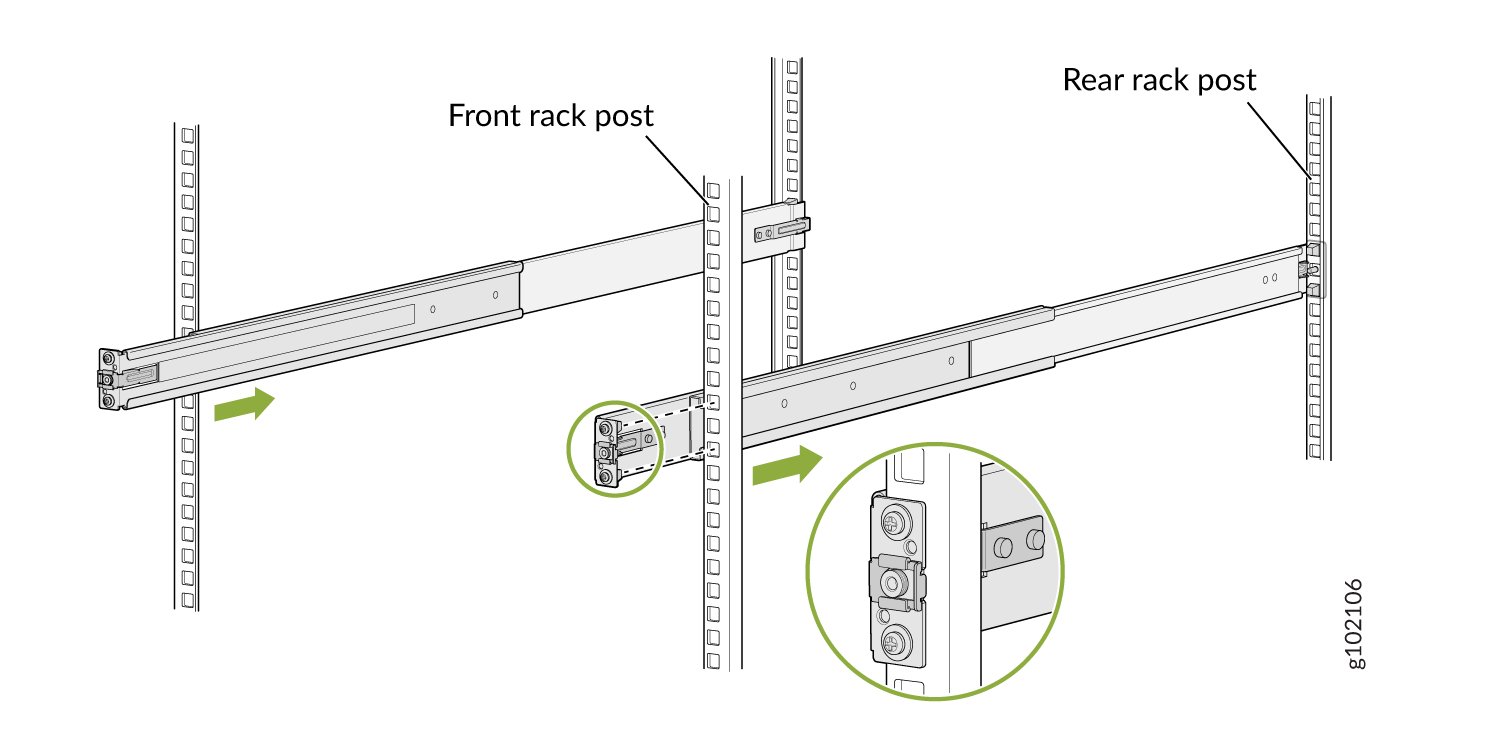
Align the guide blocks of the front-mounting rail with the front-post
holes. Push the front-mounting rail toward the rear of the rack to lock the
rail in place. You'll hear a distinct click when the latch locks into the
rack holes.
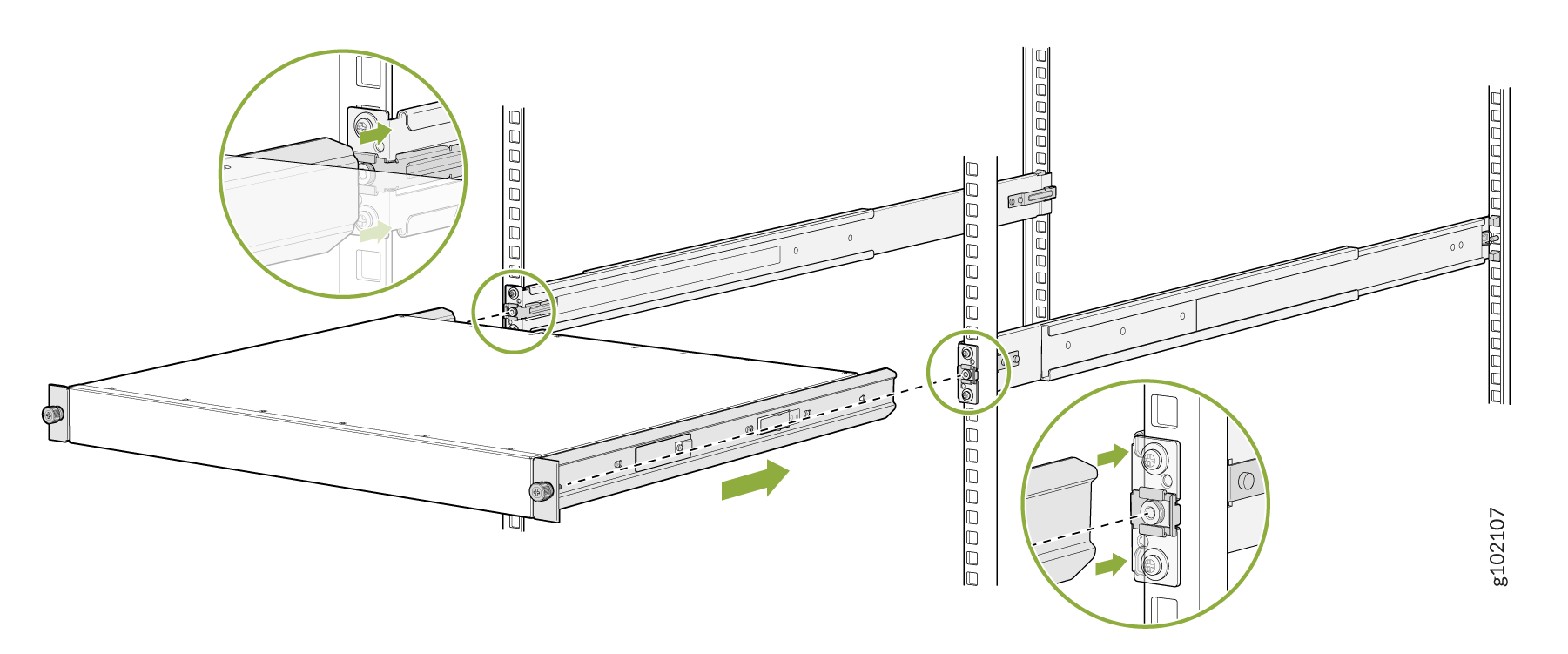
-
Lift the device and position it in the rack, aligning the side-mounting
brackets with the mounting rails. Slide the device into the channels of the
mounting rails.
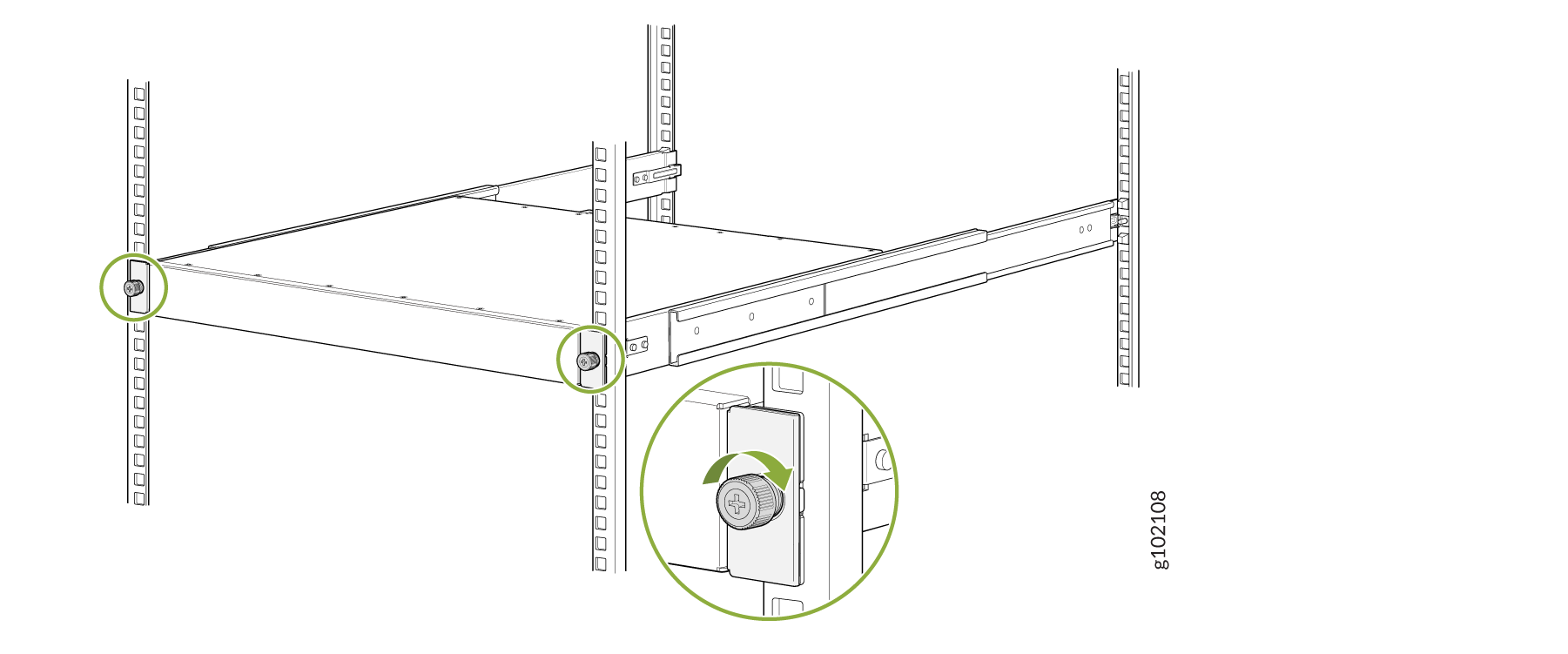
-
Tighten the two thumbscrews to secure the device.
Connect to Power
To connect the SRX4120 Firewall to AC power, you must do the following:
Ground the SRX4120 Firewall
To ground the SRX4120 Firewall:
Wrap and fasten one end of the electrostatic discharge (ESD) cable grounding strap around your bare wrist, and connect the other end to a site ESD point.
Connect the grounding cable to a proper earth ground, such as the rack in which you mount the device.
Place the grounding cable terminal attached to the grounding cable over the grounding point.
Secure the grounding cable terminal to the grounding point using screws.
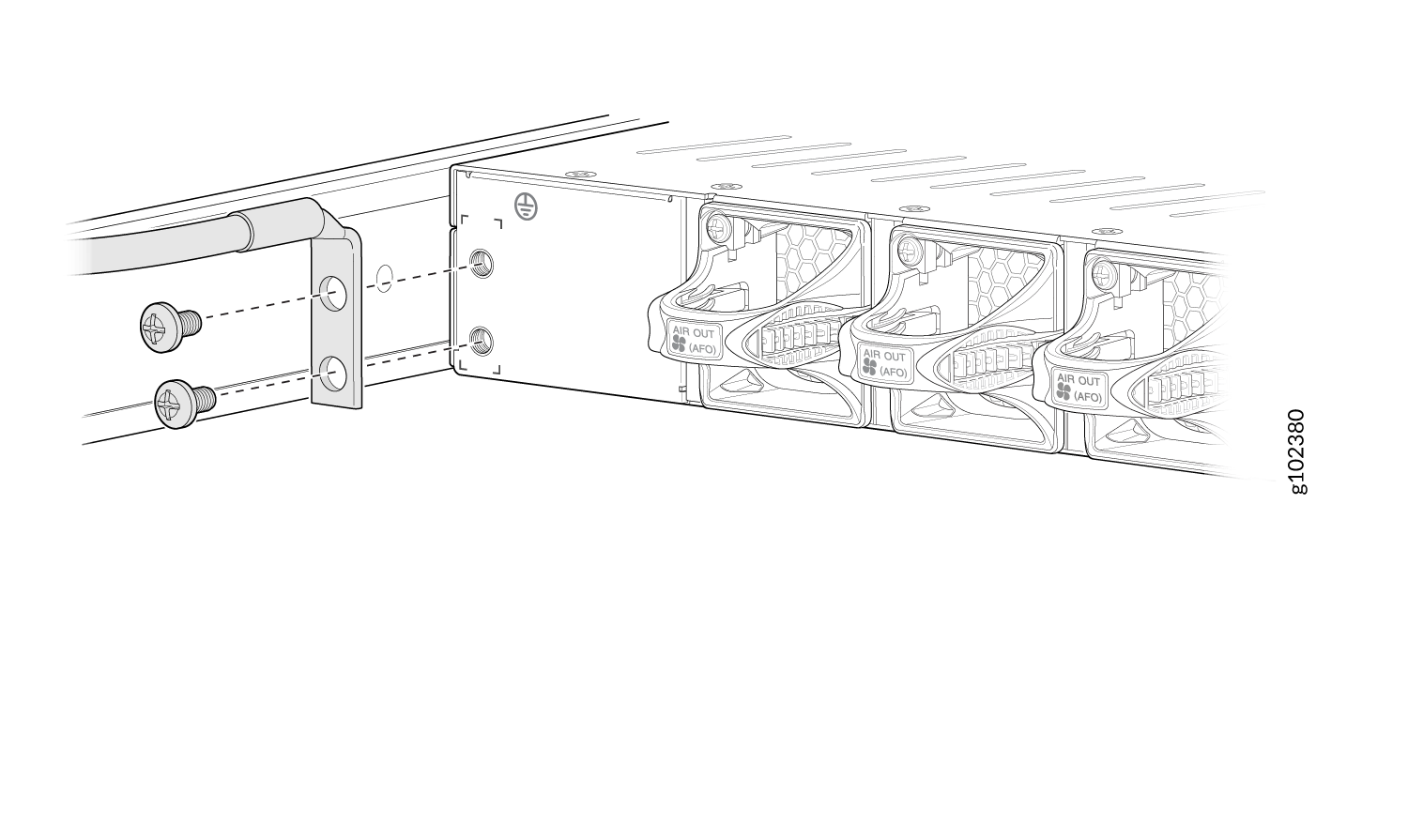
Dress the grounding cable. Ensure that the cable doesn’t block access to or come in contact with other device components, and that it doesn’t drape where people could trip over it.
Connect the Power Cord and Power On the SRX4120 Firewall
For information about the supported AC power cord specifications on your device, see SRX4120 Power System.
To connect the power cord, do the following:
-
Ensure that the power supply units are fully inserted in the rear panel of the device.
Insert the coupler end of the power cord into the AC power cord socket on the rear panel.
Push the power cord retainer on to the power cord.
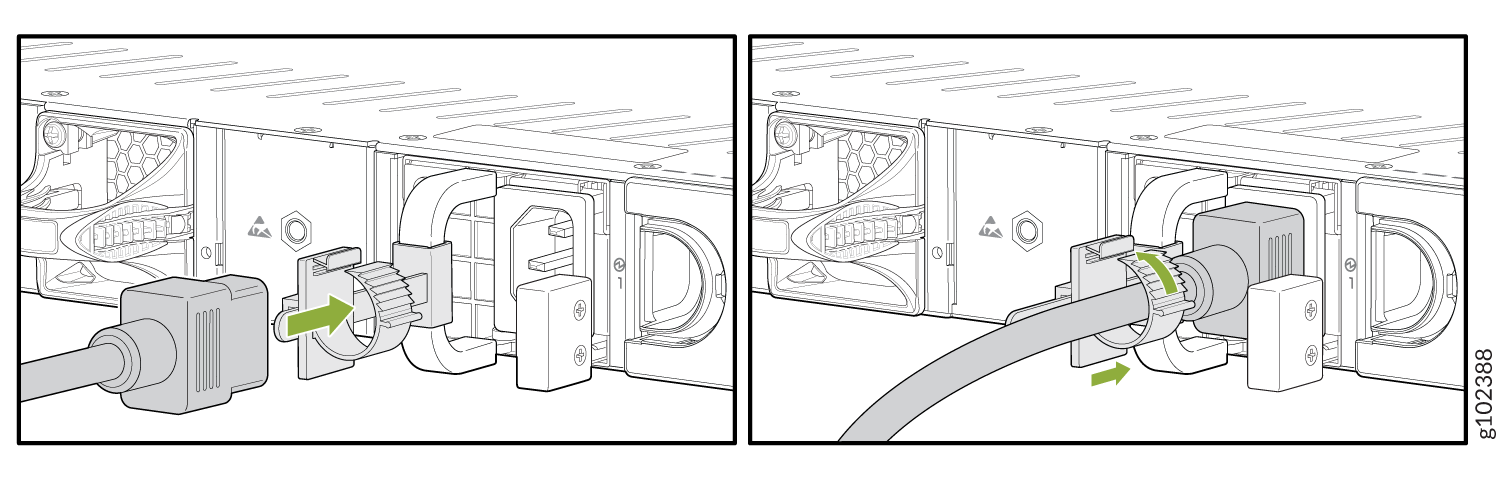
If the AC power source outlet has a power switch, turn it off.
Plug the power cord into an AC power source outlet.
If the AC power source outlet has a power switch, turn it on. The device doesn't have a power switch and powers on as soon as you plug it in.