
자격 증명 기반(EAP-TTLS) 인증 구성
자격 증명 기반 인증으로 네트워크를 보호하려면 다음 단계에 따라 인증서를 가져오고, 인증 정책을 만들고, EAP-TTLS(802.1X) 인증를 사용하도록 포트 프로필을 업데이트합니다.
EAP-TTLS(Extensible Authentication Protocol–Tunneled TLS)는 클라이언트 측에서 사용자 이름과 비밀번호를 사용하고 서버 측에서 서버 인증서를 사용하여 안전한 액세스를 제공합니다.
다음 작업은 유선 클라이언트에 대해 EAP-TTLS를 구성하는 방법을 보여줍니다. 이러한 인증 방법은 ID 공급자(IdP)에 저장된 자격 증명을 사용하여 사용자 이름과 비밀번호의 유효성을 검사합니다.
사전 요구 사항
-
IdP(ID Provider)를 주니퍼 Mist 포털과 통합하고 구성해야 합니다. 주니퍼 Mist Access Assurance용 ID 공급자 추가를 참조하십시오.
-
클라이언트 디바이스를 신청자로 구성해야 합니다. 이 구성의 경우 엔터프라이즈 PKI(공개 키 인프라)의 루트 인증 기관(CA) 인증서를 추가하고 IdP에 사용자 이름과 암호를 입력해야 합니다.
-
클라이언트 인증(클라이언트별 작업무선무선 수행하려면 주니퍼 액세스 지점 필요합니다.
-
클라우드 RADIUS 서버에서 사용할 퍼블릭 또는 프라이빗 엔터프라이즈 TLS 서버 인증서를 구성해야 합니다.
Azure IdP 통합을 사용하여 자격 증명 기반(EAP-TTLS) 인증을 구성하는 방법을 알아보려면 다음 비디오를 시청하세요.
Now, what else could we do with an IDP? We've already established that if we are using certificates or tell us to authenticate, we could use IDP and an additional source of information or context about the user. So namely, group memberships. Now, what about the authenticating users themselves without certificates?
What about authenticating users using usernames and passwords? We could leverage the existing connector with Azure to do EAP-TTLS authentication. With EAP-TTLS, the clients are using usernames and passwords to authenticate, as opposed to client certificates. So we can create another rule. We could say we are matching on the wireless user that is using TTLS instead of TLS.
And let's also match on the employee group. Why not? So we'll call it credential authentication - no - show authentication employees. Now, we will assign them to corporate VLAN. We'll hit Save. One thing we need to make sure that on the Azure portal on the app that we've created previously, there's one requirement for password authentication to work, you'll need to enable public client flows. Just click yes right here under authentication. You'll hit save.
And now we can go and check our client device. Let's take a look at the Windows device, how we can configure a Windows device to use TTLS. So we'll connect to mist-secure-net SSID. We'll be immediately prompted by the system to provide our username and password. So I'm going to give my full username and password. The important piece is to provide the full domain name - microsoft.com.
This is how the access assurance will find out which identity provider to talk to based on the domain name after the user. So click OK. Ask us to connect. And we're not connected using username and password. Now, let's take a look at our client events.
Let's look at the client insights. What we're seeing here is a slightly different flow because we are using usernames and passwords, we are not dealing with client certificates here. But the client is still trust in the server certificate. That's mutual trust is still there.
Now, we are going immediately to the identity provider to do the authentication to validate the credentials of that specific user. Now, after this phase is successful, we'll go ahead and look up all the user groups, the user roles from Azure, and finally we are matching on a specific authentication policy rule which we've just created to match on our new condition when clients are using TTLS.
유선 네트워크에 대한 자격 증명 기반(EAP-TTLS) 인증 구성
주니퍼 Mist 포털을 사용하여 유선 네트워크에 대한 인증서 기반 인증 설정하기:
- 신뢰할 수 있는 루트 인증 기관(CA)을 가져옵니다. 주니퍼 Mist는 인증 기관(CA)에서 생성한 인증서를 서버 인증서로 사용합니다. 자세한 내용은 디지털 인증서 사용을 참조하십시오.
- 인증 정책을 생성합니다.
- 스위치를 구성합니다.
- 연결된 유선 클라이언트가 네트워크 액세스를 필요로 하는 스위치의 각 포트에 포트 프로필을 할당합니다.
포트 구성 탭의 스위치 구성 선택 섹션에서 포트 범위 추가를 클릭하여 포트 프로파일을 포트와 연결합니다.
그림 1: 스위치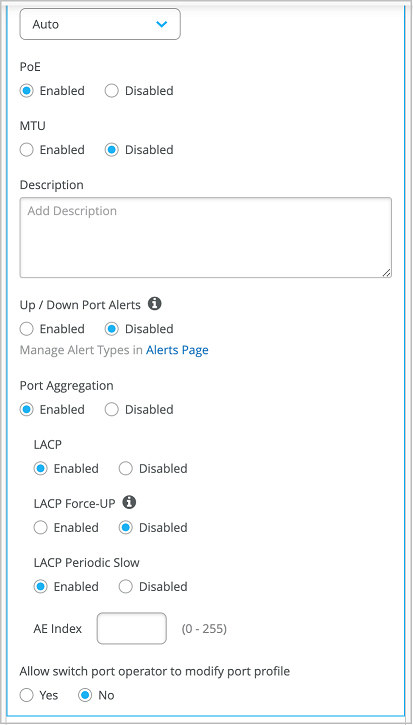 의 포트 범위에 포트 프로파일 할당
- 연결된 유선 클라이언트가 네트워크 액세스를 필요로 하는 스위치의 각 포트에 포트 프로필을 할당합니다.
이제 네트워크에서 EAP-TTLS를 사용하여 클라이언트를 안전하게 인증할 수 있습니다.
인증 정책은 유효한 사용자 이름과 비밀번호를 가진 클라이언트가 네트워크에 액세스할 수 있도록 허용합니다.
주니퍼 Mist 클라우드는 공용 자격 증명 공급자에 저장된 자격 증명과 대조하여 사용자 이름과 비밀번호를 확인하고 레이블 구성에 따라 액세스 및 권한을 부여합니다.
주니퍼 Mist 포털에서 연결된 클라이언트를 볼 수 있습니다.
- 클라이언트 > 유선 클라이언트를 선택하여 클라이언트 세부 정보를 확인합니다.
- 모니터 > 서비스 수준 > 인사이트를 선택하여 클라이언트 이벤트를 확인합니다.