Password Security
Password security is one of the first lines of defense for every organization, and Juniper recommends strong password security. For information on password requirements, see Password Policies.
Default Passwords and First Login
Beginning with SSR 7.2.4-R2, default passwords are required to be reset after a fresh installation or a factory reset operation. The root, t128, and admin passwords must be reset before continuing normal access with each account.
| Account | Access | First-Login Action |
|---|---|---|
admin | SSR web interface or PCLI | Follow the password-change prompt before continuing. |
t128 | Linux shell through SSH or the console | Follow the password-change prompts before continuing. |
root | Local console | Follow the password-change prompts before continuing. |
This requirement does not enable SSH login for root. Use the local console for direct root login. For remote administration, use an account with sudo privileges as described in Access Management.
Change the Default Admin Password
- Log in to the SSR web interface or PCLI with the default
admincredentials. - When prompted, enter a new password that meets the password requirements and confirm it. In the web interface, submit the password-change dialog before continuing.
- Once the password has been changed, use the new password for subsequent logins.
The password-change prompt is part of authentication. For subsequent password changes or a lost password, see Password Change and Account Recovery.
Enter the PCLI From a Linux Shell
When you run su admin and the admin password has expired, the PCLI automatically starts the password-change procedure. The Starting the PCLI... message does not mean you can begin running PCLI commands. Enter your current admin password again at the Enter your current password: prompt, then enter and confirm a new password.
Changing the password logs the admin account out of all active sessions. After Password updated successfully appears, you return to your original Linux shell. Run su admin again and authenticate with the new password to begin a normal PCLI session, as shown in this example. Passwords are not displayed as you type them.
[operator@router ~]$ su admin
Password:
WARNING: Your password has expired.
You must change your password now and login again!
Starting the PCLI...
Modifying password...
Changing the current password will log this user out of all active sessions. Subsequent logins will require the new password to authenticate.
Enter your current password:
Enter a new password:
Confirm:
Password updated successfully
[operator@router ~]$ su admin
Password:
Starting the PCLI...
admin@node0.router#
Change the Default Linux Passwords
Log in as t128 through SSH or the console, or as root through the local console. Follow the prompts to enter the current password, enter a new password, and confirm it. Once the password has been changed, use the new password for subsequent logins. Store the replacement passwords securely.
Changing an account's password at first login does not replace the passwords for the other built-in system accounts. The initialization workflows below set passwords for all three system accounts together. When you have already reset the default password during initialization, use that password rather than the factory credential.
Automated Access
Do not rely on unchanged factory-default passwords for unattended SSH sessions or API login. An expired local password cannot obtain an authentication token from /api/v1/login. Reset passwords through your initialization workflow or complete the interactive password change before using password-based automation. See Advanced Initialization Workflows and API Authentication.
Set a Password for the System Accounts
Setting the password for the system accounts (admin, root, and t128) is performed during initialization from either the web interface, the conductor command line, or the interactive initializer. All system account passwords are set to the same value, preventing any of the account passwords from being overlooked.
Create a password for the SSR system accounts. The password must be at least nine (9) characters long, contain at least one uppercase letter, at least one lowercase letter, at least one number, at least one special character (` ! @ # $ % ^ & * ( ) _ + ? ~ " -), cannot contain the username in any form, and cannot repeat characters more than three (3) times.
From the Web Interface
From the Conductor Association screen, select PASSWORD, or PASSWORD HASH, and enter a password for the system accounts. Selecting PASSWORD HASH will generate a pre-salted sha512 hashed password using the text you enter.
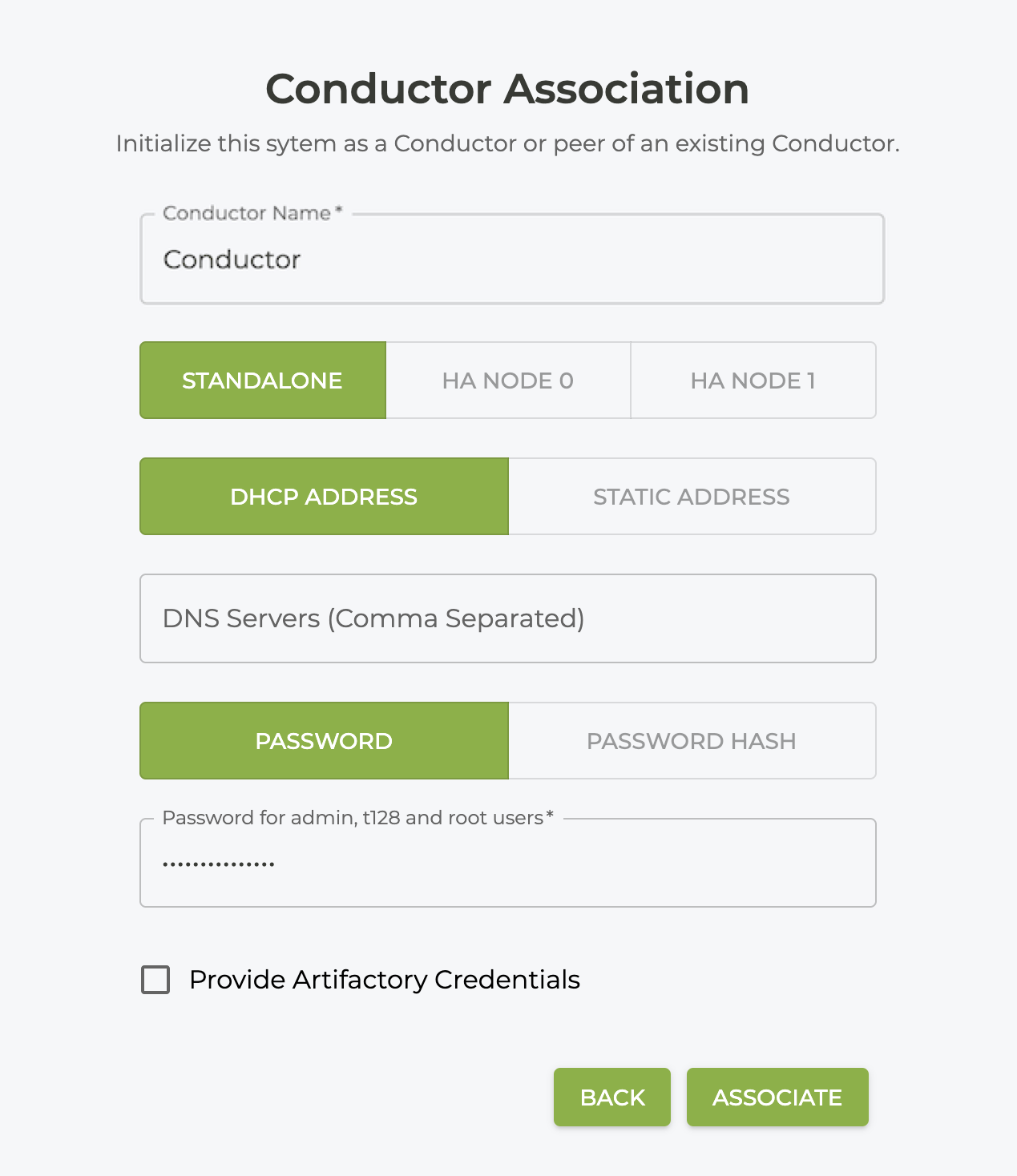
Click ASSOCIATE to assign the password to the admin, root, and t128 user accounts.
From the Command Line
Use the initialize conductor command to set the SSR system account passwords. The password must be at least 9 characters long, contain at least 1 uppercase letter, at least 1 lowercase letter, at least 1 number, cannot contain the username in any form, and cannot repeat characters more than 3 times.
admin@default.router# initialize conductor node-name c1 router-name conductor1
Enter a password for the SSR 'admin', 't128' and 'root' users:
Confirm:
✔ Initializing...
Device successfully initialized.

admin@default.router#
You can also specify the password-hash argument to generate a pre-salted sha512 hashed password using the text you enter.
The root account will not be used for day-to-day access, but the root account password should be stored securely off-box so that it can be used for admin account recovery if required.