Smart Download
Version History
| Release | Modification |
|---|---|
| 7.1.3 | Smart OS Download support added. |
Sometimes network connections can become unreliable, slow, or just plain break. To mitigate these disruptions, the SSR download process provides the following features for better recovery and control over software downloads.
- Failover Resiliency
- Resumable Download
- Sequenced HA Download
- Bandwidth Limiting
- Show Download Progress
Downloads that have been stopped either by a manual pause or due to connection issues are able to be resumed, starting from where they left off.
Download Failover Resiliency
SSR images can be downloaded from a variety of sources, depending on software access mode (e.g., internet-only, prefer-conductor, conductor-only, offline-mode): the HA peer, the conductor, the Juniper repository, and the Mist proxy (cloud deployments only).
To improve resiliency against network connectivity issues, the SSR queries available versions from all sources before beginning the download. It compiles a list of sources where the requested version is available and begins the download. If a request to a source fails, the SSR moves on to the next source. The following priority order is used for sources:
- HA Peer
- Conductor node 1
- Conductor node 2
- Juniper repository
- Mist proxy
Only when the SSR has tried all available sources and reached the consecutive failure threshold on each is the download considered failed due to connectivity issues. In that case, an error is reported and the download stopped.
HA Download Resiliency
If the HA Conductor acting as the repository fails during the download, the download automatically switches over to the second conductor node. The process continues downloading from there, even if the first conductor node comes back online.
If an HA Router fails during download and another download is requested after failover to the second node, a new download is begun. If the router returns to the original node and then resumes the original download, it will resume from where it left off. However, if the original node experienced a catastrophic failure where the shutdown was not clean, a new download is initiated.
Resumable SSR Download
Downloads are automatically paused if the connection fails. When the connection is restored, the SSR automatically resumes the download from the point where it stopped.
Downloads can also be manually paused, resumed, or deleted from either the CLI or the GUI.
Command Line
To pause a download from the CLI, use the request system software download pause command.
request system software download pause version SSR-7.1.3-4
request system software download pause router Router1 node Node1 version 7.1.0-1
The download process can be continued by restarting the download; request system software download. The download resumes from the point where the download was paused.
As a system cleanup operation, you can delete stale versions of the software using the delete system software command.
GUI
On the Software Lifecycle page, an in-progress download can be paused by selecting the download, and clicking the Pause button in the Details view.
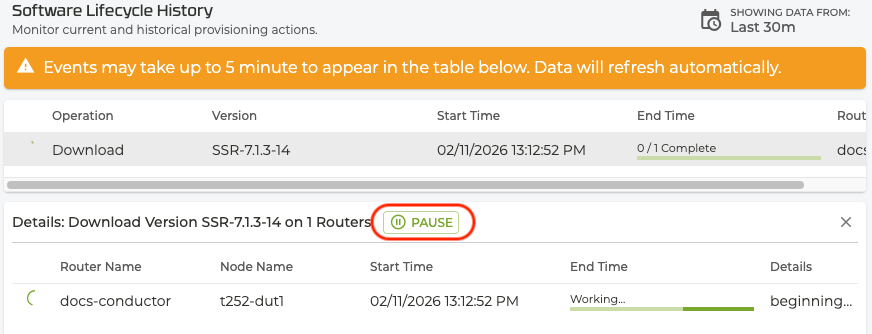
Using the same window, you can also resume or delete a download.

Auto-resume Download on WAN Failures
In the event that all sources have reached the threshold of consecutive failures and a download attempt has returned an error, the SSR can be configured to wait for a specified amount of time and then retry the download. If a connection is successfully made, the download will resume where it left off.
The retry delay time is the longest time to wait between retry attempts. For example, the initial retry delay starts at 30 seconds. With each failure the delay is increased exponentially. However, when that calculated value reaches the maximum retry delay time, successive wait times for additional attempts do not exceed the maximum retry delay time. The default is 3600 seconds. A maximum number of times to retry can also be configured.
The timeout is enabled by default (software-update download enable-timeout true). The SSR waits for a configurable amount of time (default is 10800s) for the download to complete. If the timeout value is reached without successfully downloading the software, the download is marked as "Failed".
Use the command configure authority router system software-update download to adjust the download retry behavior. The command parameters are listed below:
enable-timeout: True/false, default is true. This enables a time limit for the overall download.timeout: Amount of time in seconds that the SSR waits for the software download to complete. When the timeout value is reached the download is marked as Failed, and the retry delay begins. The default download wait time is 10800s. Range is 1800s - 604800s.attempts: The maximum number of attempts to download before considering the download as failed. If set to 0, the SSR will retry the download until the timeout is hit. Default is 10.maximum retry delay: The maximum amount of time in seconds to wait in between retry attempts. The retry delay will start off low and back off exponentially up to this duration. Range is 0 to 86400s. Default is 3600s.
Examples
In this example, the router will retry downloads up to 10 times, or for an hour, whichever comes first. The retry delay will back off exponentially until it reaches 10 minutes, then all further retries will have a 10 minute delay.
configure
    authority
        system
            software-update

                download
                    enable-timeout       true
                    timeout              3600
            		attempts             10
            		maximum-retry-delay  600
            	exit
        	exit
    	exit
	exit
exit
In this example, the router will retry downloads up to 50 times, no matter how long that takes (because the timeout is disabled). The retry will back off exponentially until it reaches an hour and all further retries will have a delay of an hour.
configure
    authority
        system
            software-update

                download
                    enable-timeout       false
            		attempts             50
            		maximum-retry-delay  3600
            	exit
        	exit
    	exit
	exit
exit
In this example, the router will retry downloads for up to 10 hours, no matter how many retries it takes (because attempts is set to 0). The retry will back off exponentially until it reaches 30 minutes and all further retries will have a delay of an hour.
configure
    authority
        system
            software-update

                download
                    enable-timeout       true
                    timeout              3600
            		attempts             0
            		maximum-retry-delay  1800
            	exit
        	exit
    	exit
	exit
exit
Sequenced HA Download
The SSR can be configured to perform sequenced downloading; one node of an HA pair downloads an image from the remote repository, and the other node waits for it to complete. Once that download is complete, the second node will download it from the first. This feature is not enabled by default. To enable sequencing, use request system software download router RouterName version SSR-X.Y.Z sequenced.
The second node will download the software from the first node, unless it encounters a connectivity issue. In that case, the router would move on to the next source as described in Failover Resiliency.
Bandwidth Limiting
In some deployments, downloads speeds may be restricted by bandwidth sharing, or cabling or signal limitations. The software-update configuration command allows administrative controls over the speeds used to retrieve software.
Use the configure-authority-router-system-software-update-max-bandwidth command to define the bandwidth limiter applied to software downloads. Valid values are; unlimited, 1-999999999999 bits/second.
Show Download Progress
To display the progress of a software download on the command line, use the show system software download [{router <router> | resource-group <resource-group>}] [version <version>] [node <node>] command.