
ASSA ABLOY Vingcard Visionline Integration with Mist
Learn how to connect Vingcard Visionline wireless hotel door locks to Mist’s cloud-managed network IoT infrastructure using the Zigbee protocol , to enable secure, scalable, and centralized management of your Vingcard Visionline-connected devices.
The Vingcard Visionline integration connects Mist’s cloud-managed Internet of Things (IoT) infrastructure (Mist access points (APs) and Mist Edges) with Vingcard Visionline wireless hotel lock endpoints using the Zigbee protocol for lock and access point communications. This integration enables hotels and resorts to connect and manage their Vingcard access control solution over an existing Mist wireless network, eliminating the need for deploying a separate Zigbee network. Mist APs function as Zigbee radio endpoints, while Mist Edge provides secure and scalable data communication and control plane services. Visionline remains the authoritative system of record, managing all access control policies, user credentials, and lock configurations.
This approach streamlines the deployment by minimizing the need for additional Visionline wireless hardware, reducing infrastructure complexity, and lowering ongoing management and maintenance overhead. By preserving existing Visionline workflows, it avoids the need for process changes. Leveraging Mist’s AI driven network and IoT capabilities, this solution utilizes the existing wireless infrastructure to provide:
-
Client (door lock) connectivity
-
Secure communication
-
Centralized monitoring
-
Real-time client visibility
Here are some of the key benefits:
-
Simplified infrastructure—Mist APs function as native Zigbee gateways, eliminating the need for dedicated ASSA ABLOY Zigbee gateway hardware. This approach consolidates Wi‑Fi and lock connectivity services into a single, unified infrastructure layer, simplifying design, deployment, and ongoing maintenance.
-
Flexible deployment— Mist Edge is deployed as a Debian-based virtual machine (VM) on server hardware running a supported hypervisor, such as VMware ESXi. Organizations can host Mist Edge on their existing server infrastructure. This makes it an ideal solution for hotels that want to leverage their current virtualization and server environments, eliminating the need for new hardware and helping accelerate deployment timelines.
-
On-Premises data security—All data-plane traffic remains on site within the property’s network, ensuring that sensitive data never leaves the local environment. Enterprise-grade security is achieved through a combination of end-to-end encryption and cloud-based role-based access control (RBAC).
-
Centralized monitoring and telemetry—Mist cloud provides detailed per-lock telemetry including connectivity status, received signal strength indicator (RSSI), and retry metrics, enabling property-wide monitoring through dashboards and alerts. This data provides real-time visibility and supports proactive troubleshooting.
-
Enterprise scale— A single AP can support up to 32 locks. By deploying multiple APs, a site can support approximately 2,000 locks. One Visionline server and one Mist Edge VM are required for each site.
Architecture Overview—Vingcard Visionline and Juniper Mist APs
This integration uses Zigbee as the radio protocol to connect Vingcard Visionline smart locks to the supported Mist APs. The AP includes a built‑in 802.15.4 radio that acts as the Zigbee coordinator, bridging the locks to the on‑premises Visionline server through the Mist Edge.
The following is a high-level representation of the architecture:
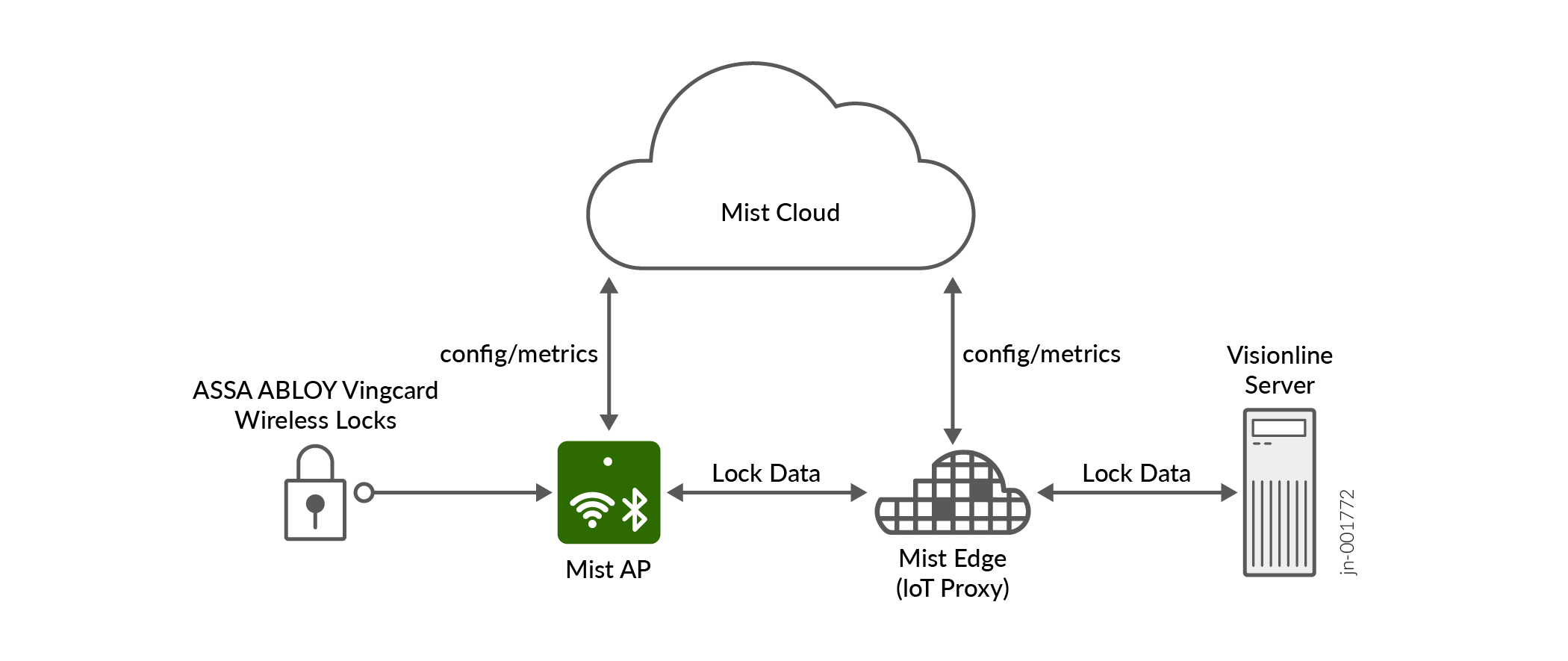
The architecture works as follows:
-
Lock to Mist AP (radio layer)—This segment provides the secure, local radio frequency (RF) connectivity between each lock and the nearest AP. The ASSA ABLOY Visionline locks operate as Zigbee clients and communicate directly with the AP's integrated Zigbee radio. The AP manages lock discovery by identifying and listing Zigbee locks within the radio range and managing the pairing and permit‑join processes to control when new locks are allowed to join the Zigbee network. It also handles ongoing communication by managing the Zigbee data exchange with each lock.
-
Mist AP to Mist Edge (encrypted tunnel)—The AP forwards Zigbee IoT data to an on-premises Mist Edge through an encrypted tunnel. Mist Edge acts as the local aggregation and processing point for all Zigbee lock telemetry coming from the APs.
-
Mist Edge to Visionline Server (protocol translation and control)—Mist Edge connects to the on-premises Visionline server over secure and encrypted TCP and performs protocol translation between Zigbee and the Visionline access management protocol. Access decisions are made locally at each lock. The lock verifies guest credentials (cards or mobile keys) using cryptographic keys stored on the device itself, so doors continue to function even if the wireless network is unavailable. This architecture ensures that access control operations stay on-premises, meeting security and compliance requirements for physical access systems.
Note: The current deployment uses a single Mist Edge without high availability. Consequently, any Mist Edge outage will impact cloud-dependent functionality. If the Mist Edge becomes unavailable, Visionline remains the system of record and local access control at the locks continues to operate normally. However, telemetry data will not be sent to the cloud, and any remote management capabilities that depend on the Mist Edge will be unavailable until connectivity to the Mist Edge is restored. -
Mist cloud (control plane)— Mist cloud provides management, configuration, and insights that help manage and troubleshoot the network supporting the joint Mist-Visionline solution. In contrast, the data plane ensures that the data flowing between the Visionline service and its attendant door locks remains accessible only to authorized administrators of the Vingcard Visionline solution.
Requirements and Prerequisites
-
Juniper AP36 High Performance Access Point* (requires PoE++ power)
The AP36 provides the built‑in 802.15.4 Zigbee radio required for this integration.
-
Mist Edge deployed as a VM
-
ASSA ABLOY Vingcard Essence V2 door locks, firmware version V3.17.41.7
-
Visionline version V1.27.1.8
-
Zigbee version 3.1.62.1
Note: The versions listed above are the minimum validated versions. -
AP firmware version 15.x and later. This integration is not supported on 14.x and earlier versions.
-
Asset Visibility subscription
-
Ensure that the following ports are allowed through the firewall:
-
TCP 5443 to enable communication between the Mist Edge and AP
-
TCP 443 to enable communication between the Mist Edge and Visionline server
-
When planning the integration, keep the following in mind:
-
Each site requires one Mist Edge and one Visionline server. These can be hosted together on a single server or on two separate servers. Note that Visionline runs on Windows. Each AP can support up to 32 locks and a maximum of 2000 locks can be supported across multiple APs per site.
-
The Mist Edge and all APs used for the integration must be assigned to the same site.
-
When you enable Zigbee, Bluetooth Low Energy (BLE) is automatically disabled on the AP, and vice versa. Plan your deployment accordingly if you rely on BLE services such as virtual Bluetooth Low Energy (vBLE) Engagement or Asset Visibility on the same AP.
* Currently, only AP36 supports this integration .
Configure Vingcard Visionline Door Locks
-
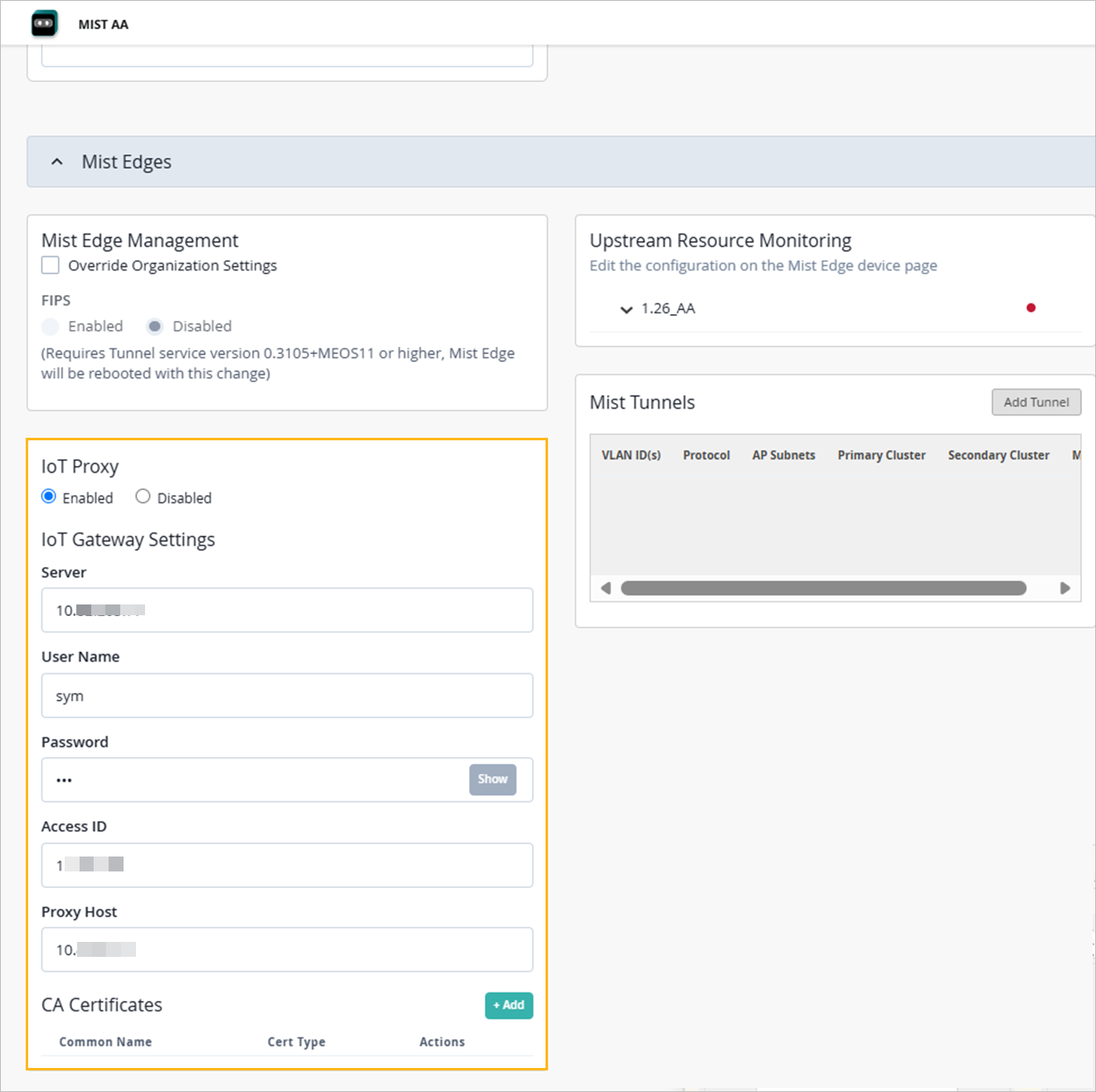
Configure the IoT settings for the Mist Edge VM:
Log into the Mist portal, click Organization>Site Configuration.
Select a site and navigate to the Mist Edges section.
Enable IoT Proxy and enter the following details.
Details for the Visionline server—Server IP address, username, password, and access ID
IoT proxy server IP address. The IoT proxy runs directly on the Mist Edge and so its IP address is the Mist Edge's IP address.
(Optional) Add CA certificates.
-
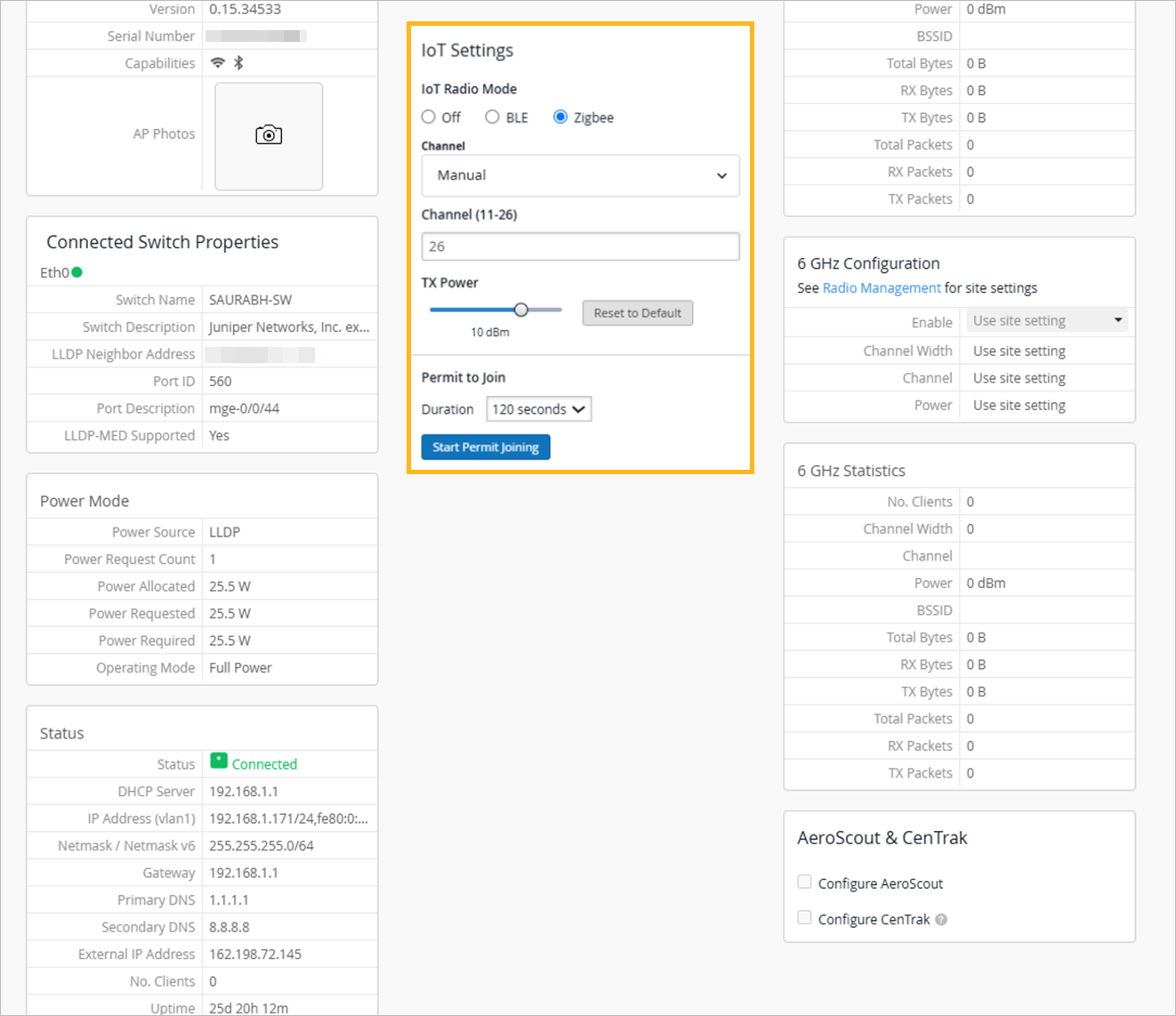
Configure Zigbee on the AP:
On the Juniper Mist portal, click Access Points on the left pane.
Click an AP from the list to open the AP details page and navigate to the IoT Settings section.
Set the following values (recommended) and click Save:
IoT Radio Mode—Zigbee
Channel—25 or 26 (recommended)
Zigbee channels should be chosen to minimize overlap with active 2.4 GHz Wi‑Fi channels—especially Wi‑Fi channels 1, 6, and 11, which are the most commonly used non-overlapping channels. Zigbee channels 25 and 26 are positioned just above the main spectrum used by Wi Fi channel 11 in the 2.4 GHz band. Since there is minimal frequency overlap, devices operating on channel 25 or 26 are generally less susceptible to Wi Fi interference, leading to more stable connectivity.
TX Power—10 dBm
You can change this value as needed.
Permit to join duration—120 seconds
You can change this value as needed, with a minimum of 120 seconds and a maximum of 600 seconds.
 Note:
Note:You can also configure the Zigbee settings in a device profile. From the Mist portal, click Organization>Device Profiles and scroll down to the IoT Settings section.
-
Click Start Permit Joining to initiate the process
of associating locks with the AP.
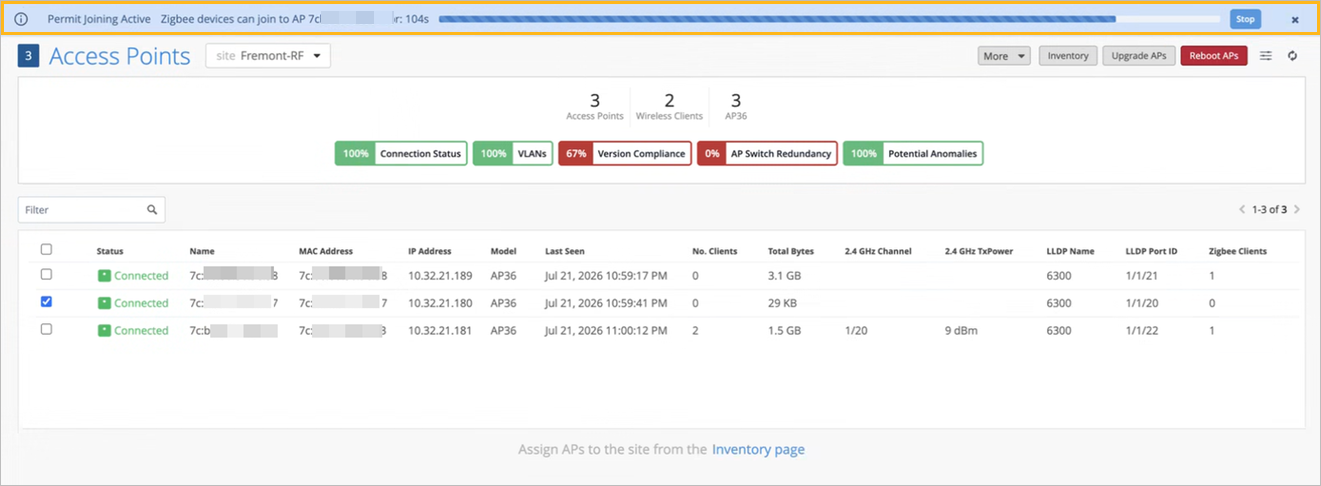
You can also start the join process from the Access Points page by selecting the AP, choosing Zigbee Permit to Join from the More menu, and specifying the duration. If you configured the Zigbee settings in a device profile, then you must initiate the join process from the Access Points page.
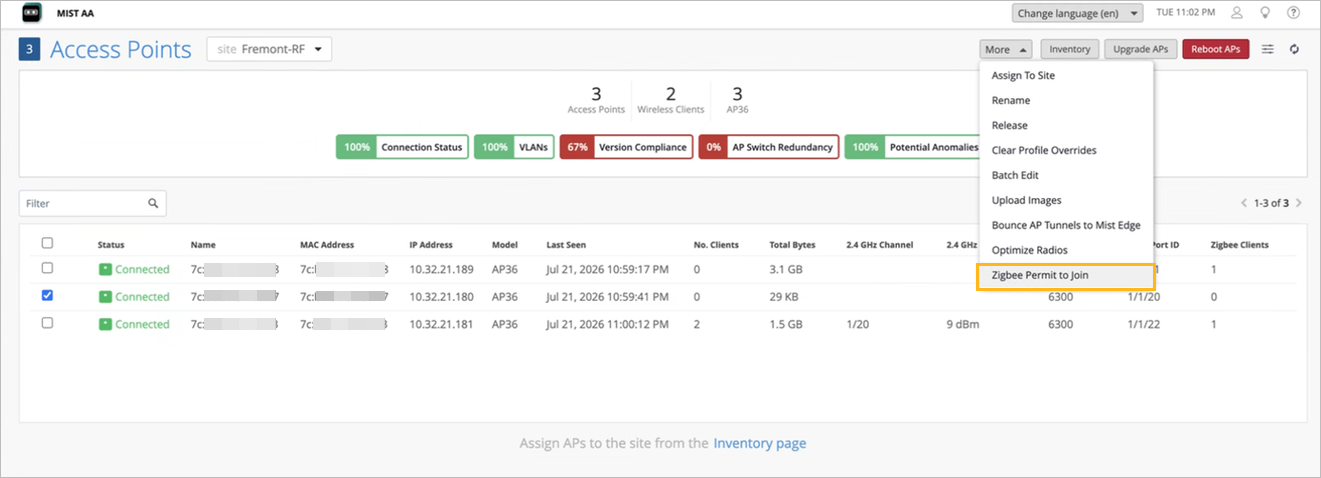
A time-based progress bar will appear at the top of the page once the join process starts.
 Note:
Note:We recommend enabling Start Permit Joining on only one AP at a time to prevent interference or conflicts during the joining process.
-
Swipe the Discovery card at the lock to start the lock's Zigbee join
process. This associates the door lock to the AP that initiated the join
process. Locks are associated with the AP for the length of the configured
Permit to Join Duration. After this period ends,
no new Zigbee clients (locks) can be associated with the AP until you click
Start Permit Joining again.
You can view the list of Zigbee clients on the network by going to the Clients>Zigbee page. It might take up to a minute for the client information to appear. A green dot in the Status column indicates that the client is associated with an AP. A red dot indicates that the client is not connected to the AP. If the client does not appear on the dashboard, you can try tapping the card again during the permit-join cycle.

The Access Points page lists the number of Zigbee clients associated with an AP.
If you encounter any issues, contact the support team or submit a ticket for assistance. See Create a Support Ticket.
Verify Door Lock Integration with Mist Cloud
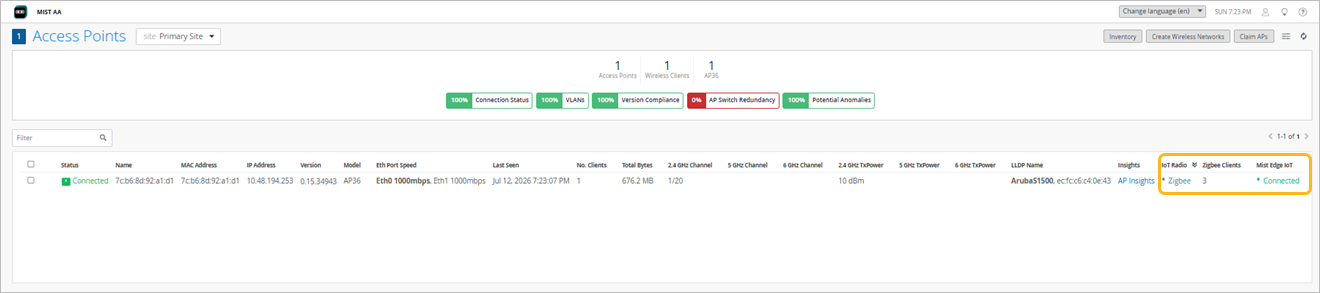
If the integration is successful, the Access Points page will show the following for the AP used in the integration:
-
IoT Radio column displays Zigbee
-
Zigbee Clients column shows the number of clients
-
Mist Edge IoT column shows the status Connected
Monitor and Troubleshoot Vingcard Visionline Zigbee Clients
Additionally, you can use the following AP-level testing tools that you can access from the AP details page:
-
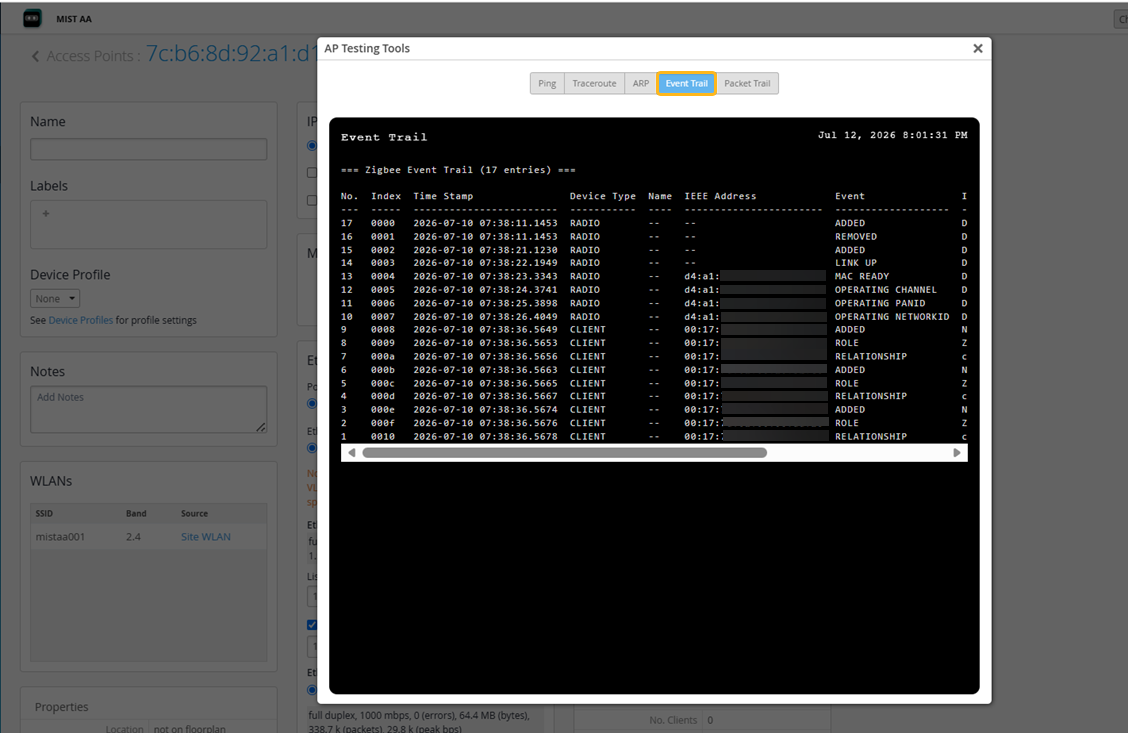
Event trail—Maintains a chronological record of Zigbee events at the AP, including lock associations, removals, and disconnects. For example, if a lock stops communicating, the event trail shows whether it ever successfully joined or if it later disconnected. This makes it easier to determine whether the problem lies in the Zigbee association layer or further upstream in the Mist Edge or Visionline path.
-
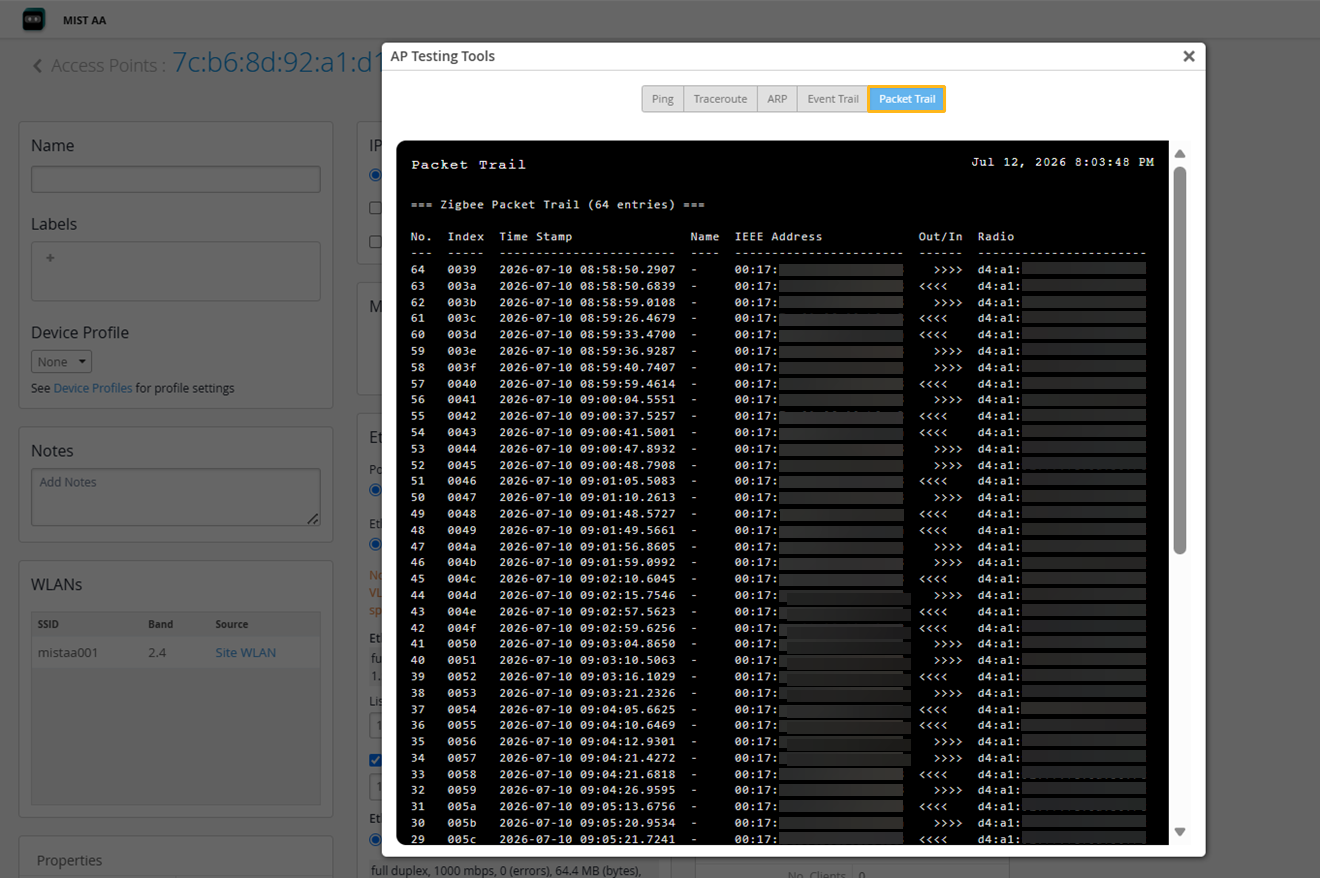
Packet trail—Captures the actual Zigbee packet traffic between the AP and connected locks, providing an audit trail of all exchanged data — including commands sent from the Visionline server (for example, open door) and responses from locks (such as card swipes, acknowledgments).
Remove a Door Lock from the Network
To remove a door lock:
Navigate to the Clients>Zigbee page.
Select the check box for the client you want to remove, then click Remove at the top-right corner of the page.

The client is disconnected from the AP, which is indicated by a red dot in the Status column.