
ON THIS PAGE
Configure Ethernet Settings in a Device Profile
Although you typically won't need to configure the Ethernet ports for your Juniper Mist access points (APs), when needed you can enable features such as PoE passthrough and enable or disable interfaces.
The Ethernet ports on Juniper Mist Access Points (APs) generally require no extra configuration, especially for wireless-only use cases. The cloud automatically ensures the correct VLANs are plumbed to the AP Ethernet ports auto-learned from the configured WLANs.
The most common use case for modifying the AP’s Ethernet port configurations is when you want to use the AP’s secondary Ethernet interface(s) for connecting downstream wired devices to the AP.
You can configure AP-specific Ethernet settings. This includes wireless clients connecting through the AP. Alternatively, you can create a device profile with the desired configurations and apply them to a group of APs all at once. If there are conflicting configurations between the individual AP settings and the device profile, the individual settings will prevail unless you disable the Override Profile option on the AP configuration page.
PoE Passthrough
Most Juniper APs can act as a Power Sourcing Equipment (PSE), allowing them to provide Power over Ethernet (PoE) to devices connected to Eth1 on the AP. However, model-specific considerations might apply. If you have supported devices that are connected to a PoE-enabled switch port, you can enable the PoE Passthrough option to extend power from the AP to the enabled Ethernet ports and/or the module port. For example, you can use the PoE Passthrough option to support daisy chaining of multiple BT11s. See Daisy Chain BT11 Access Points.
On both the AP41 and AP61, the module port provides PSE functionality. This allows for convenient power distribution to compatible devices.
Configuration Steps
To configure the Ethernet ports for APs attached to a device profile:
-
From the Mist portal, click Organization > Device Profiles
and scroll down to the Ethernet Properties section.
Note:
You can also configure the settings for an individual AP. From the Mist portal, click Access Points, click an AP, and scroll down to the Ethernet Properties section in the AP configuration page.
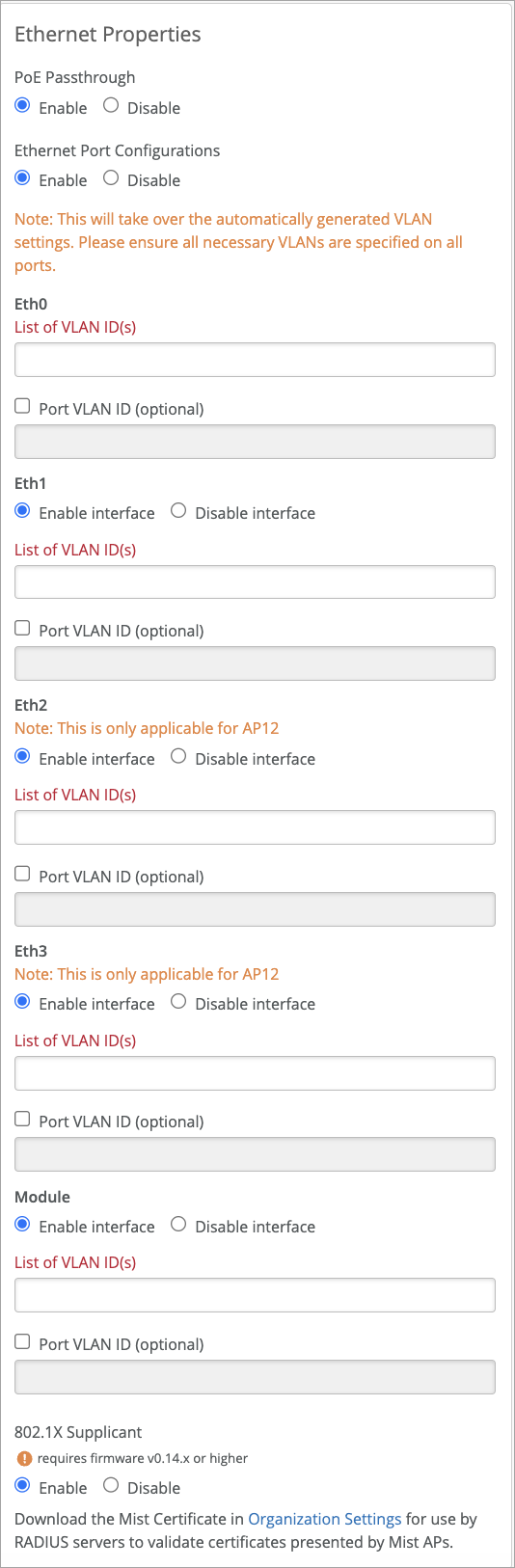
The exact Power over Ethernet (PoE), Ethernet port specifications, and other details can also vary according to the AP model. See below for links to AP datasheets and other model-specific considerations. Additionally, not all settings displayed on the screen will apply to every AP model. In such cases, the AP will simply ignore any unsupported settings.