
Use Testing Tools to Troubleshoot the Session Smart Router
Follow these steps to use testing tools and get packet captures for Session Smart Routers deployed as a WAN Edge.
Discover efficient methods for troubleshooting your WAN Edge device in the Juniper Mist™ portal after the initial deployment phase. This topic provides guidance on troubleshooting the Session Smart Router for system administrators and technical support responsible for maintaining enterprise SD-WAN networks.
Session Smart Router Testing Tools for Troubleshooting
The Testing Tools utility is another useful troubleshooting tool that is offered within the Juniper Mist portal. An administrator can see beneath the surface of the GUI using the utilities we’ll cover in this section. The Session Smart Router device and its Programmable CLI (PCLI) provides a simplified and streamlined experience in the Mist portal for diagnosing your WAN Edge device issues.
Navigate to WAN Edges > WAN Edges, and select the WAN Edge device to troubleshoot.
Review the Utilities drop-down menu to see what options are available.
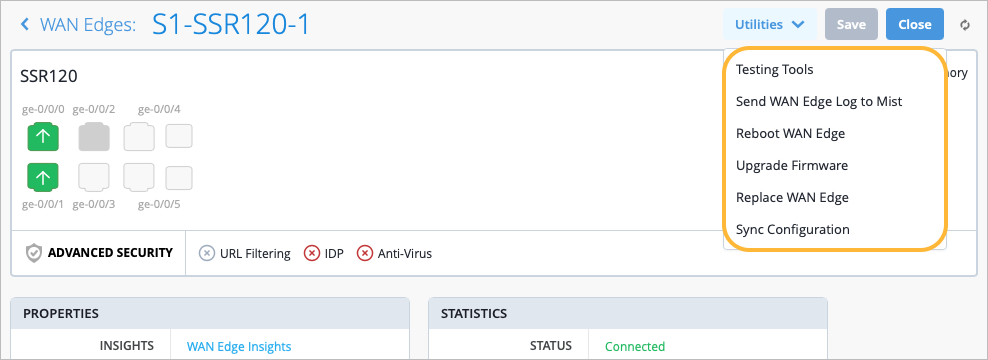
- Issue Pings to Troubleshoot Interfaces and Connectivity
- Use the BGP Summary to Troubleshoot BGP Routes
- Troubleshoot Application Paths
- View the ARP Table for Interface Details
- View the FIB Table
- View OSPF Information
Issue Pings to Troubleshoot Interfaces and Connectivity
You can issue pings for your Session Smart Router to quickly troubleshoot device interfaces and connectivity.
Select Utilities > Testing Tools
.- Navigate to Utilities > Testing Tools > Utility >Ping to quickly troubleshoot device interfaces and connectivity.
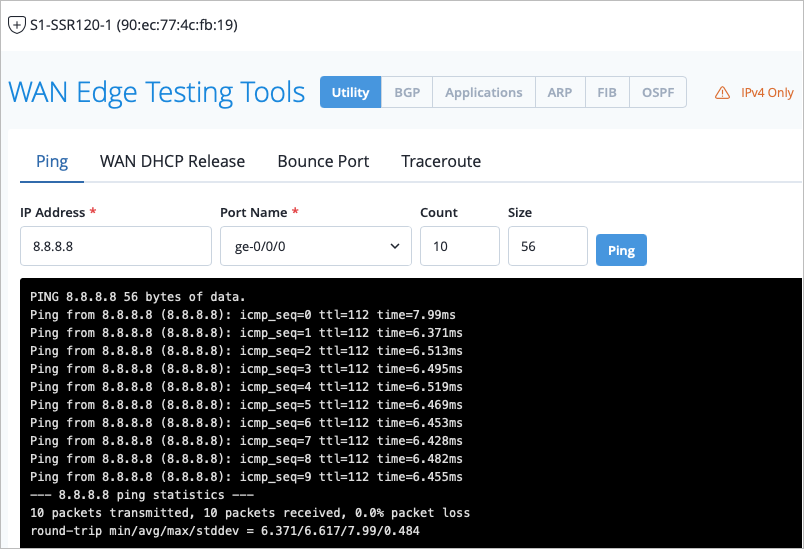
- Enter an IP address, specify the port name, and specify the ping count and size.
Mist opens an instance of the Session Smart PCLI for you.
In this example, we send an ICMP ping to the public DNS 8.8.8.8.
Use the BGP Summary to Troubleshoot BGP Routes
When you select any of the tools for BGP, Mist simplifies the Session Smart PCLI and gathers the information for you.
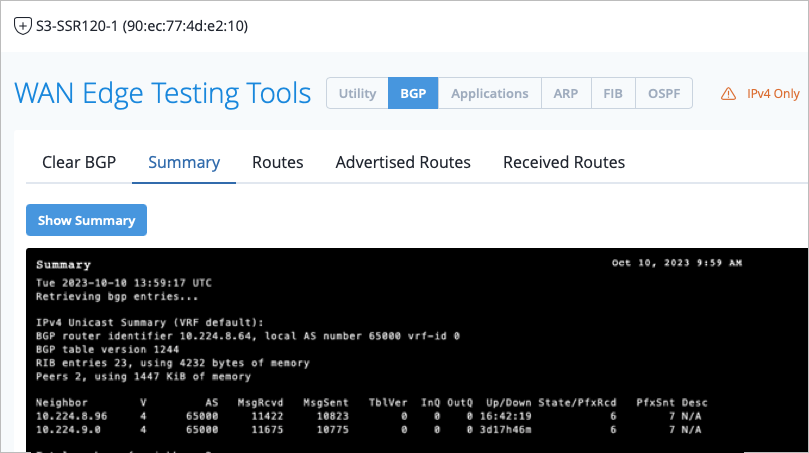
BGP Neighbors are the other BGP routers that our Session Smart Router is connected to. You can use the BGP Summary to view path information (paths between your SSR and the BGP neighbor).
Click the BGP tab at the top.
In this example, we see a summary of BGP neighbors and their relevant information by quickly selecting Summary > Show Summary.
Troubleshoot Application Paths
Remember that Mist is intent-driven, and the Secure Vector Routing (SVR) protocol that Session Smart Routers creates service paths to reach the applications. Tenants (Networks/Users) are allowed or denied to access the services (applications). This creates point-to-point SVR paths. You can diagnose those paths between Session Smart devices in the Applications tab of the Testing Tools.
For SVR, Mist applications are called services in the Session Smart paradigm. For more information about the Session Smart platform, refer to the platform considerations, Juniper Mist WAN Assurance Platform Considerations.
Navigate to the Applications tab.
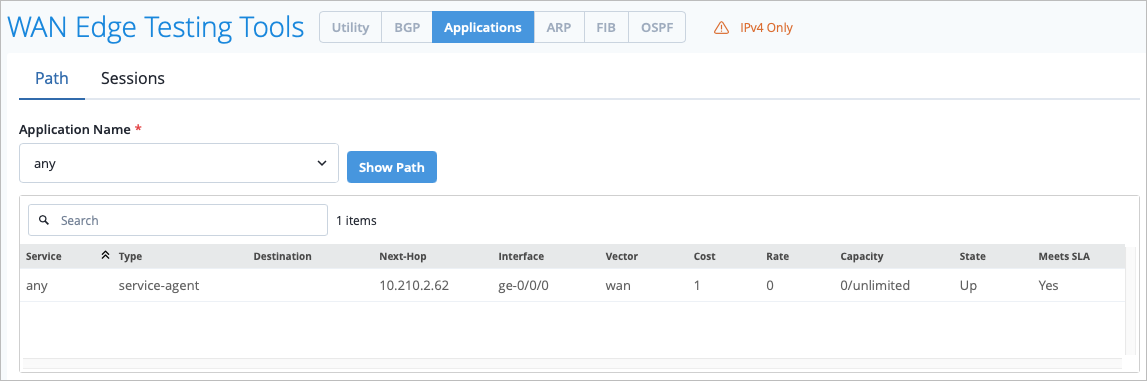
Select an application name from the drop-down menu, then select the Show Path button.
This displays the path information, such as the name of the Service (application) that the tenants (Networks/Users) are attempting to access, the type of route, the interface name, the state of the path, and so on.
View the ARP Table for Interface Details
You can view the ARP table to help troubleshoot routing. The ARP table displays interface details, including IP address and current state.
Select the ARP tab in WAN Edge Testing Tools.
Select Table to see the information displayed in table format.
Finally, select the Show ARP button.
The Mist dashboard leverages the Session Smart PCLI for you and generates ARP information for interfaces on node.0.
Note:For deeper insights not shown on the output text of the window, select the output from the Utility in your browser and paste it to an ASCII editor for further review.
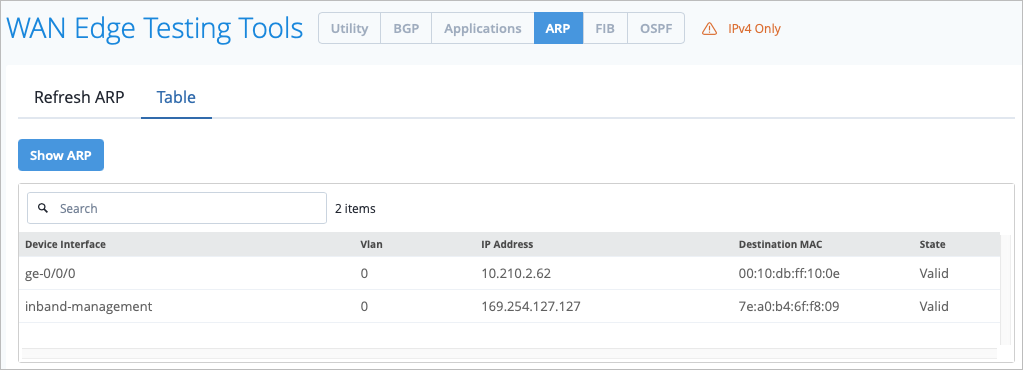
You can also use Refresh ARP during troubleshooting scenarios to remove Address Resolution Protocol (ARP) entries from the WAN Edge device or the node's ARP cache.
In the Refresh ARP tab, enter the port name (required) and other details (optional). By specifying the optional details such as VLAN and IP Address, you specify which entries to remove.
Click Refresh ARP.
View the FIB Table
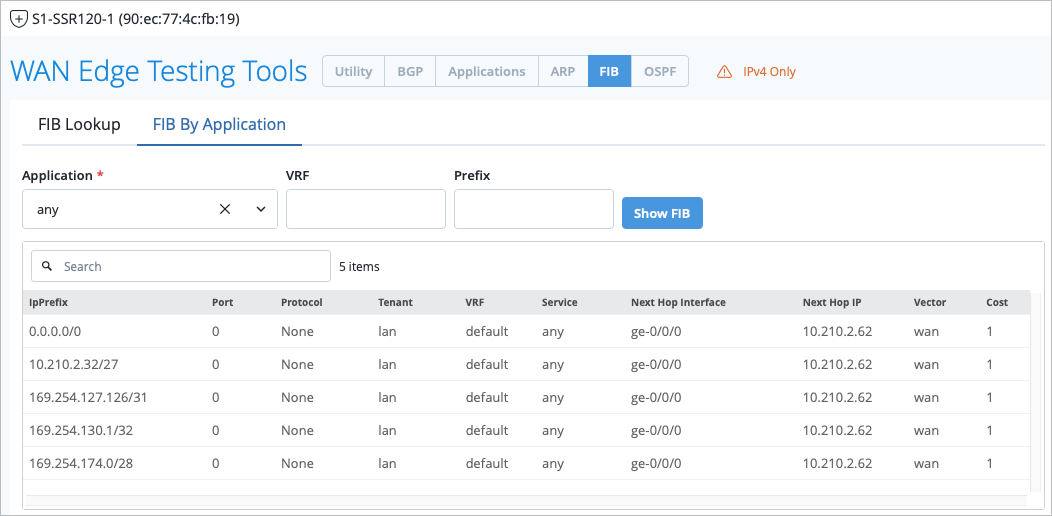
The Forwarding Information Base (FIB) table is useful for determining if traffic in the network is being routed to the correct destination. The FIB informs you which destination IP address, ports, transport protocols, and tenants (Networks/Users) are allowed to access which Services (applications) and notifies you what their next hop is.
Select the FIB tab at the top of WAN Edge Testing Tools to see the FIB table.
On the FIB Lookup tab, you can perform a FIB Lookup by selecting a network, entering a Destination IP Address, selecting a protocol and a destination port, then click Lookup. This will display the FIB table entries to you.
Click the FIB By Application tab to do a FIB lookup by application name. Select an application name from the drop-down menu, and optionally enter in VRF and Prefix information. Then, click Show FIB to see the FIB table.
View OSPF Information
You can use the WAN Edge Testing Tools to view your Open Shortest Path First (OSPF) route information for troubleshooting purposes.
Select the OSPF tab at the top of WAN Edge Testing Tools. You can view information such as Summary, Interfaces, Neighbors, Database, and Routes as they relate to your OSPF configuration.
The combination of Marvis, WAN SLEs, WAN Edge Insights, and the WAN Edge Testing Tools utility make a complete suite for diagnosis at the WAN Edge.