Mist AI Mobile App Overview
Get started using the Mist AI mobile app to onboard devices.
The Mist AI mobile app enables you to onboard and manage devices and sites in your network directly from your mobile device. You can view device inventories, claim new devices, assign devices to sites, unassign devices from a site, and manage floor plans.
With this app, you can verify access point (AP) placements, update AP names, set the orientation and height for an AP, and replace APs. The app provides iOS users with additional advantages─ for example─ users can identify nearby APs through Bluetooth and verify AP placement using visual indicators.
Any modifications made through the app are synchronized with the Mist portal, ensuring seamless integration and real-time updates across the network infrastructure.
Requirements to Use the Mist AI Mobile App
To start using the app, you need to create an account on the Juniper Mist portal.
To log in to the app, you'll need to know:
-
The e-mail address and password for your Mist user account. An administrator must add you as a user in the Juniper Mist portal.
-
The name of your Juniper Mist organization.
-
The environment for your Juniper Mist organization. See Juniper Mist Clouds.
Supported User Roles
These user roles can use the Mist AI app:
-
Superusers
-
Org Admin
-
Network Admins with read access to the organization settings
-
Installers
Install the Mist Mobile App
The Mist AI app is available for download from Google Play Store and Apple App Store. The Mist AI app is compatible with the following devices:
- Android phone and tablet with OS version 12 or later.
- iPhone, iPod, and iPad with OS version 14 or later.
To download the app, navigate to the App Store or Play Store on your device and search for Mist AI. After you download and install the app, tap the Mist AI icon to start using the app.
Log In to the Mist AI Mobile App
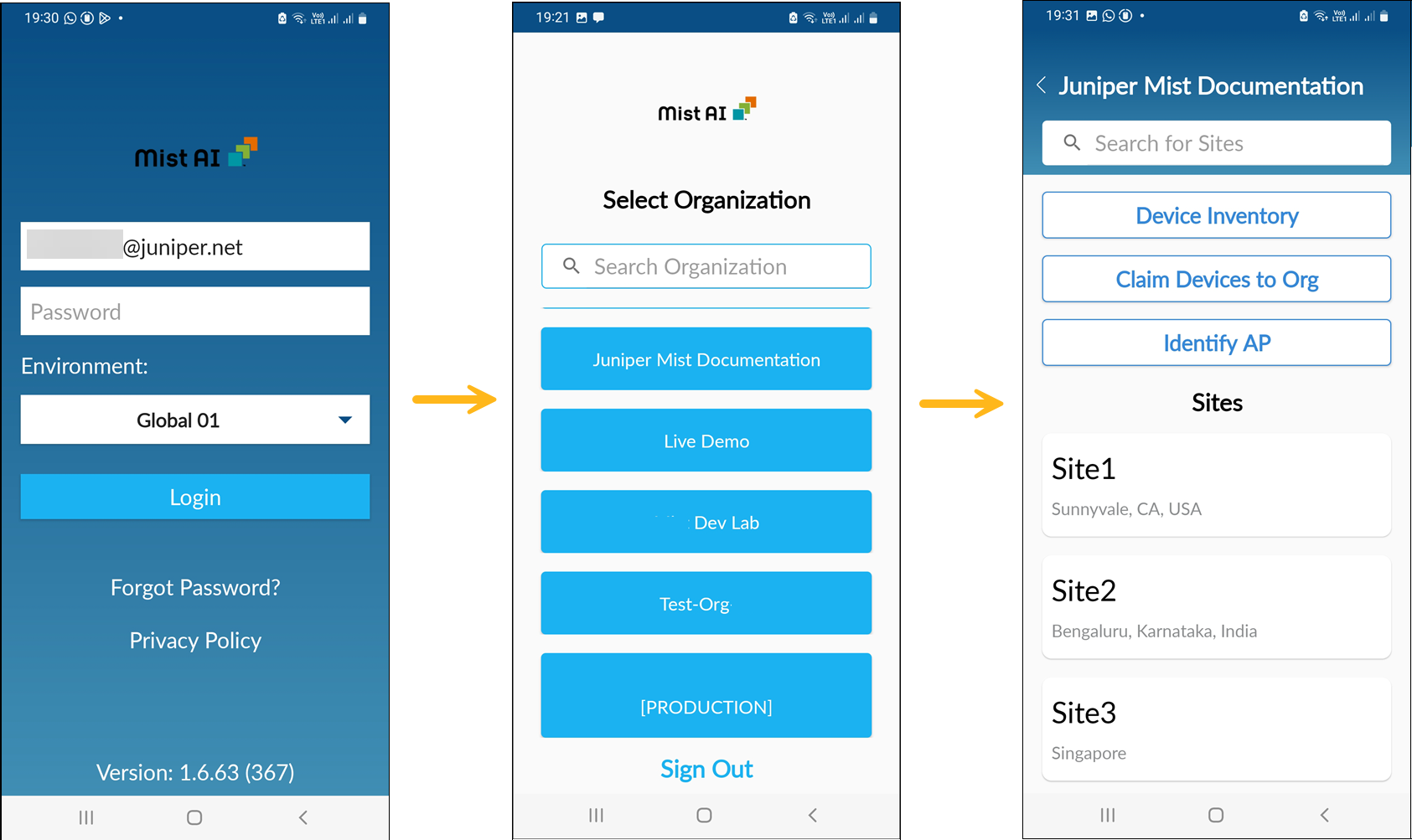
Log in to the app using your registered e-mail address. You'll need to select the region (for example, Global 01, Global 03), or your global account (requires Android version 12 or later).
If you are using two-factor authentication (required with global accounts), you'll use an authenticator app or biometric authentication such as Touch ID, Face ID, or a one-time password to log in.
You can then select your organization. When you select an organization, you can see the sites in that organization. Sites need to be created through the Juniper Mist portal. The app fetches the list of sites from the portal.