
ON THIS PAGE
How to Upgrade a Mist Edge Device
Mist Edge devices ship with a Mist Edge OS installed. When you configure the Mist Edge (tunnel, RADIUS proxy, or Mist Auth proxy) from the dashboard, additional services will be instantiated from the Mist cloud.
-
ME-X5
-
ME-X5M
-
ME-X10
To keep a Mist Edge up-to-date on firmware, normally one only needs to keep the Mist Edge tunnel service version current. All other Mist Edge services are kept up to date automatically. Every two to three years, its necessary to upgrade the underlying base Mist Edge operating system (Mist Edge OS).
The Mist dashboard guides upgrades by displaying only the recommended target versions based on device compatibility and validation status. Depending on what upgrade is available, the dashboard displays different messages to distinguish between OS upgrades and service‑only upgrades:
-
OS upgrade recommended—Displays when a newer Mist Edge OS version is available. This indicates that the upgrade will include a base Mist Edge OS update in addition to the Mist Edge tunnel services. This replaces the previous 'Firmware Upgrade Recommended' message.
-
New Service Version Available (notification icon)—Displays when a Mist Edge tunnel service (firmware) upgrade is available with or without an OS upgrade.
Three types of Mist Edge upgrades:
-
Automatic updates—These are executed automatically by the Mist Cloud and do not require any administrative interaction. These updates do not impact the end user
-
Tunnel Service upgrades—These are considered minor upgrades. They impact the user/client because tunnels cannot be used during the maintenance window. This kind of upgrade only takes up to 5 minutes to complete. You should plan to upgrade to the latest tunnel service upgrade as time permits.
-
Service and OS upgrade—This is considered a major upgrade. This upgrade includes both the Tunnel Service upgrade and the Mist Edge OS upgrade all in one. A maintenance window of 30 minutes per Mist Edge is required, as that is the time it takes for this type of upgrade to complete and for the device to reboot. This upgrade type does not have to be performed very often (once every two to three years).
Prerequisites:
On the Mist Edge, for the tunnel ports to be up and for the tunnel service to be running, the device must first be configured with a tunnel IP and must be assigned to a cluster or site. Subsequently, that cluster or site must have a tunnel mapped.
Once the tunnel service is up and running, you can upgrade the tunnel services version. If a tunnel service is not running, the tunnel services upgrade will not be successful. It is not required to have the tunnel service up and running in order to upgrade the Mist Edge OS version.
Upgrade a Mist Edge
To upgrade the tunnel services and Mist Edge OS (provided a new OS version is available) on a Mist Edge:
From the left menu of the Juniper Mist portal, select Mist Edges.
Locate the Mist Edge to be upgraded from the Inventory page. Ensure that it displays the Connected status.
If a new version of the Mist Edge OS is available, a notification message displays in the Status column as shown in the following example:
 Attention: When you see the OS Upgrade Recommended message, you should plan to schedule a maintenance window when time permits, as this upgrade provides optimal security and stability for your Mist Edge devices and tunnels.Note:
While you will see the 'OS Upgrade Recommended' status messages on the dashboard, OS upgrades from MEOS11 to MEOS12 are currently support assisted. Therefore, you must contact Mist Support to upgrade the Mist Edge OS to MEOS12 in a scheduled maintenance window. See Create a Support Ticket.
If a new version of the tunnel service is available, a notification symbol displays in the Status column, which you can hover over as shown in the following example:
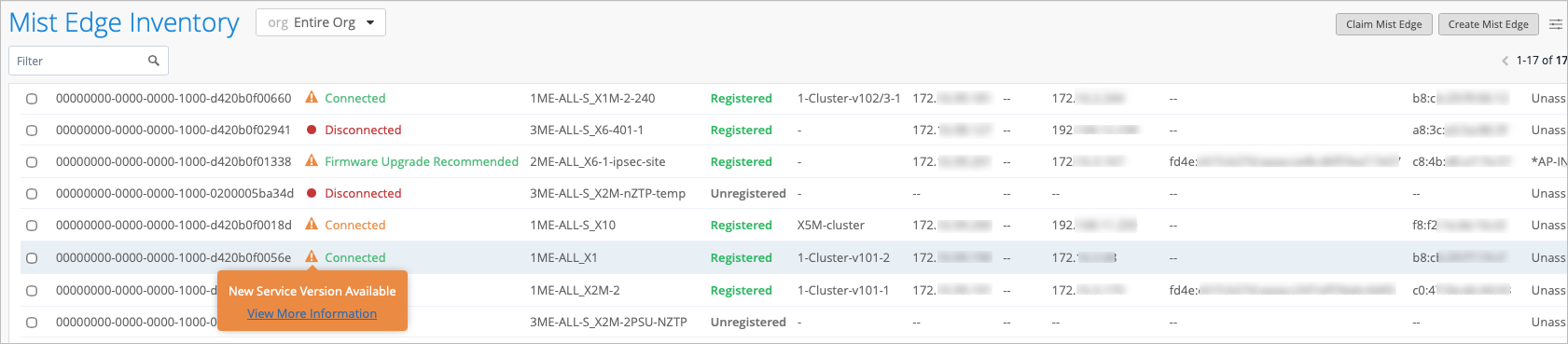
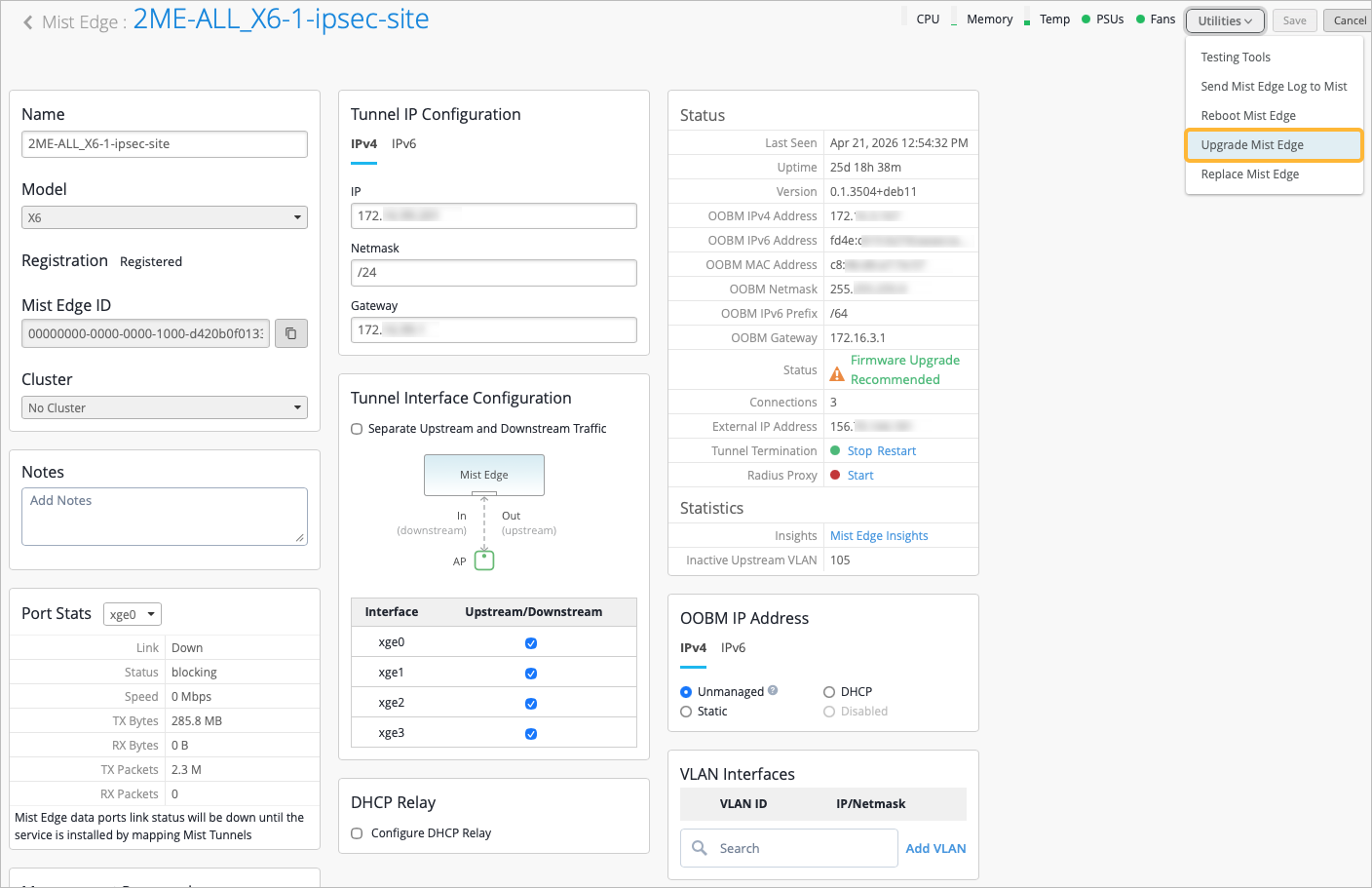
Click the Mist Edge. The Mist Edge details page appears.
Select Upgrade Mist Edge from the Utilities drop-down menu.
Note:If the Mist Edge is not running the required version of cloud services, the Upgrade Mist Edge option will be grayed out (not clickable). In such a case, contact the Mist support team to run a validation and initiate the upgrade from the cloud.
The Upgrade Mist Edge window appears and automatically identifies the recommended target version for you to initiate the upgrade. The upgrade window displays the Mist Edge Name, the Current Version, and the Available Actions. You can also click the icon in the Version Information column to view information about the tunnel service versions.
You can choose to remain on the current base OS and upgrade only the tunnel service (if an update is available), or you can upgrade both the base OS and the tunnel service together. The Available Actions column includes a drop‑down menu where you can select one of the following:
Upgrade Service—Upgrades only the tunnel service.
Upgrade Service and OS—Upgrades both the base Mist Edge OS and the tunnel service.
If a new Mist Edge OS version is not available, then you’ll see only the new version for tunnel services.
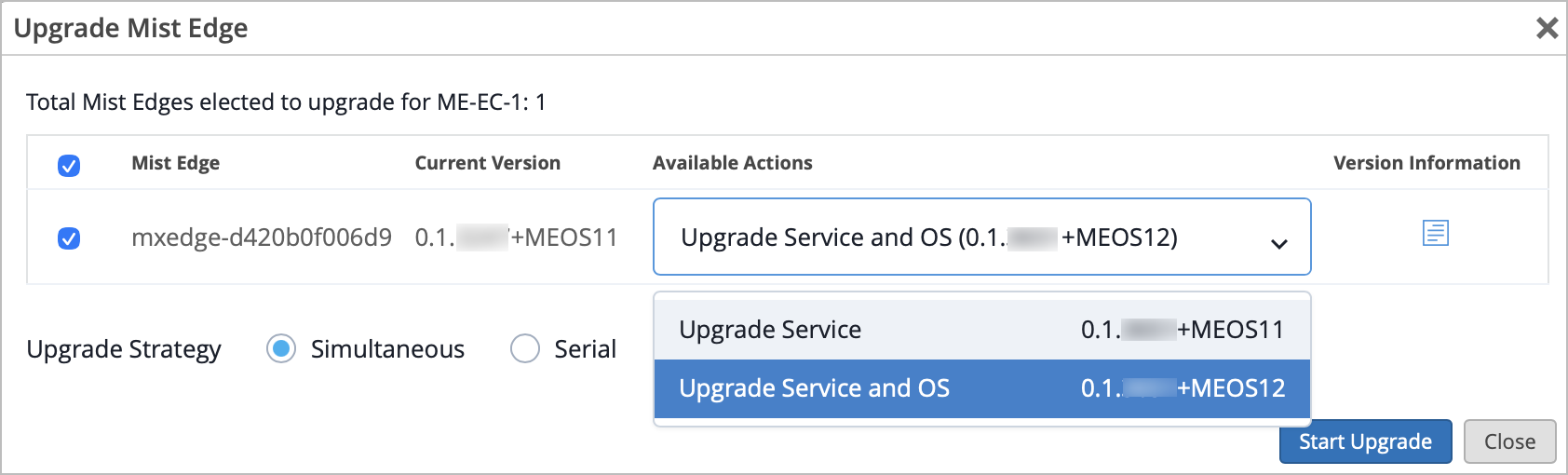 Note: For a Mist Edge device that is functioning only as a proxy and doesn’t have an active tunnel service to upgrade, the option 'Upgrade Service and OS' is chosen by default; you cannot choose the upgrade type.
Click Start Upgrade, then you'll see a confirmation dialog box that prompts you to confirm the upgrade operation. Click Confirm & Upgrade to proceed.
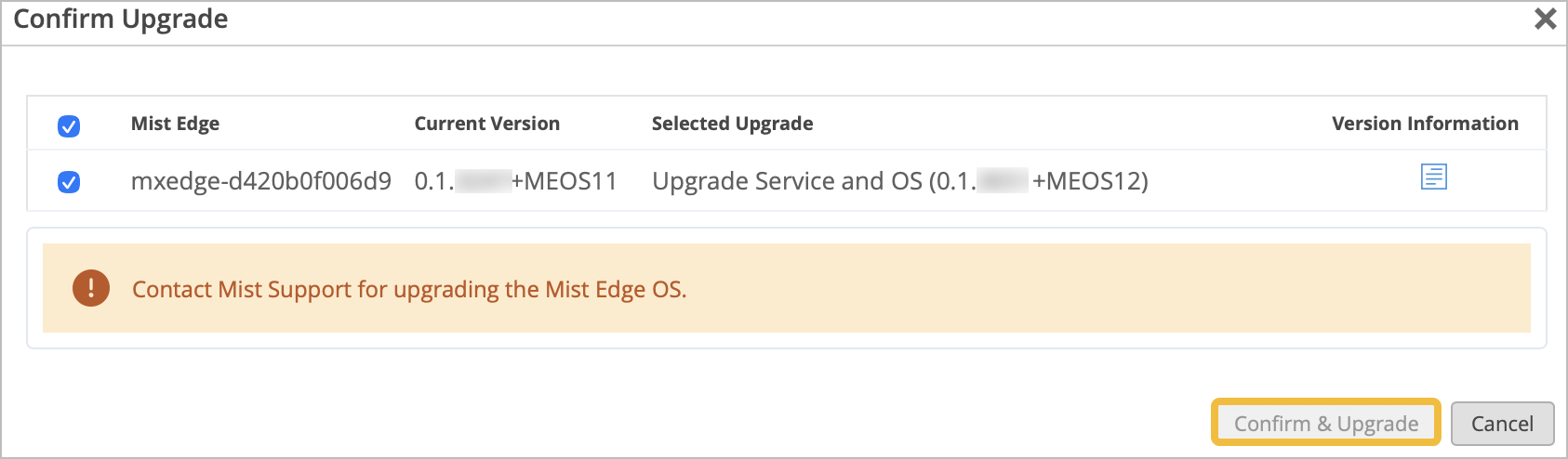 Note:
Note:If the upgrade is only for the tunnel services, then the upgrade process begins as soon as you click Start Upgrade, and is completed in a few minutes. The Mist Edge device does not reboot after a tunnel services upgrade.
The OS upgrade process takes approximately 30 minutes to complete per Mist Edge device. The Mist Edge device reboots after the upgrade is complete. See the View the Upgrade Progress section below to understand the stages of the upgrade process.
Upgrade a Mist Edge Cluster
To upgrade a Mist Edge cluster:
From the left menu of the Juniper Mist portal, select Mist Edges.
Scroll down on the page to the Mist Edge Clusters section and select the cluster you want to upgrade.
Select the Upgrade Mist Edge button in the top-right corner of the page.
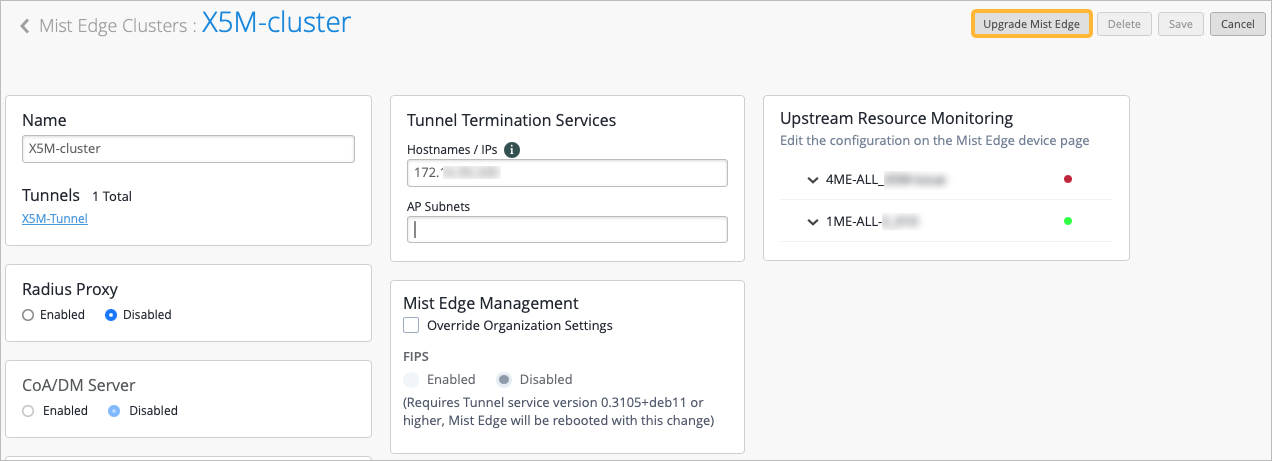
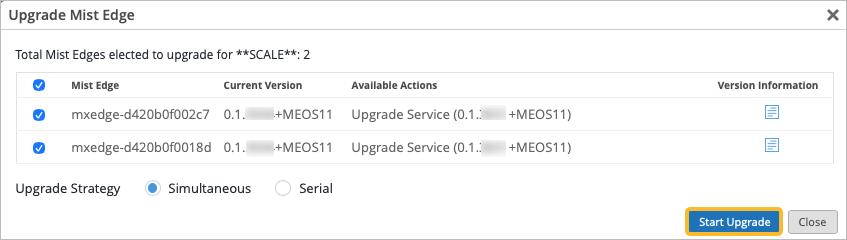
In the Upgrade Mist Edge window that appears, you can choose to upgrade one or more devices in the cluster by selecting the checkbox to the left of them. When you upgrade the services on a cluster, you can also choose one of the following upgrade options if you select multiple Mist Edges for upgrade:
Simultaneous (default option)—Upgrades all the selected Mist Edges at the same time. For this option, plan a maintenance window of 1 hour. Tunnel services will not be available to clients during this time.
Serial—Upgrades the Mist Edges sequentially, one at a time. For this option, plan a maintenance window of 30 minutes. Tunnel services will be available to clients during this time only on the Mist Edge devices that are not actively being upgraded.
Click Start Upgrade.
 Note:
Note:If the upgrade is only for the tunnel services, then the upgrade process begins as soon as you click Start Upgrade, and is completed in a few minutes. The Mist Edge device does not reboot after a tunnel services upgrade.
View the Upgrade Progress
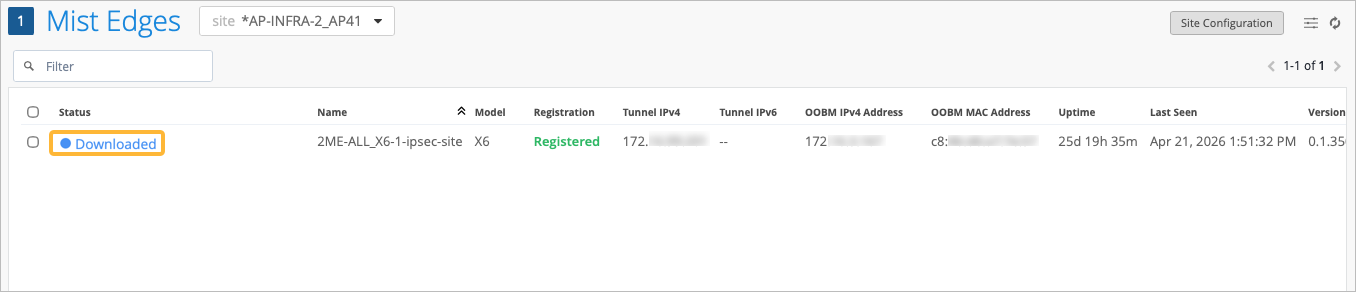
After you click Start Upgrade, Mist displays the progress of the upgrade in the Status column on the Mist Edge Inventory page.
Figure 1 represents the sequential flow of the Mist Edge upgrade process.

You can also understand the upgrade status sequence by looking at the following images. The order that they are listed from top to bottom represents the sequence that a Mist Edge goes through as an upgrade is being performed.




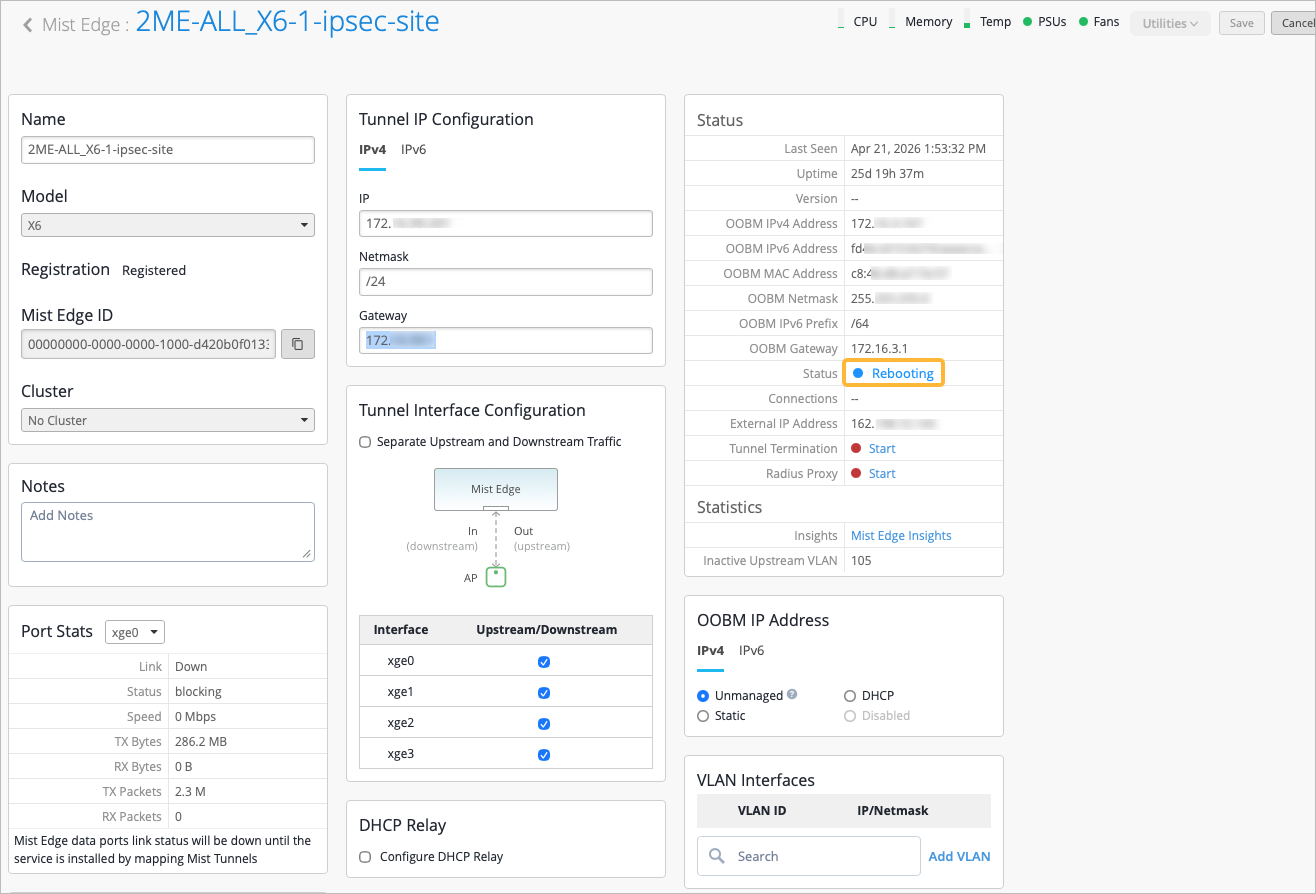
You can also view the status of the upgrade in the Mist Edge details page as shown in the following example:
If an upgrade fails, you’ll see the status as Upgrade Failed. Contact the Juniper support team to resolve the issue.
View Mist Edge Upgrade Events
You can optionally use the Mist Edge Insights page to verify the success of your Mist Edge upgrade once the upgrade completes (as an alternative to viewing it from the Status column on the Inventory page).
From the left menu of the Mist portal, click Mist Edges, then click on the name of the Mist Edge device from the Mist Edge Inventory page.
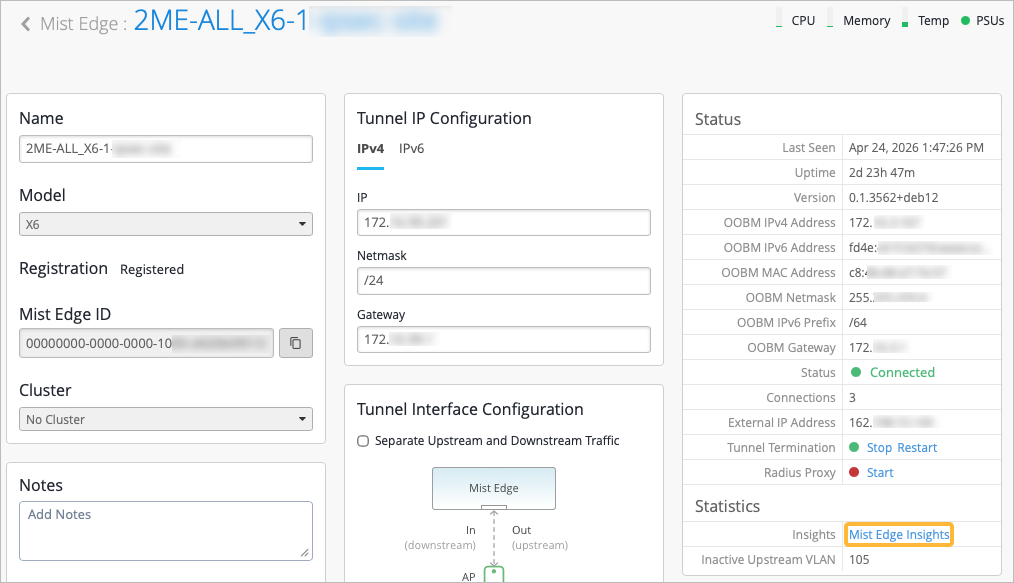
On the Statistics section of the Mist Edge device page, click Mist Edge Insights.
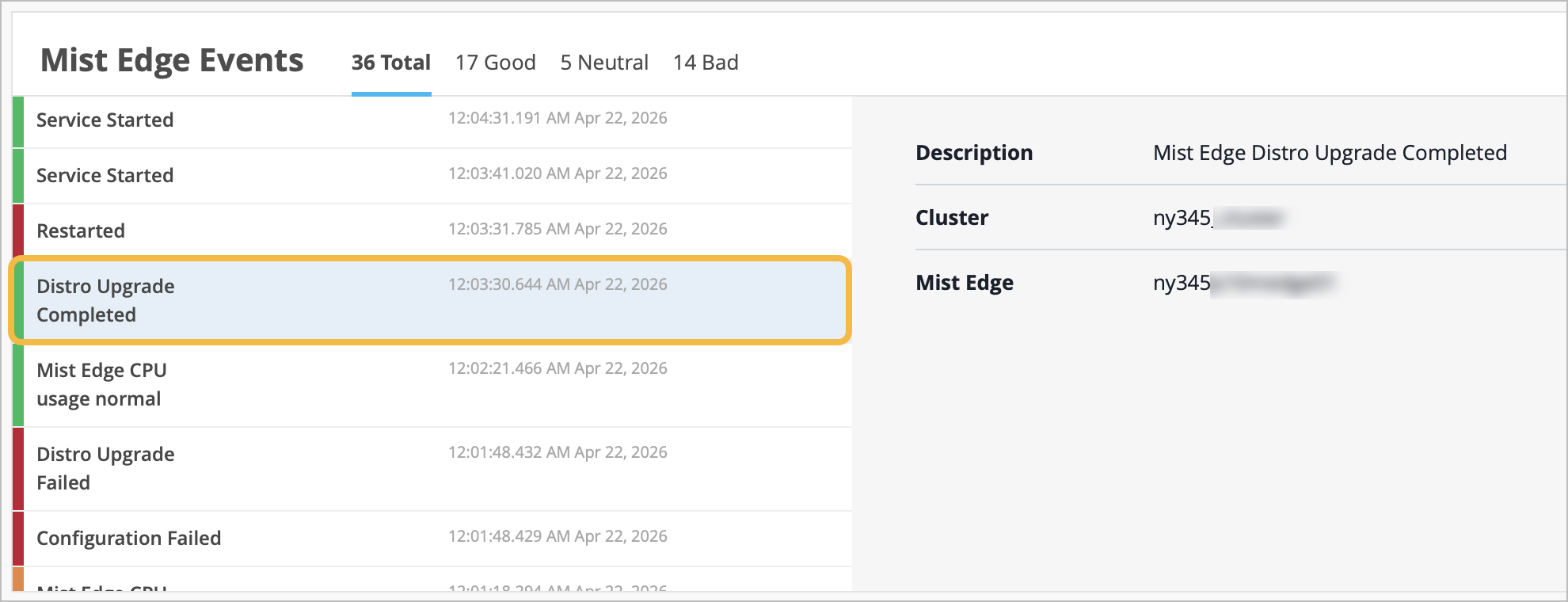
Scroll down to Mist Edge Events. If the upgrade was successful, you will see a "Distro Upgrade Completed" event.
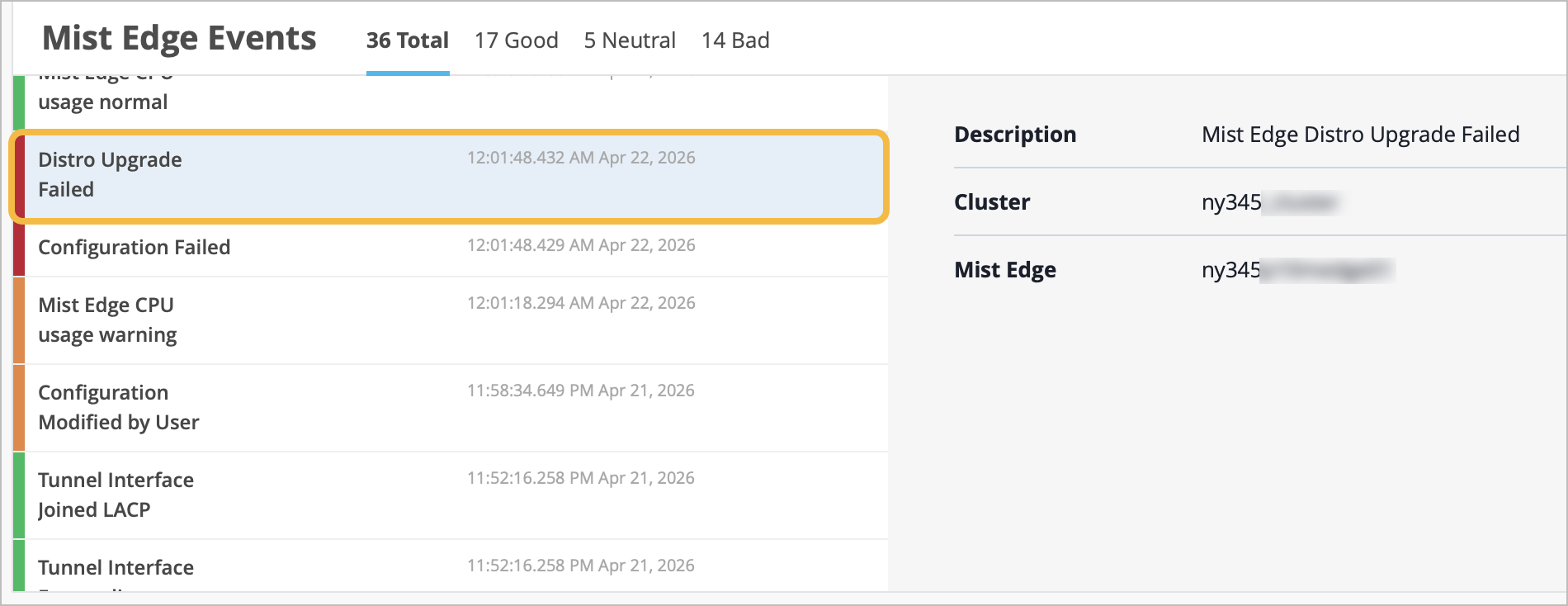
If the upgrade failed, you will see a "Distro Upgrade Failed" event.
Configure Alerts for Mist Edge Upgrades
You can configure alerts and e-mail notifications to be alerted when a Mist Edge upgrade fails.
- From the left menu, navigate to Monitor > Alerts > Alerts Configuration.
- Select the Mist Edge upgrade failed alert from the Infrastructure
category.
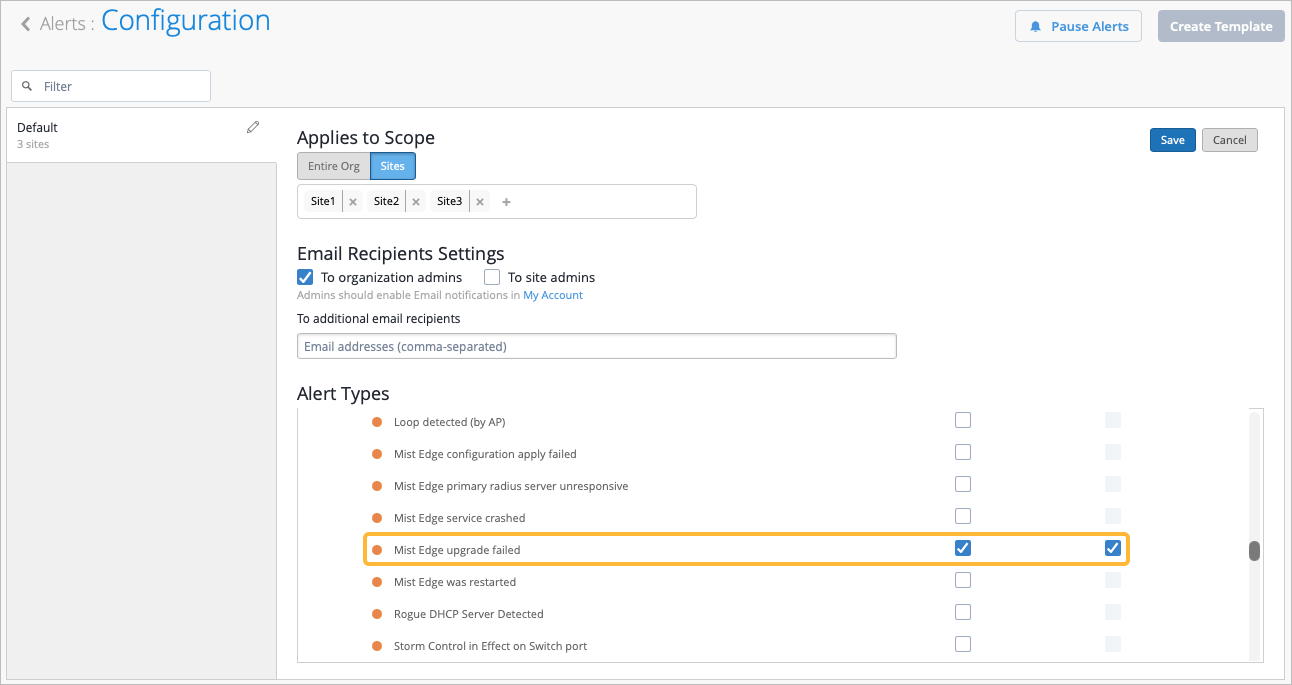
See Select the Alerts Scope, Recipients, and Types to Monitor for more details.
When you enable alerts and notifications:
- You receive an e-mail notification whenever a Mist Edge upgrade fails.
- You can view the status on the Monitor > Alerts page.
What are the recommended strategies and guidelines to ensure active tunnels seamlessly fail over between Mist Edge devices under various scenarios, including different cluster configurations, during upgrades, or maintenance events?
The upgrade strategy for Mist Edge services is designed to minimize disruption and ensure a smooth stable transition. Use a structured approach tailored to different scenarios.
When upgrading a primary–secondary cluster, follow these guidelines:
- Ensure that Auto‑preemption is enabled so that Access Points (APs) automatically steer back to the primary after the upgrade. See Auto-Preemption.
-
Upgrade the secondary cluster first. This minimizes impact on service availability because the primary continues to handle traffic.
For single clusters or primary–primary configurations, use the following approach:
- Ensure that Auto‑preemption is enabled so that Access Points (APs) automatically steer back to the primary after the upgrade. See Auto-Preemption.
-
Use Serial Upgrade option to reduce downtime and minimize tunnel disruption through a controlled, step‑by‑step process.
-
Alternatively, upgrade Mist Edge devices with fewer APs first to reduce network disruption.
When manual tunnel steering is required, use the following approach:
-
From the Mist portal, stop the tunnel service on one of the Mist Edge devices to steer the tunnels to other nodes in the cluster.
-
Alternatively, remove the Edge IP from the tunnel Hostname/IPs list under the cluster or site tunnel configuration.
Both methods will cause a momentary outage as the tunnels shuffle between the available Mist Edges.
The Tunnel Service upgrade requires a maintenance window. The tunnel gracefully restarts during this window. The entire upgrade typically completes in about five seconds. Juniper releases two or three updates each year, and the Mist portal displays only the latest and recommended firmware versions. For more details, see Upgrade Mist Edge Tunnel Services and Base OS.