
Use Case: Mist Edge Proxy for Eduroam
As you plan your Juniper Mist™ and eduroam deployment, read through this use case to see how you can integrate Juniper Mist Access Assurance with eduroam by using Mist Edge as an IdP Proxy.
Overview
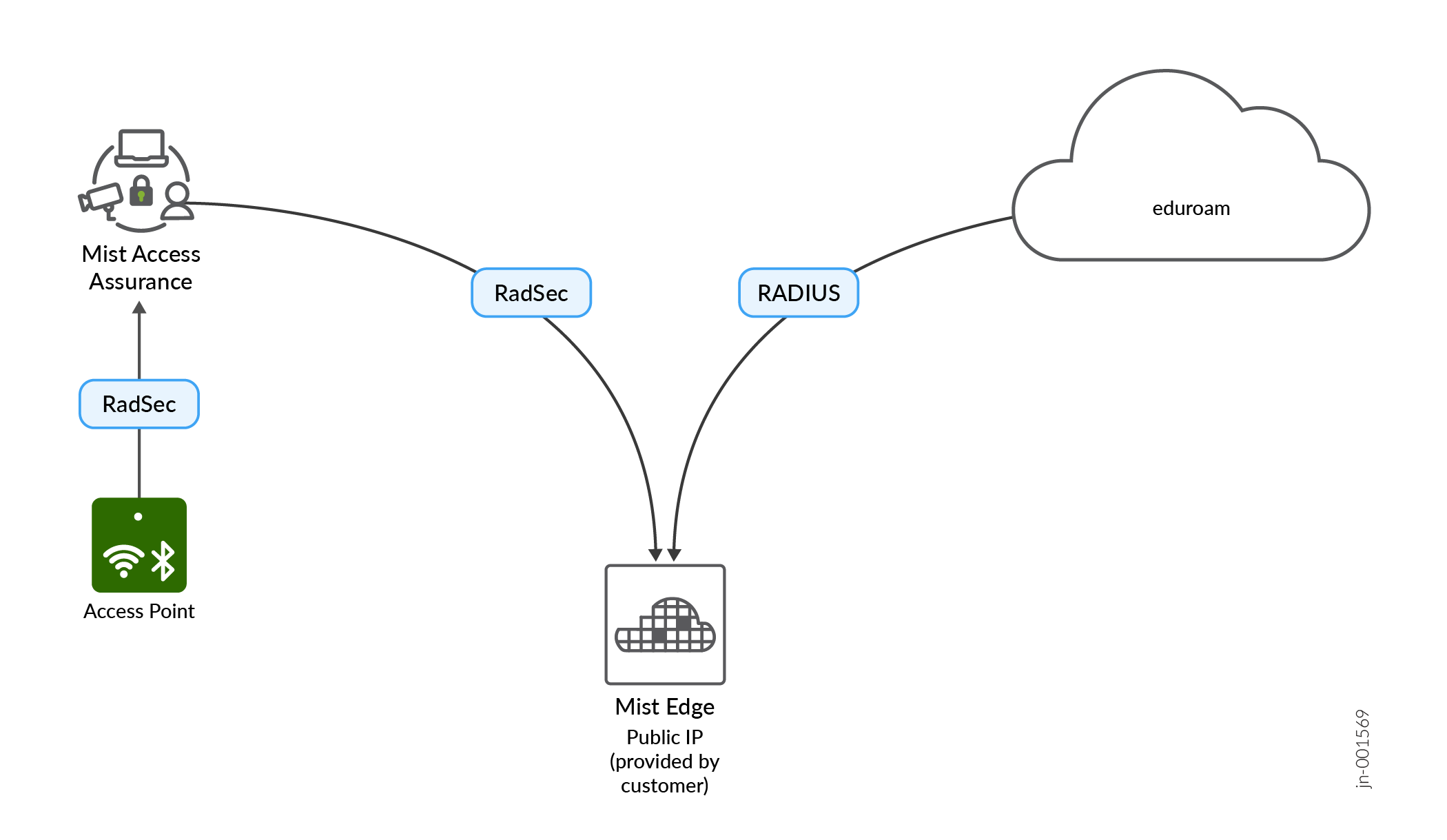
This use case shows how you can integrate Juniper Mist Access Assurance with eduroam NROs (National Roaming Operators) using Mist Edge acting as a RADIUS proxy. Mist Edge acts as a gateway to eduroam RADIUS servers with a static public IP or NAT IP assigned such that it can be registered as a RADIUS client in the eduroam admin portal.
Mist Edge Proxy is used in particular with eduroam SP and IdP authentication flows; it does not affect home users authentication.
The following call flows illustrate three types of users in eduroam networks and how each type authenticates via Mist Access Assurance and Mist Edge proxy: home users on campus, external visitors on campus (SP), and home roaming users (IdP).
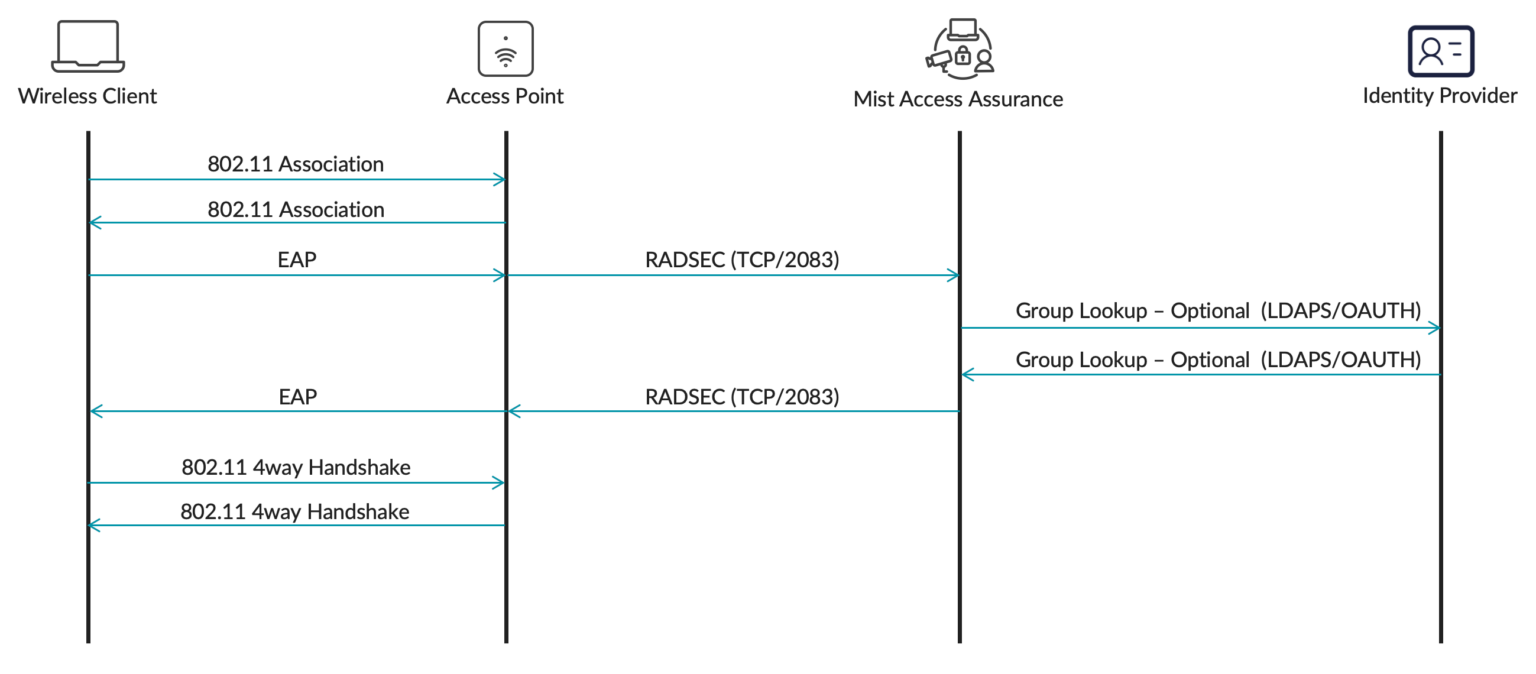
Home Users
Home users are clients that are connecting to the eduroam SSID on their own university campus. For example, a user with an @university1.edu account is currently at University 1. This user is on their "home" realm. This is the typical scenario for most authentications happening daily at this university.
This scenario does not require Mist Edge proxy. The user authenticates directly with Mist Access Assurance.
External Visitors
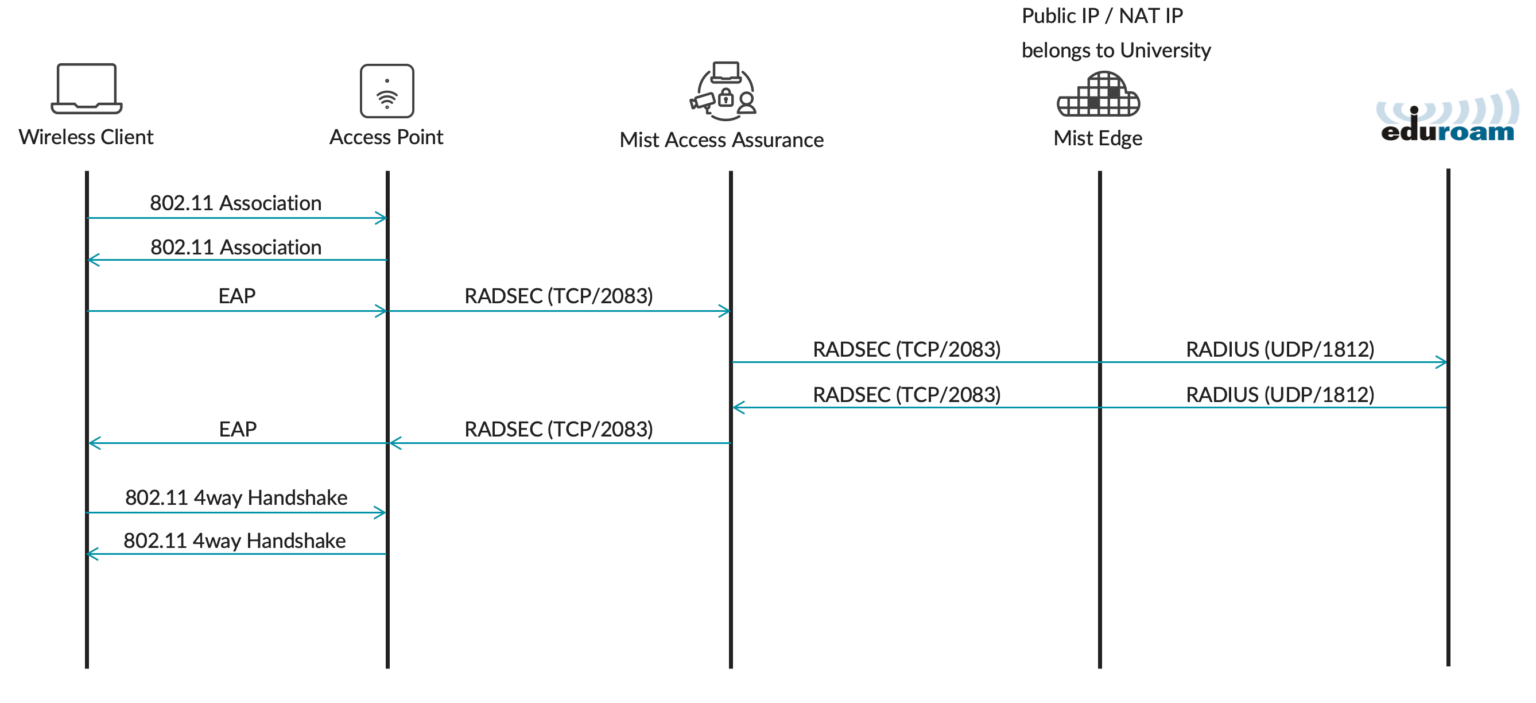
External visitors are clients who are visiting a university campus from another institution. For example, a user with an @university2.edu account is currently visiting University 1. This user is identified by a realm that is not the “home” realm.
This scenario requires Mist Edge Proxy IDP to forward authentication requests to university2.edu via eduroam RADIUS servers. External visitors authenticate via a Mist Edge proxy, where Mist Edge the proxies authentication requests towards the eduroam national RADIUS servers.
Home Roaming Users
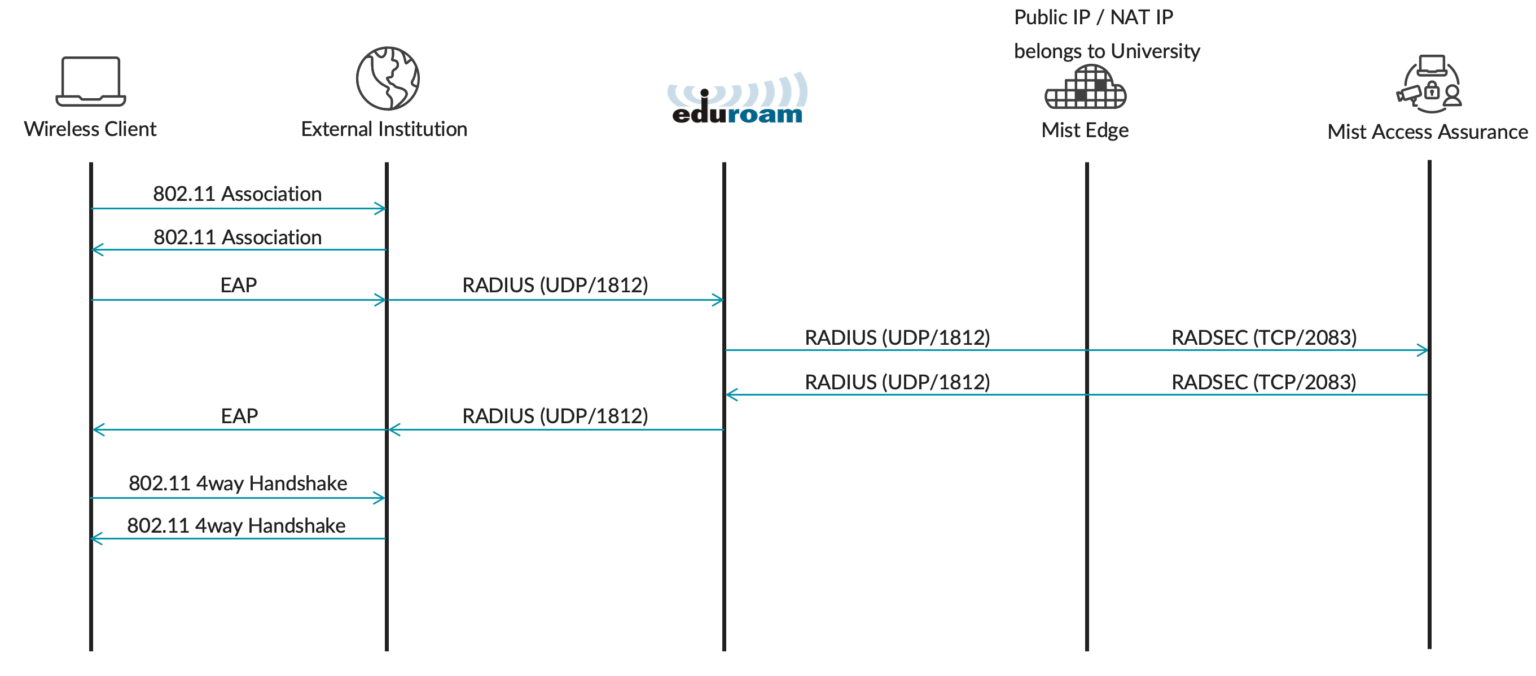
Home roaming users are clients who are visiting a different institution and would like to authenticate to an eduroam SSID by using their home university credentials.
In this example, a user with an @university1.edu account is visiting University 2. The authentication requests are coming from university2.edu via eduroam RADIUS servers towards university1.edu. RADIUS Access-Requests from eduroam national RADIUS servers are received by the Mist Edge Proxy and then forwarded to the Mist Access Assurance service for authentication.
Firewall Requirements
Mist Edge uses Out Of Band Management interface (OOBM) for all its proxy functionalities. You need to ensure that traffic can flow to and from the Mist Edge OOBM interface.
Allow the following ports and destinations:
-
Inbound (towards Mist Edge OOBM interface)
-
RADIUS Auth & Acct (1812 / 1813 UDP). You can limit source IPs to eduroam national RADIUS servers.
-
RadSec (2083 TCP). You can limit source IPs based on the following document.
-
-
Outbound (from Mist Edge OOBM interface):
-
RADIUS Auth & Acct (1812 / 1813 UDP)
-
RadSec (2083 TCP) towards radsec.nac.mist.com
-
HTTPS (443 TCP) towards ep-terminator.<mist_cloud_env>.mist.com (more on correct endpoint for your cloud environment in this document).
-
- Mist Access Assurance only supports EAP-TLS, TEAP or EAP-TTLS methods for home users and home roaming users.
- For external visitors any EAP method is supported, including PEAP-MSCHAPv2. EAP method support is determined by an external institution RADIUS servers.
- Dedicated Mist Edge(s) are a must for the IDP proxy functionality.
- For proxy service redundancy, multiple Mist Edges can be used as part of the same Mist Edge cluster.
Configure Juniper Mist
-
Add a Mist Edge Proxy IDP.
Tips:
-
To add an Identity Provider using Mist Edge Proxy—From the left menu, select Organization > Access > Identity Providers. In the Static Configuration section of the page, click Add IDP. Select Mist Edge Proxy as the IDP type. Complete the fields in the Configuration section. Refer to the on-screen tips for help.
-
To specify Proxy Hosts—Enter the public IPv4 addresses that Mist Edge will listen on for RadSec and RADIUS requests. All of these devices must belong to the specified Mist cluster.
-
To exclude domains/realms from this proxy—Enter the domains/realms, separated by commas. For example, in most cases you'll use local authentication for your own users, so you'd exclude the domain for your university, such as myuniversity.edu.
-
To specify the RADIUS Operator-Name attribute in requests—Enter the attribute in this format: 1<fqdn> such as 1myuniversity.com.
Example
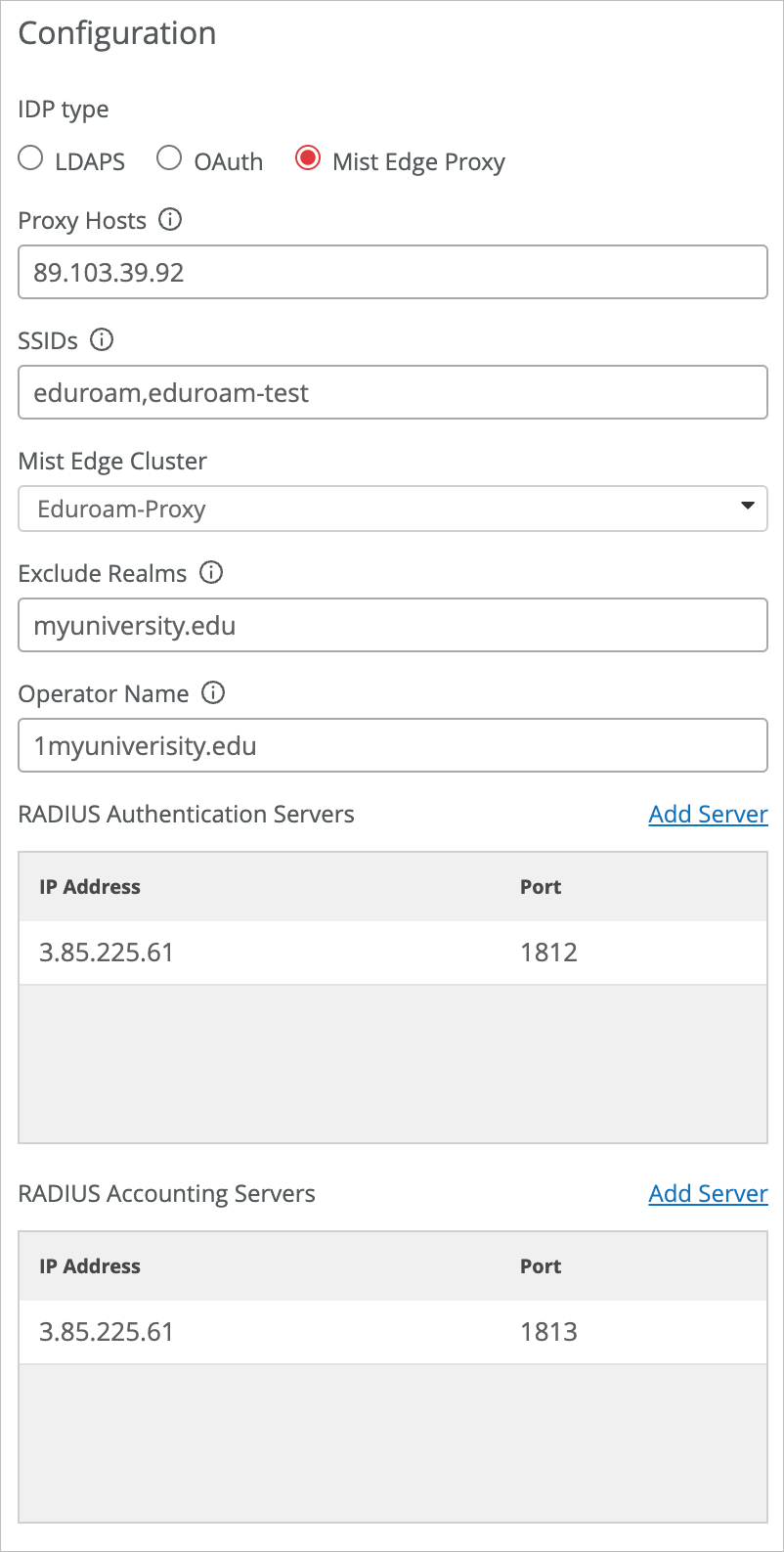 For more information, see Add Identity Providers for Juniper Mist Access Assurance.
 -
-
Configure access rules for your users and visitors.
Tips:
-
To add a policy—From the left menu, select Organization > Access > Auth Policies.Click Add Rule. Enter a name, match criteria, action (allow or block), and policies.
-
For detailed instructions—See Configure Authentication Policy.
The following example shows a rules applying to all three types of users. The first rule places home and home roaming users into the primary university VLAN. The second rule places external visitors into a guest VLAN.

-
Configure eduroam
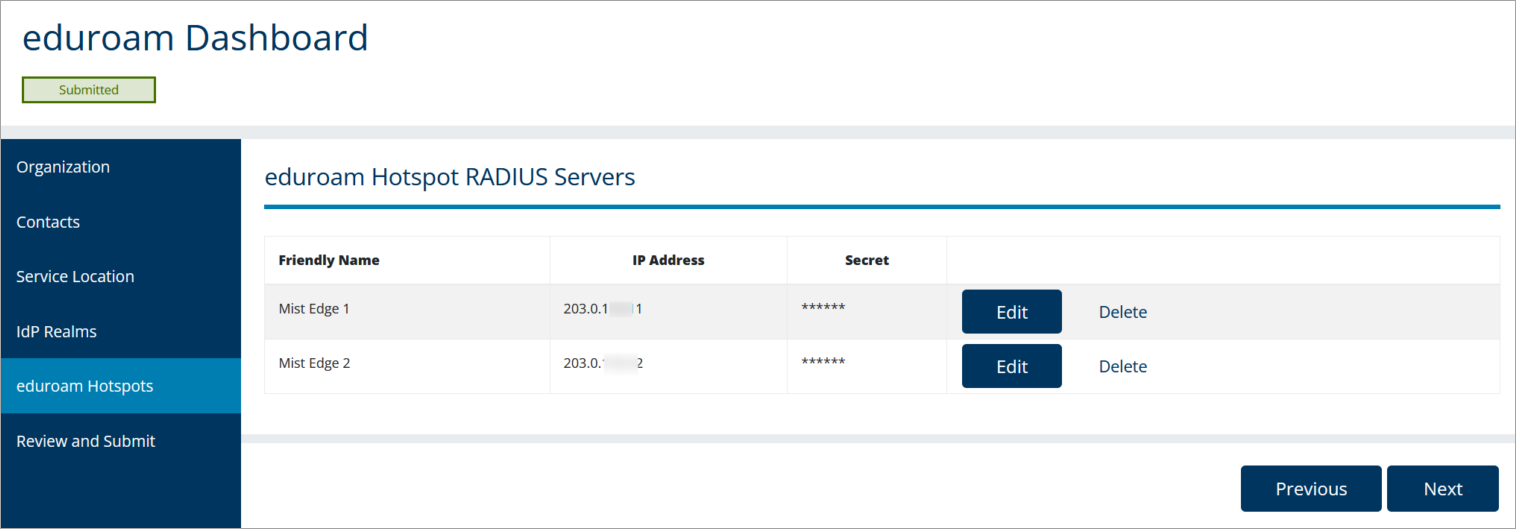
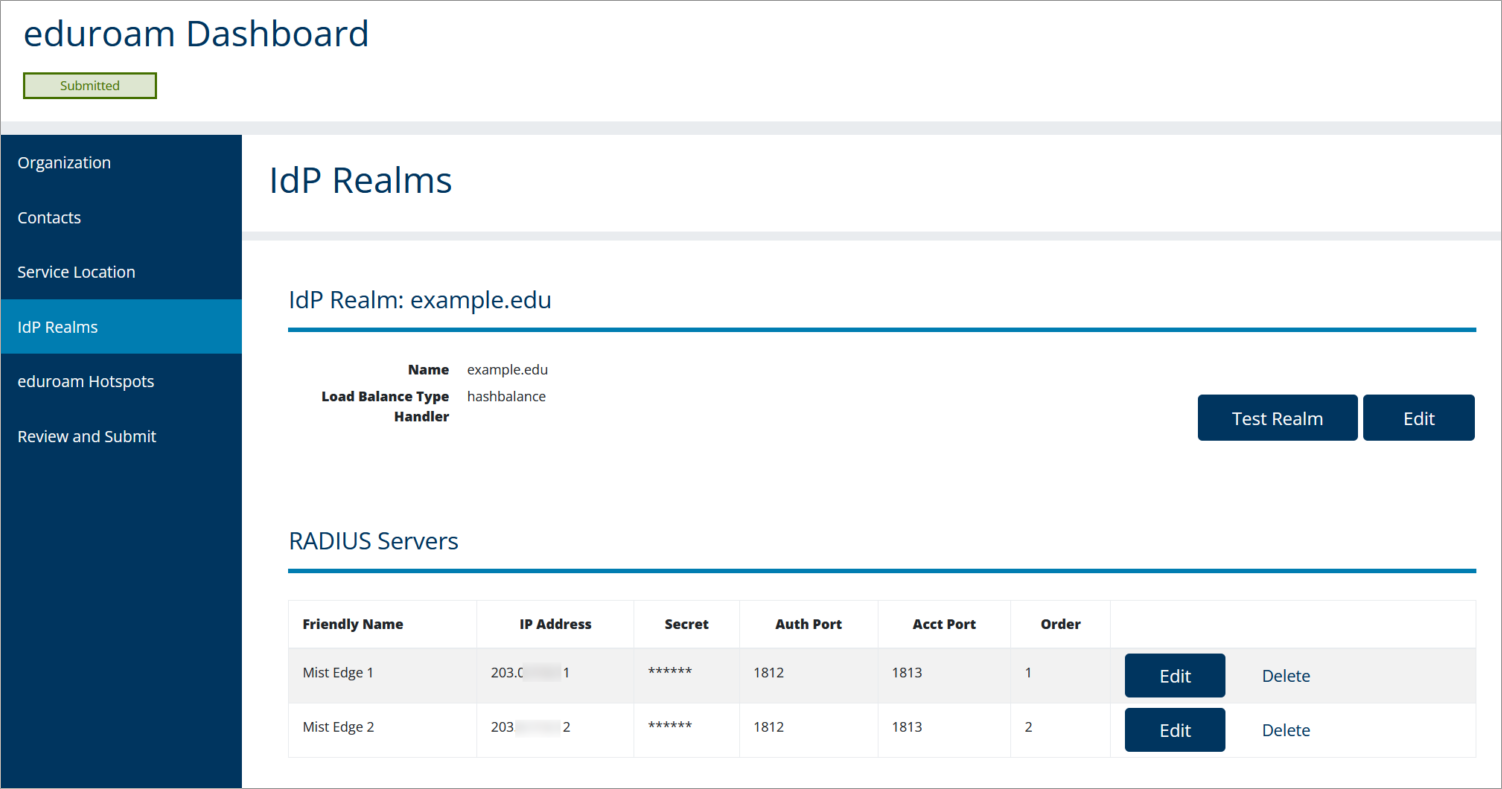
In the eduroam admin console, add your Mist Edges. Depending on the eduroam NRO, the admin console might look different, but the overall integration points will remain the same.
Eduroam Hotspot RADIUS Servers
Eduroam IdP Realms
Verification
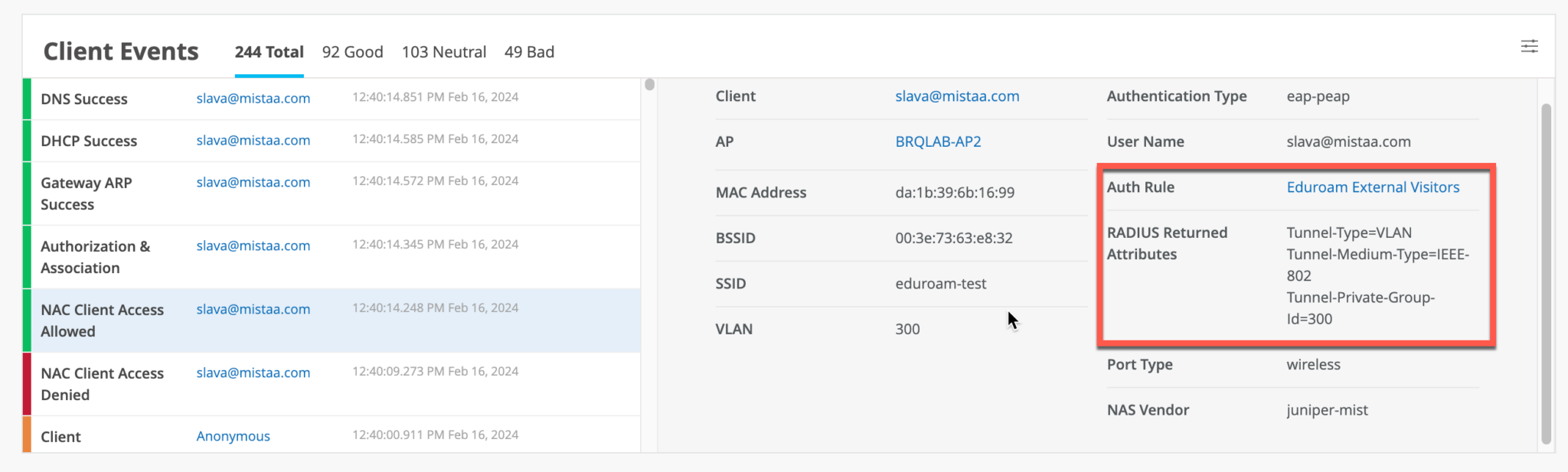
To verify the configuration, check the events on the Client Insights page or under NAC Events on the Auth Policies page.
For external users only, a NAC Client Access Allowed or Denied event will be generated without any other NAC events, due to the fact that authentication is handled by an external RADIUS server (eduroam).
Troubleshooting Tip: If you're not seeing the expected results, review the firewall configuration. Make sure that you've opened all the required ports and destinations.