ON THIS PAGE
About the Marvis Actions Page
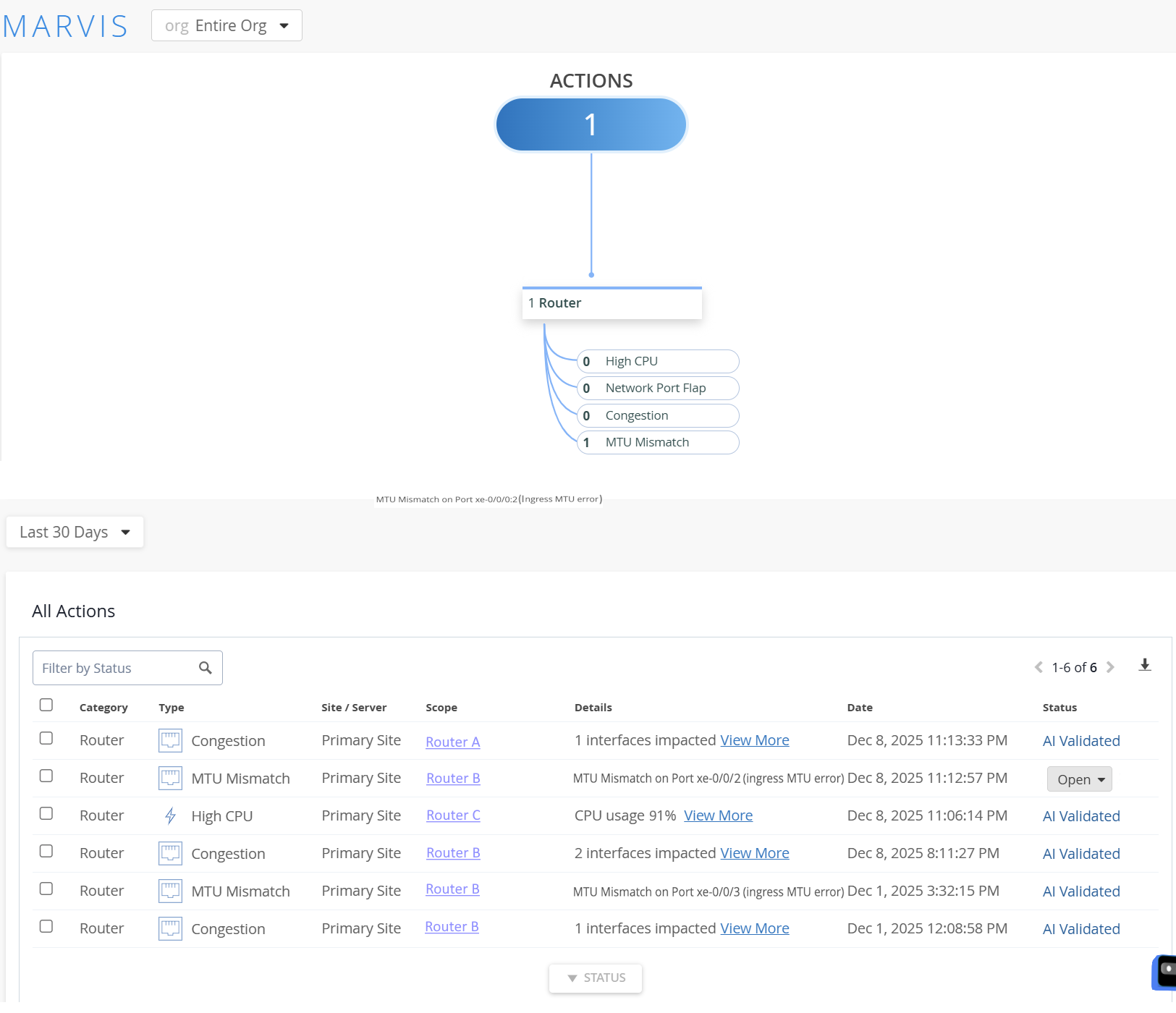
Juniper Routing Assurance utilizes the AIOps capability of Marvis® AI Assistant for Routing to analyze router events and presents these events in the Marvis Actions dashboard. This dashboard is a one-stop information center that provides visibility into ongoing site-wide network events that might affect user experience. The dashboard also provides recommendations, enabling administrators to proactively identify, investigate, and resolve network events.
To access this page, click Marvis from the left navigation menu.
Tasks You Can Perform
-
View network events for the organization─View all the events recorded in the organization.
Click each event type to view the various router events.
-
View events for a specific site─View all the events recorded at a specific site by selecting a site from the org/site drop-down list.
-
Download the list of the events─Click the download icon (Down Arrow) to download the list of events recorded at a specific site or the organization in CSV format. The CSV file contains all the details visible on the Marvis page, including the event type and device details. You can download either the complete list of events or the list for a specific event type.
You can also select a time interval from the time range drop-down list. The Marvis Actions dashboard displays events that occurred during the selected interval. Select Custom Date to view events for a specific date range.
Note: By default,-
All events that were recorded in the last 30 days are displayed in the dashboard.
-
The Actions widget displays events that are in Open state.
You can update the status of an event individually or perform a bulk status update for multiple events. Click the Status drop-down list to update the status of an event. Marvis classifies the events into the following states:
-
Open─Lists the unresolved issues for the selected event type.
-
AI Validated─Lists events that Marvis has confirmed as resolved.
If you fix an issue, Marvis detects the resolution, verifies that the issue is no longer occurring, and then moves the status to AI Validated.
Every event type has a defined interval during which Marvis monitors the issue. If the problem does not reappear within this interval, Marvis confirms that it is fully resolved and updates the status to AI Validated. If the issue reappears during this time, Marvis changes the status back to Open.
-
In Progress─Lists events currently being addressed by administrators. If Marvis does not detect these events during the monitoring interval for the event type, it updates their status to AI Validated.
-
Resolved─Lists events that were resolved manually by users. Marvis classifies an issue as Resolved only if you mark the action as resolved from the Actions page. After resolving an event, you are prompted to provide additional context on how the event was addressed. The resolution options are:
-
Solved using Marvis suggested action─Event resolved based on recommendation from Marvis.
-
Solved using another method─You can use the comment box below to describe how the event was resolved.
-
A known issue and can be ignored in the future─You can snooze an event to temporarily suppress notifications and reporting for that event type. The default snooze duration is 60 days.
-
Incorrectly listed as an issue─The event was determined to be a non-issue or an incorrect alert, requiring no user action.
-
-
Reoccurring—Lists resolved issues that have reoccurred. At times, Marvis might find that an issue you marked as resolved is still not resolved completely. Marvis classifies such an issue as a reoccurring issue.
Note: You can mark the status of an event as In Progress to indicate that an administrator is working on resolving the event. Resolving a specific event will only resolve that occurrence of the event and will not resolve future occurrences of the same event.In Figure 1, you can see that Marvis has detected port flap events on ports xe-0/0/5 and xe-0/0/2 of routers A and B respectively.
-
Field Descriptions
Table 1 describes the fields on the Marvis page.
|
Fields |
Description |
|---|---|
|
Category |
The high‑level classification that groups related network events. Category represents the impacted domain. |
|
Type |
The specific issue type within a Category, representing the nature of the detected event. |
|
Site/Server |
Location where the issue is detected. |
|
Scope |
Router affected by the issue. |
|
Details |
A brief description of the event, including key indicators and context gathered by Marvis. It includes impacted interfaces, performance metrics, and recommended next steps. |
|
First Occurence |
The date and time when Marvis detected the first occurrence of the event. |
|
Last Occurence |
The most recent date and time when Marvis detected the occurrence of the event. Note: If an event occurred only once, the
timestamps for the first and last occurrences will be the
same.
|
|
Status |
Current state of the issue as tracked by Marvis. |