Network Port Flap
Use the Marvis Actions dashboard to identify flapping ports.
The Network Port Flap event identifies router ports that persistently go up and down in a rapid manner. The instability resulting from port flapping disrupts network connectivity and degrades the end-user experience. Some of the reasons for port flapping are:
-
Faulty cables and connectors.
-
Mismatch in duplex settings of the connected devices.
-
Hardware or software malfunctions on the router.
-
Inconsistent power supply or power surges.
To view the Network Port Flap event, click Marvis > Interfaces > Network Port Flap.
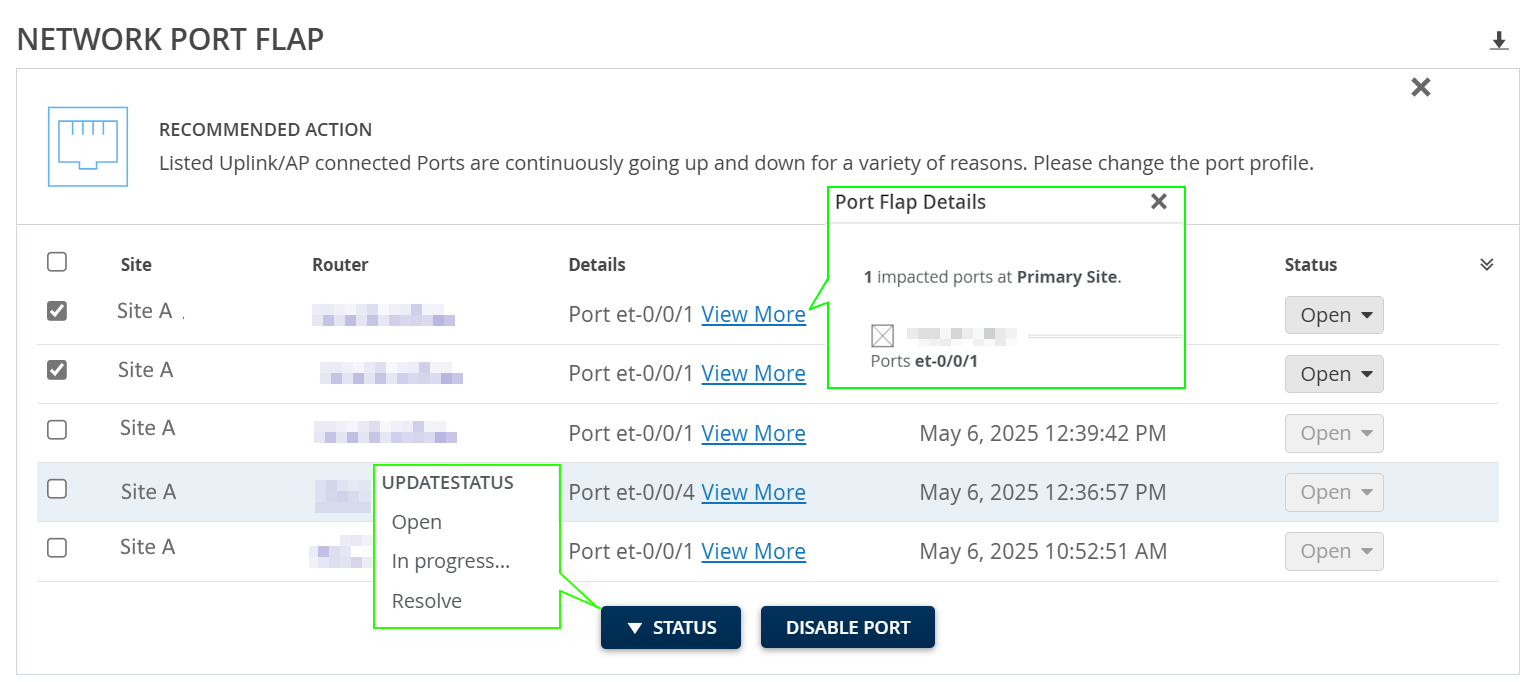
The Network Port Flap event provides details such as the site, router, date and time when the event was recorded, event status and even the recommended action to resolve the event. Click View More to view the list of ports that flapped.
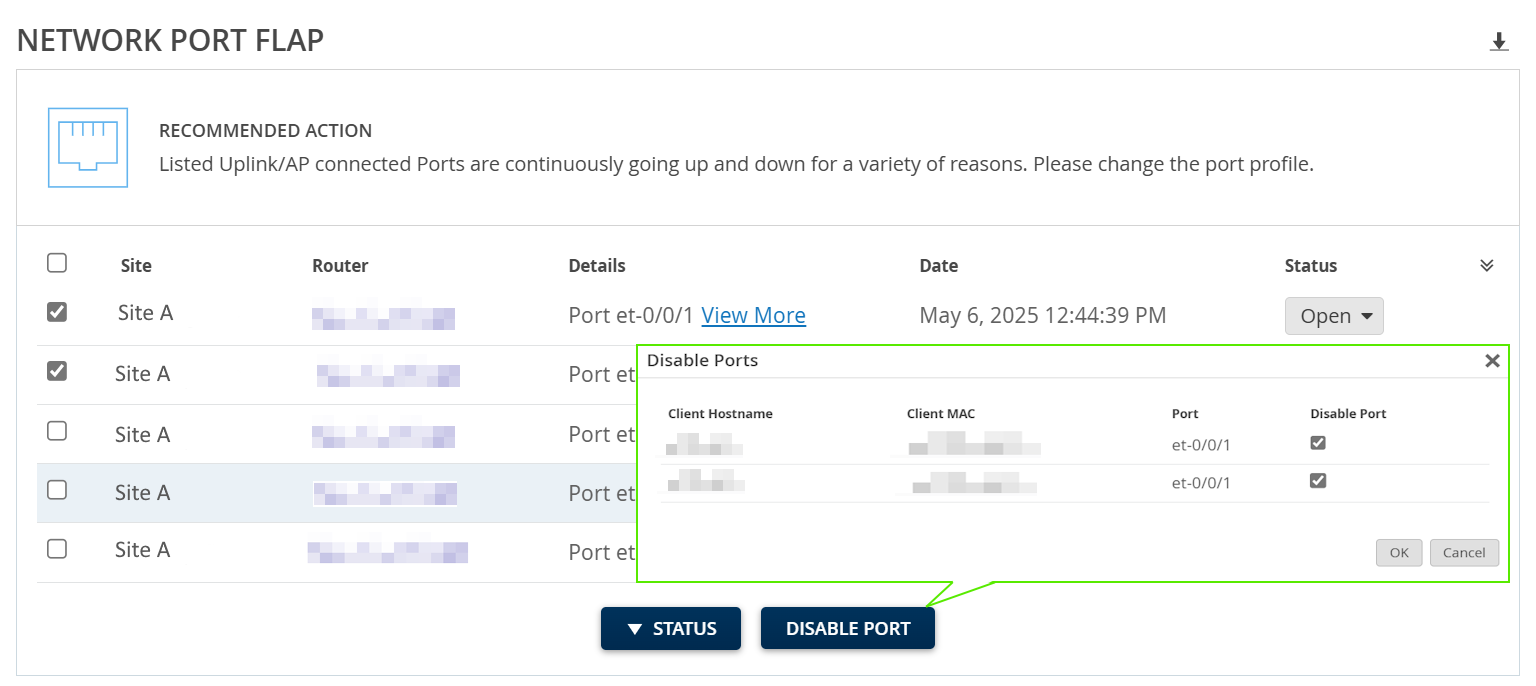
You can disable the router's ports to address port flapping temporarily. Disabling the ports stops the immediate flapping and can stabilize the network temporarily.
To disable the router's flapping port/ports, see Disable Flapping Ports.
As a basic troubleshooting step, network administrators can check the cable connection and perform the loopback diagnostic test. You can further investigate the flapping ports from the router CLI using the following CLI commands:
Check the physical link status of the interface with the command:
show
                        interfaces interface-name media
Check the interface statistics in detail with the command:
show interface
                            interface-name extensive
If you find any outliers here, contact your Juniper Support representative to resolve the event.
You can mark the status of an event as In Progress to indicate that an administrator is working on resolving the event. Resolving a specific event will only resolve that occurrence of the event and will not resolve future occurrences of the same event.
Disable Flapping Ports