
Optimize Low Traffic Ports Based on Forecasted Traffic Patterns
This topic describes how to reduce device‑level energy consumption by using forecasted port usage patterns to identify and disable ports during recurring low‑traffic windows.
Network traffic often exhibits predictable patterns over time. Some ports consistently carry low or negligible traffic during specific time windows. The recommendation system analyzes available forecasted port traffic data to detect ports that consistently carry low traffic during specific time windows and generate energy optimization recommendations.
A port is selected for the Forecasted Low Traffic Port Shutdown recommendation when:
- It consistently operates below the configured low-traffic utilization threshold during
the same hours across multiple days in the forecast.Note:
You can configure the port utilization thresholds used for this analysis at the organization and site levels. See, Configure Port Threshold for the Organization and Configure Port Threshold for a Site.
If no thresholds are configured, the system applies the default thresholds for all ports.
By default, the threshold for low traffic is set at 10%.
- Disabling the port during the low-traffic window is operationally safe.
- Sufficient forecasted data exists to establish a predictable pattern.
The recommendation service runs once per day at around 3 AM UTC. Each run uses forecasted per-port traffic data and the configuration data available at the time. The Recommendation tab displays the most recently generated results for the device.
Changes to port states, traffic patterns, or threshold configurations that occur outside the current run window are reflected in recommendations after the next run.
The Forecasted Low Traffic Port Shutdown recommendation:
- Identifies ports that repeatedly show low traffic forecast during the same hours across multiple days.
- Estimates potential energy savings if these ports are disabled during those off‑peak windows.
- Provides configlet-based actions to safely apply configuration changes on the device without affecting network traffic.
- Helps align device power usage with actual network demand, reducing baseline energy consumption and operational costs.
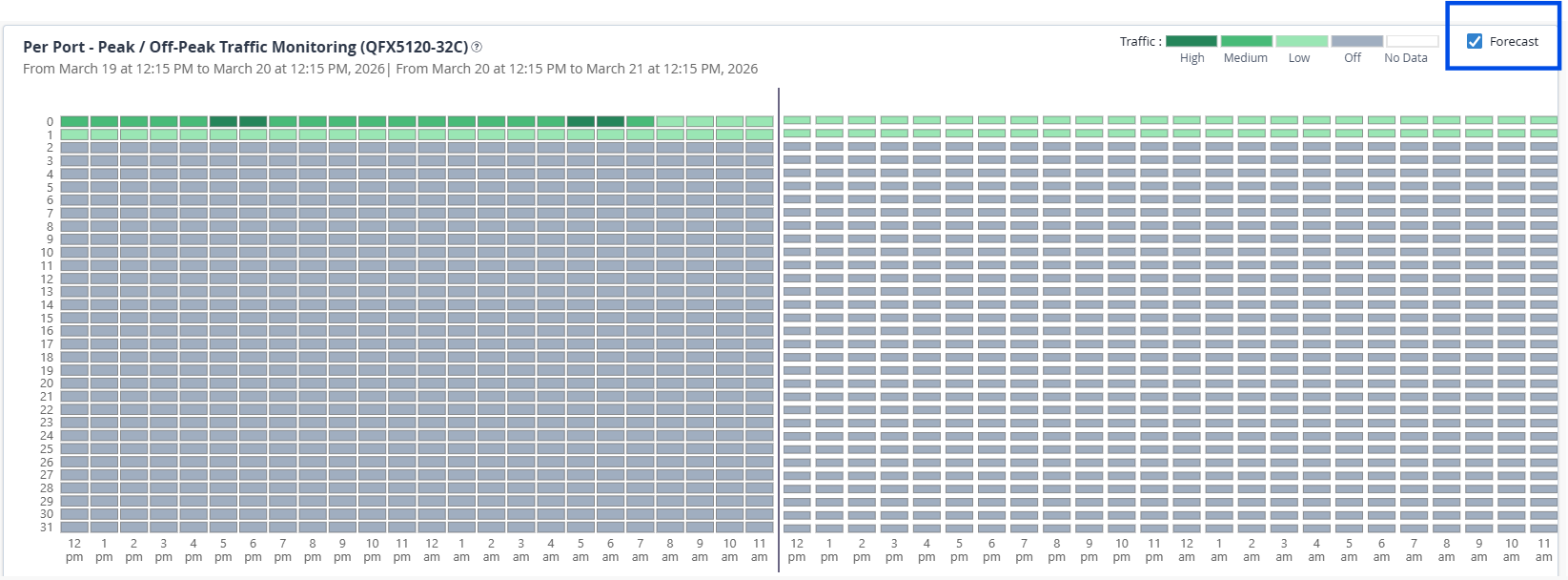
Use the Per-Port Peak / Off-Peak Traffic Patterns heatmap on the Device-Level Sustainability Dashboard to view forecasted traffic patterns for all ports.
The Recommendation tab appears empty if no safe or meaningful recommendations or power saving actions were identified based on the latest device telemetry.
To view forecasted traffic patterns and review the recommended actions:
-
On the Device-Level Energy Dashboard, enable Forecast and review
the forecasted traffic patterns for the next 24 hours in the Per-Port Peak /
Off-Peak Traffic Patterns heatmap on the Overview
tab to understand predicted traffic trends.
Figure 1: Heatmap with Forecast Enabled
-
Navigate to the Recommendation tab. The Forecasted Low
Traffic Port Shutdown recommendation card appears on the top of the page.
The card highlights the recommendation type, the count of ports identified as candidates for temporary shutdown, and the potential energy savings you can achieve by applying this recommendation.
The potential savings indicate the estimated amount of energy that can be conserved by proactively disabling ports that are predicted to remain underutilized based on forecasted traffic patterns. This also includes the associated reduction in power consumption from optical transceivers linked to these ports.
Note:-
Recommendations are generated only if eligible ports are detected.
-
Forecast based recommendations may require up to 15 days of data after Edge onboarding or upgrade.
Click the recommendation card to open the detailed recommendation panel.
Figure 2 shows a sample Forecasted Low Traffic Port Shutdown recommendation card and panel.Figure 2: Sample Recommendation Card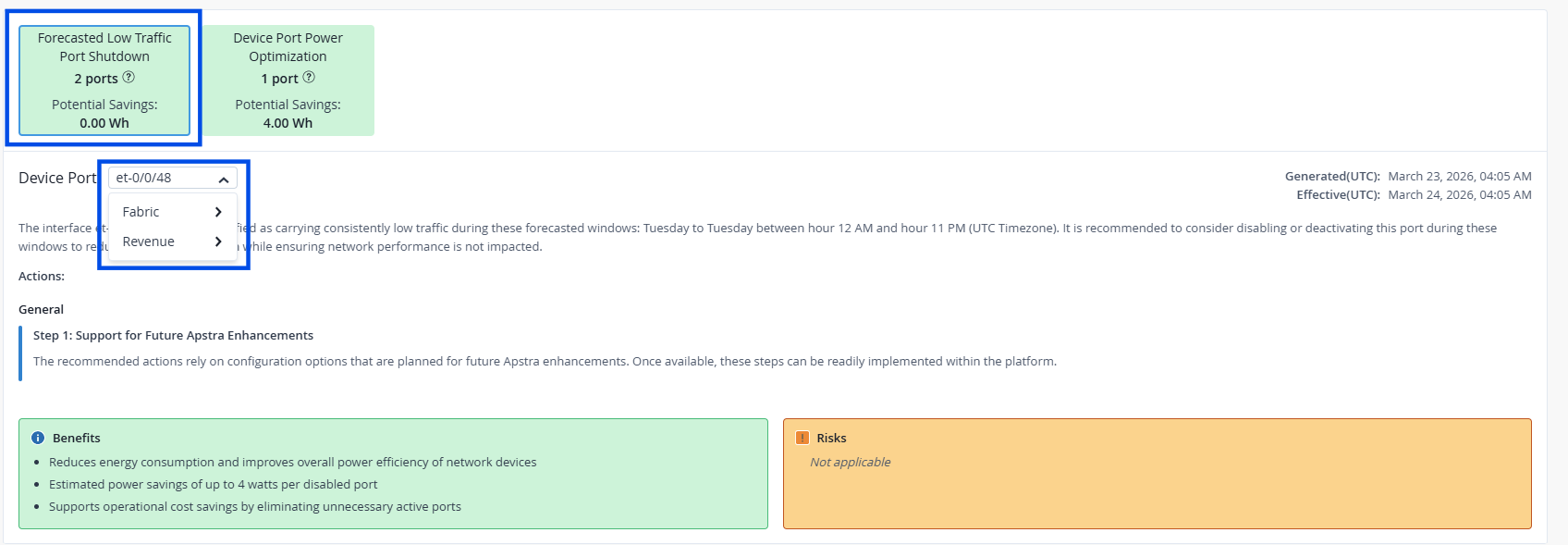
The recommendation panel includes the following fields:
Table 1: Field Description Field Description Recommendation Type A high-level description of the recommendation type.
Indicates the type of recommendation, the number of ports identified for applying the suggestion, and the potential energy savings achievable if the recommendation is applied.
Device Port Port identified as carrying low or negligible traffic.
Ports are classified into:
Note: The port type is shown only for connected ports.-
Server—Ports that connect network devices to end hosts.
- Fabric—Ports that interconnect switches within the data center fabric.
- Unknown—Ports that do not belong to any Apstra-managed topology or ports for which topology or device‑role information is not available.
Use the drop-down to select a port and view its specific recommendation.
Summary A brief explanation of the predicted traffic patterns during off peak time windows and the recommended optimization action. Actions Provides step-by-step guidance and relevant configlet-based actions required to disable the port without impacting the network traffic. Note:You must use the configlets in Apstra Data Center Director to apply configuration changes to the device. For more information on configlets, see Configlets in the Apstra Data Center Director User Guide.
Benefits Displays quantified advantages, such as estimated power and cost savings and reduced GHG emissions. Risks Highlight caveats such as potential dependencies, safety checks, and guardrails to consider before applying the suggested changes. Timestamp Shows when the recommendation was generated and how long it is valid.
Note: Recommendations are refreshed daily based on the latest device telemetry. -
Traffic patterns can change over time, so we recommend regularly returning to the Sustainability dashboards to monitor actual port utilization patterns and forecasts, and re‑enable ports when traffic demand increases or operational requirements change.