
扩展平面图
为确保定位准确性,请缩放您的平面图。
视频概述
Okay. So now let's scale the image. So let's click setup floor plan.
Click set scale and drag and drop between two points. So now what I'm doing here is I'm selecting two points that I know the distance between in real life. And I have very high confidence that I know that the distance between these two points is 12.15 meters. So now I'm gonna click right here and say, enter a new length, 12.15 and click okay and click done. And then once we've saved the image, that's all we need to do. You just need to know two points that you know the distance between and then enter in that value like I just did.
Now click save and that's it. Now we've uploaded and we have scaled our image.
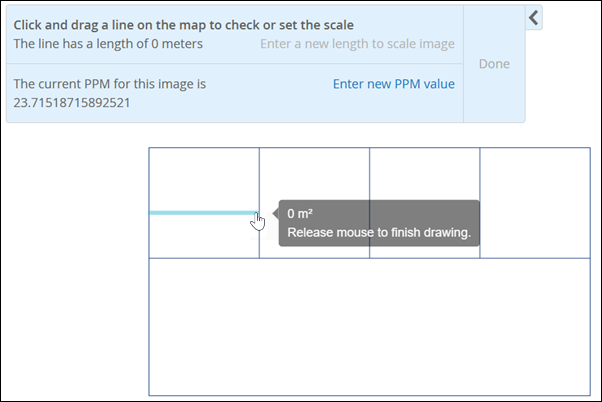
- 在平面图上的两点之间拖动一条线。
例如,您可以在房间的宽度或走廊的长度上画一条线。
 提示:
提示:如果您不知道实际尺寸,请在平面图上查找标准门并将该门缩放到 0.91 米(3 英尺)。这将使您接近实际规模。
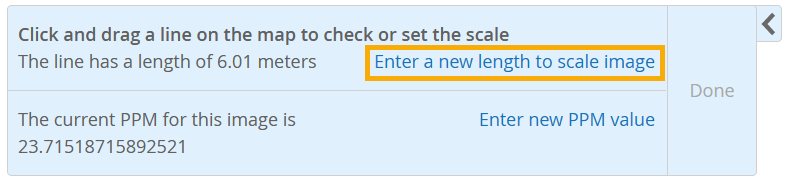
- 单击输入新的长度以缩放图像。
- 单击完成。
现在,您已准备好将接入点添加到平面图中。请参阅 将接入点添加到平面图。