
配置基于凭据 (EAP-TTLS) 的身份验证
要使用基于凭据的身份验证来保护网络,请按照以下步骤导入证书、创建身份验证策略并更新端口配置文件以使用 EAP-TTLS (802.1X) 身份验证。
可扩展身份验证协议 - 隧道式 TLS (EAP-TTLS) 在客户端使用用户名和密码,在服务器端使用服务器证书,以提供安全访问。
以下任务说明如何为有线客户端配置 EAP-TTLS。这些身份验证方法使用存储在身份提供程序 (IdP) 中的凭据验证用户名和密码。
先决条件
-
您必须将身份提供商 (IdP) 与瞻博网络 Mist 门户集成并配置。请参阅为 瞻博网络 Mist Access Assurance 添加身份提供商。
-
您必须将客户端设备配置为请求方。对于此配置,您必须添加企业公钥基础架构 (PKI) 的根证书颁发机构 (证书颁发机构) 证书,并在 IdP 中输入用户名和密码。
-
您需要一个瞻博网络接入点来执行无线客户端身份验证(无线客户端特定任务)。
-
您必须配置云 RADIUS 服务器将使用的公共或私有企业 TLS 服务器证书。
观看以下视频,了解如何使用 Azure IdP 集成配置基于证书的 (EAP-TTLS) 身份验证:
Now, what else could we do with an IDP? We've already established that if we are using certificates or tell us to authenticate, we could use IDP and an additional source of information or context about the user. So namely, group memberships. Now, what about the authenticating users themselves without certificates?
What about authenticating users using usernames and passwords? We could leverage the existing connector with Azure to do EAP-TTLS authentication. With EAP-TTLS, the clients are using usernames and passwords to authenticate, as opposed to client certificates. So we can create another rule. We could say we are matching on the wireless user that is using TTLS instead of TLS.
And let's also match on the employee group. Why not? So we'll call it credential authentication - no - show authentication employees. Now, we will assign them to corporate VLAN. We'll hit Save. One thing we need to make sure that on the Azure portal on the app that we've created previously, there's one requirement for password authentication to work, you'll need to enable public client flows. Just click yes right here under authentication. You'll hit save.
And now we can go and check our client device. Let's take a look at the Windows device, how we can configure a Windows device to use TTLS. So we'll connect to mist-secure-net SSID. We'll be immediately prompted by the system to provide our username and password. So I'm going to give my full username and password. The important piece is to provide the full domain name - microsoft.com.
This is how the access assurance will find out which identity provider to talk to based on the domain name after the user. So click OK. Ask us to connect. And we're not connected using username and password. Now, let's take a look at our client events.
Let's look at the client insights. What we're seeing here is a slightly different flow because we are using usernames and passwords, we are not dealing with client certificates here. But the client is still trust in the server certificate. That's mutual trust is still there.
Now, we are going immediately to the identity provider to do the authentication to validate the credentials of that specific user. Now, after this phase is successful, we'll go ahead and look up all the user groups, the user roles from Azure, and finally we are matching on a specific authentication policy rule which we've just created to match on our new condition when clients are using TTLS.
为有线网络配置基于凭证 (EAP-TTLS) 的身份验证
要使用瞻博网络 Mist 门户为有线网络设置基于证书的身份验证:
- 导入受信任的根证书颁发机构 (证书颁发机构)。瞻博网络 Mist 使用证书颁发机构 (证书颁发机构) 生成的证书作为服务器证书。有关详细信息,请参阅 使用数字证书 。
- 创建身份验证策略。
- 配置交换机。
- 将端口配置文件分配给交换机上连接的有线客户端需要访问网络的每个端口。
在 Port Config 选项卡的 Select 交换机配置 部分中,单击 Add Port Range,将端口配置文件与端口相关联。
图 1:将端口配置文件分配给交换机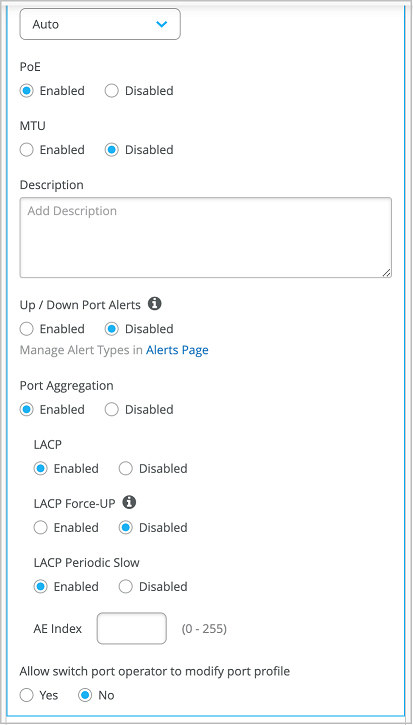 上的端口范围
- 将端口配置文件分配给交换机上连接的有线客户端需要访问网络的每个端口。
现在,您的网络可以使用 EAP-TTLS 来安全地验证客户端。
身份验证策略允许具有有效用户名和密码的客户端访问网络。
瞻博网络 Mist 云会根据存储在公共凭证提供程序中的凭据验证用户名和证书,并根据 标签配置授予访问权限和授权。
您可以在瞻博网络 Mist 门户上查看关联的客户端。
- 选择 客户端>有线客户端 以查看客户端详细信息
- 选择 “监控>服务级别>见解 ”以查看客户端事件。