
Place Devices in RMA State
You can use Return Material Authorization (RMA) process to request a replacement device for a faulty device or an operational device. When you place a device in RMA state, the device is deactivated and your service could be disrupted until the replacement device is deployed and activated.
Before You Begin
Ensure that the following conditions are met:
-
Your device has no hardware issues before you onboard the device to Juniper Security Director.
-
Onboard your device to Juniper Security Director. Fore more information, see Onboarding Overview.
-
Juniper Security Director can discover your device.
-
The configuration of your device is backed up in Juniper Security Director. For more information, see Configuration Versions.
-
You have administrative privileges with full access to the Juniper Security Director portal.
To place the devices in RMA state:
-
Click Yes.
You'll see a confirmation message indicating that the operation is successful and the status in the Management Status column changes to RMA.
A job is created for the RMA process, and the details are displayed on top of the Devices page. Click to view and track the job progress.
To verify the RMA status on your device, use the CLI command
show configuration | display set | match
              EMS
.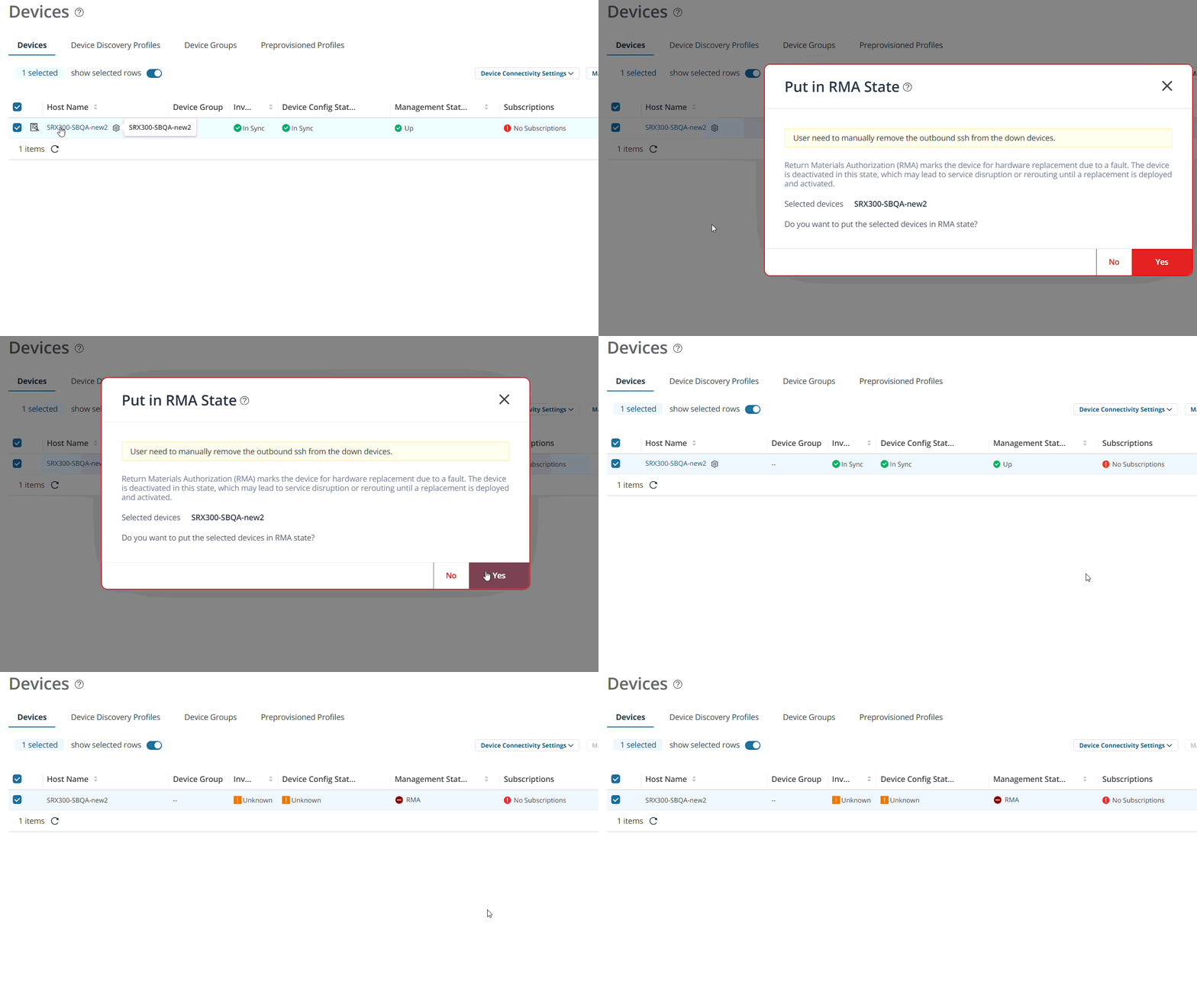
Table 1 describes the RMA statuses shown in the Management Status column
| RMA Status | Description |
|---|---|
| RMA | The device is placed in RMA state, and its configuration is saved in Juniper Security Director. |
| Reactivation pending | The replacement device reactivation is queued and waiting to start. |
| Reactivation in progress | Reactivation is running. The saved configuration is being applied to the replacement device. |
| Reactivation failed | The reactivation attempt did not complete successfully and requires troubleshooting or another attempt. |
After your device is placed in RMA state, you must contact Juniper Support to receive a replacement device. This replacement device must be reactivated from the RMA state in Juniper Security Director. For more information about device reactivation, see Reactivate Replacement Device from RMA State.