
Modify VM Configuration Using VMware vSphere
By default, VM is deployed with the smallest resource configuration, VM configuration option 1. You can switch from lower configuration (VM configuration option 1) to higher configuration (VM configuration option 2 or option 3), if necessary. However, once you switch to VM configuration option 2 or option 3, you cannot revert to VM configuration option 1.
To modify the VM configuration:
-
Select and power off the VM in vSphere Client.
Under the Summary tab, scroll down to VM Hardware section, and click Edit.
The Edit Settings window is displayed.
Modify the CPU, Memory, Hard disk 2, and Hard disk 3 fields according to the configuration mentioned in Modify VM Configuration Using VMware vSphere.
Expanding individual disks is not permitted.
Figure 1: Edit VM Configuration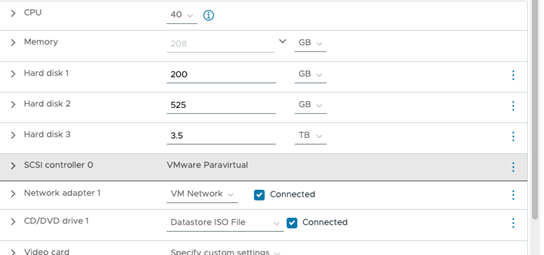
Click Ok to confirm the changes.
Power on the VM for the configuration changes to take effect.