Help us improve your experience.

Let us know what you think.

Do you have time for a two-minute survey?


Dashboard Overview

Juniper Security Director Cloud enables you to monitor your network through customizable and interactive widgets. The new dashboard enables you to select the data displayed on the dashboard. You can switch between general and security data.

The new general and security dashboards provide a comprehensive analysis of your network trends based on the latest logs. These dashboards offer improved visualization and insights compared to previous versions. However, if you need to access trends from logs generated before these new dashboards were implemented, click View Historical Data on the top-right corner

General Data

The dashboard provides a customizable view of general network data through interactive widgets. You can view data for the last 30 days and filter information based on device name, device groups, or zones. You can filter the data by zones only after you select a device or device group.

Table 1: General Dashboard Widgets
Widget GUI View Description
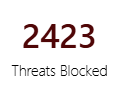
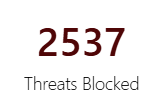
Threats Blocked Number of threats blocked.
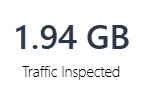
Traffic Inspected Volume of traffic inspected for threats.
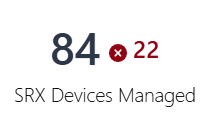
SRX Devices Managed Total number of managed devices and the number of devices not connected to Juniper Security Director Cloud. The device count is based on the statuses displayed in the Management Status column on the Devices page.

For example, the screenshot indicates that 84 devices are managed by Juniper Security Director Cloud and 22 out of the 84 devices are not connected to Juniper Security Director Cloud.

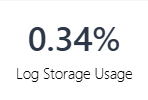
Log Storage Usage Percentage of the system log storage space used.
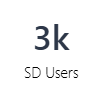
SD Users Number of users.
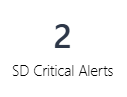
SD Critical Alerts Number of alerts created for critical threats.
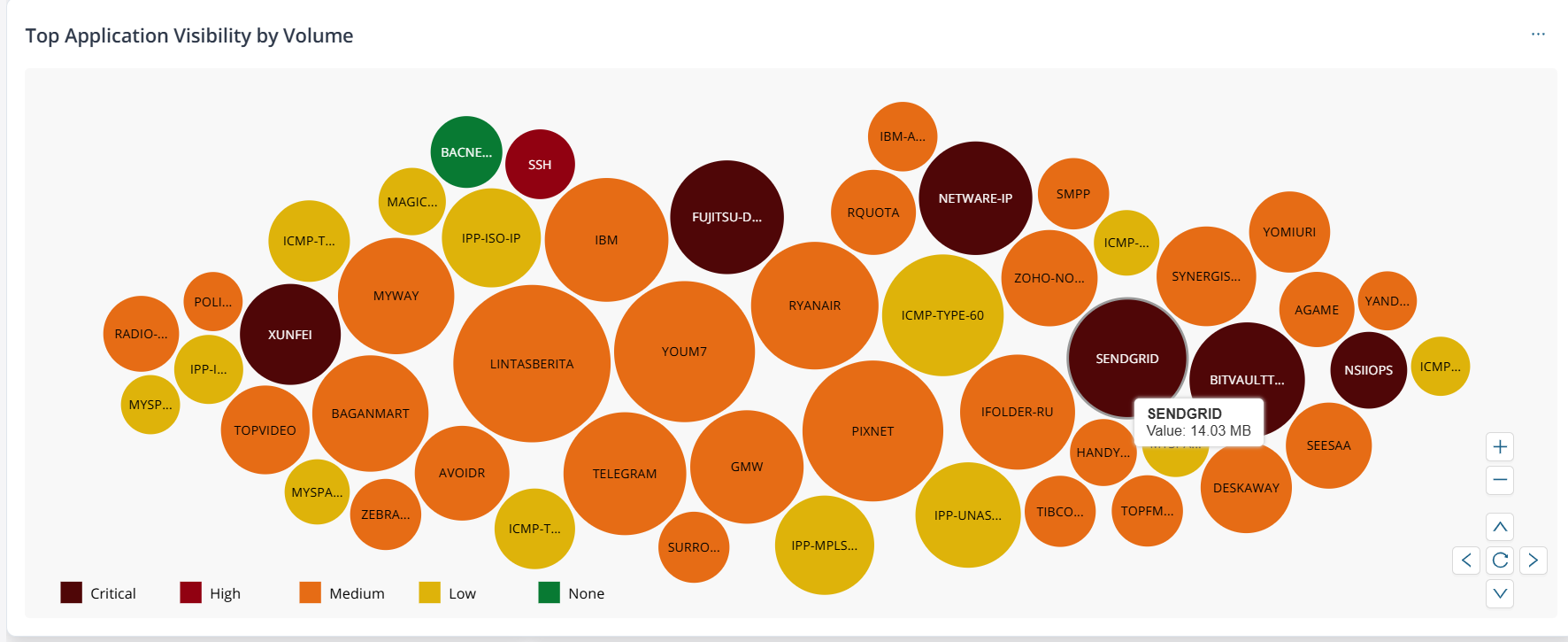
Top Application Visibility by Volume Top 50 applications based on volume of traffic inspected. The bubble color depends on the highest severity threat detected. Hover over a bubble to view the volume inspected for the application.

The possible values and corresponding color codes are:

  • Critical—Dark red

  • High—Red

  • Medium—Orange

  • Low—Yellow

  • None—Green

When you click a bubble or the widget, you are redirected to the Applications Insights page for the same time period and global filters preselected. You can then interact with the bubble chart or the table to view application-specific information.

SRX Device Health Status

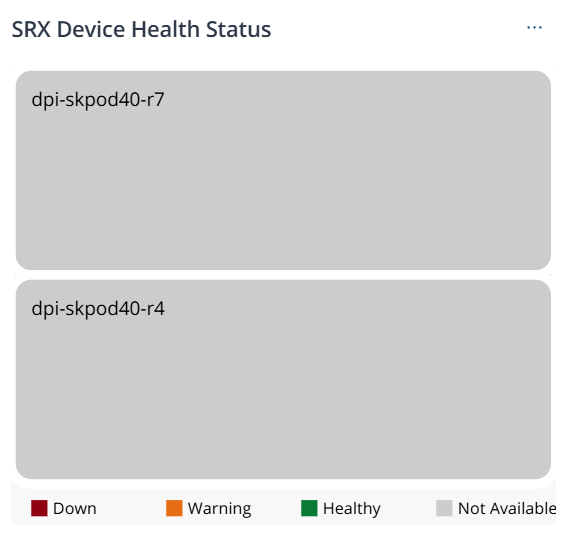
Status of the managed devices based on percentage of resources used such as CPU processing power, memory, and storage. The color coding and status is based on the Device Health Status column in the Devices page.

The possible values are:
  • Down—Red—If the number of devices in the Down state is lower than or equal to 14, the device names are displayed. If the number of devices exceeds 14, only the device count is displayed.

  • Warning—Orange—If the number of devices in the Warning state is lower than or equal to 14, the device names are displayed. If the number of devices exceeds 14, only the device count is displayed.

  • Healthy—Green—Only the device count is displayed.

  • Not Available—Gray—If the number of devices in Not Available state is lower than or equal to 14, the device names are displayed. If the number of devices exceeds 14, only the device count is displayed.

When you click the device name, you are redirected to the device-specific details page.

When you click the device count or the legend, you are redirected to the Devices page with the corresponding devices.

Threat Summary

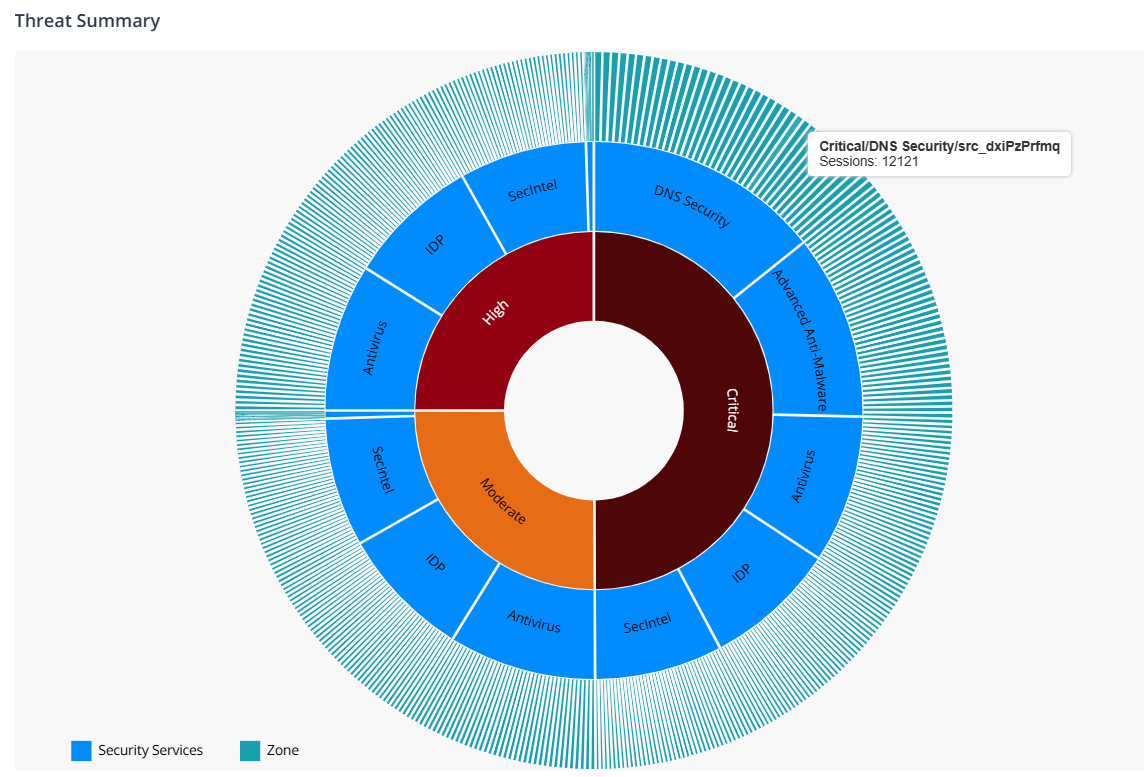
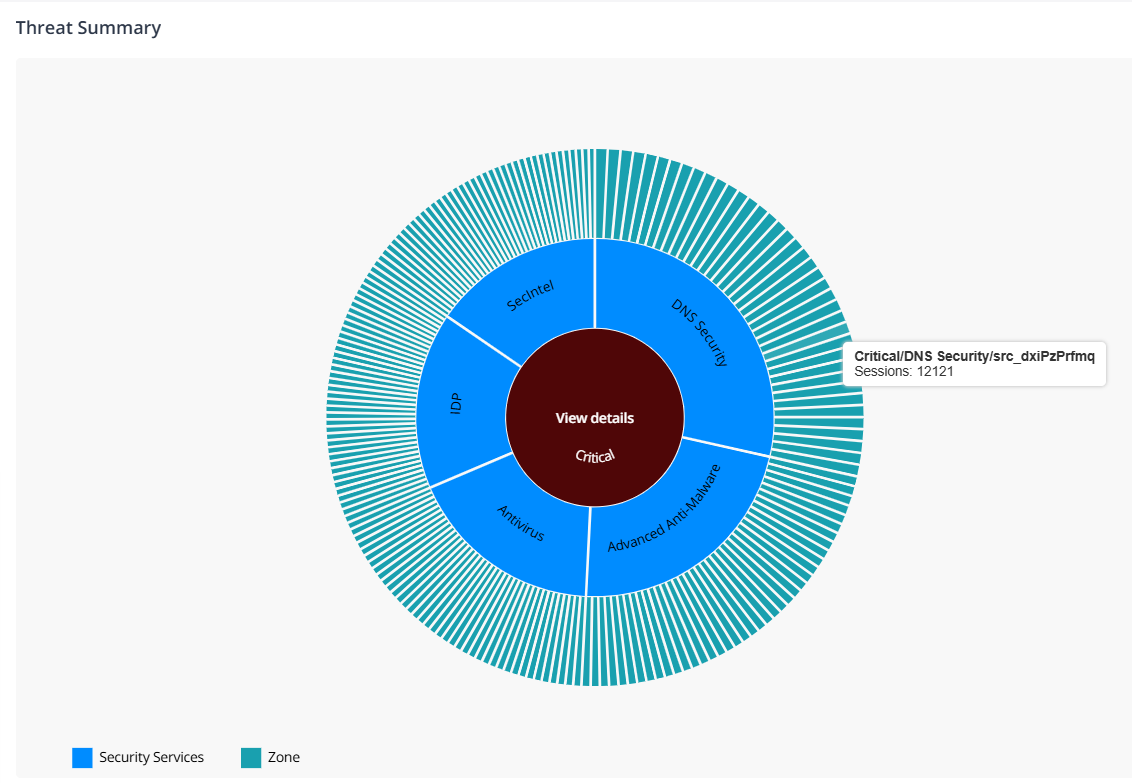
Number of critical, high, and medium category threats detected by a security service in a zone.

Interact with the chart to drill down or drill up the data. When you click the threat type or security service, a View details link is displayed. The link redirects you to the Threats Insights page with pre-selected filters.

But, when you click a zone, you are automatically redirected to the Threats Insights page.

For example, the screenshot indicates that critical threats were detected by DNS Security service in, SecIntel, IDP, and Advanced Anti-Malware services. It also indicates the corresponding zones where the threats were detected.

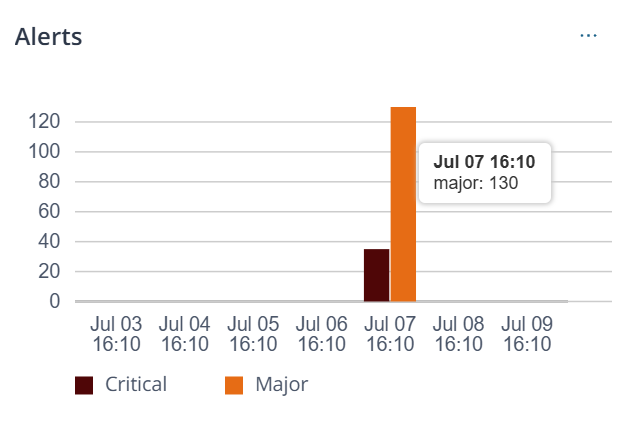
Alerts Number of critical and major alerts raised across seven equal intervals within the selected duration. Hover over the bar to view the number of alerts.

For example, when you filter the data to the last 14 days, the graph displays data divided into seven equal intervals of two days each.

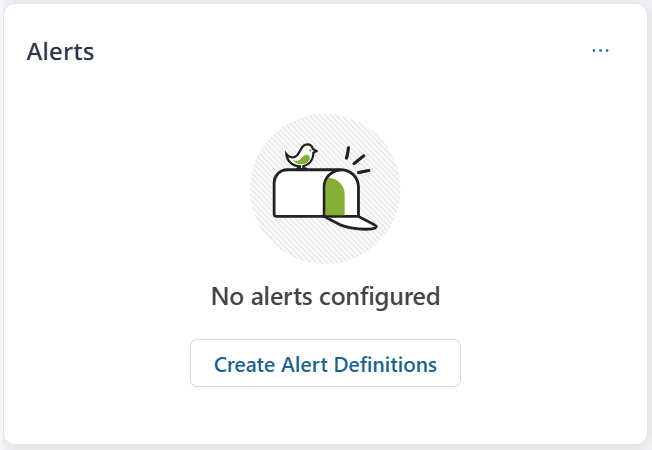
If alert definitions were not created, no alert information is displayed and you are prompted to create alert definitions. When you click Create Alert Definitions, you are redirected to the Alert Definitions page. See Create and Manage Alert Definitions.

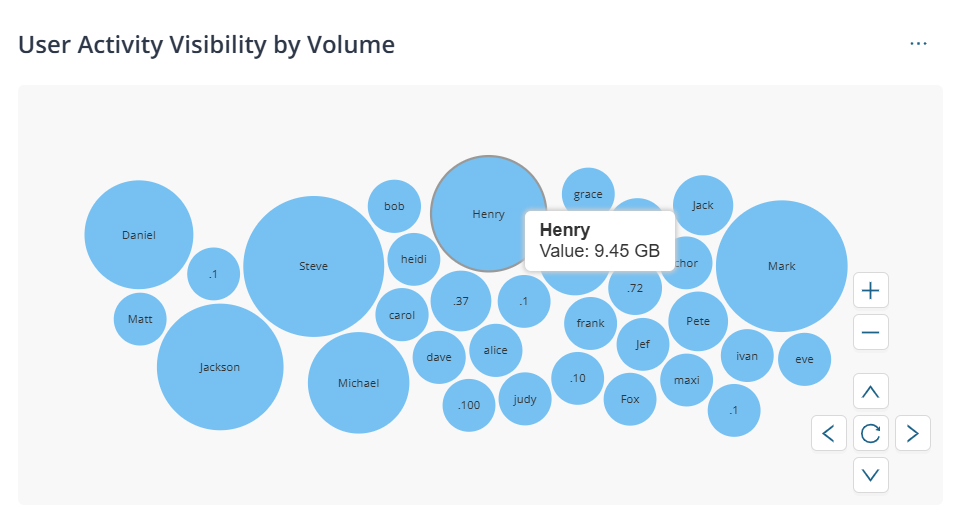
User Activity Visibility by Volume Volume of traffic inspected for the top 50 users. Hover over a bubble to view the traffic volume for the user.

When you click a bubble or the widget, you are redirected to the Users Insights page for the same time period and global filters preselected. You can then interact with the bubble chart or the table to view user-specific information.

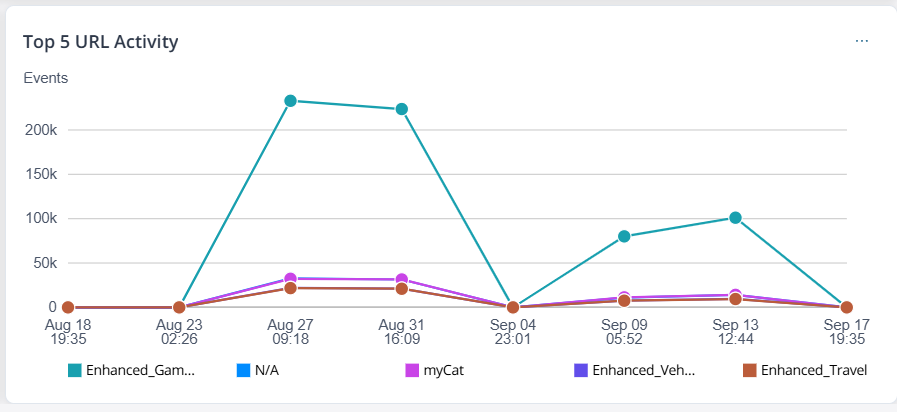
Top 5 URL Activity Number of events per top 5 URL categories across seven equal intervals within the selected duration.

For example, when you filter the data to the last 14 days, the graph displays data divided into seven equal intervals of two days each.

When you click the dots in the graph, the All Security Events page is displayed with pre-selected filters.

When you click the widget, you are redirected to the URL Filtering Insights page.

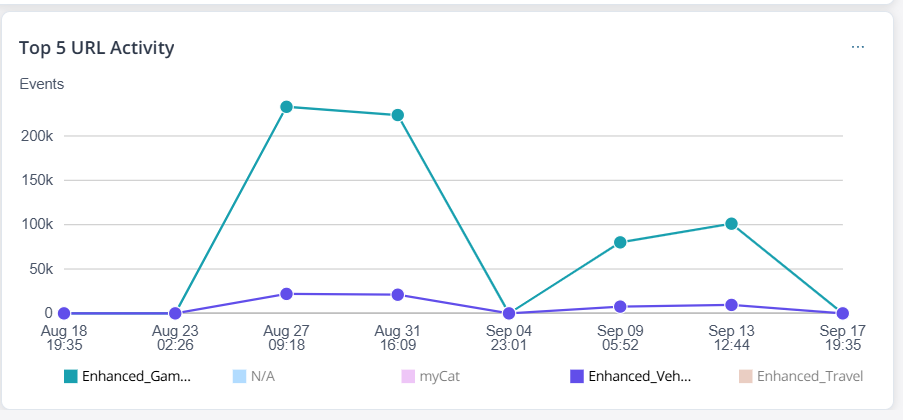
You can also interact with the legends to view information for all or specific URL categories.

Security Data

The dashboard provides a customizable view of your network security data through interactive widgets. You can view data for the last 30 days and filter information based on device name, device groups, or zones. You can filter the data by zones only after you select a device or device group.

Table 2: Security Dashboard Widgets
Widget GUI View Description
Firewall Sessions Number of sessions inspected for threats.
Threats Blocked Number of threats blocked.
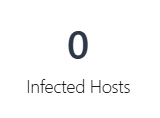
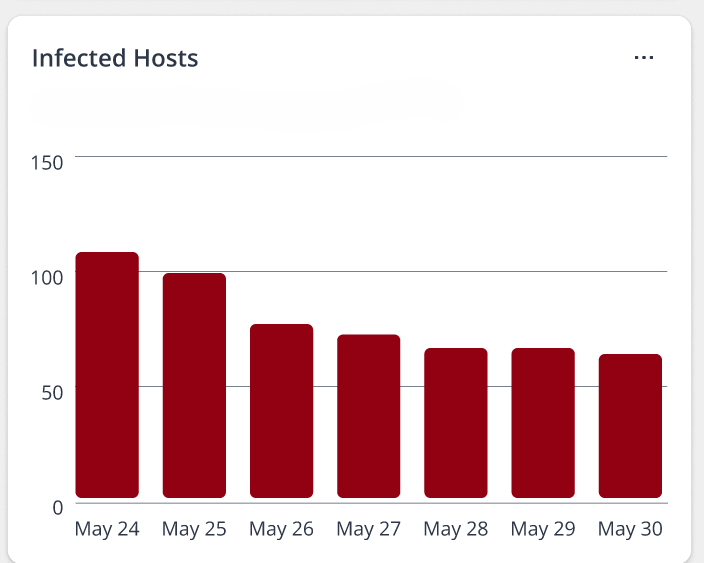
Infected Hosts Number of hosts infected by critical threats.
SRX Devices Managed Total number of managed devices and the number of devices not connected to Juniper Security Director Cloud. The device count is based on the statuses displayed in the Management Status column on the Devices page.

For example, the screenshot indicates that 84 devices are managed by Juniper Security Director Cloud and 22 out of the 84 devices are not connected to Juniper Security Director Cloud.

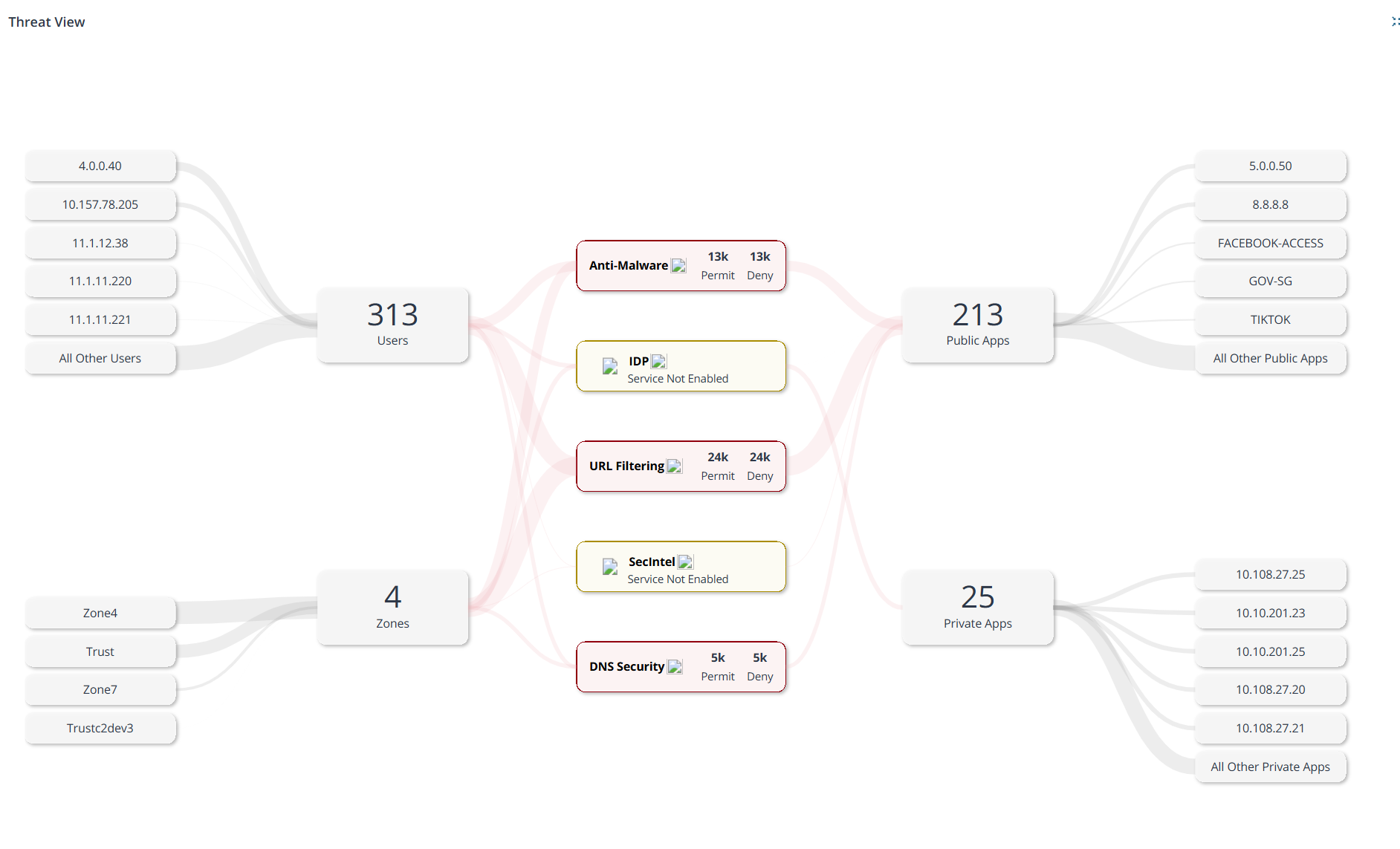
Threat View
  • Number of events scanned by security services to detect threats while accessing public or private applications. You can also view the data by zones.

  • The graph displays the individual count for the top 5 users, zones, public, and private applications.

  • Click the individual name cards to navigate to their corresponding Visibility page.

  • Click the security services, number of users, zones, public, or private applications cards to view the complete list or navigate to the respective Visibility pages.

  • The security services cards are color coded based on the number of devices with the required service license.

    • Red—All the devices have the required licenses.

    • Yellow—Some or no devices have the required licenses. If none of the devices have the license, Service Not Enabled is displayed. If some devices have the license, Logs not enabled is displayed.

  • The security services card also displays the number of events permitted and denied based on the policy.

Threat Summary

Number of critical, high, and medium category threats detected by a security service in a zone.

Interact with the chart to drill down or drill up the data. When you click the threat type or security service, a View details link is displayed. The link redirects you to the Threats Insights page with pre-selected filters.

But, when you click a zone, you are automatically redirected to the Threats Insights page.

For example, the screenshot indicates that critical threats were detected by DNS Security service in, SecIntel, IDP, and Advanced Anti-Malware services. It also indicates the corresponding zones where the threats were detected.

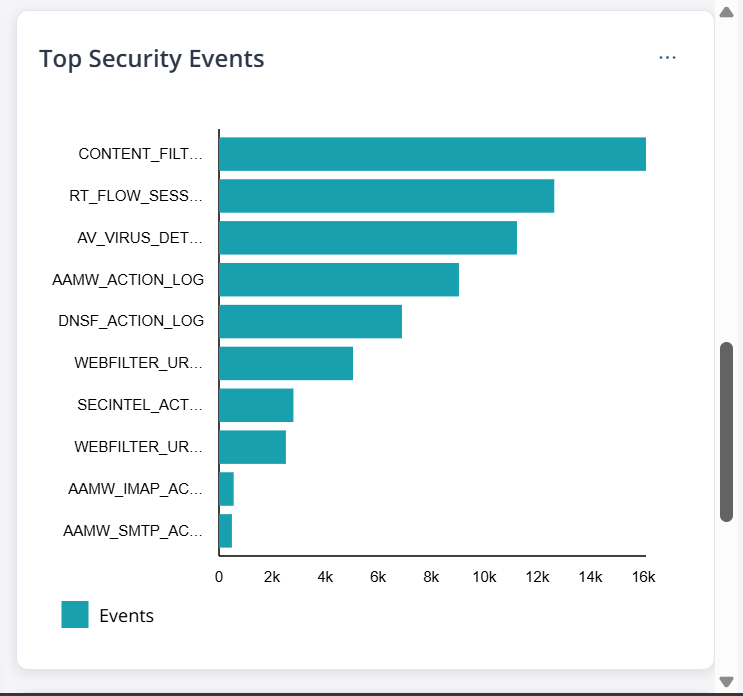
Top Security Events Number of top 10 security events by event type. Hover over the bars to view the number of events in a type.
Infected Hosts Number of hosts detected with critical threats across seven equal intervals within the selected duration. Hover over the bars to view the number of hosts.

For example, when you filter the data to the last 14 days, the graph displays data divided into seven equal intervals of two days each.

Historical Data Dashboard

The old dashboard provides a customizable view of network services data through interactive widgets.

Note:
  • Juniper Security Director Cloud doesn't update the old dashboard with logs generated after the new dashboard is implemented.

  • Use the old dashboard only to view your network data and trends until the new dashboard is released. You can also use the old dashboard to view widgets that are not updated based on the device logs.

  • Juniper Security Director Cloud displays a banner to indicate the number of days after which the old dashboard data becomes obsolete.

  • To view the latest data and trends, click Dashboard in the main menu.

Table 3: My Dashboard Widgets

Widget

Description

C&C Server and Malware Source Locations

Displays a world map showing the number of threat event count across countries.

Top Infected File Categories

Displays a graph of the top infected file categories.

Top Scanned File Categories

Displays a graph of the top file types scanned for malware.

Top Malware Identified

Displays the top malware found based on the number of times the malware is detected over a period of time.

Top Compromised Hosts

Displays the top compromised hosts based on their associated threat level and blocked status.

VPN Tunnel Status

Displays the status of the VPN tunnels.

Devices Connection Status

Displays the connection status of devices. You can filter the widget by the connection status.

Devices by OS Versions

Displays devices based on the software versions. You can filter the widget by the software version.

Devices by Platforms

Displays devices based on the device platform. You can filter the widget by the platform.

Device Subscriptions Status

Displays the subscription status of devices. You can filter the widget by the subscription status.

Device Management Entitlements

Displays the subscriptions based on devices associated with the subscriptions. You can filter the widget by used or unused subscriptions.

Overall Storage

Displays the storage used by the organization of the user.

Threat Map: IPS

Displays a world map showing total IPS event count across countries. You can sort the information based on the source, the destination, and the time period.

Threat Map: Virus

Displays a world map showing the total virus event count across countries. You can sort the information based on the source, the destination, and the time period.

Firewall: Top Events

Displays a bar chart of the top firewall events of the network traffic sorted by count. You can sort the information based on the time period.

Firewall: Top Denials

Displays a column chart of the top requests denied by the firewall based on the source IP addresses sorted by count. You can sort the information based on the time period.

IP: Top Sources

Displays the top IP source addresses of the network traffic sorted by count. You can sort the information based on the time period.

IP: Top Destinations

Displays the top IP destination addresses of the network traffic sorted by count. You can sort the information based on the time period.

NAT: Top Source Translations

Displays the top source IP addresses that are translated sorted by count. You can sort the information based on the time period.

NAT: Top Destination Translations

Displays the top destination IP addresses that are translated sorted by count. You can sort the information based on the time period.

Top Source IPs by Volume

Displays the top source IP addresses based on the volume of traffic sorted by count. You can sort the information based on time period.

Virus: Top Blocked

Displays viruses with the maximum number of blocks sorted by count. You can sort the information based on the time period.

Web Filtering: Top Blocked

Displays a bar chart of websites with the maximum number of blocks sorted by count. You can sort the information based on the time period.

Applications: Most Sessions

Displays a bar chart of the top applications with a maximum number of sessions sorted by count. You can sort the information based on the time period.

Top Applications by Volume

Displays the applications based on volume of traffic sorted by count. You can sort the information based on the time period.

Top Spams by Source

Displays the number of spams detected by the source IP addresses. You can sort the information based on the time period.

IPS: Top Attacks

Displays the top IPS events of the network traffic sorted by count. You can sort the information based on the time period.

Table 4: Secure Edge Tab Widgets
Widget Description
Top 5 Users by Bandwidth

Displays the top 5 users by bandwidth usage. You can sort the information based on the time period.

Top 5 Service Locations by Users

Displays the top 5 service locations by number of users. You can sort the information based on the time period.

Top 3 Sites by Bandwidth

Displays the top 3 sites by bandwidth usage. You can sort the information based on the time period.

Top 3 Service Locations by Bandwidth

Displays the top 3 service locations by number of users. You can sort the information based on the time period.

Top 5 Sites by Users

Displays the top 5 sites by number of users. You can sort the information based on the time period.

Overview

Displays the average bandwidth usage and percentage of users. You can sort the information based on the time period.

Monitored Tunnels Up/Down Displays all the tunnels with their current status.
Total Service Locations Displays all the service locations with their current status
Log Streaming Volume

Displays the percentage of the log streaming data budget used. When you exceed the limit and use data from the grace buffer, the data usage percentage exceeds 100%.

Table 5: CASB Tab Widgets
   

Sanctioned and Unsanctioned Applications

Displays the sanctioned and unsanctioned applications sorted by count.

You can do the following tasks:

  • Hover over the widget to refresh or remove the widget from the dashboard.

  • Hover over Time Span to sort the information based on the time period.

  • Hover over the chart to view the number of sanctioned and unsanctioned applications with utilization (%).

Sanctioned and Unsanctioned Application Instances

Displays the sanctioned and unsanctioned application instances sorted by count.

You can do the following tasks:

  • Hover over the widget to refresh or remove the widget from the dashboard.

  • Hover over Time Span to sort the information based on the time period.

  • Hover over the chart to view the number of sanctioned and unsanctioned application instances with utilization (%).

Applications: Most Sessions

Displays a bar chart of the applications with a maximum number of sessions sorted by count.

You can do the following tasks:

  • Hover over the widget to refresh or remove the widget from the dashboard.

  • Hover over View to view the information in bar chart, bubble chart, or donut chart.

  • Hover over Time Span to sort the information based on the time period.

Top Applications by Volume

Displays the applications based on volume of traffic sorted by count.

You can do the following tasks:

  • Hover over the widget to refresh or remove the widget from the dashboard.

  • Hover over View to view the information in bar chart, bubble chart, or donut chart.

  • Hover over Time Span to sort the information based on the time period.

Application Instance Categories

Displays a chart of the application instance categories.

You can do the following tasks:

  • Hover over the widget to refresh or remove the widget from the dashboard.

  • Hover over the chart to view the number of application instance categories with utilization (%).

  • Hover over Time Span to sort the information based on the time period.

Application Summary

Displays the application summary details of users, volume, and session.

You can do the following tasks:

  • Hover over the widget to refresh or remove the widget from the dashboard.

  • Hover over Time Span to sort the information based on the time period.