
Reactivate Replacement Device from RMA State
Reactivate Replacement Device
After you receive the replacement device, you must reactivate the device from RMA state. You need this device reactivation to deploy the saved device configuration from Juniper Security Director Cloud to the replacement device.
You can reactivate only one device at a time. If you have multiple devices, you need to complete the reactivation process separately for each device.
Before You Begin
Ensure that the following conditions are met:
-
The old device is in RMA state.
-
The Junos OS version and device model are the same for both the old and replacement devices.
-
The initial configuration is the same for both the old and replacement devices. For more information, see Configuration Versions.
-
You have administrative privileges with full access to the Juniper Security Director Cloud portal.
To reactivate the device from RMA state:
Click .
The Devices page is displayed.
Right-click the standalone device that is in RMA state and select Reactivate from RMA State.
The Reactivate <device-name> from RMA State window is displayed.
You can reactivate only one device at a time. If you select more than one device, the Reactivate from RMA State option is grayed out.
(Optional) Select the check box if you do not want to push the root credentials from your old device to the replacement device.
Click Ok.
You will see a confirmation message indicating that the operation is successful and the status in the Management Status column changes to Reactivation pending.
A job is created for the reactivation process, and the details are displayed on top of the Devices page. Click to view and track the job progress.
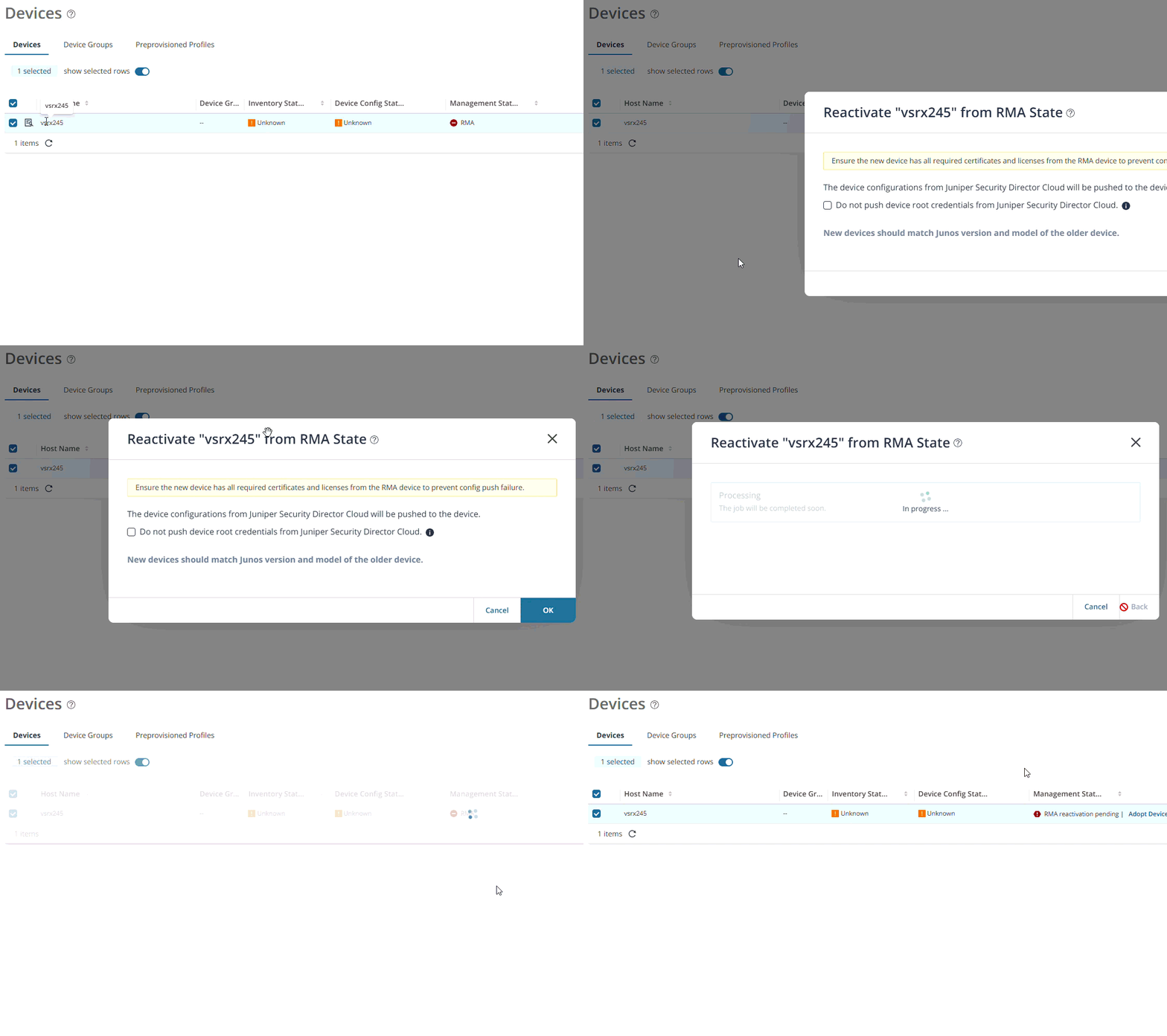
Click Adopt Device next to the RMA status to initiate device discovery process.
The Adopt Device page is displayed with the commands that you need to run on the devices.
Copy and run the commands on your device CLI.
Enter
committo save the changes on your device.The device discovery process is initiated in Juniper Security Director Cloud and the status in the Management Status column changes to Reactivation in progress.
For more information about the device discovery process, see Add Devices.
Verify Reactivation
After the device discovery is completed, Juniper Security Director Cloud initiates the RMA reactivation, which includes the following tasks:
-
Verification of licenses and certificates
-
Installation of IDP signatures
-
Deployment of the configuration to the replacement device
You can check the status of these tasks on the Job Status page.
After you complete the reactivation process, the status in the Management Status column changes to Up, indicating that the replacement device is successfully onboarded. The replacement device is then fully reactivated, managed by Juniper Security Director Cloud, and restored with the original configuration.
The reactivation process can fail if the required certificates or licenses are missing. For more information, see Review Certificates and Licenses.
Enroll Replacement Device with Juniper ATP Cloud
If your old device is enrolled with the Juniper ATP Cloud and the auto-enrollment is configured for your organization, your replacement device is automatically enrolled with the Juniper ATP Cloud.
If your old device is enrolled with the Juniper ATP Cloud and the auto-enrollment is not configured, the reactivation process can fail. Before you retry reactivation, you must enroll your replacement device to Juniper ATP Cloud Web Portal. For more information, see Enroll an SRX Series Firewall using Juniper ATP Cloud Web Portal. After the device is enrolled with the Juniper ATP Cloud, click Retry next to the device status.
After the replacement device is successfully reactivated, disenroll your old device from the Juniper ATP Cloud Web Portal. For more information, see Remove an SRX Series Firewall From Juniper Advanced Threat Prevention Cloud.
Review Certificates and Licenses
When the RMA reactivation fails, the status in the Management Status column changes to Reactivation failed. Hover over the Retry button next to the device status to view the reason for the reactivation failure. Click the reason link for more information.
You must review and upload the missing certificates and licenses to restart the reactivation.
To review and upload the certificates and licenses:
Click Retry next to the device status.
The Review Certificates and Licenses window is displayed.
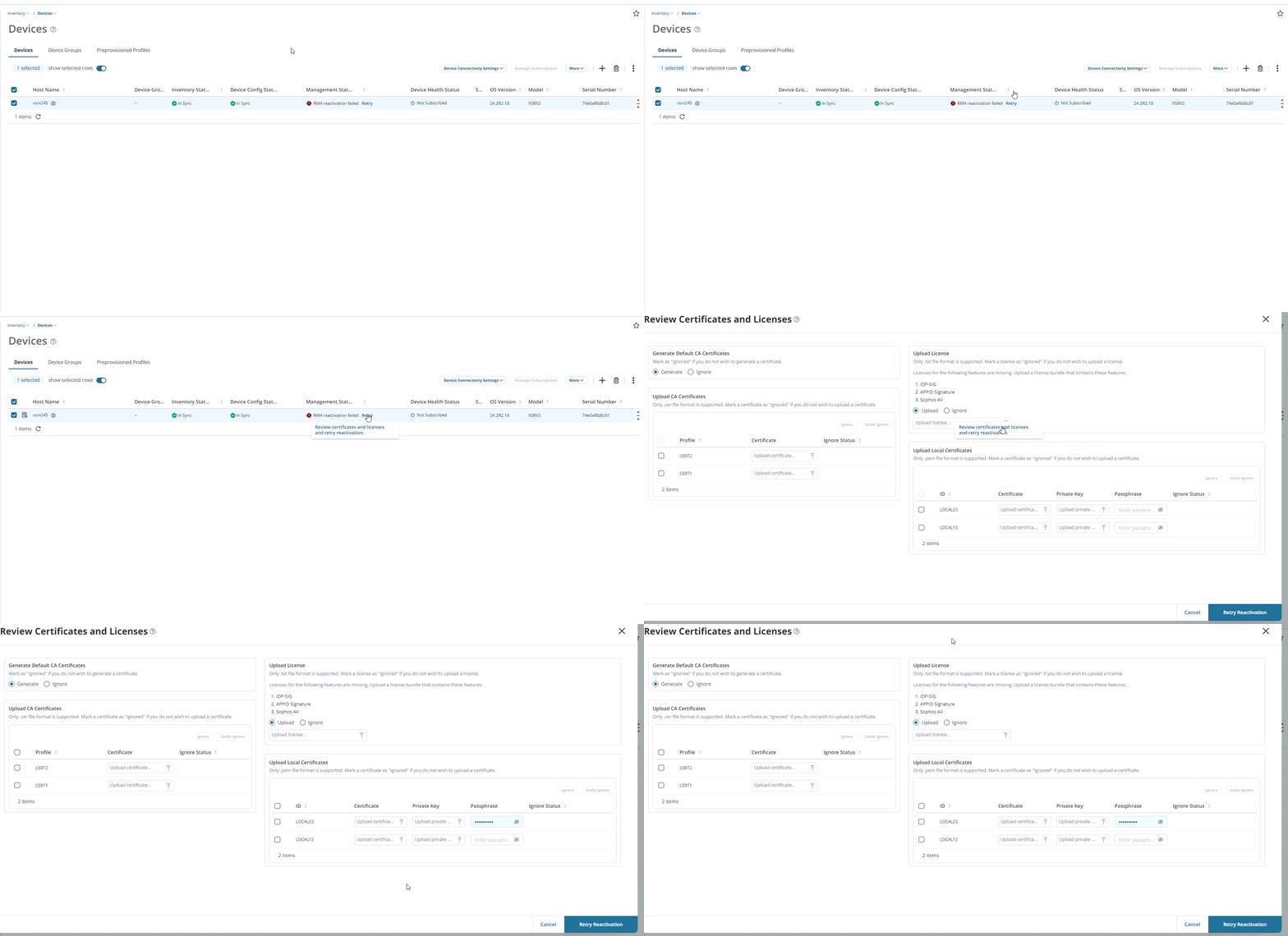
Review and upload the missing certificates and licenses according to the following guidelines.
Table 1: Review Licenses and Certificates Field Description Action Generate Default CA Certificates This field is displayed only if the default CA certificates for the replacement device are missing.
Click Generate to generate default CA certificates.
Click Ignore if the certificate is not part of the old device's configuration.
Upload CA Certificates This field is displayed only if the CA certificates for the replacement device are missing.
Select the profile and click the upload icon in the Certificate column to upload the certificate from your local drive.
Click Ignore if the certificate is not part of the old device's configuration.
Upload License This field is displayed only if the license for the replacement device is missing.
Select Upload and click the upload icon to upload the license from your local drive.
Select Ignore if the licensed feature is not available on the old device.
Upload Local Certificates This field is displayed only if the local certificates for the replacement device are missing.
Select the certificate ID.
Click the upload icon in the Certificate column to upload the local certificate.
Click the upload icon in the Private Key column to upload the private key.
Enter the passphrase for the certificate in the Passphrase column
Click Ignore if the certificate is not part of the old device's configuration.
Click Retry Reactivation.
A confirmation message is displayed indicating the operation is successful. The status in the management status column changes to Reactivation pending.
A job is created for the reactivation process, and the details are displayed on top of the page. Click to view and track the job progress.
If the reactivation fails again, contact Juniper Networks support on the Web or by telephone.
-
Visit https://support.juniper.net/support/requesting-support/.
-
Call 1-888-314-JTAC (1-888-314-5822 toll-free in US and Canada).
For international or direct-dial options in countries without toll-free numbers, see https://support.juniper.net/support/requesting-support/.