Help us improve your experience.

Let us know what you think.

Do you have time for a two-minute survey?


Monitor Your WAN Edge Devices

Use the WAN Edges page, the Insights page, and the Alerts page to quickly find device information, event details, and alerts for your WAN Edge devices.

This topic walks you through the most efficient ways to monitor your WAN Edge device (SRX Series Firewall or Session Smart Router) in the Juniper Mist™ portal following your initial deployment phase.

Monitoring WAN Edges

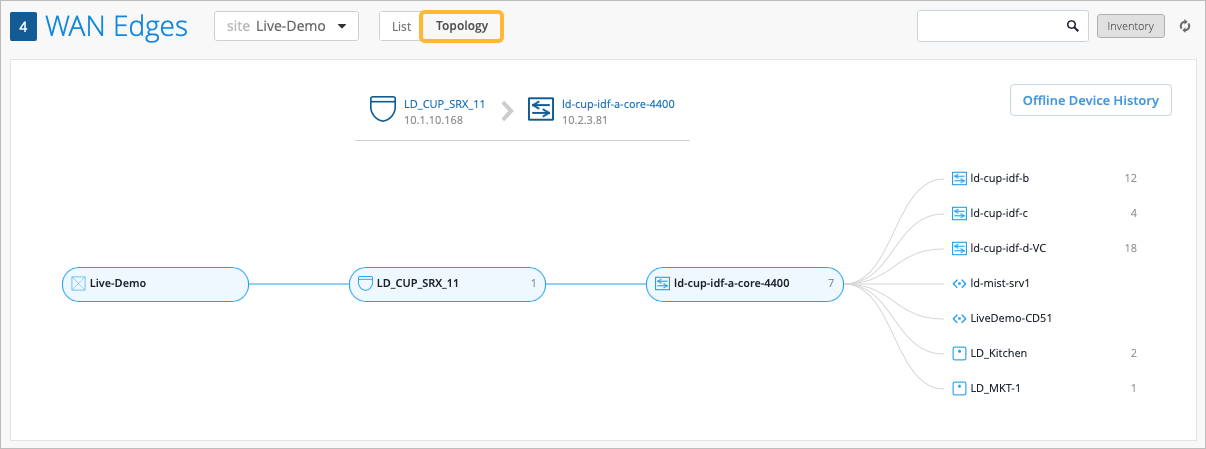
From the left menu, select WAN Edges > WAN Edges to view basic device monitoring information. Notice the organization name at the top of the portal. This is the largest container and represents your entire organization. Beneath the organization name, you can see your site devices in either a List format or a graphical Topology format.

Figure 1: Accessing WAN Edges Page Accessing WAN Edges Page

The tiles across the top provide high-level information:

  • Config Success—Percentage of online WAN edges with successful configuration.
  • Version Compliance—Percentage of WAN edges that have the same software version per model.
  • WAN Edge Uptime—Percentage of time a WAN edge was up during the past seven days, averaged across all WAN edges.
  • Potential Anomalies—Percentage of WAN Edges that currently have no potential anomalies detected by Marvis.

    • If none of the WAN Edges have potential anomalies, the percentage is 100%.

    • If some WAN Edges have anomalies, the value decreases in proportion to how many are affected. For example, if a site has 10 WAN Edges and 2 of them have anomalies, the percentage is 80%.

    If the percentage is less than 100%, you can click Potential Anomalies to view the WAN Edges that have anomalies. Each affected WAN Edge has a Troubleshoot button that opens the conversational assistant with a pre-filled prompt (for example, “Troubleshoot <device> for last 7 days”), enabling you to view the detected anomalies without manually starting a troubleshooting session.

Figure 2: WAN Edges List View WAN Edges List View

The WAN Edge list view contains columns with device detail information, as shown in Table 1.

Table 1: WAN Edges List View (Columns)
Fields Description
Name Name of the WAN Edge device
Status Connected or disconnected
MAC MAC address
IP Address IP address
Model Juniper Networks® SRX Series Firewall or Juniper® Session Smart™ Router model.
Version SRX or SSR Software Version
Topology Hub or Spoke
Insights Provides a direct link to the WAN Edge Insights page.

The Topology format presents the same information as the List view when you hover over the device name. Hover your mouse or click on the device name to get more detailed information in the topology view.

Figure 3: WAN Edges Topology View WAN Edges Topology View

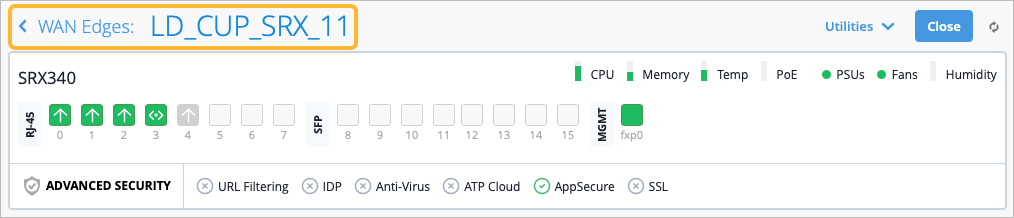
On both the List and Topology view, selecting your WAN edge device brings you to its Device Information page. The Device Information page provides different categories of monitoring information for your WAN edge device.

Figure 4: WAN Edges Device Information Page WAN Edges Device Information Page

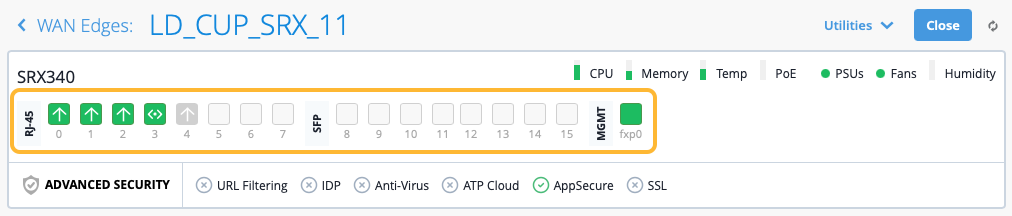
The first thing you’ll notice on the Device Information Page are details about the WAN Edge device you selected. The information includes a graphical front view of the device ports and baseline status information such as CPU and memory utilization.

Figure 5: WAN Edges Device Information - Interfaces WAN Edges Device Information - Interfaces

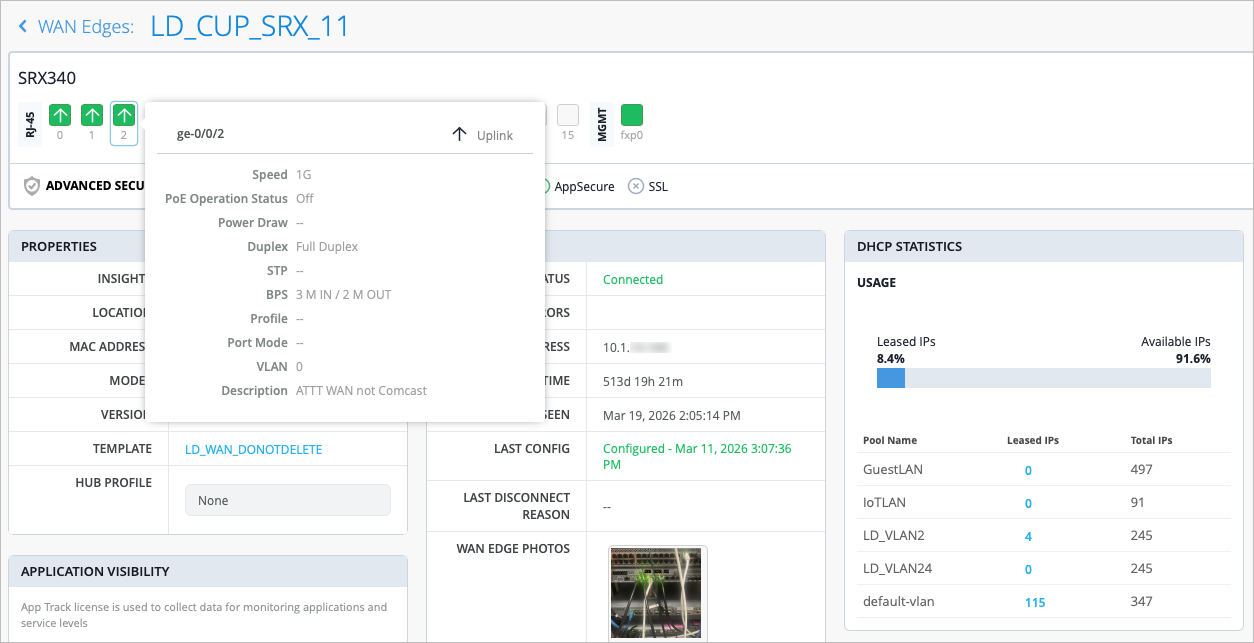
For each Gigabit Ethernet interface, you’ll find link information. Hover your mouse over an interface to see more information.

Figure 6: WAN Edge Device Information Page - Details WAN Edge Device Information Page - Details
Table 2: Link Information for Gigabit Ethernet Interface
Fields Description
Speed Rated speed
PoE Operation Status Enabled or disabled
Power Draw (SRX Only) Measured PoE power draw
Duplex Full or half
STP True or false
BPS Bits/second
Profile The name of the Port profile assigned to the port
Port Mode The mode of the port profile configuration (Trunk, Access, Port Network, or VoIP Network)
VLAN VLAN tag
Description Interface description

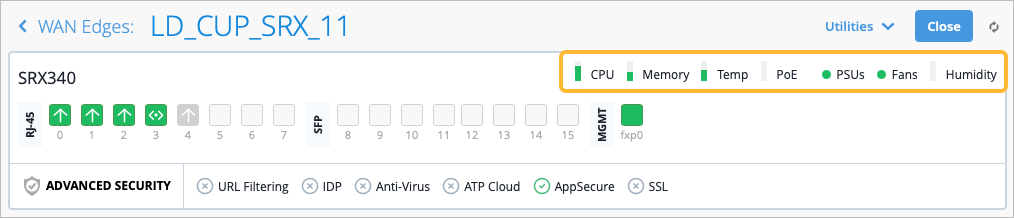
The CPU, Memory, and other status icons indicate how your device behaves. Hover over each status icon for deeper insights. The status icons you see depend on if the WAN Edge device you are looking at is an SRX or SSR.

Figure 7: WAN Edges - CPU, Memory, and other status icons WAN Edges - CPU, Memory, and other status icons

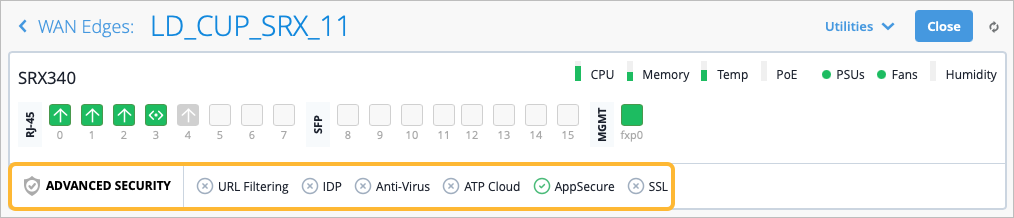
Advanced Security information is listed below the device ports with a check mark or an X, indicating whether URL filtering, intrusion detection and prevention (IDP), AppSecure (for application visibility), and other security features are active on this device. In Figure 8, AppSecure is active with the green check mark.

Figure 8: Advanced Security Details Advanced Security Details

Below the Advanced security section, you’ll find generalized platform-related data for your WAN edge device in the Properties section, including:
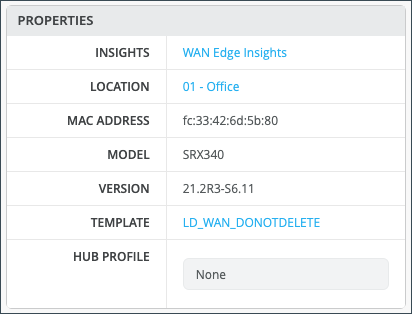
Figure 9: WAN Edge Device Properties WAN Edge Device Properties
Table 3: WAN Edge Platform-Related Details
Field Description
Insights Provides a direct link to WAN Edge Insights.
Location Provides floorplan information.
MAC Address MAC Address for the WAN Edge device.
Model Indicates the SSR or SRX model.
Version Version of SSR or SRX Software the device is running.
Template The WAN Edge template applied to the device.
Hub Profile The Hub Profile applied to the device.

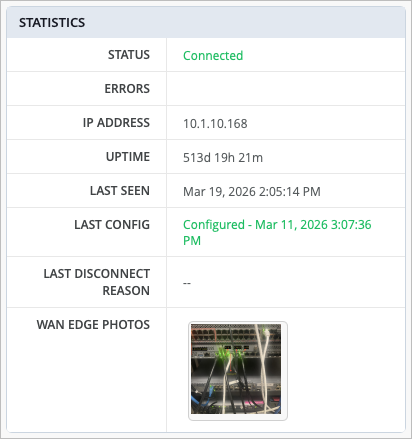
Statistics displays action information about your platform.

Figure 10: WAN Edge Device Statistics WAN Edge Device Statistics
Table 4: WAN Edge Device Statistics
Field Description
Status Connected/Disconnected
IP Address The IP address of the WAN edge device
Uptime Day/Hour/Min uptime information
Last Seen Last login
Last Config Last Commit
Last Disconnect Reason Reason for the most recent disconnection for the device.
WAN Edge Photos Photos of the WAN edge device

If you configured DHCP servers on the WAN router itself, there will also be a DHCP Statistics section with information about the leased IPs. This section presents IP information related to dynamic distributed IP addresses.
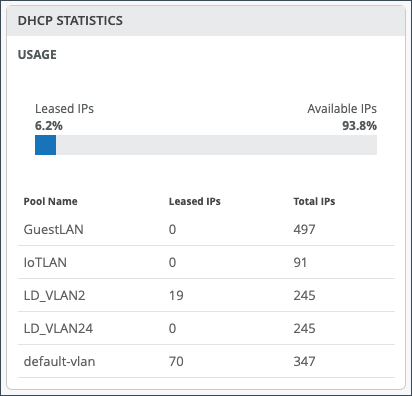
Figure 11: WAN Edge Device DHCP Statistics WAN Edge Device DHCP Statistics
Table 5: WAN Edge Device DHCP Statistics
Field Description
Usage The total percentage of Leased and Available IPs.
Pool Name The name for given pool of addresses.
Leased IPs The number of used IP addresses in each pool.
Total IPs The total number of available IP addresses in each pool.

In the Application Visibility (SRX Only) section, you can enable application visibility for the device, which allows the Mist cloud to track and report applications that pass through the device. If the device has an App Track license, the license is used to collect data for monitoring applications and service levels.
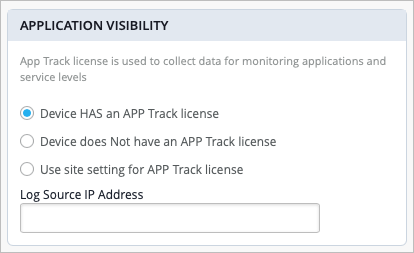
Figure 12: WAN Edge Device Application Visibility WAN Edge Device Application Visibility
Table 6: WAN Edge Device Application Visibility (SRX Only)
Field Description
Device has an App Track license Application Visibility is already enabled on the device.
Device does NOT have an App Track license The device does not have an application security license.
Use site setting for App Track license Application visibility is enabled under Organization > Admin > Site Configuration > WAN Edge Advanced Security.

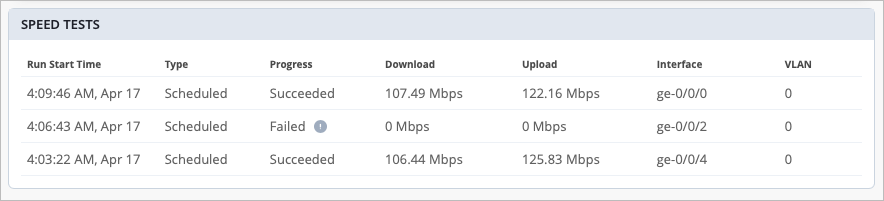
The Speed Tests section (SSR Only) appears only if you have run speed tests on your SSR WAN Edge device. This Speed Tests tool is used to test the speed of the WAN links on your WAN Edge devices to ensure optimal performance. This section displays the results of any speed tests you have run on your SSR WAN Edge device.

Figure 13: Speed Tests (SSR Only) Speed Tests (SSR Only)
Table 7: Speed Tests
Fields Description
Run Start Time The time the test was started.
Type Who performed the test (User or Scheduled).
Progress In Progress, Succeeded, or Failed.
Download Download speed in megabits per second (Mbps).
Upload Upload speed in megabits per second (Mbps).
Interface The interface of the WAN Edge device that the speed test was performed on.
VLAN Displays the VLAN ID number.

The Connectivity Tests (SRX Only) section is what displays if you have run connectivity tests on your SRX Series Firewalls to test WAN link performance. This section displays the results of any connectivity tests you have run.

Figure 14: Connectivity Tests (BETA) Connectivity Tests (BETA)
Table 8: Connectivity Tests
Fields Description
Run Start Time The time the connectivity test was started.
Type Who performed the test (User or Scheduled).
Test The type of test (Example: Ping or Traceroute).
Progress In Progress, Succeeded, or Failed.
Source Network The source of the traffic.
App Policy The application policy the traffic is following to reach its destination.
Application The application that is trying to be accessed over the link (the destination of traffic).
Latency The latency on the WAN link in milliseconds (ms).
Loss The loss on the WAN link displayed in percentage.
Hops Hop count
Details Click the View link to see more detailed information about the connectivity test that was performed.

Topology Details displays Peer Path information. When two Session Smart Routers are peered together, they send traffic to one another using Secure Vector Routing (SVR). The peer paths constructed between SSR peers are what generates and constructs the Session Smart SD-WAN network overlay. SSR peers establish and maintain connectivity to one another using Bi-directional Forwarding Detection (BFD).
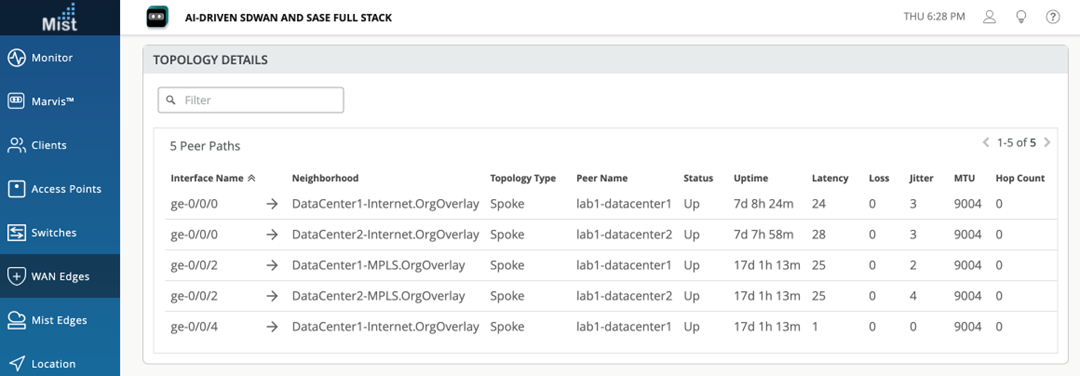
Figure 15: Topology Details Topology Details
Table 9: Topology Details
Fields Description
Interface Name Name
Neighborhood The neighborhood that this router and its peer belong to. In Session Smart networking, a Neighborhood is a connected Layer 3 network that constructs the peering connection between SSRs.
Topology Type The topology type of the neighborhood that the peer SSRs belong to. The topology type allows the Session Smart Conductor to distribute configuration to the routers in the neighborhood.
Peer Name The name of the peer SSR.
Status Indicates in the peer path is up or down.
Uptime Time live
Latency The latency on the peer path.
Loss The packet loss as a percentage.
Jitter The jitter on the peer path.
MTU Maximum Transmission Unit
Hop Count How many hops (routers) a packet passes through before reaching its destination.

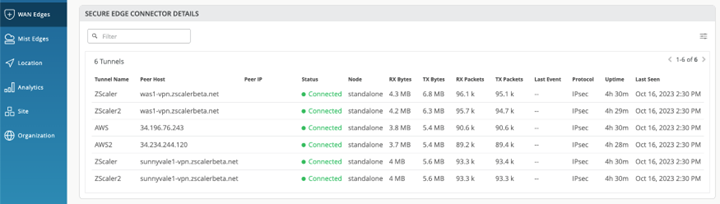
If you have Secure Edge Connectors configured, you will see the Secure Edge Connector Details section, which includes tunnel information from your WAN Edge connection to the Secure Edge cloud.

Figure 16: Secure Edge Connector Details Secure Edge Connector Details
Table 10: Secure Edge Connector Details
Fields Description
Tunnel Name Name
Peer Host The IP address or hostname of the peer
Peer IP IP address of the peer
Status Connected/Disconnected
Node Standalone/HA
RX Bytes Volume of data, in bytes, received by the interface.
TX Bytes Volume of data, in bytes, transmitted by the interface.
RX Packets Packets received by the interface.
TX Packets Packets transmitted by the interface.
Last Event System events
Protocol Transport protocol the tunnel is using (Example: IPsec or GRE).
Uptime Time live
Priority Primary/Secondary
WAN Port The port the tunnel is using.
Last Seen Last login

Scrolling down on the Device Information page, configuration information displays for your WAN Edge. Usually, WAN Edge devices inherit WAN Edge Templates or Hub Profiles. However, you can make changes at the device level to have the configuration be pushed to only that device. In this example, a "standalone" WAN Edge Template was used.

Figure 17: WAN Edge Configuration: Standalone WAN Edge Configuration: Standalone
Table 11: WAN Edge Configuration: Standalone
Section Description
Info The name of the device and Notes about the device.
IP Configuration (Out of Band) For each node of the device, select DHCP or Static for the IP address and enter a VLAN ID.
NTP Time Servers IP/Hostnames (you can enter comma-separated IP addresses or hostnames).
IP Configuration (In Band) For each node of the device, select DHCP or Static for the IP address and enter a VLAN ID.
DNS Settings DNS Servers, DNS Suffix (SRX Only).
Syslog Select the checkbox to enable Syslog (system logging).

The Secure Edge Connectors section is where you can configure providers for your Secure Service Edge (SSE) deployments. These connectors facilitate seamless integration for such deployments.

Figure 18: WAN Edge Configuration: Secure Edge Connector WAN Edge Configuration: Secure Edge Connector

Scrolling past the configuration, you’ll find information for your connected WANs and LANs.

Figure 19: WAN Details WAN Details
Table 12: WAN Details
Field Description
Name Selected WAN Interface Name
Interface Supports one of these interfaces for aggregation: ge-0/0/1, ge-0/0/1-5, or reth0.
WAN Type Ethernet, DSL (SRX Only), or LTE
IP Configuration DHCP, Static, or PPPoE
Enabled The blue checkmark indicates that the interface is enabled.
Overlay Hub Endpoints SVR Peer connections to the Hub
Overlay Mesh Endpoints (SSR Only) SVR Peer connections to the mesh
Figure 20: LAN Details LAN Details
Table 13: LAN Details
Section Description
IP Config Network name, IP Address, Gateway Address (SSR Only).
DHCP Config Enabled or Disabled. If Enabled, select a Network, then select Server or Relay as the DHCP config.
Custom VR A virtual router that you can configure to be used in automatic route leaking.
LANs
  • Interface—Supports one of these interfaces for aggregation: ge-0/0/1, ge-0/0/1-5, or reth0.

  • Networks—Networks that participate in the LAN.

  • Untagged VLAN Network—Untagged VLAN networks that participate in the LAN (SRX only).

  • Enabled—Check mark in the section on the device page indicates that the interface is enabled.

Scrolling down, you have sections for Traffic Steering, Application Policies, and Routing (OSPF, BGP, Routing Policies, and Static Routes).

The Traffic Steering and Application Policies sections show how you use the WAN Edge device to create rules for traffic to take so that you can assert path preference and routing behavior.

Note:

For SRX Series Firewalls deployed as a WAN Edge, the Application Policy and Traffic Steering path determine destination zones and must be assigned.

Traffic Steering enables you to define different paths that traffic can take to reach its destination. Traffic Steering policies allow you to specify the paths for traffic to traverse, as well as the strategies for utilizing those paths.

Figure 21: Traffic Steering Traffic Steering
Table 14: Traffic Steering
Field Description
Name The name of the Traffic Steering policy.
Strategy Ordered, Weighted, ECMP.
Paths LAN, WAN, Secure Edge Connector.

Application Policies are security policies in the Juniper WAN Assurance design, where you define which network and users can access which applications, and you assign a traffic steering path which those networks or users will use to access the application or destination. These elements become matching criteria to allow access to or block access from applications or destinations.

Figure 22: Application Policies Application Policies

In the Juniper Mist™ cloud portal, the Applications tab of the Application Policies section lets you configure a policy for traffic to or from the WAN Edge device.

Network/User setting determines the source zone. The Application/Destination and Traffic Steering settings determine the destination zone.

Note: Traffic Steering paths determine the destination zone in SRX Series Firewalls deployed as WAN Edges, so ensure that you assign Traffic Steering profiles to the Application Policies. See Order of Traffic Steering Rules.
Table 15: Application Policies
Field Description
Number Ordered Policy Number
Name Application policy name
Org Imported Indicates if the policy was pushed down from the Organization level to the Site.
Network/User (Matching Any) The “source” of your traffic
Action Allow or Block
Application/Destination (Matching Any) The “destination” for your traffic.
IDP Indicates IDP/URL filtering (requires separate license)
Enable Syslog (SSR Only) Select the checkbox to enable system logging (SSR Only).
Advanced Security Services Add Anti-Virus, SSL Proxy (SRX Only), Security Intel (SRX Only), Anti-Malware (SRX Only), DNS Tunnel Detection, Domain Generation Algorithm, IoT Device Policy, and HTTP Inspection.
Traffic Steering Indicates the path for traffic to take to reach the destination.
Hit Count Indicates the number of times an application policy rule has been triggered (matched) by traffic.

The Device in tab can be used for applications that require inbound ICMP traffic. Configure a policy to allow ICMP traffic from a remote network to the WAN Edge device. Under Network / User choose the remote network that is the source of the ICMP traffic, and then ICMP for the Destination

Figure 23: Policy to Allow Remote ICMP Traffic Configuration interface for WAN Edge device S1-SRX320-1 showing Device in tab. Application Policies table lists policy Device-In-ICMP for network access1 with action allow, destination ICMP, and traffic steering to Host. Buttons for Add Application Policy, Save, and Close are visible. Breadcrumb indicates WAN Edge device configuration.

In the Device out tab, configure a policy for how traffic leaves the device. For example, you can set a traffic steering policy that states the device can only access the Mist cloud using a cellular network instead of your default link.

Figure 24: Policy to Traffic Out using a Cellular Network Configuration interface for Application Policies under Device out tab. Lists policies Device-Out-DNS, Device-Out-NTP, and Device-Out-Mist with Internal network match, allowed actions, destinations DNS, NTP, Mist, and traffic steering default or Cellular.

Scrolling down the page, use the OSPF Areas section to configure Open Shortest Path First (OSPF) on your WAN Edges, which is used to determine the best path for forwarding IP packets. OSPF segments a network to improve scalability and control the flow of routing information. See OSPF .

Figure 25: Routing: OSPF Areas and OSPF Configuration Routing: OSPF Areas and OSPF Configuration
Table 16: Routing: OSPF Areas and OSPF Configuration

Field

Description

Area

The identification area that your OSPF network or WAN Edge device belongs to.

Type

This is the OSPF Area type. Select Default (Area 0), Stub, or Not So Stubby Area (NSSA).

Networks

The name of your OSPF network.

Enabled

Selecting this check box causes the Enable OSPF Areas button to become selectable. Then click the button to select the Area to enable.

You can configure Border Gateway Protocol (BGP) for your WAN Edge devices in the BGP section. You would configure BGP on your device by clicking Add BGP Group here.

Figure 26: Routing: BGP Routing: BGP
Table 17: Routing: BGP
Field Description
Name BGP Name
Peering Network The type of network being used for your BGP peering (WAN or LAN).
Type Type of BGP Route (Internal or External).
Local AS Autonomous System Number
Export Export Route
Import Import Route
Neighbors Neighbor Route
Neighbor AS Autonomous System Number for Neighbor Route

The Routing Policies section enables you to configure path preference and allows you to determine traffic behavior.

Figure 27: Routing: Routing Policies Routing: Routing Policies
Table 18: Routing: Routing Policies

Field

Description

Name

The name of your routing policy.

Terms

These are the policy conditions such as prefix, routing protocol, and actions.

The Static Routes section allows you to manually define the routes that your WAN edge device will use.

Figure 28: Routing: Static Routes Routing: Static Routes
Table 19: Routing: Static Routes

Field

Description

Name

The name of your static route.

Gateway

The gateway that your static route will use when routing traffic.

View Device Information and WAN Edge Insights

WAN Edge Insights

The Properties pane for your selected WAN Edge contains a link to the WAN Edge Insights page. Click WAN Edge Insights for the next level of information about your WAN edge device.

Figure 29: WAN Edge Insights WAN Edge Insights

Next to the selected WAN Edge on the Insights page, you can select a time frame for selected information. The default view is Today, but this can be set to a customized date or range of dates. Below this, you find (when the site location information is configured) where this WAN edge is configured via a street map.

Figure 30: WAN Edge Insights-Select Time Duration WAN Edge Insights-Select Time Duration

With your time frame selected, WAN Edge Events displays a time line of the traffic through the WAN edge during your specified time, and also displays a list of events.

Select a specific event in the listed WAN Edge Events for greater detail of the Total, Good, Neutral, and Bad events.

Figure 31: WAN Edge Events Timeline WAN Edge Events Timeline

Your selection expands and displays detailed information about the selected time.

For a detailed portion of time, select a window of time with the mouse cursor. By doing this, you’re able to adjust the window of events and isolate specific Good, Neutral, and Bad occurrences that happened on your network. With a smaller section, you’ll get a more detailed view of that period.

Figure 32: WAN Edge Events Timeline Details View WAN Edge Events Timeline Details View

Scroll down on the WAN Edge Events page for deeper insights within your selected period.

Figure 33: WAN Edge Events page WAN Edge Events page

In the WAN Edge Events section, you can narrow down the type of event by selecting a modifier in the Event Type drop-down menu. You can also filter your search by limiting the event types to a specific port.

Figure 34: WAN Edge Events Filters WAN Edge Events Filters

The Table Capacity section provides you with quick access to the FIB tables and Session tables for each node of your device:

  • FIB Entries: Displays the current number of FIB entries and the percentage of utilization; essentially showing how much of the available FIB space is currently being used.

  • Session Flows: Displays the current number of active sessions and the percentage of session flow utilization based on the device's capacity.

In the case of a high availability cluster, Table Capacity indicators are displayed for each node.

Figure 35: Table Capacity Table Capacity

You can also click the Search Entries button under each metric to open a shell view in a new window where you can search for entries after specifying filters.

Applications

The Applications section of the Insights page lets you view reports on applications. It is divided into four tabs (Categories, Apps, Applications, and Clients). This section allows you to:

  • Use categorized applications to monitor and troubleshoot specific application behavior.
  • View a client's use of a particular application by clicking the Clients tab.
Figure 36: Applications Applications

On the Categories tab, you can see the following details about applications usage:

  • Category Name—Category of the applications. Expand the categories to view individual applications details.
  • Total Bytes—Traffic volume that each application or website receives and transmits.
  • Percent Bytes—Percentages of traffic volume that each application or website receives and transmits.
  • RX Bytes—Traffic that applications or websites receive.
  • TX Bytes—Traffic that applications or websites transmit.
Note:

Ensure you’ve had a few hours for these metrics to be populated following initial deployment.

On the Categories tab, in the Number of Clients column, you can click on the number to see more information about the clients using the application.

Figure 37: Clients Using Application Clients Using Application
Note:

For WAN Edge devices running a DHCP server, clients using that application will display a HostName in the Client column if available. Otherwise, the MAC address will be displayed. Device Type and MAC Address columns will be populated as well.

In the Apps tab, hover over the App Name to see more details about the services.

Use the Applications tab to monitor and troubleshoot specific application behavior.

Click the Clients tab to see how much bandwidth a particular client is using, as well as a client's use of a particular application. You can click the number in the Number of applications column to see more information regarding the client's application use.

Figure 38: Applications for Client Applications for Client

WAN Edge Insights - Application Path Insights (BETA)

The Application Path Insights (BETA) section shows you which applications are using the most bandwidth according to the selected Application Policy and Network. It displays the effective application flow over the path for the selected Application Policy. You can also change the Data Type to Sessions to see the number of sessions occurring per application. Hover over a section of the graph to view the bandwidth or sessions per application as well as jitter, loss, and latency.

Note:

The Application Path Insights visualization data is available only if the configuration is managed by Juniper Mist.

Have you ever been on an important Zoom or Teams call and experienced jitter or latency? This is a bad experience for anyone, but if you're the network operator, it's even worse. You don't want the CEO yelling at you because their shareholder meeting went bad. With Juniper's WAN Assurance Application Insights dashboard, you could do something about it.

This dashboard shows you which applications are using bandwidth at any given time. Given those insights, you can easily set policies to remediate issues, such as prioritizing some applications, blocking others, or working with your ISP to gain more bandwidth. Application Insights dashboard also lets you verify that your policies were configured correctly, and you can easily see the top 10 applications by bandwidth utilized, quickly adding and removing applications from this list.

And that's the power of WAN Assurance App Insights in 60 seconds.

Figure 39: WAN Edge Insights - Application Path Insights (BETA) WAN Edge Insights - Application Path Insights (BETA)

The path state bar shows path state information over a timeline, and path state events are indicated by segments highlighted in different colors. For example, Path Up events are shown in green and Path Down events are shown in red.

You can filter this section in the following ways:

  • Policies: You can filter by policy type.
  • Data Type: Toggle between Bandwidth and Sessions to analyze traffic volume or session count.
  • Networks: Filter by specific networks.

A list of applications is shown with color-coded tags.

You can hover over the highlighted portions of the path state bar to view a summary of path state events.

The Application Path Insights section also includes a summary view on the lefthand side that displays recent path state events.

Figure 40: Application Path Insights (BETA) continued Application Path Insights (BETA) continued

If you click on the bar, you will get a pop-up window where you can view more detailed information about the path state events. The list of events displays on the left and when you select an event, the reason for the event displays on the right.

Path state events for SRX Series Firewalls include:

  • Path Update
  • Port Up
  • Port Down
  • Path Up
  • Path Down

Path state reasons for SRX Series Firewalls include:

  • Probe Down
  • Peer Path Up
  • Peer Path Down
  • Config Change
  • Best Path Selected
  • SLA Metric Violation

Path state events for Session Smart Routers include:

    • Path Add

    • Path Remove

    • Path Update

    • Port Down

    • Path Up

    • Path Down

      Path Down Reasons for Session Smart Routers include:

      • Probe Down
      • Peer Path Down
      • ARP Unresolved
      • DHCP Failure
Figure 41: Path State Events and Reasons Path State Events and Reasons

WAN Edge Insights - WAN Edge Device Charts

The WAN Edge Device Charts include Control Plane CPU, Data Plane CPU, Memory Utilization, and Power Draw (SRX Only).

The Control Plane CPU and Data Plane CPU charts show you the percentage of CPU utilization for both max and average. On the Control Plane CPU, you can click the View Live Process Detail link to see more in depth information about the processes that are running on the control plane.

Figure 42: Control Plane CPU and Data Plane CPU Control Plane CPU and Data Plane CPU

The Memory Utilization and Power Draw (SRX Only) charts shows you the percentage for both max and average.

Figure 43: Memory Utilization and Power Draw Memory Utilization and Power Draw

WAN Edge Insights - WAN Edge Ports

The WAN Edge Ports charts include Bandwidth, Max Bandwidth, Applications TX + RX Bytes, Port Errors, and IPsec Traffic (SRX Only). From the drop-down list at the top, you can select All ports to see utilization metrics in the charts for all interfaces, or you can select an interface to see the utilization metrics for that particular interface.
Figure 44: Bandwidth and Max Bandwidth Bandwidth and Max Bandwidth
  • In the Bandwidth chart, the bandwidth utilization metrics in megabits per second (Mbps) for that particular interface displays.
  • The Max Bandwidth chart displays insights into the highest point of link utilization recorded for received power signal (RX) and transmitted power signal (TX) packets on each port during the day. The data is shown in Mbps.

The last three WAN Edge Ports charts are Applications TX + RX Bytes, Port Errors, and IPsec Traffic. Hover over the charts to find out more information.

  • The Applications TX + RX Bytes chart outlines transmit and receive data information, which can be isolated at an application level by clicking on the application name at the bottom of the chart to see Client, MAC address, IP address, device type, bytes, and % bytes for bandwidth utilization.
  • The Port Errors graph displays port errors detected on the WAN Edge device over a period of time. Port errors are Ethernet data link error counts that include all possible Ethernet errors reported by the port device driver. Exact types of errors vary by device driver, and the total may include but is not limited to CRC errors, collisions, and so on. Errors are counted in both the transmit (TX) and receive (RX) direction. The graph displays the total for all ports, or for a particular port based on the WAN Edge Ports selection.

  • The IPsec Traffic chart displays IPsec traffic for transmit and receive packets during the day in kilobytes or megabytes.

View Probe Stats

This section provides insights into the health of WAN peer and overlay paths. In Juniper Mist WAN Assurance, WAN edge devices use probes to monitor the performance of WAN paths between edge devices. These insights include live graphs of jitter, latency, loss, and mean opinion score (MOS).

Probe Stats with SRX Series Firewalls: The SRX Series Firewalls used as WAN edge devices in Juniper Mist™ WAN Assurance provide underlay path insights. Real-time performance monitoring (RPM) probes are configured in the underlay path to generate performance metrics such as latency, jitter, and loss. These probes send periodic ICMP echo requests to target addresses at set intervals and measure response times to calculate latency, jitter, and packet loss.

Probe Stats with SSR Series Routers: The Session Smart WAN edge devices deployed in Juniper Mist™ WAN Assurance provide liveness and overlay-path quality insights using Secure Vector Routing (SVR). SSR Series Routers use Bidirectional Forwarding Detection (BFD) on port 1280 to check liveness with downstream SSR Series Routers and to monitor jitter, latency, loss, and Mean opinion score (MOS). This insight is applicable only for SSR Series Routers. SSR Series Routers also use ICMP probes to monitor these metrics on the underlay paths.

This section consists of the following tabs:

  • WAN Probes

    This tab shows live graphs of the following network performance metrics from configured real-time ICMP probes:

    • Latency chart displays round-trip time (RTT) values in milliseconds (ms) with the timestamps. It also shows the average WAN probe value. The chart highlights overall latency stability (for example, sudden spikes) on the WAN path.

    • Loss chart displays the overall packet loss as a percentage.

    • Jitter chart displays the difference between the maximum and minimum round-trip times (RTT) measured over the course of time.

    Figure 45: WAN Probes Statistics WAN Probes Statistics
  • Worst 3 Overlay Paths

    This tab shows the three worst peer connections with the least metric values. The following network performance metrics are shown as live graphs:

    • Latency chart displays round-trip time (RTT) values in milliseconds (ms) with the timestamps. It also shows the average WAN probe value. The chart highlights overall latency stability (for example, sudden spikes) on the WAN path.

    • Loss chart displays the overall packet loss as a percentage.

    • Jitter chart displays the difference between the maximum and minimum round-trip times (RTT) measured over the course of time.

    • MOS chart displays the quality of the paths on a rating scale from 1 to 4. Higher rating indicates better path quality.

      Note: If a Secure Edge Connector is configured and the probe IP and source addresses are added, the above-mentioned live graphs show data related to the Secure Edge connector.
  • Overlay Paths

    This tab shows the performance of the selected overlay path between the WAN edge devices. The following network performance metrics are shown as live graphs:

    • Latency chart displays round-trip time (RTT) values in milliseconds (ms) with the timestamps. It also shows the average WAN probe value. The chart highlights overall latency stability (for example, sudden spikes) on the WAN path.

    • Loss chart displays the overall packet loss as a percentage.

    • Jitter chart displays the difference between the maximum and minimum round-trip times (RTT) measured over the course of time.

    • MOS chart displays the quality of the paths on a rating scale from 1 to 4. Higher rating indicates better path quality.

      Note: If a Secure Edge Connector is configured and the probe IP and source addresses are added, the above-mentioned live graphs show data related to the Secure Edge connector.
      Figure 46: Overlay Paths Statistics Overlay Paths Statistics

The final section of WAN Edge Insights page is Current WAN Edge Properties. Time range selections do not impact information in the Current Values pane.

Figure 47: Current WAN Edge Properties Current WAN Edge Properties

View Alerts for Interfaces Status

In Juniper Mist, alerts present network and device issues that are ongoing. You can view alerts on the Juniper Mist portal by navigating to the left menu of the portal, then selecting Monitor > Alerts.

You can set up alerts and email updates for when certain ports on a WAN Edge device go online or offline. To configure alerts for specific ports, you need to label these ports in the LAN or WAN settings of a WAN Edge device.

To configure the alerts and notifications for specific ports, you must:

  • Change the WAN or LAN settings to label the specified ports in the WAN Edge template or at device-level configuration page.
    1. In the Juniper Mist portal, select Organization > WAN > WAN Edge Templates and select the WAN or LAN configuration that you want to update (or add a new configuration).

      To configure this at the device-level, select WAN Edges > WAN Edges from the left menu, then select the WAN or LAN configuration of the selected device.

    2. In the Interface field, enter the port or ports, and then select the Enable “Up/Down Port” Alert Type checkbox.
      Figure 48: Marking LAN Port or WAN Interface as Critical Interface Marking LAN Port or WAN Interface as Critical Interface

      Repeat these steps for all critical ports. Click Save when you are done with each port.

  • Configure alerts and e-mail notifications for the specified ports on the Alerts page.
    1. Go to Monitor > Alerts > Alerts Configuration and use the following check-boxes to enable alerts for the selected port:
      • Critical WAN Edge Port Up

      • Critical WAN Edge Port Down

      Figure 49: Alerts Configuration for Critical Ports Alerts Configuration for Critical Ports

      See Alert Configuration for details.

      When you enable alerts and notifications:

      • You receive an e-mail notification whenever a port transitions from one state to another.
      • You can delay alerts about when the WAN Edge gateway goes offline to prevent repeated alerts in the case of connectivity flaps by clicking the pencil icon and setting a time threshold.
      • You can view the status in the Monitor > Alerts page. Figure 50 shows an example of the critical port status on the Juniper Mist Alerts dashboard.
        Figure 50: Critical WAN Edge Port Status Critical WAN Edge Port Status