Help us improve your experience.

Let us know what you think.

Do you have time for a two-minute survey?


OSPF

Add OSPF to your WAN Edge template, hub profile, or standalone device configuration.

Configure OSPF in a WAN Edge Template

Open Shortest Path First (OSPF) is a link-state routing protocol used in IP networks to determine the best path for forwarding IP packets. OSPF divides a network into areas to improve scalability and control the flow of routing information. Follow these steps to configure OSPF for your WAN Edge device.

Before You Begin: Create your WAN Edge template, hub profile, or standalone device configuration. For help, see WAN Assurance Configuration Overview.

To configure OSPF:

  1. Navigate to your WAN Edge template, hub profile, or standalone WAN Edge device.
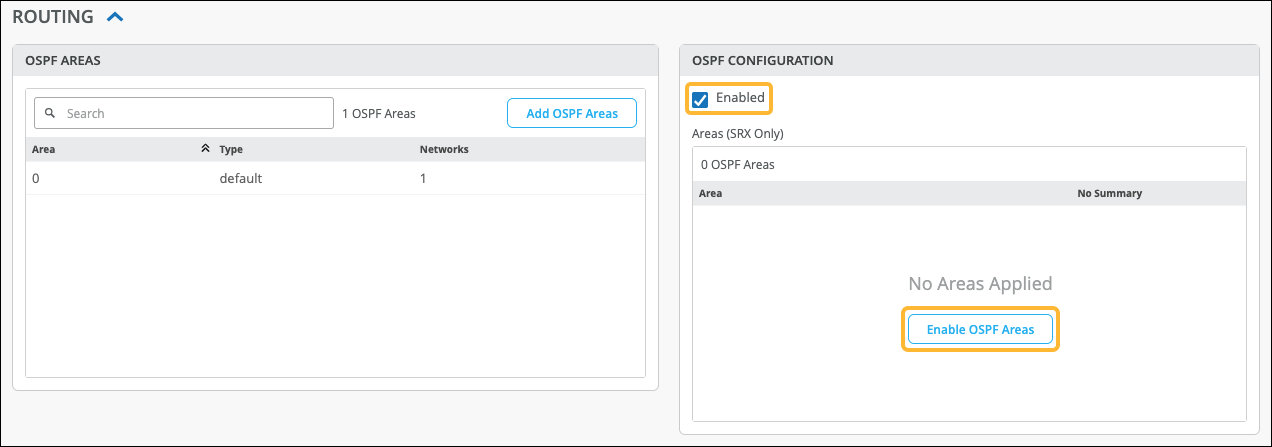
  2. In the Routing section, from the OSPF Areas tile, click Add OSPF Area.
  3. In the Add OSPF Area window, add the following information:
    Table 1: Add OSPF Area Options

    Field

    Description

    Area

    This number indicates the identification area that your OSPF network or WAN edge device belongs to.

    Type

    This is the OSPF Area type. Select one of the following options:

    • Default (Area 0) — This represents the core of an OSPF network.
    • Stub — Using this OSPF area type blocks external routes.
    • Not So Stubby Area (NSSA) — Using this OSPF area type allows redistribution of some external routes and not others.

    For a more in depth explanation of the different area types, see Configuring OSPF Areas.

  4. Click Add OSPF Network, then, in the Add OSPF Network section of the window, enter the following information:
    Table 2: Add OSPF Network Options

    Field

    Description

    Network

    This is the name of your OSPF network.

    Note:

    Select the Passive check box if you do not want OSPF to send Hello packets on an interface. This prevents the interface from forming unnecessary neighbor relationships, which reduces overhead on routers and ensures that only the crucial connections are being made.

    Interface Type

    • Broadcast — The default interface type for an OSPF Ethernet interface.

    • p2p (point to point) —A connection between two OSPF routers.

    • p2mp (SRX Only)—A connection between multiple OSPF routers.

    BFD Interval

    This value determines how frequently (in milliseconds) BFD packets will be sent to BFD peer.

    Metric

    This is the cost metric used by OSPF to determine the best path between two OSPF-enabled devices.

    Hello Interval

    This interval specifies the length of time, in seconds, before the routing device sends a hello packet out an interface. By default, the routing device sends Hello packets every 10 seconds.

    Dead Interval This interval specifies the length of time, in seconds, that the routing device waits before declaring a neighboring routing device as unavailable. By default, the routing device waits 40 seconds (four times the Hello interval).
    Auth Type
    • None — Selecting this means you are selecting no authentication to be done.

    • md5 (message-digest algorithm) —A hashing algorithm that uses a one-way cryptographic function, which takes a message of any length and returns a fixed-length output value.

    • password—Requires a password for authentication.

    Export or Import

    (SRX Only)

    Select an existing routing policy or click the Create Policy link below the drop-down menu. If you click the create button, then the Add Routing Policy panel appears. For help with policy settings, see Routing Policies.
  5. Click the check mark at the top of the Add OSPF Network section.
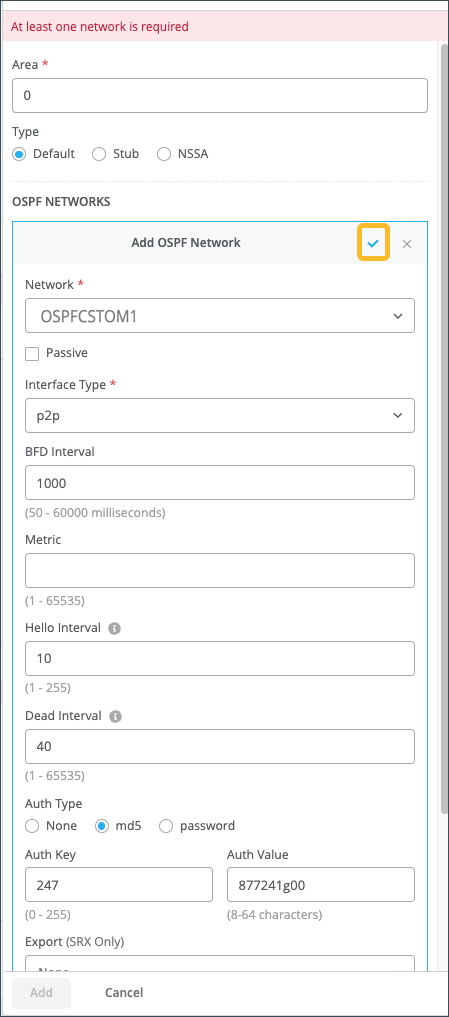
  6. Click Add at the bottom of the window.
    Your OSPF area appears in the OSPF Areas tile.
  7. In the OSPF Configuration tile, select the Enabled check box.
    This causes the Enable OSPF Areas button to appear.
  8. Click Enable OSPF Areas.
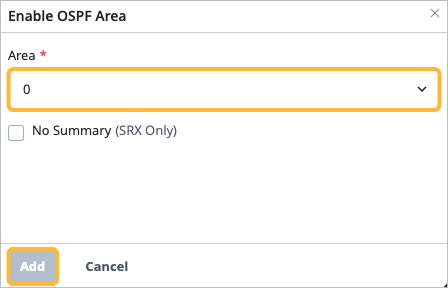
  9. In the Enable OSPF Area window, select the area that you just created.
  10. (Optional) For SRX Series Firewalls, select the No Summary check box if you do not want your SRX to advertise summary routes.
  11. Click Add at the bottom of the panel.

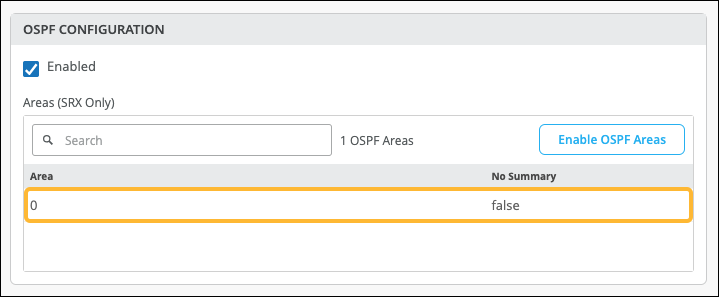
You will see your area listed in the OSPF CONFIGURATION tile.