Configure Sub-Locations for Zscaler Integration (Auto)
You can use sub-locations in your Zscaler integration to enforce rules based on different zones.
Zscaler Auto-Tunnel Provisioning with Sub-Locations
Juniper Mist supports configuration and provisioning of Zscaler sub-locations as part of the tunnel orchestration process. A Zscaler sub-location is a child entity of the location object. Locations identify the various networks from which your organization sends its Internet traffic.
You can use sub-locations in your Zscaler integration to segment areas of your networks and enforce rules based on those specific areas.Sub-locations can be used for specific uses cases. For example, an organization can define a Zscaler sub-location for its corporate network, and another sub-location for its guest network, even if their traffic goes through the same IPsec tunnel.
The organization uses the sub-locations to:
- Implement different policies based on IP addresses.
- Enforce authentication for the internal corporate network, while disabling it for the guest network.
- Enforce bandwidth control for sub-locations while ensuring that unused bandwidth remains available to the parent location.
To configure Zscaler sub-locations:
On the Juniper Mist portal, select Organization > WAN Edge Templates or select WAN Edges > WAN Edges > WAN Edge Name.
- Scroll down to Secure Edge Connectors Auto Provision Settings.
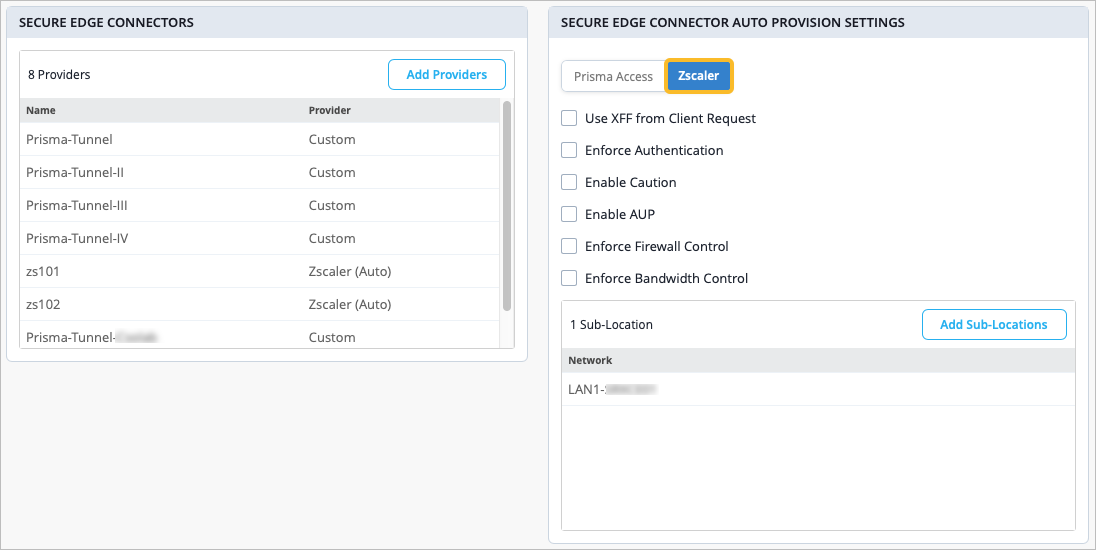
- Select Zscaler as the Provider. You'll see any existing sub-location at the
bottom of the Secure Edge Connector Auto Provision
Settings section. Figure 1: Add Sub-Locations
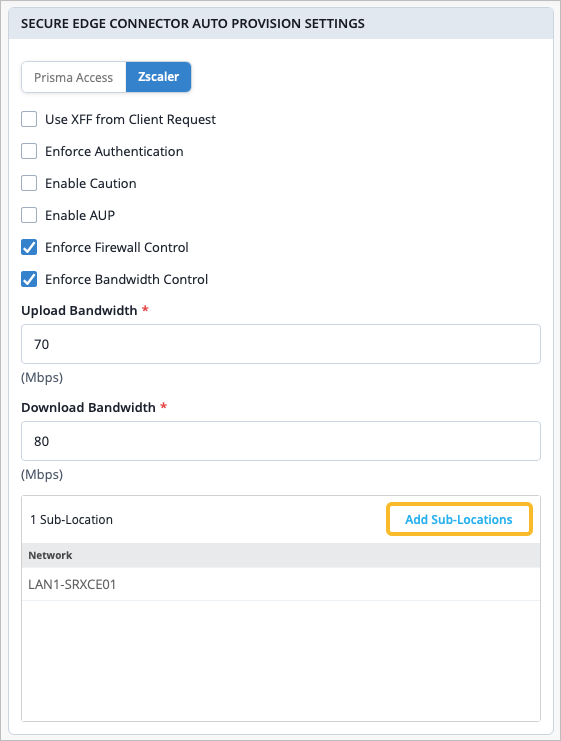
- Click Add Sub-Locations to define the new sub-location.
The Add Sub-Locations option is available only once you select Zscaler as the Secure Edge Connector.
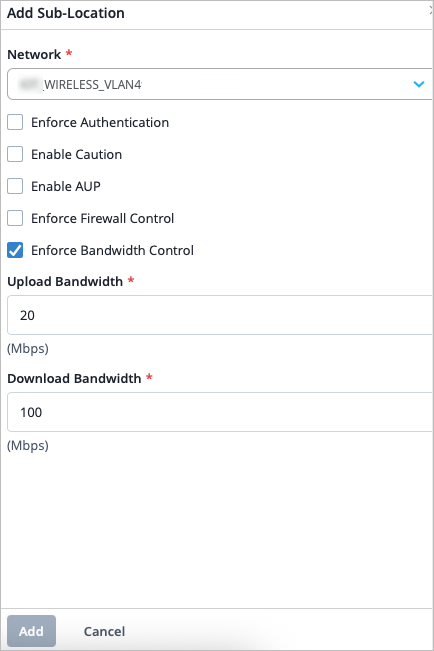
- In the Add Sub-Location window, define settings for the
sub-location. You can use
Table 1 to help guide you.
Table 1: Sub-Location Settings Field Value Network Select an existing network from the drop-down box. Enforce Authentication To authenticate users from this location. Enable Caution Displays a caution notification for unauthenticated users. Use this option if you have disabled Enforce Authentication option. Enable AUP Enable to display Acceptable Use Policy (AUP) for unauthenticated traffic and mandate it for the users to accept it. Use this option if you have disabled Enforce Authentication. The custom AUP Frequency must be a number between 1 and 180. Enforce Firewall Control Enable the firewall control options. Enforce Bandwidth Control Enforce bandwidth control for the location. You can specify the maximum bandwidth limits for upload and downloads. Upload and download bandwidth must be a number between 0.1 and 99999.
View Sub-Locations in Zscaler Portal
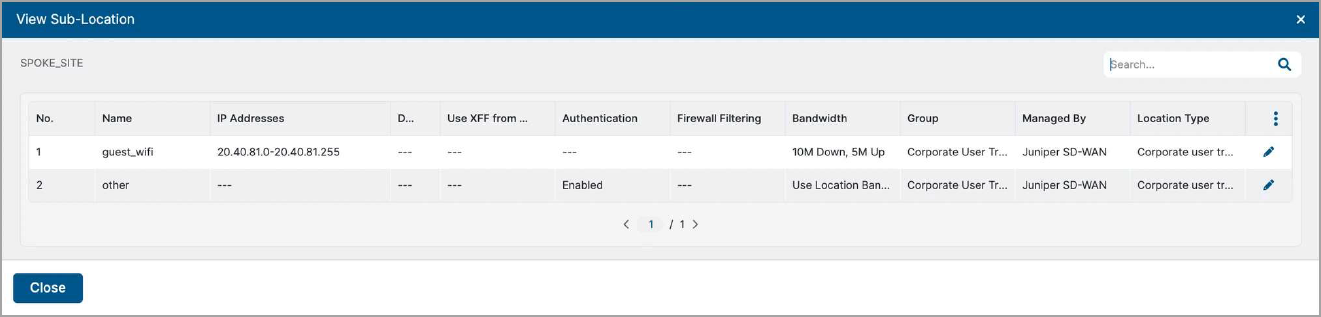
You can view the newly created sub-location in Administration > Location Management on the Zscaler portal. On the Locations page, click the sub-location's number within the table, and the sub-locations for the location appear.
Configure Gateway Options per Zscaler Location (Optional)
You can configure gateway options per Zscaler location in Secure Edge Connector Auto Provision Settings on the Mist portal. These settings offer additional control for configuring various traffic rules and policies, and they are optional parameters.
On the Mist portal, select Organization > WAN Edge Templates, or select WAN Edges > WAN Edges > WAN Edge Name.
- Scroll down to the Secure Edge Connectors section.
- In the Secure Edge Connector Auto Provision Settings section, select the Zscaler tab, then you can define the gateway options.
| Field | Value |
|---|---|
| Use XFF from Client Request | Enable this option if this location uses proxy chaining to forward traffic to the Zscaler service. |
| Enforce Authentication | Enable this option if you want to authenticate users from this location. |
| Enable Caution | Set the caution interval for more than one minute to display a caution notification for unauthenticated users. Use this option if you have disabled Enforce Authentication option. |
| Enable AUP | Enable to display Acceptable Use Policy (AUP) for unauthenticated traffic and mandate it for the users to accept it. Use this option if you have disabled Enforce Authentication. |
| Enforce Firewall Control | Enable the firewall control options. |
| Enforce Bandwidth Control | Enforce bandwidth control for the location. You can specify the maximum bandwidth limits for upload and downloads. |