Integrate Cradlepoint with Juniper Mist
Follow this workflow to integrate your Cradlepoint NetCloud account with Juniper Mist, and to provision your Cradlepoint devices in Mist.
The Juniper Mist Cloud supports Cradlepoint® 5G cellular adapters, which enables you to use those adapters with Juniper’s wired, wireless, and SD-WAN solutions driven by Mist AI. The Cradlepoint 5G adapters provide an LTE WAN backhaul mechanism across multiple sectors, including retail, warehousing, and logistics.
You can now integrate your Cradlepoint® NetCloud Manager account in the Juniper Mist Cloud portal, which enables you to:
- Manage Cradlepoint devices from the Mist portal, including onboarding, assigning devices to a site, and viewing device inventory details.
- Gain visibility into the health metrics, Service Level Expectations (SLEs), and Insights for your Cradlepoint devices.
- Leverage Marvis (Mist’s virtual network assistant), to get proactive recommendations and self-driving network actions.
This integration enhances Juniper Mist’s client-to-cloud user experience by delivering additional insights into the branch WAN adapters, helping network administrators reduce Mean Time to Identify (MTTI).
Have you ever thought about adding 5G to your AI-driven SD-WAN? Adding 5G to your SD-WAN offers many benefits, including high-speed bandwidth, improved reliability, and rapid provisioning. It can be deployed as a primary link or as a backup, there to keep your branches connected even when a cable gets cut, or there's some construction nearby. Now you may be saying to yourself, that sounds cool, but I already have several interfaces I log into, I don't need another one.
Well, have we got good news for you. CradlePoint and Juniper Mist are now integrated. By leveraging our 100% open API architecture with CradlePoint NetCloud, Mist gives visibility into what SIMs are populated on the CradlePoint devices, MAC addresses, connection status, IP address information, and things like config changes.
NetCloud sends over all cellular edge data. Now you can monitor and troubleshoot your AI-driven SD-WAN and CradlePoint 5G from the Mist cloud. And that's the power of the CradlePoint integration with Juniper's AI-driven SD-WAN in 60 seconds.
Mist Supported Cradlepoint Adapters and Devices
Juniper Mist WAN Assurance supports the following Cradlepoint 5G adapters:
-
W1850 Series 5G Wideband Adapter
-
W1855 Series 5G Wideband Adapter
-
W2000 Series 5G Wideband Adapter
-
W2005 Series 5G Wideband Adapter
-
W4005 Series 5G Wideband Adapter
-
W2255 Series 5G Wideband Adapter
Juniper Mist WAN Assurance supports the following Cradlepoint devices:
-
E300 Series Enterprise Router
-
E3000 Series Enterprise Router
-
R1900 router
-
AER2200 router
-
CBA850 LTE adapter and its sub models
Prerequisites for Onboarding Cradlepoint Devices
To onboard Cradlepoint devices into the Juniper Mist portal, you must:
- Link your Cradlepoint NetCloud account in the Juniper Mist portal.
- Add your Cradlepoint NetCloud account to your Mist organization as a Cellular Edge token.
Upon adding the Cellular Edge token to your organization in Juniper Mist, supported Cradlepoint devices that are managed by NetCloud are automatically onboarded to the Mist portal.
To integrate your NetCloud account with the Mist cloud, you need:
- An active Marvis subscription
- At least one deployed Mist device assigned to the site
- Cradlepoint devices managed on NetCloud
Integrate Cradlepoint NetCloud Account with the Juniper Mist Portal
Use the following procedure to integrate your NetCloud account with the Mist cloud:
-
Generate the required API token (X-CP-API-ID, X-CP-API-KEY, X-ECM-API-ID,
and X-ECM-API-KEY) from the NetCloud dashboard with following steps:
-
Click Add and select a role to associate
with the keys with, then click OK.
Figure 1: Generating API Keys in NetCloud Dashboard
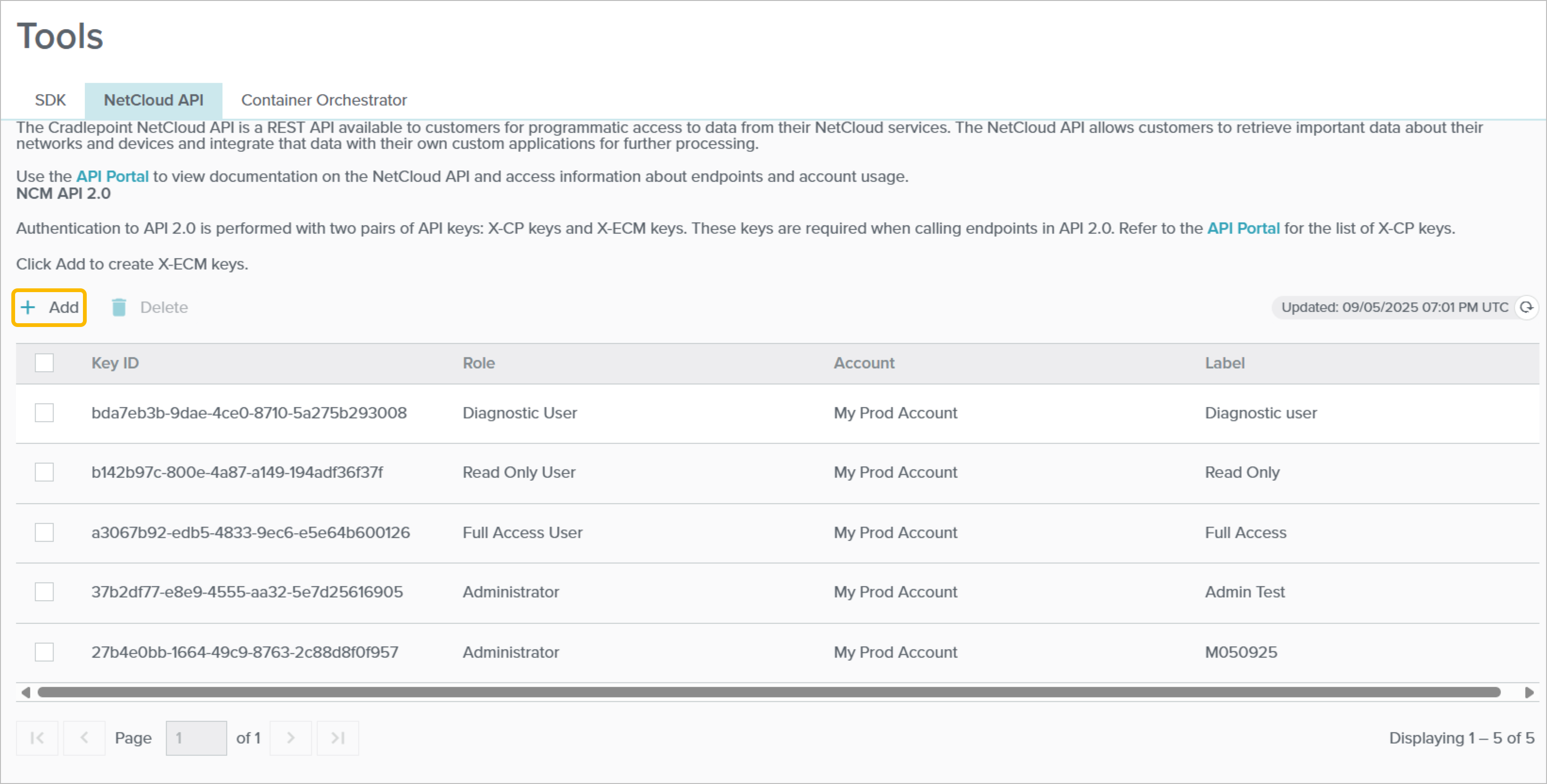
The screen displays the key values. Copy them and save them for future reference.
Note:Keep the following key values for future reference: X-CP-API-ID, X-CP-API-KEY, X-ECM-API-ID, and X-ECM-API-KEY.
For more information, see Generating API 2.0 Keys.
-
Click Add and select a role to associate
with the keys with, then click OK.
-
On the Juniper Mist portal, complete the following steps:
-
Enter the keys you saved in the previous steps.
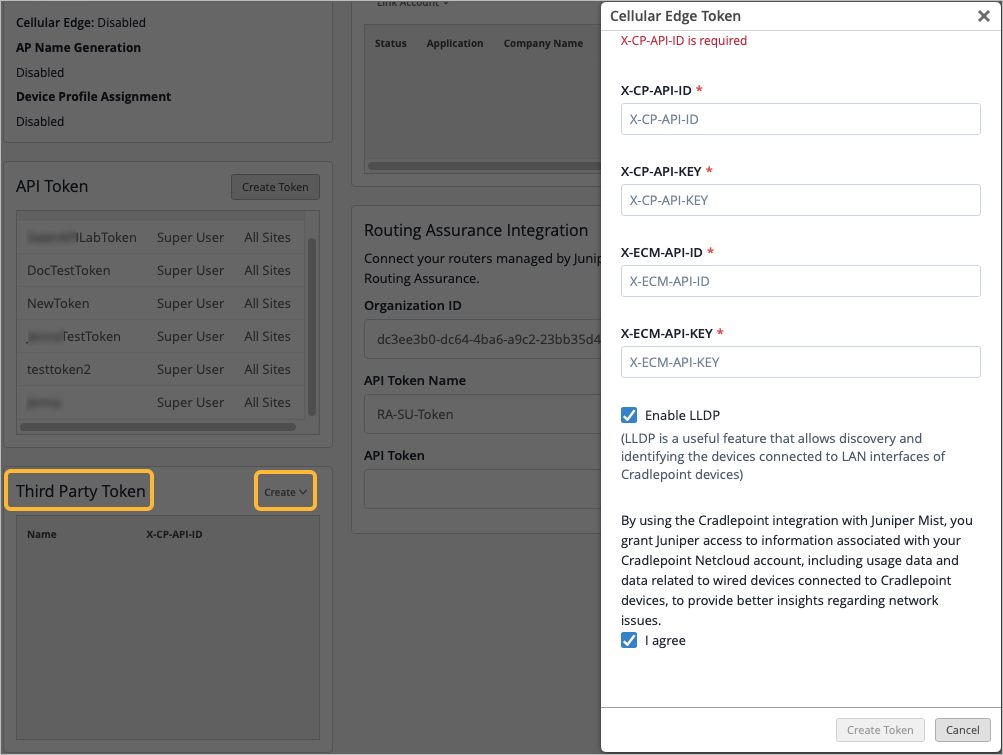
The Enable LLDP option is enabled by default, and is required for automatic site assignment. LLDP allows discovery and identification of devices connected to the LAN ports on Cradlepoint devices.
Note:The Cradlepoint R1900 router does not support LLDP today. Please contact your Cradlepoint account manager to request further information about future plans to add LLDP to this device.
For LLDP functionality on W1850 and W1855 Cradlepoint devices, a NetCloud OS version newer than August 2024 is recommended.
-
Enter the keys you saved in the previous steps.
View Cradlepoint Inventory
To view the inventory details of the Cradlepoint devices onboarded to the Mist portal:
-
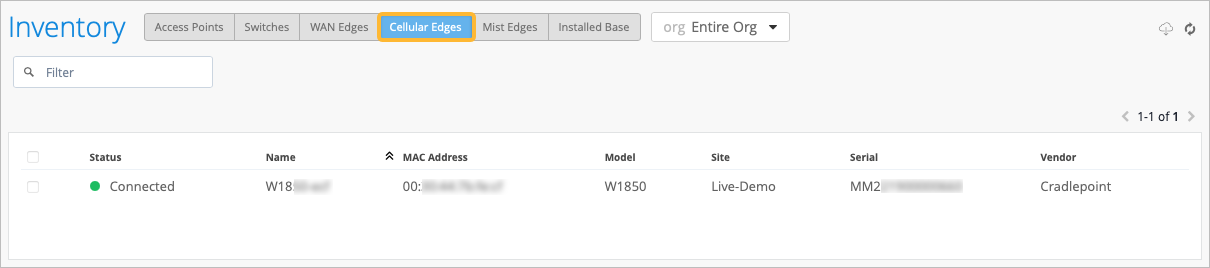
Click Sync Cellular Edges on the Inventory page if
the Cellular Edges page does not display any data.
Figure 2: View CradlePoint Devices in Cellular Edge Inventory
Assign Cradlepoint Devices to a Site
To assign a Cradlepoint device to a site in the Mist portal:
-
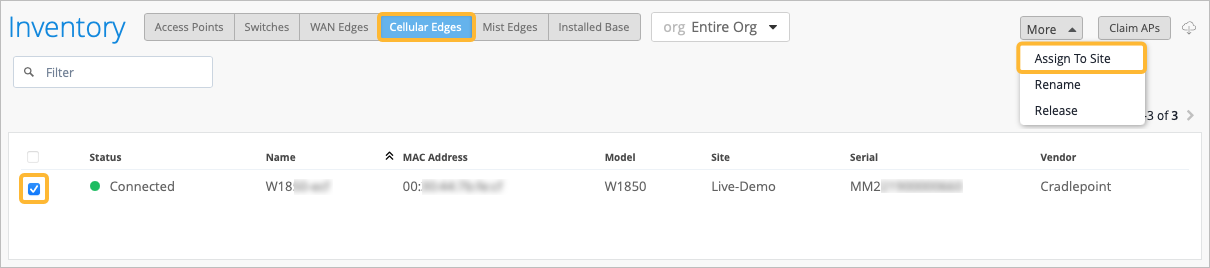
Select the device and click More > Assign to Site
from the top-right corner of the page.
Figure 3: Assign Cradlepoint Devices to a Site
Use Auto-Provisioning to Assign the Cradlepoint Device to a Site
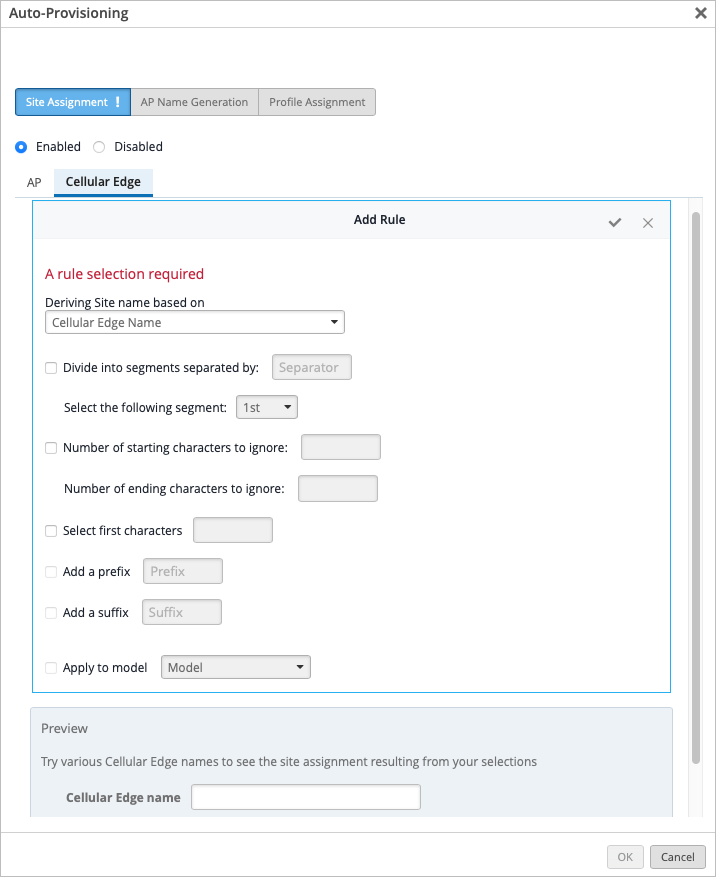
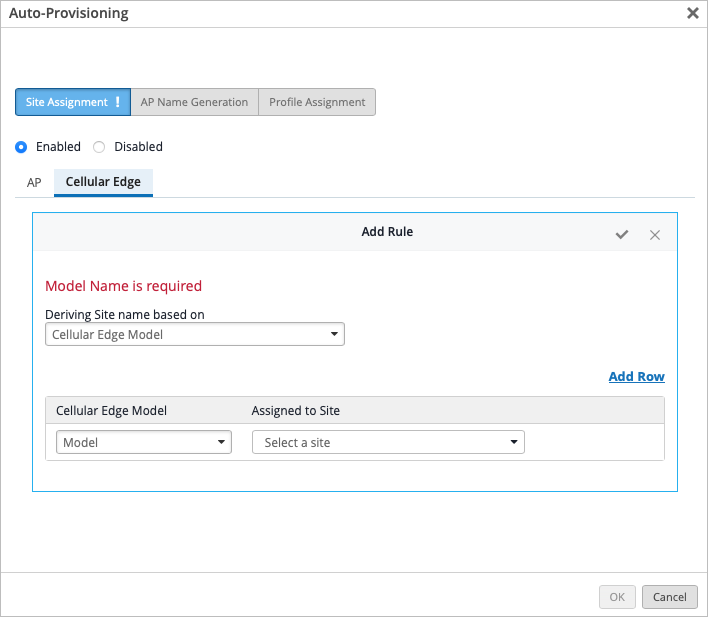
You can use auto-provisioning to automatically assign Cradlepoint devices to sites in Mist. Auto-provisioning allows you to define rules for assigning a device to a site. Mist automatically assigns the device to a site based on the auto-provisioning rules that you configure.
You can set up auto-provisioning from the Organization > Settings page in the Mist portal. See Automatically Assign Devices to a Site.
Mist can automatically assign a site based on:
-
Device name—You can configure rules to derive the site name based on the device name (Cellular Edge Name).
-
Device model—You can assign devices to sites based on the device model (Cellular Edge Model).
If you do not configure auto-provisioning, Mist uses the LLDP information about the Cradlepoint device for site assignments. Mist first identifies a Juniper device that is connected to a port on the Cradlepoint device and is also in the same organization. Mist then assigns the Cradlepoint device to the same site that the Juniper device is assigned to.
In order for the LLDP-based automatic site assignment to work, you must ensure that LLDP is enabled on both the Cradlepoint and Juniper devices. Automatic site assignment is applicable only for devices connecting to Mist for the first time.
Unlink Cradlepoint Account from Juniper Mist
If you no longer wish to have your Cradlepoint NetCloud account integrated with Mist, you must unlink the Cradlepoint account from the Mist portal.
-
Click the Cradlepoint entry in the section.
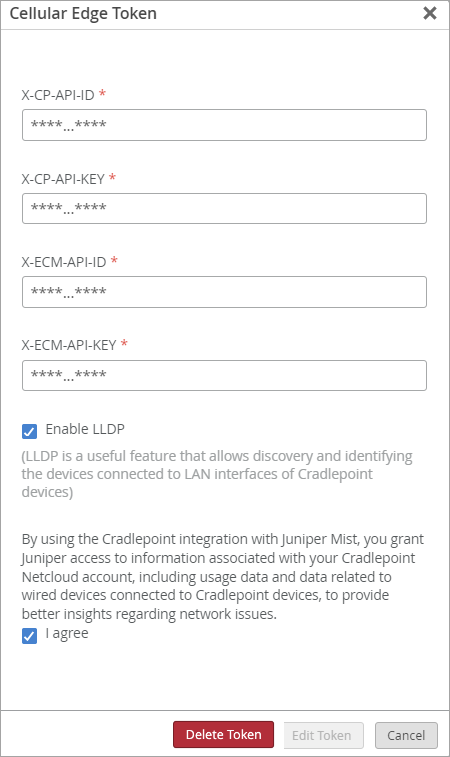
The Cellular Edge Token window opens.