Help us improve your experience.

Let us know what you think.

Do you have time for a two-minute survey?


Define Networks and Applications

Before you configure templates, hub profiles, or standalone devices, define your networks and applications.

Define Networks

Follow these steps to define the networks for your WAN Edge devices.

You can think of networks in Juniper Mist as segments of your user and device population. Networks are attached to interfaces and are used as sources in application policies. A network also is a gateway for traffic.

Creating networks is a prerequisite for other WAN configuration tasks, so you'll do these tasks early in the configuration workflow.

To configure networks:

  1. From the left menu, click Organization > WAN > Networks.
    A list of existing networks appears.
  2. Click Add Networks in the top-right corner.
  3. Enter the settings in the Add Network window.
    For help with the options, see Network Settings.
  4. Click Add.

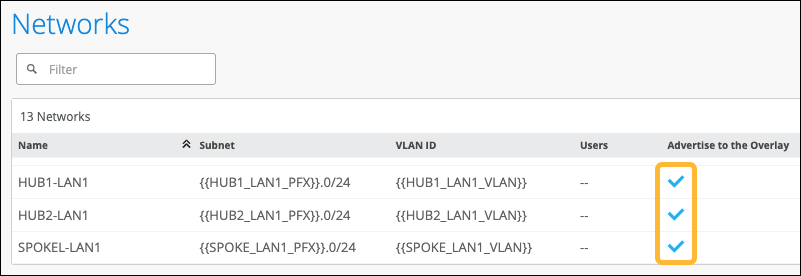
    The screen displays the newly created networks.
Define Applications

You can think of applications in Juniper Mist as what destinations your network traffic goes to. Examples include network services, SaaS, private subnets, and cloud workloads.

Defining applications is a prerequisite for creating application policies.

You can define applications by entering your own customized settings, selecting brand-name applications, or assigning URL categories.

To configure applications:

  1. From the left menu, click Organization > WAN> Applications.
  2. Click Add Applications in the top-right corner of the Applications page.
  3. Enter a name and description.
    • Name—Enter a unique name for the application. You can use up to 32 characters for naming the application including alphanumerics, underscores, and dashes.

    • Description—Enter a description of the application and context.

  4. Select the application type, and enter the relevant settings as described below.
    • Custom Apps—Your own application.

    • Apps—Specify named applications, such as Apple iCloud, Facebook, Google Maps, and so on. Select one or more applications from the drop-down list. To quickly find an application, click the plus sign and start typing in the Search box.

      Predefined applications—Select built-in, commonly used services, including popular cloud services, collaboration tools, and productivity platforms. Mist provides a drop-down list of known applications, which are already mapped to their respective domains, ports, and protocols. When you select them, you don't have to define IPs or URLs. Then you assign policies to allow, block, or steer traffic based on these apps.

    • URL Categories—Select categories such as Conferencing, Images, Shopping, and so on.

    • Custom URLs—Specify exact URLs and use wildcards.

    For help with these settings, see Application Settings.
  5. Under Advanced Settings, keep the default settings or select other options.
  6. Click Add at the bottom of the settings panel.