
Onboard Session Smart Routers using Secure Conductor Onboarding
Onboard a Session Smart Router to the conductor securely and automatically using Secure Conductor Onboarding in Mist.
You can onboard a Session Smart Router (SSR) device to a Session Smart Conductor securely and automatically using Secure Conductor Onboarding (SCO). For vSSR, you must obtain an Endorsement Key (EK) for the router and give it to the conductor. As part of the SCO process, the router sends the EK to the conductor. The EK is read from the Trusted Platform Module (TPM). For SSR400 and SSR440 devices, secure onboarding is done using the embedded device ID certificate instead. The device is only allowed to be onboarded if each party proves possession of its private key and that the connection is trusted and authenticated. The SCO process leverages a TPM module detected on the platform for mutual authentication.
This feature is supported only on SSR400 and SSR440 series hardware, and on virtual appliances that provide TPM 2.0 support, such as AWS and Azure instances with vTPM enabled.
Secure Conductor Onboarding relies on the following components:
-
A Session Smart Conductor.
-
An SSR deployed with TPM. This can be TPM that is available on a public cloud, such as AWS, or TPM that comes standard on SSR400 and SSR440 devices.
- For information on what Cloud platforms the SSR Software is supported on, see Cloud Platform Support.
-
A secure onboarding token generated by the Conductor.
-
A WebSocket‑based secure channel over ports 930 and 933 (secure TLS established over port 930 ensures that the client and server can trust one other).
To use Secure Conductor Onboarding to onboard your Session Smart Routers:
-
Back on the Mist portal, from the left menu, navigate to
Organization > Site Configuration. In
the Session Smart Conductor section under WAN Edges, configure the conductor’s public IP
address and the Onboarding Token.
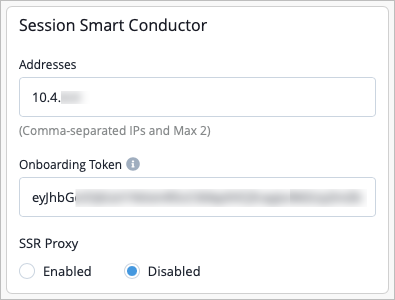 Note: The Session Smart Conductor Address and Onboarding Token can be configured at both the organization and site level. Site level configuration will take priority.