
Configure Alerts for Monitoring Interface Status
Configure alerts on WAN Edge interface ports in the Juniper Mist portal so that you can be notified of any issues for monitoring purposes.
To help you monitor the ports of your WAN Edge devices, you can enable alerts on the WAN or LAN interface ports configuration, as well as on the Alerts Configuration page, to have the Alerts dashboard display alerts for what you've configured. You can also enable e-mail notifications for issues that you want to monitor closely. For information about configuring alerts, see Configure Alerts and Email Notifications.
Configure Alerts for Interface Ports
You can set up alerts and email updates for when certain ports on a WAN Edge device go online or offline. To configure alerts for specific ports, you must enable the Up/Down Port alert type in the WAN or LAN configuration on the WAN Edge template or at the device-level. Then, you must also configure these alerts on the Monitor > Alerts page.
- From the left menu of the Juniper Mist portal, select Organization > WAN > WAN Edge Templates. Or, to configure at the device-level, select WAN Edges > WAN Edges, and click the device name.
- Select the WAN or LAN configuration that you want to update (or add a new configuration).
- In the Interface field, enter the port or ports, and then
select the Enable “Up/Down Port” Alert Type checkbox. Note: Enabling this alert type allows you to receive alerts when the port transitions from "Up" to "Down" or vice versa. This also requires you to enable the Critical WAN Edge Port Up/Down alert in the Alerts Configuration.Figure 1: Marking LAN Port or WAN Interface as Critical Interface
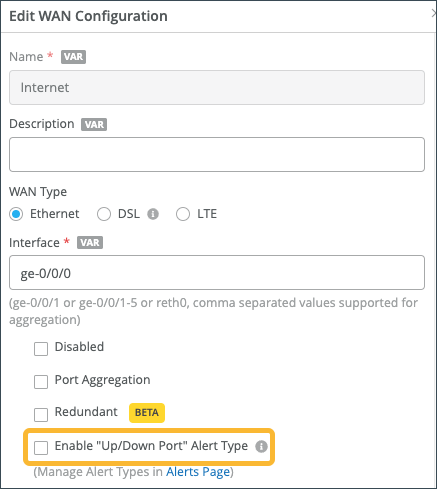
Repeat these steps for all critical ports. Click Save when you are done with each port.
- Go to Monitor > Alerts > Alerts Configuration and use
the following check-boxes to enable alerts for the selected port:
Critical WAN Edge Port Up
Critical WAN Edge Port Down
Figure 2: Alerts Configuration for Critical Ports
See Alert Configuration for details.
When you enable alerts and notifications:
- You receive an e-mail notification whenever a port transitions from one state to another.
- You can delay alerts about when the WAN Edge gateway goes offline to prevent repeated alerts in the case of connectivity flaps. Do this by clicking the pencil icon and setting a time threshold.
- You can view the status in the Monitor >
Alerts page. The figure below shows an example of the
critical port status on the Mist Alerts dashboard.Figure 3: Critical WAN Edge Port Status
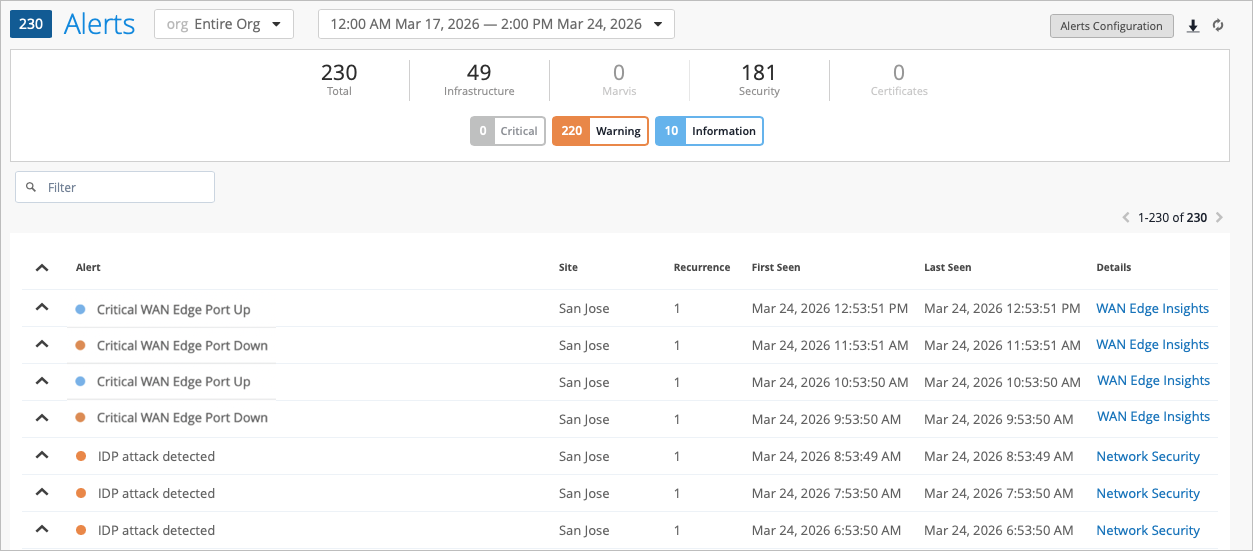
You can view alerts by navigating to the left menu of the portal, then select Monitor > Alerts.