
Meeting Insights
Use the Insights dashboard to view information about Zoom and Microsoft Teams meetings.
Finding the Meeting Insights
The Meeting Insights section appears on the Insights page when a you select a site, client, or wired client as the context at the top of the Insights page.
The Meeting Details section appears when you select a client or wired client as the context.
This feature is in Beta release.
Meeting Insights Charts
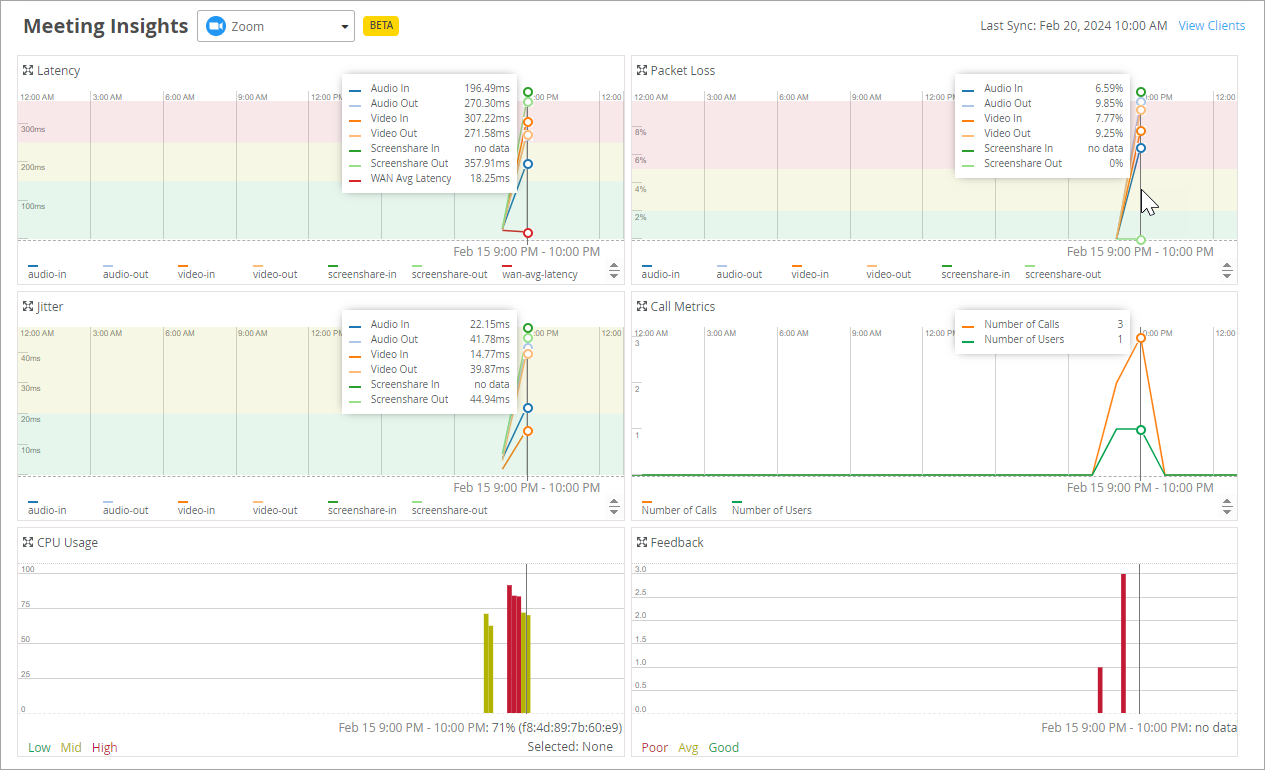
This section shows charts for latency, packet loss, jitter, call metrics, CPU usage, and feedback.
At the top of this section, use the drop-down menu to select the type of meeting to view.
Hover over a point on a chart to see the details in a pop-up message or in a line of text below the graph (depending on the type of chart). The charts are all synchronized to show the details for the selected point. In the example below, the mouse pointer is hovering over a point on the Packet Loss chart. All charts show details for that same point.
Meeting Details Table
The Meeting Details table appears only when a wireless or wired client is selected as the context.
If you're viewing Meeting Insights with a site as the context, you can go to the Client Insights page by clicking the View Clients link.

After you select a client, the Insights page reloads with that client as the context. You can then scroll down to see the Meeting Insights and Meeting Details for the selected client.
Details include the meeting ID, the join and leave time, and the quality ratings for audio, video, and screenshare.
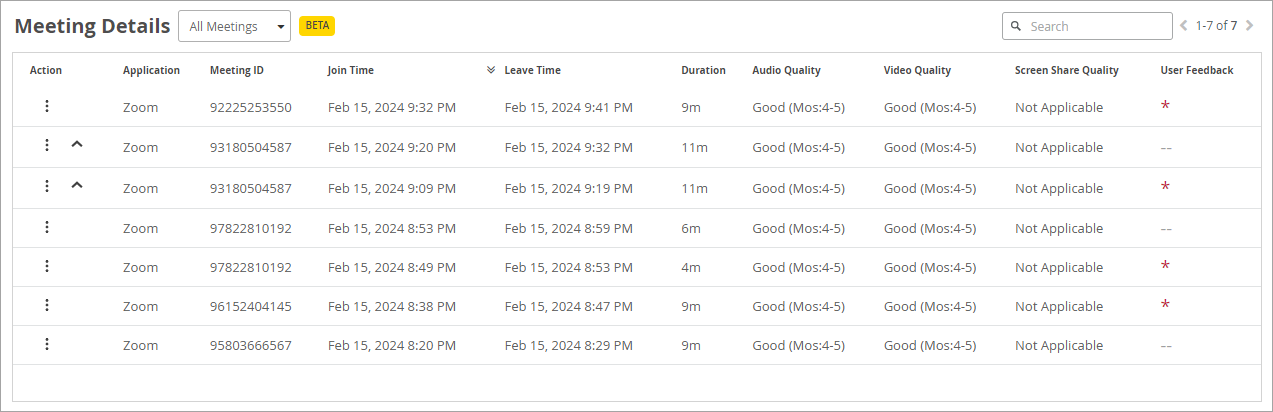
In the Actions column, you can:
-
Troubleshoot—If you have a Marvis subscription, you can click the ellipsis button to get troubleshooting help from the Marvis Conversational Assistant.
-
View the Shapley Feature Ranking—A carat ^ icon appears if a user reports a bad experience. Click the ^ icon to view the Shapley Feature Ranking.
Meeting SLEs and Classifiers
Mist analyzes the factors affecting the user experience for Zoom and Teams sessions and categorizes these factors under the following SLEs:
-
Wireless Coverage
-
Wireless Capacity
-
Client Health
-
WAN Health
-
Partner Link
-
Non-Mist Network
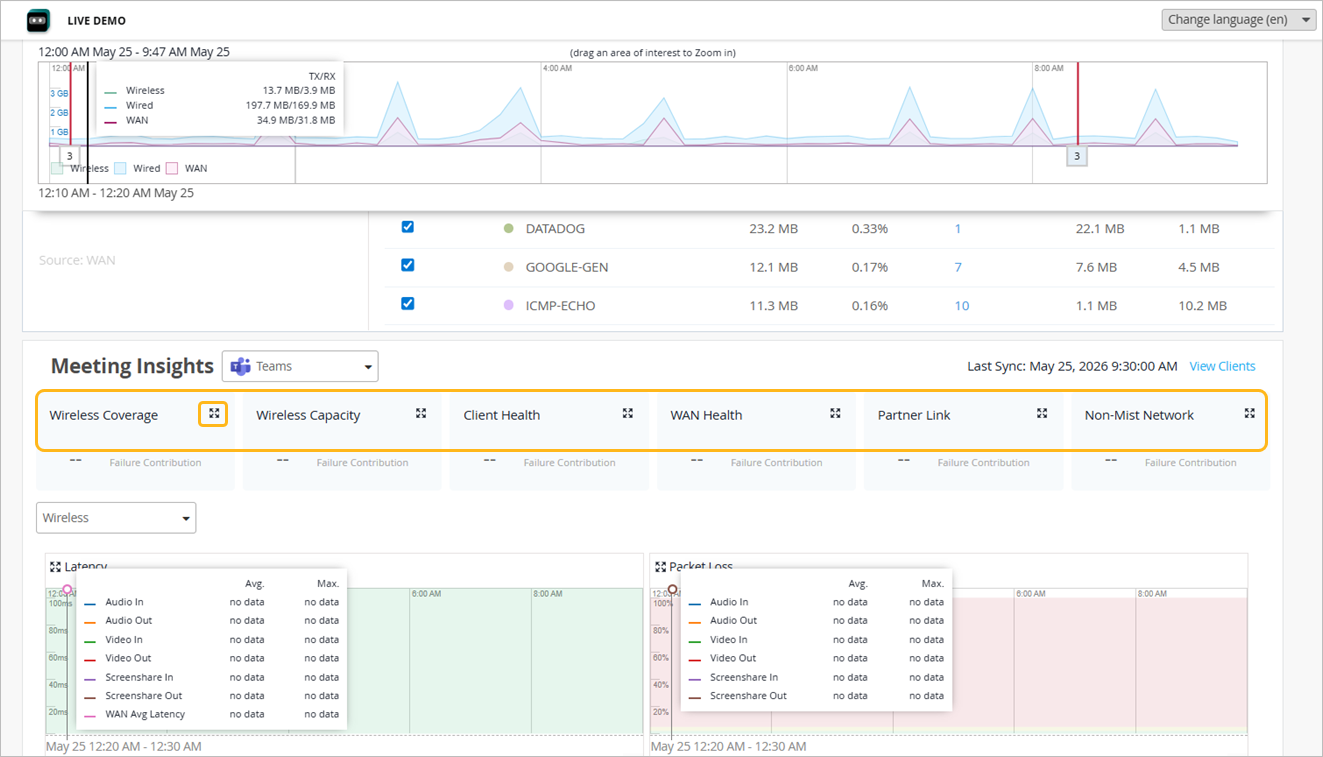
You can view the information in the following ways:
-
Click each SLE to view the details on the same page.
-
Click the
 icon to view the information on a separate page. Click the down arrow next to the SLE
name to see additional information, such as the timeline, distribution, affected items,
and the client locations on your floorplan.
icon to view the information on a separate page. Click the down arrow next to the SLE
name to see additional information, such as the timeline, distribution, affected items,
and the client locations on your floorplan.
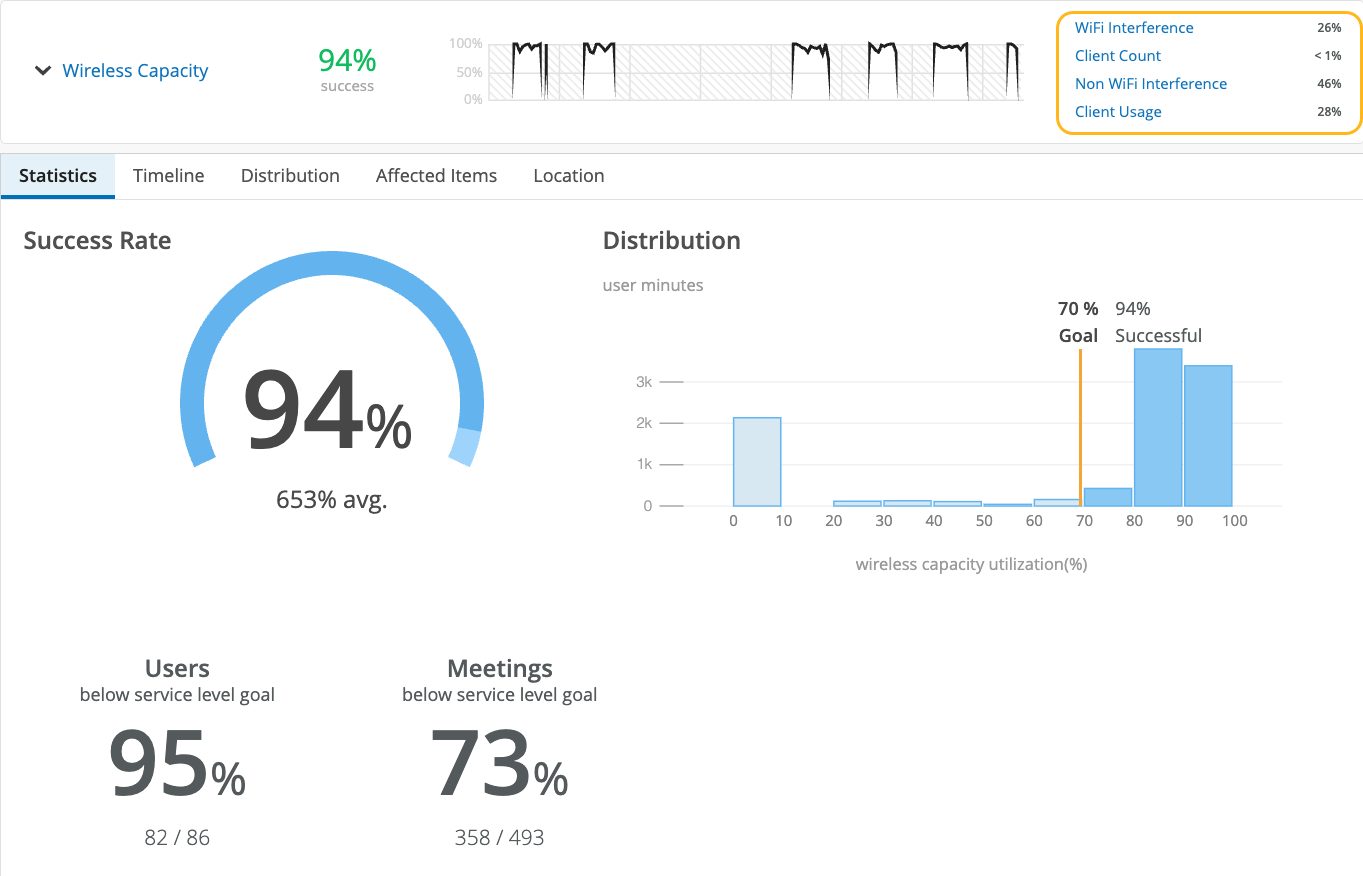
As shown in the following example, each SLE provides valuable information.
-
At the left, you see that this SLE has a 94 percent success rate. If you select the Value filter button, you'll see a number instead.
-
At the center, the timeline shows variations across the time period. You can hover your mouse pointer over any point to see the exact time and SLE outcome.
-
At the right, the classifiers show the percentage of the issues that were attributed to each root cause. In this example, 46 percent of issues were attributed to non-Wi-Fi interference. The remaining issues were due to Wi-Fi Interference and Client Usage.
See the following table for more information about the SLEs and classifiers for Zoom and Teams.
| SLEs | SLE Descriptions | Classifiers | Classifier Descriptions |
|---|---|---|---|
| Wireless Coverage (for Applications) |
Juniper Mist tracks active clients' Received Signal Strength Indicator (RSSI), as measured by the AP for the duration of the Zoom or Teams call. A low RSSI impacts the quality of the audio or video during a Zoom or Teams call. You can use this SLE to determine if you have sufficient APs. |
Weak Signal |
Unknown causes of weak signal |
| Asymmetry Downlink |
Weak signal due to asymmetric transmission strength from the AP to the client |
||
| Asymmetry Uplink |
Weak signal due to asymmetric transmission strength from the client to the AP Asymmetry can occur for various reasons, such as clients being too far from the AP. |
||
| Wireless Capacity (for Applications) |
Juniper Mist monitors the percentage of the total RF channel capacity that is available to clients for the duration of the Zoom or Teams call. When the capacity threshold for a Zoom or Teams user minute is less than MOS 3.0, Juniper Mist sorts the issues into classifiers. |
Non-Wi-Fi interference |
Low capacity due to interference from non-Wi-Fi sources |
| Wi-Fi interference |
Low capacity due to wireless interference |
||
| Client Count | Low capacity due to a high number of clients | ||
| Client Usage | Low capacity due to a high client load | ||
| Client Health (for Applications) |
Juniper Mist monitors the CPU utilization and routing paths to identify issues affecting application performance. |
Suboptimal IP | Latency and call quality issues due to a suboptimal network path, as might happen when the client is directed to a geographically distant server |
| CPU | Low resource availability due to high CPU utilization | ||
| WAN Health (for Applications) | Juniper Mist monitors the network performance of the Zoom or Teams application to determine if there is any performance degradation. This SLE can help you understand the end users’ experiences when accessing the applications. | Application Disconnects | Disconnects due to network issues, ISP-related issues, or device-specific issues |
| Loss | Issues due to packet loss | ||
| Slow Application | Issues involving slow responses to application requests | ||
| Latency | Lag interrupting video and audio streams | ||
| Jitter | Inconsistent packet transmit times | ||
| Partner Link | Juniper Mist assesses performance from network co-participants that can contribute to issues. | Co Participant |
Issues on a co-participant's side of a video or audio call For example, one of your users might report a bad application experience if a co-participant has issues when sharing their screen. |
| Non-Mist Network | Juniper Mist detects issues that originate from users connected through an external network. | Non Mist | The issue originates from a user connected through a non-Mist network. |