Onboard CA and SCEP Integration for Microsoft Intune-Managed Devices
Onboard CA Configuration in HPE Mist Networking Access Assurance provides a cloud-native SCEP service that integrates directly with Intune for automated client certificate distribution. This eliminates the need for an external PKI and simplifies secure Wi-Fi onboarding with EAP-TLS authentication.
HPE Mist Networking Access Assurance provides Onboard Certificate Authority (CA) Configuration, which delivers a fully managed Simple Certificate Enrollment Protocol (SCEP) infrastructure. When the Onboard CA is enabled, Access Assurance automatically provisions the Intune SCEP URL. With this URL, users can integrate Intune with HPE Mist Networking Access Assurance without deploying or maintaining any external PKI or on-premises SCEP service. The Onboard CA certificate provided by Access Assurance is then used to configure a SCEP profile within Intune, enabling secure client certificate issuance to enrolled devices.
By leveraging the Access Assurance SCEP infrastructure, you can automate the distribution of client certificates to Intune-managed endpoints, binding them to Wi-Fi profiles for EAP-TLS authentication. This feature ensures that every device connecting to the network is authenticated through strong, certificate-based trust while fully managed from the HPE Mist Networking Access Assurance cloud.
To enable Intune to leverage HPE Mist Networking Access Assurance as its SCEP infrastructure for client certificate distribution, follow these steps:
Enable Onboard CA Configuration
To enable the Onboard CA configuration:
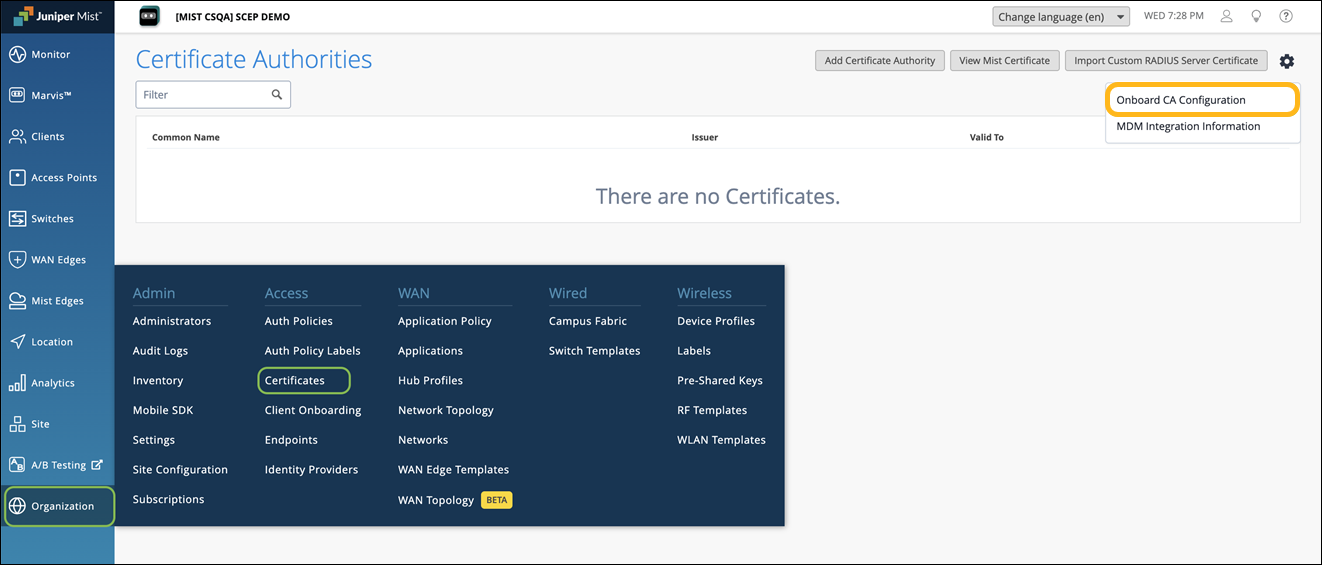
From the left menu of the HPE Mist management portal, select Organization > Access > Certificates.
The Certificate Authorities page appears.
Click the settings icon on the upper-right corner of the page and select Onboard CA Configuration.
Select Active and click OK.
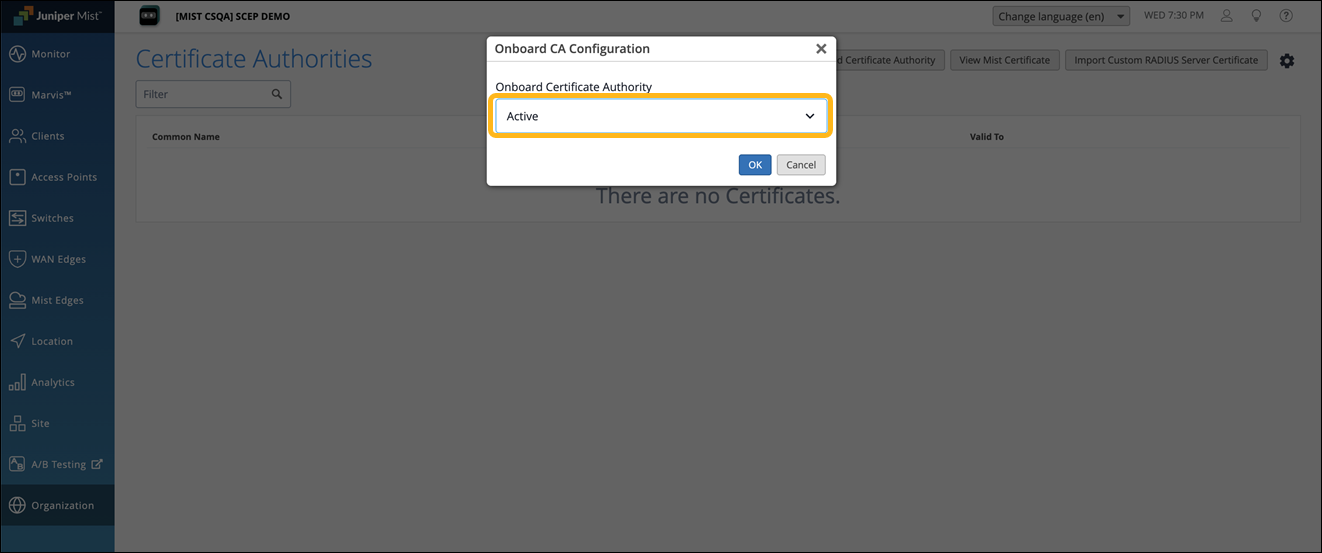
The onboard Certificate Authority service is enabled, and the respective SCEP endpoints are generated for each MDM.
When the Onboard CA configuration is activated, you’ll see the following tabs displayed:
External—Displays the details of the external CAs.
Internal— Displays the details of client certificates issued by the built-in CA through the NAC portal or MDM.
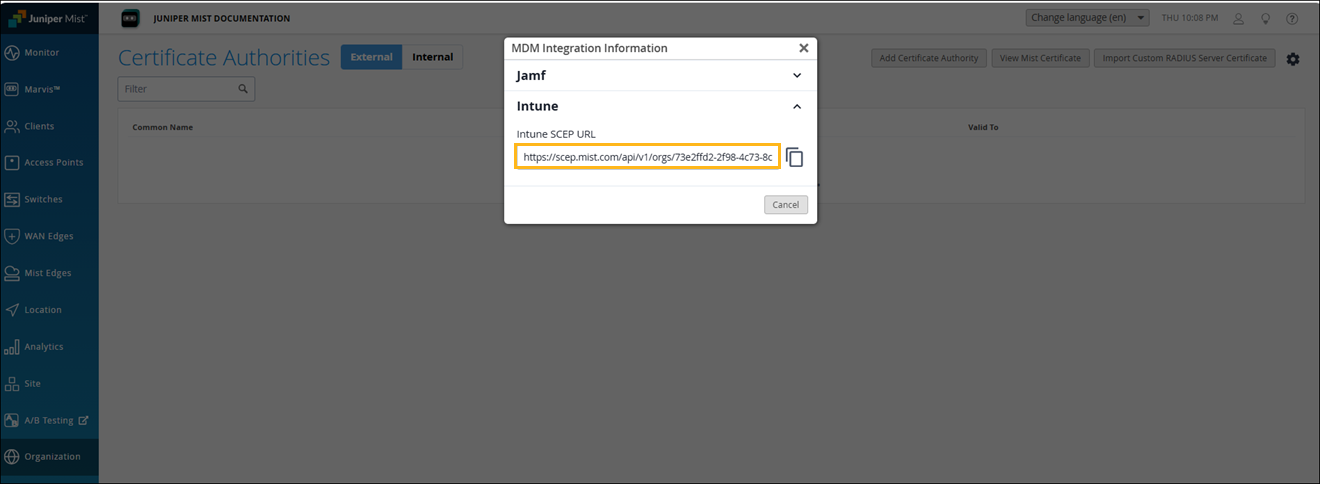
Click the settings icon on the upper-right corner of the page again and select MDM Integration Information.
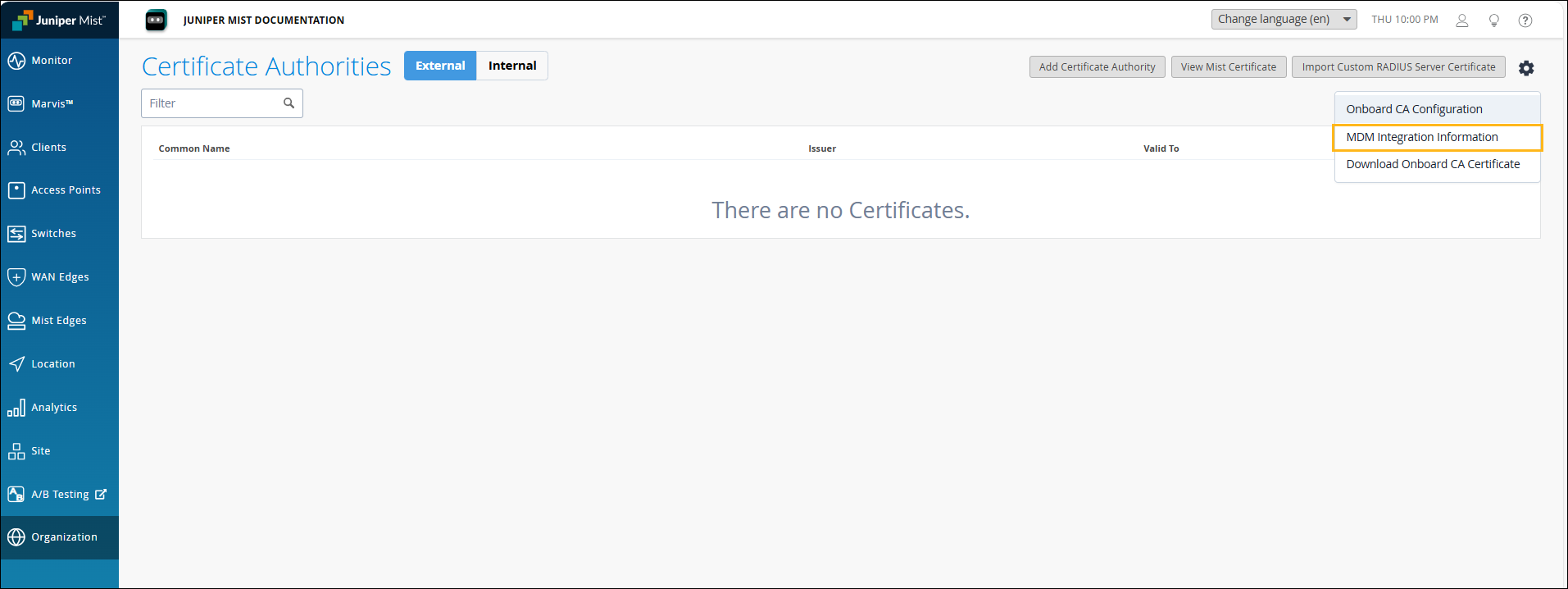
Copy the Intune SCEP URL listed for Intune. You'll need to use this URL in the Intune SCEP profile.
Download the Onboard CA and Org CA Certificates
The HPE Mist Networking Org CA certificate is required to configure Intune managed clients to trust the RADIUS server certificate of the HPE Mist Networking Access Assurance service. The Onboard CA certificate is needed to configure the SCEP profile on Intune.
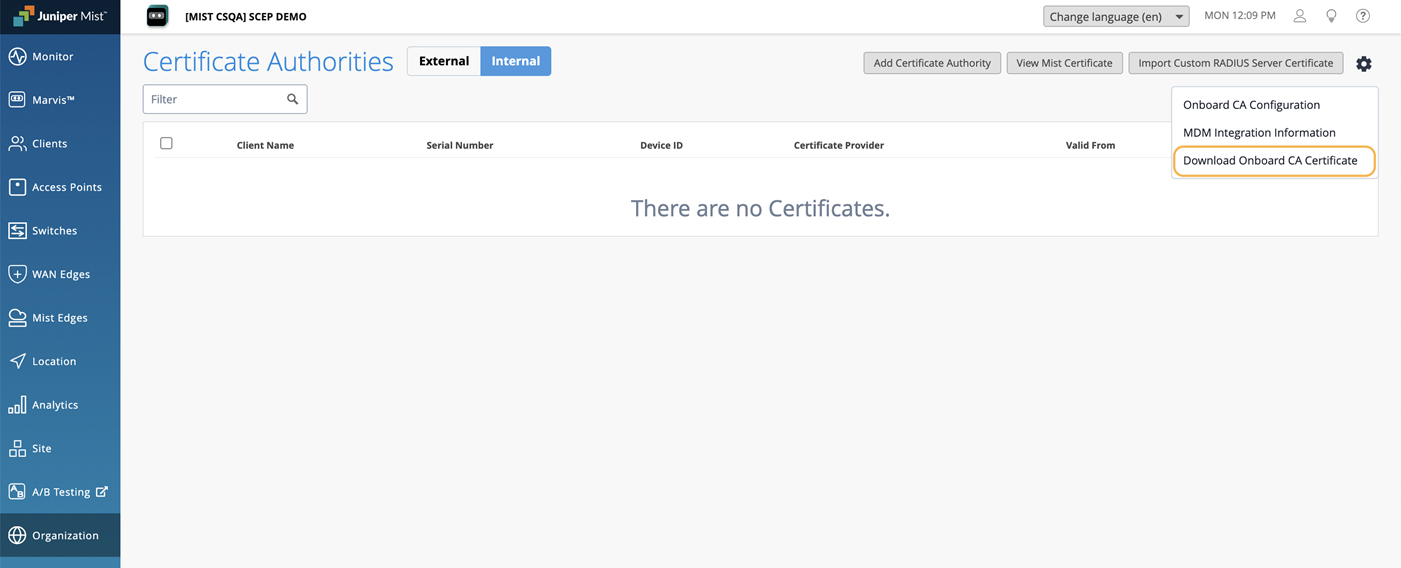
Click the settings icon on the upper-right corner of the Certificates page and select Download Onboard CA Certificate. This certificate will be used as the SCEP certificate in Intune.
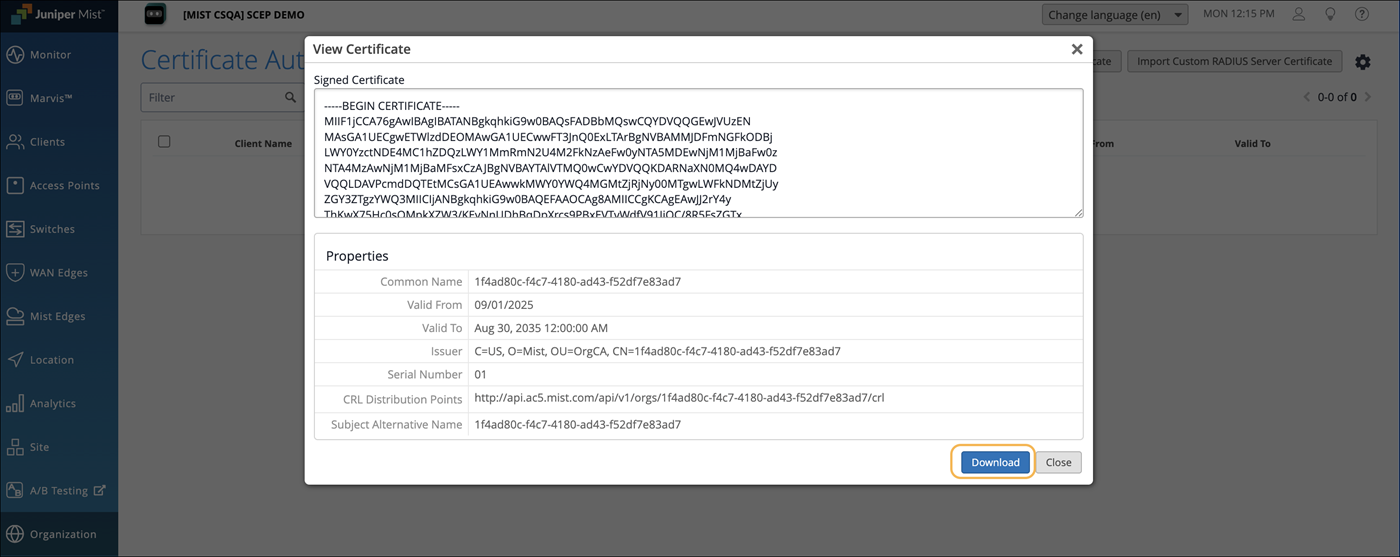
Navigate to Organization>Access>Certificates. Click View Mist Certificate and click Download. This certificate will be used as the Root certificate in Intune.
 Note: If you are using a Custom RADIUS Server certificate, the HPE Mist Networking Org CA certificate is not required. You'll need to have the Root CA certificate of the Custom RADIUS Server certificate issuer.
Add Intune as an Identity Provider
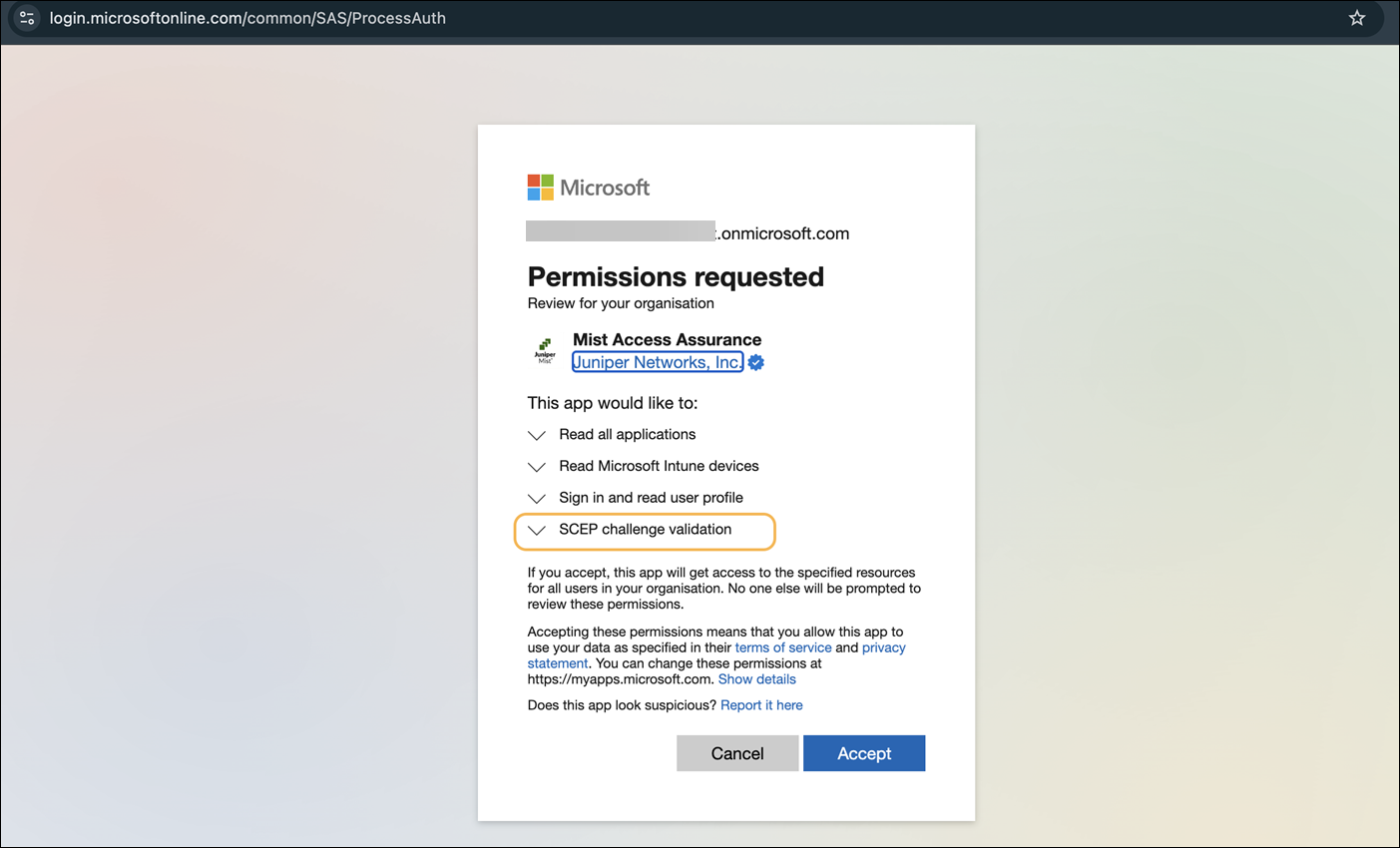
Link your Intune account with HPE Mist Networking. See Integrate with Intune (in the HPE Mist Networking Access Assurance Guide).
The screenshots from third-party applications are correct at the time of publishing. We have no way to know when or if the screenshots will be accurate at any future time. Please refer to the third-party website for guidance about changes to these screens or the workflows involved.
Create Configuration Profiles
Create OS-specific configuration profiles in Intune.
Create Trusted Certificate Profile
For each OS type that you plan to enroll, create two Trusted Certificate Profiles—one for the HPE Mist Networking Org CA certificate and one for the HPE Mist Networking Onboard CA certificate.
- Navigate to Devices>Configuration, and click Create>New Policy.
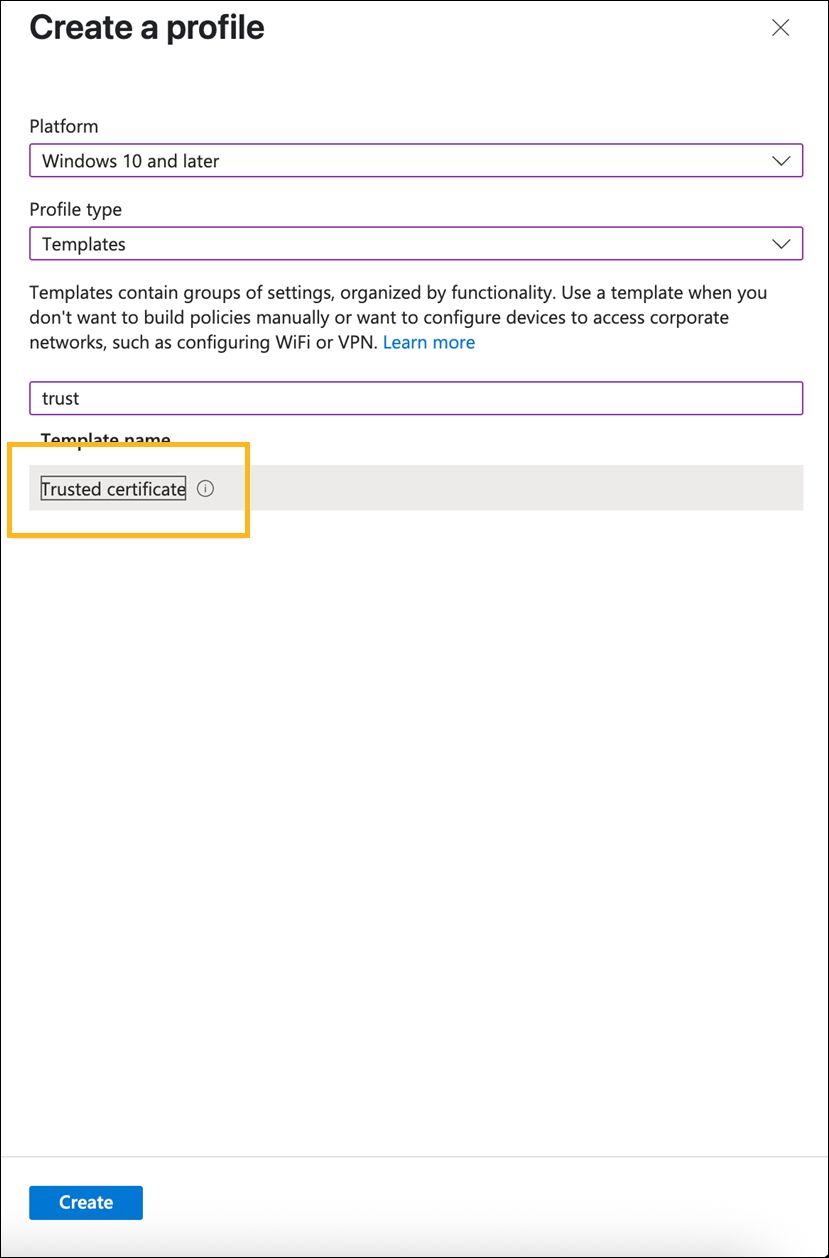
Select a platform. We've used Windows 10 and later in this example.
Select Templates as the Profile Type.
Select trust from the template list and click Create.
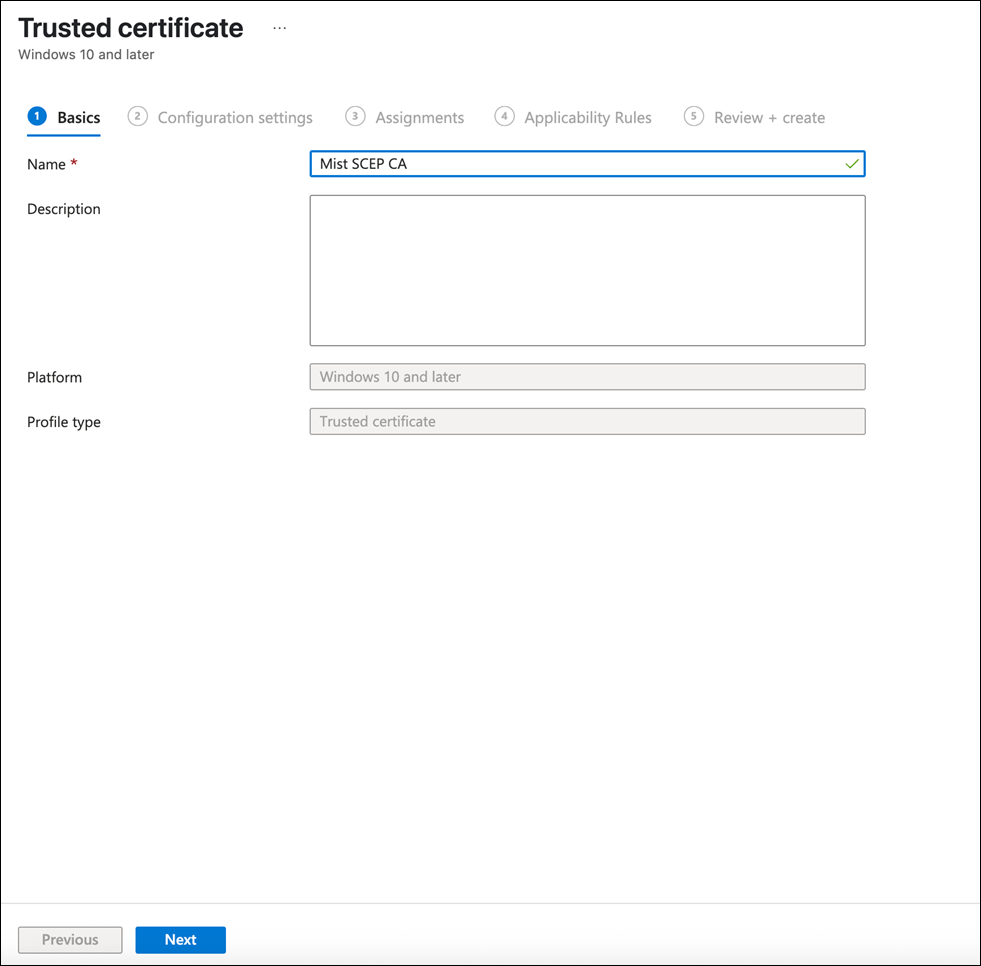
Provide a name for the HPE Mist Networking Org CA trusted certificate and click Next.
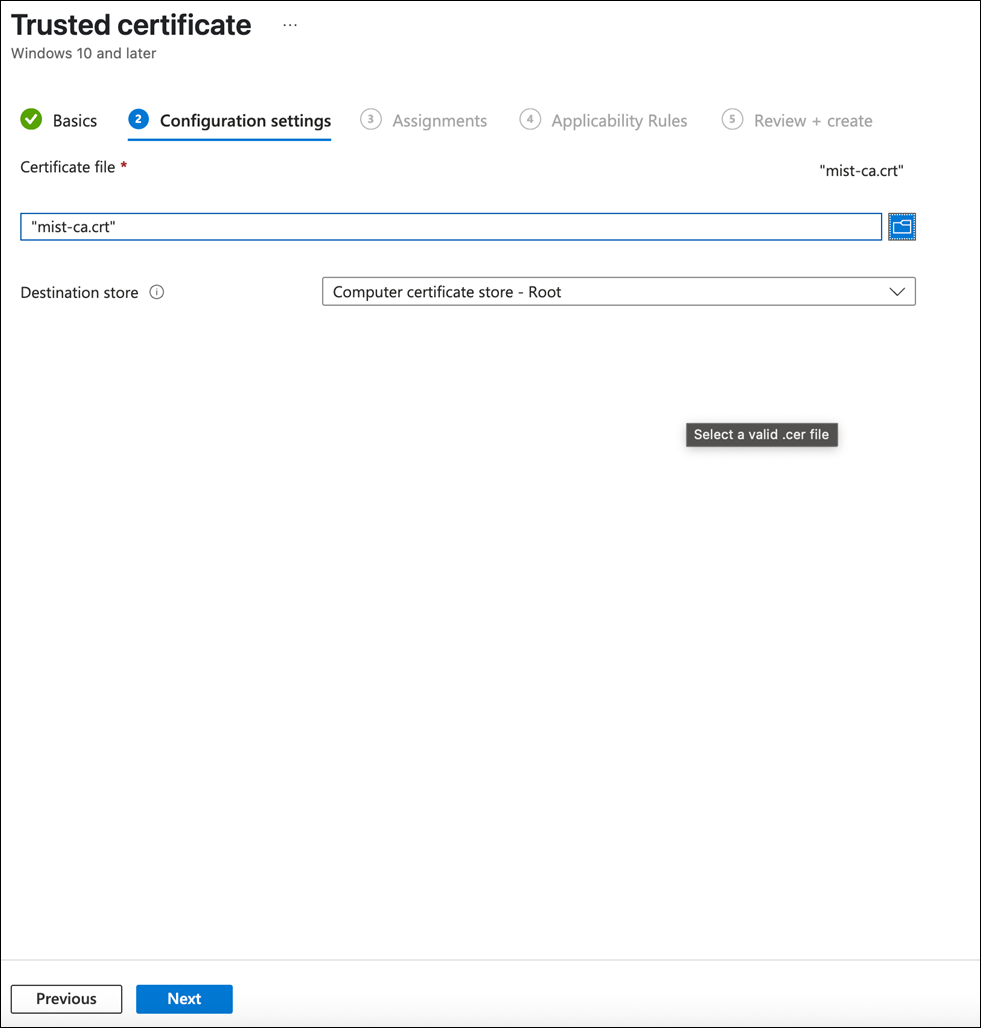
Upload the HPE Mist Networking Org CA certificate that you downloaded earlier.
If you are using a Custom RADIUS Server certificate, the HPE Mist Networking Org CA certificate is not required. You'll need to have the Root CA certificate of the Custom RADIUS Server certificate issuer.
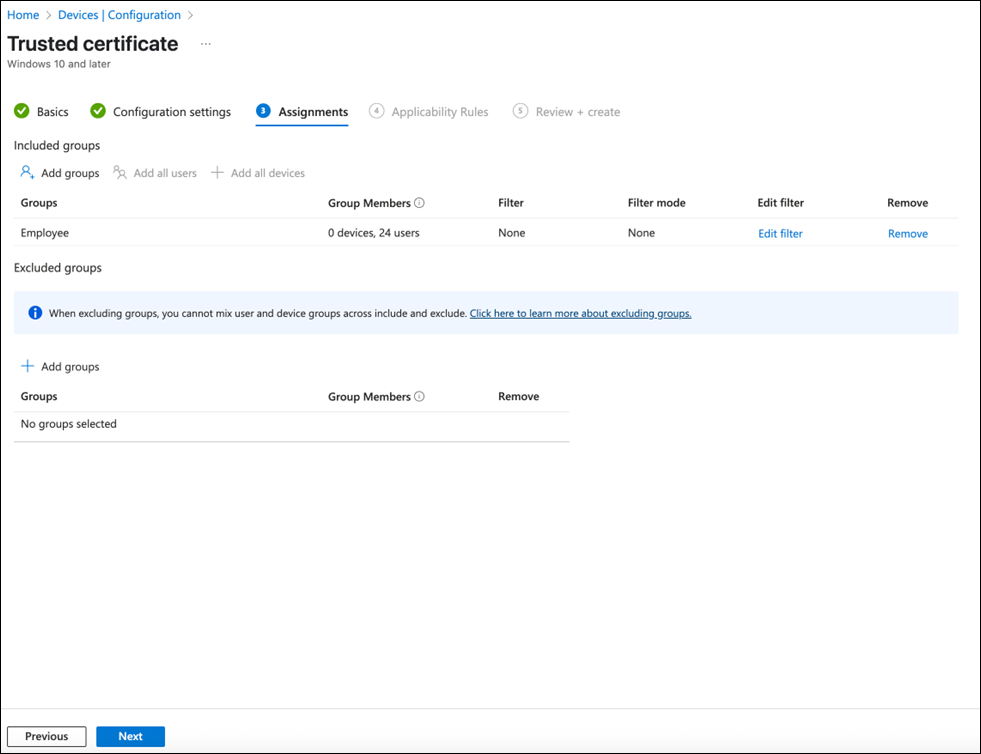
Assign this profile to specific user group or all devices:
Click Next and then click Create.
Repeat steps 1 through 8 for the HPE Mist Networking Onboard CA certificate.
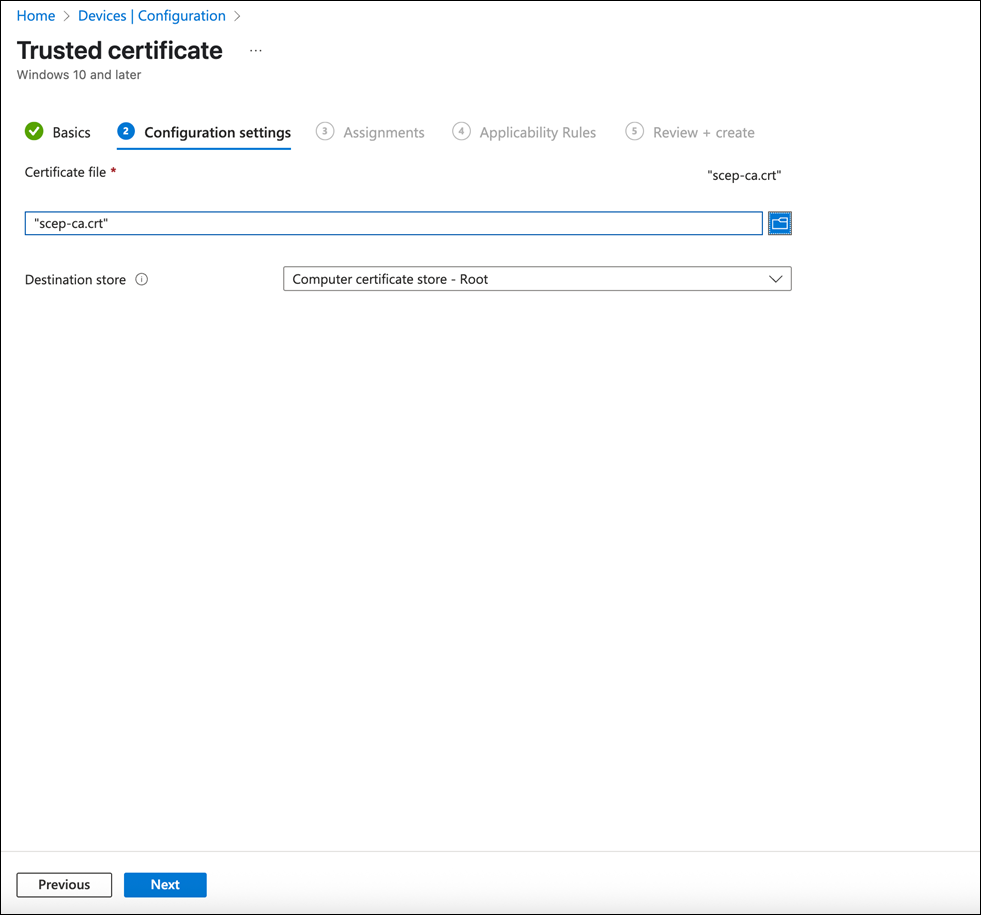
Create a SCEP Certificate Profile
The SCEP certificate profile instructs the client to obtain a client certificate from the HPE Mist Networking SCEP Service. In this example we use the User Certificate type, but you can follow the same steps for a device certificate.
- Navigate to Devices>Configuration, and click Create>New Policy.
Select a platform. We've used Windows 10 and later in this example.
Select Templates as the Profile Type.
Select the SCEP from the template list and click Create.
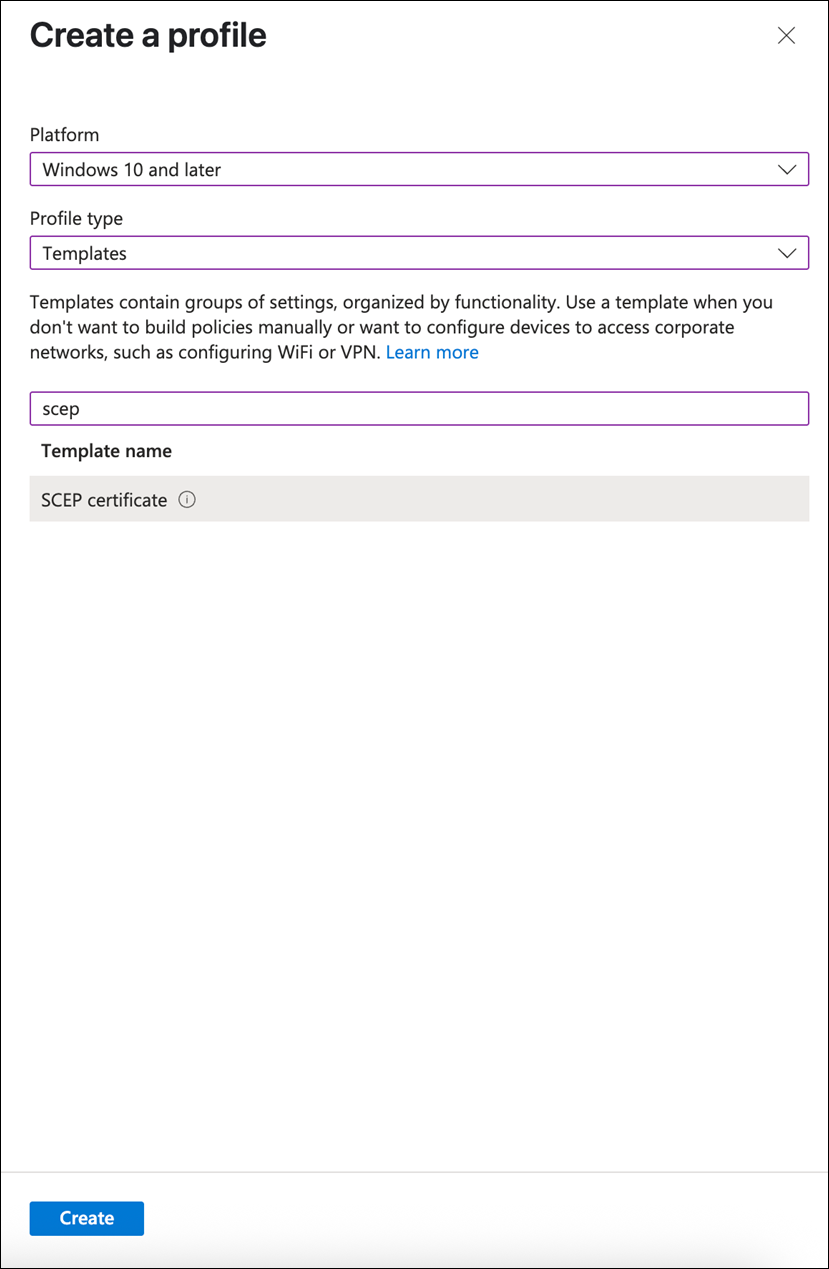
Provide a name for the certificate and click Next.
Enter the configuration settings as shown in the following example. Add the SCEP URL in the SCEP Server URLs field.
Provide the optimal format of the certificate so that the extra information about the user or device can be encoded for NAC to use in policy evaluation. In this example, the Intune Device ID is encoded in the SAN:DNS field, which enables periodic checks for device compliance. The full user principal name is encoded in the SAN:UPN field, which enables group membership lookup against the Entra ID.
The client will be instructed to trust the HPE Mist Networking Onboard CA certificate.
Note:Including the Device ID in the SAN:DNS field is mandatory because NAC uses this value for device identification and compliance checks.
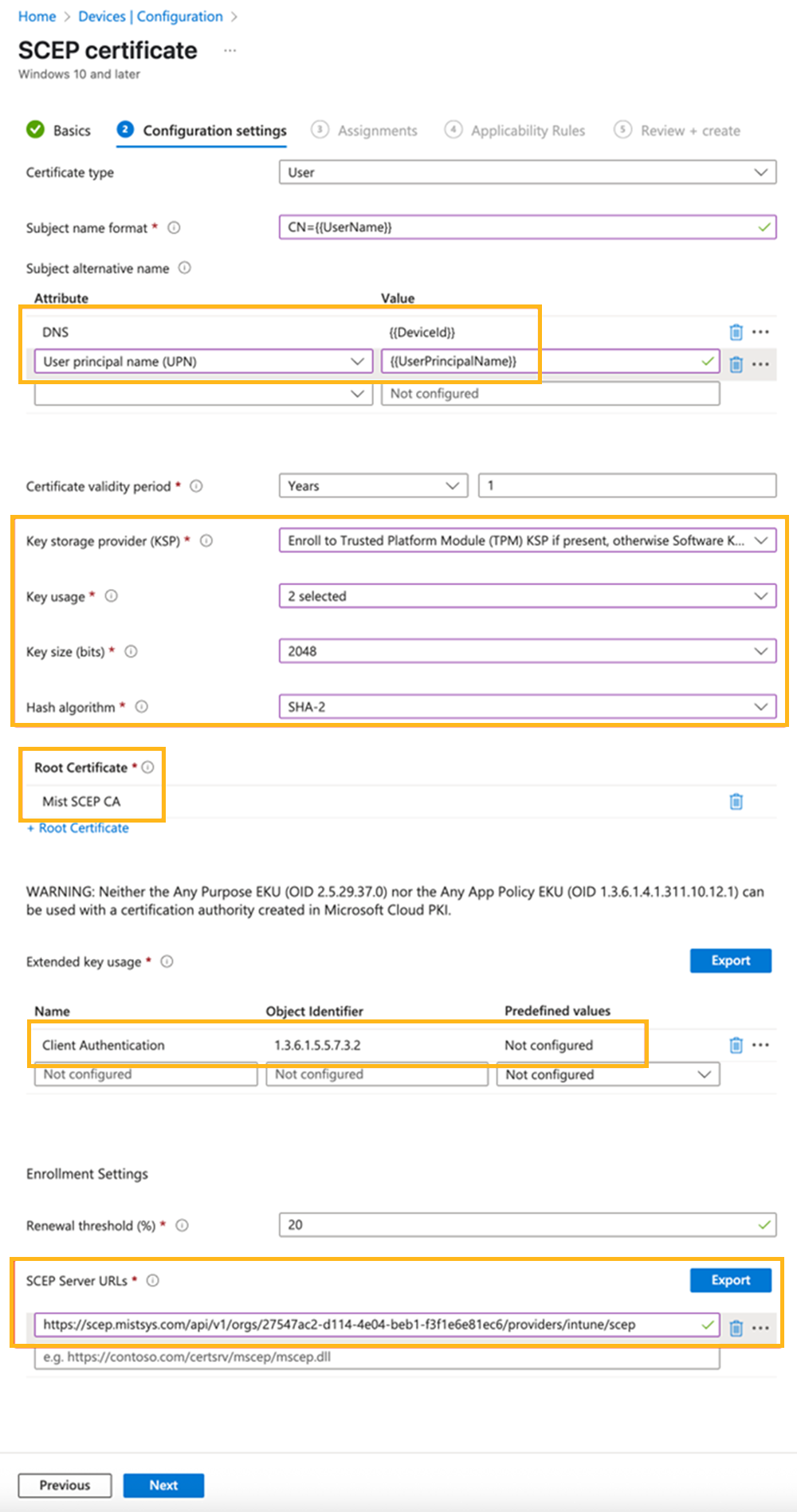
Assign this profile to specific user group or all devices.
Click Next and then click Create.
After the profile is pushed to the Windows client, you'll see a new client certificate issued under Personal User Certificate storage:
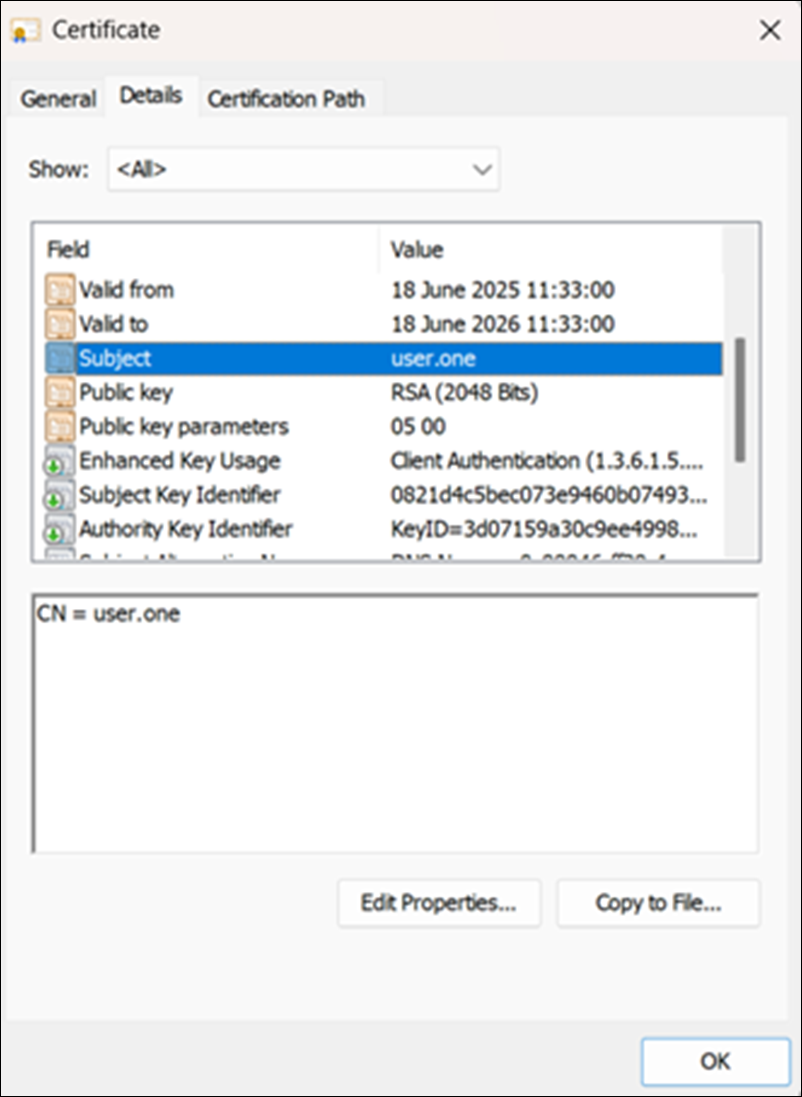
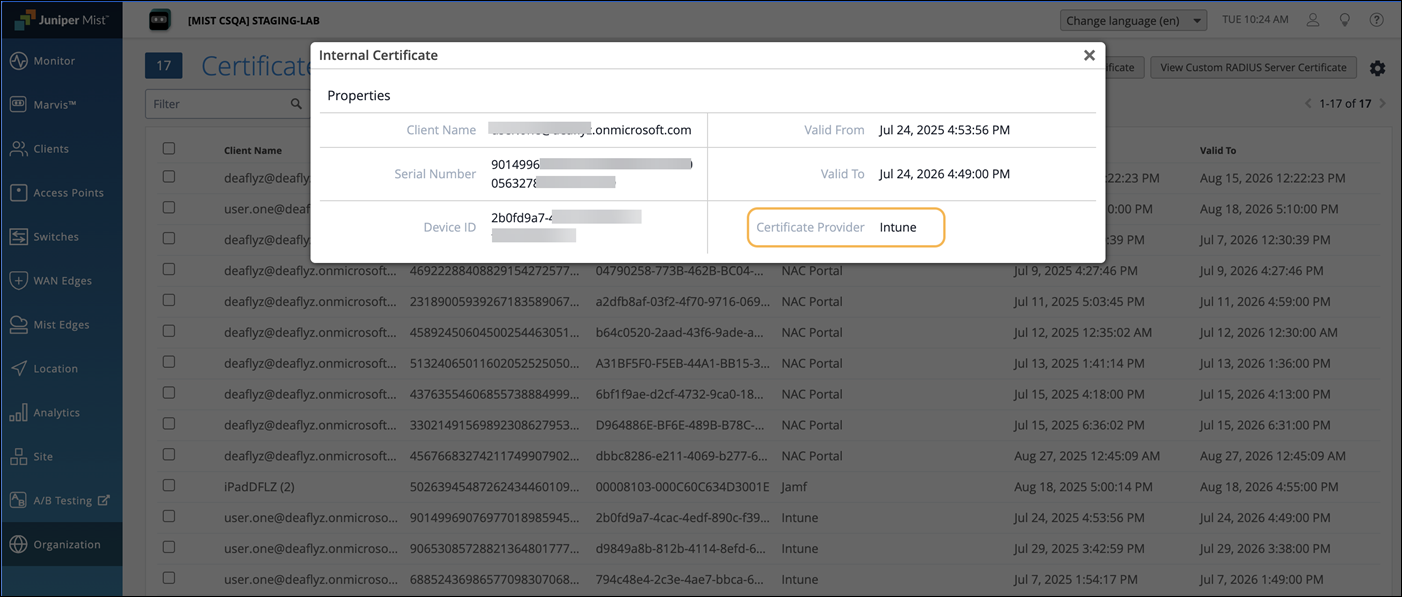
In the HPE Mist management portal, confirm that the client certificate is issued under Certificates>Internal.
Create a Wi-Fi Profile
- Navigate to Devices>Configuration, and click Create>New Policy.
Select a platform. We've used Windows 10 and later in this example.
Select Templates as the Profile Type.
Select Wi-Fi from the template list.
Provide a name for the certificate and click Next.
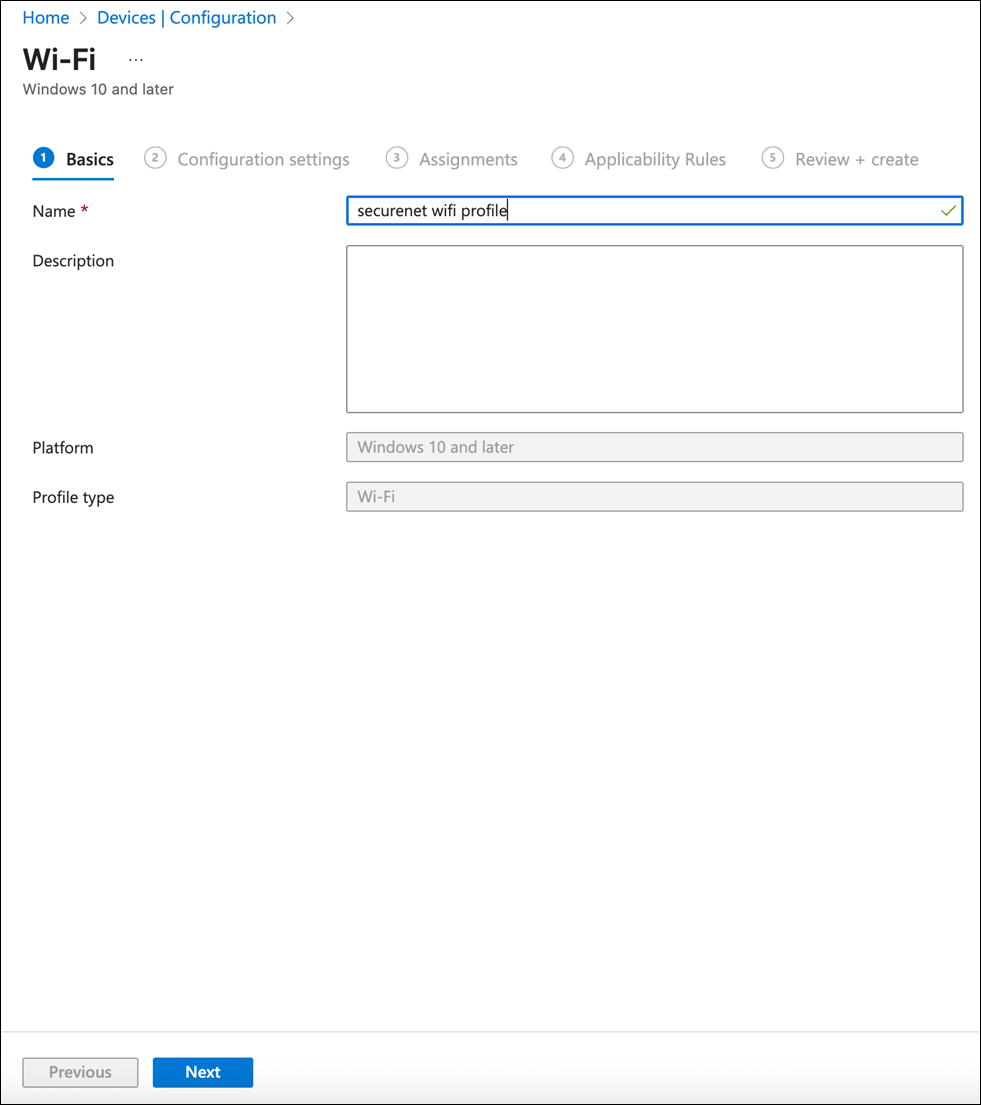
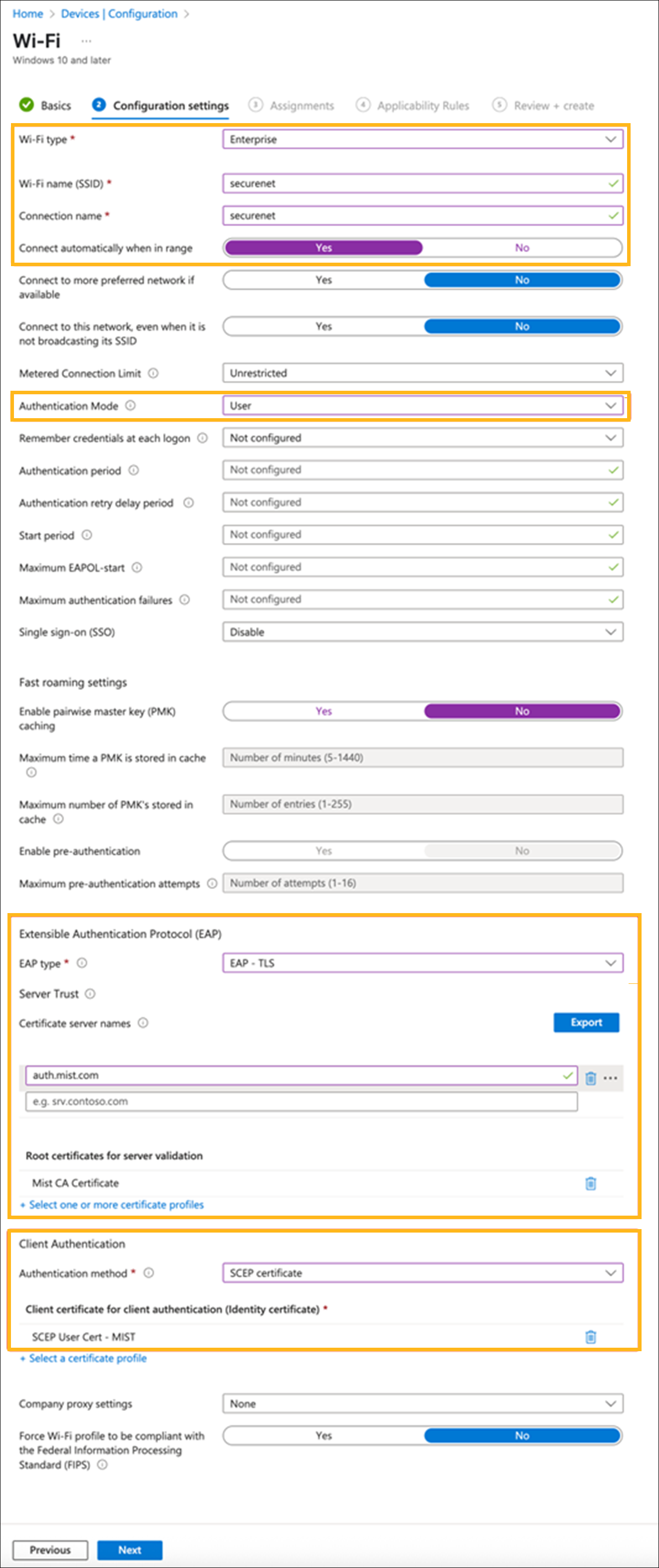
Enter the configuration settings as shown in the following example.
Select Enterprise as the security type.
Provide your SSID name.
Set the correct authentication mode (user and computer, user, or computer) based on the type of SCEP certificate you are providing to the clients.
Add the HPE Mist Networking Org CA certificate as the Root certificate for server (RADIUS) validation.
Add the SCEP Profile as the Client certificate for client authentication.
Initiate a device sync from Intune so that the devices can obtain the latest profile updates. The client devices can automatically obtain the digital certificates.
Configure Custom Client Certificate Validity for Intune
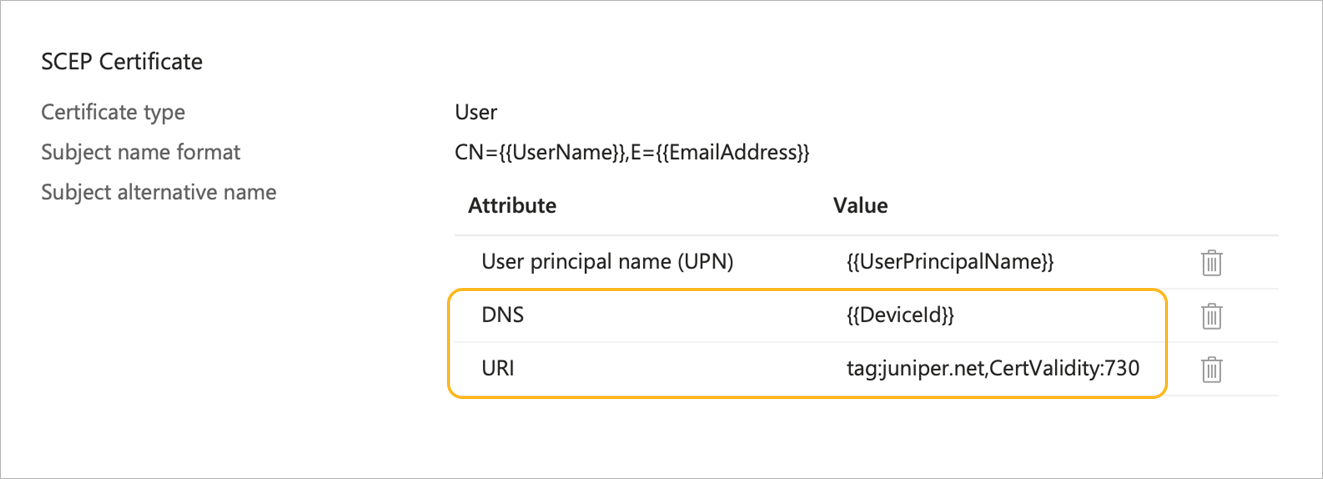
By default, client certificates issued through Microsoft Intune using HPE Mist Networking SCEP are valid for 1 year. To configure a custom certificate validity period, include a URI entry in the Subject Alternative Name (SAN) field of the certificate profile. You must provide the following information:
-
DNS—add the {{DeviceId}} value
-
URI—enter the following:
tag:juniper.net,CertValidity:<validity-In-days>
For example: tag:juniper.net,CertValidity:730. In this example, the client certificate will be valid for 2 years from the certificate issuance date instead of the default 1-year validity period.