
View and Manage BLE Clients
The BLE Clients page shows information about all Bluetooth Low Energy (BLE) clients that have been active at the selected site and floorplan.
Juniper Mist Asset Visibility is a cloud service that provides real-time tracking and historical location analytics for people, Bluetooth Low Energy (BLE) assets, and IoT devices. For example, with asset location and tracking configured on a site, you can quickly account for high-value construction equipment, or pinpoint the location of key human resources such as nurses or security guards. It's not uncommon, however, for the number of assets under management to scale to the thousands and even tens of thousands, making it hard to find and track individual items or groups in a meaningful way.
Juniper Mist provides multiple ways to name, filter, and categorize BLE assets so you can organize and identify them at scale.
Prerequisites
-
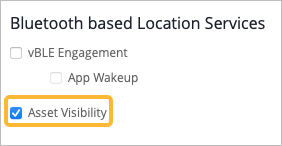
Select the Asset Visibility check box.
Find the BLE Clients Page
Juniper Mist Asset Visibility solves this by providing a variety of ways that you can use to name, filter, and categorize your BLE assets.
To view your existing BLE Clients in the Mist dashboard, select a site with BLE clients and then choose the following:
- Clients > BLE Clients
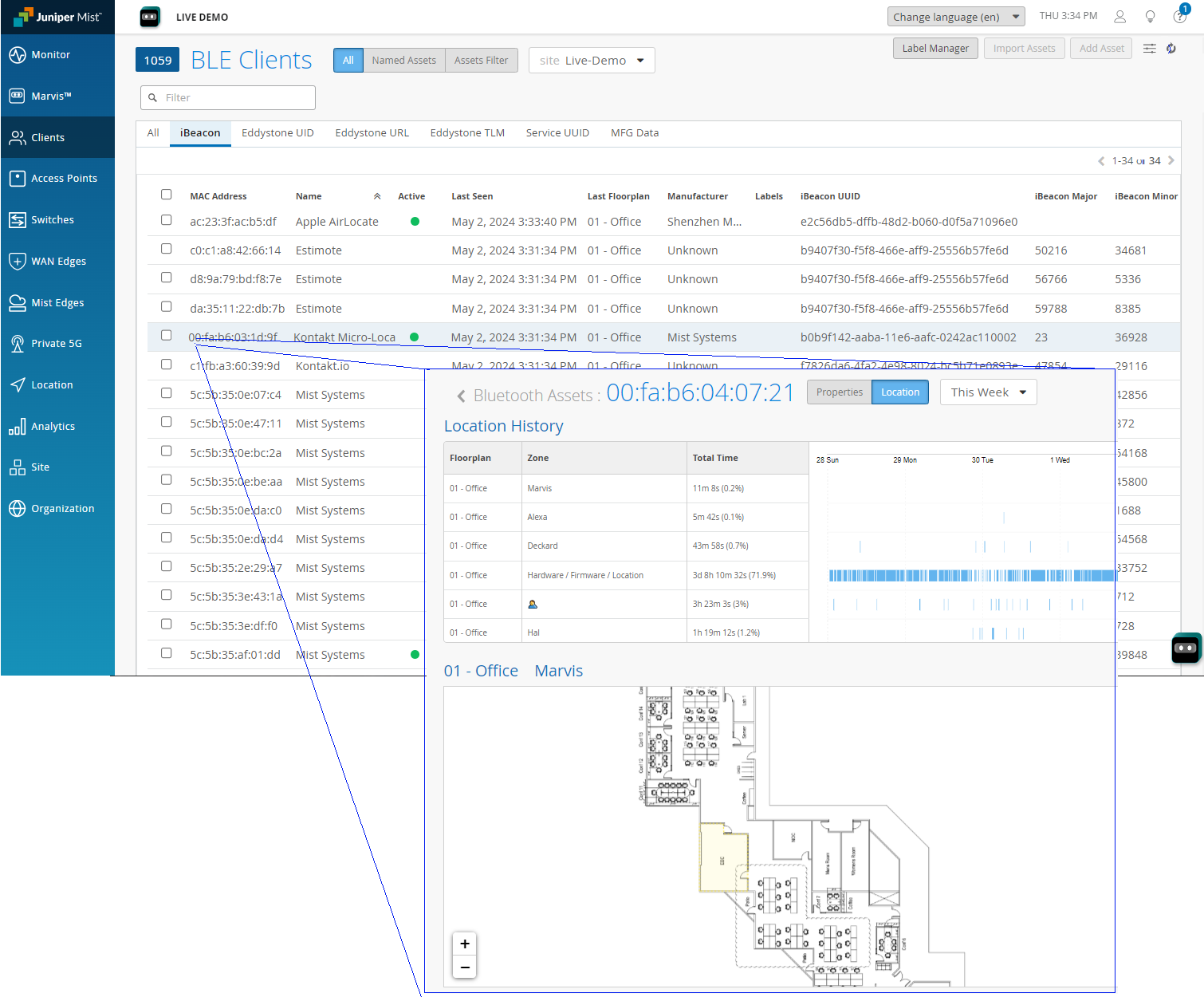
Figure 1 shows a typical list of BLE clients (also called tracked assets, and BLE tags) along with the Live View and location history of one selected BLE client. By default, Juniper Mist Asset tracking supports BLE MAC addresses and RSSI signal strength. The omnidirectional Bluetooth antenna in Juniper Mist APs also works in conjunction with RSSI signal strength identify the quadrant, or relative direction, of the asset to the AP.
From BLE clients page, you can select the site and use the tabs to quickly filter assets that have already been grouped:
-
By Site—Select a site from the drop down. Note that if the site does not have any BLE clients, that option will not show up in the menu.
-
By Tab:
-
All—Shows all client BLE assets in the site. If a Juniper Mist AP can hear the signal, the asset will be listed, regardless of whether the tag is named or labeled or otherwise.
-
Create Named Assets—Use named assets to find and display assets by their custom Mist asset label and beacon type.
-
Create Asset Filters—The Asset Filters tab shown a list of existing asset filters, if any, that are available in the Mist portal.
-
To add assets to the list, click the Add Asset button to create the filters, as explained below.
-
-
-
By Attribute—To filter based on an attribute such as MAC address or manufacturer, start typing in the Filter box. For example, you only need to type uni to find assets with "Juniper Networks" in the name. You can also use multiple filters to further narrow the list, as shown here:
-

Filter the Data
-
To show only named assets, click the Named Assets button near the top of the page.
Note:For help naming assets, see Create Named Assets.
-
To select a site, use the Site drop-down list near the top of the page.
To filter by BLE advertisement details, click the tabs above the table: iBeacon, Eddystone UID, Eddystone URL, Eddystone TLM. For example, if you select iBeacon, the table shows only the clients that are advertising iBeacon UUID/Major/Minor packets.
See BLE Beacons.
Adjust the Columns
-
To sort by a column, click the column heading. To reverse the sort order, click the column heading again.
-
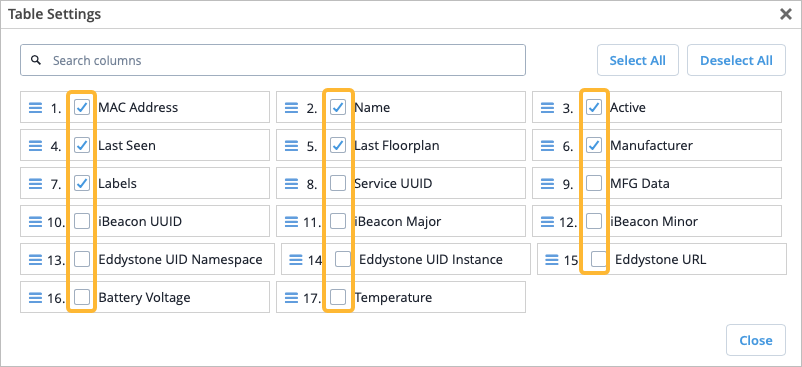
To view the column options, click the settings button at the top right corner of the page.

In the Table Settings window, select the check box for each column to include. Clear the check box for each column to remove. Close the window to apply the changes.
Add, Modify, or Remove Assets
-
To add an asset, click Add Asset. Then enter the name, select any labels that you want to apply, and enter the MAC address.
Note:You also can import a list of assets. See Import Assets.
-
To add or remove labels for assets, select the check boxes for the assets, and then click Edit Assets. Then make your changes, and click OK.
-
To delete assets, select the check boxes for the assets, and then click Delete Assets.